
Question

Installing patch to support KB4743

  • April 21, 2026
  • 8 comments
  • 52 views

BrnHornet

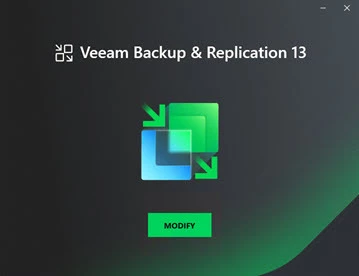
I am trying to update Veeam Community Edition to the current version as recommended by KB4743.  Unfortunately, each time I attempt to run the upgrade I get a "Modify" option instead of "Upgrade".   I have check the Veeam KBs as well as looked though the Veeam Community for an answer - any help on this would be appreciated.



8 comments

stevennew
Forum|alt.badge.img+3
  • Veeam Vanguard
  • April 21, 2026

It’s because you just need to apply the patch and not “upgrade”. Go into the ISO and you should see a patch folder. Run the installer in that folder, it will then update to the latest version 


kciolek
Forum|alt.badge.img+4
  • Influencer
  • April 21, 2026

Are you sure you have the correct version for Community edition? I had a similar problem with the regular VDP and turned out to be advanced instead of Premium edition. 

If unsure, i would contact support. 


Chris.Childerhose
Forum|alt.badge.img+21

Download the patch from the KB or like Steven said, go into the patch folder to run it.


Jason Orchard-ingram micro
Forum|alt.badge.img+2

hi ​@BrnHornet 

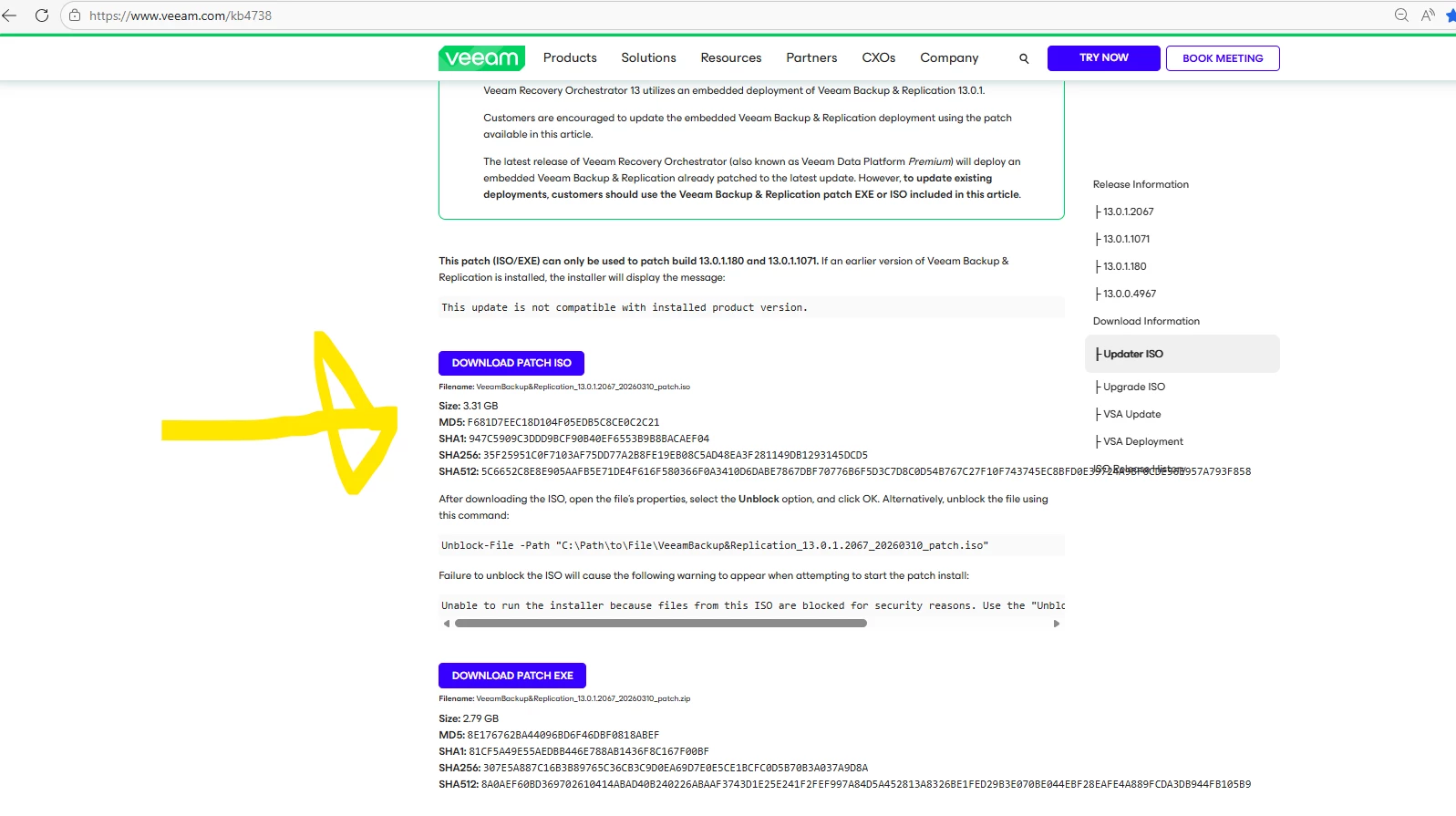
KB4738: Release Information for Veeam Backup & Replication 13 and Updates 

if you scroll down the page you will find a button to called “Download patch ISO“  or “download patch EXE”
this will allow you to upgrade to the last version of VBR V13. 


BrnHornet
  • Author
  • New Here
  • April 21, 2026

Thanks All for your comments.  I found both the folder that ​@stevennew indicated as well as the ISO mentioned by ​@Jason Orchard-ingram micro.  Unfortunately when I tried to run the upgrade from either the ISO or EXE I received the following:

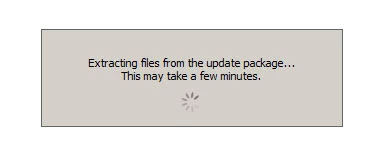
Notification that the install is unpacking the necessary files.  

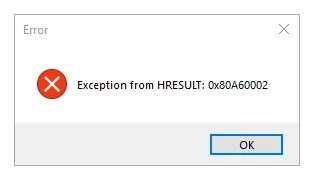
Followed by the error shown below.

I have installed the Community Edition on a Windows 2022 server as follows:

16 GBs MBs of RAM installed (Dynamic - starts at 8 GBs)
6 virtual processors
127 GBs OS Drive
200 GBs DataDrive
500 GBs Backup Storage (iSCSI Attached via a dedicated NIC)

I am only backing up 4 devices  (I know this is overkill - but I enjoy learning new technologies)

Again thanks to everyone for the help.


Jason Orchard-ingram micro
Forum|alt.badge.img+2


That error isn’t related to your sizing or the number of devices you’re backing up — your server is more than capable. What’s actually happening is that the installer is failing while unpacking the update files, which is a pretty common Windows issue.

The 0x80A60002 message usually shows up when Windows blocks the installer from extracting files. In most cases, it ends up being one of these:

Windows Defender or AV getting in the way
This is by far the most common cause. While the update is unpacking, Defender can block or quarantine temporary files and the installer just gives up.

Quick test:
Temporarily turn off Defender real‑time protection and rerun the update as Administrator. If it works after that, you’ve found the cause.

Temp folder issues
The installer extracts to your user’s temp directory. If permissions are broken, space is tight, or something is monitoring the folder, the extraction fails.

You can check where Windows is unpacking to by running:

echo %TEMP%

Make sure there’s space and you can actually create files there.

Pending reboot
If Windows Updates or another install hasn’t finished cleanly, MSI installers can fail in odd ways like this.

A simple reboot before retrying fixes this surprisingly often.

Blocked download
If you downloaded the patch via a browser, Windows may have blocked it.

Right‑click the installer → Properties → check Unblock (if it’s there), then run it again as admin.

Suggested order to try

If I were doing this from scratch, I’d:

  1. Reboot the server
  2. Disable Defender real‑time protection temporarily
  3. Run the installer as Administrator
  4. Re‑enable Defender once done

In most cases, that’s enough to get past it.

Your hardware, storage, and workload count are absolutely fine and won’t cause this error — this one’s almost always Windows getting in the installer’s way.

If it still fails, check the logs under:

C:\ProgramData\Veeam\Logs\
C:\ProgramData\Veeam\Setup\Temp\

They usually point pretty clearly at what blocked the extraction.


BrnHornet
  • Author
  • New Here
  • April 23, 2026

All -

I am still working on this (now working on a new SharePoint site) - the suggestion by ​@Jason Orchard-ingram micro has pointed me to a possible licenses issue.  I am in the process of chasing this down and will update everyone when I have applied the update.  


17:18:55.5159 ******* EXCEPTION *******
System.Runtime.InteropServices.COMException (0x80A60002): Exception from HRESULT: 0x80A60002
   at VeeamLicenseLib.IVeeamLicenseManager.OpenFromRegistry(Boolean i_ForCurrentUser, String i_KeyName, String i_ValueName)
   at VBRValidator.VbrLicenseValidator.IsValid(String& errorMessage)
   at Veeam.HotFix.Core.ProductValidatorWrapper.IsValid(String& errorMessage)
   at HFWizard.Product.IsInstalledProductValid(ShowMessageFunc showMessage)
   at HFWizard.InstallHotFixClass.<>c__DisplayClass25_0.<CheckInstalledConfiguration>b__2(Product installedProduct)
   at System.Linq.Enumerable.Any[TSource](IEnumerable`1 source, Func`2 predicate)
   at HFWizard.InstallHotFixClass.CheckInstalledConfiguration()
   at HFWizard.HotfixForm.HotfixFormInit()
   at HFWizard.HotfixForm..ctor(CmdSettings settings)
   at HFWizard.Program.RunWizardUI()
   at HFWizard.Program.RunWizard(String[] args)
17:18:55.5159 


Jason Orchard-ingram micro
Forum|alt.badge.img+2

All -

I am still working on this (now working on a new SharePoint site) - the suggestion by ​@Jason Orchard-ingram micro has pointed me to a possible licenses issue.  I am in the process of chasing this down and will update everyone when I have applied the update.  


17:18:55.5159 ******* EXCEPTION *******
System.Runtime.InteropServices.COMException (0x80A60002): Exception from HRESULT: 0x80A60002
   at VeeamLicenseLib.IVeeamLicenseManager.OpenFromRegistry(Boolean i_ForCurrentUser, String i_KeyName, String i_ValueName)
   at VBRValidator.VbrLicenseValidator.IsValid(String& errorMessage)
   at Veeam.HotFix.Core.ProductValidatorWrapper.IsValid(String& errorMessage)
   at HFWizard.Product.IsInstalledProductValid(ShowMessageFunc showMessage)
   at HFWizard.InstallHotFixClass.<>c__DisplayClass25_0.<CheckInstalledConfiguration>b__2(Product installedProduct)
   at System.Linq.Enumerable.Any[TSource](IEnumerable`1 source, Func`2 predicate)
   at HFWizard.InstallHotFixClass.CheckInstalledConfiguration()
   at HFWizard.HotfixForm.HotfixFormInit()
   at HFWizard.HotfixForm..ctor(CmdSettings settings)
   at HFWizard.Program.RunWizardUI()
   at HFWizard.Program.RunWizard(String[] args)
17:18:55.5159 


yep, baased on this output;  The hotfix fails during the pre‑install validation stage.
The installer is trying to read the existing Veeam license from the Windows registry and is throwing HRESULT 0x80A60002 when doing so. Because the license check fails, the hotfix wizard exits before unpacking or installing anything.

This points to a missing, corrupted, or unreadable license rather than an issue with the patch itself.


If you’re running Veeam Community Edition, this error usually means the license isn’t being read properly, not that anything is wrong with the server or the patch itself.

What I’d try next:

  1. Open the Veeam console and go to Menu → License
    If anything looks odd (expired, blank, or errors), remove the license.

  2. Close the console, then reopen it and re‑select Community Edition so it reapplies the CE license.

  3. Once CE shows as valid again, rerun the hotfix as Administrator.

In most cases, simply removing and re‑applying the Community Edition license clears the registry issue and the patch installs fine.

If that still doesn’t work, I’d run a repair on the Veeam install and then reapply CE before retrying the patch.