



If you’ve been following this series of articles, you know by now that Veeam’s support for syslog allows you to leverage Microsoft Sentinel and many other solutions that support syslog to monitor your Veeam environment for operational and security events. Getting the data in is the easy part. The hard part is how to filter and query your Veeam event data for important information that you can quickly and effectively act on.
The previous entry in this series walked through a simple example of the hard part, demonstrating how to set up an analytics rule in Microsoft Sentinel to scan Veeam events for a specific configuration change (four-eyes authorization disabled, event ID 42401) that could signal a compromised server. It’s easy enough, but that’s only one rule. Veeam emits hundreds of events, so the task of building your own rule sets that are all properly categorized and prioritized can be daunting given the breadth and scope of events that Veeam produces. Even if you build a rule set yourself, there’s still the issue of how to efficiently and effectively take action when an issue occurs.
That is why I’m very proud to update this series to share our new Veeam App for Microsoft Sentinel, our dedicated solution for Microsoft Sentinel that radically simplifies and enhances your ability to integrate your Veeam event data into your Sentinel platform and workflows.
Meet Veeam App for Microsoft Sentinel
Available from the Microsoft Marketplace, the Microsoft Security Store, and the Sentinel content hub, it’s easy to find the app and get started. Once you get the app installed in your Sentinel-enabled Log Analytics workspace, our user guide will take you through the configuration steps.
Note, you will need to set up an Azure Monitor agent with syslog enabled to collect Veeam’s syslog data. I recommend setting up the syslog server in the same datacenter (or region if you’re running in the cloud) as your Veeam environment to ensure no events are missed due to transient connectivity issues. My first article in this series covers this process.
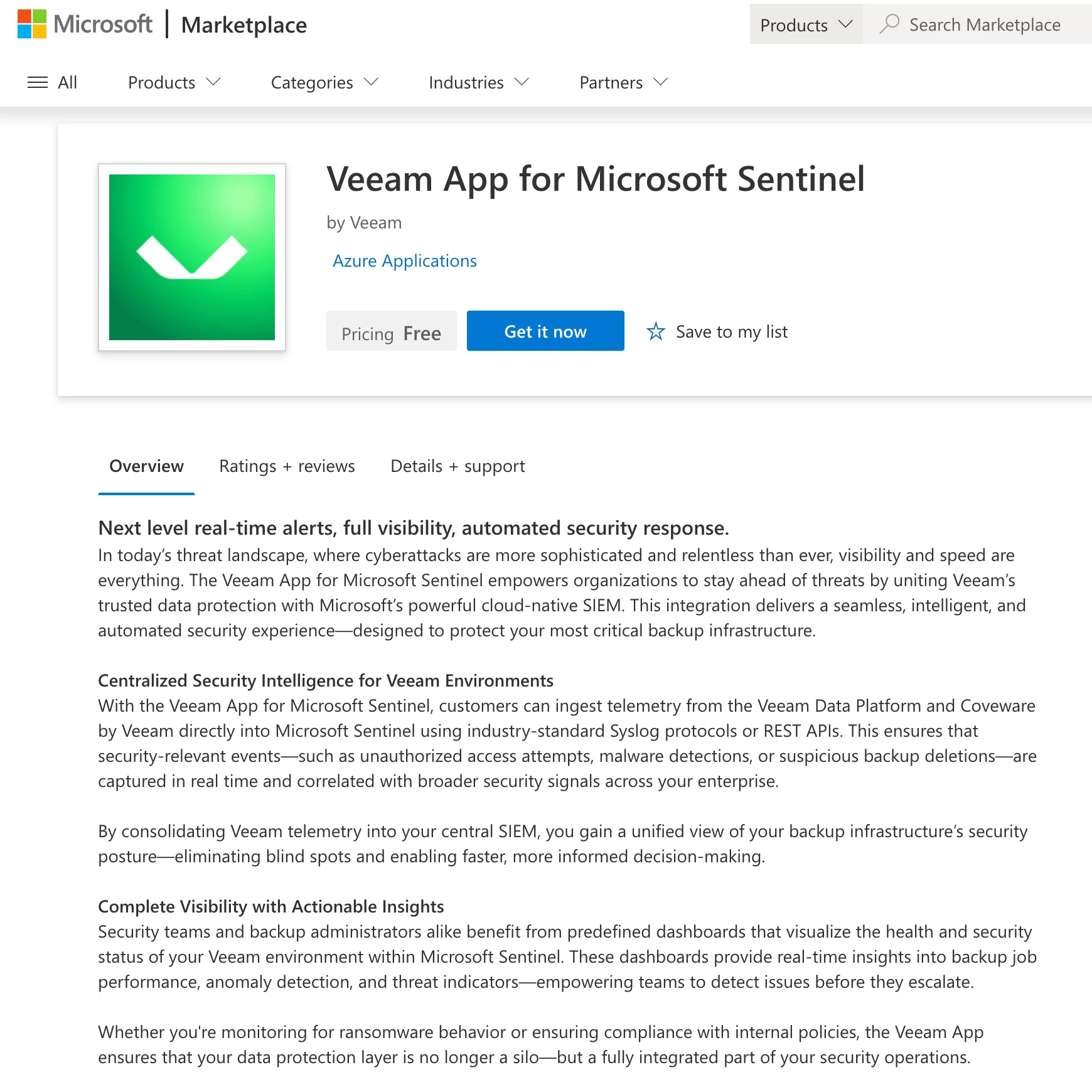
For this article, I’d like to bring your attention to three features in the app. First, let’s talk about setting up analytics rules again.
Analytics rules, revisited
Veeam App for Microsoft Sentinel includes over 100 built-in analytics rules. This drastically reduces your time-to-value between getting Veeam’s events into Microsoft Sentinel and making them actionable. Let’s take a quick look at how you set up analytics rules.
In your Sentinel workspace, select Analytics from the left menu, then select the Rule templates tab in the content pane, then use the filter to choose Veeam as the source name.
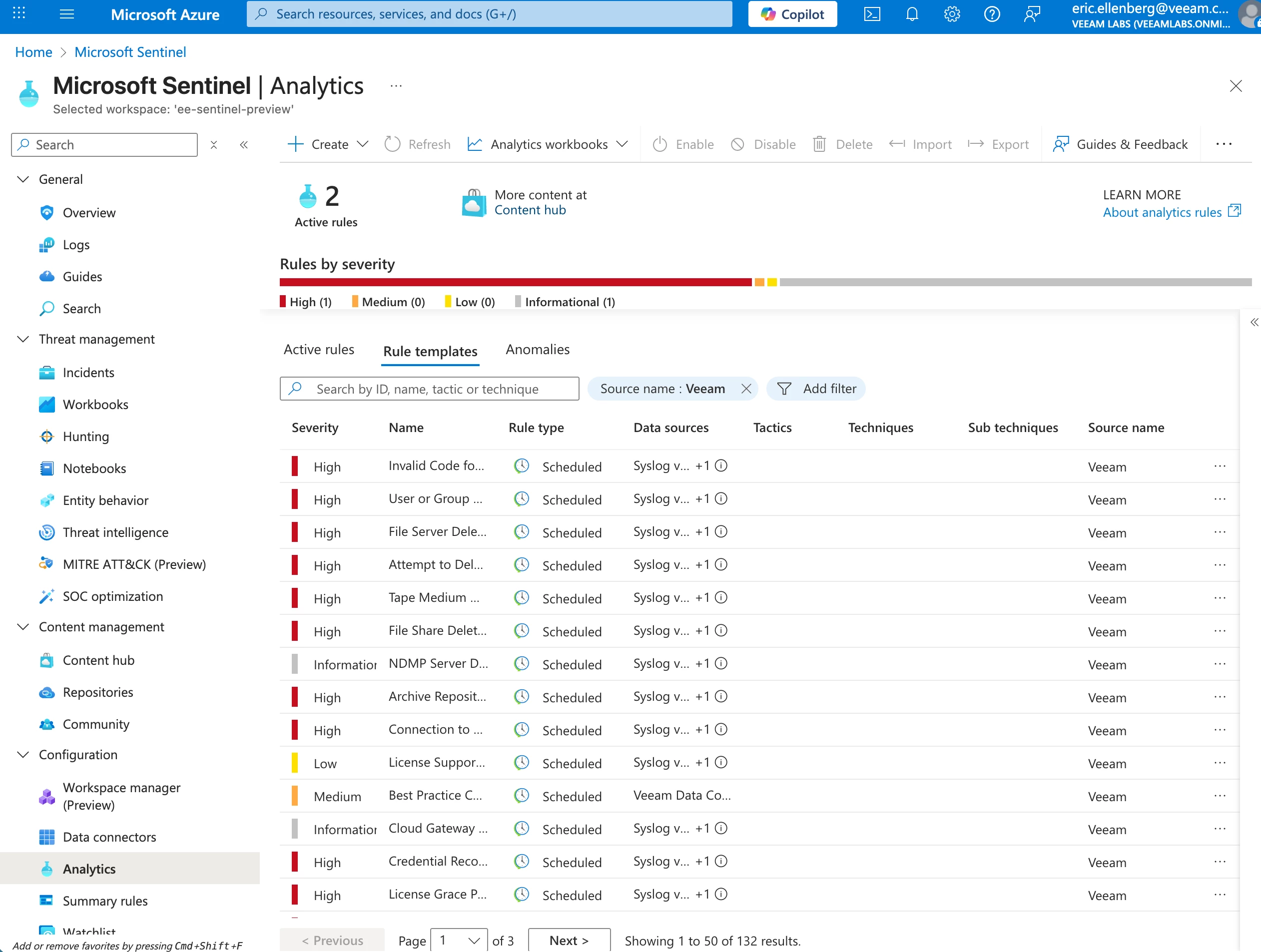
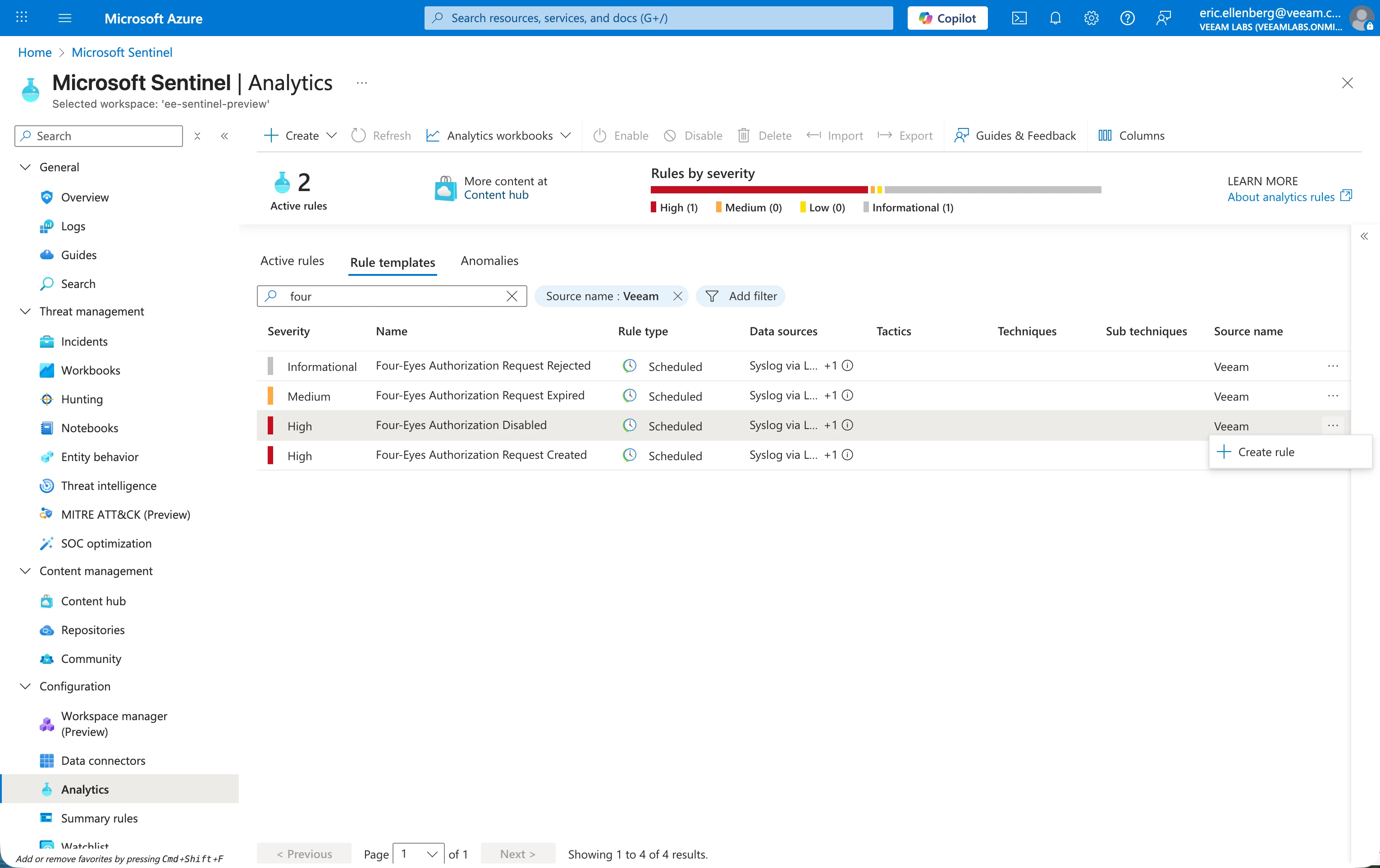
Here are all the analytics rules included with the app. Now let’s revisit the Four-eyes authorization disabled event. Search for the event by name, then select the three-dot menu on the right, then select Create rule.
This launches the Analytics rule wizard that creates the rule. Now, all the hard parts are done for you. You can customize certain aspects of the rule if you want, but otherwise you can skip straight to the final step to Review + create.
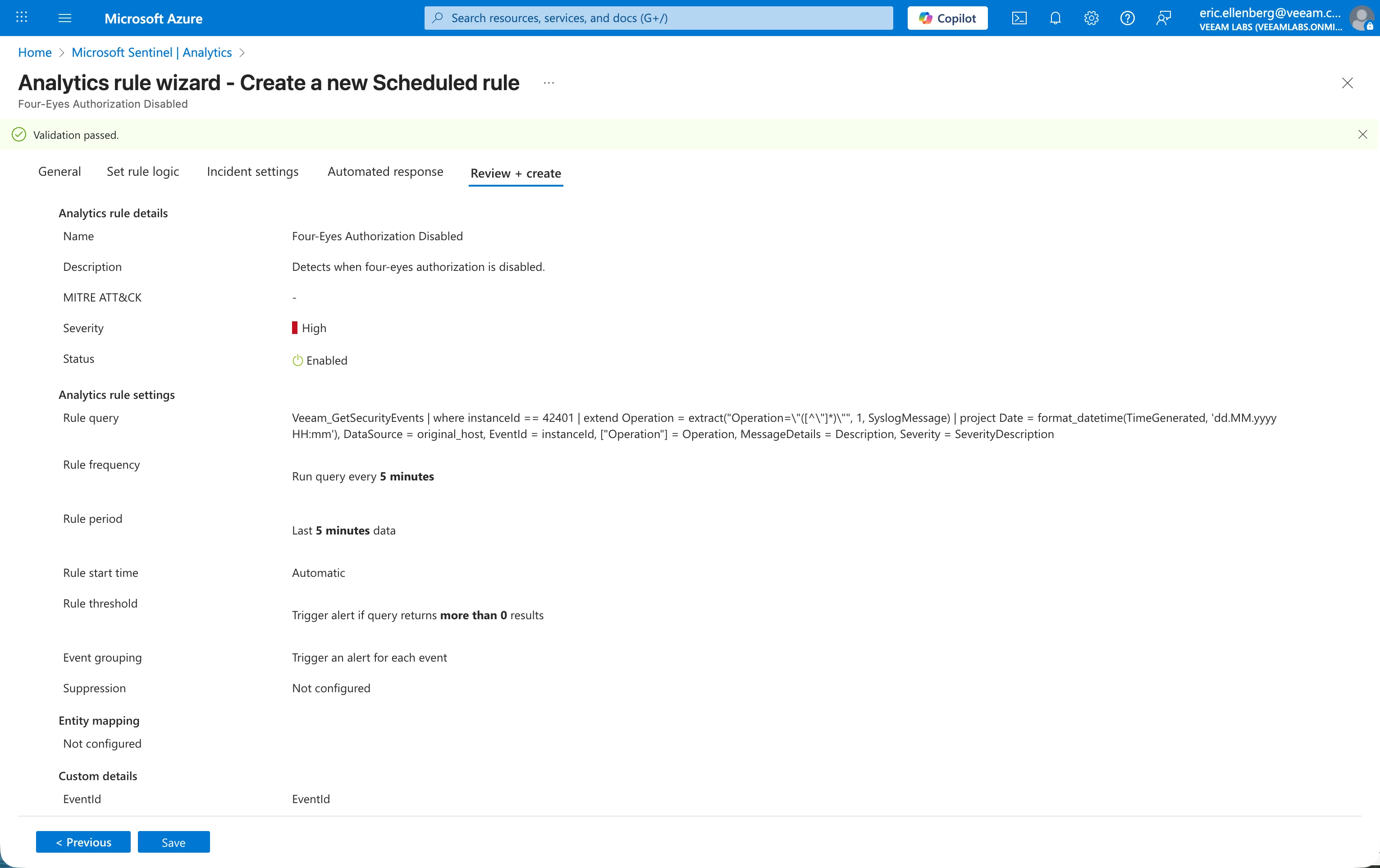
Click Save on this step, and the rule is saved and enabled in your Sentinel workspace. That’s it!
Workbooks
The next feature I’d like to show you are the built-in workbooks which give you feature-rich dashboards to get an overview of the overall health and security of your Veeam environment and backups. Select Workbooks on the left menu, then select one of the workbooks.
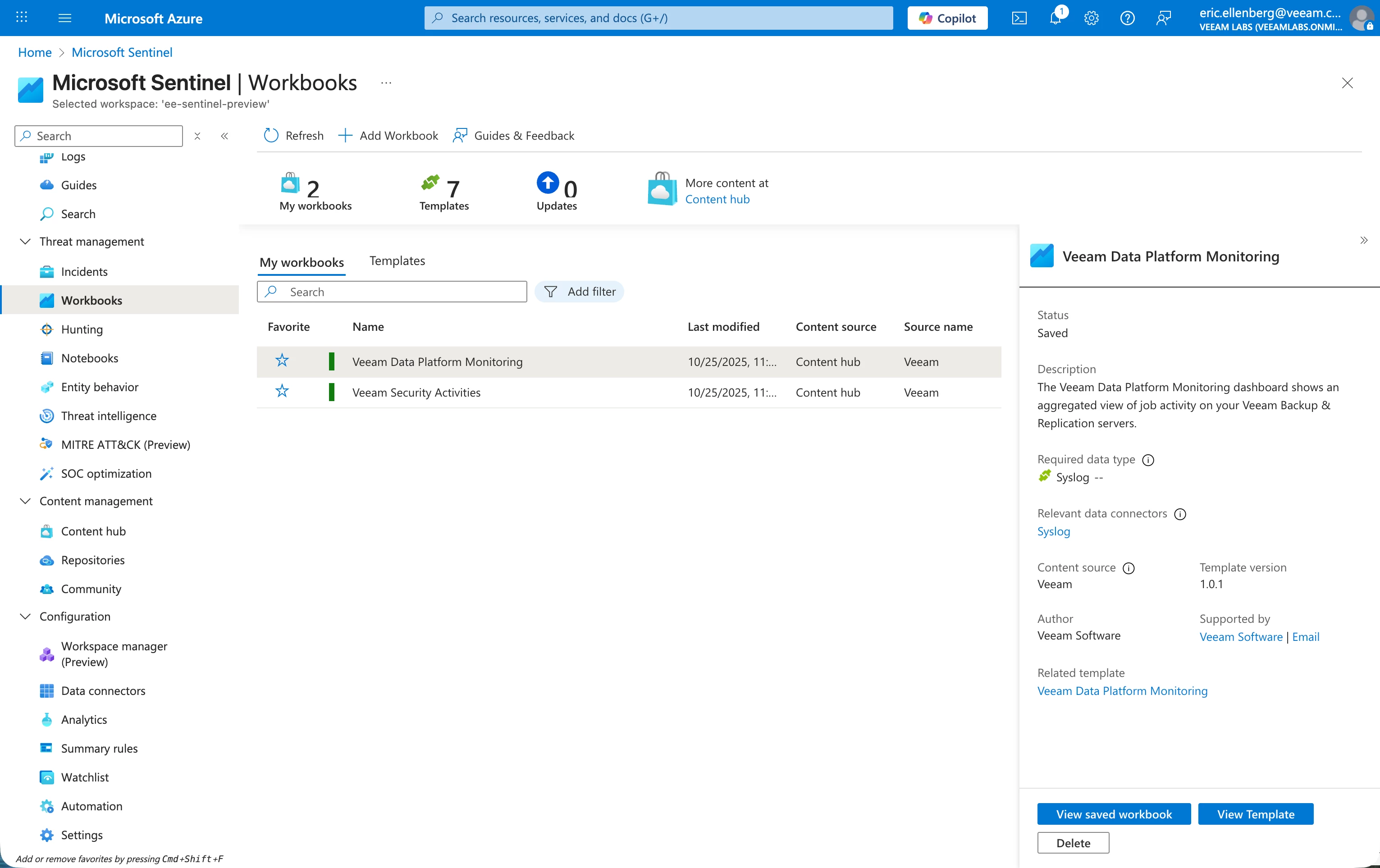
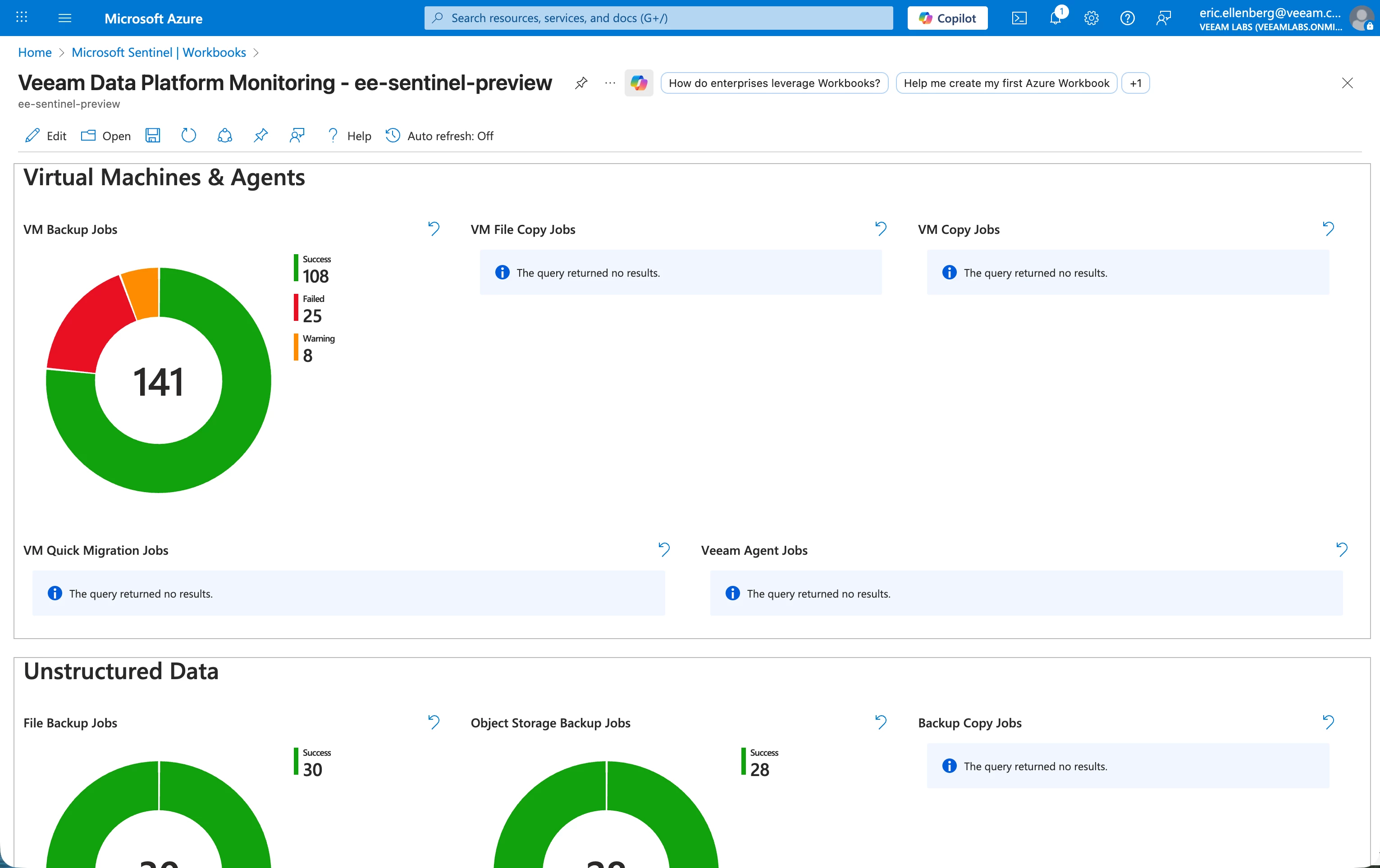
As you might have guessed by the name, the Veeam Data Platform Monitoring workbook shows you statistics and details on your backup jobs. The graphs in this workbook are all selectable so you can drilldown into individual events and even see the original syslog message. You can also edit this workbook just like you would any standard Sentinel workbook to suit your needs.
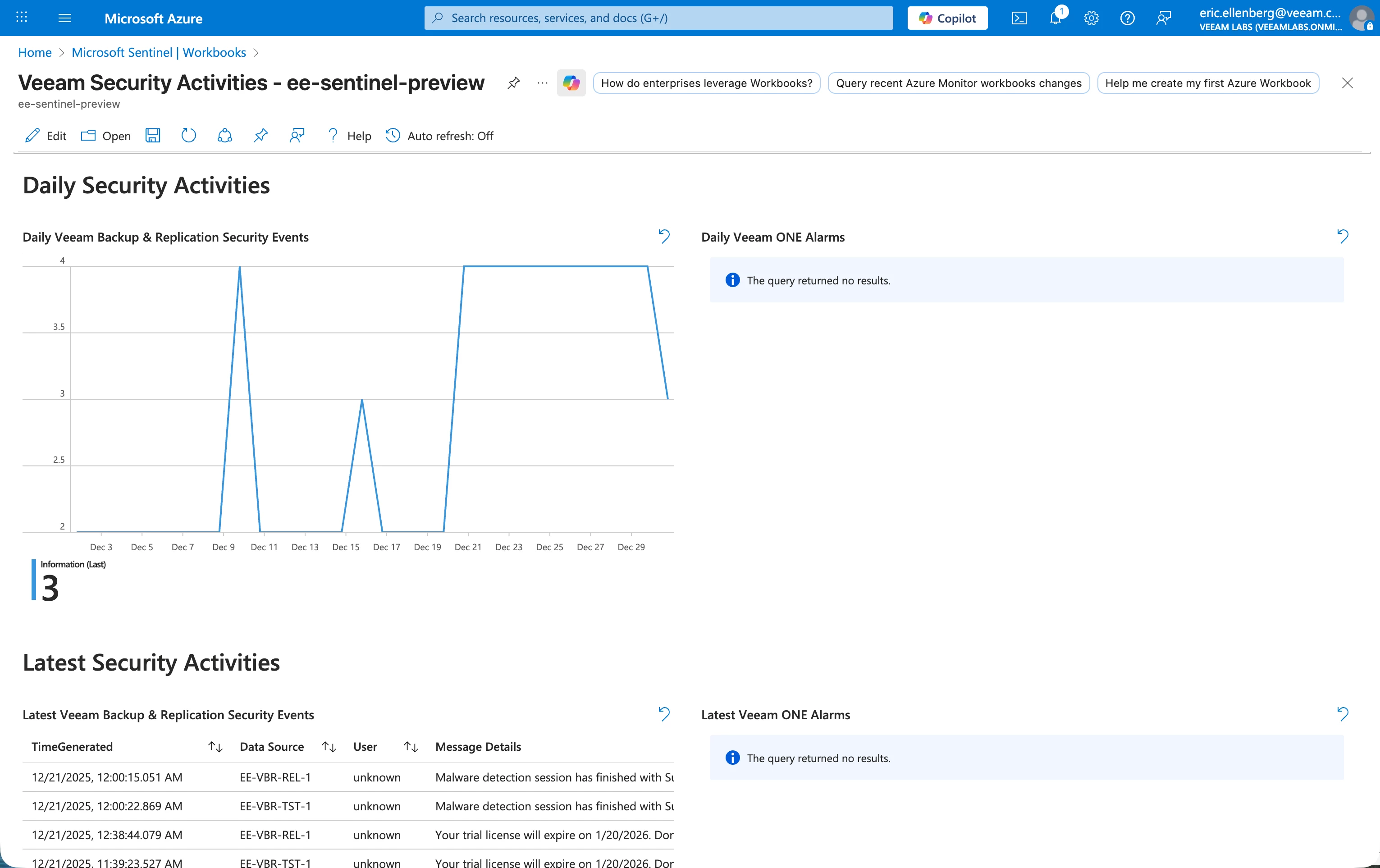
The other workbook, Veeam Security Activities, is designed for the security events Veeam provides. This includes malware detection events that can help you identify when backups contain malware, allowing you to intelligently choose a clean restore point or giving you an additional signal of a compromised or infected system.
Playbooks
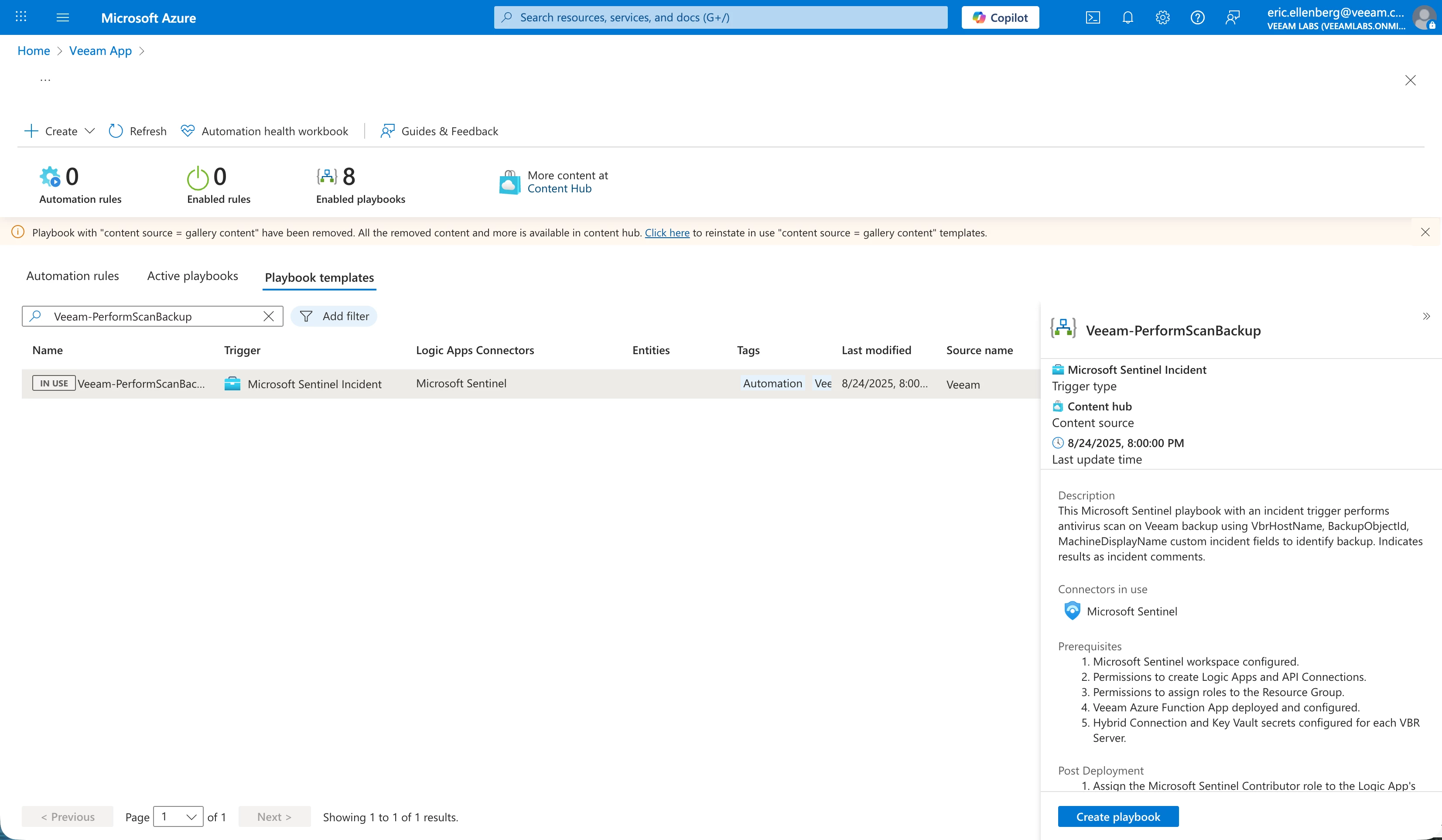
The final feature I want to show you in this article are the included playbooks, which are used to interact with Veeam when you need to take action on an issue directly from Sentinel. Similar to analytics rules templates, you have to first create a playbook from an included playbook template. For this example, I’m choosing the Veeam-PerformScanBackup playbook.
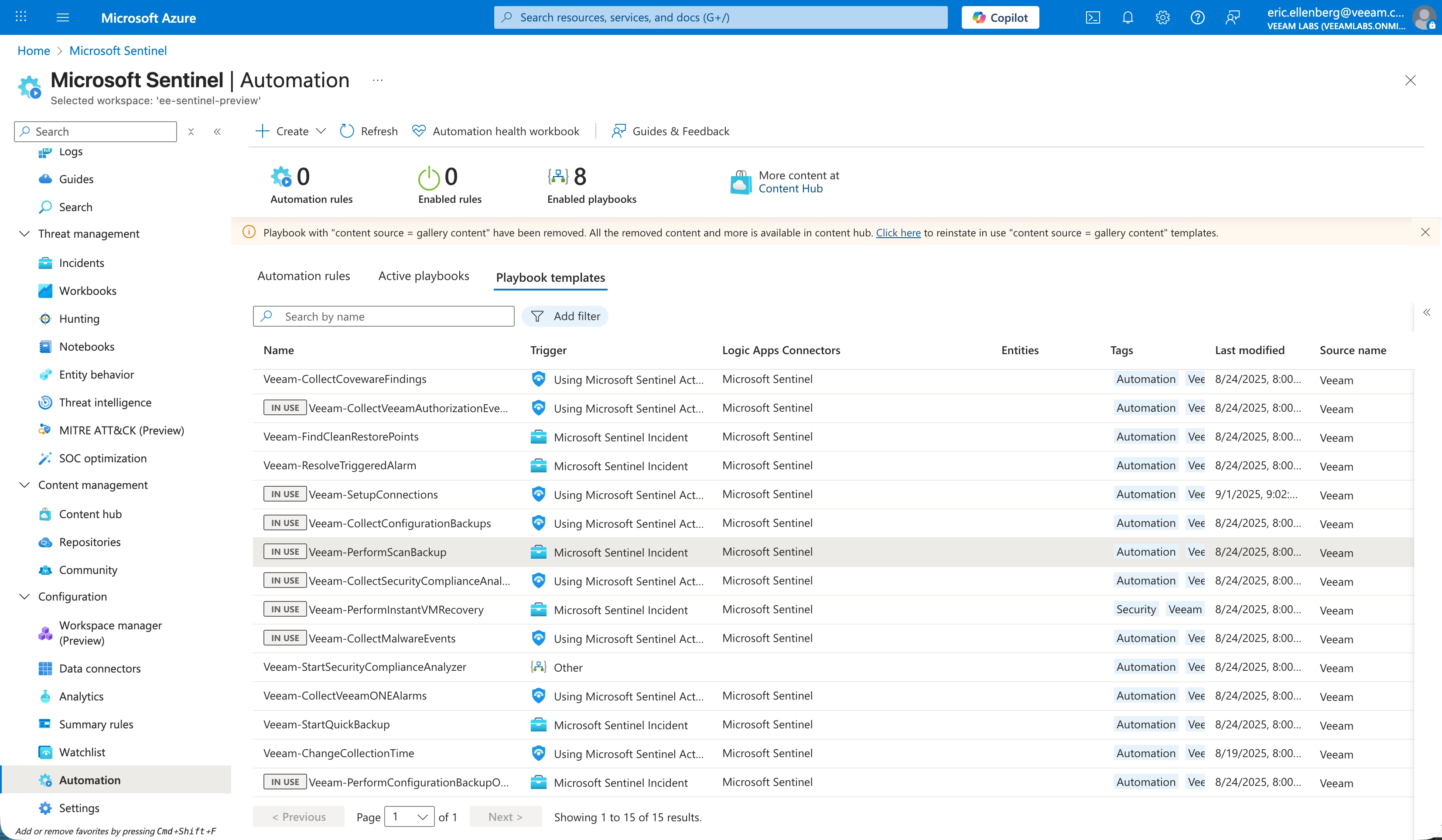
In the Azure portal interface, you’ll go to the management page for the app from the content hub, then select the playbook you want to deploy. Select Configuration, then Create playbook.
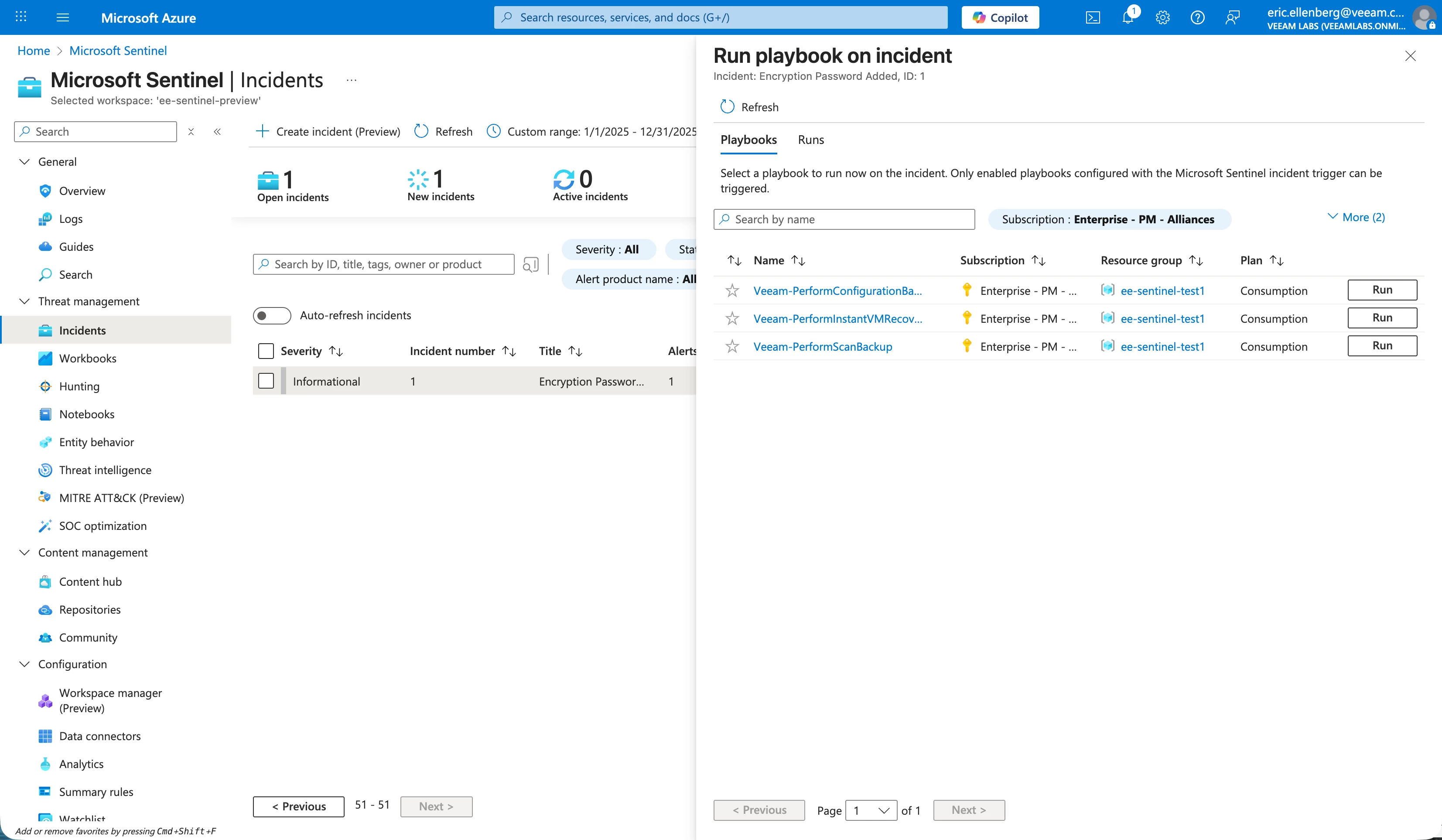
After creating the playbook, you’ll now have the option to trigger it directly from incidents. This empowers your security operations team to perform actions with Veeam without needing to login to a different console or coordinate with a different service team.
Conclusion
I hope you’ve enjoyed this brief overview of our new dedicated app for Microsoft Sentinel. As we round out the year, I want to give a big thanks and congratulations to all our internal teams that made this app possible, and to YOU, our community of dedicated users and customers. Have a great holiday season! Onward!



