
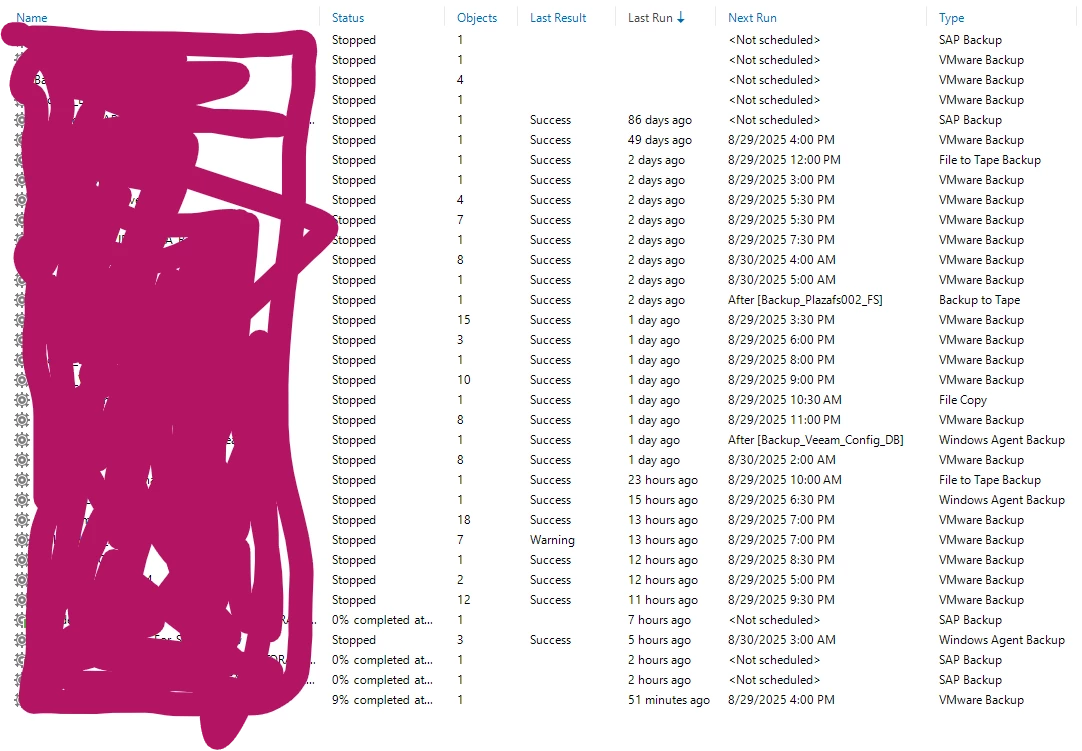
I have some jobs that aren't running automatically. Nothing unusual has happened. We just checked the proxies. We have VMware and general proxies. We assigned both, and nothing. Any help would be appreciated. I'll wait before opening a support case.


 +2
+2
I have some jobs that aren't running automatically. Nothing unusual has happened. We just checked the proxies. We have VMware and general proxies. We assigned both, and nothing. Any help would be appreciated. I'll wait before opening a support case.
Best answer by Fvinas
Hello, we already have the solution for this case. Details according to support.We understand that: DATABASE MAINTENANCE.· They have already performed controlled tests, disabling jobs and services, and uninstalling Sophos.· After restarting the server and waiting for the execution window, the jobs still do not start automatically, although they can be run manually (albeit slowly).· CPU, RAM, and disk resources show no evidence of bottlenecks during execution.Comments and Next Steps· Manual vs. Automatic Operation· The fact that the jobs run manually but do not start by schedule suggests a possible issue with the Veeam scheduling service or internal communication between services.So far, everything's working fine. Thanks for your help. See you later.
Att. F
· It may be related to the database, but also to components such as Veeam Backup Service or Veeam Backup Scheduler. (It is possible that the failure of these services that we saw in the Windows logs is related)
Slow execution, despite not detecting resource saturation, could be due to internal locks, pending sessions in the database, or even corruption in the indexes/tables that manage jobs and sessions. Abnormal shutdowns may have caused this corruption.
· It is important to review both the Veeam logs and the database status after restarts.· Uninstall Sophos· It is positive that Sophos has been uninstalled to rule out interference, but if the behavior persists, the focus should shift to the Veeam infrastructure and its database.· Recommended action: Database validation and maintenance· Even if the database allows access, there may be fragmentation, locks, or orphaned records that affect scheduling and performance.· We recommend running the official Veeam SQL maintenance script for the database, which helps to reindex and clean up old sessions:
1. Identify the SQL Instance and Database· Typically, the database is named VeeamBackup and is located on the local SQL Server instance of the Veeam server.2. Pre-Backup· Before making any changes, perform a full backup of the VeeamBackup database from SQL Server Management Studio (SSMS) or your usual method.3. Run the Maintenance Script· Veeam recommends running a maintenance script that:· Rebuilds fragmented indexes.· Updates statistics.· Cleans up old sessions and logs.· You can use the following official Veeam script, running it in SSMS connected to the VeeamBackup database:
USE VeeamBackupGO
-- Reconstrucción de índices en todas las tablas
EXEC sp_MSforeachtable 'ALTER INDEX ALL ON ? REBUILD WITH (FILLFACTOR = 80, SORT_IN_TEMPDB = ON, STATISTICS_NORECOMPUTE = OFF)'
-- Actualización de estadísticas
EXEC sp_updatestats
-- Limpieza de sesiones antiguas (opcional, solo si se detectan muchas sesiones históricas)
DELETE FROM [Sessions] WHERE [creation_time] < DATEADD(month, -6, GETDATE())
4. Restart Veeam Services After Maintenance· Once maintenance is complete, restart Veeam services to ensure they take effect.5. Monitor Behavior· Observe if the console's responsiveness and the execution of scheduled and manual jobs improve.· Review Veeam Scheduler and Related Services· Ensure the Veeam Backup Service and other services are running and configured in "Automatic" mode at the backup time.· Check the Windows Event Viewer and Veeam logs for any errors or warnings related to the scheduler.
Enter your E-mail address. We'll send you an e-mail with instructions to reset your password.

