


Introduction
To enable monitoring of your Veeam Software Appliance (VSA) with VeeamONE, the Veeam Analytics Service needs to be deployed on the VSA.
The Veeam Analytics service not only enables communication with Veeam Backup & Replication servers to collect data but also allows to send remediation commands.
Since the VSA is secure by design (hardened Linux-based OS, DISA STIG compliance, automated patching…) and that it enforces Zero Trust principles with role-based access control, SAML SSO, and certificate-based pairing, it is important to know what are the available options to connect VeeamONE securely.
In this article, we will cover 2 methods of connection and highlight their pros and cons:
- Via the Veeam Analytics Service Offline Bundle
OR
- Managed by VeeamONE via the Data Source Wizard
Connecting to the VSA with the Offline Bundle
The advantage of using the offline bundle is that you don’t need to store VSA credentials anywhere. Simply hand off the bundle to your Veeam Backup and Replication administrator and let him deploy it.
The bundle is uploaded via the Veeam Updater Web UI and the connection for data collection must be first approved by a security officer.
This is by far the most secure way to connect VeeamONE to your VSA as it does not require providing the monitoring team with any credentials.
The downside of the offline bundle is that it is a manual process that needs to be repeated for each VSA independently.
Where do I get the offline bundle?
- Navigate to the VeeamONE Web UI > Configuration > Data Collection > Veeam Analytics service > Download package > Linux
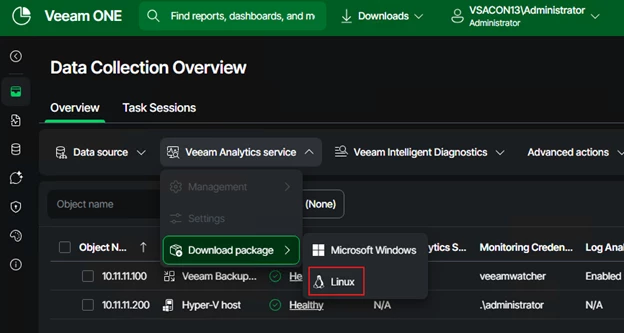
- The file is called “VeeamAnalyticsService.bndl” and should appear in your download folder.
How do I install the offline bundle on the VSA?
Note: You must be a Veeam Admin with Host Administrator privileges to deploy that bundle.
- Open the Host Management Console and navigate to Backup Infrastructure to request a “Data Collection” connection. You will need your Veeam Security Officer to approve that connection.
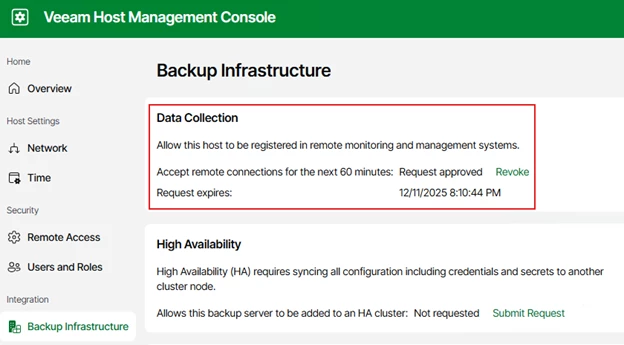
- Once the Data Collection connection has been approved by your security officer, navigate to the VSA Console > Hamburger menu > Updates > Check for Updates to open the Veeam Updater Web UI.
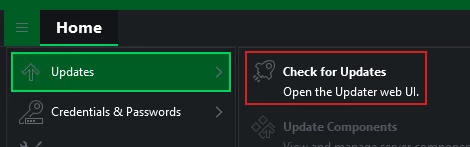
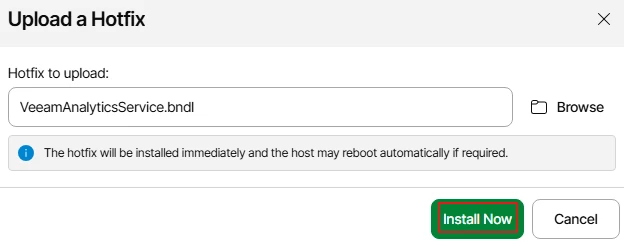
- From the Updates tab, click “Upload a hotfix” and select your VeeamAnalyticsService.bndl file.
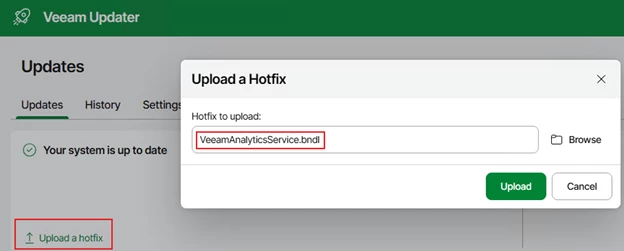
- When ready, click “Install Now”.
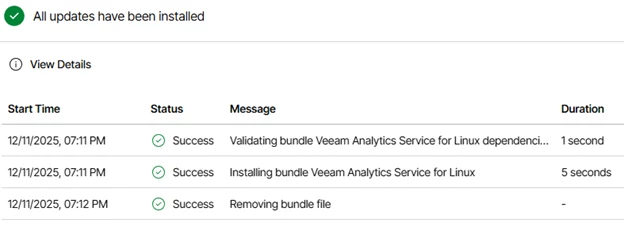
- Confirm updates have completed successfully.
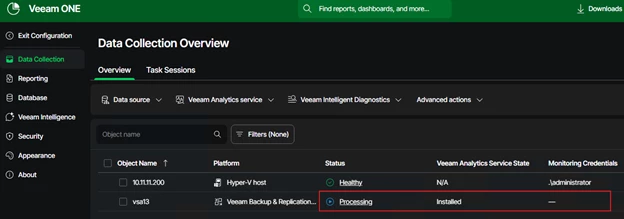
- Navigate to VeeamONE > Configuration > Data Collection Overview and you should now see your VSA listed. Notice that there is no need for monitoring credentials.
- If you want Analytics to be displayed on the VAS console, make sure to allow the VSA to display analytics data in the connection settings.

VeeamONE is now connected to your VSA without the need for any credentials stored anywhere. Data transits between VeeamONE and the VSA’s Analytics service over TLS with certificate-based authentication.
Connecting to the VSA with the Data Source wizard
The advantage of connecting to your VSA with the Data Source wizard is centralized management. It is perfect when you have a smaller data protection team where the monitoring and backup admin are one and the same person.
The disadvantage is that it requires credentials that will be stored in VeeamONE.
The best practice dictates to use a Veeam Service Account which has lower privileges and no console access.
Creating a service account
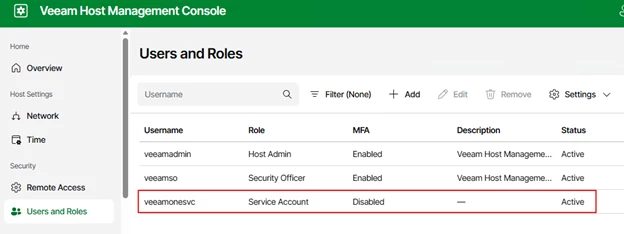
- Open the VSA host management console web UI and navigate to Users and Roles to Add New User and select the Service Account role.
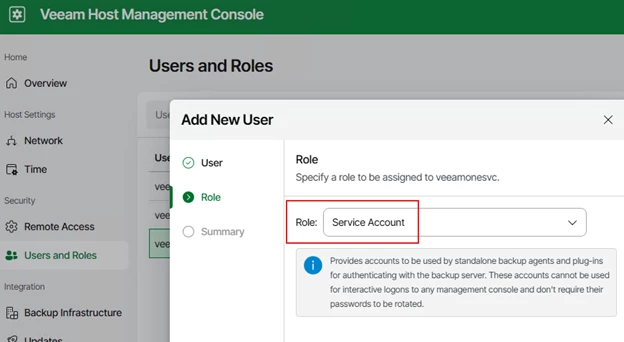
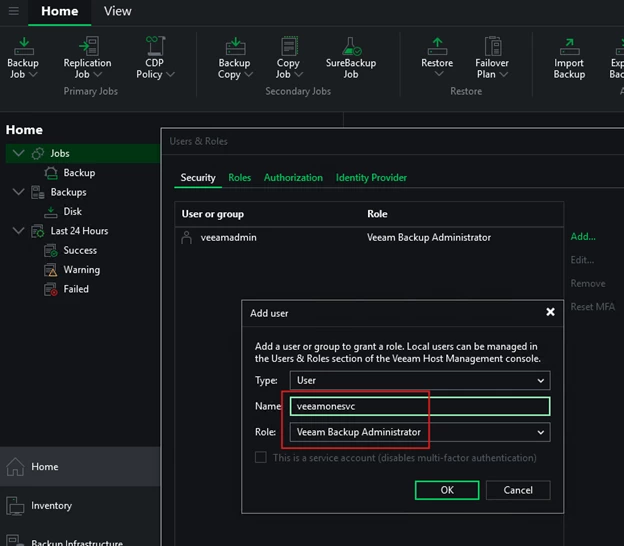
- Make that service account a Veeam Backup Administrator in the VSA console
Connecting VeeamONE with the Data Source wizard
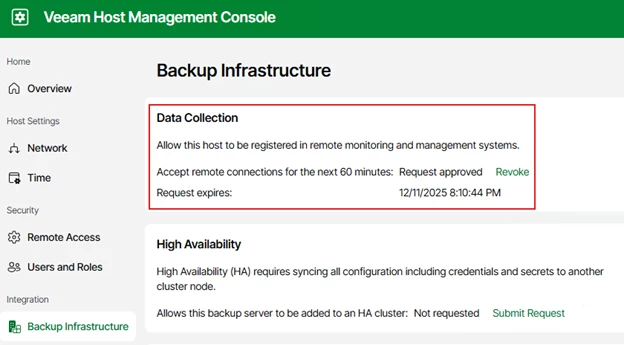
- Open the Host Management Console and navigate to Backup Infrastructure to request a “Data Collection” connection. You will need your Veeam Security Officer to approve that connection.
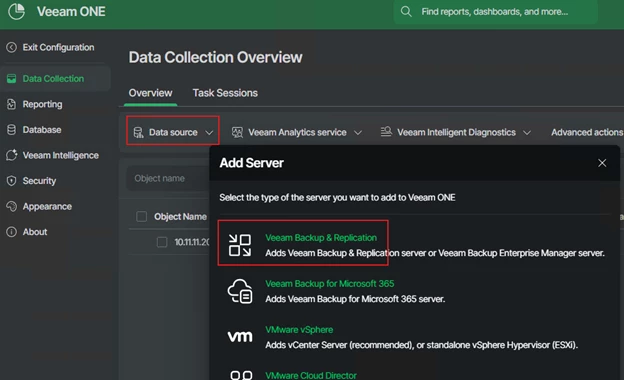
- Open VeeamONE Web UI and navigate to Configuration > Data Collection to Add Server and select Veeam Backup & Replication
- Enter the VSA’s DNS name.
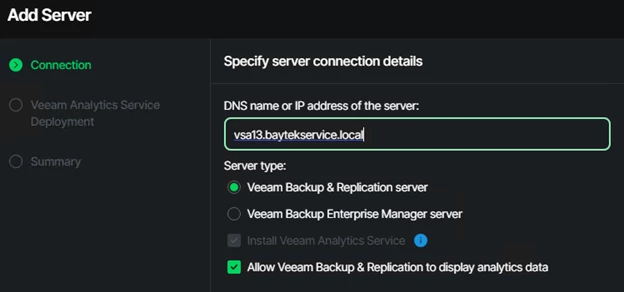
- Select the appropriate service account (you can create it on the fly using the Add Credentials).
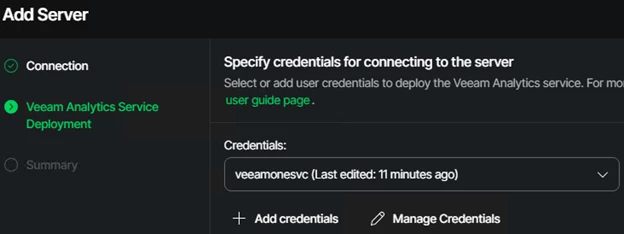
- Validate that the Veeam Analytics service is deploying and allow for the initial data collection to complete.

VeeamONE is now connected to your VSA.
If you choose to do so, you can remove the service account credentials both from the VSA itself and the Host management as data transits between VeeamONE and the VSA’s Analytics service over TLS with certificate-based authentication.
Note that the service account credentials cannot be removed from the VeeamONE database.
Summary
In this article we covered the 2 secure methods to connect VeeamONE to your VSA.
While I personally like the offline bundle method best for ultimate security, both methods work fine and using a Service Account limits the potential exposure since it does not provide access to the Host Management console.