

Introduction
The Veeam Software Appliance (VSA) v13 comes packed with a lot of new features and one of my favorite, is the ability to enable High Availability for the Veeam Backup and Replication server.
The business outcomes for our customers are huge:
- Reduced Business Disruption
- Faster, More Predictable Recoveries
- Operational Confidence
- SLA Protection
In this article, we walk through how Veeam ONE acts as a Cluster Witness, how automated remediation enables hands‑off failover, and what operators should expect during failure, recovery, and cluster rebuild scenarios.
HA Cluster Failover automation is one of these capabilities that made it late into the release and probably went unnoticed for most.
I won’t go into the setup details as they can be found in the user guide and community members have covered that topic extensively (see Marvin’s or Leaha’s posts for instance).
We will focus on the steps to automate VSA HA Cluster Failover by leveraging Veeam ONE’s remediation actions. Let’s dive into it!
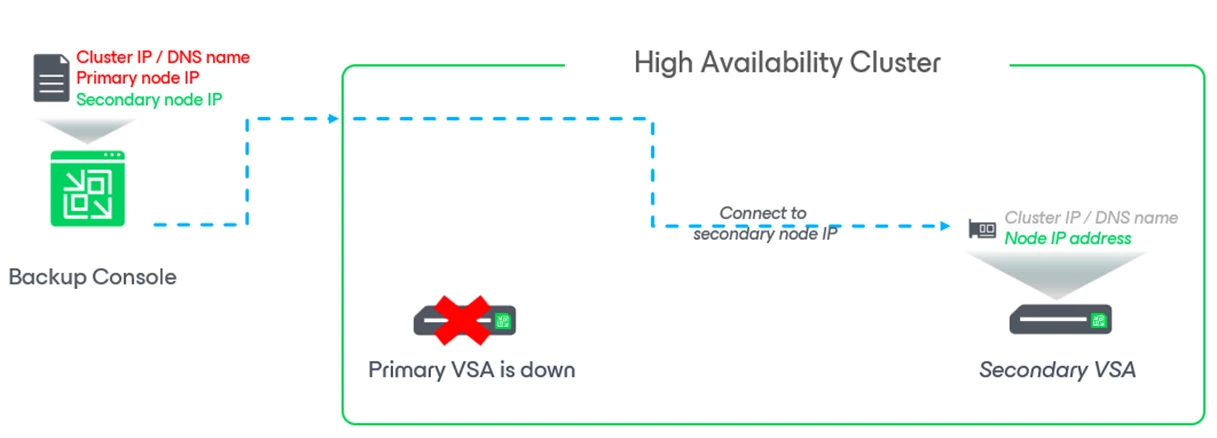
HA cluster monitoring with Veeam ONE
Veeam ONE comes with “HA Cluster” pre-defined alarms:
- Veeam Backup & Replication HA cluster created
- Veeam Backup & Replication HA cluster disassembled
- Veeam Backup & Replication HA cluster primary node state
- Veeam Backup & Replication HA cluster secondary node state
- Veeam Backup & Replication HA cluster failover state
- Veeam Backup & Replication HA cluster switchover state
Now that we understand the available HA alarms, let’s look at how Veeam ONE uses them to automate failover.
By leveraging these alarms, Veeam ONE can be used as a “Cluster Witness” and coupled with the right remediation action, it permits for HA Cluster Failover Automation.
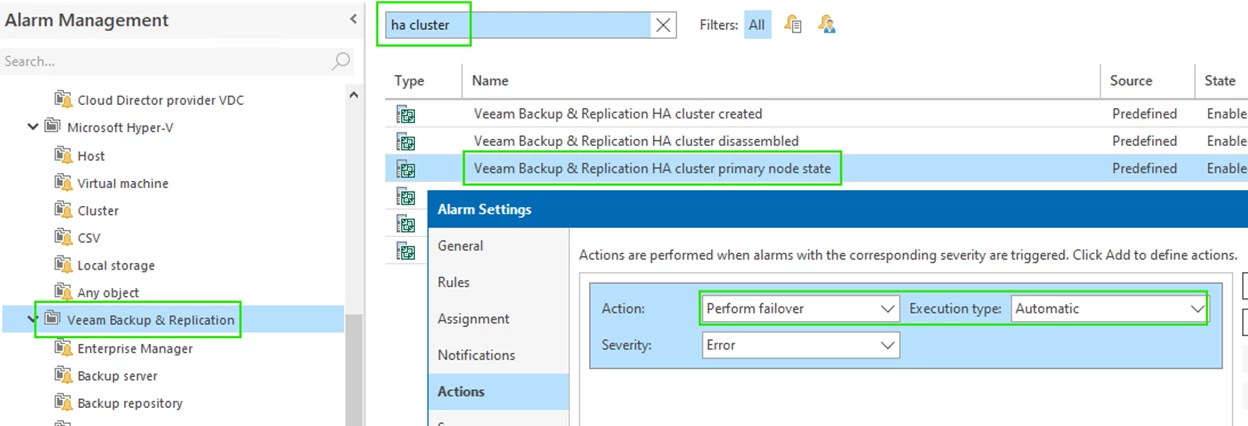
We are particularly interested in the Failover remediation action associated with “Veeam Backup & Replication HA cluster primary node state”.

Configuring Automated Failover with Veeam ONE
Setting Automated Failover in case of Primary Node Failure is a very simple 2-steps process:
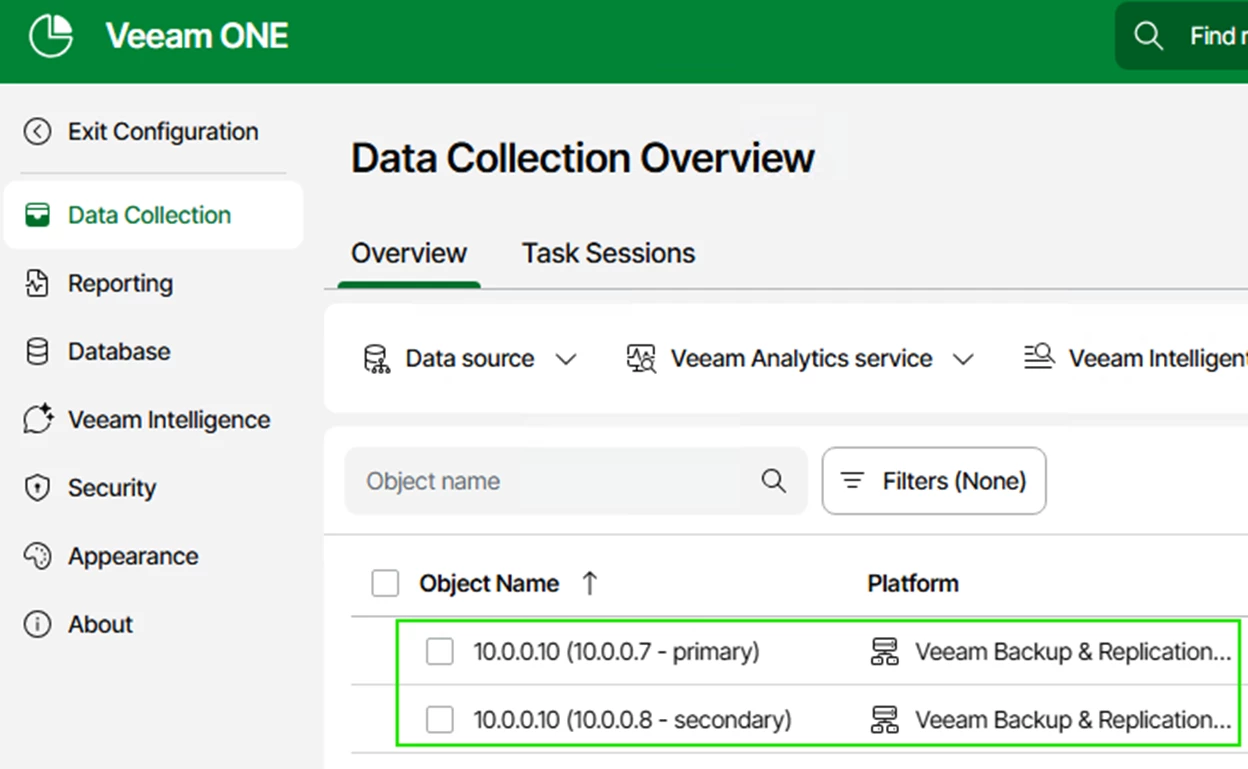
- Use the Veeam ONE Web Client to connect to the Veeam Backup & Replication server.
- Use the Veeam ONE monitor client to configure the remediation action.
That’s it! We are now ready to survive a complete site failure (at least from a Veeam Backup and Replication server perspective).
Failover Event Walkthrough
Initial state before failure
VSA-01 is the “primary” backup server.
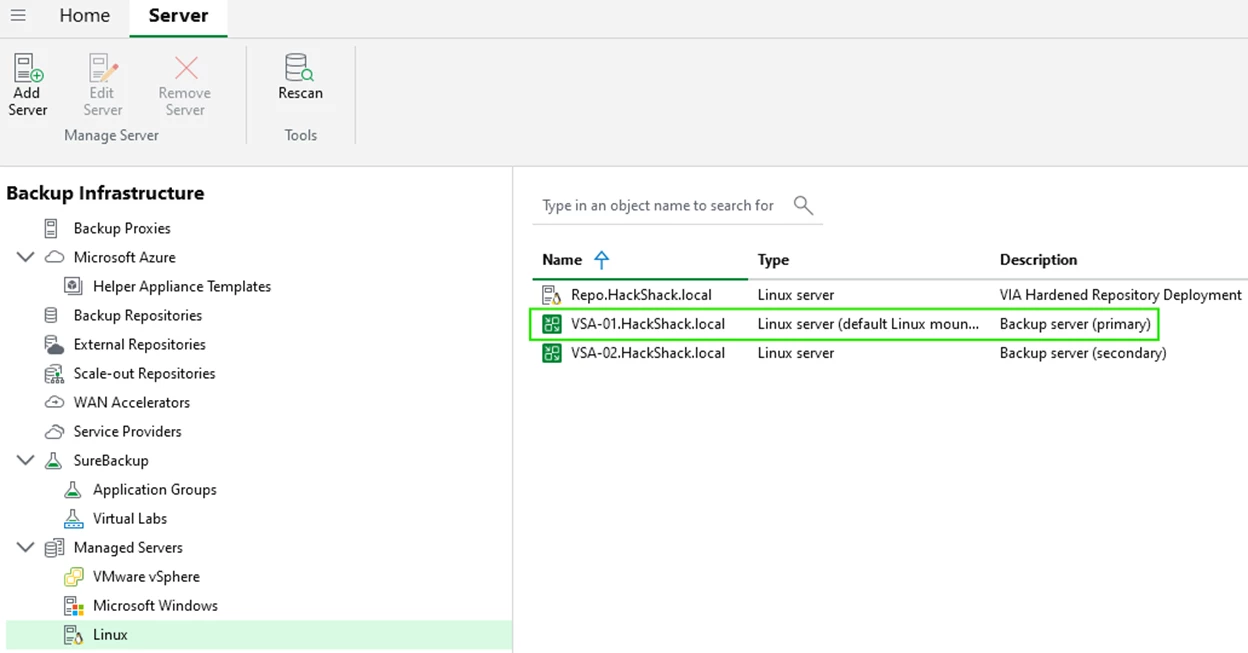
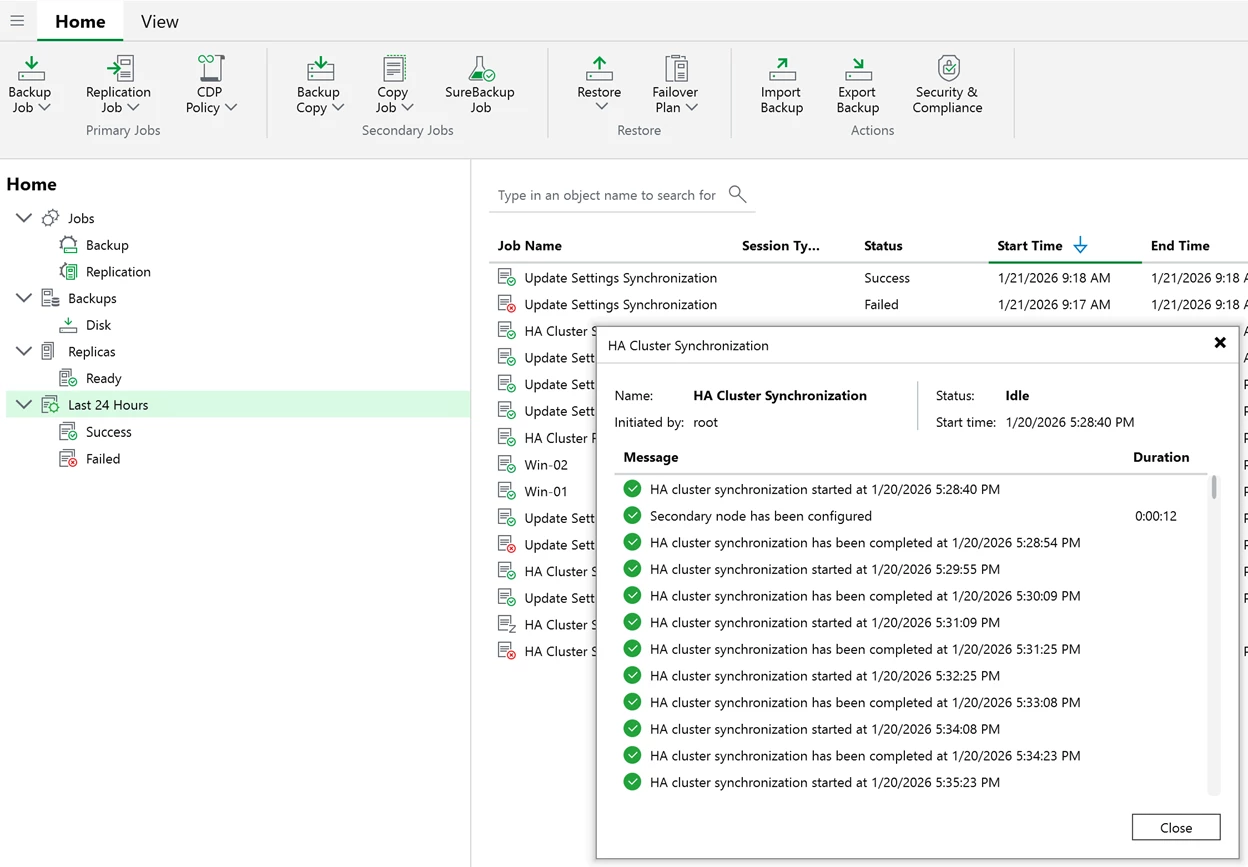
You can observe cluster synchronization tasks.
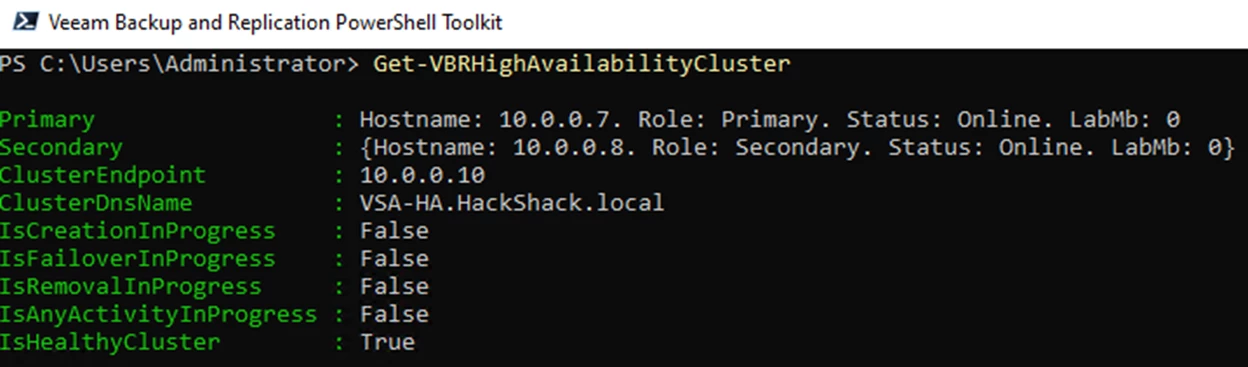
You can use the powershell Get-VBRHighAvailabilityCluster command for more details on the HA cluster status.
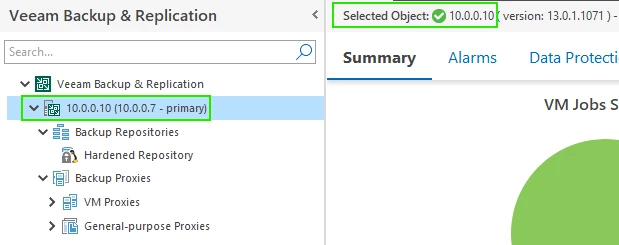
In the Veeam ONE monitor client we can see that we are connected to the primary node.
Failover state
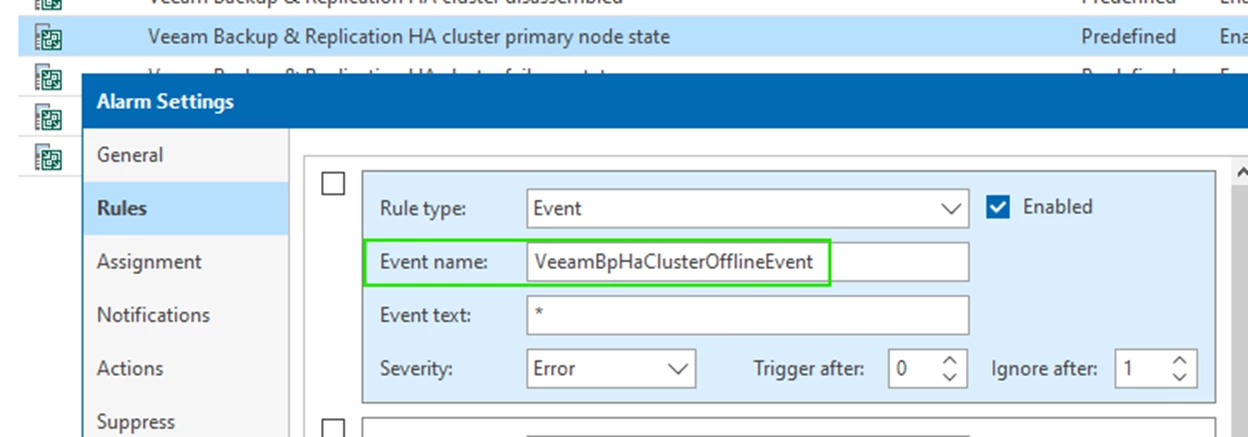
After a Failure and the “Cluster Offline Threshold” has been reached (currently 10 mins), the following event will be raised: VeeamBpHaClusterOfflineEvent
What you will observe in VeeamONE are the following alarms:
- Veeam Backup & Replication HA cluster primary node state: We lose connectivity to the primary VSA node.
- Veeam Analytics service on the remote server is not running: Since we lost connectivity, we cannot reach the analytics service.
The remediation action for the “Veeam Backup & Replication HA cluster primary node state” performs the failover.
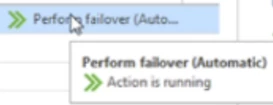
It is unlikely you will be present to witness a site failure live, but if you happen to catch the failover process, you may see the remediation action. It looks like this:
Once the failover is complete, VeeamONE will point to the second VSA node.
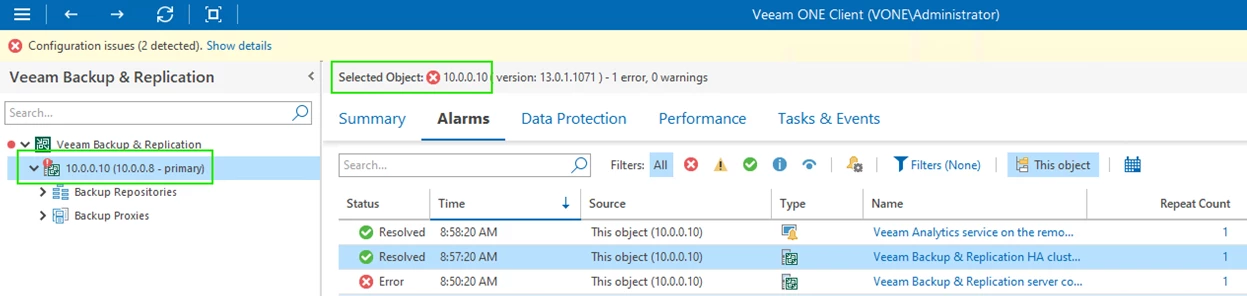
Eventually all alarms will be resolved.
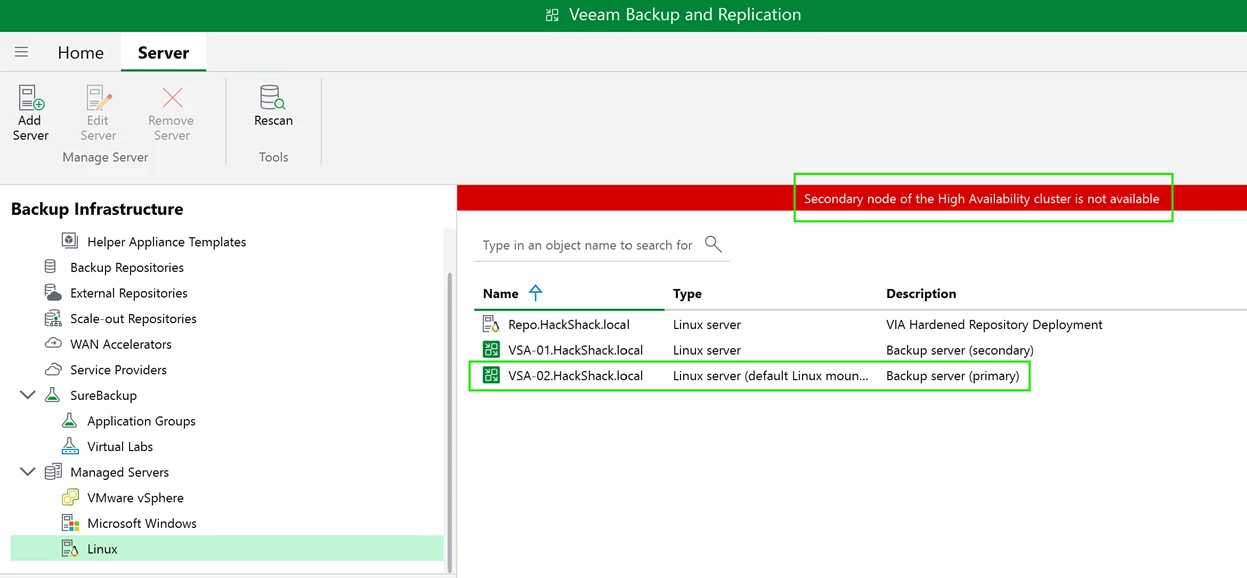
The Veeam Backup & Replication console may get disconnected but once you reconnect, you will observe that the “old” secondary node is now primary.
You will also observe a red banner stating the cluster’s degraded state.
Veeam HA cluster logs
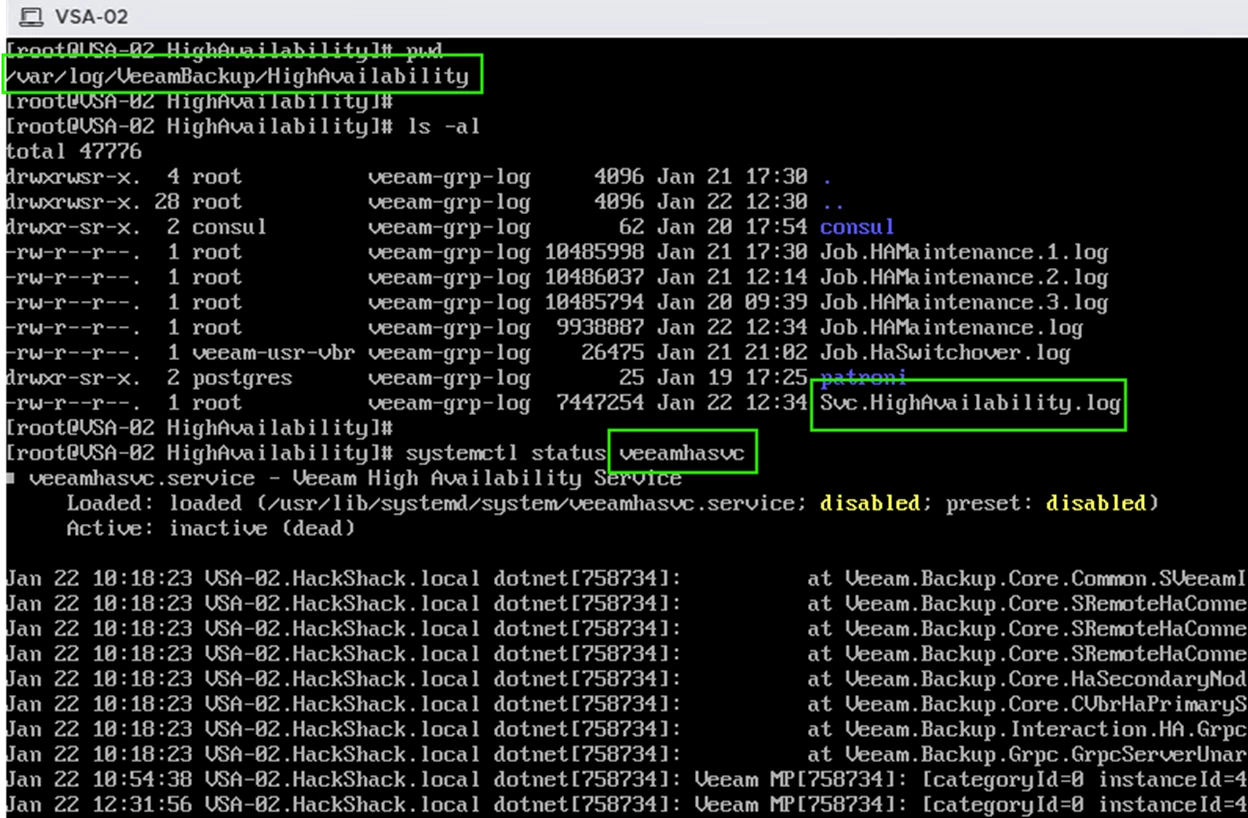
For troubleshooting or learning purposes, you can access the High Availability (HA) logs directly on the Veeam Software Appliance (VSA). These logs provide visibility into cluster state transitions, synchronization activity, node promotion, failover decisions, and error conditions.
To access the logs:
- Open the Host Management Console (TUI)
- Enter the shell
- Navigate to the HA log directory: /var/log/VeeamBackup/HighAvailability
The primary log file is: Svc.HighAvailability.log
This log is produced by the veeamhasvc service, which orchestrates HA operations such as cluster creation, synchronization, failover/switchover actions, etc..
You will also find related logs for other supporting services in subdirectories. These can be helpful when troubleshooting node unavailability, replication delays, or transaction‑log synchronization issues.
Important:
For any issue in a production environment, always open a case with Veeam Support, as log interpretation requires detailed knowledge of HA internals.
Re-establishing HA
If you are lucky enough to experience a site failure that is nondestructive, restarting your original primary VSA will resolve HA clustering on its own.
Else, other scenarios involve deploying a new VSA and recreating the cluster.
Restarting the original primary node – resolving HA cluster split brain
After restarting the abruptly failed VSA node, it does not know it is no longer the “primary”. This is known as a split-brain situation.
The starting node knows it is just restarting and will communicate with the other node to check status before acting as the “primary”.
The other node informs the starting node that he is no longer primary and HA clustering resumes as the “old” primary node assumes the role of secondary.
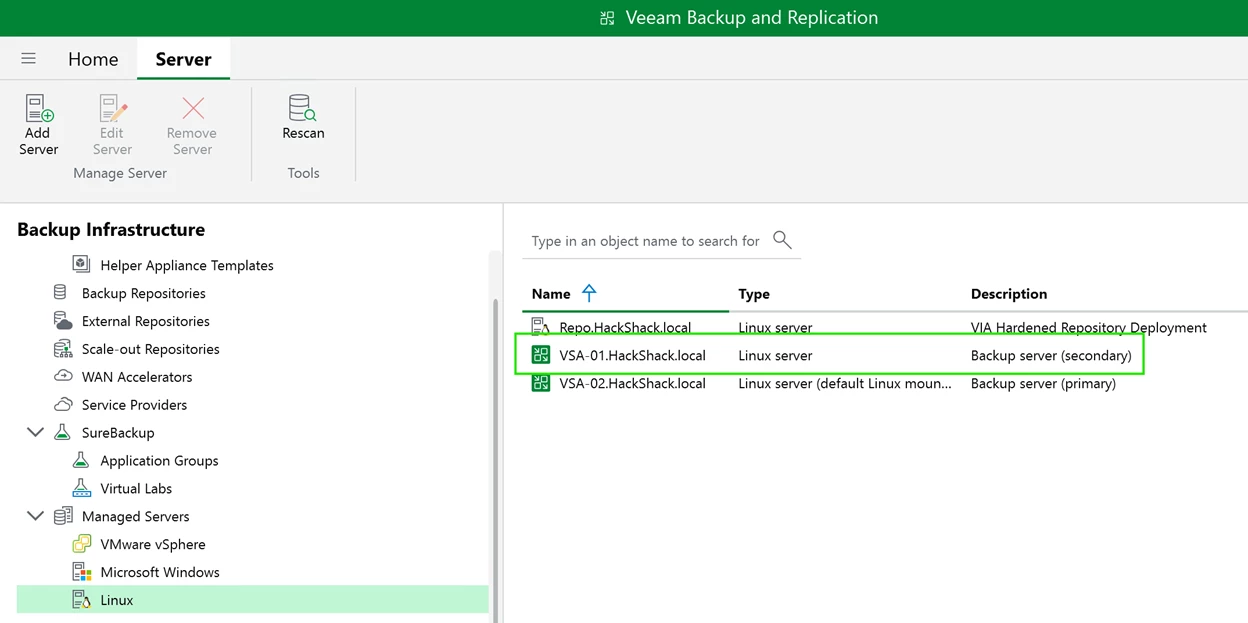
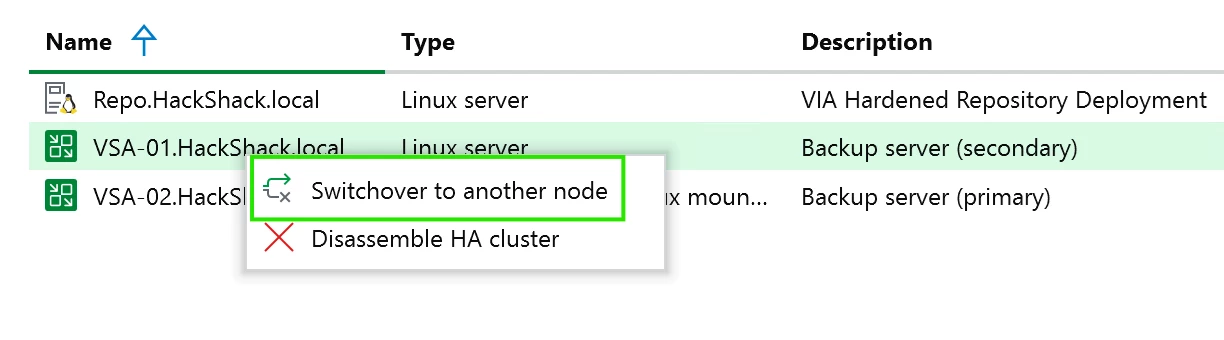
Note that there is no automated failback to the old primary state but it is always possible to perform a manual “switchover”.
Recreating the HA cluster
In the event of a destructive failure, once you have designated a new replacement site and deployed a new VSA, you may want to re-establish HA clustering.
You must first disassemble the HA cluster before you can add the new VSA node.
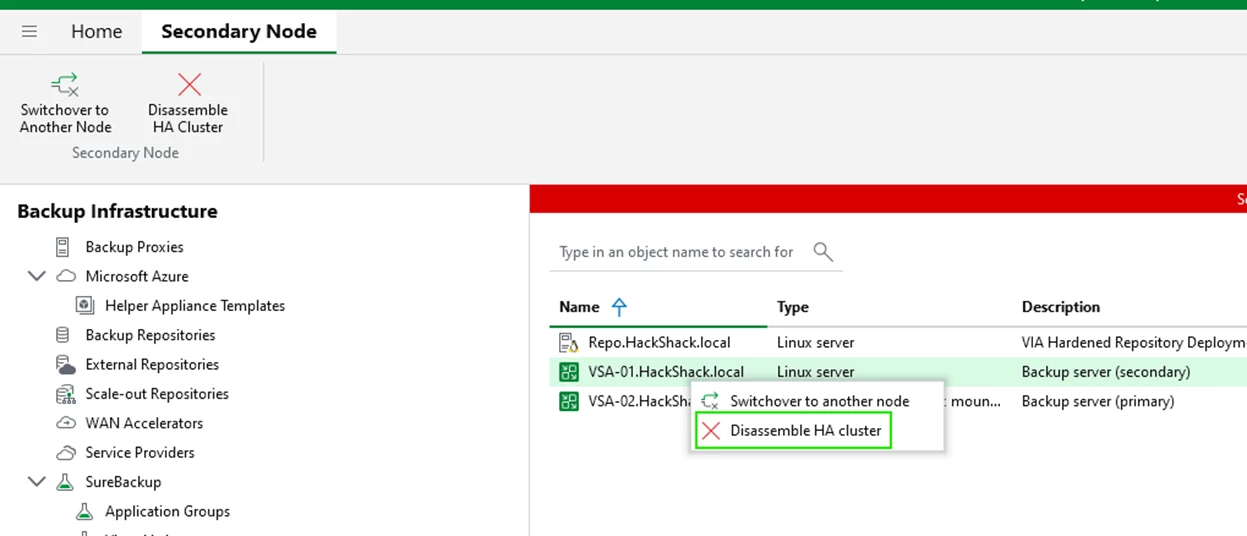
The cluster will disassemble and you will lose console connectivity as it points to the disassembled Cluster DNS name (OR Cluster Virtual IP).
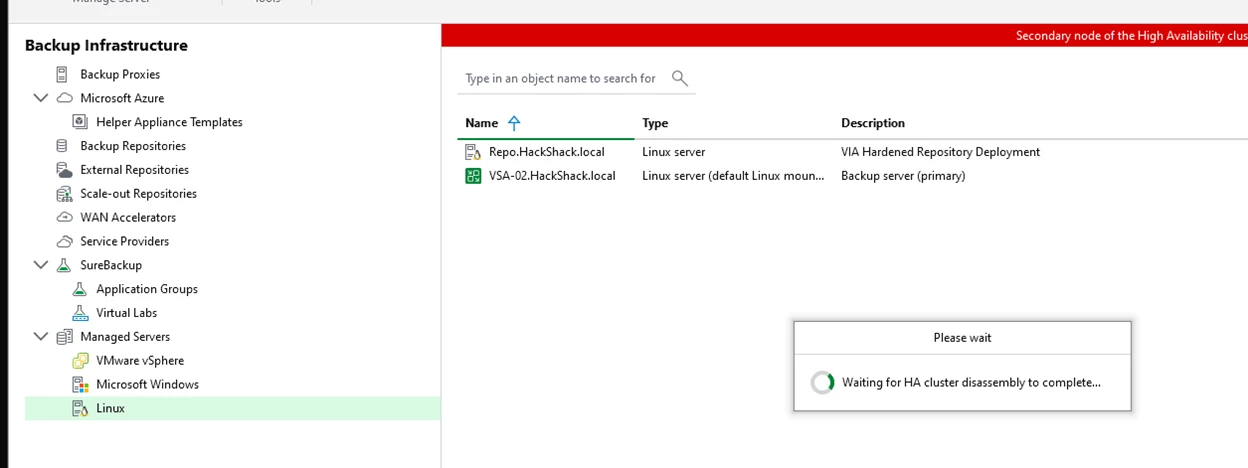
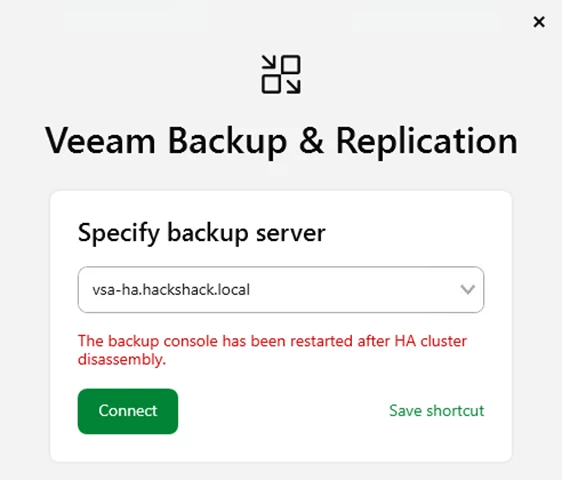
You can now point the console to remaining node to access your Veeam Backup and Replication VSA.
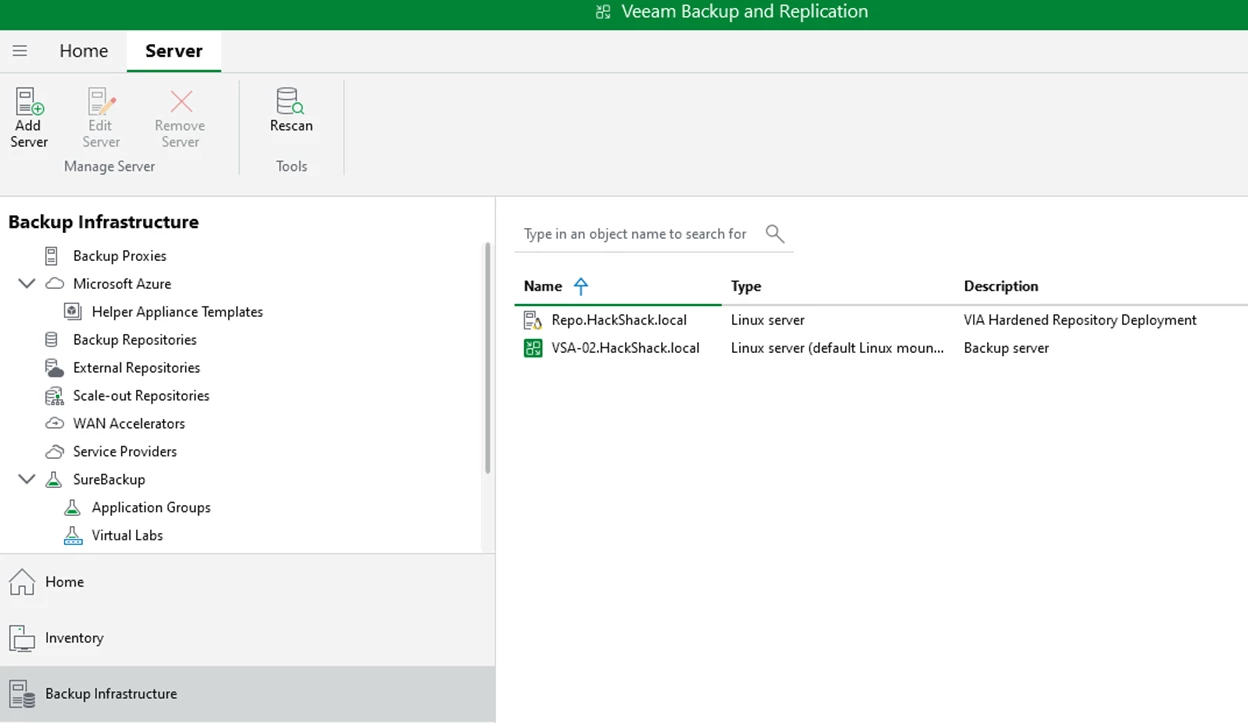
Note: You will need to re-establish VeeamONE monitoring by pointing to the remaining node.
Once you have your new site setup and have deployed a new VSA, recreating the cluster is straight forward.
Conclusion
High Availability in Veeam Backup & Replication v13 delivers meaningful resilience improvements for the VSA by pairing the HA cluster with Veeam ONE’s monitoring and automated remediation. This combination reduces disruption, accelerates recovery, and strengthens operational confidence during unexpected failures.
While this is the first major iteration of VSA HA, it already provides strong failover capabilities and clear cluster visibility. Future v13 updates will continue to enhance reliability and automation, further solidifying Veeam’s HA foundation.
Implementing VSA HA with Veeam ONE gives organizations a more robust, self‑healing backup infrastructure—one designed to protect SLAs and maintain continuity even when failures occur.