
With the High Availability feature in Veeam Software Appliance 13.0.1, Veeam provides a neat way to make the backup server highly available.
In this blog post I’ll briefly show how to configure HA, which prerequisites must be met, and what alternatives exist if HA cannot be used.
Intro - The Basics
The feature itself reduces downtime of the backup server in the Veeam Software Appliance. In general, two nodes are required; they can synchronize even across relatively high latencies. A manual switchover is possible, and a major advantage is automatic updates for both nodes.
The goal is to offer fast disaster recovery without the need to keep a dedicated standby backup server, and then finally to restore the configuration backup.

(https://helpcenter.veeam.com/docs/vbr/userguide/high_availability_hiw.html?ver=13)
Requirements
The following components are required for this feature:
-
Two Veeam Software Appliances
-
At minimum, Veeam Data Platform — Premium licensing (the package that includes Veeam Backup & Replication, Veeam One, and Veeam Recovery Orchestrator)
-
Three IP addresses:
-
Two for the Primary and Secondary nodes
-
One for the cluster (virtual IP)
-
All addresses must be in the same Layer-2 network / same subnet
-
-
Strongly recommended: proper DNS entries for the Primary node, Secondary node and the cluster name
Please also read the considerations and limitations regarding HA beforehand.
https://helpcenter.veeam.com/docs/vbr/userguide/high_availability_limitations.html?ver=13
How to configure HA — Step by Step
-
Log in to the Veeam Host Management Console of the first node.

-
In the navigation panel, open Backup Infrastructure.

-
Under High Availability, select Submit Request.
-
If no Security Officer account was configured during the Veeam Software Appliance installation, the request will be approved automatically.
-
If a Security Officer account is configured, you must wait for the officer to approve the request. The approval is valid for 8 hours, so make sure to assemble the cluster within that time frame.
-
In my test lab, I now have to log in to the same Veeam Host Management Console with my security officer and approve this request.

If you have installed the Veeam Software Appliance but have never logged in to the Veeam Host Management Console with the Security Officer, you will need to complete a few steps, as shown here
-
Log in to the Veeam Host Management Console using the security officer account.
-
Change the password as instructed.
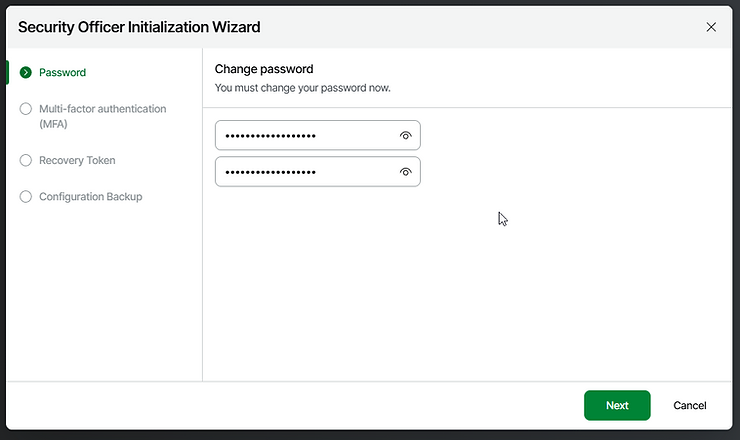
-
Configure your multi-factor authentication (MFA)
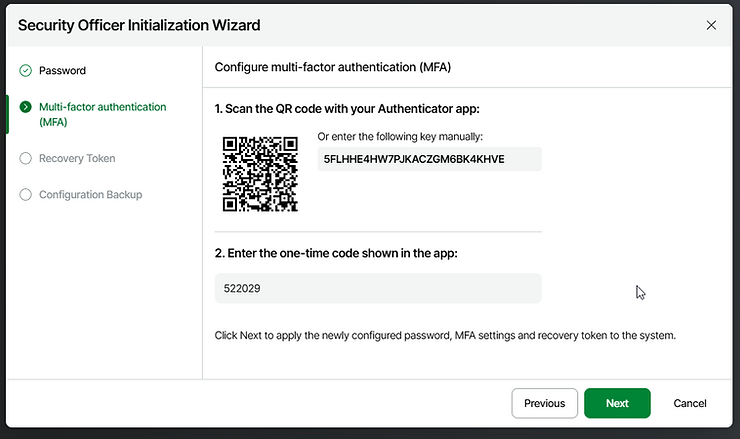
-
Keep your recovery token safe! It is very important. If you forget or lose your password, or if your Security Officer account is locked after three failed login attempts, you can use a recovery token to regain access to your account.

-
Specify a passphrase and hint for the sensitive data stored in configuration backups.

-
After we have officially logged in, we can already see the request. We approve it. We repeat this step on Node 2 as well!
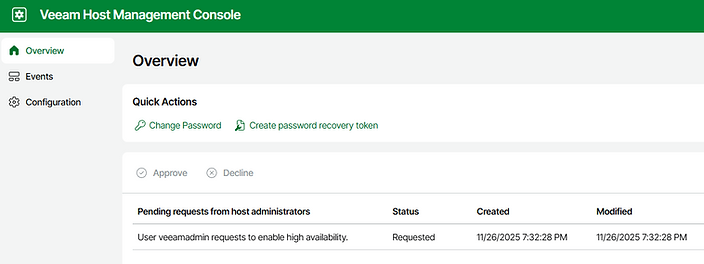
-
Then we return to the Veeam Backup & Replication Console.
The following steps cannot currently be performed in the VBR Web UI Preview.
-
We navigate to Backup Infrastructure, click on Managed Servers -> Linux, and select our first node. In my case, this is “vsa-n01” Now we can open the context menu by right-clicking or press the “Create HA Cluster” button at the top under the Server tab.
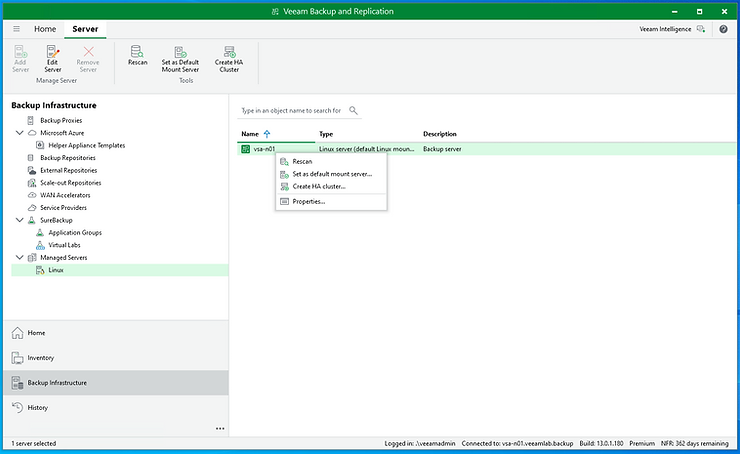
Then suddenly the following error message appeared:

There is a known issue in version 13.0.1 that can prevent the creation of an HA cluster if a capacity tier is configured. If the following error message appears even though all local repositories have been removed and the capacity tier has been configured, please wait for a patch or try the workaround described below.
Pro Tip - VSA & HA Clustering - SOBRs | Veeam Community Resource Hub
Scenario:
-
v13.0.1 GA
-
Capacity Tier is configured
-
Trying to create a HA cluster
Workaround:
-
Remove the Capacity Tier from the SOBR configuration.
-
Create the HA cluster.
-
Add the Capacity Tier back to the SOBR.
Actually, that wasn't the case here. In my lab, I only had the freshly installed VSAs, no other repository. So I went ahead and added an additional repository on a dedicated Windows server and switched the configuration backup there. After that, I removed the local repository. That helped.
-
Here we assign a cluster DNS name and assign our virtual IP address.

-
We select the IP address of the first node (on the VSA where we are currently located). Enter the IP address of the second VSA and the credentials.

-
We confirm the connection.

-
We click on Finish.

Immediately afterwards, the setup of our HA cluster will begin, as shown here.

We wait patiently, and then everything should look green. In my case, it took about 15 minutes (TestLab).
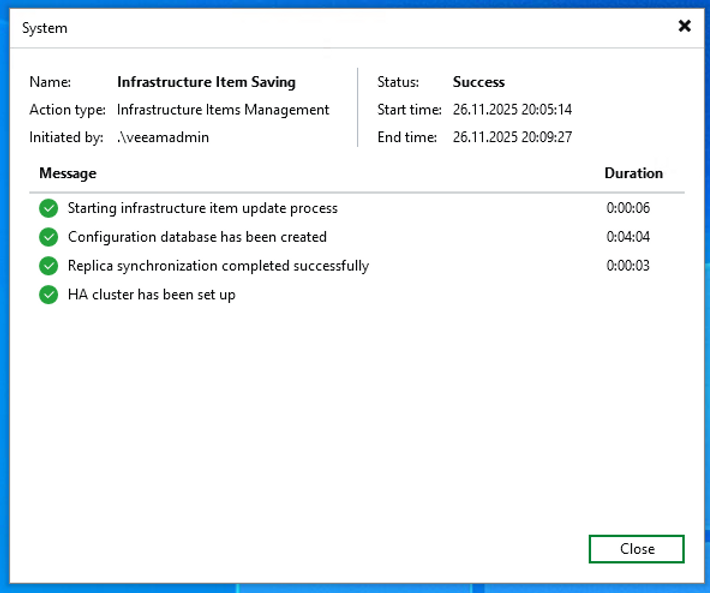
Looks good :)

A quick note: Now we should only connect to the cluster DNS name or its IP address, not to the nodes individually.
Performing Switchover
Initiating a switchover is super easy.
We navigate back to Backup Infrastructure, select our second node (Secondary), and can start the switchover to another node again at the top or by right-clicking.

Don't worry. The switchover needs to be confirmed again.

Then it's time to wait.
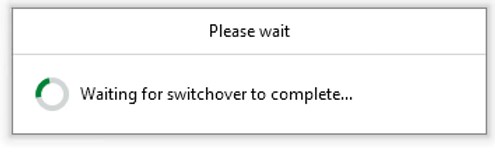
After a while, we are even kicked out of the console.
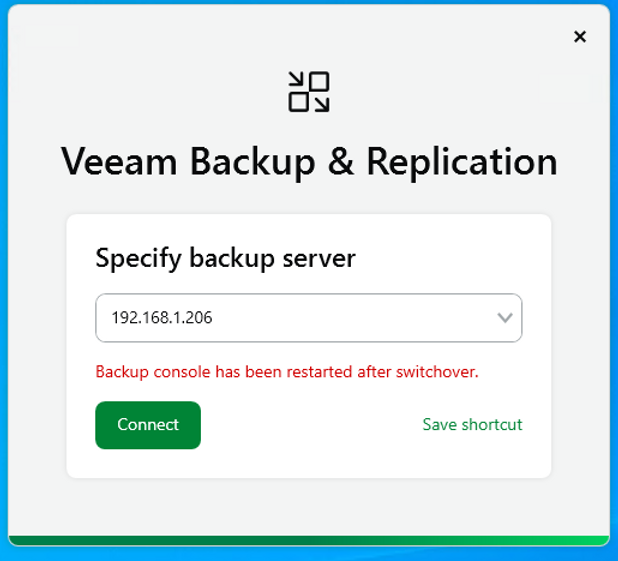
That's it! After that, we can log in again and see that the nodes have been swapped in the primary and secondary functions.
Performing Failover
Now let's simulate a failure! I go over and shut down my primary VSA and log in to the VBR console.


Oh dear. Our primary node is down. We are now connecting to the second node via Connect.
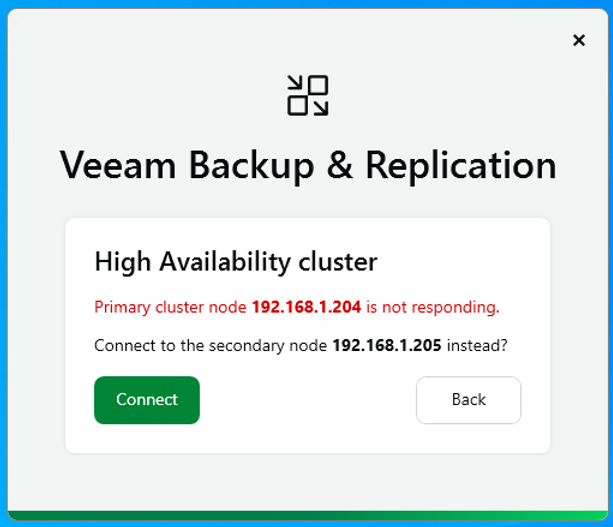

Veeam now switches to the second node. The second node is now upgraded to primary and can then resume its function as the backup server.
The process took about 10 minutes for me.
Once you are in the VBR Console, you will be told quite clearly that your second node (now secondary) is offline, so it's time to take action and fix the error. In my case, it was simply a matter of starting the VM.
The failed Veeam software appliance then starts normally and logs in to the current primary to synchronize and see who is now primary. You can read about the exact workflow here.
https://helpcenter.veeam.com/docs/vbr/userguide/high_availability_failover.html?ver=13
Alternatives to HA
If you cannot meet the requirements listed above, you could try the following alternatives:
-
Create a standby backup server that can start operating in an emergency with a configuration backup.
-
If your backup server runs as a VM, you can also use VBR to replicate your own backup server to another hypervisor node and and manually start the replica in an emergency if your production data center has failed.