

Or: How to renovate your backup house without setting the roof on fire

Some customers have already taken a good look at the new Veeam v13.x release and its features, but for various reasons they are still running VBR v12.3. And honestly, there is nothing wrong with that. It is actually pretty normal in the IT Business.
We all know the situation: A vendor releases a new major version. You nod approvingly, read through the first feature lists, maybe watch a webinar or two, and then think:
“Yes, we’ll do that. Soon. Very soon. After the change freeze. After vacation. After the audit. When we have time again.”
The problem is: At some point, “soon” needs to become an actual date.
According to the Veeam Product Lifecycle Matrix, Veeam Backup & Replication v12 currently reaches the end of support and security fixes in February 2027.
In plain English:
From March 2027 onward, no production environment should still be running on v12.
Unsupported and unpatched software solutions are unpopular for a reason — roughly as popular as an untested restore plan right before a ransomware negotiation.

Source: Veeam Product Lifecycle
This does not mean you need to panic-download the v13.x ISO tomorrow morning.
But it does mean this:
Now is the right time to start thinking about your path to v13.x.
Because a v13 upgrade is not something you simply click through with:
“Next, Next, Click Finish.”
Veeam v13 introduces many new features, architectural changes, communication changes, and also a completely new deployment model:
The Veeam Software Appliance, or VSA for short.
And that automatically brings an additional question into the room:
How should I actually implement Veeam Backup & Replication v13.1? On Windows or with the VSA?

Essentially, there are three possible paths:
- VBR In-Place Upgrade on Windows
- Migration from Windows VBR to the VSA
- Greenfield Installation — Windows or VSA
All three options are valid, supported, and technically possible.
But not every option fits every environment or strategy.
And here is one very important thing — although this has basically always been true in IT:
Just because something is technically possible does not mean you should do it on a Friday at 4:30 PM. Especially not on December 23rd, 2026 or December 31st, 2026.

Another very important thing before we start to dive deeper into the individual options. This one can save your migration project from a lot of pain later:
If you want to migrate to the Veeam Software Appliance, you must not upgrade your Windows VBR server to 13.1 first.
The migration from a Windows-based Veeam Backup & Replication server to the Linux-based Veeam Software Appliance is currently supported only from v13.0.x builds.
That means you need to stay on, or upgrade to, a 13.0.x release if you want to migrate to the VSA.

Important sources for this information are:
Veeam KB4800 – Veeam Backup & Replication Platform Migration Guide Windows to Linux
Veeam KB4738 – Release Information for Veeam Backup & Replication 13 and Updates
The correct and currently only supported migration path from Windows to VSA is:
VBR 12.3.x on Windows↓Upgrade to VBR 13.0.x on Windows↓Migration to Veeam Software Appliance 13.0.x (same Version!)↓Upgrade of VSA to VBR 13.1.x
And definitely not this:
VBR 12.3.x on Windows↓Direct upgrade to VBR 13.1 on Windows↓“Oh, let’s quickly migrate to the VSA now”↓Noooooooooo.
That is basically like moving a house, but installing the new kitchen first. And then realizing that the house cannot be built around it afterwards.

Alright that said… So now, let’s take a deeper look at the three possible paths.
Path 1: Windows In-Place Upgrade
This is the classic path.
You take the existing Veeam Backup & Replication server on Windows, mount the ISO, start the upgrade wizard, get coffee, watch the log files, update the remote components, and you are done.
Well. “Done” in the sense that the real post-upgrade work starts afterwards. And yes, I know — I just skipped over a lot of preparation steps. But we will get to those later.
To upgrade to v13.1, you generally need to be running at least Veeam Backup & Replication 12.3.1 Build 12.3.1.1139 or later. You also need to pay attention to several things before the upgrade, during the upgrade sequence, and after the upgrade. Because this is not just a simple patch. It is a major upgrade with many design changes.
The basic upgrade path looks like this:
VBR 12.3.1 / 12.3.2 / 13.0.x on Windows↓In-Place Upgrade↓VBR 13.1.x on WindowsWhen does Path 1 make sense?
This path is a good fit for your environment if:
- You do not mind the Windows license and are happy to continue maintaining the operating system yourself
- The Windows installation is stable
- There is no planned short-term migration to the VSA for specific reasons
- The environment has many Windows-specific integrations
- Scripts, monitoring, operational processes, and documentation are heavily Windows-based
- You want a direct upgrade path
- The environment is rather complex and you do not want to change both the product version and the platform at the same time
In short:
If your VBR server on Windows is running cleanly today and you do not want to immediately change the operating model, the Windows upgrade is the conservative and often most pragmatic approach.

Advantages
- Familiar upgrade process
- No platform change
- Existing automations remain in place
- Less change to the operating model
- Lower organizational effort
- Well suited for complex production environments
- Direct path to v13.1
- Some features are supported on Windows but are not currently available in the VSA model, for example:
Cloud Connect, Socket-based licenses, Trusted domain authentication, Various storage integrations, depending on vendor and implementation, for example:- VMware storage integrations such as Fujitsu ETERNUS, Lenovo ThinkSystem
- Universal Storage API integrations such as DataCore SANsymphony, Dell PowerMax, Dell PowerStore, Dell SC Series, INFINIDAT InfiniBox, NEC Storage M, SolidFire, Pure Storage FlashArray, Tintri IntelliFlash
Disadvantages
- Windows remains Windows.
That means patch management, hardening, local dependencies, and all the little things that so lovingly structure your day when operating Windows servers. - Not all features are available with Windows. Examples include:
Enterprise Manager Update Proxy, Security Officer, VBR High Availability - No move to the new appliance model soon (sondern erst 2027)
- Existing legacy configuration may remain
- Technical debt is more likely carried forward than cleaned up
- v13-specific changes must still be carefully checked and handled
This includes, among other things:- more than 200 port changes
- deprecated features
- agent compatibility
- certificate changes
- component updates
- PowerShell version changes
Typical pitfalls during the Windows upgrade

Especially the deprecated features and the network port changes should be checked before the migration and adjusted during the migration project. There are 221 port changes to consider.
And yes, there are even more things to think about.
I wrote two larger blog articles that provide a good basis for this preparation:
Deprecated and Discontinued Features in v13 – So Long, and Thanks for All the Fish! (English)
15 Key Things to Know (and Watch Out For) When Upgrading Veeam Backup & Replication on Windows from v12.x to v13 (English)
There is also an excellent community article by Rick Vanover with lots of content and useful links:
https://community.veeam.com/blogs-and-podcasts-57/veeam-data-platform-v13-upgrade-center-10321
Path 2: Migration from Windows to VSA
With v13.x, Veeam introduced the Veeam Software Appliance (VSA).
This is a Linux-based, hardened appliance for Veeam Backup & Replication. Strategically, this is a very interesting option because many customers want to further harden their backup infrastructure and reduce Windows dependencies.
And yes: “Less Windows in the backup core” is to some security teams what coffee is to administrators: emotional support.
However, migration does not mean:
“I’ll just quickly export the config and import it into the Veeam VSA.
What could possibly go wrong?”
There are several things to consider and requirements to follow. Also, not every environment can take this path at the moment. Some features are only available with v13.1 on Windows currently.
The good news is that Veeam provides a dedicated Platform Migration Guide for this process and continues to maintain and update it.
The most important source is this KB article:
Veeam KB4800 – Platform Migration Guide Windows to Linux
As mentioned earlier, there is currently only one supported migration path to the Veeam Software Appliance 13.1:
Existing Windows VBR v12.3.x↓Upgrade to Windows VBR v13.0.x↓Migration to VSA v13.0.x (same Version)↓Upgrade to VSA v13.1.x
So the only migration version from Windows to VSA is currently 13.0.x.
If you have already upgraded your Windows VBR server to 13.1, you remain on Windows for this migration path for now and need to wait.
When does migration to VSA make sense?
This path is a good fit if:
- The environment should move to the appliance model on long-term basis
- Security and hardening have high priority
- Windows dependencies should be reduced
- The VBR server should be strategically repositioned
- You want to use all v13.1 VSA features, such as HA and Security Officer
- The current environment is well documented
- You have time for planning, validation, and testing with the VSA
- You understand and follow the migration dependencies
In short:
You want to deploy the new VSA with all its benefits, and you are willing to test and prepare the whole thing properly.

Advantages
- Move to a hardened Linux-based appliance
- No more Windows patching for the VBR server
- No Windows license required for the appliance itself
- Strategically modern target state
- Appliance lifecycle and integrated update mechanisms
- A major step toward a hardened backup infrastructure
- Especially interesting for environments that are being modernized anyway
Disadvantages
- Migration is only supported from v13.0.x, not from v13.1
- No rollback path from Linux/VSA back to Windows
- Not all features supported on Windows are VSA-compatible
- More planning, preparation, and time required
- Certain integrations must be checked in advance
- Existing Windows-specific scripts and paths must be adapted
- Some configurations cannot be migrated or can only be migrated with limitations
Especially important limitations

Some points from KB4800 should not only be read — they should probably be printed and taped next to your monitor.
1. Check the license
The Veeam Software Appliance supports only instance-based Veeam Universal Licenses, also known as VUL. Legacy socket-based licenses are not supported. However, these licenses can be converted to VUL.
2. Cloud Connect
Veeam Cloud Connect deployments currently cannot be migrated to the Veeam Software Appliance. For service providers or environments using Cloud Connect, this is a very important point.
3. Plug-ins and platform support
Some plug-ins or integrations are not identical between Windows-based VBR and the VSA.
The following are currently not possible or limited in certain scenarios:
- Veeam Plug-in for oVirt
At least during migration. Uninstall and reinstall on 13.1 may be possible depending on the scenario. - Trusted domain authentication
Windows only - Storage snapshot integrations
Depending on the storage vendor
That means:
Before migration, you should not only ask: “Does VBR run on the VSA?”
You should ask:
“Does my specific VBR environment, with my jobs, my plug-ins, my repositories, my proxies, my credentials, my scripts, my historical design decisions, and my dependencies run on the VSA?”
That is a longer sentence. And that is exactly why this is not a simple 08/15 decision, but a more complex migration project that needs to be properly assessed and executed.
4. Agents must be on v13
The VSA supports only Veeam Agents version 13 or later. That is not a huge surprise, but in practice you should be careful if you still have older operating systems in your environment.
Who has not heard this question before?
“We did shut down that old Windows Server 2012 R2 under the desk in accounting, right?”

5. Old Windows paths, scripts, and local files
Everything that was stored locally on the old Windows VBR server must be checked during the migration.
For example:
- CSV files
- scripts
- pre-job scripts
- post-job scripts
- local paths
A path like this:
C:\Scripts\DoMagic.ps1feels about as comfortable on a Linux appliance as a penguin in a sauna.
Path 3: Greenfield Installation

The third path is the most radical one, but often also the cleanest:
A complete reinstallation of all core components — and ideally also all related infrastructure components such as proxies, gateway servers, mount servers, and so on.
Greenfield means: No migration of the existing configuration, but a deliberate rebuild from scratch. A true fresh start on the green field.
This can be done either on Windows or VSA
The old server remains in place at first. The new environment is built in parallel. Jobs are recreated, repositories are connected, backups are either mapped or, even better, created from scratch. After successful validation, the old environment is gradually phased out.
This is also the perfect opportunity to clean things up and avoid asking questions like:
“Why do we still have a backup job called
Test_Do_Not_Delete_Final_v2?”
When does Greenfield make sense?
Greenfield is a good fit if:
- The existing Veeam environment has grown significantly over time
- There is a lot of legacy configuration
- Jobs, repositories, and proxies should be redesigned anyway
- There is another parallel project where workloads need to be added or recreated anyway
- Naming conventions, retention, SOBR design, or the security concept should be redesigned
- The current environment is poorly documented
- The configuration has not been reviewed in detail for a long time
- You want to implement current best practices from the beginning
- A migration would have too many limitations
- You want to use the appliance, but the existing environment cannot be migrated cleanly
- You need a way-back option during the migration
- You do not want to adapt old Veeam configuration and old network/firewall rules
Especially with very old Veeam installations that have grown through multiple major releases, Greenfield is often the most elegant option. Of course, it is more work and may also cause slightly higher costs because of additional VM or server resources, new backup chains, and new jobs.
But sometimes more work up front means less pain later.
Advantages
- Clean fresh start
- No legacy configuration carried forward
- Current best-practice design possible
- Ideal for architectural changes
- Great opportunity for new naming conventions and design changes
- Security and role model can be rebuilt properly
- Very suitable if the VSA should be the target platform
- With VSA deployment, workloads can be tested step by step before being moved over
- Parallel operation possible
- Per-workload way-back option
- Lower risk of carrying old mistakes into the new environment
Disadvantages
- More manual effort
- Jobs must be recreated or carefully mapped
- History is not carried over
- Monitoring, reports, and documentation must be adapted
- More coordination with operations, security, and other teams
- Restore processes must be tested again
- Potentially longer transition phase with two environments
- Higher costs due to parallel operation and new backup chains or jobs
Greenfield With VMware (parallel deployment):
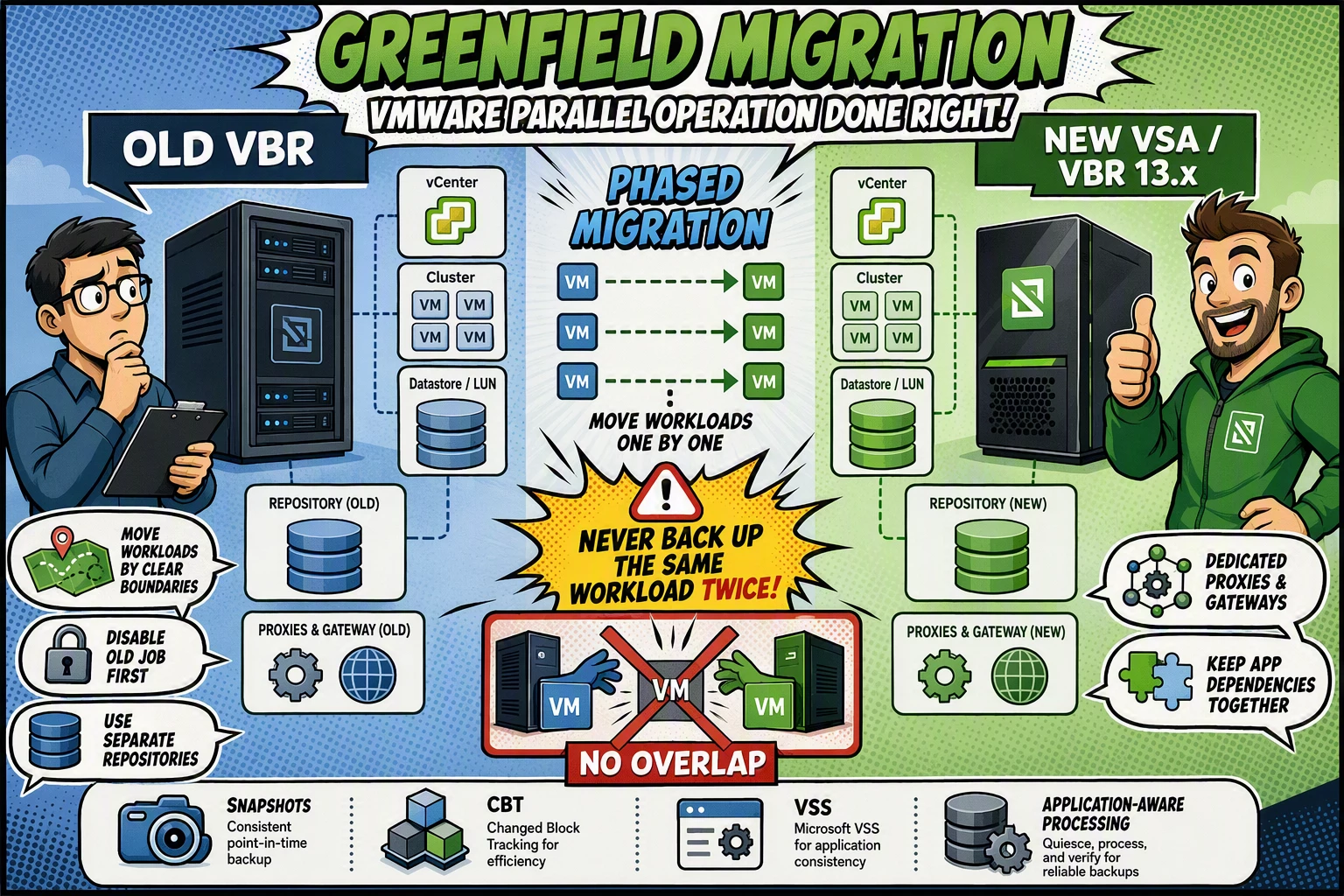
A question came to me by linkedin on how a greenfield migration from an existing VBR installation to a fresh parallel new VBR 13.x deployment can be arranged if you can’t migrate the whole vcenter in one step to the new VBR.
The short answer is: A side-by-side approach is possible, but the details matter a lot. Covering all possible scenarios would probably blow up this comment section. So here just a shorter answer.
During such a migration, I you should treat the new VSA as a second independent backup server. Even though it is still Veeam technology, both backup servers do not know anything about each other. They do not coordinate snapshots, CBT, VSS/application-aware processing, repository load, proxy usage, task limits, etc.. And you want to keep it simple as well.
So my general rule is:
Do not let two backup servers process the same workload at the same time.
This applies regardless of whether we are talking about two VBR servers, VBR and VSA, or different backup products. Mixing backup control over the same workload can lead to failed jobs, strange symptoms, snapshot conflicts, CBT-related issues, VSS/application-aware processing conflicts, or repository ownership confusion.
My preferred approach would be:
- Migrate workload by workload
Ideally, move one complete virtualization scope at a time — for example one vCenter, one Hyper-V cluster, one host group, or another clearly separated boundary. - Avoid random VM-by-VM overlap
I would not randomly move single VMs while the old VBR server still processes overlapping workloads on the same cluster/datastore/CSV/LUN. If a phased migration is required, split it by a clean technical boundary such as cluster, datastore/CSV/LUN design, job design, or repository target. - Disable the old job before enabling the new one
For each migrated workload, finish the last successful restore point on the old VBR server, disable the old job, create/run the new job on VSA, and then validate the restore capability. - Keep repositories separated
I would avoid using the same repository path from both systems. Even if shared backend storage can technically work in some scenarios, each backup server should have its own repository. Or Migrate the hole repository in one migration window. - Use dedicated infrastructure components
Proxies, gateway servers, mount servers and repository roles should not be shared between the old VBR and the new VSA. Each backup server should have its own dedicated backup infrastructure components. - Be careful with licensing
Licensing needs to be clean and must not be mixed in an unclear way between both backup servers. - Watch out for snapshots, CBT and VSS/application-aware processing
The biggest risk is overlapping processing of the same VM/workload. Two backup servers creating or managing snapshots for the same workload can easily result in job failures or inconsistent behavior. So keep the OS and Application Backup of the same VM together in the same VBR Backup Server. Also every dependency should be on the same VBR (DB Cluster, Application Dependent VMs like AD, DNS, ….)
So yes, if you are doing a phased migration instead of a big-bang cutover it is possible. But I would phase it by clear workload boundaries, not by randomly moving individual VMs while both systems still interact with the same technical layer. That will produce problems very quickly.
Some useful references around this topic:
- Veeam Best Practice Guide – Backend Scalability:
https://bp.veeam.com/sp/SP/S_Design/backend_scalability.html - Forum thread: Multiple VBR servers with VMware cluster:
https://forums.veeam.com/viewtopic.php?f=24&t=101990&start=0 - Forum thread: Add vCenter server to two Veeam B&R servers:
https://forums.veeam.com/viewtopic.php?f=24&t=60687&start=0 - Forum thread: Two backup servers with the same repository:
https://forums.veeam.com/viewtopic.php?f=2&t=63954&start=0
Greenfield Windows oder Greenfield VSA?
The next exciting question is: If we go Greenfield, what should we build?Windows or VSA?

Greenfield Windows
Greenfield on Windows makes sense if:
- Windows-based components or processes are still required
- Existing scripts and tools are heavily Windows-based
- Certain plug-ins, integrations, or features depend on Windows
- The IT team is more comfortable operating Windows
- The organization is not (yet) ready for the appliance model
Greenfield VSA
Greenfield on the VSA makes sense if:
- You want to move directly to the new appliance model
- Hardening is a key focus
- There are no blocking VSA limitations
- No missing features are in the way
- The environment is being redesigned anyway
- You want to reduce long-term operating system maintenance effort
Comparison of the three paths
1. Windows In-Place Upgrade
“Renovating the old house, but keeping the wallpaper.”

Short description:
Upgrade the existing Windows VBR server directly to v13.1.
Good for:
Stable existing Windows environments without an immediate platform change.
Not ideal for:
Customers who want to migrate to the VSA soon.
Complexity:
Medium
Risk:
Controllable if properly prepared
2. Migration from Windows to VSA
“Moving into a new house — but please check first whether the furniture fits through the door.”

Short description:
First upgrade to Windows VBR 13.0.x, then migrate to the VSA, then upgrade the VSA to 13.1.
Good for:
Customers with a strategic appliance target state.
Not ideal for:
Environments with unsupported features, socket licensing, Cloud Connect, or many Windows-specific dependencies.
Complexity:
High
Risk:
Manageable, but only with proper planning and validation
3. Greenfield Installation
“Do not renovate. Build a new house, then bring in the wrecking ball for the old one — but in a controlled way.”

Short description:
Build a new v13.1 environment on Windows or VSA and deliberately redesign the configuration.
Good for:
Environments with legacy configuration, redesign requirements, or setups that cannot be migrated cleanly.
Not ideal for:
Customers who want to change as little as possible and be done quickly.
Complexity:
Medium to high
Risk:
Technically often clean, but organizationally more demanding
Decision Matrix

| Situation | Recommendation |
|---|---|
| You want to stay on Windows | Windows In-Place Upgrade to v13.1 |
| You may want to move to VSA later, but only in 2027 | Upgrade Windows to v13.1 and reassess VSA migration later |
| You want to migrate to VSA soon | Do not upgrade directly to v13.1. First upgrade to v13.0.x, then migrate, then upgrade the VSA to v13.1 |
| You are still on v12.3.x and want to modernize directly | Depending on the target state: Windows Upgrade or Greenfield VSA |
| You have many legacy jobs, unclear configuration, or old design decisions | Seriously consider Greenfield |
| You use Cloud Connect on the VBR server | Windows In-Place Upgrade or Greenfield Windows |
| You use socket-based licensing | Convert licenses and then migrate, or use Windows In-Place Upgrade / Greenfield Windows |
| You have many Windows scripts, local paths, or special integrations | Prefer Windows Upgrade, or plan VSA/Greenfield very carefully |
| You want maximum hardening and an appliance-based future | VSA, either via migration or Greenfield |
| You have little time and need the lowest-risk path | Usually Windows In-Place Upgrade, assuming requirements are met |
| You want to rebuild according to best practices | Greenfield VSA or Greenfield Windows |
| You have a very complex environment with tape, plug-ins, storage snapshots, agents, Veeam ONE, Enterprise Manager | Detailed analysis first, then decide — no hero moves while blindfolded |
My personal rule of thumb

Stay on Windows if…
- Your environment is running cleanly
- You do not have an appliance strategy
- You have many Windows dependencies
- You want to move to v13.1 quickly and in a controlled way
Then the Windows In-Place Upgrade is probably the right path.
Migrate to VSA if…
- You strategically want the appliance model
- Security and hardening are key drivers
- Your environment is migration-ready according to KB4800
- You can properly plan the intermediate step via v13.0.x
Then the path is: v12.3.x Windows → v13.0.x Windows → Migration VSA → v13.1.x VSA
Go Greenfield if…
- Your environment has grown historically over many years
- Nobody really knows anymore why the job
Backup_New_Final_ReallyFinal_2021exists - You want to rethink architecture, retention, repositories, and security anyway
- Migration would have too many limitations
Then Greenfield may require more effort, but it is often cleaner in the long run.
Before you start: required reading
No matter which path you choose, please do not simply click Upgrade with heroic confidence.
Before the project, at least the following points should be checked:
- Current VBR version and build
- Upgrade path and supported source version
- All v13.1 Windows and VSA limitations
- License type
- Used plug-ins
- Tape usage
- Cloud Connect
- Enterprise Manager
- Veeam ONE
- Agents and their operating systems
- Hardened repositories
- Ports and firewall rules
- Certificates
- PowerShell and RMM scripts
- Configuration backup
- Rollback plan
- Restore test
Conclusion
Veeam v13.1 is not just another update where you mount the ISO and then hope that Nagios, PRTG, Teams, the phone, and your manager remain quiet.
With v13.x, you need to make a future architecture decision:
- Do I stay on Windows?
- Do I migrate to the Veeam Software Appliance?
- Do I perform a clean Greenfield rebuild?
The most important point is this:
The right path does not depend on the shiniest feature. It depends on the target state of your environment.
If you want to stay on Windows, you can take the direct route via the Windows In-Place Upgrade to v13.1.
If you want to migrate to the VSA, you must plan carefully and follow the correct sequence.
And if your existing Veeam environment has been treated like a digital attic for years, you should seriously consider a Greenfield installation.
Because the best upgrade path is not always the shortest one.
It is the one that lets you sleep peacefully afterwards.

Sources
- Veeam Product Lifecycle
- Veeam KB4738 – Release Information for Veeam Backup & Replication 13 and Updates
- Veeam KB4800 – Veeam Backup & Replication Platform Migration Guide Windows to Linux
- Veeam Help Center – Upgrading to Veeam Backup & Replication 13 on Windows
- Veeam KB4687 – Basic Constraints Certificate Issue
- Deprecated and Discontinued Features in v13 – So Long, and Thanks for All the Fish! (English)
- 15 Key Things to Know (and Watch Out For) When Upgrading Veeam Backup & Replication on Windows from v12.x to v13 (English)
- https://community.veeam.com/blogs-and-podcasts-57/veeam-data-platform-v13-upgrade-center-10321
- https://helpcenter.veeam.com/docs/vbr/userguide/storage_system_requirements.html?ver=13
- Netapp-Plugin (USAPI integration) https://www.veeam.com/kb4904
- Google Cloud Plugin https://www.veeam.com/kb4359