

When you're standing up a Hyper-V cluster and adding it to Veeam Backup & Replication, the proxy placement question comes up. The documentation says you can use on-host or off-host backup mode, and both work. What it doesn't tell you is what the data path looks like. Or what infrastructure each mode requires. Or what happens when VBR makes a decision you didn't expect.
This post covers what I've observed running on-host backup across a Hyper-V cluster and what the docs say about off-host mode.
How Veeam Sees a Hyper-V Proxy
Veeam's proxy for Hyper-V is not the same component as a VMware backup proxy. For Hyper-V, the role is fulfilled by the Veeam Data Mover. In on-host mode, every Hyper-V host you add to VBR gets the on-host proxy role automatically. You don't install it yourself. The VBR pushes the Data Mover to each host when you add it to the infrastructure.
In off-host mode, the Data Mover runs on a separate machine outside the cluster. That machine has specific infrastructure requirements I'll get to below.
The job coordinator on the VBR server picks which proxy handles which VM. That decision comes down to the backup mode in the job settings, CSV ownership, and resource availability at job start time.
On-Host Mode: What Actually Happens
On-host is the default. When the VBR runs an on-host backup, it uses the VSS provider to create a shadow copy (volume-level here friends). The copy is created on the Hyper-V node that owns the CSV volume where the VM disks live. Backup processing happens right there on that node.
Here's the detail that tripped me up, no really.. The proxy is assigned to the CSV owner, not the node running the VM. If your VM runs on Node A but the CSV is owned by Node B, Node B acts as the on-host proxy. Node B reads the VHD/VHDX directly from the CSV it owns and sends it to the repository. The data path is CSV owner to repo. One hop..
The advantage is fairly obvious. No extra network hop between a separate proxy machine and the storage. The read happens local on the CSV owner. Data travels to the repository over whatever network you've given that host for backup traffic.
The catch is that the Data Mover process is now running on the same machine as your production VMs. During a backup window, it competes for CPU and memory on the host. The Best Practice Guide says each running task needs up to 2 GB of RAM on the Hyper-V host. One task equals one virtual disk. On a cluster with tight VM packing, that adds up quickly. Veeam's throttling controls help this somewhat, but they cap the contention rather than eliminate completely.
There's also a scheduling wrinkle in my opinion. If the CSV owner changes because of a failover or rebalance, the on-host proxy assignment follows the new owner. Your data path shifts right along with it. This is by design of course, but it means your backup traffic pattern can change without you touching the job config.
Off-Host Mode: What Actually Happens
I assumed off-host meant a separate Windows box pulls backup data from the Hyper-V host over the network. That's not how it works I’ve come to find out..
Off-host mode uses transportable shadow copies (yes, you read that right). VBR triggers a VSS snapshot on the Hyper-V host. It detaches that snapshot and mounts it to the off-host proxy through the SAN. The Data Mover on the proxy reads VM data directly from the mounted snapshot. When the job finishes, the snapshot is dismounted and deleted. The data path is SAN snapshot to off-host proxy to repository. One network segment, not two.
That means off-host has infrastructure requirements that on-host doesn't. You need a hardware VSS provider from your SAN storage vendor. It has to be installed on both the off-host proxy and every production Hyper-V host. If your VMs live on SMB shared storage instead, the proxy needs direct read access to that share.
Note: The off-host proxy must NOT be a member of the Hyper-V cluster. The snapshot carries the same LUN signature as the original volume. MS Cluster doesn't support duplicate LUN signatures. Put the off-host proxy on a cluster node and the cluster will fail during backup.
Note: The off-host proxy must run the same Hyper-V version as the protected hosts.
What off-host gives you is isolation. The proxy workload runs on a machine you control independently of the Hyper-V hosts. You can size it, throttle it, and take it offline for maintenance without touching a production host. For a service provider environment where you're backing up tenant workloads, that separation matters. But the SAN and VSS provider requirements mean this isn't a drop-in option for everyone.
THE BACKUP MODE DECISION YOU NEED TO GET RIGHT
People treat on-host and off-host as interchangeable. They aren't.
On-host works with any Hyper-V infrastructure. No third-party VSS provider. No SAN dependency. It scales automatically because every host you add to VBR becomes a proxy. The tradeoff is host resource consumption during the backup window.
Off-host removes that resource impact but requires a compatible SAN with a working hardware VSS provider, or SMB storage. The Best Practice Guide is pretty direct about this: use on-host unless you have a specific reason not to.
The backup mode is set per job in the job properties. Not a global setting. The backup proxy setting lives on the Storage page of the job wizard, as shown below.
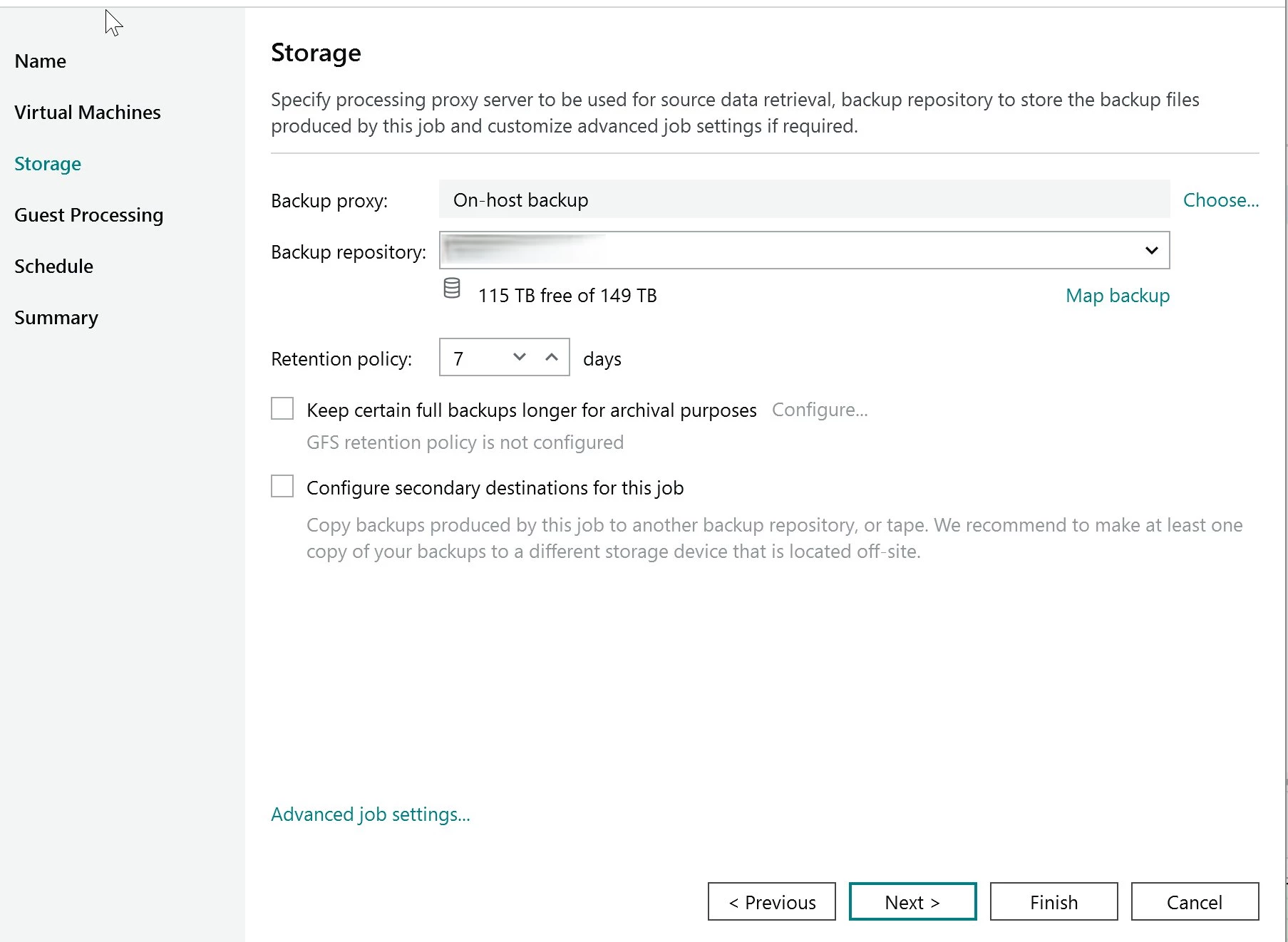
Click Choose to open the mode selection. The Backup Proxy dialog is where you pick on-host or off-host, as shown below.
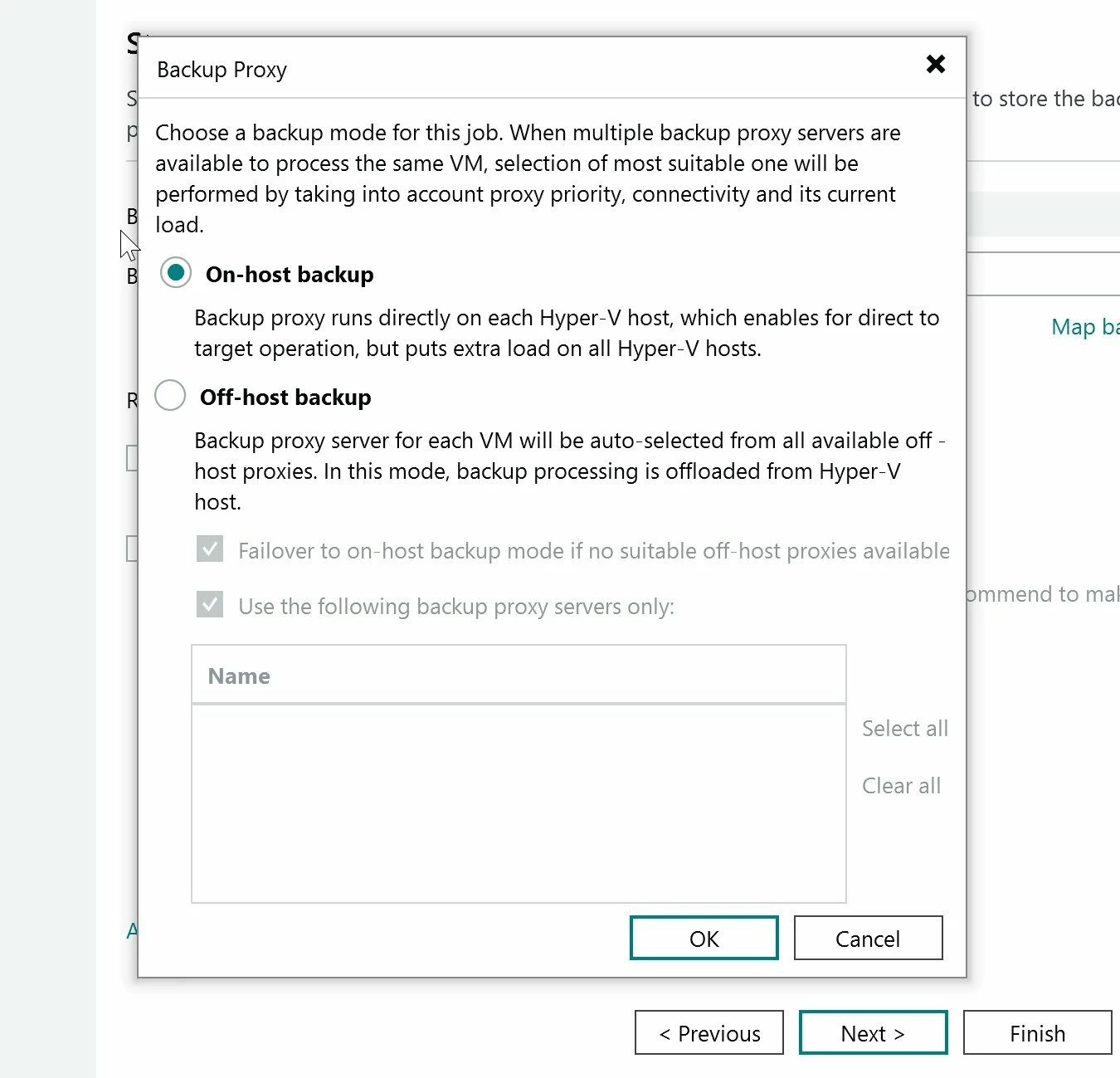
Notice the failover checkbox at the bottom of the off-host option. If you select off-host and no suitable off-host proxy is available, VBR can fall back to on-host automatically. That checkbox is checked by default. One more place where VBR makes a data path decision for you if you aren't paying attention.
WHAT TO WATCH IN THE SESSION LOGS
The job summary will tell you a job succeeded. It won't tell you which node acted as the on-host proxy for each VM. Or whether the CSV owner shifted midway through the job. Or whether a task sat in queue behind a taxed proxy.
Click into the job session. Expand the task detail for a specific VM. The first lines of the task log show the proxy that was selected and the backup mode it used. That's where you confirm your data path.
I make it a habit to spot-check these after any cluster change. Node maintenance, CSV rebalance, VM live migration. Any of those can shift which node acts as the on-host proxy.
VERIFY: In my environment, when an on-host proxy hits its task limit, VBR queues the tasks. It doesn't route it to a different node. I haven't confirmed whether this is documented behavior or specific to my setup. Check your own session logs to see how your VBR instance handles queuing under heavy load.
What to Actually Do in a Cluster Environment
For on-host mode on a cluster, confirm the proxy role is active on every node. VBR turns it on automatically when you add the host, but verify nobody has disabled or restricted it. If one node loses its proxy role, any CSV it owns won't have a local proxy at backup time.
Set concurrent task limits based on the host's headroom. The default is 2 concurrent tasks. Starting at 2 to 3 per host is reasonable for a first baseline. Remember the 2 GB RAM per task number. On a host with 64 GB RAM running 40 VMs, 3 concurrent tasks means 6 GB set aside for backup processing. That's on top of your VM memory allocations.
Watch the session logs over the first few weeks. Look for which nodes are acting as proxy most often. If one node owns most of the CSVs, it's carrying most of the backup load. You might need to rebalance CSV ownership to spread the load out more here.
If you're considering off-host, verify your SAN vendor's hardware VSS provider first. The Best Practice Guide warns that whether the hardware VSS provider works correctly depends on the vendor's implementation.
And finally, read the task-level logs, not just the job summary. The job summary tells you it worked. The task logs tell you whether it worked the way you think you designed it to.