
With Veeam Backup & Replication v13 and its implementation of SAML for authentication, we can use a lot of different IDPs. I already did a guide for entra id which you can find here: https://community.veeam.com/blogs-and-podcasts-57/vbr-v13-saml-implementation-guide-with-entra-id-11560
In my region, entra id is the IDP that is used at most companies. However, it is not recommended to add Veeam to your production active directory domain, so I would also say it is also not really recommended to add your Veeam to your production m365/entra id tenant or generally your main IDP.
This guide provides some guidance to set up Veeam with Authentik as an SAML IDP.
For those who never heard about Authentik: Authentik is a lightweight, open-source, self-hosted identity provider that offers SSO, MFA, and SAML/OIDC support for your applications. It’s a great fit for environments that want full control and no licensing costs. In contrast, Entra ID is Microsoft’s cloud-based identity platform with deep M365 integration and a larger feature set, but it requires subscriptions and internet connectivity. Authentik focuses on flexibility, privacy, and running entirely on-prem.
I am actually not sure how much Authentik and other locally hosted, open-source IDPs are in production use at companies. But I find it very interesting at least in my region, to see that there is not only entra id as an option.
Anyhow, I thought I'd share the process of integrating Authentik with Veeam SAML with this step-by-step guide.
First, what do you need?
- A working Veeam 13.x installation
- A working Authentik setup (the docs are really good, and you just need a docker container to get started: https://docs.goauthentik.io/enterprise/get-started/)
- An admin account for Authentik
Lets get started on the admin page of your authentik installation.
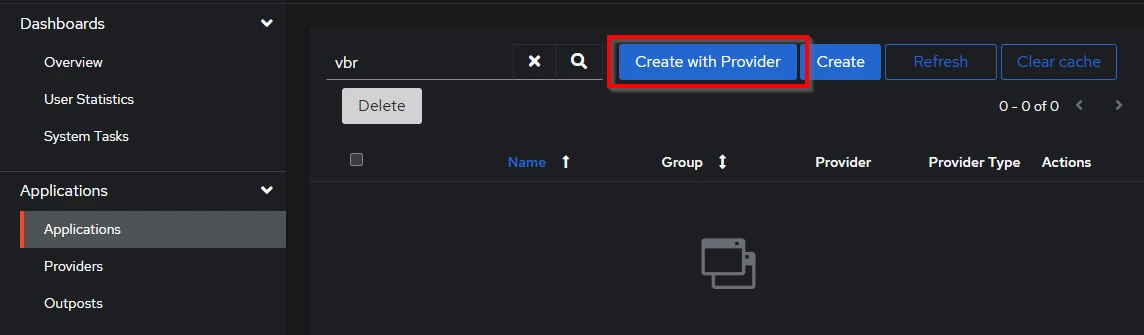
Go to applications and create an app with provider
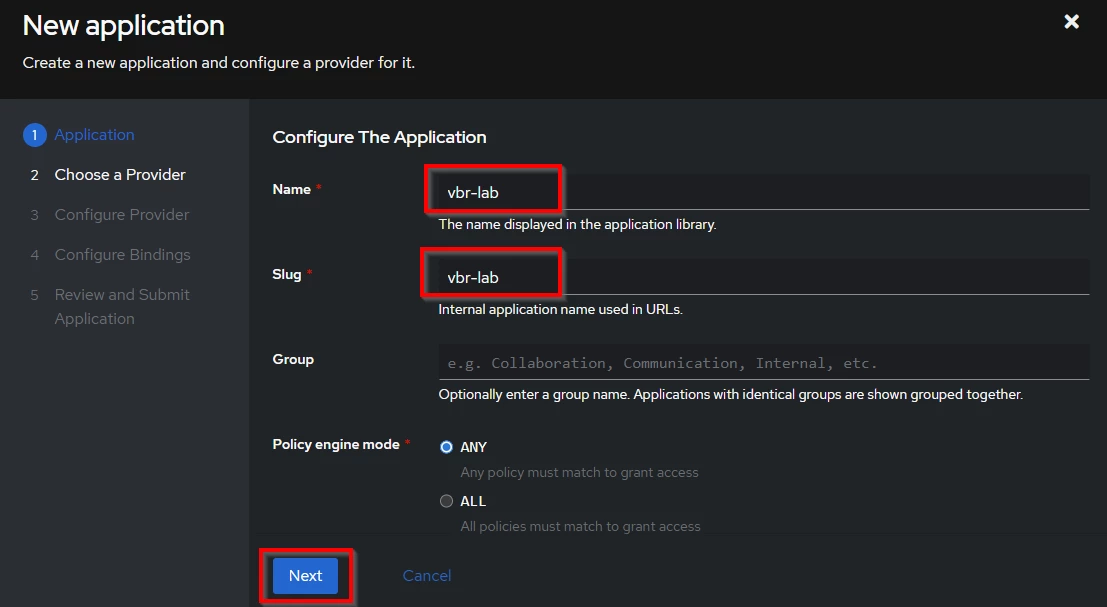
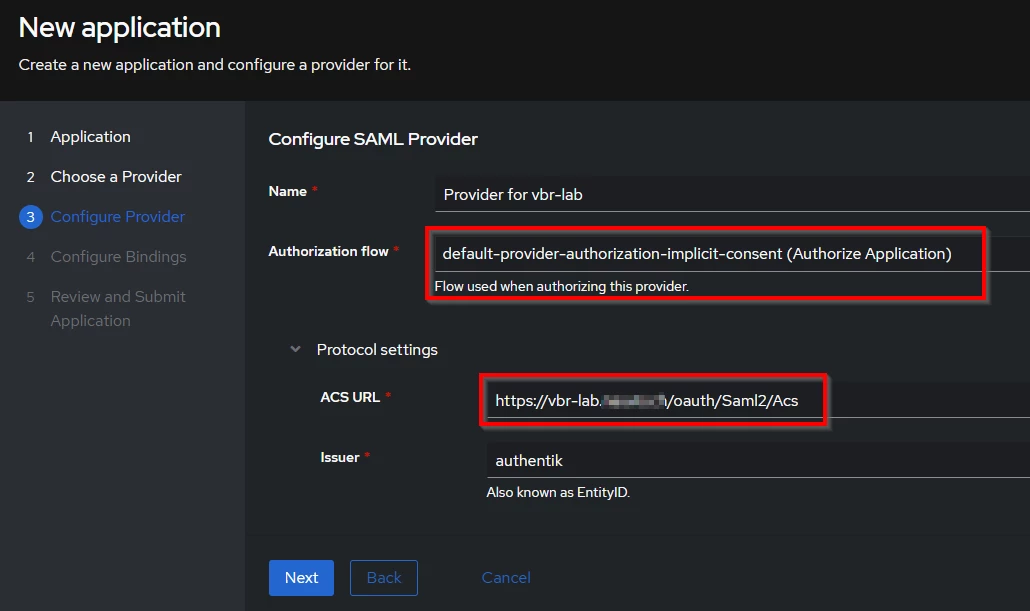
Select a name, I choose "vbr-lab". The rest on this page can be left default.
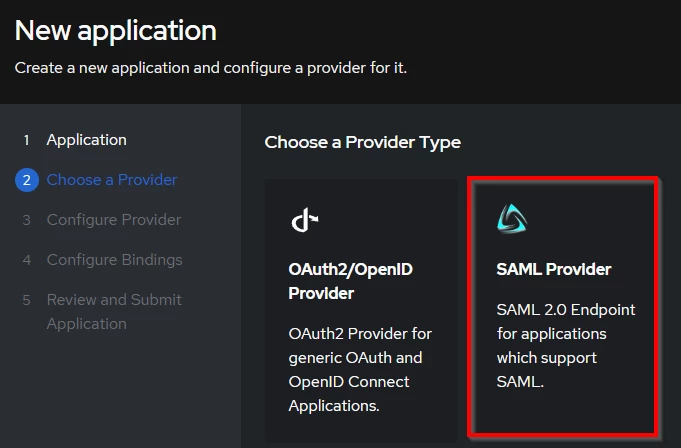
And select SAML provider
As the authentication flow, select "default-provider-authorization-implicit-consent (Authorize Application)" (explicit might also work depending on your setup)
And on the protocol settings, set the ACS URL to your FQDN of the Veeam server adding "/oauth/Saml2/Acs"
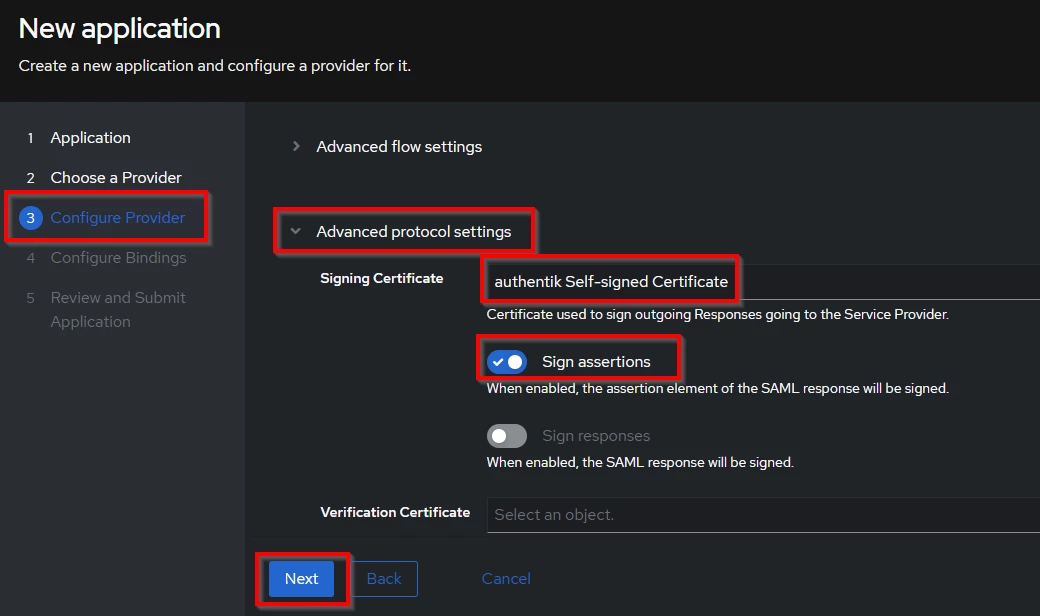
Additionaly, you have to add a signing certificate and sign the assertions.
After that you can set permissions to your application. In my case, I have a group called "veeamadmin"
But you can also just add your Authentik users in here.
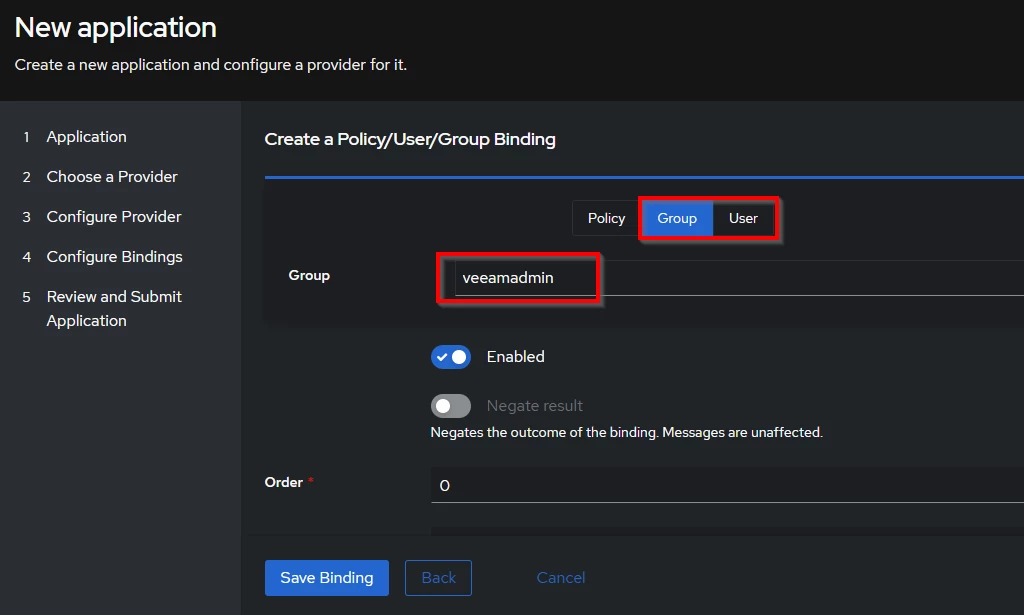
(Careful here, maybe it makes more sense in your environment to don't set administrative permissions with SAML. And only create a group for restore operators for example)
Basically the settings of Authentik are done. Just click "next, next, submit" and your application and provider are created.
We can now download the IDP configuration and import it into veeam. Go into your created provider and download the metadata.
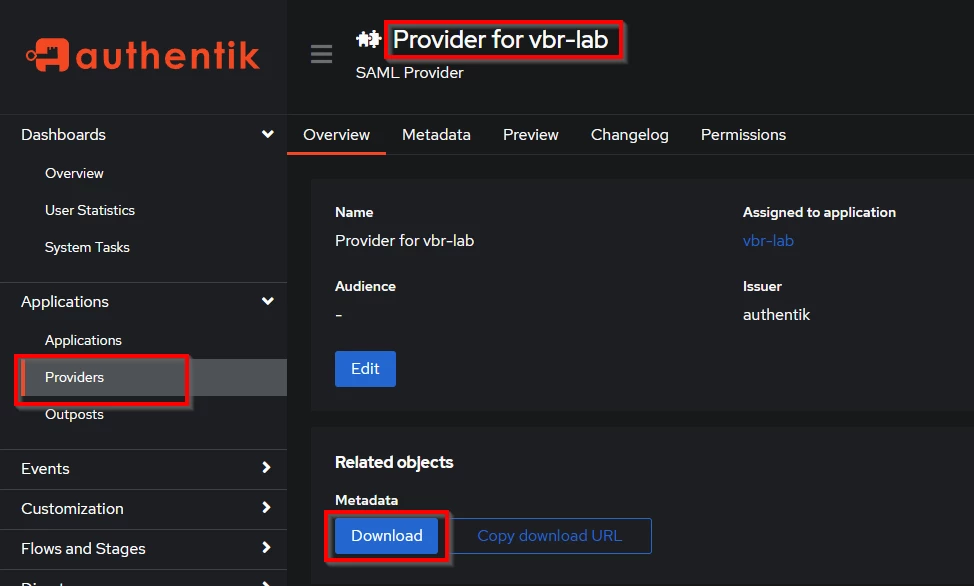
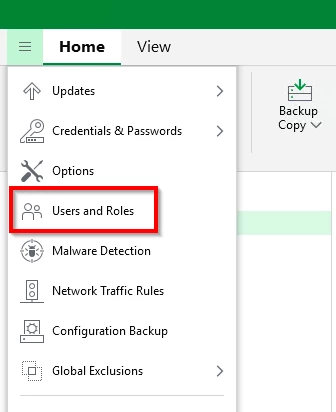
In Veeam, we need to enable the SAML settings in the "Users and Roles" settings.
Here enable SAML authentication and import the just downloaded xml file
And you have to specify a SAML service provider certificate in Veeam. In my case I selected the existing self signed server certificate of the VBR server.
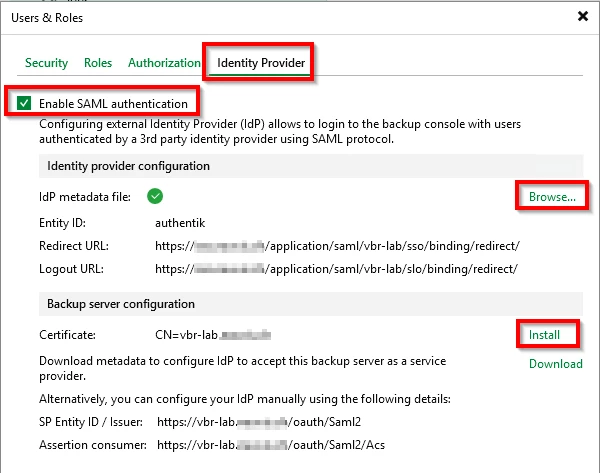
Click on OK to save the settings.
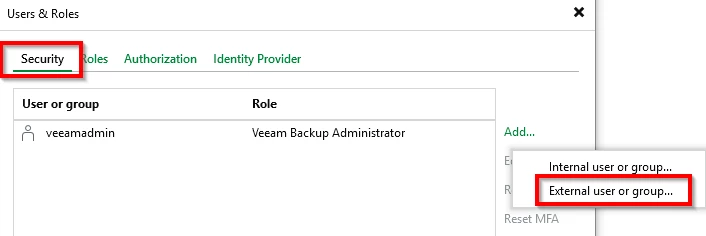
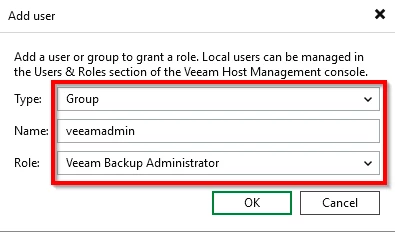
Now we can create the actual users/groups in VBR. Just add a new external user or group in those settings. Depending on what you configured on Authentik side. And select the role that you want the user or group to have.
Again the comment that it might not be the best practice to choose here a "Veeam Backup Administrator", but this is just for showcasing the functionality.
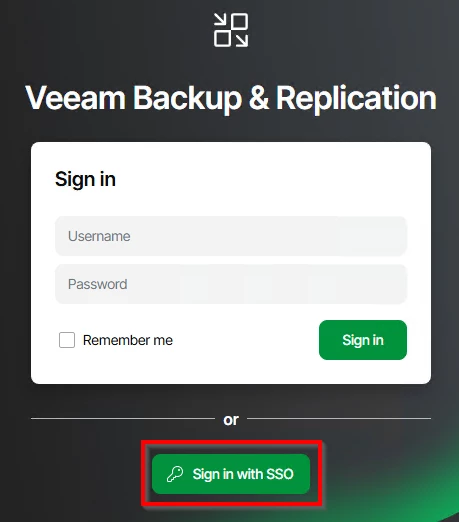
If you configured everything correctly, you should now be able to sign in with SSO on VBR webpage as well as VBR fat client.
This button "Sign in with SSO" should redirect you to your Authentik login page.
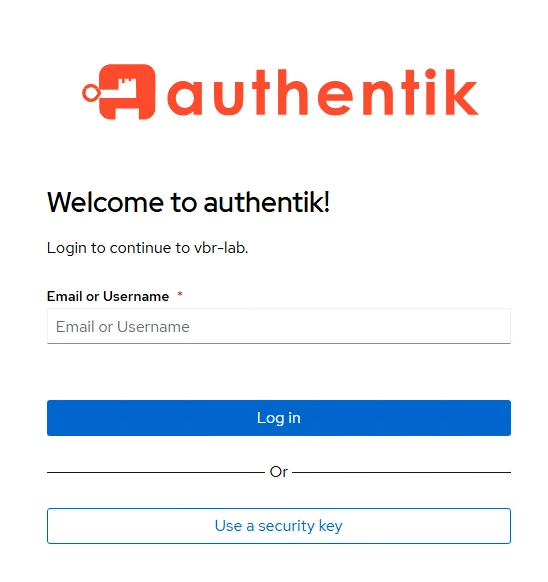
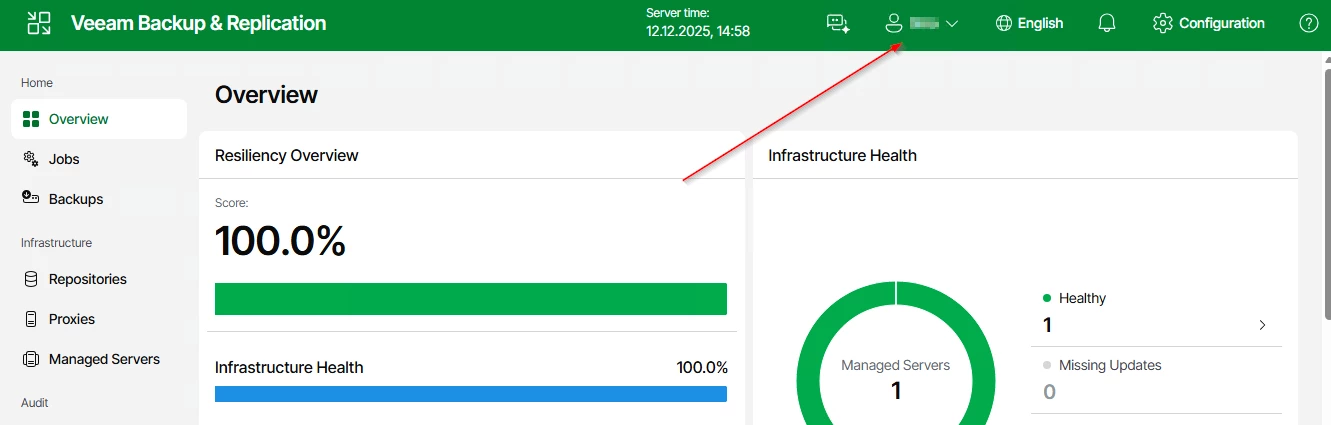
After signing in here, it redirects you back to VBR and you are signed in with the user account.
Regarding troubleshooting on Veeam side, this log file contains some relevant information:
/var/log/VeeamBackup/Svc.Identity.log which can be accessed by enabling ssh to VSA and then reading the file with a command like " tail -f /var/log/VeeamBackup/Svc.Identity.log"
And on Authentik side we do have on the admin page “Events → Logs”, here you find some logs about authentication errors.