



You open the Add Server wizard in Veeam Backup and Replication. You pick Microsoft Hyper-V. The next screen gives you three choices. Microsoft System Center Virtual Machine Manager. Microsoft Hyper-V cluster. Microsoft Hyper-V server (standalone).
Here is the part that catches people at times. SCVMM is the first option listed in the wizard. If you do not have SCVMM in your environment and you click Next without changing the selection, VBR throws this error: "Veeam Backup & Replication server does not have Virtual Machine Manager Administrator Console installed." That is KB4351. It is not a bug. You picked the wrong type.
Each option changes how VBR discovers your VMs, tracks Live Migration, deploys components, and handles backup proxy behavior. This post covers what each option does, what it requires, and when to use it. It also covers how the same choice applies in Veeam ONE.
What VBR Deploys on Every Hyper-V Host
Regardless of which type you select, VBR pushes the same set of services to every Hyper-V host it touches:
- Veeam Installer Service
- Veeam Data Mover Service (also called Veeam Transport Service)
- Veeam Hyper-V Integration Service
- Guest Interaction Proxy Service
All four run under the LocalSystem account by default. For security purposes, Veeam does not recommend changing that.
VBR deploys these services remotely. File and Printer Sharing must be enabled in the network connection settings of the Hyper-V host. If it is not enabled, VBR fails to deploy the required components.
The NETBIOS name of the Hyper-V host must also resolve successfully. (I know, I know..)
Standalone Hyper-V Host
You point the VBR at a single host by DNS name or IP. You provide credentials with administrator privileges on that host. The VBR deploys its services and you are done.
This is the simplest path. It works for lab hosts, single purpose boxes, and hosts that are not part of any cluster or SCVMM fabric.
What you lose is VM migration tracking. If you Live Migrate a VM from one standalone host to another standalone host, the VBR does not follow it. You’ll have to reconfigure the job to include the migrated VM on the new host. After reconfiguration, the VBR creates full backups for those VMs. If you do not reconfigure the job, it fails.
Note: If you get an "Invalid Credentials" error when adding a standalone Hyper-V host using a local account, Veeam documents this in a separate KB article linked from the Before You Begin page. The built-in Administrator account or a domain account with local admin rights avoids this issue.
Hyper-V Failover Cluster
You add the cluster by its cluster name. That is the Failover Cluster virtual computer object, not an individual node name. The VBR discovers the member nodes and deploys its services to them.
VM migration tracking works. When a VM moves between nodes via Live Migration, VBR automatically locates the migrated VM and continues processing it as usual. Jobs do not break. No new full backups. No reconfiguration.
Note: Credential based authentication is required for Hyper-V cluster objects. The Veeam Deployment Kit option for certificate based authentication is not available for clusters.
Both on-host and off-host backup modes are available.
On-host mode is the default. VM data is processed on the source Hyper-V host where the VM resides. The host performs the role of the backup proxy.
Off-host mode shifts backup processing to a dedicated machine called an off-host backup proxy. The VBR uses transportable shadow copies. It triggers a snapshot of the volume on the Hyper-V host, detaches that snapshot and mounts it to the off-host proxy, reads the VM data from the mounted snapshot, then dismounts and deletes the snapshot on the storage system when finished.
Off-host has real requirements. They differ based on storage type.
Off-host with CSV (SAN) storage:
- The off-host proxy must be a machine that is NOT part of the Hyper-V cluster. When a volume snapshot is created, it has the same LUN signature as the original volume. Microsoft Cluster Services do not support duplicate LUN signatures. If the proxy is on a cluster node, the cluster will fail during backup.
- The source Hyper-V host and the off-host proxy must be connected to the shared storage through a SAN configuration.
- The off-host proxy must have read access to the storage LUNs.
- A VSS hardware provider that supports transportable shadow copies must be installed and configured on the off-host proxy AND on each production Hyper-V host.
- Any VSS hardware provider certified by Microsoft is supported. Some storage vendors may require additional software and licensing to work with transportable shadow copies.
- If CSV Data Deduplication is enabled on the source volume, the Data Deduplication option must also be enabled on the off-host proxy. Otherwise, off-host backup will fail.
Off-host with SMB shared storage:
- The off-host proxy must have read access to the SMB shared storage.
- The LocalSystem account of the off-host proxy must have read access permissions on the Microsoft SMB3 file share.
- The off-host proxy must be in the same domain where the Microsoft SMB3 server resides. Alternatively, the domain where the SMB3 server resides must be trusted by the domain in which the off-host proxy is located.
Do not use an off-host proxy to back up a VM with VHD Set enabled. The backup job will fail.
Veeam recommends on-host backup because it is easier to implement. Whether the VSS hardware provider works correctly depends on the storage vendor implementation. (Most implementations are solid these days)
SCVMM Server
You add the System Center Virtual Machine Manager server itself. VBR connects to SCVMM and discovers every host and cluster that SCVMM manages. Services get deployed to all discovered Hyper-V hosts.
This gives you the broadest view. One connection point. Every host and cluster in the fabric.
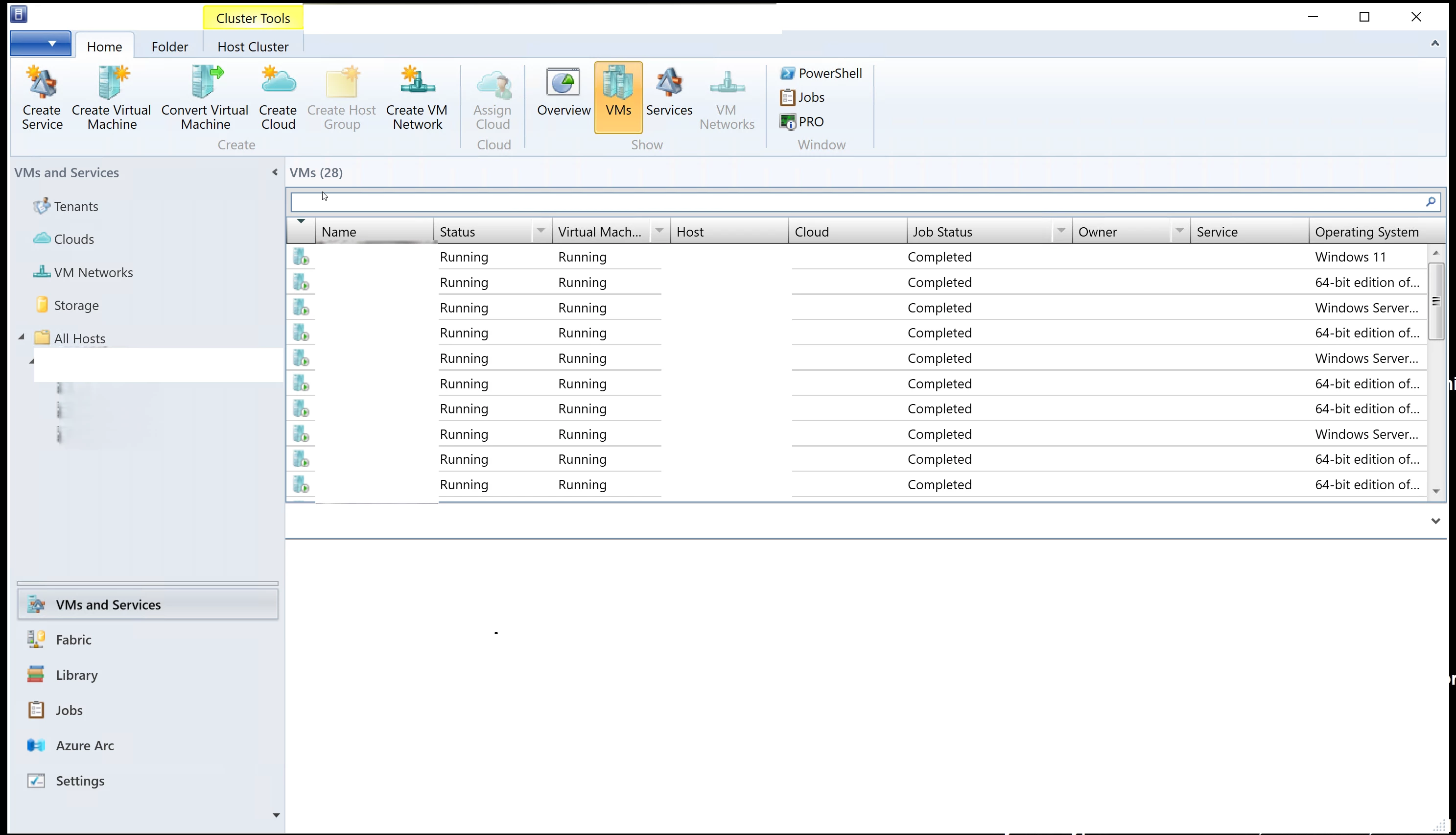
VM migration tracking works between hosts in the SCVMM. The VBR automatically locates migrated VMs and continues processing them as usual. You do not have to reconfigure jobs.
Both on-host and off-host backup modes are available. The proxy behavior per cluster is the same as described above.
Prerequisites:
- The SCVMM Admin Console version must match the SCVMM management server version.
- Firewall rules must allow traffic from the VBR infrastructure to the SCVMM server.
KB4351 from September 2022 states the SCVMM Admin Console must be installed on the backup server. The current v13 documentation does not list this as a prerequisite. In my environment, the SCVMM Admin Console is installed on a jump box running a remote VBR console. It is not on the VBR server at all.
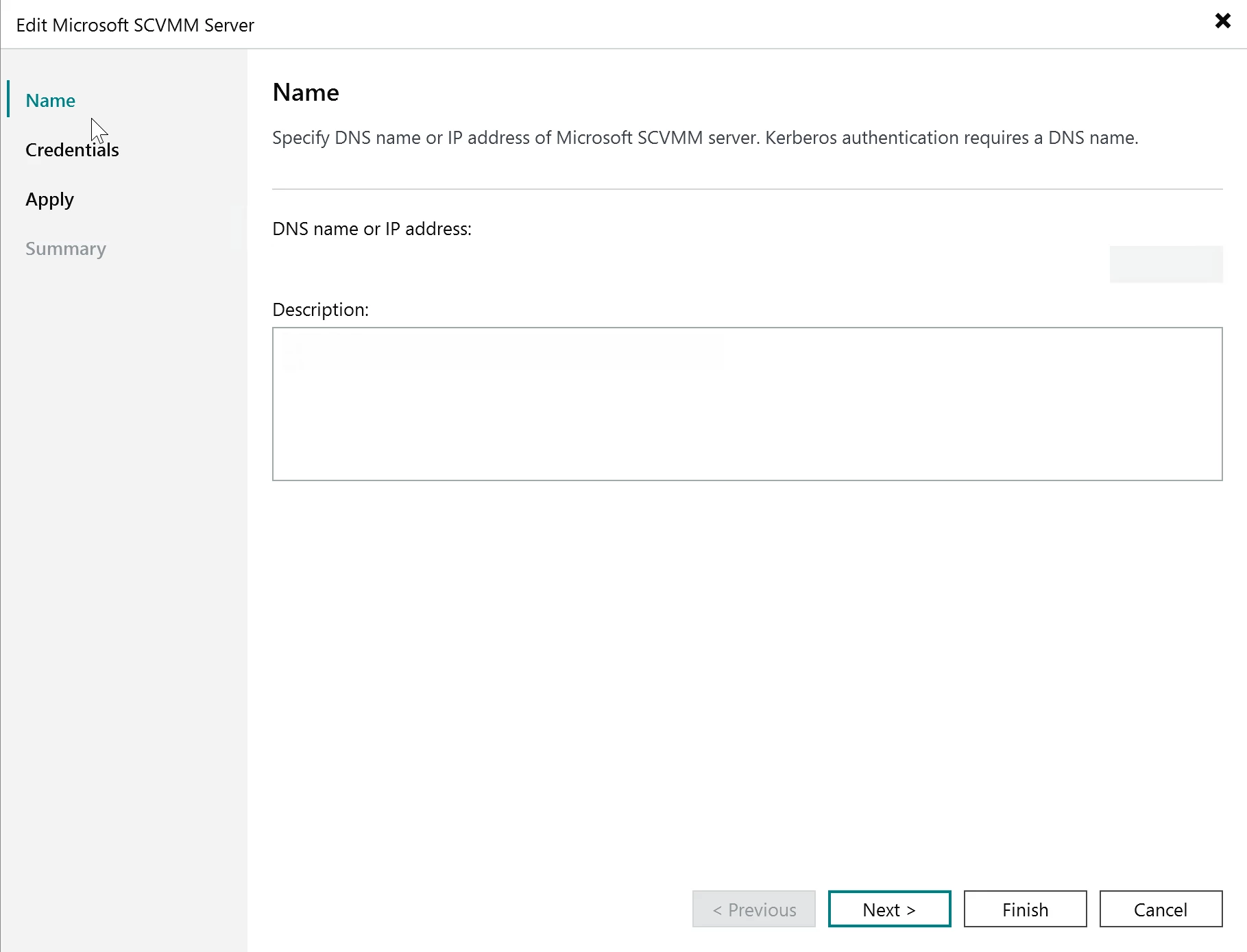
Kerberos authentication requires a DNS name. If you add the SCVMM server by IP address instead of DNS name, Kerberos authentication will not work. Use the FQDN.
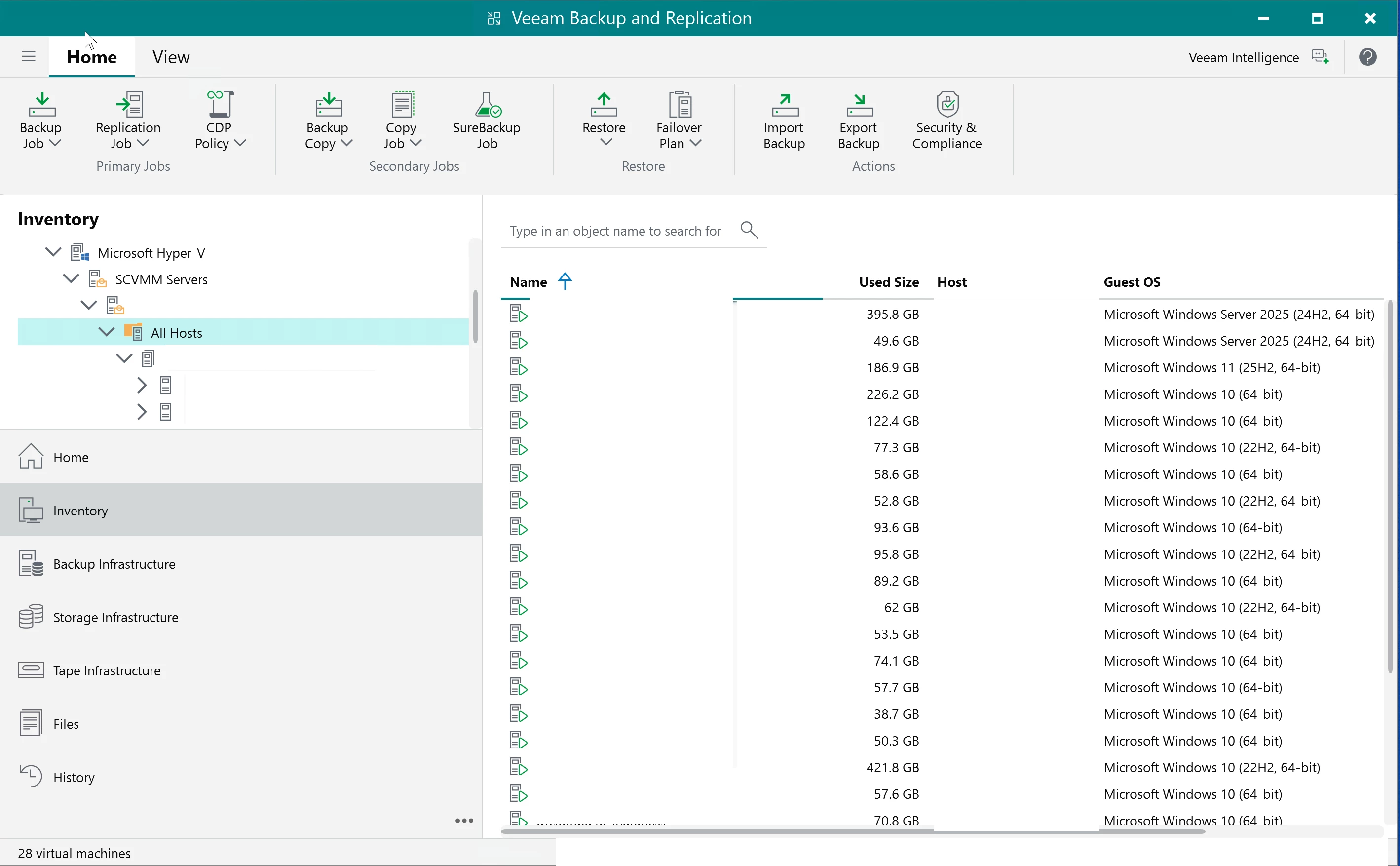
Once connected, VBR populates the Inventory tree under Microsoft Hyper-V > SCVMM Servers. Expanding your SCVMM server and selecting All Hosts shows every VM that SCVMM manages, as shown in the image below.
The VBR ignores the SCVMM maintenance mode on Hyper-V hosts and cluster nodes. The VBR continues all data protection activities and allows launching new ones even when a host is in maintenance mode in SCVMM.
Linux based Veeam Software Appliance does not support the SCVMM High Availability feature.
DO NOT DOUBLE ADD (Don’t do it)
Do not add individual hosts or clusters to the VBR if those same hosts or clusters are already managed by an SCVMM server that is already added to the backup infrastructure.
The same applies in reverse. If you already added a cluster directly, do not add the SCVMM server that manages that cluster without removing the direct cluster entry first.
Adding SCVMM servers to VBR is optional. Hyper-V hosts or clusters that SCVMM manages can be added directly. Pick one path and life is good.
THE SAME CHOICE EXISTS IN VEEAM ONE
The VBR is not the only Veeam product that asks you to pick between these three types. Veeam ONE has the same type of wizard with the same three options. SCVMM server. Failover cluster. Standalone Hyper-V host.
The wizard lives in the Veeam ONE Web Client under Configuration > Data Collection > Data source > Add server. The behavior follows the same logic. Standalone gives you visibility into one host and its VMs. Cluster gives you visibility across all nodes in the cluster with migration tracking within the cluster. SCVMM gives you full fabric visibility across every host and cluster that SCVMM manages.
The SCVMM prerequisite is different here. For Veeam ONE, the SCVMM Admin Console must be installed on the machine where you installed the Veeam ONE Server component. The version of the SCVMM Admin Console must be the same as the version of the SCVMM server you are adding. This is explicitly stated in the current v13 Veeam ONE documentation.
How the Three Options Compare
Standalone is the narrowest scope. One host. Its VMs. If something migrates off that host, it is gone from your backups and your monitoring. In the VBR, the job fails and you rebuild the backup chain. In Veeam ONE, the VM disappears from your dashboards. No cluster alarms. No fabric visibility. Use this for labs and one-off boxes.
Cluster changes things. Migration tracking works within the cluster in both products. In the VBR you get off-host proxy as an option if you have the storage and VSS hardware provider to support it. In Veeam ONE you get cluster specific alarms that only exist when Veeam ONE understands the cluster context. Failover events, witness failures, network errors, version mismatches across nodes. You cannot get those alarms by adding the same nodes individually.
SCVMM is the widest scope and it comes with strings attached. Everything SCVMM touches becomes visible from a single connection point in both the VBR and Veeam ONE. For the VBR, the current v13 docs do not specify where the SCVMM Admin Console must be installed. For Veeam ONE, it must be on the Veeam ONE Server machine. The console version must match the SCVMM management server version in both cases. If SCVMM already runs your Hyper-V fabric, this is the right choice for both products. If it does not, do not add SCVMM overhead just for Veeam. Add the clusters directly.



