



It was a technical milestone last week for me in the lab after successfully migrating my Veeam v13.0.1 backup server from Windows to a Linux VSA. The purpose of this migration was to improve system efficiency and showcase the v13 product enhancements to my customers. This was a joint effort with Veeam support and the Partner team. Below are the steps I followed during the migration. The first step was obtaining approval from Veeam support and having a dedicated engineer available if any issues arose. All the migration steps are below
Step 1 - engage Veeam support and open a migration ticket
Step 2 - follow the pre-requisites from Veeam support
- Confirm the latest P1 is installed
- Remove all the storage integrations from the Veeam server
- Remove the google plugin from the installation
- Collect and send the VMC log to support for verification
Step 3 - engage with support and provide the following details
- Upload a log bundle to the support case
- Ensure and confirm a VSA is installed and ready with P2 installed
- Ensure and confirm you have a Windows remote console with P2 installed
Note: it cannot be the current VBR server, it won't work, it must be a unique machine. Also, Windows Veeam servers will not be able to connect using this console after completed.
- Once that was completed, I installed the following fix on both the Linux VBR and Windows VBR (it includes a .bundl for VSA and .exe for Windows (Fix_1306689_8adfbe78ee.zip)
- Follow the KB article provided by support (https://www.veeam.com/kb4800)
- Ensure that you have instance-based licenses
- Sign in to the VSA conversion portal
- Enable the "Receive proactice support" option in the product
Step 4 - Disable Schedule Jobs on Windows VBR server
Step 5 - Create an encrypted configuration backup on the Windows VNR server
Step 6 - Stop specific Veeam services on Windows VBR
- Veeam AHV Service, Veeam AWS Service, Veeam Azure Service, Veeam Backup Server, RESTful API Service, Veeam Backup Service, Veeam Broker Service, Veeam CDP Coordinator Service, Veeam Cloud Connect Service, Veeam Data Analyzer Service, Veeam Kubernetes, Service, Veeam KVM Service, Veeam PVE Service, Veeam SC HyperCore Service, Veeam Web Service, Veeam GCP Service, Veeam Orchestrator Agent Service
Step 7 - Take a snapshot of the VBR and machines with repositories, mount hosts, and proxies
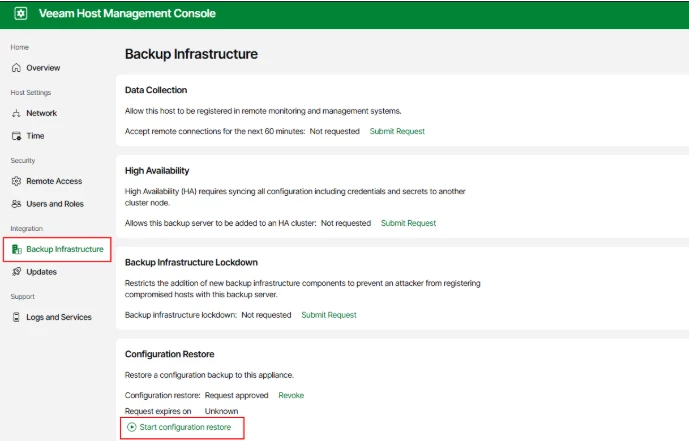
Step 8 - On Linux VBR, start Configuration restore in WebUI
- Open Veeam Host Management Console (Linux Cockpit) → Backup Infrastructure →
Configuration Restore
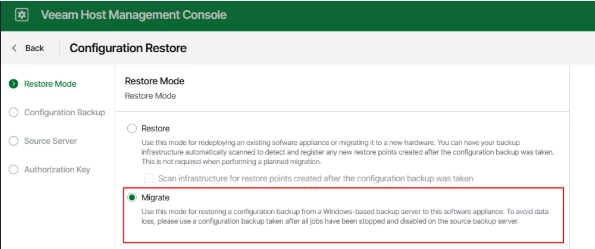
- Restore mode: Migrate
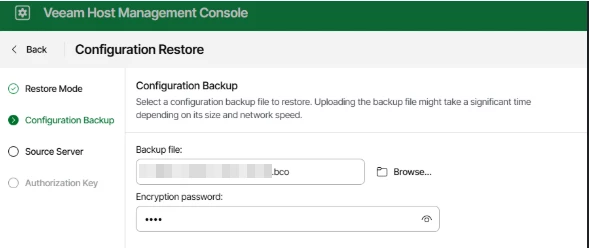
- Upload the BCO file from Windows VBR and specify the password
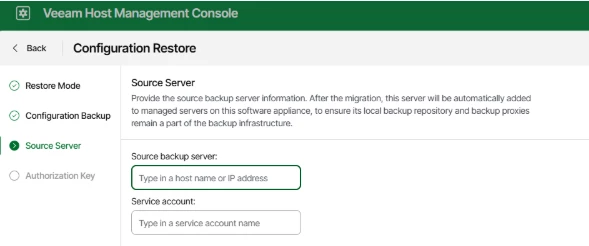
- Specify the address or name of the source VBR server and user of the Windows host from which the migration is performed.
- Add the Authorization key you received from Support team.
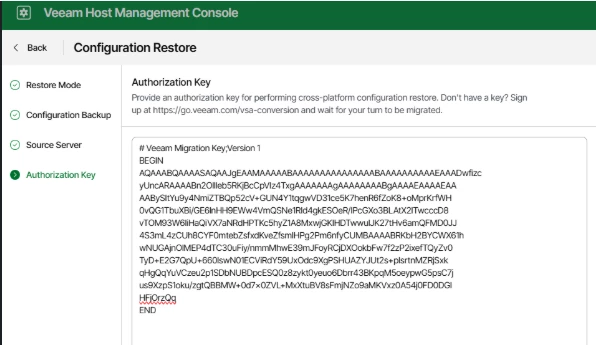
- The migration will run, once completed you should be able to login to the Linux VSA. At this point you will need to enable all backups job and verify they're working correctly.
- Any issues engage with the support engineer that was assigned to the migration
Step 9 - Post Migration
- Check the remote hosts (especially the migrated host) and upgrade the components.
- Log in to Linux VBR using the Windows console or WebUI and check everything necessary: jobs, repositories, proxies, servers, etc.
- If VBR is added to Veeam ONE - After the migration, the Veeam Software Appliance must be added as a new backup server, and the entry for the old one must be deleted. Historical data in Veeam ONE for the old backup server will be lost.
- If VBR is added to Enterprise Manager, just EDIT the VBR server to update the FQDN/IP/DNS entry and it will update accordingly.
Note: After configuration restore, everything that was default on your Windows VBR
(repositories, proxies, etc.) will be renamed to “Migrated ……” to avoid confusion with
what is default.
Final Thought
The migration was a straightforward process, however, keep in mind that you must follow all the prerequisites in the migration doc, or you will have issues. At this time, the migration is controlled by Veeam, meaning you will need to open a support ticket and go through the necessary channels to complete the migration. Support needs to provide the authorization key for the "Configuration Restore" to begin

