
System Center Virtual Machine Manager (VMM) centralizes and simplifies datacenter management by providing a single platform to configure, monitor, and control virtualization hosts, networking, storage, and deployment resources. Thereby, enabling administrators to efficiently provision and manage virtual machines and services across private clouds.
Before integrating SCVMM with VRO, you must install the VMM Console on the VRO server. Else, the integration will fail. Note that, this article is a continuation of the following:
Note: A Hyper-V cluster can be added to the Veeam infrastructure and is ready to serve as a source and target for backups, replication, and other operations. Note that adding SCVMM servers to Veeam Backup & Replication is not required. You can read more about SCVMM support by Veeam from here.
Adding Microsoft Hyper-V or Cluster to VRO
But to allow Orchestrator to connect to an SCVMM server, you must first install the SCVMM console on the machine that runs Orchestrator as described in Microsoft Docs.
Keep in mind that the SCVMM version of the console must match the System Center version of the server. If you do not do this, you will not be able to integrate SCVMM with VRO.
Note: If the SCVMM server or standalone cluster that you want to connect to Orchestrator is added to a backup server, you must first upgrade the server or cluster to Veeam Backup & Replication version 12.3. Otherwise, the server or cluster will no longer be able to connect to the backup server, which may affect data protection. Also, see Upgrade Path and In-Place Upgrade for VBR v13 and Known Fixes.
But for Veeam Recovery Orchestrator, to collect data about Microsoft Hyper-V infrastructure objects. You must configure connections either to Microsoft System Center Virtual Machine Manager (SCVMM) servers or standalone clusters.
Note: Before adding a connection, ensure all Microsoft Hyper-V infrastructure objects are online. If you activate them afterward, Veeam Recovery Orchestrator may take up to 2 hours to synchronize and collect their data.
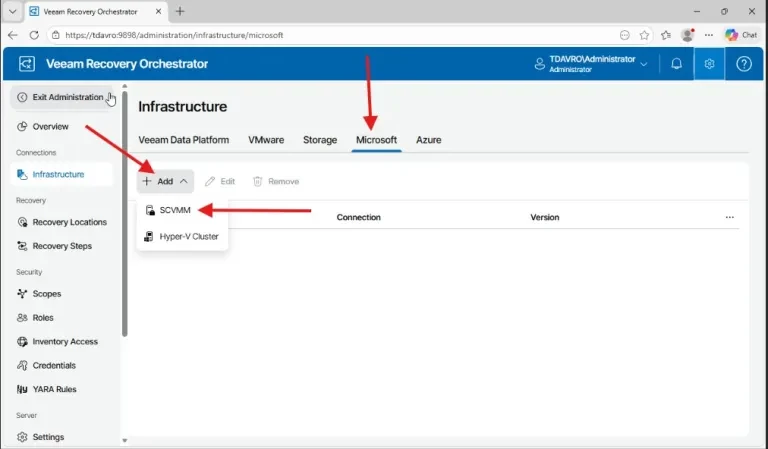
To do this, navigate to the Administration page. Under Infrastructure, select Microsoft and click on Add as shown below.
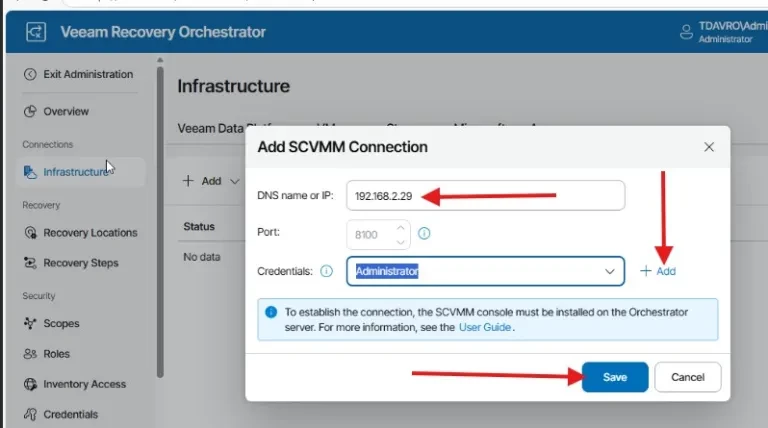
Enter the SCVMM connection parameters. Here you can use the DNS or IP address and then specify the credentials. Do not forget to click on Save.
Install Virtual Machine Manager Console
To do this, I will access the TDASCVMM server from the TDAVRO server using the Run dialog (Win + R) . Then connect via the administrative share, for example: \\TDASCVMM\\c$ or \\192.168.2.29\\c$
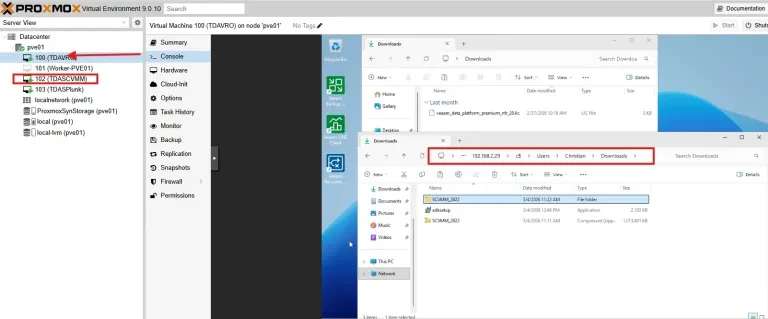
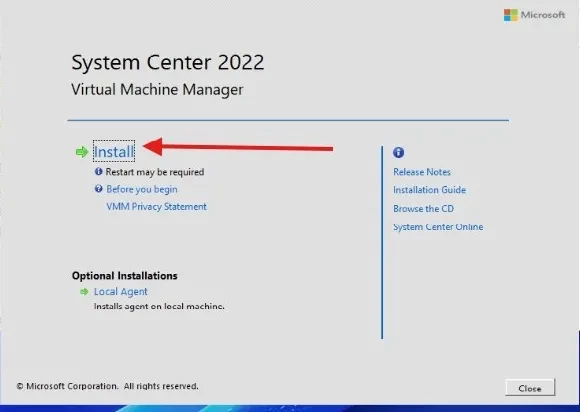
I will copy the setup to the downloads folder, and click on Install to proceed with the installation.
Note: To “install the VMM management server. You must be logged on under a domain account that has administrative credentials on the local computer”. Else, you cannot install the Console.
To mitigate against this issue, have to bypass the GUI and run setup in client mode from the command line, which does not require the machine to be domain‑joined. Alternatively, you can also use the Runas command or use the shift + rigt-click to get the run as a different user in order to install the VMM Console.
Install the console from the command prompt
I employed this approach as it is very straight forward unlike the “runas” command above. To do this, open an elevated Command Prompt and change to the root of the setup file or ISO.
Then run the command below to install the VMM console. More information about the command can be found here.
setup.exe /client /i /IACCEPTSCEULA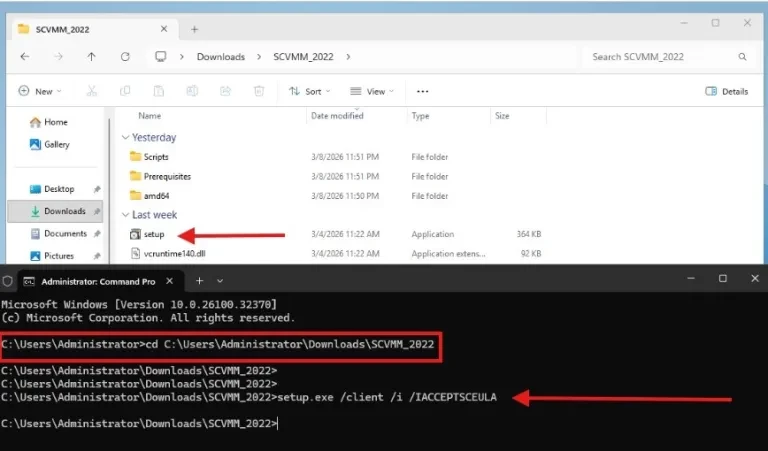
Since the VMM management server is not stored locally. We have to change from localhost to the remote server FQDN or IP Address, and then specify the credentials.
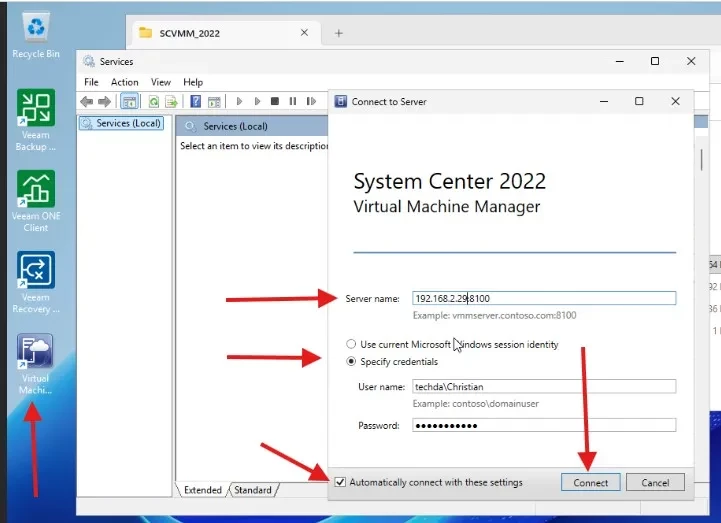
Lastly, also ensure that the accunt you are employing to integrate SCVMM with VRO has the necessary (local administrative rights) on the VMM management server.
Now that the console has been installed, please proceed with the SCVMM integration with SCVMM again.
Add the connection details as discussed shown below and do not forget to save.
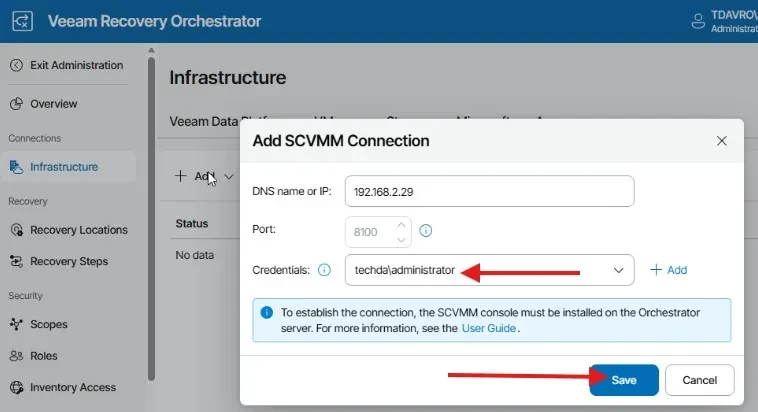
Note that after you configure a connection to a standalone cluster or perform any infrastructure configuration changes, the changes may not appear in the Orchestrator UI immediately. The data synchronization process may take up to 15 minutes to complete.
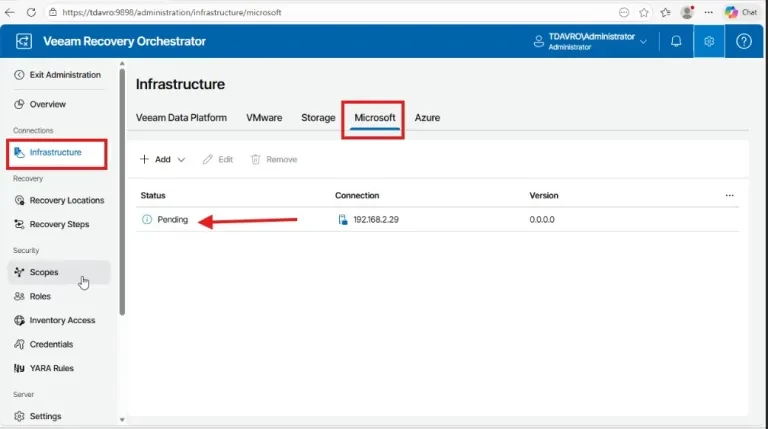
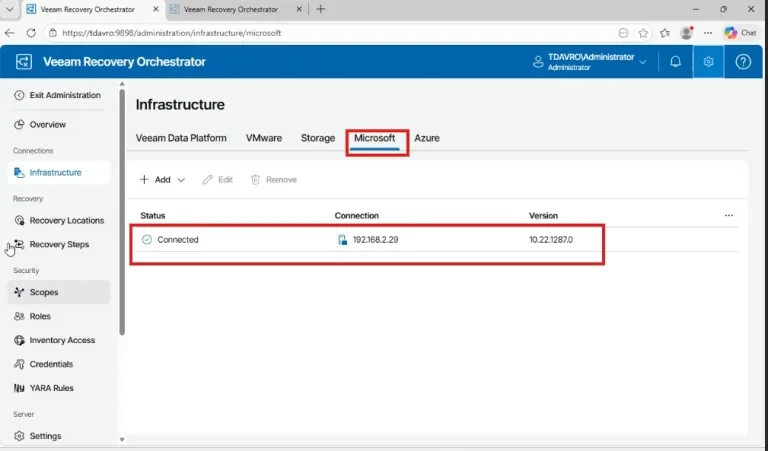
From the image below, you can see that we have successfully added or integrated SCVMM with VRO.