


In this post, I analyse the issues involved in backing up a VDI environment in a VMware vSphere environment with TPM enabled. The VMs being backed up are Windows 11 with Microsoft Office 365 licences.
The configuration of Veeam for backing up encrypted VMs requires this architectural prerequisites:
- The backup proxy must be working in the Virtual appliance or Network transport mode:
- The backup proxy working in the Virtual appliance transport mode must be deployed on an encrypted VM.
- The backup proxy working in the Network transport mode uses the NBD protocol by default. If you want to use NBDSSL, select the Enable host to proxy traffic encryption in Network mode (NBDSSL) check box in the Transport Mode window. Note that traffic encryption puts more stress on the CPU of an ESXi host and can decrease performance.
With this proxy configuration, we can perform consistent backups.
For VM restoration, consider the following:
If possible, use the "entire VM restore" option to the original location. This replaces the original VM, and Veeam handles the process of ensuring the VM's configuration (including the TPM) is correctly re-established.
If it is not possible to keep the name and/or path of the VM, consider that we will encounter the following problems:
- Loss of the TPM certificate, resulting in a issue with the Microsoft licences installed on the VM, as they are linked to the VM certificate.
Let's see how to solve these issues.
Once the encrypted VM is restored with a different name and/or path, we will see that the VM has a TPM certificate issued by a CA other than the one configured in vSphere, see below in image:
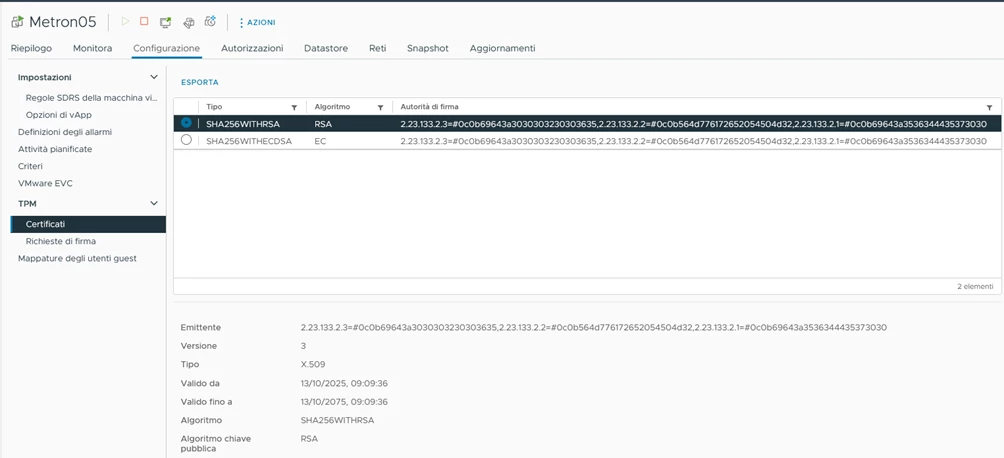
At this point, we log in to the restored VM and run the PowerShell command: clear-tpm

The VM will resume the correct CA:
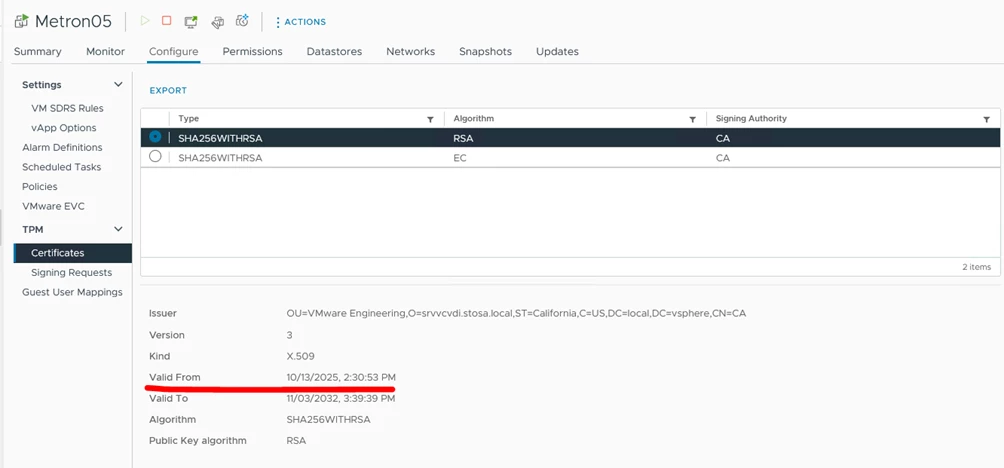
Microsoft Office licence issue:
After changing the TPM, the licence is no longer valid and requires re-authentication.
This is because the folder generated by these applications no longer matches the authentication tokens generated by the original TPM (Trusted Platform Module) chip.
Rename this folder of the user concerned must therefore be renamed by another administrator user right:
C:\users\$dir\AppData\Local\Packages\Microsoft.AAD.BrokerPlugin_cw5n1h2txyewy
Add to folder name, example, .old:
C:\users\$dir\AppData\Local\Packages\Microsoft.AAD.BrokerPlugin_cw5n1h2txyewy.old
From user session:
- Remove the credentials related to Microsoft Office 365 in Windows Credential Manager.
- Delete Trusted Platform Module (TPM):
1. from Start, select Settings (gear icon) > Update & Security > Windows Security > Device Security.
2. In Security Processor, select Security Processor Details>Security Processor Troubleshooting.
3. Select “Delete TPM”.
4. Restart VM and try to register to Microsoft 365.
After restarting the PC, opening Microsoft Office applications may require activation several times.
Close and reopen Microsoft Office applications to verify that the licence is now correctly applied.
https://learn.microsoft.com/it-it/office/troubleshoot/activation/tpm-malfunctioned
https://helpcenter.veeam.com/docs/vbr/userguide/encrypted_vms_backup.html?ver=13