
[PowerShell] Generate Veeam HTML Reports DIY

  • March 4, 2026
  • 10 comments
  • 17 views

Forum|alt.badge.img+3

Special thanks to our dear Veeam Support Team Members Cosmin Ciobanu and Marius Nita for the following trick! Veeam Support is _always_ looking for ways to make everyone’s lives easier.

Currently, to generate an HTML report for many sessions at once you need to go to the Session tab in the UI and ctrl / shift + click on desired sessions; not always convenient, and for Transaction Log backup sessions in particular you may have hundreds (if not thousands) of sessions.

With Powershell and a bit of prep work, you can do this automagically:


Preparatory Step:

From a Windows-based backup server, copy the following files

Copy
C:\Program Files\Veeam\Backup and Replication\Backup\SessionReport.xslt
C:\Program Files\Veeam\Backup and Replication\Backup\SqlSessionReport.xslt


to the following path on the machine where you will generate the report with Powershell:

Windows:

C:\Program Files\PowerShell\7\

Linux:

/opt/microsoft/powershell/7/

Both xslt files should be in the powershell/7 directory.
 

Then run the following script; this example uses a Veeam Agent for Windows job with Transaction Log backups enabled:

$job = Get-VBRJob -name "name of job with Tlog backups enabled" #We use Get-VBRJob even for Agents despite this being deprecated. Add -WarningAction SilentlyContinue to suppress warning
$sqlJob = $job.FindChildJobs().FindChildSqlLogBackupJob()
$sessions = [Veeam.Backup.Core.CBaseSession]::GetSessionsForJob($sqlJob.id)
$bSessions = @()
ForEach($x in $sessions){
$bSessions+=[Veeam.Backup.Core.CBackupSession]::Find($x.id)
}
$reportFactory = [Veeam.Backup.Core.CReportGeneratorFactory]::Create($bSessions, $true, $false)
$report = [Veeam.Backup.Common.SReportContentGenerator]::GenerateReport($reportFactory)
$report | Out-File C:\temp\report.html

Screenshot of example report: 
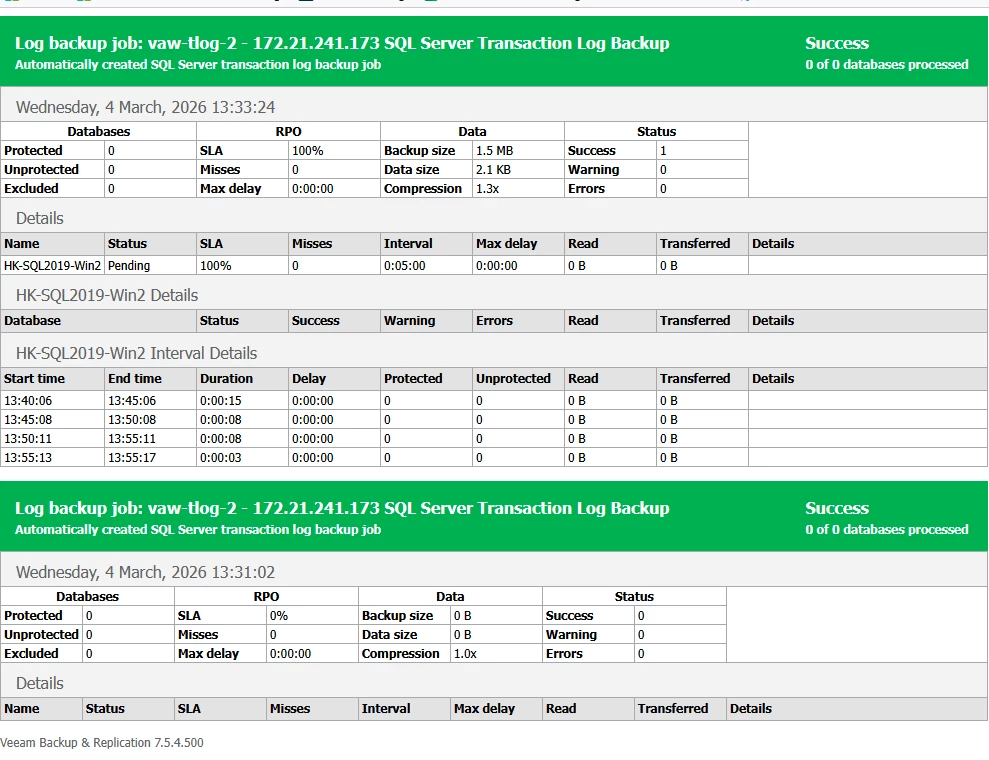
Naturally, all of this is unsupported, but for those who are daring, you now have the power in your shell.

10 comments

Chris.Childerhose
Forum|alt.badge.img+21

Very nice little tidbit for creating reports.  Too bad, only Windows is mentioned and not VSA. 😋😂


Forum|alt.badge.img+3
  • Author
  • Experienced User
  • March 4, 2026

Glad you like it! 


And yes, right now it needs Windows PoSh 7, which means Remote Console on a Windows box.


I will research if I can get some time how to reproduce with Linux PoSh, my guess is that we need to place the xslt files in a similar path on linux.

But if your backup server is VSA and you use the Remote Console on Windows, this will work ​@Chris.Childerhose 


Chris.Childerhose
Forum|alt.badge.img+21

Oh, nice that it will still work.  I guess I will give this a test as we still have Windows VBR servers where I can get the files from. 😎


coolsport00
Forum|alt.badge.img+21
  • Veeam Legend
  • March 4, 2026

Nice PWSH “Veeam Report Fling” David! I assume this is not just fort VDP v13?


MarcoLuvisi
Forum|alt.badge.img+6
  • VUG Leader
  • March 4, 2026

Thank for sharing ​@ddomask very usefull.

Sorry ​@ddomask what version about is ?  ...I see 7.5.4.500


Forum|alt.badge.img+3
  • Author
  • Experienced User
  • March 4, 2026

Nice PWSH “Veeam Report Fling” David! I assume this is not just fort VDP v13?

Only tested on v13 -- probably it works on v12, but I didn’t check it


Sorry ​@ddomask what version about is ?  ...I see 7.5.4.500

I didn’t dig in to see where it’s pulling that from but I noticed it too -- I am writing it off as “unsupported method magic” for now I’m not sure it’s worth urgently investigating.


coolsport00
Forum|alt.badge.img+21
  • Veeam Legend
  • March 4, 2026

Thanks David!


kciolek
Forum|alt.badge.img+1
  • Experienced User
  • March 4, 2026

Thanks for sharing!


Forum|alt.badge.img+3
  • Author
  • Experienced User
  • March 4, 2026

Edited first post, we can do this with powershell on Linux also, copy the xlst files to:


/opt/microsoft/powershell/7/


On the linux server where you have Veeam Powershell module installed.


coolsport00
Forum|alt.badge.img+21
  • Veeam Legend
  • March 4, 2026

Edited first post, we can do this with powershell on Linux also, copy the xlst files to:


/opt/microsoft/powershell/7/


On the linux server where you have Veeam Powershell module installed.

Nice! Thanks for confirming!