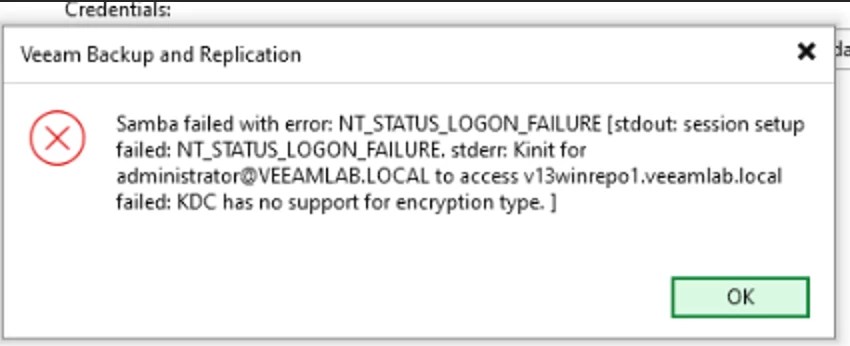
Veeam has recently released Veeam Software Appliance. During my lab setup, I’ve tried to add an additional veeam component like Windows proxy server, windows repository, application aware, etc & encountered an error message
“KDC has no support for encryption type”
Here is my workaround to add windows veeam component into Veeam Software Appliance.
- Method 1: Using credential
- Method 2: Use certificate based authentication
Method 1: Using Credential
Error 1: KDC has no support for encryption type
Using Veeam to add windows veeam component into Veeam Software Appliance (VSA)
Condition:
- Windows VM joined to domain
- Use format
- username@domain.local
- Domain.local\username
Unsupported: Local computer on workgroup
Error 2 when using incorrect format. “Cannot find the specified domain”
Incorrect format
- Domain\username
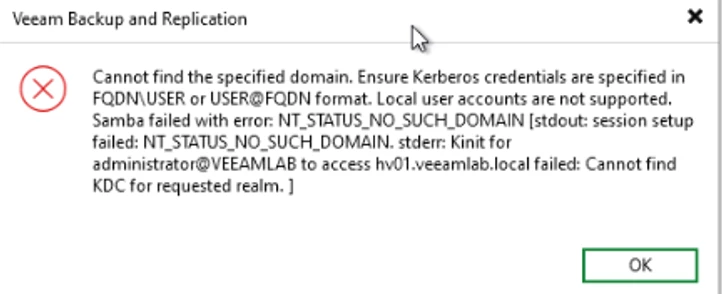
Resolution for Method 1: Use credential
- Go to Active Directory User & Computer mmc
- Select your service account [we are using veeamsvc account], right click and select Properties
- Under Account tab, go to Account options
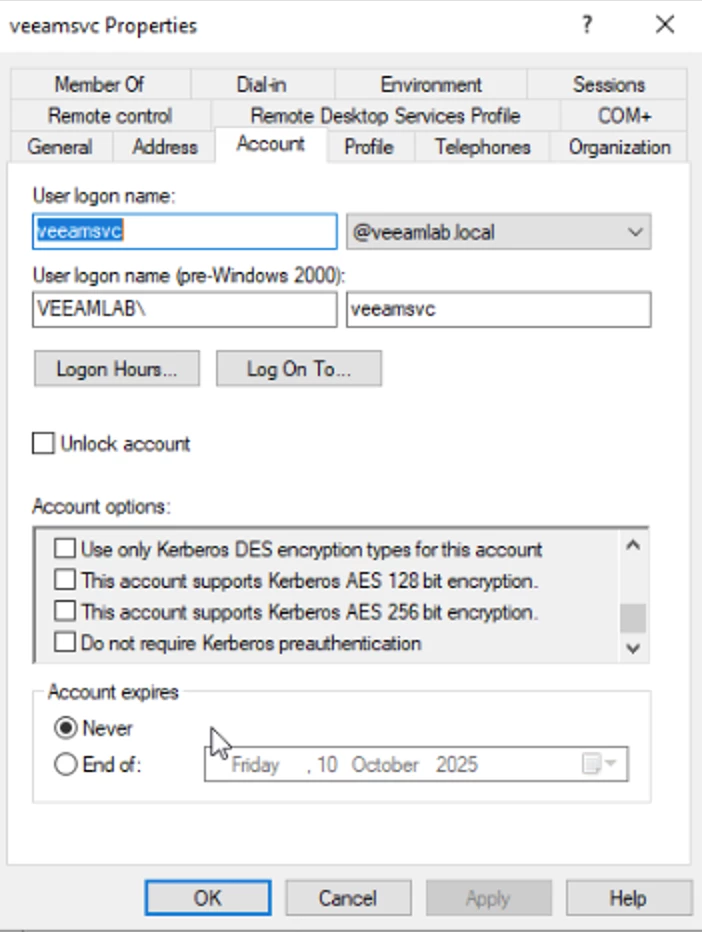
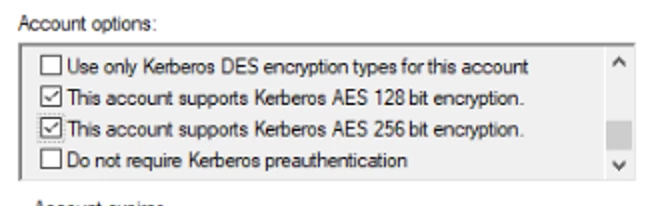
Tick the following options
- This account support Kerberos AES 128 bit encryption
- This account support Kerberos AES 256 bit encryption
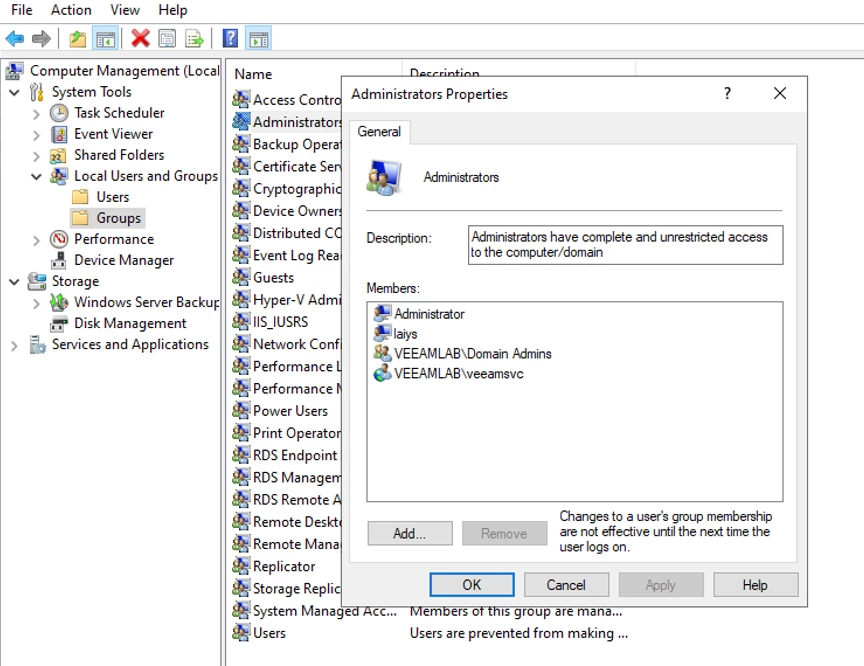
Next, on the windows VM, add service account “veeamsvc” into Local Administrator Group
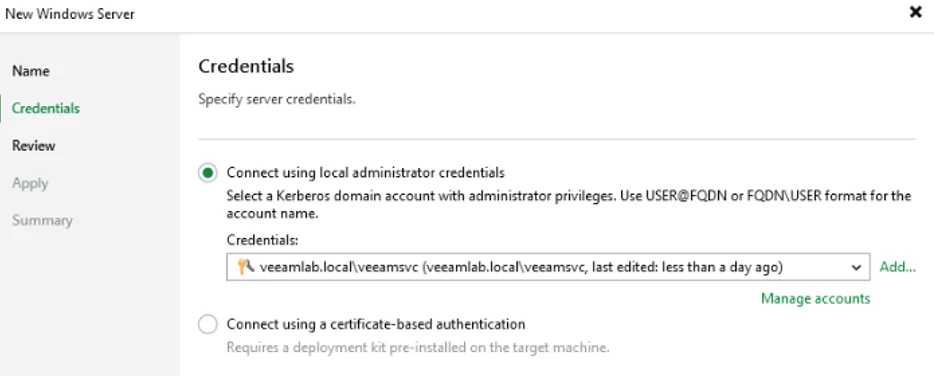
Retry to use “Connect using local administrator credentials”
Format:
Domain.local\veeamsvc
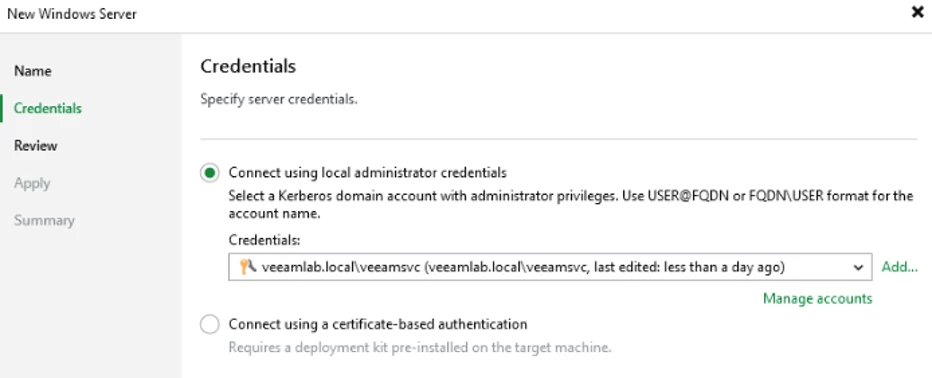
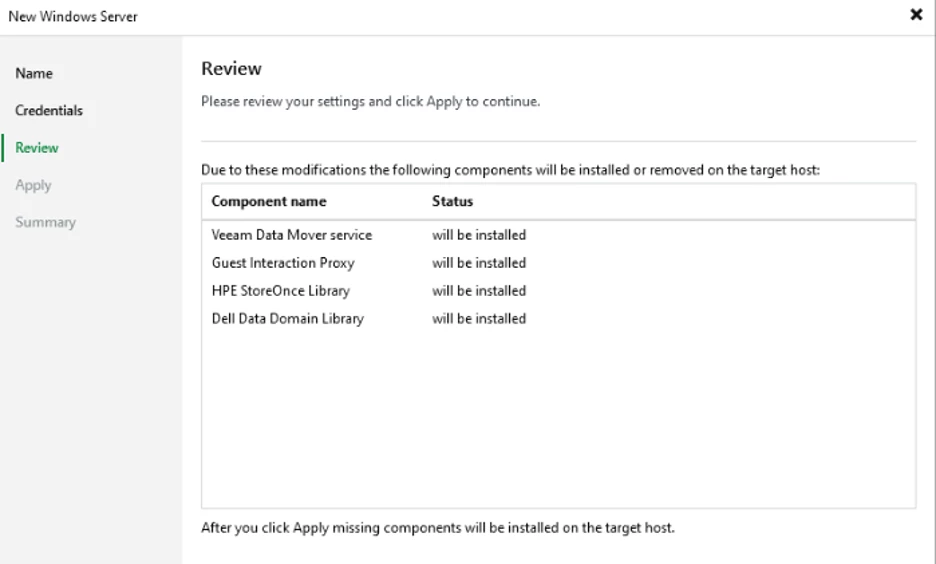
Complete the wizard to add veeam components.
Method 2: Use Certificate Based Authentication [useful for local computer under workgroup]
- Go to Veeam Backup Console
- Click on Inventory workspace
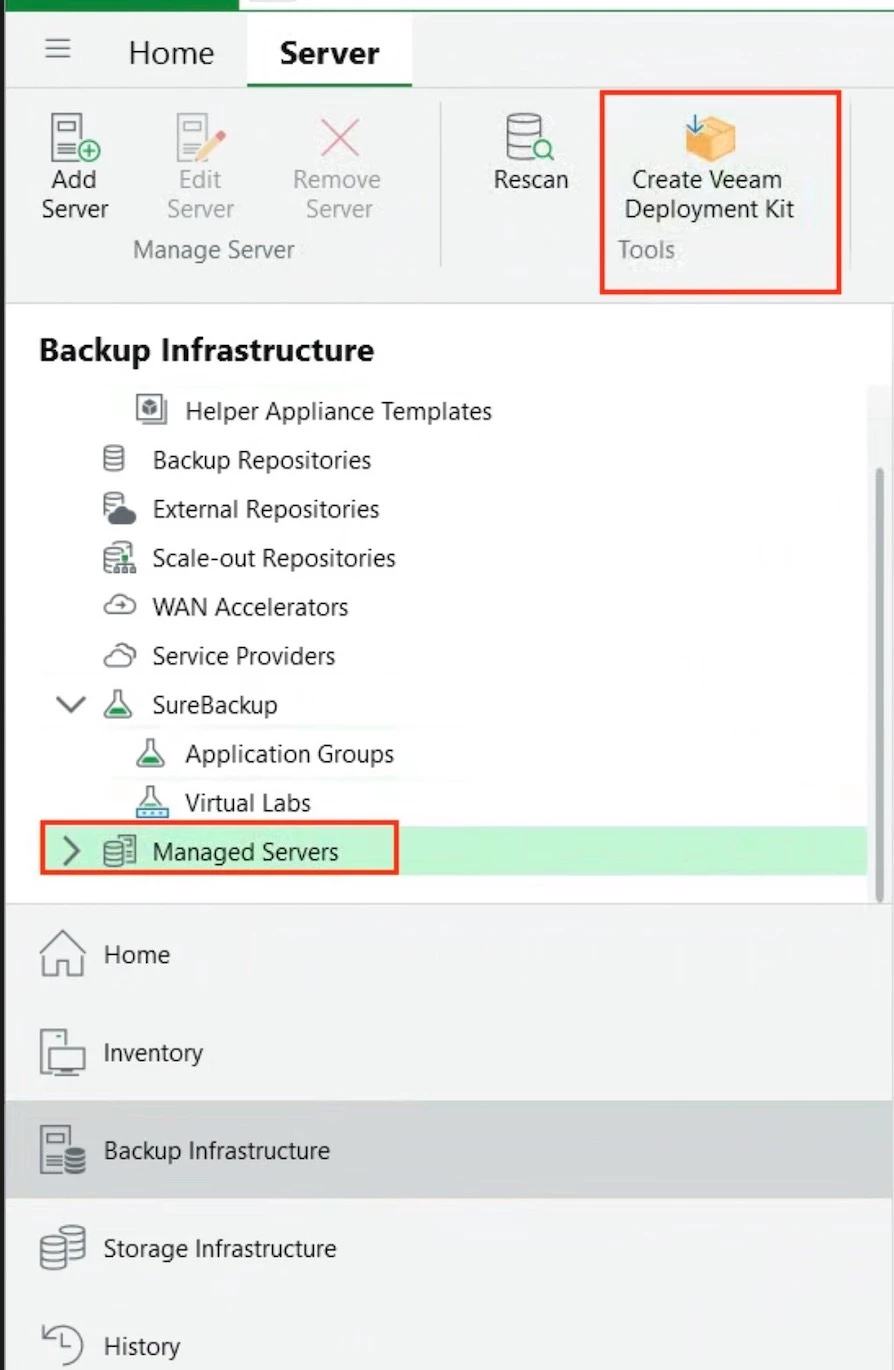
- On the Physical and Cloud Infrastructure, click “ Create Veeam Deployment Kit” icon on ribbon
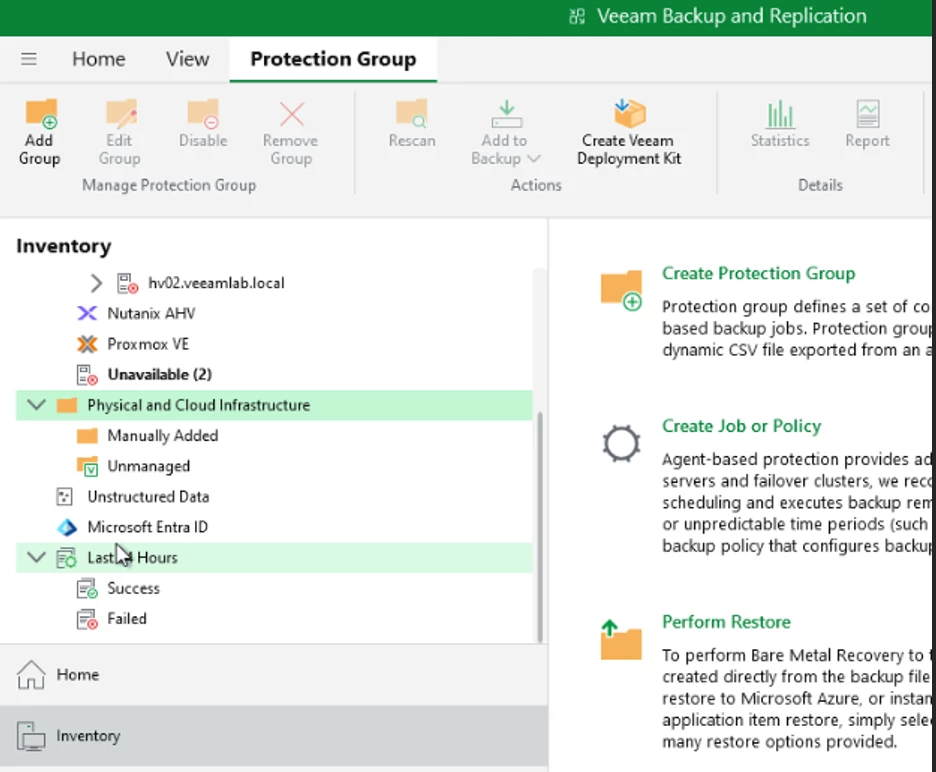
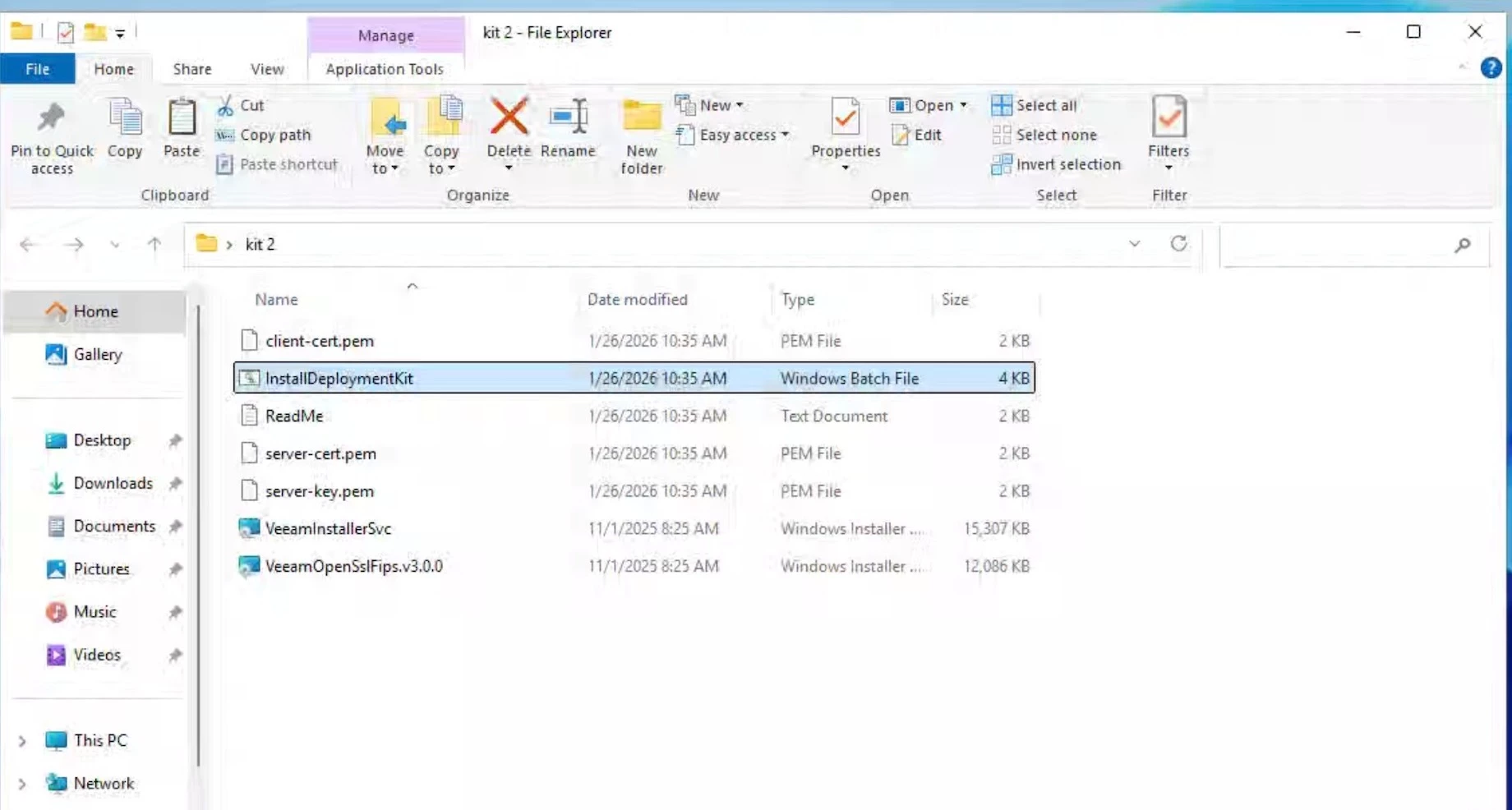
3.After create the package, transfer the Deployment Kit to Windows VM & install 2 package from DeploymentKit\Windows\ folder
- VeeamInstallerSvc.msi
- VeeamOpenSSlFips.v3.0.0.msi
4.Go to Folder Windows\Veeam\Backup using command line and execute these 2 command
Command 1:
VeeamDeploymentSvc.exe –install-server-certificate C:\Windows\Veeam\Backup\certs\server-cert.pem - - key C:\Windows\Veeam\Backup\certs\server-key.pem
Command 2
VeeamDeploymentSvc.exe –install-certificate C:\Windows\Veeam\Backup\certs\clients-cert.pem
5.Restart the veeam service/ reboot the server

Try add again the veeam components using “ Connect using certificate based authentication”
Hope this guide help