
Veeam Threat Hunter is a signature based detection which scan restore point to detect malware activity. If malware or suspicious activity is detected in the backup, Veeam marks the backup with as “Infected”.
You can change the default engines to scan restore point from the main menu > Malware Detection > Signature Detection.
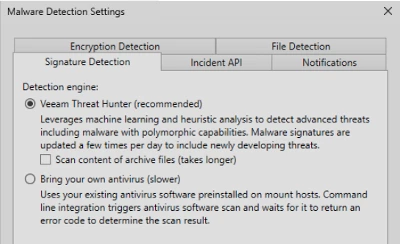
Once set, you can use Veeam Threat Hunter on Surebackup Job or manual scan.
Scenario:
- Customer environment is secure and has limited Internet access for all production server.
- Veeam version 12.3.1
- Not allowed Internet access for Veeam Backup Server
Consideration to take note:
- Always check updates for malware signatures before run the scan
- Use Mount Server to scan
Limitation:
- Require Internet access to get malware signature from Veeam. Without malware signature, scanning for malware detection will failed.
- No offline download malware signature
Workaround:
- Prepare a new staging Veeam backup server which can connect to Internet
- Run Manual Scan so the system can connect to Internet and download latest malware signature.
- Navigate to C:\ProgramData\Veeam\Threat Hunter\Engines\{6b069423-129a-4467-87a6-351c3d2e2f5a} and copy the entire content which contained the updated signature.
- Transfer this folder to the offline VBR/Mount server at the same location: C:\ProgramData\Veeam\Threat Hunter\Engines\.
Ensure the folder name {6b069423-129a-4467-87a6-351c3d2e2f5a} remains unchanged
Note: {6b069423-129a-4467-87a6-351c3d2e2f5a} is my GUID. You may get different GUID
Next you need to extend the signature update period.
- Open the Registry Editor on the offline VBR/Mount server.
- Navigate to HKEY_LOCAL_MACHINE\SOFTWARE\Veeam\Veeam Threat Hunter.
- Locate or create the VTHUpdateFailureToleranceDays DWORD value.
- Set this value to a number greater than 14 to extend the update tolerance period.
- Run the manual scan or Surebackup Job. The system will not connect to Internet and to run Veeam Threat Hunter.
- Repeat same process every 14 days using the same staging Veeam Backup Server to update malware signature
Good to Know:
Check for Conflicts: Ensure there is no third-party antivirus software on the mount server that could conflict with Veeam Threat Hunter. If necessary, add exclusions for Veeam Backup & Replication in the antivirus software configuration. You can refer to https://www.veeam.com/kb1999
Malware Log on VBR: Malware detection logs are stored at C:\\ProgramData\Veeam\Backup\Malware_Detection_Logs
Malware Log on Mount Server: Logs are stored on the mount server at C:\ProgramData\Veeam\Backup\FLRSessions\Windows\FLR__<machinename>_\Antivirus
- Logs older than 7 days are automatically archived on Mondays.
- Guest indexing data is stored for 14 days by default
Hope this post help.