
Recently, we discussed how to Upgrade from Any SQL Server Edition to SQL Server 2025. Here is also how to how to upgrade Microsoft SQL Server 2019 to 2022
Before thinking of upgrading or installing SQL Server 2025, kindly refer to the following article “SQL Server 2025 Upgrade Requirements and Compatibility”.
Not not deploy yet in Production. Even though Microsoft SQL Server 2025 is not yet officially supported by the Veeam Data Platform, this blog post is still important for several reasons:
Early Awareness for IT Teams: With new releases, Microsoft SQL Server releases often trigger planning discussions long before official support is announced. This guide helps administrators understand what will eventually be required, reducing surprises when support arrives.
- Preparation for Future Upgrades: Many organisations operate on strict upgrade cycles. Even without official validation today, they need to forecast impacts, budget for upgrades, and prepare migration paths. This post gives them a head start.
- Reduces Risk: When Veeam eventually certifies SQL Server 2025, DBAs and Admins who have already reviewed the process will be better positioned to perform a smooth, low-risk migration. Early guidance prevents rushed decision-making later.
- Some environments adopt new SQL versions sooner (due to corporate policy, security mandates, or new deployments). These teams need practical insight now, even if official support is pending. This was how the following article below was birthed as well.
I aim to bridge the gap between GA release and vendor validation. That is, the time gap between Microsoft’s General Availability (GA) release and third-party platform certification. This article fills that knowledge gap with tested steps, considerations, and risks.
- Lab Testing and Proof-of-Concept Work: Before rolling out SQL Server 2025 in production, many engineers will test it in their labs. This guide equips them with the correct approach for evaluating it with Veeam.
Lastly, this early insights demonstrates expertise and foresight, positioning you to take up your upgrade or installation of SQL server 2025, and the migration of SQL Server to 2025 to help the community prepare for upcoming transitions. Below are other community posts that might be of interest to you.
Infrastructure Alignment
Acquire new hardware and install SQL Server 2025 “How to Install all Editions of Microsoft SQL Server 2025”, or perform an in-place upgrade to Windows Server 2025 when your hardware supports it. While SQL Server 2025 can run on Windows Server 2022, you won’t fully benefit from the platform enhancements that Microsoft has introduced in Windows Server 2025.
These include improved performance, updated kernel optimizations, enhanced security baselines, and better integration with the latest SQL engine features. Running SQL 2025 on the matching OS ensures you get the highest levels of stability, scalability, and long-term support.
Pre‑checks and Planning
Confirm your Veeam ONE version and check its supported SQL versions in the Veeam ONE User Guide; recent versions support SQL Server 2017, 2019, and 2022. Please, keep an eyes on this page for the support of SQL Server 2025.
At the time of writing this guide, the 12th December, 2025. Veeam does not yet support SQL Server 2025. The support is imminent and as such, I have gone ahead to create the steps you would need to migrate to a new server.
Also, this is what this blogpost assumes upgrade SQL Server 2017, 2022 to SQL Server 2025, and also assumes that your current server does not meet the hardware requirements to install Microsoft SQL Server 2025. So, it is assumed that SQL Server 2025 is installed unto Windows Server 2025. Therefore, the referenced links above will be very beneficial to you.
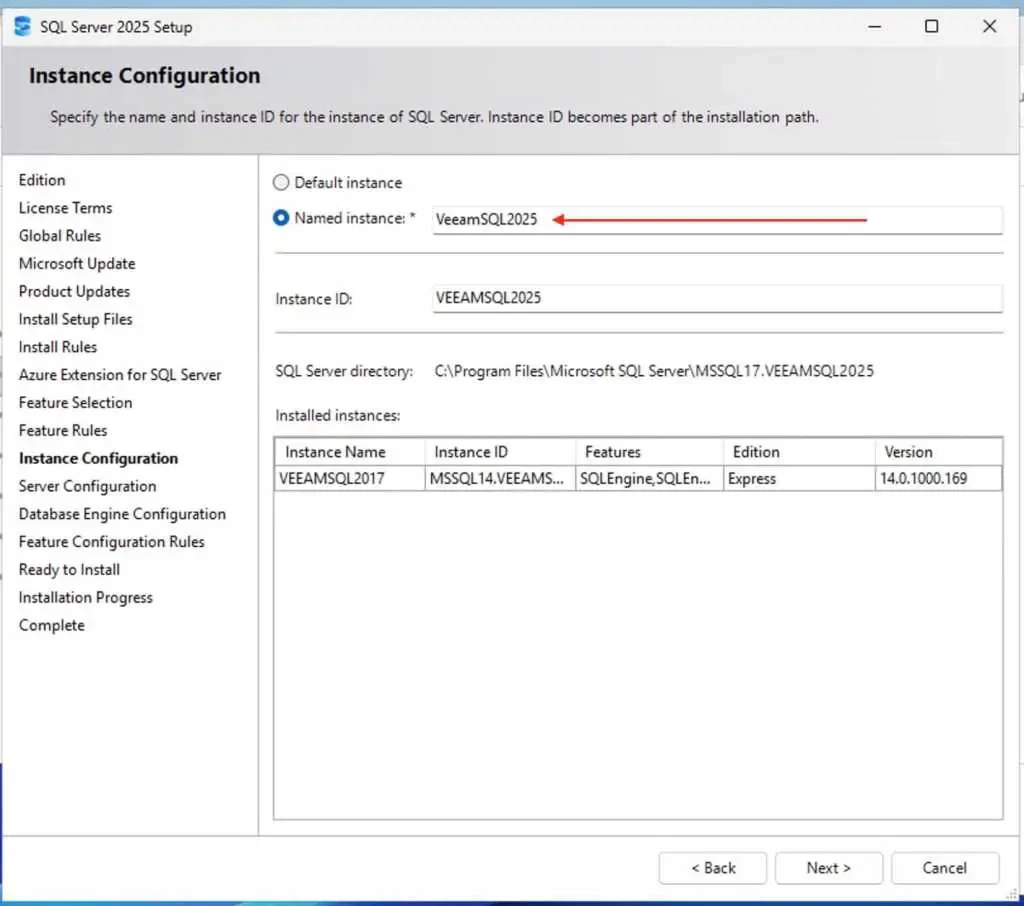
If you are installing SQL Server from scratch, you can choose either a default instance or a named instance based on your deployment requirements and organisational standards. Also, if you do not have a license to perform an upgrade to SQL Server 2025, you can install SQL Server 2025 on your Windows Server 2025 as I advocate and uninstall SQL Server 2017 … as you wish.
Next, identify the Location of the Veeam ONE Database, and the SQL Server name and instance that currently host the Veeam ONE database. Since Veeam ONE is installed, I will open the Veeam ONE Settings Utility to view the current SQL Server settings
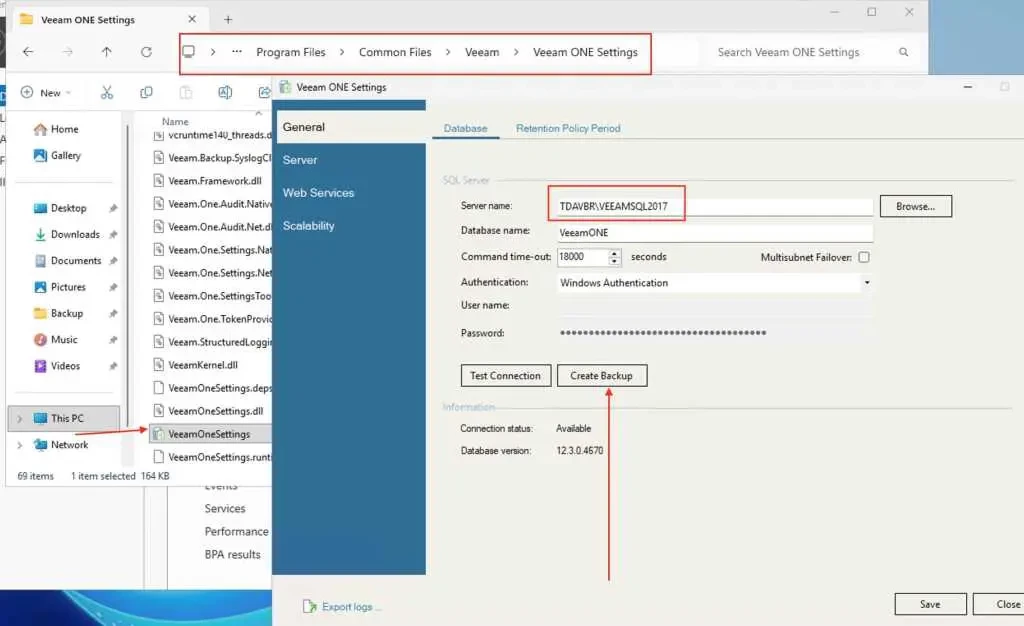
C:\Program Files\Common Files\Veeam\Veeam ONE Settings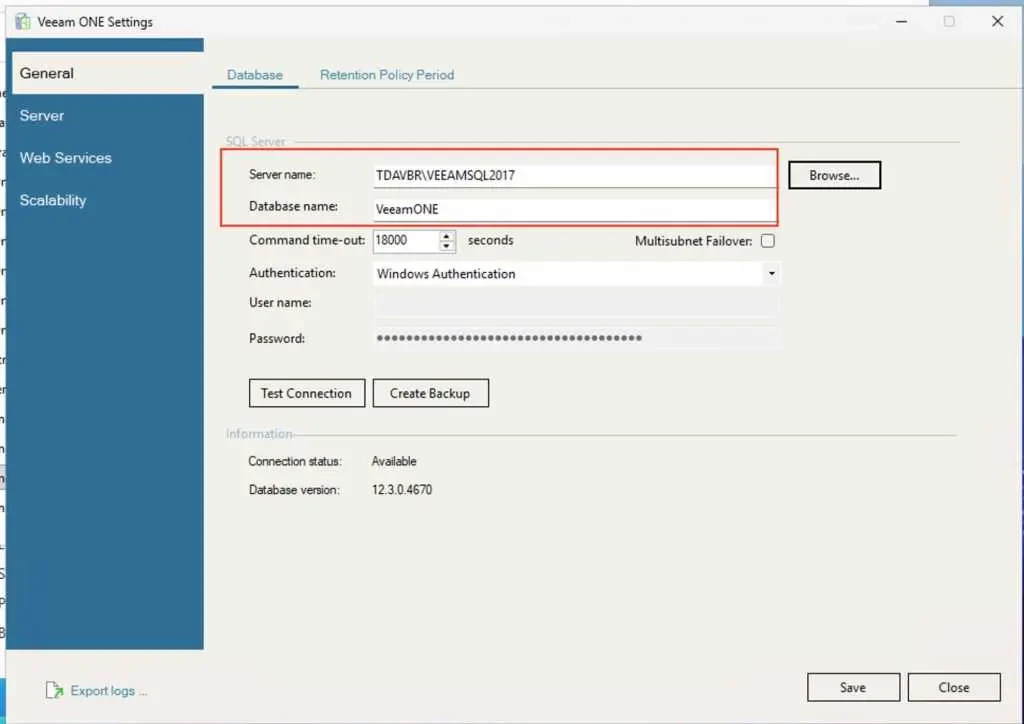
You can also determine this using the registry key for DatabaseServer and DatabaseName “HKLM\SOFTWARE\Veeam\Veeam ONE”
Backup SQL Server Database Instance
Veeam recommends that if the Veeam ONE database is located in a SQL Instance on the same server as the Veeam ONE software, use the Create Backup button within the Veeam ONE Settings Utility.
Note: For Scenario 1 “Back Up Local Veeam ONE Database”, you can also use the SQL Server Management Studio or SQLCMD. It is only simpler using Veeam ONE Setting Utility.
Scenario 1: Back Up Local Veeam ONE Database
To do this, open the Veeam ONE Settings Utility to view the current SQL Server settings.
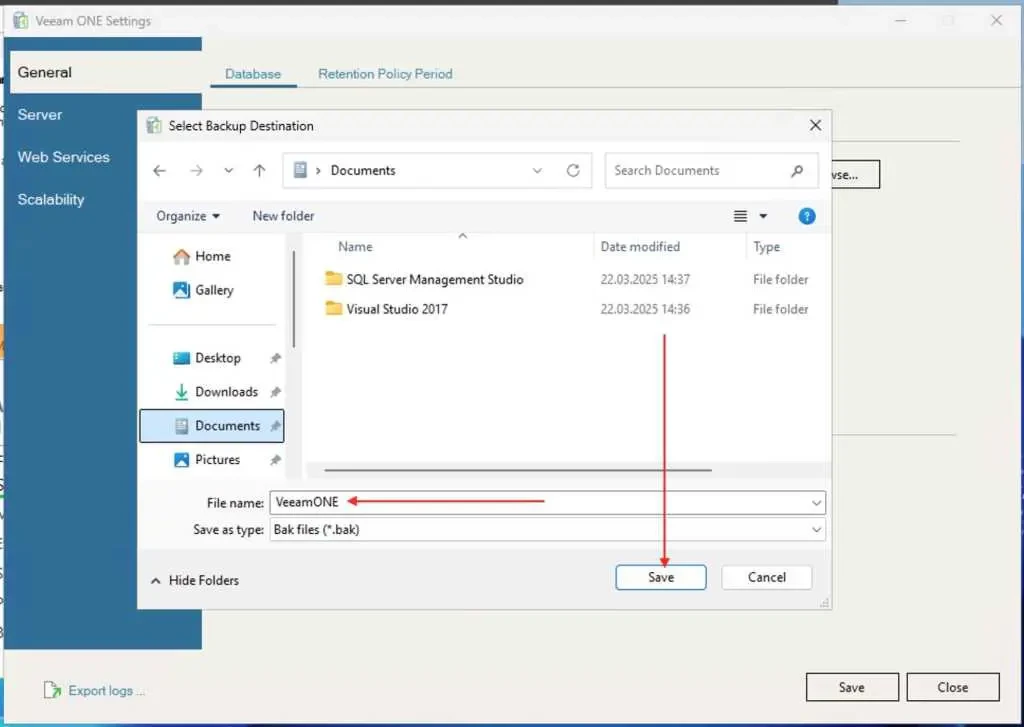
Select backup location
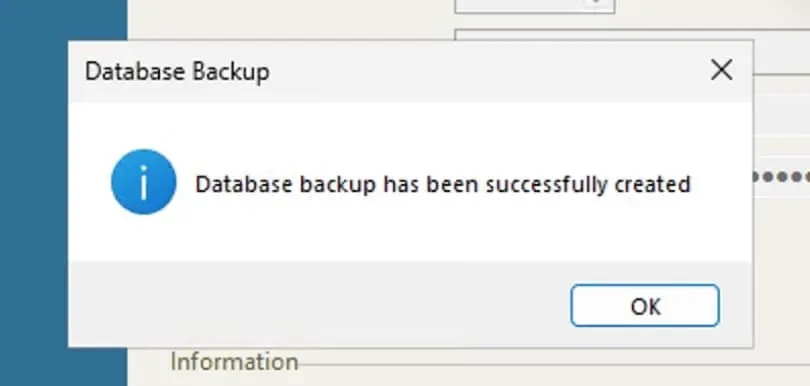
If everything goes fine, the message below will be prompted
Scenario 2: Back-Up Remote Veeam ONE Database
If the Veeam ONE database is located in a SQL Instance on a remote SQL Server, a backup must be created using either SQL Server Management Studio or SQLCMD on that remote SQL Server.
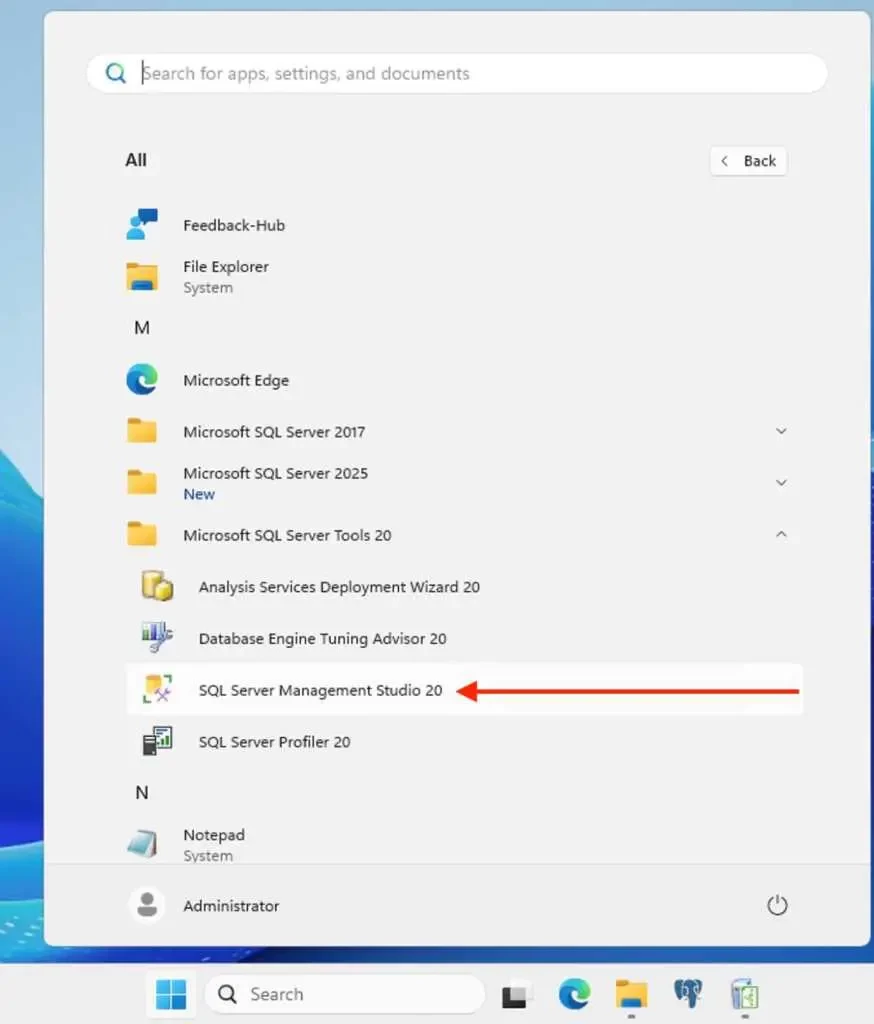
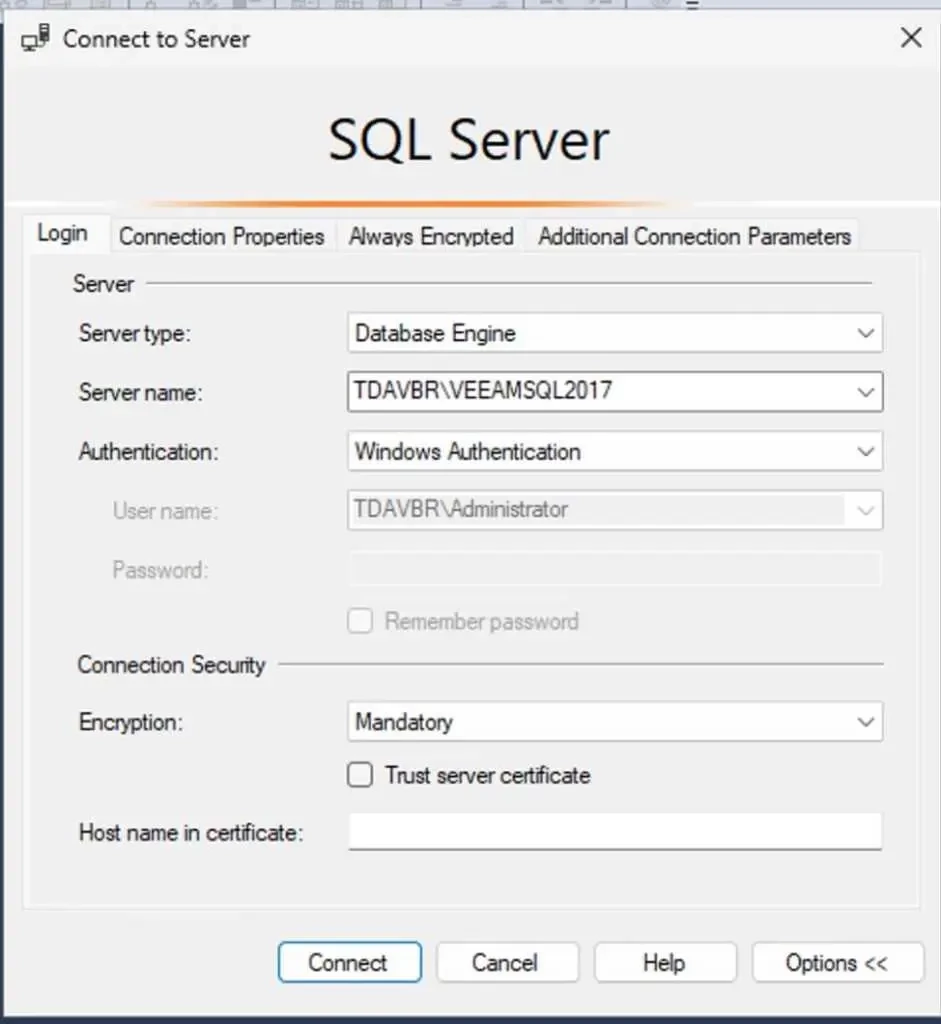
Connect to the ServerName\Instance of the server with the DB you want to back up.
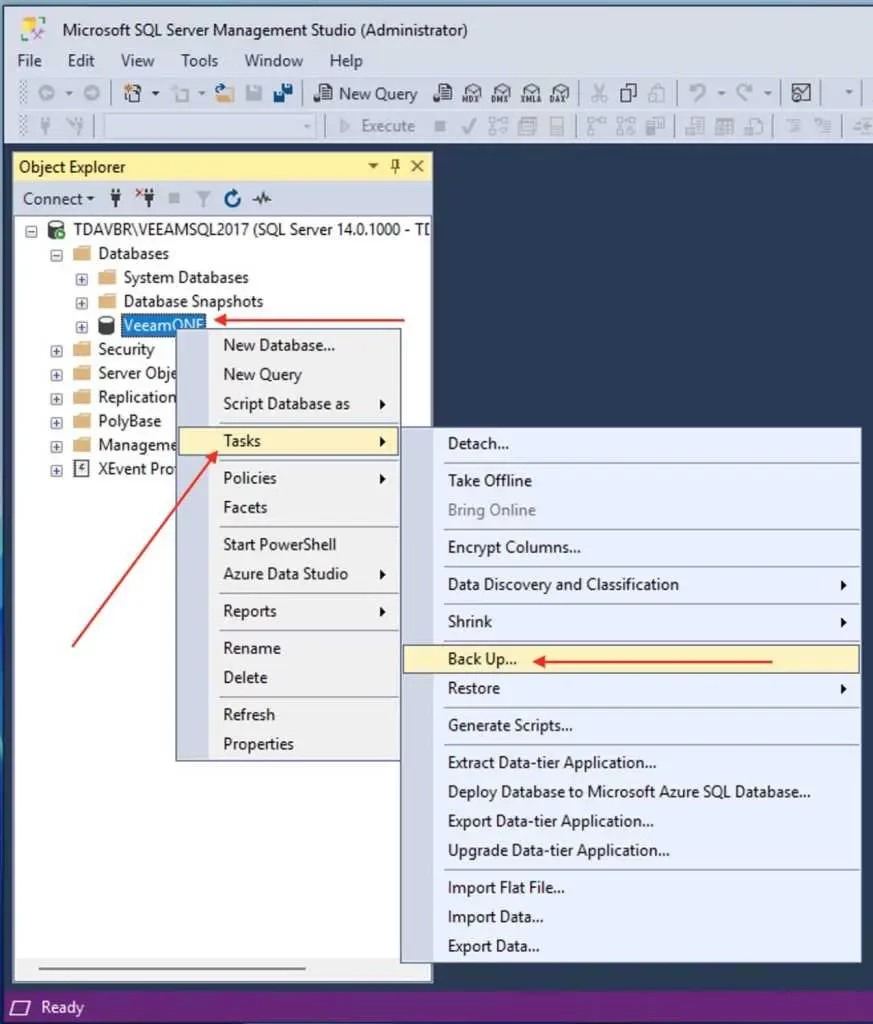
Expand the Databases tab to get to the DB you want to back up. Right-click the desired DB > Tasks > Back Up.
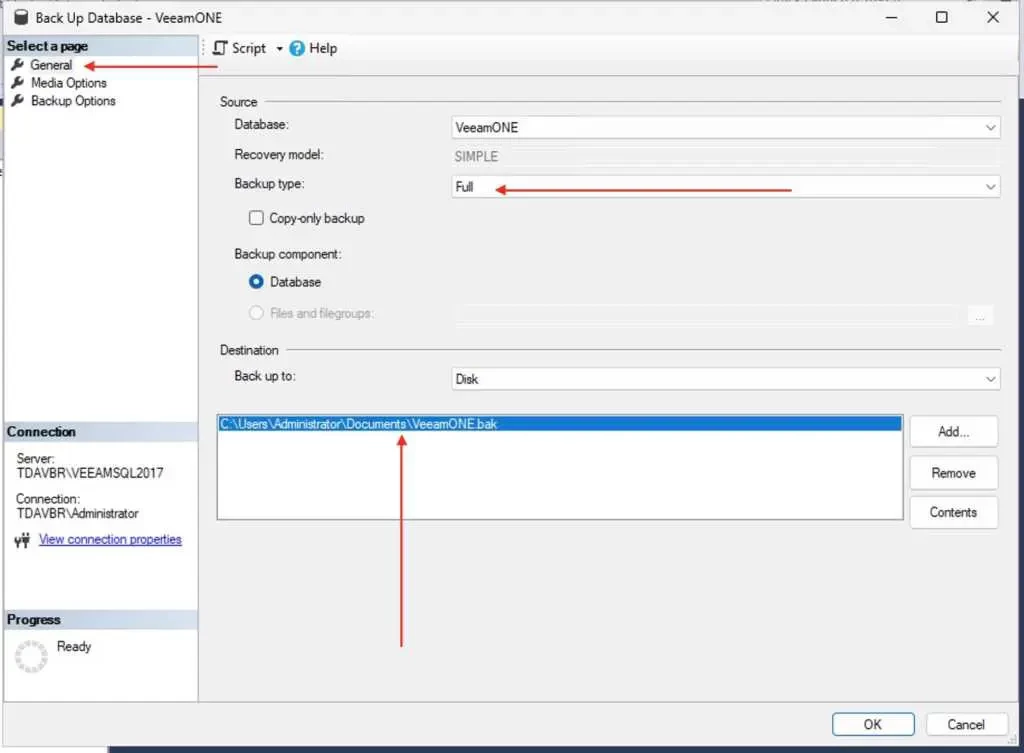
Set Backup Type to Full. Specify the database file destination by choosing the Back up to Disk option > Add the destination path to save the database backup.
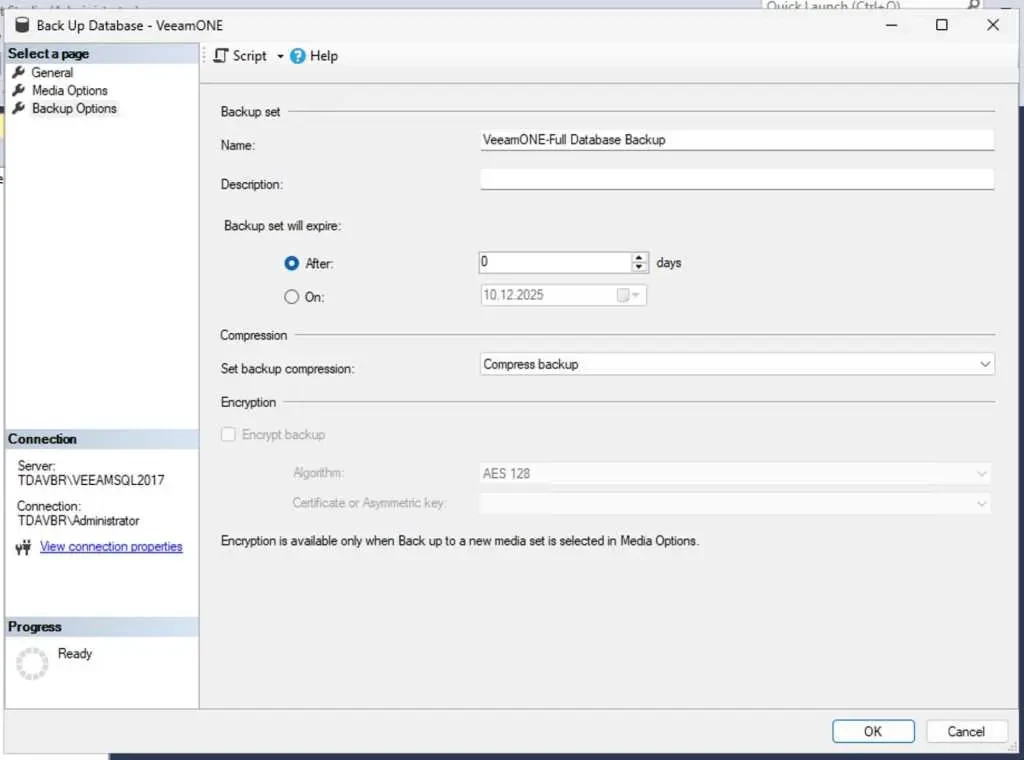
Navigate to the Backup Options and set Set backup compression to Compress backup to reduce the database file size (the option is not mandatory). If you are using express edition, the compression is not supported.
Backup succeeded

Restore the Veeam ONE database to SQL Server 2025
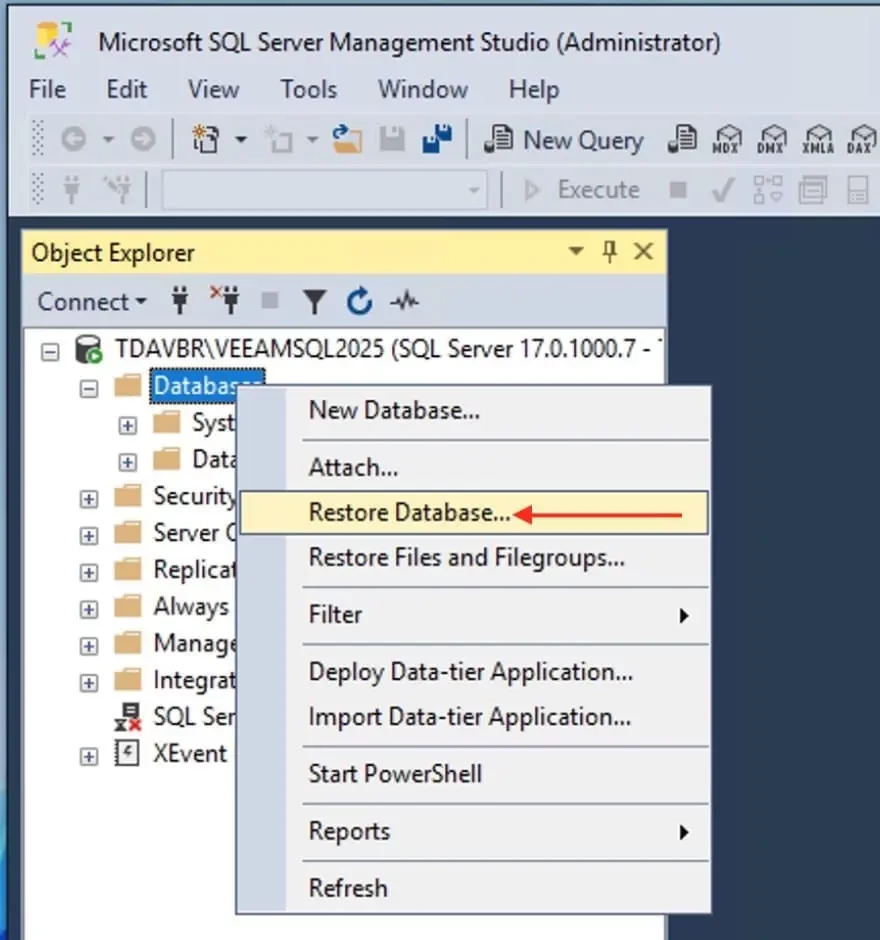
On the SQL 2025 server, open SSMS and connect to the new instance. Right click on database and select restore
In the Source section, choose Device, click the … button, and add the .bak file
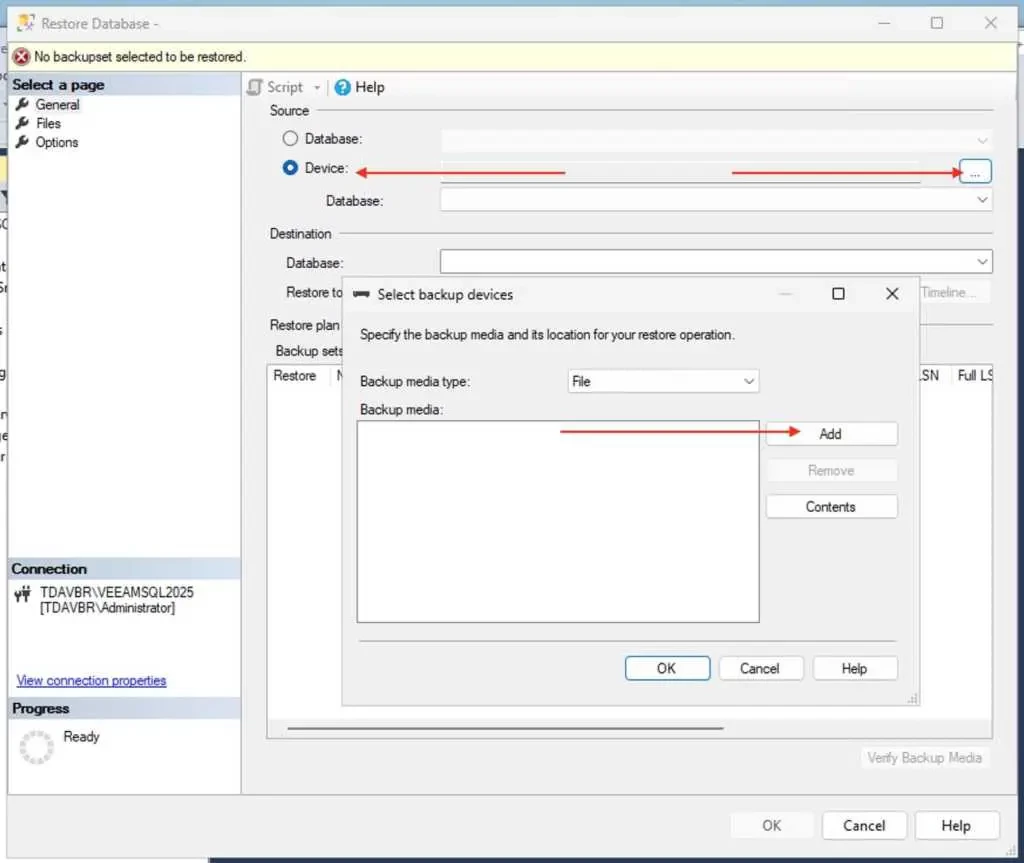
Select the backup file and click on OK
Copy the .bak file from the old server to a local folder on the new server, for example C: or different folder. As it is in my case, it is on the same server, so place it in an accessible location.
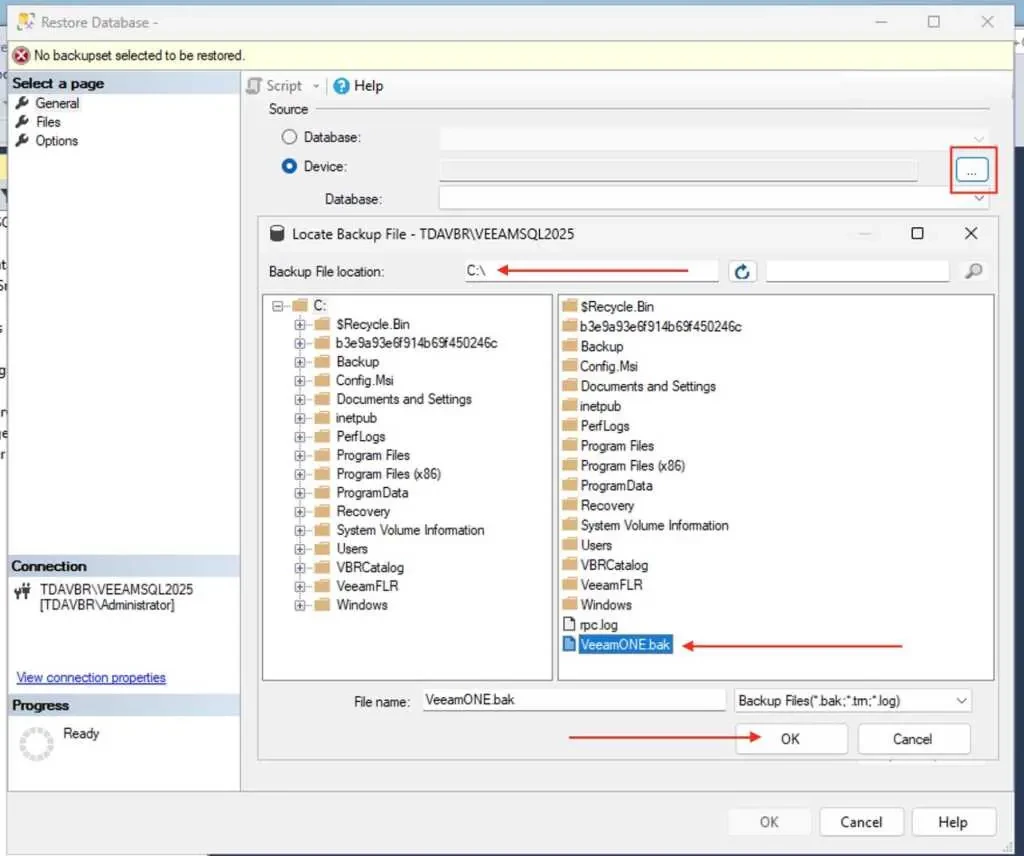
Backup media selected
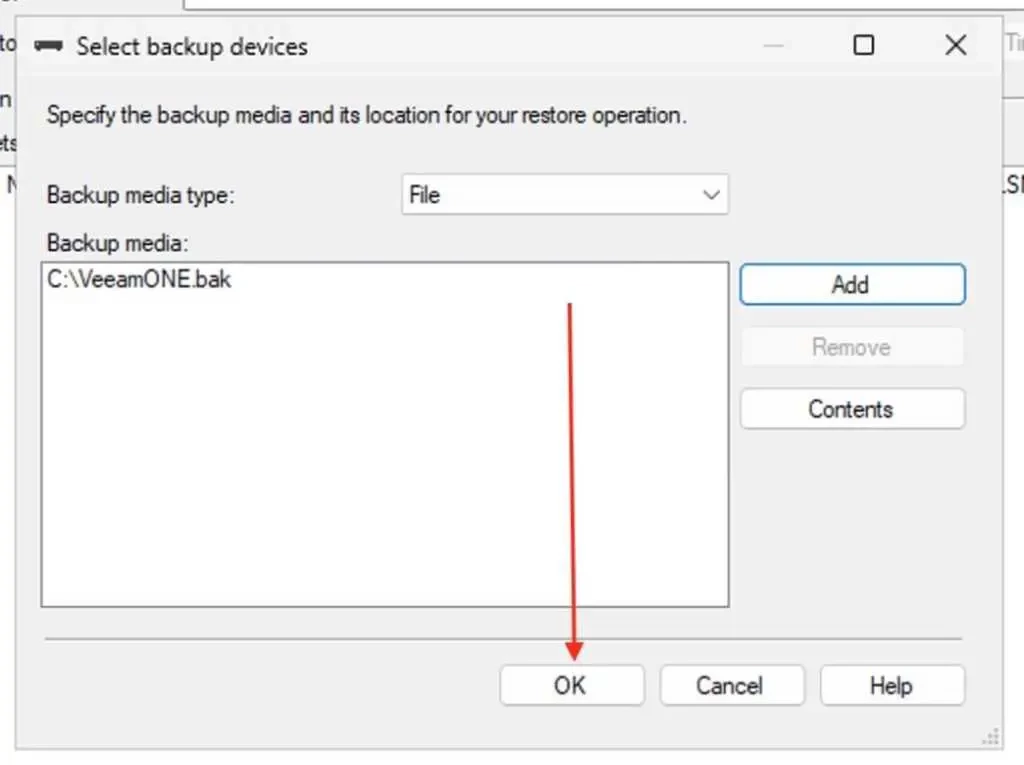
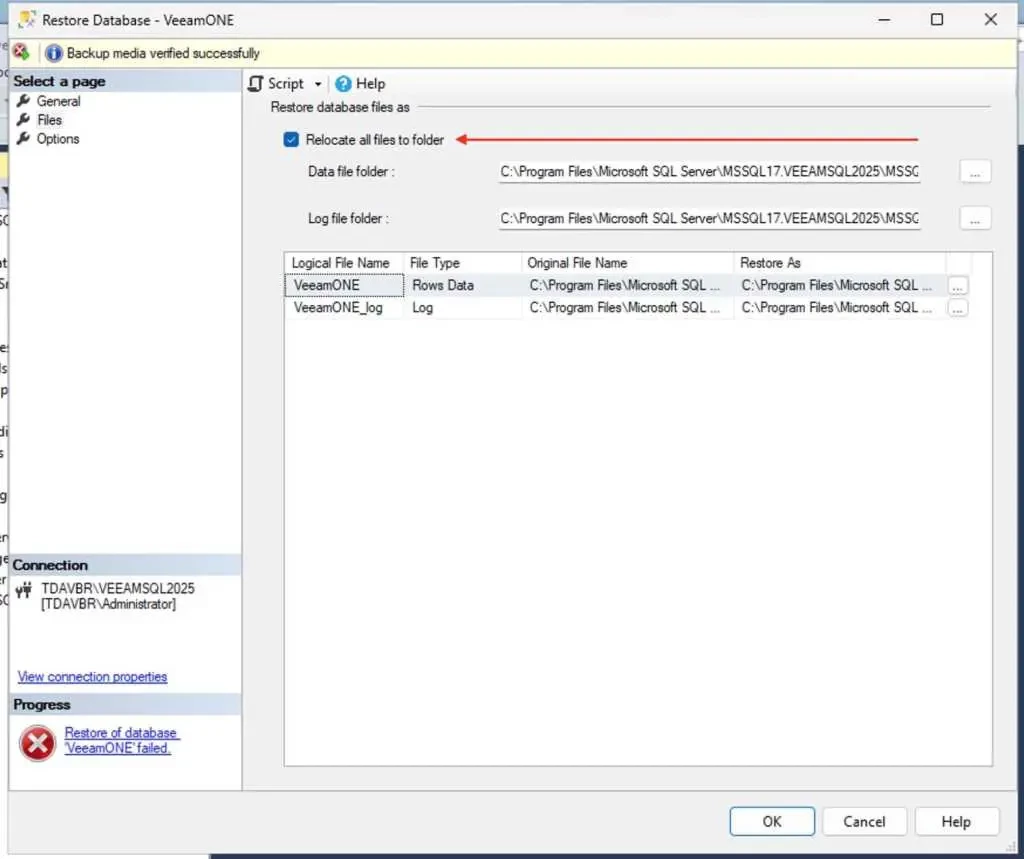
Do not be in a rush to click on OK at this time. Else, your Database restoration will fail.
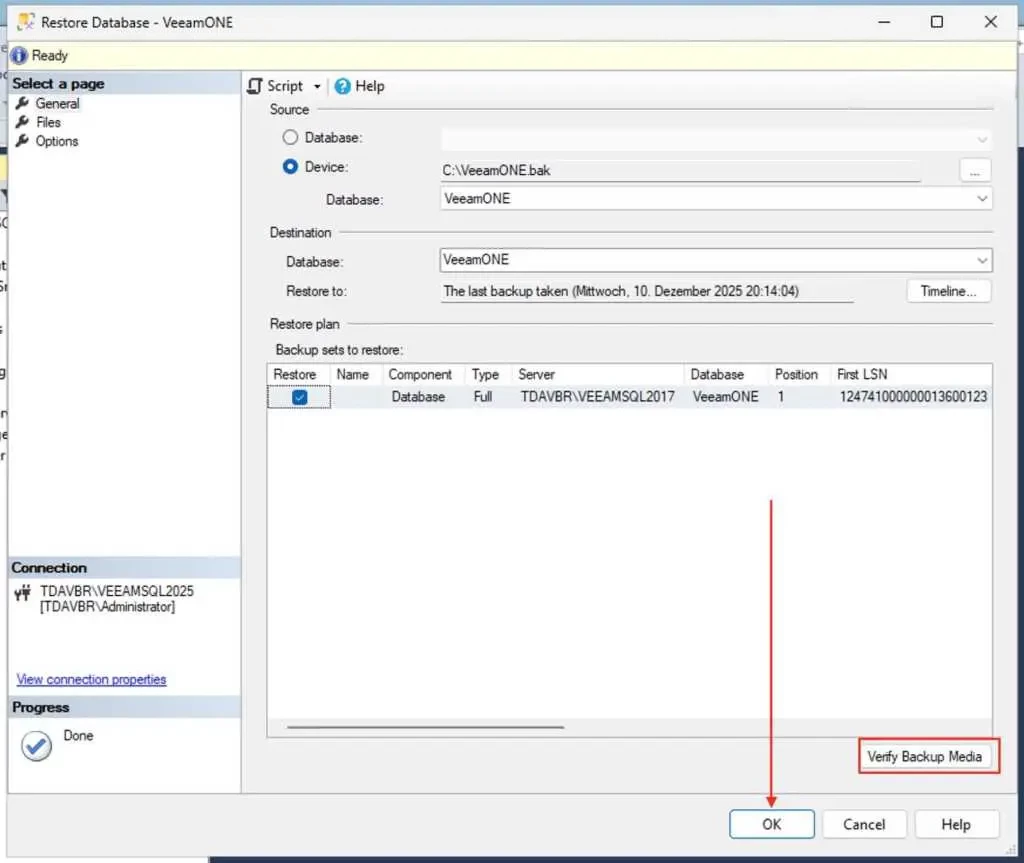
Navigate to files and check the button to relocate all file to folders and click on OK
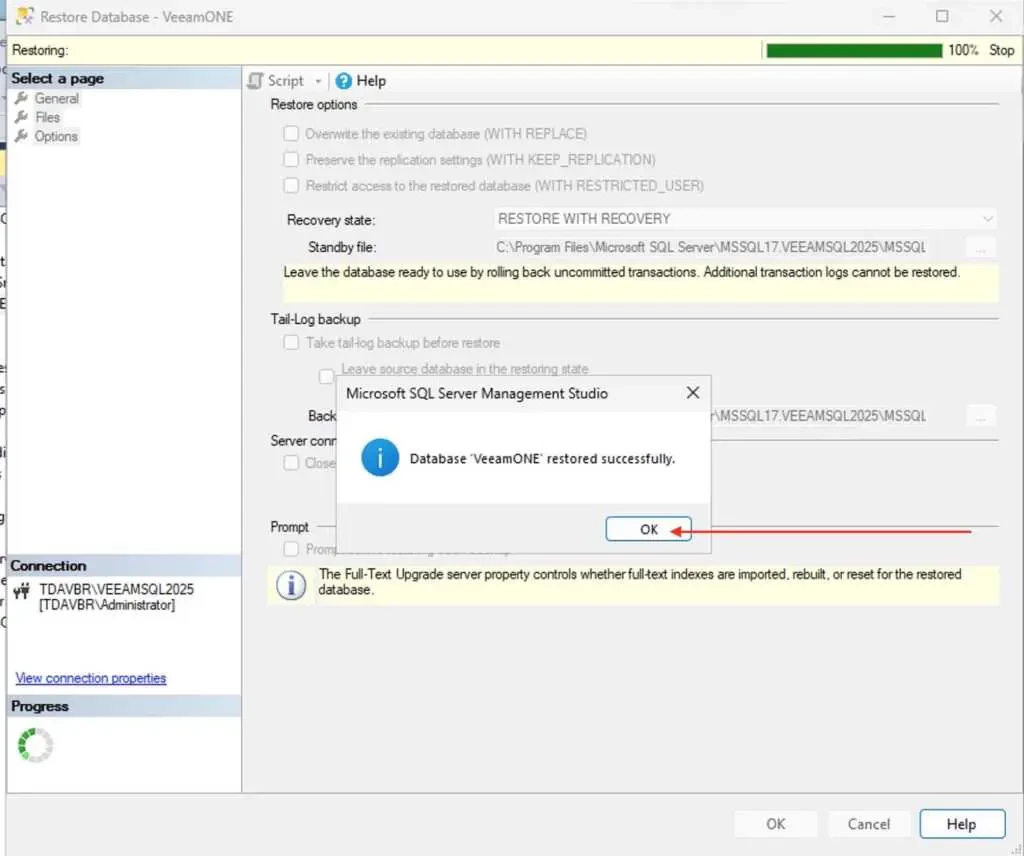
Database has been restored successfully. Click on OK.
Note: On the options windows, we did not do anything as shown below. You can select Overwrite the existing database (WITH REPLACE) only if you are restoring over an existing database of the same name; otherwise leave it unchecked.
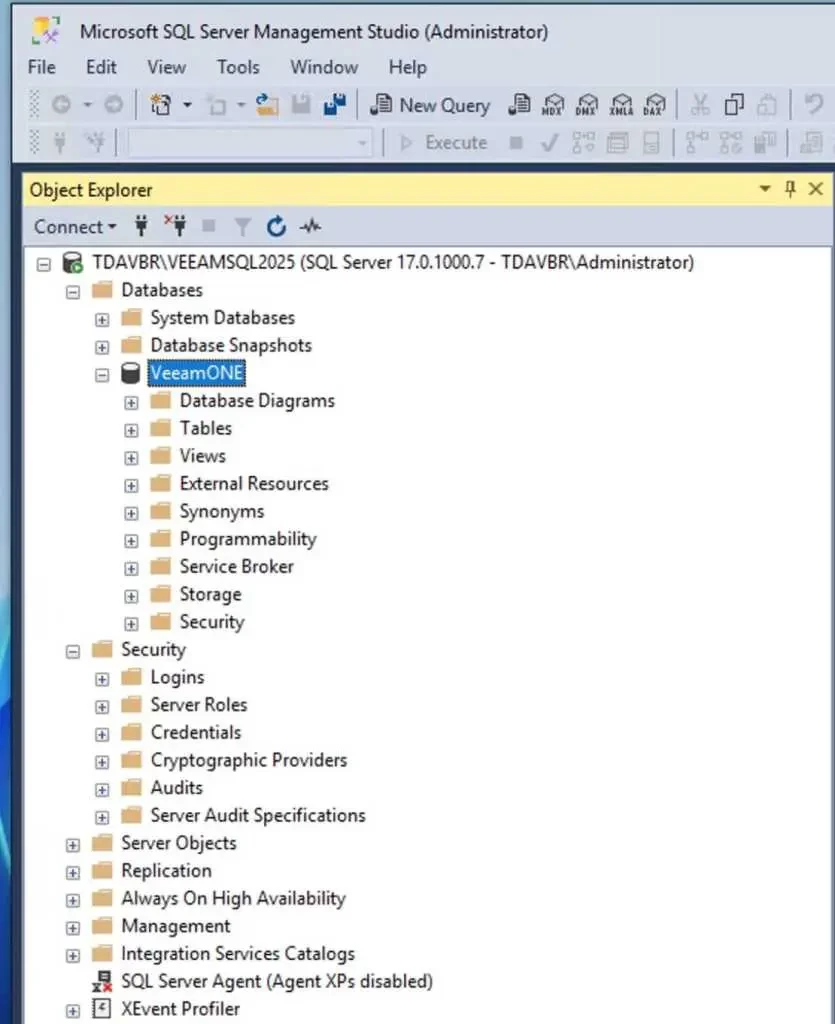
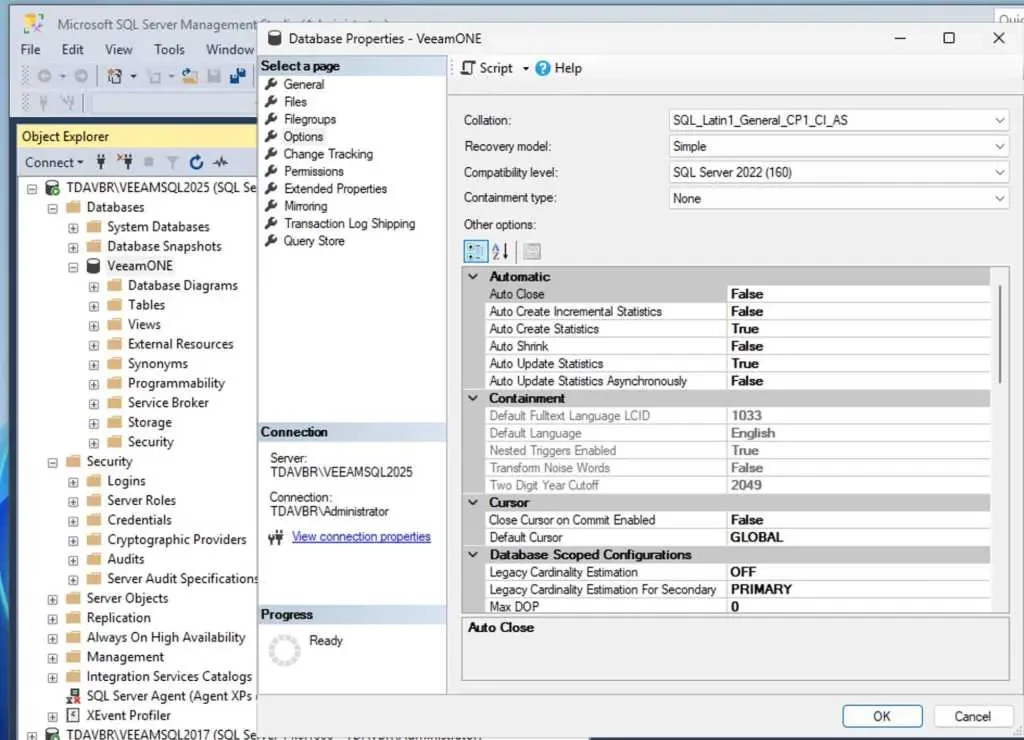
After restore, you can optionally set the database compatibility level 160 etc. This can be done in SSMS under Database Properties and click on Options. Veeam recommends a level at least 130
Direct Veeam ONE to the new SQL Server
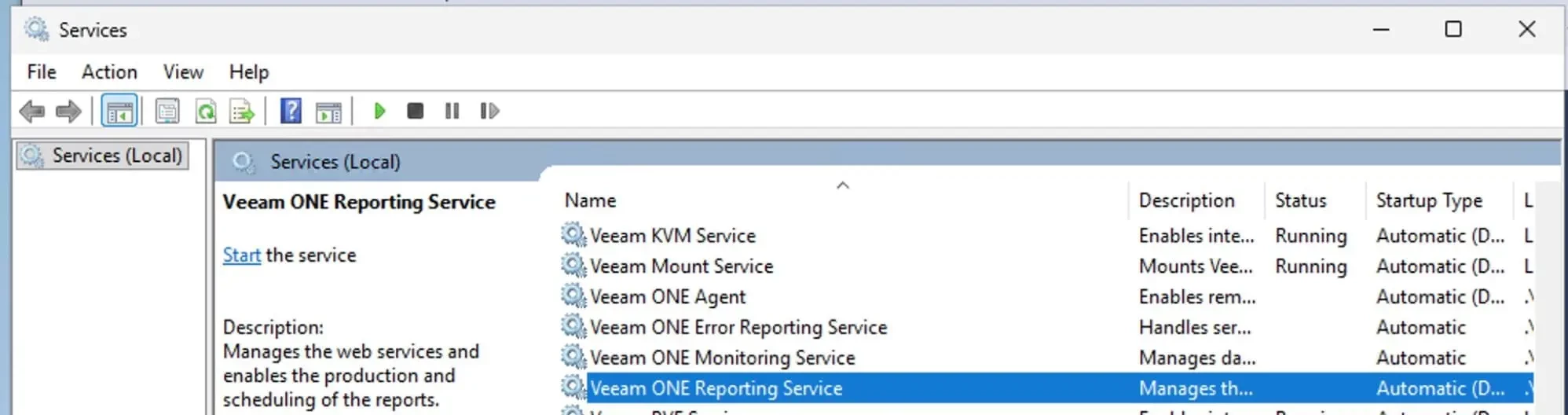
Stop Veeam ONE services (Monitor Server, Reporter Server, Business View) on the Veeam ONE server
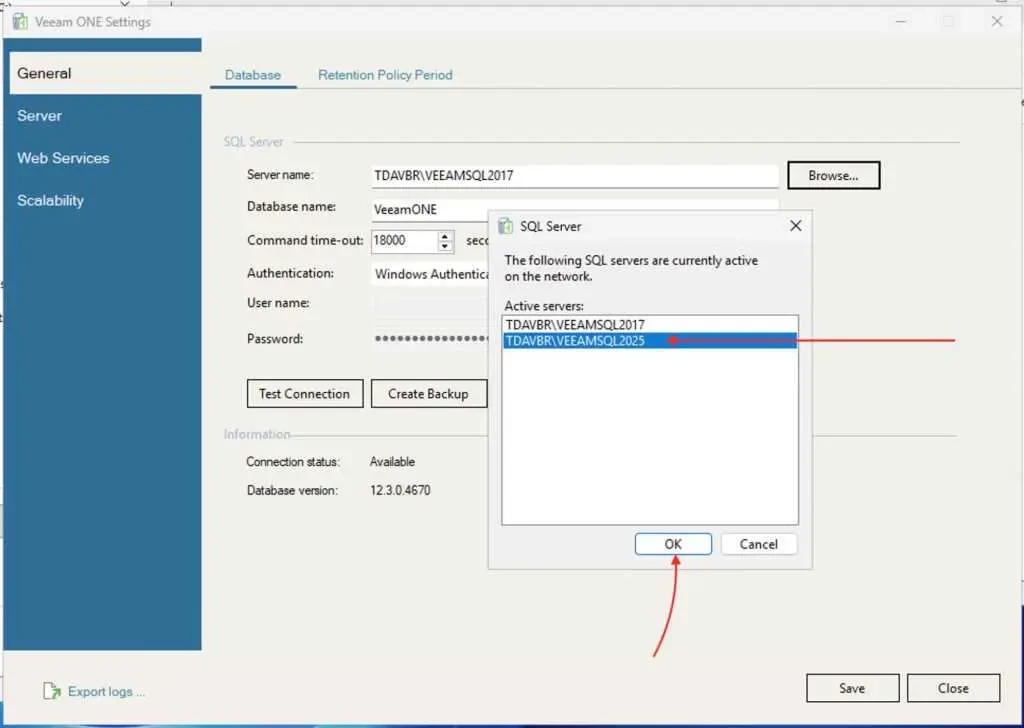
Launch the Veeam ONE Settings utility. In the left menu, select General, then open the Database tab
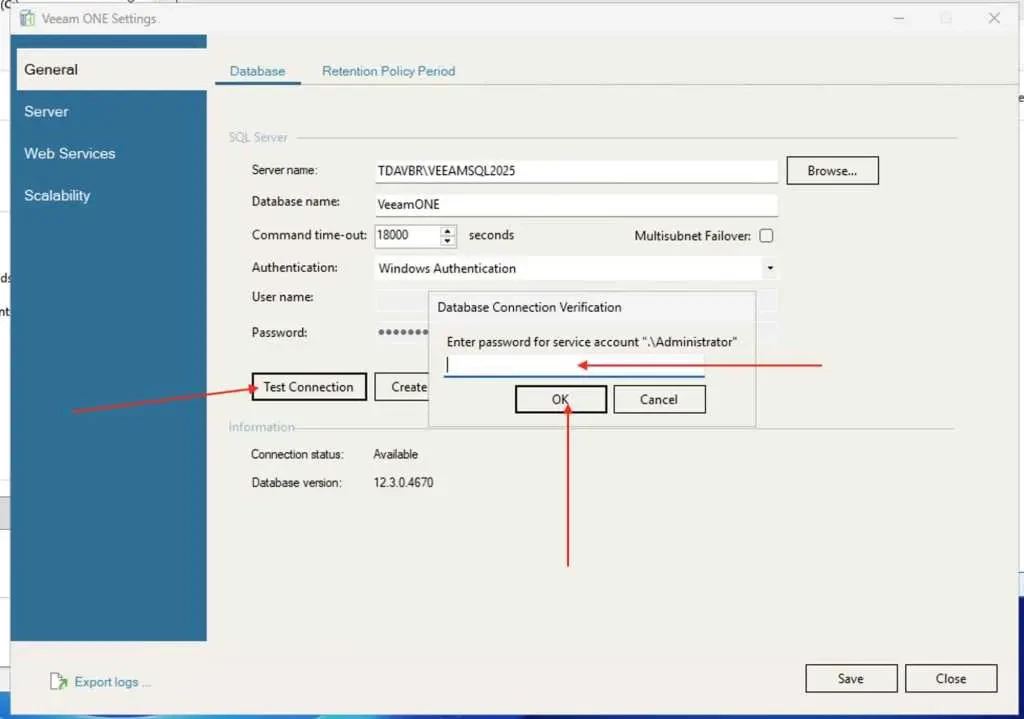
Click Test Connection to ensure the settings are correct.
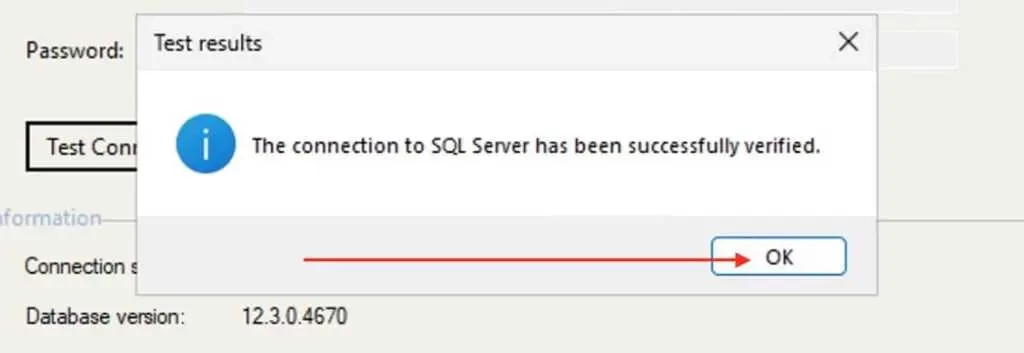
Connection, OK!
Next, click on Save
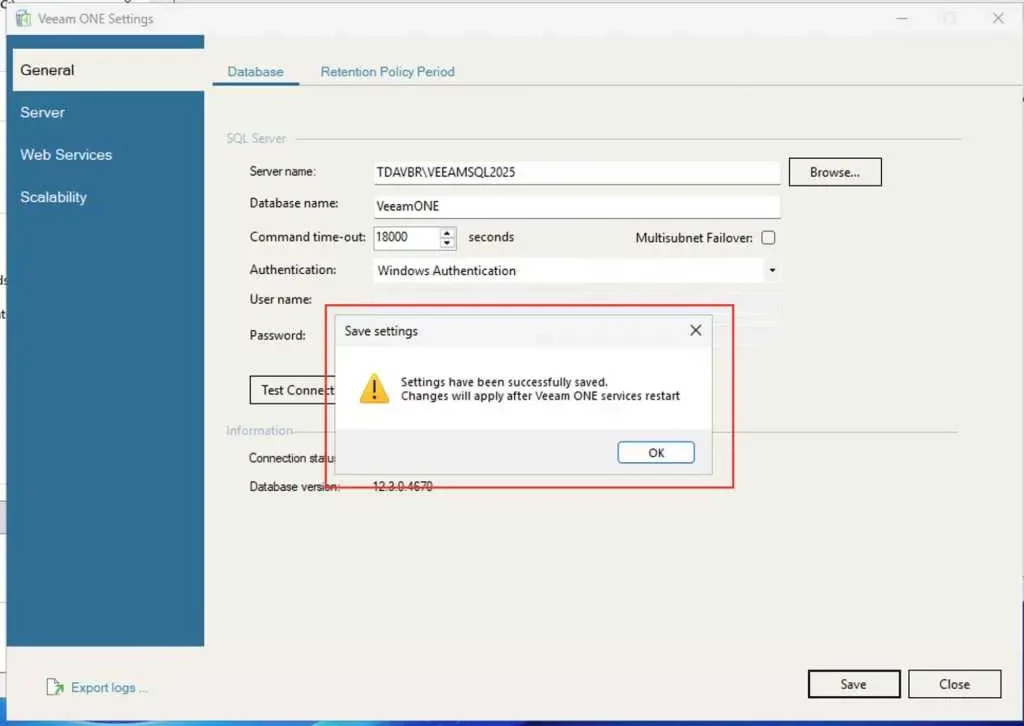
Start Veeam One Services
Restart the Veeam ONE Monitor Server and Reporter Server services so they start using the new database
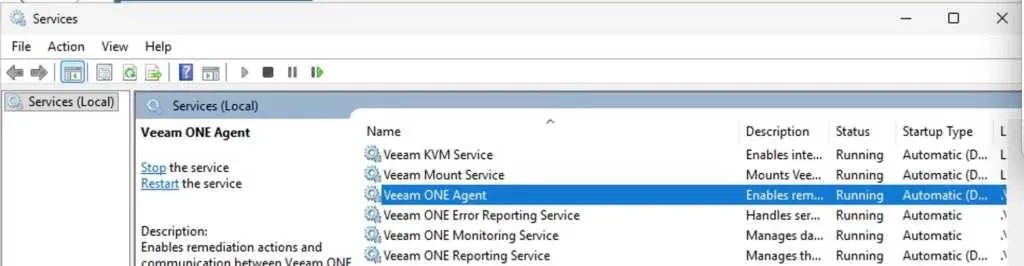
Validate and then decommission old SQL 2017
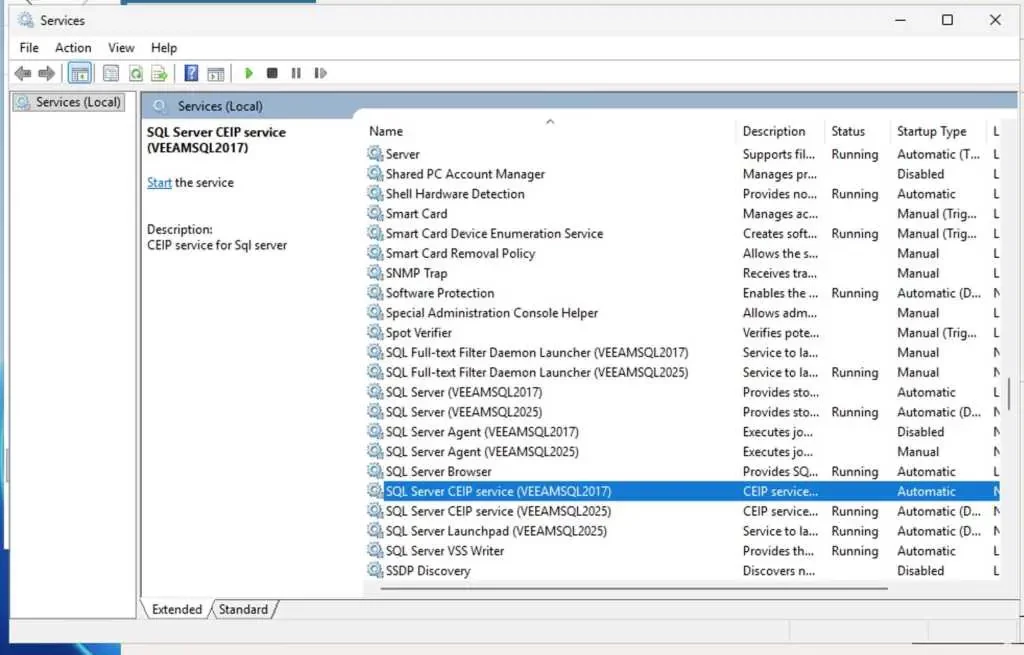
Log in to Veeam ONE and verify that that the application starts without errors. As you can see below, all services relating to SQL Server 2017 have been stopped.
- Existing configuration, historical data, and reports are present.
- New data is being written and monitoring/alerts function normally
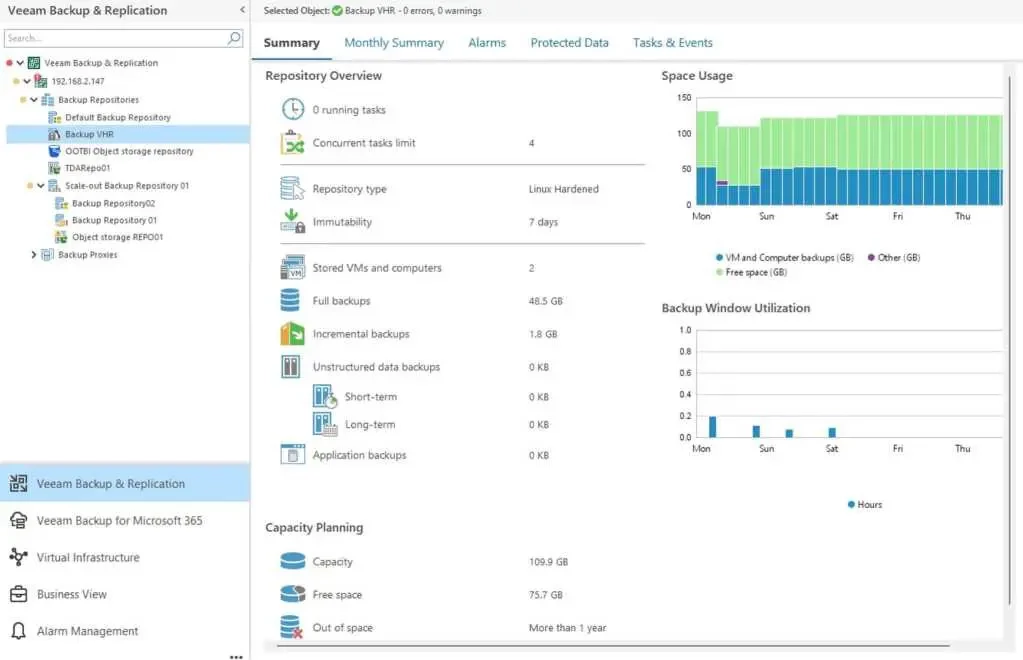
As you can we have our historical data, and reports present via the Veeam ONE Client. Veeam ONE Client is the primary tool used for monitoring the virtual environment, Veeam Backup & Replication and Veeam Backup for Microsoft 365 infrastructures
From the Web UI as well
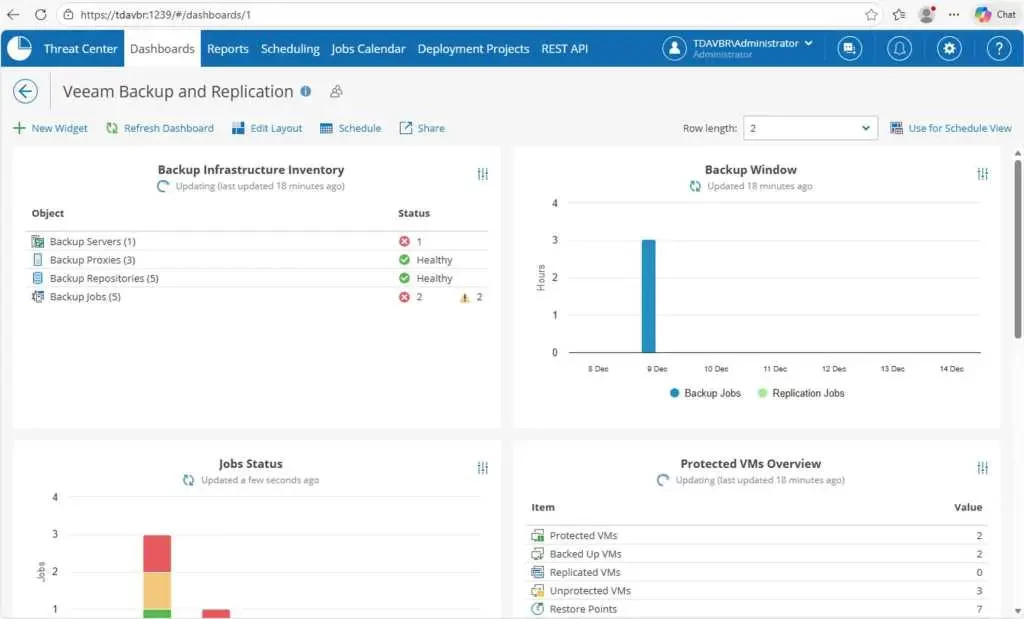
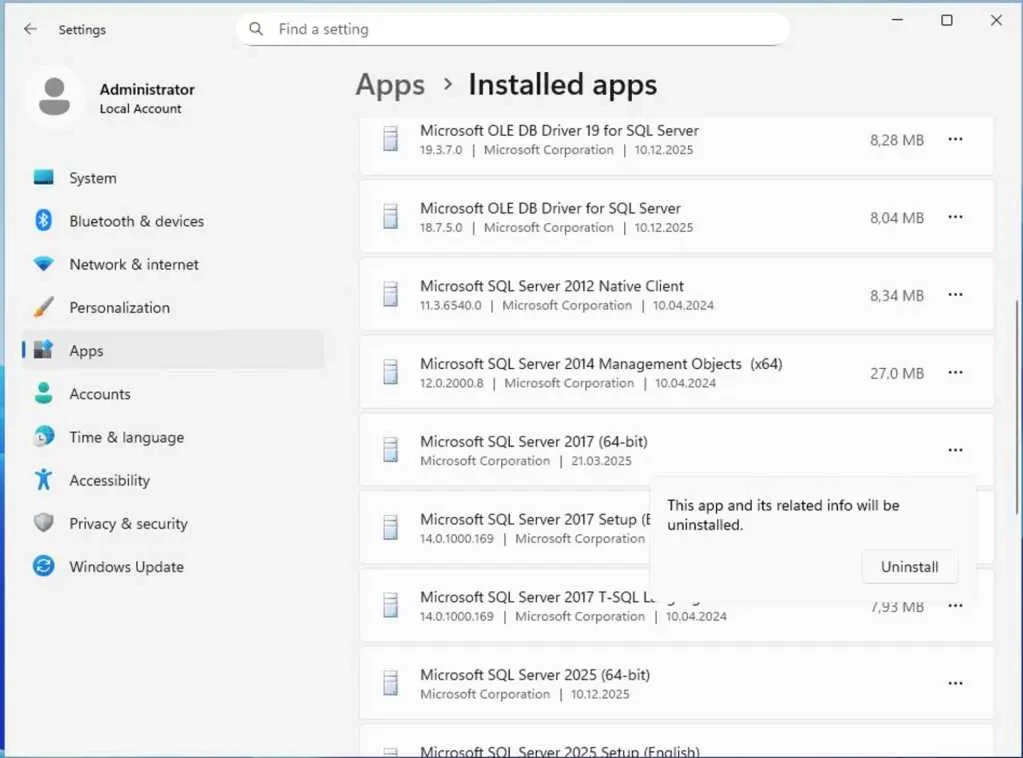
Uninstall SQL Server 2017
After a few days of successful operation, you can remove or repurpose the old SQL Server 2017 instance, keeping a final copy of the
.bakbackup as an archive.
Since this is my lab environment, and I have confidently testing that the migration succeeded successfully. I will proceed and uninstall SQL Server 2017 (64 bit) from this machine.
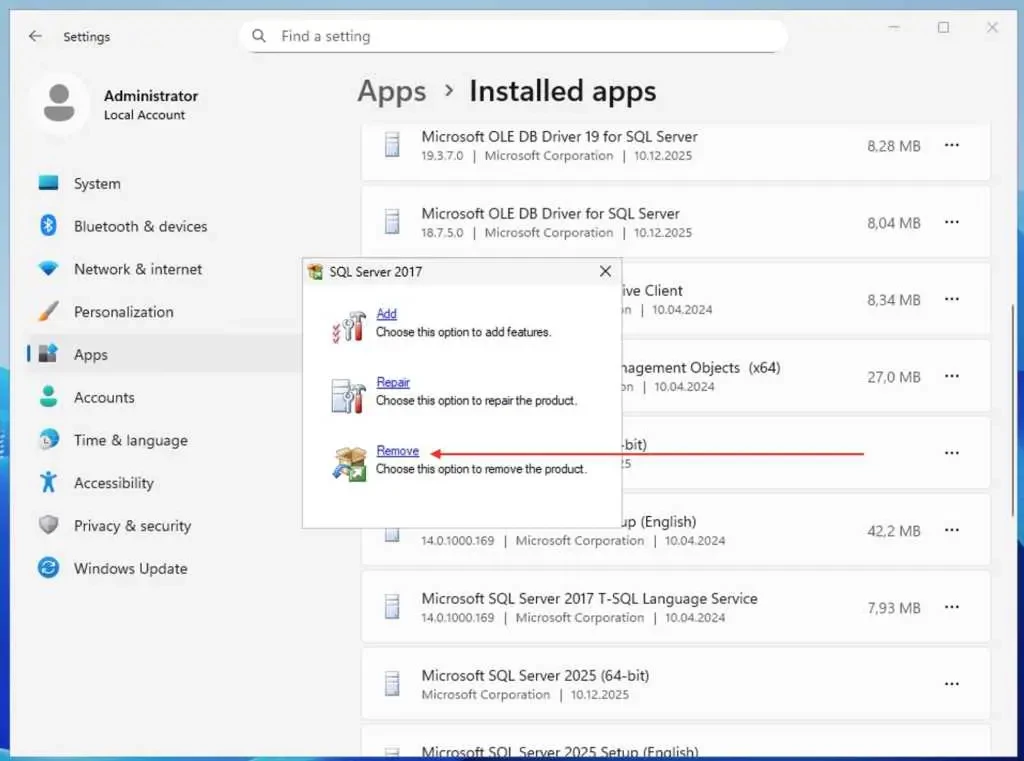
Click on remove when prompted
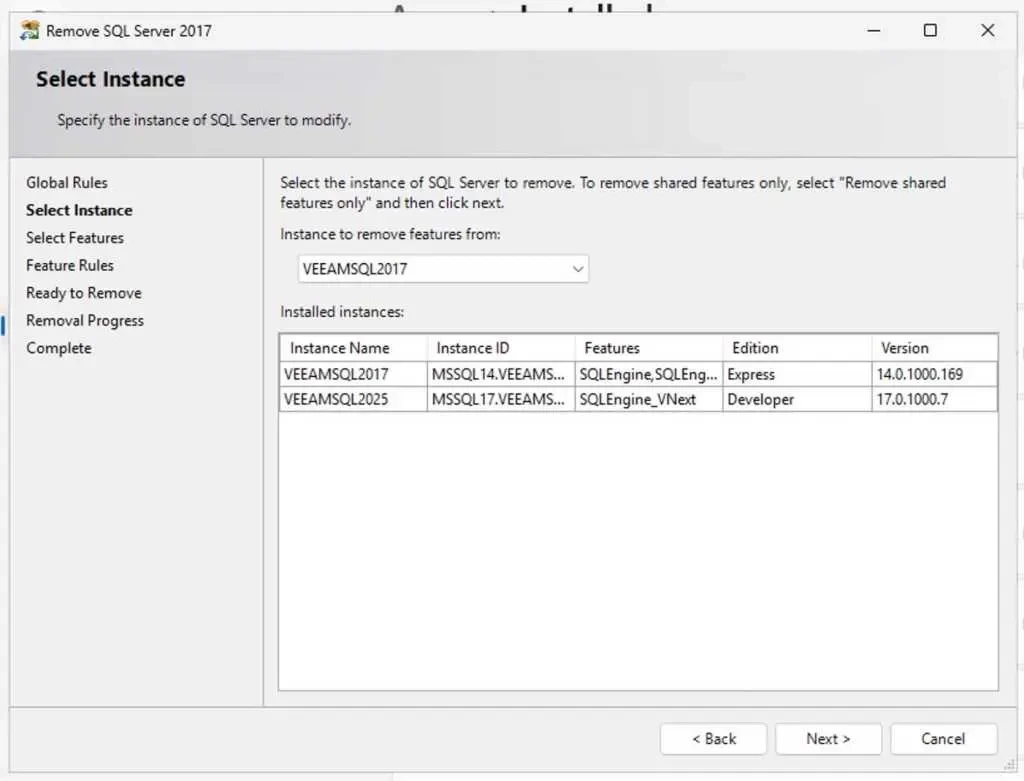
The instance to remove is automatically selected for you. Click on Next to proceed.
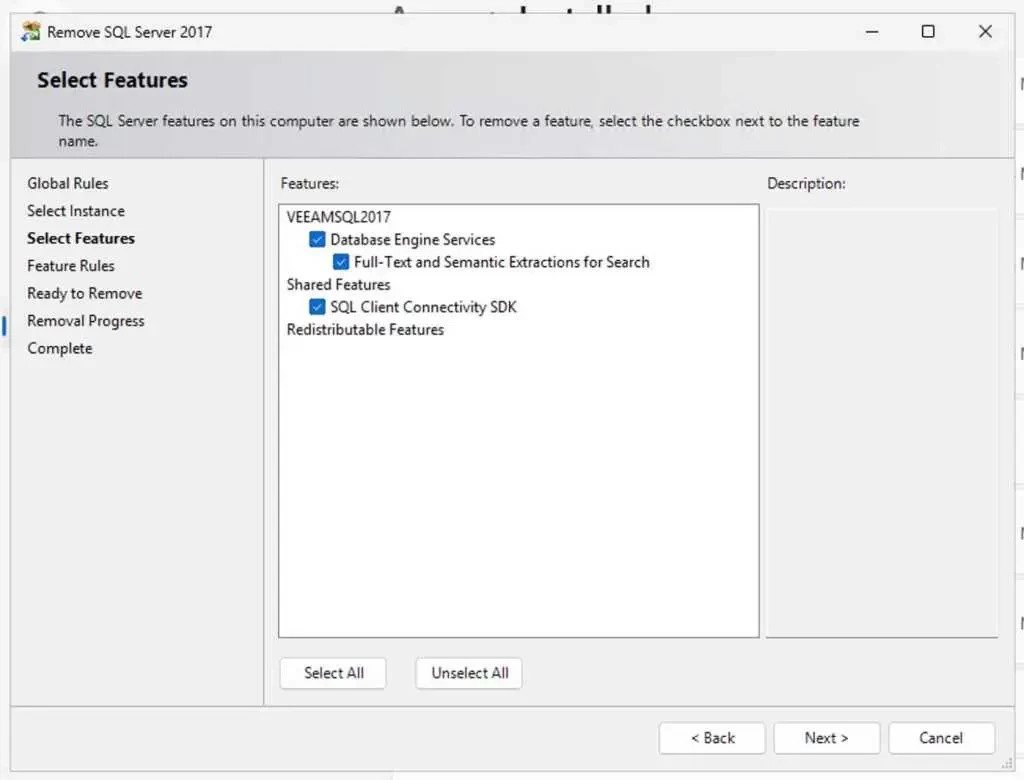
Select all features
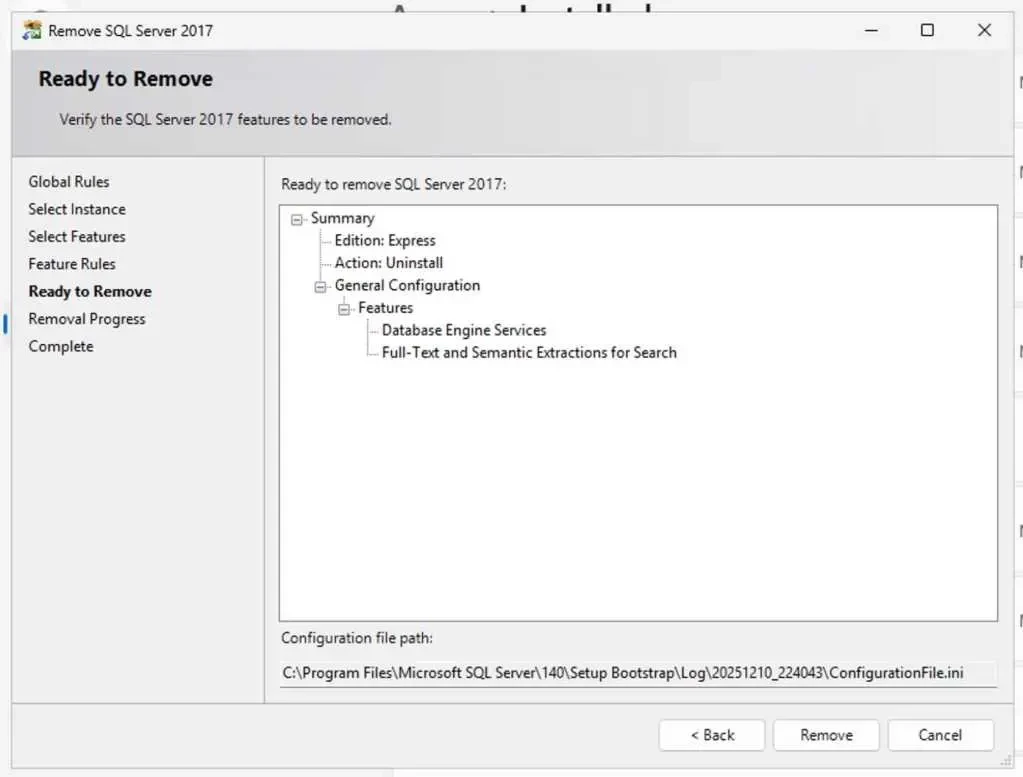
Click on remove
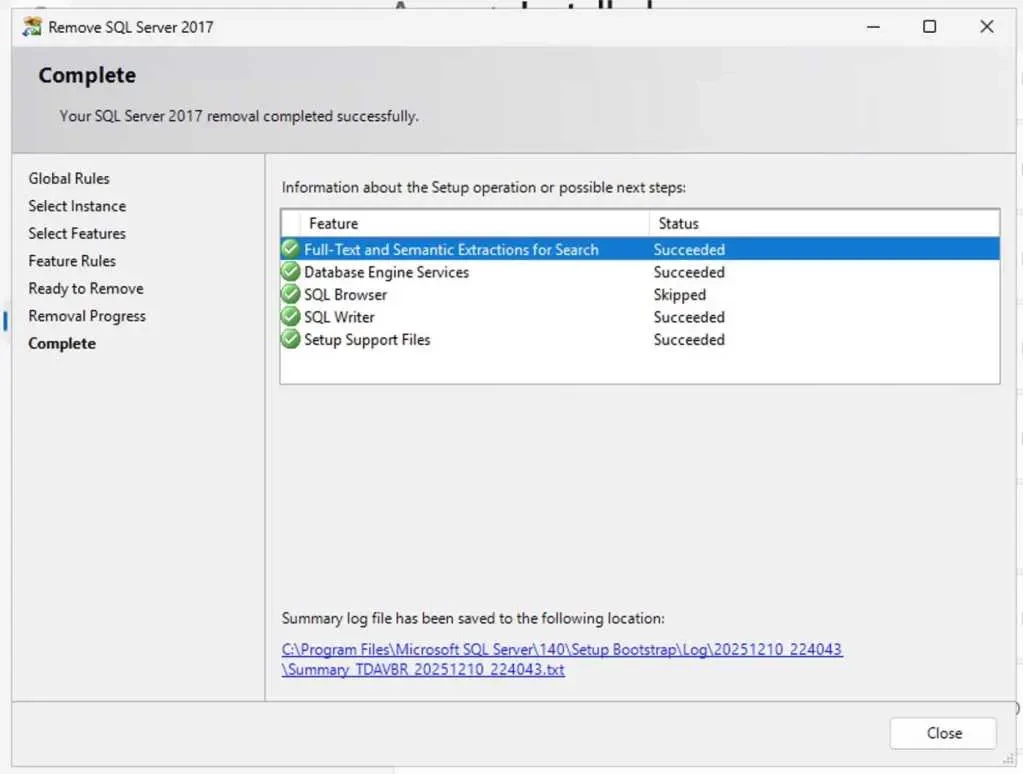
Succeeded as shown below
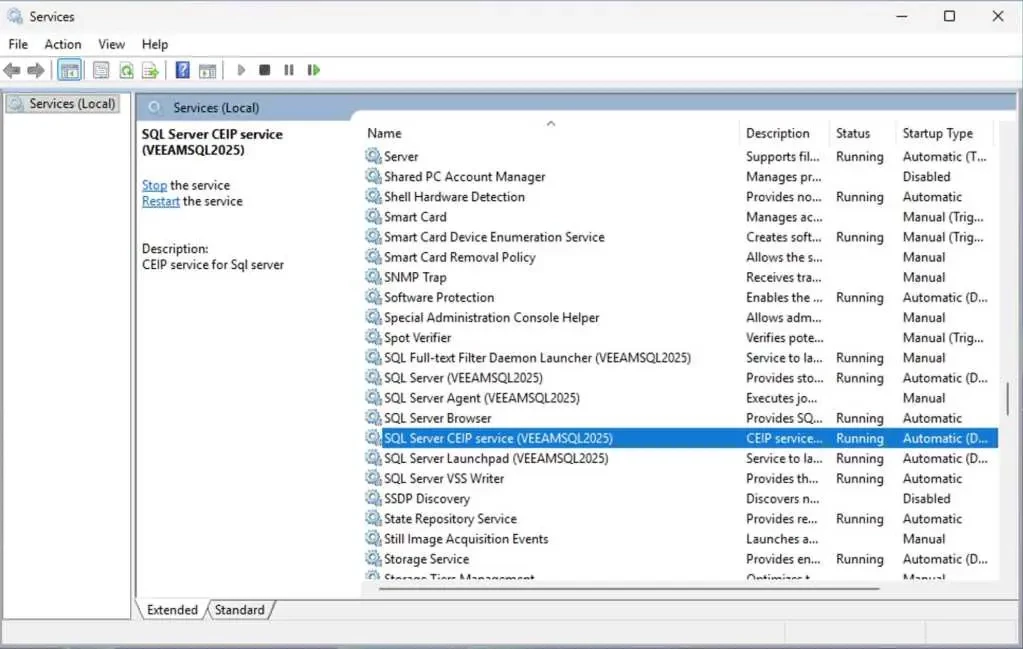
As you can see, we only have SQL Server 2025 services available on this server. Feel free to check more exciting guides on my website.