
An assumption for this course is that you are using the latest product versions and package updates. Check for available updates manually if required.
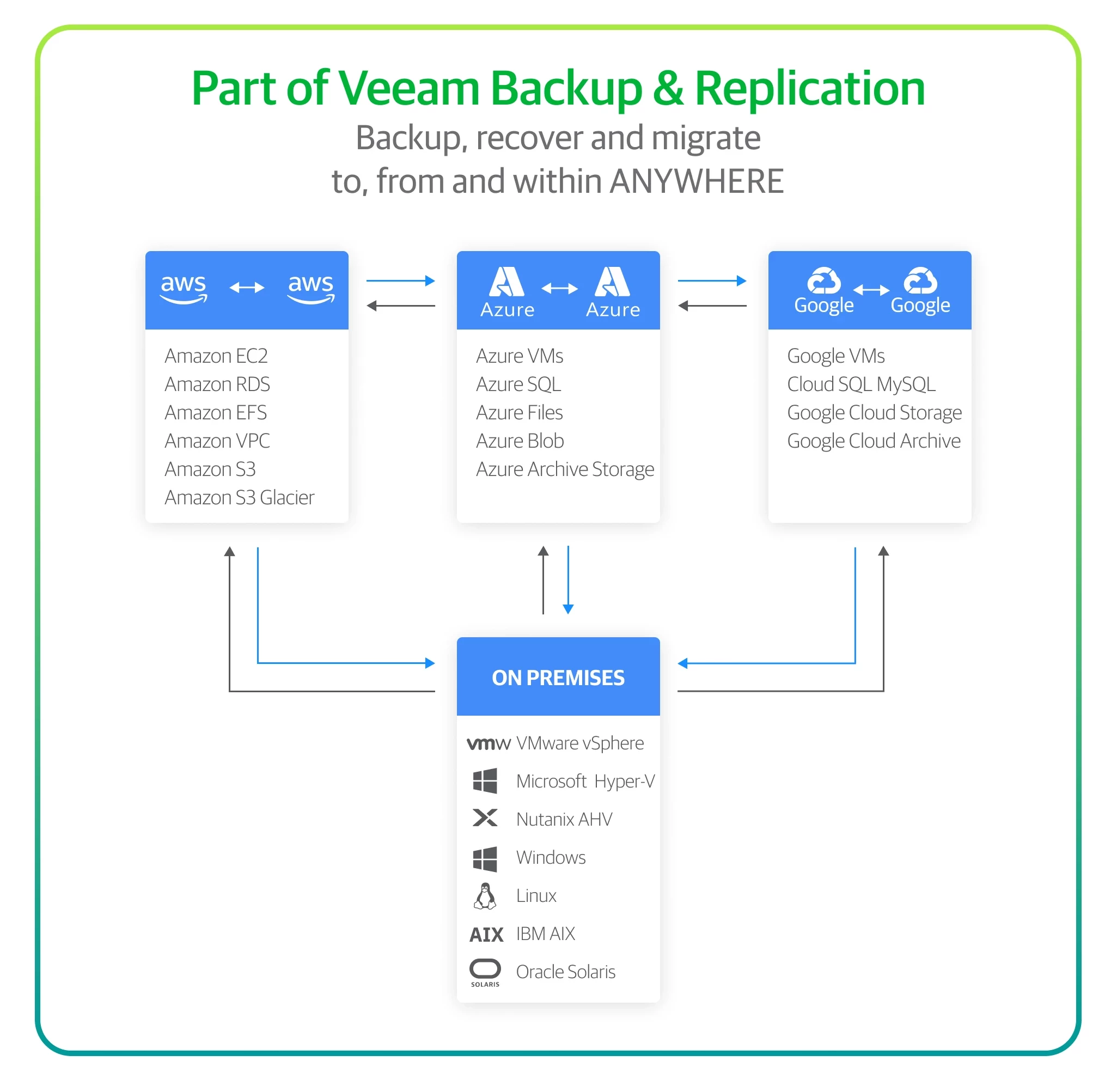
With Veeam Backup & Replication via AWS Plug-in for centralized and unified management and monitoring of hybrid-/multi-cloud environments, which provides you with a greater portability of backups and opportunity to store data on premises as well as across any of the supported public cloud providers.
Deployment Guidelines and Prerequisites
Before you start using AWS Native Backup and Recovery, make sure to:
- Digest an overview & sizing best practices by Veeam Solution Architects
- Study hardware, software and infrastructure limitations and considerations
- Ensure that all required ports are open and user accounts that you plan to use have the required permissions
- Familiarize yourself with AWS services to which Veeam Backup for AWS must have outbound internet access
When you deploy Veeam Backup for AWS, the Default Backup Restore IAM role is automatically created and added to the backup appliance. Default IAM roles might grant more permissions than necessary for the backup process. You can specify custom IAM roles with granular permissions to perform operations in this or in other AWS accounts. Continue reading in the User Guide.
Deployment
To deploy a new backup appliance from the Veeam Backup & Replication console, do the following:
- Launch the New Veeam Backup for AWS Appliance wizard.
- Choose a deployment mode.
- Specify an AWS account in which the appliance will be deployed.
- Specify a name and description for the appliance.
- Specify the connection type.
- Specify network settings for the appliance.
- Specify credentials for the default user account.
- Wait for the appliance to be added to the backup infrastructure.
- Finish working with the wizard.
How Deployment Works
When deploying Veeam Backup for AWS, Veeam Backup & Replication performs the following steps:
- Deploys an EC2 instance from the Ubuntu 22.04 LTS image.
- Creates a temporary Amazon S3 bucket in AWS and uploads Veeam Backup for AWS installation packages and their dependencies to the bucket.
- Installs the required software components on the EC2 instance.
- Creates the following IAM roles in AWS and adds them to the EC2 instance running Veeam Backup for AWS:
- Impersonation IAM role — will be attached to the backup appliance and then used to assume other IAM roles added to Veeam Backup for AWS.
- Default Backup Restore IAM role — will be used to perform data protection and recovery operations within the AWS account to which the backup appliance belongs. Out of the box, the role is already assigned all the required permissions listed in section Full List of IAM Permissions.
You will be able to add other IAM roles later, after Veeam Backup for AWS installation. For more information, see Managing IAM Roles.
- Removes the temporary Amazon S3 bucket from AWS.
Backup & Recovery
Watch this quick demo to see how easy it is to back up public cloud in AWS with Veeam:
Now let’s deep dive into Veeam’s fully customizable policies that automate snapshots, backups and restores of the following AWS services:
1. Amazon EC2
Watch this video to learn how to backup Amazon Elastic Cloud Compute (Amazon EC2) instances using native snapshots and image-based backup to Amazon Simple Storage Service (Amazon S3):
To learn more about Amazon EC2 backup policies read this step-by-step guide.
You can restore Amazon EC2 instance to the most recent state or to any available restore point. Veeam Backup for AWS offers the following restore options:
- Instance-level Restore — Restores an entire Amazon EC2 instance. Watch a how-to demo.
- Volume-level Restore — Restores Amazon Elastic Block Store (Amazon EBS) volumes attached to an Amazon EC2 instance.
- File-level Restore — Restores individual files and folders of an Amazon EC2 instance. Watch a how-to demo.
2. Amazon RDS
Watch this video to learn how to protect your Amazon Relational Database Service (Amazon RDS) instances using policy-based automation of native snapshots:
To learn more about Amazon RDS backup policies, read this step-by-step guide.
In case of a disaster, you can restore a DB instance or an Aurora DB cluster from a cloud-native snapshot or a snapshot replica. Veeam Backup for AWS allows you to restore one or more Amazon RDS resources at a time, to the original location or to a new location.
Watch this video to learn how to recover an entire Amazon RDS instance or read more on how Amazon RDS Restore works.
3. Amazon EFS
The following articles may be helpful to learn how to create Amazon Elastic File System (Amazon EFS) backup and restore policies:
4. Amazon VPC settings
Your Amazon Virtual Private Cloud (Amazon VPC) settings are at the heart of your AWS environment, and need protecting, too.
Veeam Backup for AWS comes with a preconfigured Amazon VPC Configuration Backup policy, which is disabled by default. Watch this video to explore how to edit backup policy settings and enable the policy to start protecting your Amazon VPC configuration:
To learn more about Amazon VPC Configuration Backup, read this step-by-step guide.
Once your AWS data is backed up, there’s plenty of retention options going forward, such as removing image-level backups and snapshots, enabling data encryption and so on.
Pro tip: If you have any S3 Lifecycle configuration associated with the selected Amazon S3 bucket, it is recommended that you limit the scope of lifecycle rules applied to Amazon S3 objects in the bucket so that no rules are applied to backup files created by Veeam Backup for AWS. Otherwise, the files may be unexpectedly deleted or transitioned to another storage class, and Veeam Backup for AWS may not be able to access the files. For more information on managing S3 Lifecycle configurations, see AWS Documentation.
Did you know? Veeam's backup cost calculator is an industry-first tool, designed to provide you with detailed insights into the potential expenses associated with running your backup policy. This resource serves as a proactive measure to prevent any unexpected billing surprises. It's worth noting that the estimated cost may sometimes appear substantially higher, mainly due to factors such as backup frequency, cross-region data transfers, and snapshot charges. Read more.
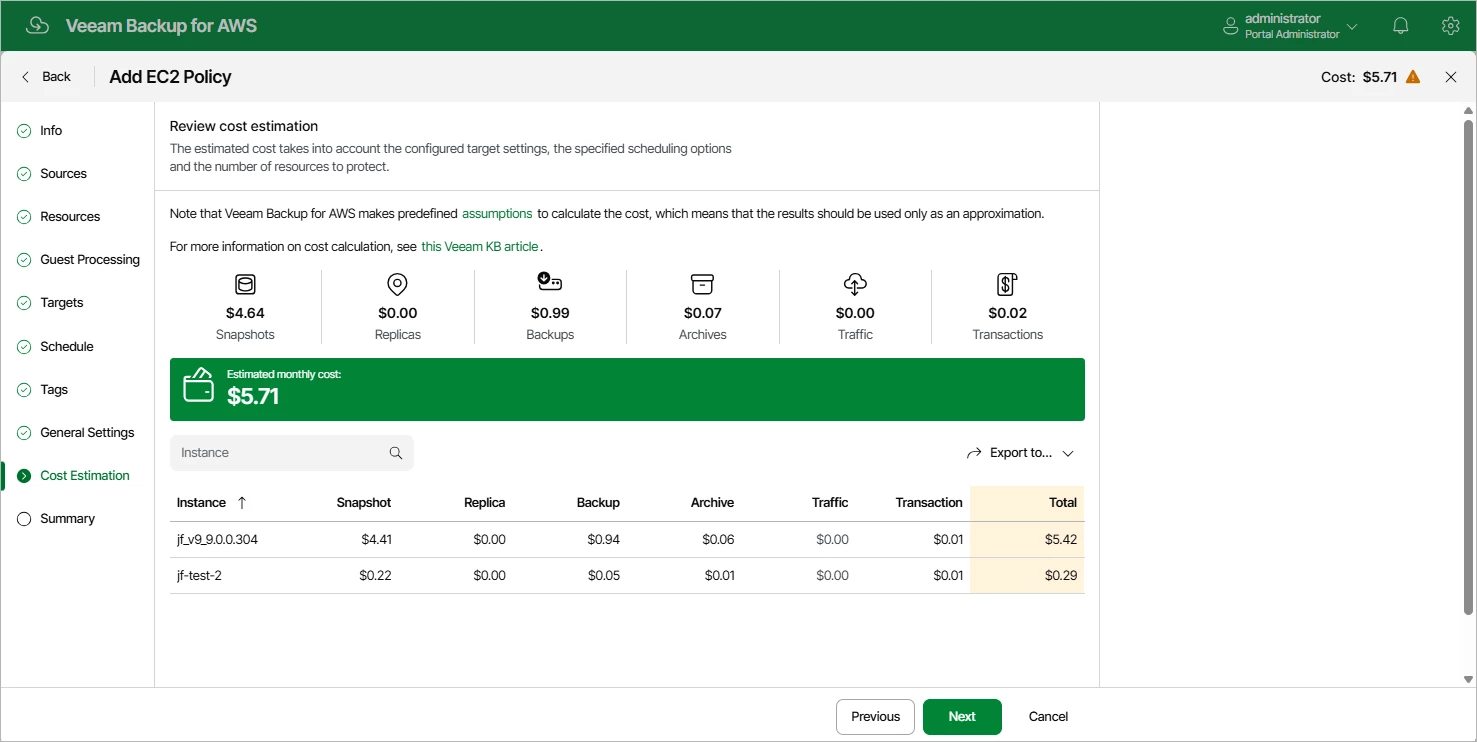
To reduce the cost, you can try the following workarounds:
- To avoid additional costs related to cross-region data transfer, select a backup repository that resides in the same region as instances that you plan to back up.
- To reduce high snapshot charges, adjust the snapshot-retention settings to keep fewer restore points in the snapshot chain.
- To optimize the cost of storing backups, configure the scheduling settings to run the backup policy less frequently, or specify an archive repository for long-term retention of restore points. You can add the Amazon S3 bucket and S3 Glacier Deep Archive to the backup infrastructure as a backup repository to reduce data-at-rest costs and for compliance.
Try the following best practices to improve data security:
- Periodic configuration backups mitigate data loss risk and reduce administrative overhead. You can back up and restore the configuration database that stores data collected from Veeam Backup for AWS. If the appliance fails, swift restoration from the configuration database is possible. Additionally, configuration database backups aid in seamless configuration migration between two AWS backup appliances.
- For enhanced data security, Veeam Backup for AWS allows you to encrypt backed-up data in backup repositories using Veeam encryption mechanisms or AWS Key Management Service (AWS KMS).
- Isolate backups from production in a dedicated account with least privilege access to secure them against ransomware and cyberthreats.
If you have AWS Outposts in your infrastructure, you can restore Amazon EBS volumes to an AWS Outpost.
Suggested resources:
- AWS Data Backup for Dummies
- AWS Certified Solutions Architect Exam Guide
- Build Your AWS Backup Environment
- Veeam on AWS: 5 Secure Backup Best Practices
- 10 Best Practices for AWS Backup
- AWS Cost Optimization: Effective Savings Tactics
- How to Connect to an Object Storage Repository via AWS Privatelink /Direct Connect
- Veeam Backup for AWS Best Practice Guide
Using a different public cloud? Check out the other modules!