
Question

Veeam Hardened Repo Migration to VIA

  • Oct 19, 2026 4:24 PM UTC
  • 13 comments
  • 108 views

Forum|alt.badge.img
  • Comes here often

Back in 2023/24 we setup a DR site with a Ubuntu 24.04.3 LTS to act as our immutable repo for backup copy jobs. 

I believe this may be out of date now, and the VIA is all the range. 

The backups on the Ubuntu 24.04.3 LTS copy sit on a separate storage shelf to the OS, is it possible that if we were to migrate to VIA we can retain the backup files or is it a go no go situation?

I’ve seen the migration process for Windows Repos to VIA and you can retain backup files, but we’re postponing that for now, we’d rather get all the other components in order.

Just wondering if anyone’s managed to do Ubuntu > VIA and keep backups files?

Cheers.

13 comments

Chris.Childerhose
Forum|alt.badge.img+23

I believe that you can do this as you select just the OS drive to redo and keep the backups.  I have not done it, so be sure to take a snapshot of the VM before trying it so you can revert if needed.  But I am pretty sure that is how it is done.


Dynamic
Forum|alt.badge.img+16
  • Veeam Vanguard
  • Oct 19, 2026 6:19 PM UTC

That’s a good question. I think it could work, but I would recommend asking support about this.

​@Chris.Childerhose I would guess we are not talking about a VM for a Hardened Repository (or I hope so). But, if this is the case, I would agree on your procedure 😊


Chris.Childerhose
Forum|alt.badge.img+23

That’s a good question. I think it could work, but I would recommend asking support about this.

​@Chris.Childerhose I would guess we are not talking about a VM for a Hardened Repository (or I hope so). But, if this is the case, I would agree on your procedure 😊

Oh, maybe I am thinking VHR.  😂

Regardless, it is best to contact support for guidance.


Marcel.K
Forum|alt.badge.img+13
  • Veeam Legend
  • Oct 20, 2026 6:12 AM UTC

Currently I am preparing PoC as well with 2 scenarios if you have enough storage space, then move backups. And if you dont have. Yes, in this thoery reattaching of disk should work as in 13.1 is now available option in management vonsole to and storage for repository.


Ralf
Forum|alt.badge.img+1
  • Comes here often
  • Oct 27, 2026 9:16 AM UTC

If someone has a step by step guide on how to do this, I’d be interested. Support was very clear that this is not supported. We have backups on dedicated RAID internal volumes. One option is to move backups to another repo if you have the free space, that is what we will do at our larger site. But we have smaller sites with just one on-prem device, that will not be possible there.

I’m really disappointed that this is not official supported, because technically its not such a big issue.


Dynamic
Forum|alt.badge.img+16
  • Veeam Vanguard
  • Oct 27, 2026 11:28 AM UTC

If someone has a step by step guide on how to do this, I’d be interested. Support was very clear that this is not supported. We have backups on dedicated RAID internal volumes. One option is to move backups to another repo if you have the free space, that is what we will do at our larger site. But we have smaller sites with just one on-prem device, that will not be possible there.

I’m really disappointed that this is not official supported, because technically its not such a big issue.


We talked about this and maybe we will do an article about it. But keep in mind, even if it’s working, if something gets corrupted after an update or something like this, you will be messed up :(

We currently have a lot of customers who want to migrate. Today we provide a temporary repository to shift the data or to point the backup jobs to it… after reaching retention, they can do a clean installation.
For shifting the data you can use “Move backup”, but be aware you lose the Fast Clone savings, so plan enough space on the temp repo. Or you just point the jobs to the new repo and let the old chains age out on the old one, no data movement needed, it just takes until retention is reached.
I know, this may take a lot of time, but after all, it’s a supported way...​​​​​​​


Dynamic
Forum|alt.badge.img+16
  • Veeam Vanguard
  • Oct 28, 2026 11:53 AM UTC

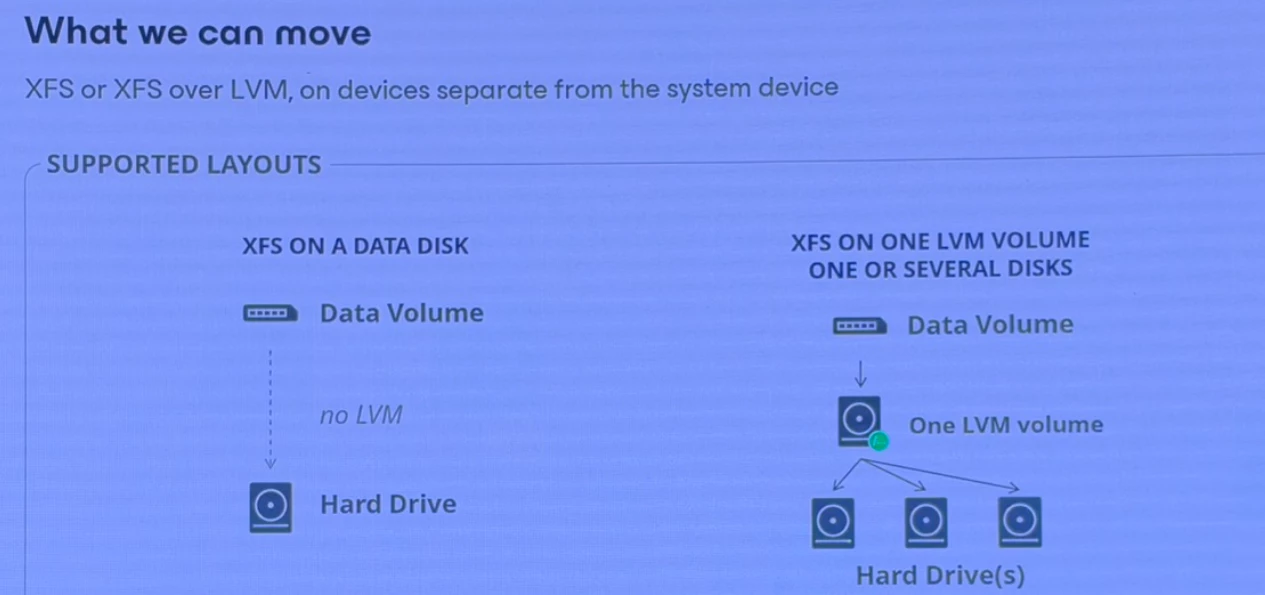
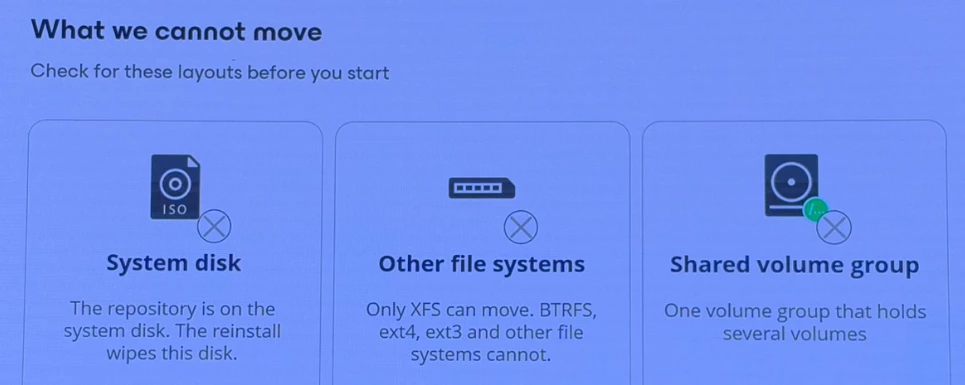
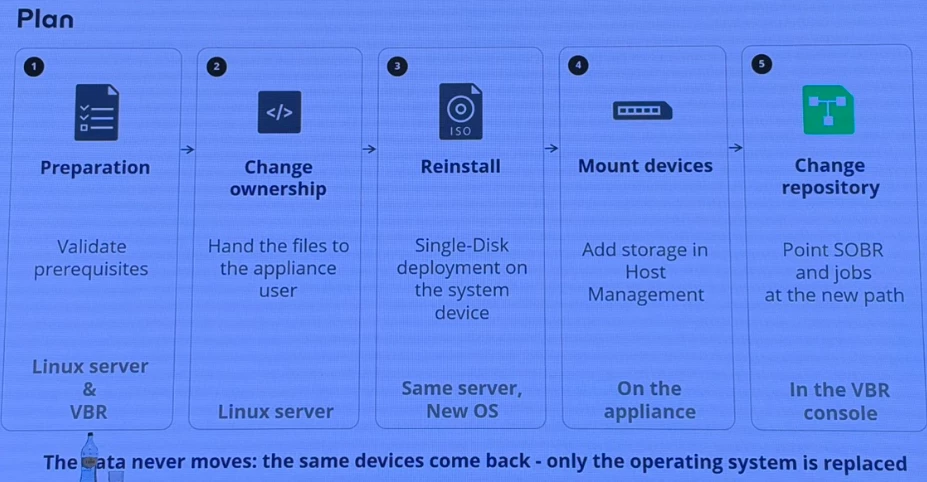
...we just had a session about exactly this topic (in this case from Ubuntu to the VIA)

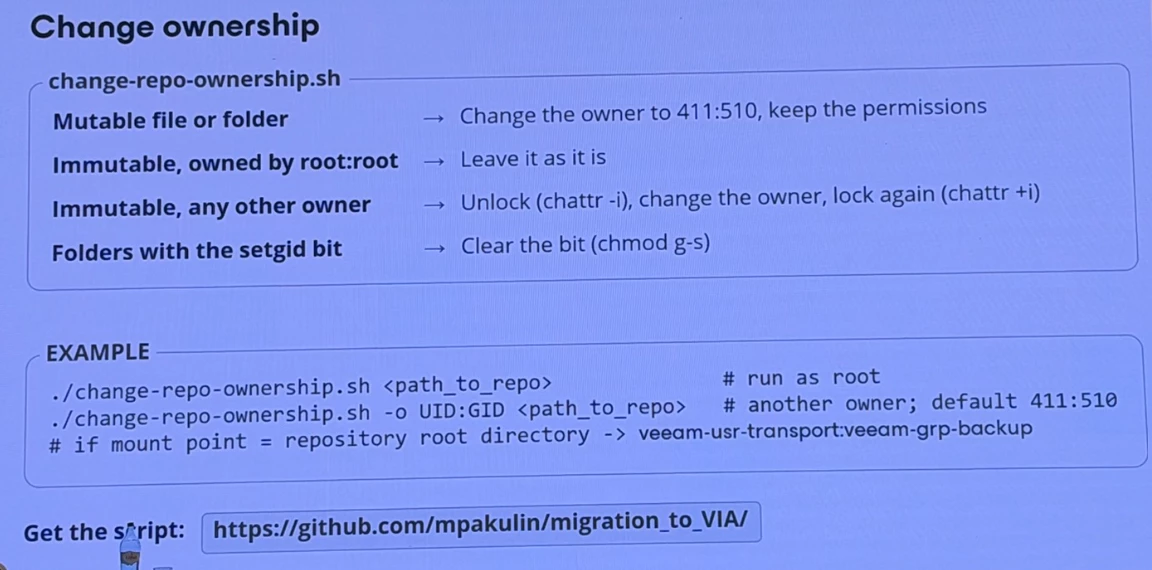
It’s not an official migration path and should be tested in a lab first. A script to change user/permission on the XFS Repo was also used.


Currently the script isn’t public available, but it will be asap ;-)


Chris.Childerhose
Forum|alt.badge.img+23

Nice to see this one coming out for migrations. 👍


  • New Here
  • Oct 28, 2026 5:13 PM UTC

This is something we really need. I’ve got multiple older Debian (11 and 12) repos that I’d love to upgrade to VIA-based VHR systems, but migrating or recreating multiple TB of backups isn’t practical. What I do have is one “spare” older repo that I can test on, so if there’s a walkthrough process I’d love to try it out.


Ralf
Forum|alt.badge.img+1
  • Comes here often
  • Oct 28, 2026 6:54 PM UTC

If someone has a step by step guide on how to do this, I’d be interested. Support was very clear that this is not supported. We have backups on dedicated RAID internal volumes. One option is to move backups to another repo if you have the free space, that is what we will do at our larger site. But we have smaller sites with just one on-prem device, that will not be possible there.

I’m really disappointed that this is not official supported, because technically its not such a big issue.


For shifting the data you can use “Move backup”, but be aware you lose the Fast Clone savings, so plan enough space on the temp repo. 


As far as I know, savings are kept with move backup. I got this information from support and in my test I also saw that they are kept. 


Forum|alt.badge.img+1

...we just had a session about exactly this topic (in this case from Ubuntu to the VIA)

It’s not an official migration path and should be tested in a lab first. A script to change user/permission on the XFS Repo was also used.


Currently the script isn’t public available, but it will be asap ;-)

I was not able to get the scripts from the link provided https://github.com/mpakulin/migration_to_VIA Maybe it’s not open?


Link State
Forum|alt.badge.img+12
  • Veeam Legend
  • Nov 1, 2026 9:26 AM UTC

Hi ​@lgh 

check this link can help

Ubuntu to veeam infrastructure appliance - R&D Forums

I’ve had success in transitioning an existing Ubuntu Hardened Repository into a Veeam v13 Infrastructure Appliance (VIA) using the ISO repair option.
Obviously this is not a supported method, so proceed at your own risk but hopefully it might be of some help :)

This approach assumes:
• You have two logical RAID volumes
• One for the operating system
• One for the backup data
• Both are configured as logical volumes (LVM) in Ubuntu

The process works by renaming volume groups (VGs) and logical volumes (LVs) to match VIA expectations. This allows the repair process to correctly:
• Identify OS vs data volumes
• Reinstall the OS volume only
• Preserve the backup data volume

Step 1 — Prepare the Veeam Backup & Replication (VBR) Server
1. Disable all backup jobs targeting the Ubuntu Hardened Repository
2. Remove all backups from the configuration database that reference this repository

Step 2 — Rename OS and Data Volume Groups and Logical Volumes
This step ensures the Veeam Infrastructure Appliance repair process correctly identifies the OS and data disks.

1. Record current VGs and LVs:

Command: lvs

2. Rename volumes to align with VIA naming conventions:

command: vgrename <yourDATAvg> datavol
command: lvrename datavol <yourDATAlv> veeamrepo
command: vgrename <yourOSvg> systemvol
command: lvrename systemvol <yourOSlv> system

3. Refresh and verify:

command: vgscan --mknodes
command: lvscan

Step 3 — Run the Veeam v13 Infrastructure Appliance Repair
1. Shut down the server and boot from the VIA ISO
2. Select:
Veeam Hardened Repository
Reinstall (Repair Mode)
3. Configure:
Hostname
IP settings
Password and MFA
4. After installation:
Sign in to the console
Navigate to Remote Access Configuration and enter the shell
5. Change to the backup directory:

command: cd /var/lib/veeam

6. Verify the backup directory ownership:

command: ls -l

Expected:
User: veeam-usr-transportsvc
Group: veeam-grp-backup

**Note** If your original backup folder had a different name, move its contents into /var/lib/veeam/backup

7. Remove immutability temporarily to adjust ownership:

Command: chattr -R -i /var/lib/veeam/backup

8. Fix ownership:

Command: chown -R veeam-usr-transportsvc:veeam-usr-transportsvc /var/lib/veeam/backup/*

**Note** Immutability will be re-applied automatically after the repository is rescanned.


Step 4 — Reconfigure VBR
1. Locate the Ubuntu server under Managed Servers
2. Edit properties and switch the access method to certificate-based authentication
3. Create a new backup repository using path: /var/lib/veeam/backup
4. Rescan the repository to import backups into the configuration database
5. Update each backup job:
Point to the new repository
Map existing backups to the jobs
6. Re-enable backup jobs


Forum|alt.badge.img+3
  • Veeam Product Management
  • Nov 5, 2026 10:52 AM UTC

All, 

Just a note that such a migration at this point is not a supported procedure. While the methods may work, please understand that you will not be able to receive support for such a migration, nor for issues during / after the migration.

We’re aware of the requests and need for this migration and it is being worked on, but nothing more to share at the moment. 

I would advise do not attempt such migrations on your production backups, and please wait for us to implement this officially.