Question

veeam appliance Version 13 on proxmox- SMB share fault

  • January 18, 2026
  • 4 comments
  • 81 views

I have a veeam V13 appliance under Proxmox VE 9.1

I want use a smb share under Qnap NAS. The QNAP is not in a domain.

The shares are working on windows PC and servers with the credentials.
The same creditentials i use for connect to the share under the veeam console V13

But when i want to use it as repository SMB share. I become this
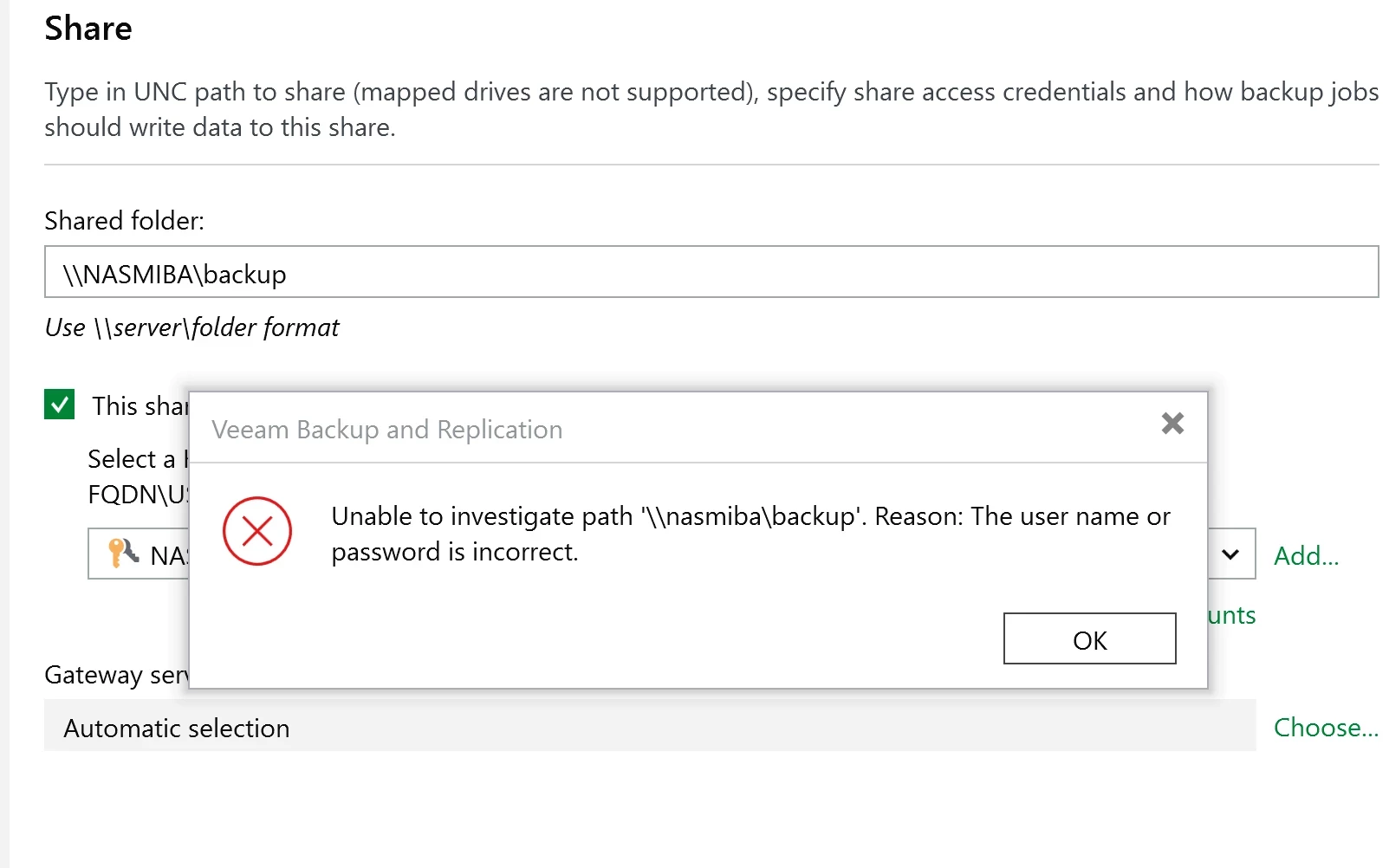


Have anybody a solution to solve this.

 

4 comments

Chris.Childerhose
Forum|alt.badge.img+21
  • Veeam Legend, Veeam Vanguard
  • January 18, 2026

Check the user permissions and also ensure AV and FW rules are in place.   As per this -

This Veeam error occurs when the software cannot authenticate to a network share or repository path, often due to incorrect credentials or improper formatting of the username.


Example:


Unable to investigate path '\\ehmckenas01\seagatehd'

Reason: The user name or password is incorrect

Copy

This typically happens when adding an SMB/CIFS share as a backup repository or target in Veeam Backup & Replication. Even if the share is accessible via Windows Explorer, Veeam may fail if the credentials are not entered in the correct format or if the service account lacks permissions.


To address this, first verify that you can access the path from the Veeam server using Windows Explorer. If prompted, enter the credentials in the format DOMAIN\username or SERVERNAME\username. This ensures that authentication is performed against the correct security context.


If browsing fails in Veeam, manually type the full UNC path and credentials instead of relying on the Browse button, as it may use the currently logged-in Windows account rather than those entered in Veeam. For NAS devices, ensure SMB protocol compatibility and that the user has both share-level and NTFS permissions.


In some cases, updating the Veeam service logon account to one with access to the share can resolve persistent authentication issues. This can be done via services.msc by editing the logon properties for Veeam Backup Service and related services.


Good Practice Example:


Path: \\ehmckenas01\seagatehd

Username: EHMCKENAS01\veeamuser

Password: ********

Copy

Ensure that veeamuser has read/write permissions on both the share and underlying file system.


By confirming network connectivity, using correct credential formats, and aligning service accounts with repository permissions, you can eliminate this error and allow Veeam to successfully investigate and use the target path.


lukas.k
Forum|alt.badge.img+13
  • Influencer
  • January 18, 2026

Agreed with Chris here, SMB is SMB and Veeam (even the appliance) doesn’t manipulate this. Maybe you can check the SMB version your NAS is allowing.


Maybe try both username spellings:

usename@server

server\username


In case the user doesn’t have admin permissions, please try to grant those temporarily to see if this makes any difference.

Please also make sure the correct Gateway Server is selected (currently it is set to “automatic” as per your screenshot).


In case nothing of those helps, I suggest reaching out to Veeam Support to investigate on this.


Best

Lukas


CMF
Forum|alt.badge.img+8
  • Veeam Legend
  • January 19, 2026

I had an similar issue with a Synology the other day and ended up using NFS instead of SMB. 

My v13 appliance was running on Hyper-V though. 

Works pretty good that way and even has performance advantage. 

Thanks again ​@Dynamic for pointing that out to me. 


Link State
Forum|alt.badge.img+11
  • Veeam Legend
  • January 19, 2026

@Paul_Funkendrazer 


Veeam Backup & Replication (VBR) v13 Linux-based appliances can connect to an SMB file share, but only with the correct configuration: use of valid credentials (domain or local account, not UPN format such as user@domain.xxx), correct permissions at both share and NTFS level for the Veeam account, possible use of a dedicated gateway for access to the share, and verification of SMB protocol compatibility.

Performance note: for Linux-based environments, NFS is generally preferable to SMB, offering better performance, lower overhead and greater stability as a backup repository.