Question

vbm: missing metadata. Full Image Restore with .vbk only?

  • June 16, 2026
  • 5 comments
  • 47 views


Hello everyone,

I am using Veeam Agent for Microsoft Windows Free and am currently facing issues restoring a full computer backup. At this point, I have run out of ideas and hope that someone in the community can help.

Environment

I have a PC that was protected with Veeam Agent for Microsoft Windows Free. The backup job was configured to perform a full computer backup and store it on an external HDD.

Recently, the PC's Intel Optane SSD failed and had to be replaced. After installing a new SSD, I attempted to restore the system from the existing Veeam backup.

Problem

When I start the recovery process and open Volume Level Restore, Veeam does not automatically detect the backup. However, I am able to manually browse to and select the backup files (see attached screenshot).
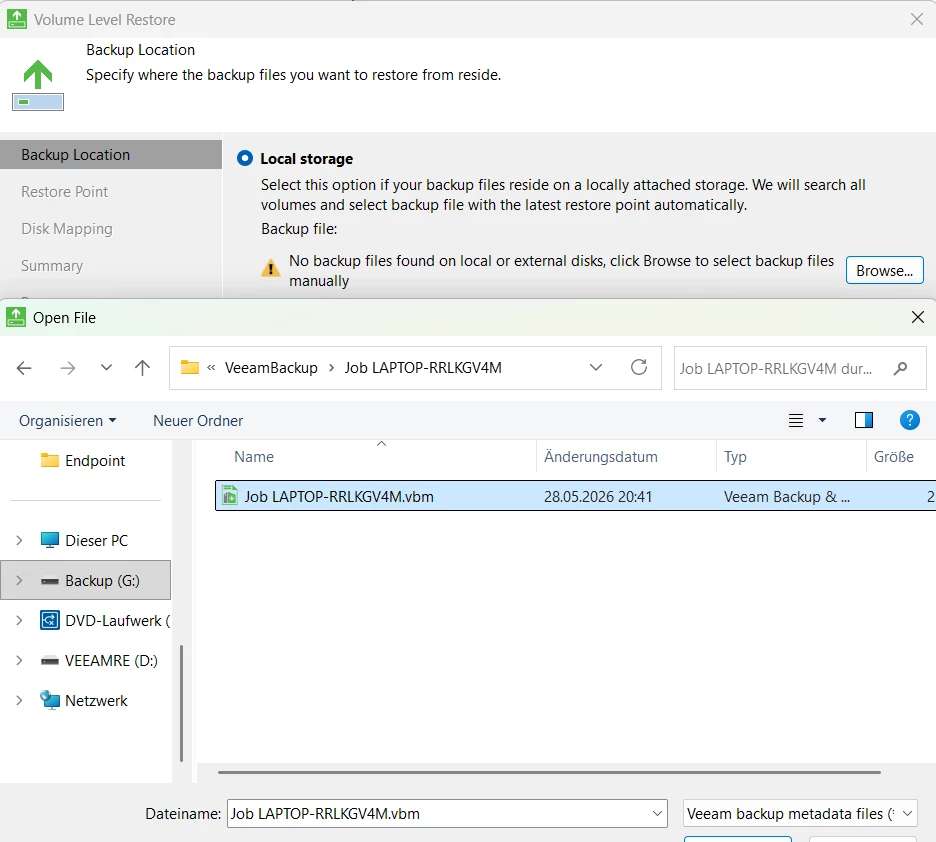
 

After selecting the backup, nothing happens. When I click "Next", I receive the following error message:
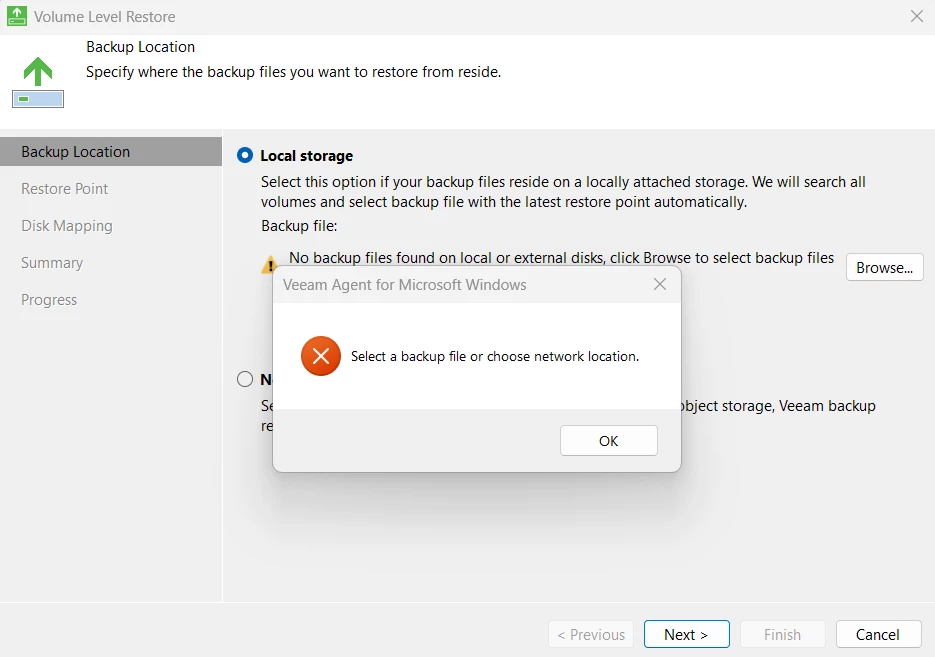
Investigation

After spending quite some time troubleshooting and reviewing the logs, I inspected the .vbm file manually.

I noticed that the section is completely empty, while the section still appears to contain valid information. This seems to explain why Veeam cannot properly identify the backup, as the required metadata is missing.

I have attached the .vbm file below for reference.

<BackupMeta Version="6479" MetaSchemaVersion="2" CreationTimeUtc="05/28/2026 18:41:38">
<Backup Id="5fb431cb-05f8-405a-85e7-59977b5823d1" OriginalId="5fb431ab-05f8-405a-85e7-59977b5825d1" JobId="7c038cdc-08bd-4gee-87be-d56a4f054f97" JobName="Job LAPTOP-RRLKGV4M" JobType="4000" SourceType="3" TargetType="0" JobTargetHostId="6745a759-3205-4cd2-b172-8ec8f7e60ef8" JobTargetHostProtocol="0" RepositoryId="4fda1etz9-a3b6-498b-aedd-d74b57d05513" DirPath="D:\VeeamBackup\Job LAPTOP-RRLKGV4M" MetaFileName="Job LAPTOP-RRLKGV4M.vbm" MetaVersion="6478" MetaUpdateTime="05/28/2026 17:41:25" BackupPlatform="6" CreationTime="11/16/2021 20:13:57" EncryptionState="0" PolicyName="" BackupPolicyTag="" DeletedRetentionPeriodDays="30" EnableDeletedRetention="False" UsedMetaType="0" IsShadow="False" IsShadowArchiveTier="False" />
<BackupMetaInfo>
<Hosts />
<Storages />
<DirectBackupStorageInfos />
<Points />
<Objects />
<Oibs />
<EncryptedOibs />
<EncryptedObjects />
<Keys />
<RecoveryKeys />
<ArchiveKeys />
<PolicyKeys />
<EncryptedArchiveLogs />
<EncryptedOracleGuestDatabases />
<EncryptedSqlGuestDatabases />
<OibToAlwaysOnGroups />
<AlwaysOnGroups />
<AlwaysOnGuestDatabases />
<AlwaysOnListeners />
<GuestDatabases />
<ChildBackupStorages />
<OracleDatabases />
<OibOracleArchiveLogs />
<SqlOibs />
<SqlEncryptedOibs />
<OracleOibs />
<OracleEncryptedOibs />
<GuestDatabaseToOibLinks />
<LogBackupInfo Id="5fb431ab-05f8-405a-85e7-59977b5823d1" SourceOriginalId="00000000-0000-0000-0000-000000000000" CurrentCreationUsn="2920" CreationUsnShift="0" />
</BackupMetaInfo>
<Keysets />
</BackupMeta>

Questions

My main questions are:

  1. How could the metadata in the section disappear or become empty while the rest of the backup chain appears intact?

  2. Is there any way to rebuild or repair the .vbm file?

  3. Is it possible to restore the backup without a valid .vbm file?

All .vbk and .vib files are still present and appear to be intact.
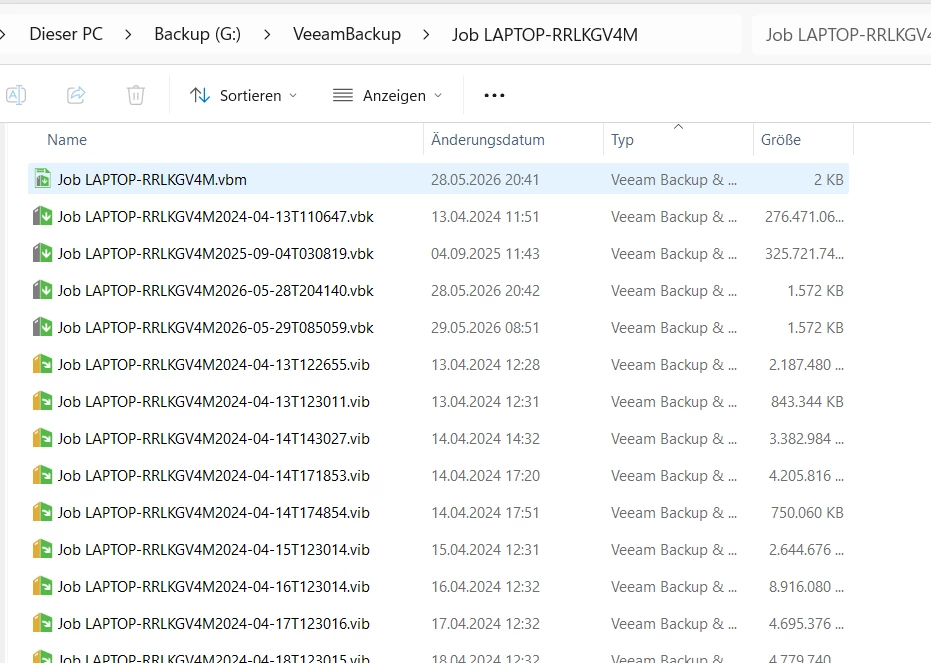
From my research, it seems that a standalone .vbk file can sometimes be imported directly into Veeam Backup & Replication (or Veeam Data Platform 13, as it is now called, right?). However, as far as I understand, I cannot install that product on a standard Windows 11 system and would need a Windows Server installation.

Any suggestions, ideas, or recovery options would be greatly appreciated.

Thank you in advance for your help!

5 comments

lukas.k
Forum|alt.badge.img+13
  • Influencer
  • June 16, 2026

Hi ​@julianwie and welcome to the community!

First of all, you have to make sure that during your restore, the full backup chain (full backups as vkb and incremental backups as vib) are in place, as well was the metadata (vbm) file.

Once you are able to browse that, you should make sure that you are using the correct recovery media (boot media, created by Veeam Agent) - this might change when you use different versions, e.g. like updates (of the Agent software).

If you have everything in place, a restore should be possible - assuming that the backup chain is intact, that is.

If this isn’t the case, I recommend opening a Veeam Support case (also works with the Community Edition, but based on best effort instead of a dedicated SLA).


Generally, you can also deploy Veeam Backup & Replication, which is the “full suite” of the software. You can install it on a client OS (Windows 10 / 11) though, but the restore itself for physical systems like your client will ultimately be performed by the Agent.

Yes, you could theoretically install VBR and try to investigate on the files, but that could be “overkill” since the software is pretty huge.


If you want, please feel free to keep us posted on the status!


Best regards

Lukas


Tommy O'Shea
Forum|alt.badge.img+5
  • Veeam Legend
  • June 16, 2026

Veeam Support may be able to help you with repairing/recreating the VBM files. Please note that for the free license, they provide support for free, but on a “Best Effort” basis, meaning if there is capacity on their support team, they can take on your case. You may have to wait a bit for that.

Regarding installing Veeam Data Platform, it doesn’t have to be installed on Windows Server, it can be installed on Windows 11 as well. From there you will be able to restore files directly from the VBK/VIB backup files.


coolsport00
Forum|alt.badge.img+23
  • Veeam Legend
  • June 16, 2026

@julianwie - generally, you could rename the .vbm file and re-run the Job to recreate the .vbm. But my guess is you had VAW on the PC you are trying to restore? So, that won’t do much good. The only other way (& similar) would be to run an Active Full...again...to rebuild/recreate the .vbm. Support may have a Script (I saw in my research on this) to help without the need to rerun the Job. You can try them, but as mentioned with using Free, it’s best effort & they may not have time to get back with you.


  • Author
  • Not a newbie anymore
  • June 16, 2026

Thank you all for the quick responses.

@lukas.k : Yes, all .vbk and .vib files are present in the same folder as the .vbm file. The only thing that puzzles me is that the .vbk files from May 28 and May 29 are only about 1,500 KB in size, whereas the backups from September 2025 and 2024 have the expected sizes of approximately 275 GB and 325 GB. Is there a simple explanation for this? Even if the .vbk files from May were somehow invalid, the backup files from September 2025 should still be available.

My initial intention was to perform the restore using the recovery media, which is where I first encountered the issue described above. To continue troubleshooting, I installed a fresh copy of Windows 11 and then attempted to restore the backup to a dedicated partition. When I encountered the same problem while selecting the .vbm file, I inspected the file and noticed that the metadata was missing. As a test, I created a new backup job and confirmed that the corresponding .vbm file contains all the expected metadata entries.

@coolsport00: Yes, VAW was installed on that machine and the backup job was configured there. Creating a new job would simply ignore the existing .vbk and .vib files, so unfortunately that is not a viable solution.

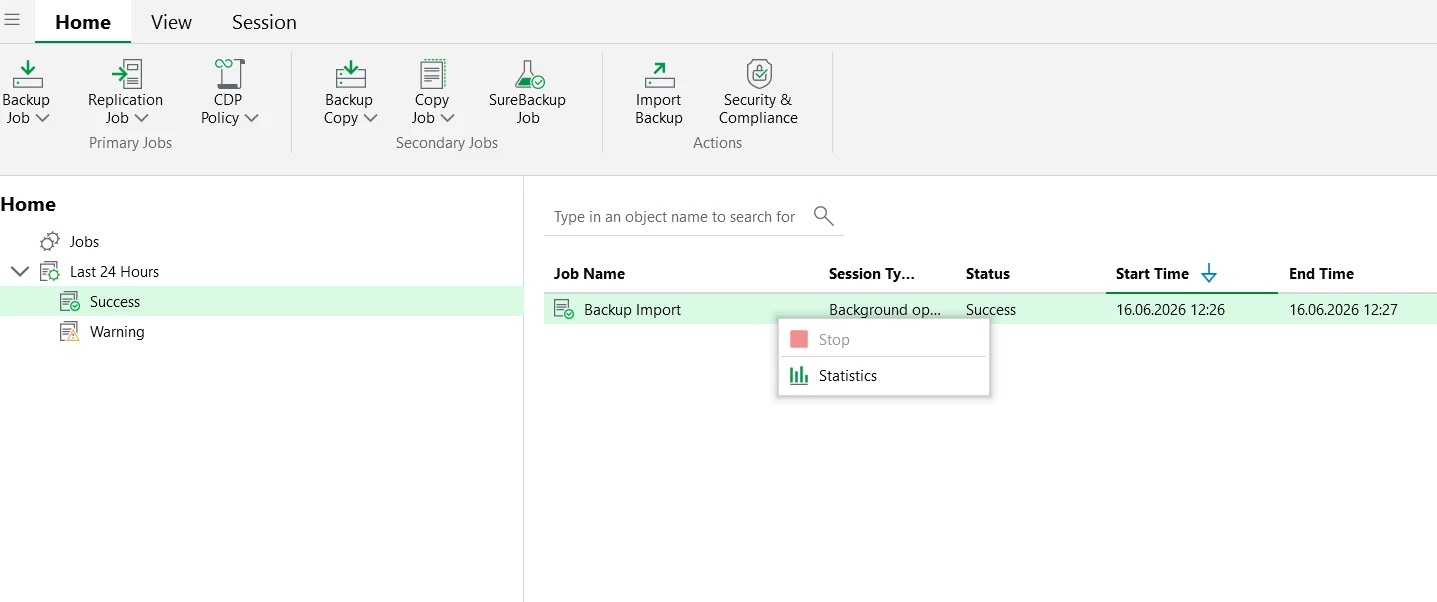
In the meantime, I have installed Veeam Backup & Replication 13. However, I cannot find any way to restore directly from the .vbk file. Perhaps I am simply unfamiliar with the software. After importing the .vbm file, the only options available when right-clicking the backup are "Stop" (grayed out) and "Statistics".

I understand now that I do not necessarily need Veeam Backup & Replication / Veeam Data Platform for this recovery. However, my question remains: how can I restore a .vbk backup using Veeam Agent for Microsoft Windows Free if the .vbm file is missing or corrupted? Is there any supported way to do this? When using VAW, I can only select a .vbm file during the restore process. Is some part of the backup chain described inside a .vbk or .vib or is it entirely described by the .vbm?

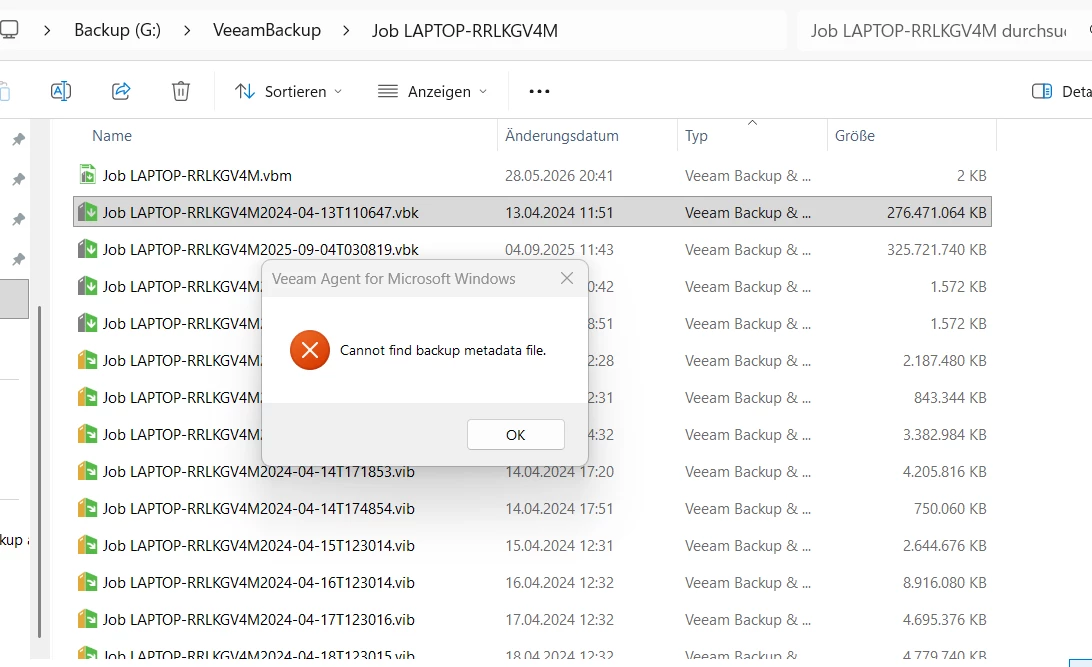
When i open die .vbk file directly, it prompts an error:
 

If there is no way to restore a .vbk backup without a valid .vbm file, then I will likely need to open a support case.


coolsport00
Forum|alt.badge.img+23
  • Veeam Legend
  • June 17, 2026

Hi again ​@julianwie -

Yes, you should be able to do a restore of just a .vbk using the “extract utility” from the Veeam installation directory:

C:\Program Files\Veeam\Backup and Replication\Backup\Veeam.Backup.Extractor.exe

Follow the User Guide for more info:

https://helpcenter.veeam.com/docs/vbr/userguide/extract_utility_gui.html?ver=13

Hopefuly Support can guide you further if needed. Let us know how it goes.

Best.