Question

Recovery Media

  • January 29, 2026
  • 12 comments
  • 29 views

Running Veeam agent for Linux, v. 6.3.2.1207_x86_64. OS is Mint MATE 22.  Been making weekly backups for a year or more, just now trying a test recovery on spare computer- loaded some files, ran b/u to ext. drive, deleted files.  Have Recovery Media on stick, using steps in user guide.  All good thru several menus until “Mount Local Disc” which brings up a menu “Select Local Disc” but there are no items from which to select.  Backup drive lights up, so recognized by system.  What am I missing?  

12 comments

coolsport00
Forum|alt.badge.img+21
  • Veeam Legend
  • January 30, 2026

The only reason I’ve had that (tho it’s been with Windows) was due to lack of a driver.

Have you tried creating a custom recovery media?

https://helpcenter.veeam.com/docs/agentforlinux/userguide/val_first_steps_iso.html?ver=13


Mohamed Ali
Forum|alt.badge.img+2
  • VUG Leader
  • January 30, 2026

  • Author
  • Not a newbie anymore
  • January 30, 2026

Thanks both for your responses.  Skating near the edge of my computer skills with this effort- will get back to it as time permits next week.  Also possible that I used the wrong file for the recovery stick.


coolsport00
Forum|alt.badge.img+21
  • Veeam Legend
  • January 30, 2026

Ok ​@Sailorsteve47 - keep us posted.


  • Author
  • Not a newbie anymore
  • January 31, 2026

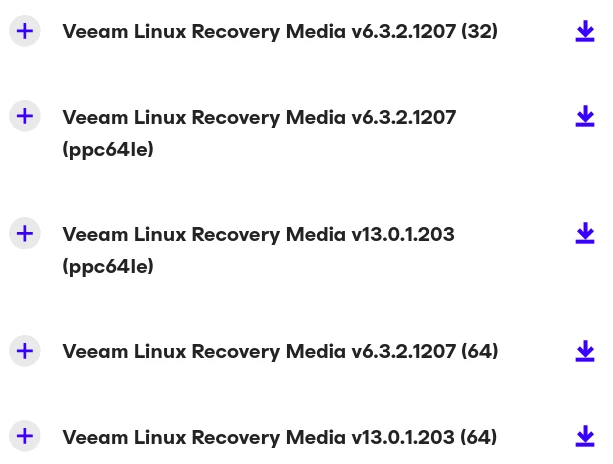
Back to square 1 today- checking for correct downloads for my Linux Mint OS (same d/l as ubuntu).  Backup app must be correct, as I’ve been running it for a year or more on 2 machines, both Linux Mint, no drama.  Next, checked the options for Recovery Media, see screen shot.  Used 4th on list for my 64-bit systems.  Confirmed d/l correct- second d/l today shows (1) next to it, meaning identical to the first one.

Followed the user guide from p.343, cookbook fashion.  On one-time boot (F12 on this OS) there was a cascade of error messages- as is typical, much too fast to read, but all then seemed ok until the glitch in my first post.  Any wisdom on this?


coolsport00
Forum|alt.badge.img+21
  • Veeam Legend
  • January 31, 2026

What is your question ​@Sailorsteve47 ? What ISO to download? It looks like the 2nd to last one in your screenshot, based on the version of VAL you said you have in your initial post.


  • Author
  • Not a newbie anymore
  • January 31, 2026

What is your question ​@Sailorsteve47 ? What ISO to download? It looks like the 2nd to last one in your screenshot, based on the version of VAL you said you have in your initial post.

Looks like we agree on the choice of ISO- just mentioned it in case I was missing something. Just to be sure, I downloaded it again, as mentioned.  The question is, why did the recovery procedure ask me to “Select Local Disk” from a list with no items on it.  No chance to proceed.

The cascade of error messages on starting the recovery might mean something, but went by too fast to read.  This sort of thing has occasionally happened to me (and others) but turned out to be false alarms.  Will try the restore again tomorrow, no time today.


coolsport00
Forum|alt.badge.img+21
  • Veeam Legend
  • February 1, 2026

Well...can’t really answer definitively why your disk isn’t showing to restore to. Again...only time I’ve experienced this is because a driver is needed. Whether you think having the driver isn’t warranted is irrelevant. You’re not seeing the drive to restore to so attempting any resolution is warranted to try to get it to show. 

Let me know how your attempt today goes.

Best.


  • Author
  • Not a newbie anymore
  • February 5, 2026

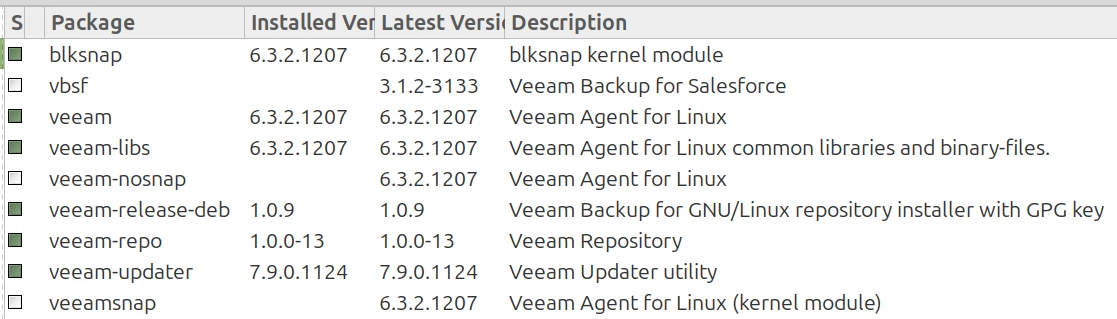
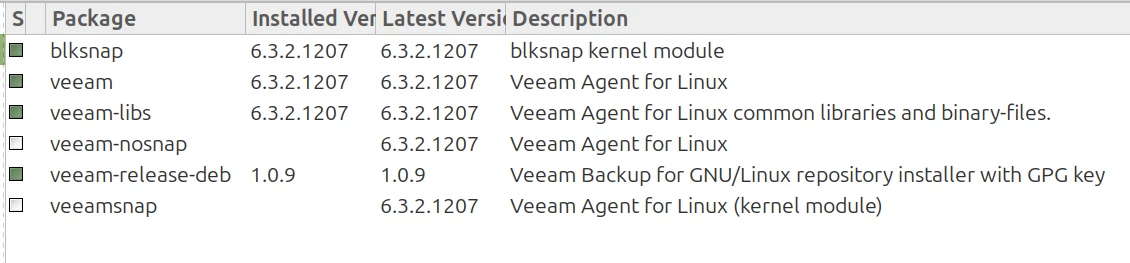
This post may not be understood by non-Linux users, but on checking Synaptic Package Manager in my daily driver desktop vs the test laptop, the listed installed packages are different in spite of being installed using the same download from Veeam.  Re-did the download/install in the laptop today, same result.

This is the desktop installation

This is the laptop installation


coolsport00
Forum|alt.badge.img+21
  • Veeam Legend
  • February 5, 2026

Not sure why VAL can’t see your attached external drive where your backups reside ​@Sailorsteve47 . Since you’re using an “officially” unsupported Linux distribution for VAL, the only reason I can think of is the recovery media just doesn’t have the necessary driver to see or mount the external drive for it to be seen.

I’d suggest to look at logs, but the system you’re trying to recover to doesn’t have VAL installed, correct? Hmm...maybe try to install VAL on the system you're attempting to recover to and see if that enables your external drive to show when using the recovery media.


  • Author
  • Not a newbie anymore
  • February 5, 2026

Thanks for responding.  What is VAL?  As mentioned, both machines have Veeam Community Edition installed from the same download, but the two Synaptic Package Managers do not match, see s/shots above.

Note that the test laptop has successfully run and saved several backups without any issues, so Veeam does in fact see the ext. disk. 


coolsport00
Forum|alt.badge.img+21
  • Veeam Legend
  • February 5, 2026

VAL = veeam agent for linux

Ah right...you showed screenshots even 🤷🏻‍♂️😂

Well...as I don’t work at Veeam...I can’t say definitively why the difference in pkgs, except you’ve installed it on 2 different h/w devices. Since you’re not seeing the local disk on the laptop, and your VAL install there isn’t showing the veeam-repo pkg, that may be the very reason you’re not able to see the disk with the backups on it when doing the restore. 

Have you tried using the recovery media on the source desktop? Can you see the “local disk” when attempting a recovery there? You don’t have to actually restore the files...just go through the process up to that point just to see if restore using recovery media works there. Then we can narrow it down as the laptop. With VAL installed on the laptop, did you try to use other recovery methods?...cmd line or Control Panel to attempt the restore?

https://helpcenter.veeam.com/docs/agentforlinux/userguide/files_restore_launch.html?ver=13

https://helpcenter.veeam.com/docs/agentforlinux/userguide/files_restore_cmd.html?ver=13

In re-reading through the VAL User Guide...I looked at the “creating repository” section. I think the reason your laptop doesn’t have that veeam-repo pkg is because you didn’t create a repository (place to store your veeam backups) on the laptop. You did so on the desktop. The “local disk” option will only populate disks it sees that backups were created on by the system is my guess (again..I don’t work at Veeam so just guessing). I suspect if you create a network share on the desktop to the backup files, you should be able to browse to it from the laptop that way and do the restore. I understand that’s not the method you want to use...but I’m just trying to offer alternatives which work since the local disk route doesn’t. 

Last suggestion I have is this...since this is all just a test...go into the VAL Control Panel on the laptop with the external drive connected and create a local disk repo to the external disk you have the backups on. I don’t think it’ll overwrite the backup files. Then re-attempt to do a restore with the recovery media...see if that works. Actually...I wrote all that above...but in using recovery media..not VAL..for recovery... probably shouldn’t matter about the external disk being created as a repo in VAL on the desktop vs laptop. The recovery media is agnostic. But..at least worth a try alternative options to narrow down where the issue may be coming from.