

Hardening with Microsoft Security Compliance Baseline 2025 & CIS Standards for Veeam Infrastructure

References:
Configure Security Baselines for Windows Server 2025 | Microsoft Learn
Windows Server 2025, security baseline | Microsoft Community Hub
osconfig/security at main · microsoft/osconfig · GitHub
1. Overview & Architecture
Creating a baseline Golden Image for Windows Server 2025 ensures consistency, security, and rapid deployment across your infrastructure. This guide provides a complete, production-ready workflow to build, harden, and generalize a Windows Server 2025 template specifically optimized for enterprise environments and Veeam Backup & Replication workloads.
2. VMware Virtual Machine Prerequisites
Configure the VMware Template Virtual Machine with the following specifications:
| Parameter | Recommended Configuration |
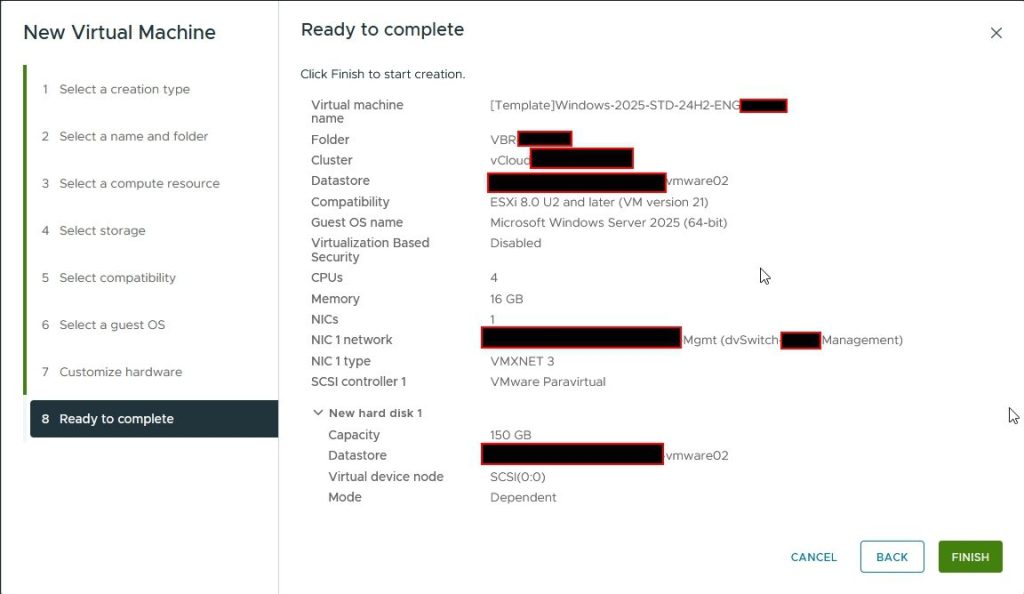
| Operating System | Windows Server 2025 Standard (64-bit) |
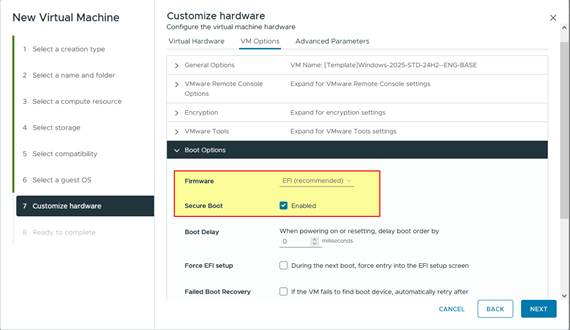
| Firmware | UEFI Firmware |
| Security Features | Secure Boot Enabled |
| Virtual Hardware | VMware Tools Updated, VMXNET3 NIC, PVSCSI Controller |
| Virtualization-Based Security | Disabled (VBS Disabled) (Only for Veeam server) |
| vCPU / RAM | 4 vCPU / 16 GB RAM |
| Hard Disk | 150 GB (Thin Provisioned) |
| Template Name Standard | [Template]Windows-2025-STD-24H2-ENG-BASE |

3. OS Installation & Initial Configuration
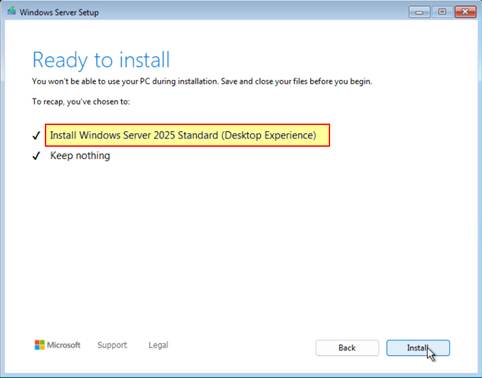
During OS setup, select Install Windows Server 2025 Standard (Desktop Experience). Once logged in, execute the following PowerShell commands to standardize locale, test update connectivity, set power management.
Step 3.1: Regional Settings & Time Zone
| # 1. Set Time Zone to Rome (W. Europe Standard Time) Set-TimeZone -Id "W. Europe Standard Time" # 2. Set Regional Format to Italian (Italy) Set-Culture -CultureInfo it-IT # 3. Set Geographic Location to Italy (GeoID 118) Set-WinHomeLocation -GeoId 118 |
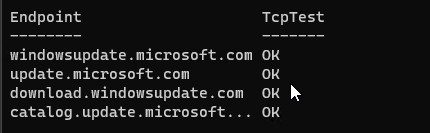
Step 3.2: Network Connectivity Test for Windows Update
| # Test HTTPS connectivity (Port 443) to primary Windows Update endpoints $Endpoints = @( "windowsupdate.microsoft.com", "update.microsoft.com", "download.windowsupdate.com", "catalog.update.microsoft.com" ) foreach ($Endpoint in $Endpoints) { $Test = Test-NetConnection -ComputerName $Endpoint -Port 443 [PSCustomObject]@{ Endpoint = $Endpoint TcpTest = if ($Test.TcpTestSucceeded) { "OK" } else { "FAILED" } } } |
Step 3.3: Update Scan & Power Optimization
| # 1. Initiate update scan via system client and PowerShell module USOClient StartScan Get-WindowsUpdate # 2. Set active power scheme to High Performance powercfg -setactive 8c5e7fda-e8bf-4a96-9a85-a6e23a8c635c # 3. Verify active power scheme powercfg /getactivescheme powercfg /list |

4. Automated Maintenance & Hardening Workflows
To maintain high standards of performance and compliance, run the following automated PowerShell scripts in sequence:
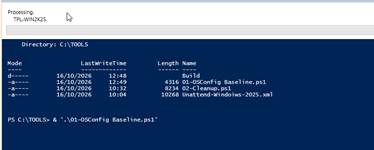
| Recommended Order of Execution: 1. Cleanup.ps1: Purges temp files, Windows Update cache, WER logs, and executes component store cleanup (DISM). 2. OSConfig Baseline.ps1: Audits security compliance against Microsoft Security Compliance 2025 baseline and generates HTML/CSV reports. |
Security Analysis of the Scripts
Both scripts are safe and written according to PowerShell best practices, designed for Windows system administrators, particularly for preparing images or Windows Server 2025 servers.
- Cleanup.ps1 (Server Cleanup):
It is safe. The script uses standard cmdlets (Remove-PathContents,Clear-RecycleBin,DISM) and includes native support for-WhatIf(through[CmdletBinding(SupportsShouldProcess=$true)]), allowing you to simulate execution without deleting any data. The-Aggressivemode also clears Event Logs and forces a DISM component store reset (/ResetBase), making previously installed updates irreversible. This is ideal for creating a golden image, but it should be used with caution. - OSConfig Baseline.ps1 (Inventory and Baseline):
It is extremely safe. This is a read-only script that leverages the official Microsoft.OSConfig module to assess security compliance against the Windows Server 2025 Security Baseline. The script exports the results in CSV and HTML formats without modifying any system settings. - The script performs only assessment and reporting activities, making it suitable for security auditing, compliance validation, and baseline verification in production or pre-production environments.
Script 1: System Cleanup (Cleanup.ps1)
The cleanup script prepares the server by removing unnecessary files prior to baseline auditing or cloning:
Setup and Logging: Detects the computer name, creates the output directory (C:\Build\Cleanup), and prepares a dual logging system (.log file and .html report).
Temp Cleanup: Purges system temporary folders (C:\Windows\Temp) and the current user's temp directory.
Windows Update Cache: Temporarily stops Windows Update services (wuauserv, bits), clears the update download folder (SoftwareDistribution\Download), and restarts the services.
Error Reporting (WER): Removes Windows Error Reporting log files.
Recycle Bin: Empties the system Recycle Bin.
Event Logs (Only with -Aggressive): Clears all Windows Event Logs (wevtutil). If -Aggressive is not specified, this step is skipped.
Component Store (DISM): Performs cleanup of unnecessary system components (/StartComponentCleanup) and, when running in -Aggressive mode, applies /ResetBase (irreversible).
Final Report: Calculates freed disk space and generates an HTML summary table.
[CmdletBinding(SupportsShouldProcess=$true)]
param(
  [switch]$Aggressive
)

# ------------------- Setup & helpers -------------------
$ErrorActionPreference = 'Continue'
$hostName = (Get-CimInstance Win32_ComputerSystem).Name
$now      = Get-Date -Format 'yyyyMMdd-HHmmss'
$outDir   = 'C:\Build\Cleanup'
New-Item -ItemType Directory -Path $outDir -Force | Out-Null

$logPath  = Join-Path $outDir ("{0}_Cleanup_{1}.log"  -f $hostName,$now)
$htmlPath = Join-Path $outDir ("{0}_Cleanup_{1}.html" -f $hostName,$now)

# Simple logger
function Write-Log {
  param([string]$Message,[string]$Level='INFO')
  $line = "{0} [{1}] {2}" -f (Get-Date -Format 'yyyy-MM-dd HH:mm:ss'), $Level, $Message
  Add-Content -Path $logPath -Value $line
  Write-Host $line
}

# Byte-size helper
function Get-SizeString([Int64]$bytes) {
  if ($bytes -ge 1GB) { '{0:N2} GB' -f ($bytes/1GB) }
  elseif ($bytes -ge 1MB) { '{0:N2} MB' -f ($bytes/1MB) }
  elseif ($bytes -ge 1KB) { '{0:N2} KB' -f ($bytes/1KB) }
  else { "$bytes B" }
}

# Safe remove which returns size deleted
function Remove-PathContents {
  param([string]$Path)
  $deletedBytes = 0
  if (-not (Test-Path $Path)) { return 0 }
  Get-ChildItem -LiteralPath $Path -Force -ErrorAction SilentlyContinue | ForEach-Object {
    try {
      $size = 0
      if ($_.PSIsContainer) {
        $size = (Get-ChildItem -LiteralPath $_.FullName -Recurse -Force -ErrorAction SilentlyContinue |
                 Measure-Object -Property Length -Sum).Sum
      } else {
        $size = $_.Length
      }
      if ($PSCmdlet.ShouldProcess($_.FullName,"Remove")) {
        Remove-Item -LiteralPath $_.FullName -Recurse -Force -ErrorAction SilentlyContinue
        $deletedBytes += ($size | ForEach-Object { $_ -as [int64] })
      }
    } catch {
      Write-Log "Failed to remove: $($_.FullName) - $($_.Exception.Message)" "WARN"
    }
  }
  return ($deletedBytes | Measure-Object -Sum).Sum
}

# Collect before/after free space for system drive
function Get-FreeSpace {
  (Get-CimInstance Win32_LogicalDisk -Filter "DeviceID='C:'").FreeSpace
}

# ------------------- Start -------------------
"==== Server Cleanup on $hostName @ $(Get-Date) ====" | Set-Content $logPath
Write-Log "Aggressive mode: $Aggressive"
Write-Log "Log: $logPath"
Write-Log "HTML: $htmlPath"

$freeBefore = Get-FreeSpace

# ------------------- 1) Temp files -------------------
Write-Log "1) Clearing Temp folders (System & Current User)..."
$sysTemp = Join-Path $env:SystemRoot 'Temp'
$usrTemp = $env:TEMP

$sizeSys = Remove-PathContents -Path $sysTemp
$sizeUsr = Remove-PathContents -Path $usrTemp

Write-Log (" - System Temp: removed {0}" -f (Get-SizeString $sizeSys))
Write-Log (" - User Temp  : removed {0}" -f (Get-SizeString $sizeUsr))

# ------------------- 2) Windows Update cache -------------------
Write-Log "2) Clearing Windows Update cache (SoftwareDistribution\Download)..."
try {
  if ($PSCmdlet.ShouldProcess("wuauserv/bits","Stop-Service")) {
    Stop-Service wuauserv -Force -ErrorAction SilentlyContinue
    Stop-Service bits -Force -ErrorAction SilentlyContinue
  }
  $wuPath = Join-Path $env:SystemRoot 'SoftwareDistribution\Download'
  $sizeWU = Remove-PathContents -Path $wuPath
  Write-Log (" - WU Cache: removed {0}" -f (Get-SizeString $sizeWU))
} finally {
  if ($PSCmdlet.ShouldProcess("wuauserv/bits","Start-Service")) {
    Start-Service wuauserv -ErrorAction SilentlyContinue
    Start-Service bits -ErrorAction SilentlyContinue
  }
}

# ------------------- 3) Windows Error Reporting -------------------
Write-Log "3) Clearing Windows Error Reporting (WER) queue..."
$werPath = Join-Path $env:ProgramData 'Microsoft\Windows\WER'
$sizeWER = Remove-PathContents -Path $werPath
Write-Log (" - WER: removed {0}" -f (Get-SizeString $sizeWER))

# ------------------- 4) Recycle Bin -------------------
Write-Log "4) Emptying Recycle Bin..."
try {
  if ($PSCmdlet.ShouldProcess("RecycleBin","Clear")) {
    Clear-RecycleBin -Force -ErrorAction SilentlyContinue
    Write-Log " - Recycle Bin cleared"
  }
} catch {
  Write-Log " - Recycle Bin clear failed: $($_.Exception.Message)" "WARN"
}

# ------------------- 5) Event Logs (Aggressive only) -------------------
$totalLogsCleared = 0
if ($Aggressive) {
  Write-Log "5) Clearing ALL Event Logs (Aggressive)..."
  try {
    $logs = wevtutil el
    foreach ($log in $logs) {
      if ($PSCmdlet.ShouldProcess($log,"wevtutil cl")) {
        & wevtutil cl "$log" 2>$null
        $totalLogsCleared++
      }
    }
    Write-Log " - Cleared $totalLogsCleared logs"
  } catch {
    Write-Log " - Event log clear encountered errors: $($_.Exception.Message)" "WARN"
  }
} else {
  Write-Log "5) Event Logs: skipped (run with -Aggressive to clear all)"
}

# ------------------- 6) Component Store cleanup -------------------
Write-Log "6) Component Store cleanup (DISM /StartComponentCleanup)..."
try {
  if ($PSCmdlet.ShouldProcess("DISM","/Online /Cleanup-Image /StartComponentCleanup")) {
    DISM /Online /Cleanup-Image /StartComponentCleanup | Out-Null
    Write-Log " - StartComponentCleanup completed"
  }
  if ($Aggressive) {
    Write-Log " - Aggressive: DISM /ResetBase (irreversible)"
    if ($PSCmdlet.ShouldProcess("DISM","/Online /Cleanup-Image /StartComponentCleanup /ResetBase")) {
      DISM /Online /Cleanup-Image /StartComponentCleanup /ResetBase | Out-Null
      Write-Log " - ResetBase completed"
    }
  } else {
    Write-Log " - ResetBase skipped (use -Aggressive to enable)"
  }
} catch {
  Write-Log " - DISM cleanup error: $($_.Exception.Message)" "WARN"
}

# ------------------- 7) Optional Disk Cleanup profile hook -------------------
# Uncomment to run a preconfigured CleanMgr profile silently:
# Write-Log "7) Running CleanMgr /sagerun:1 ..."
# if ($PSCmdlet.ShouldProcess("CleanMgr","/sagerun:1")) { Start-Process -FilePath cleanmgr.exe -ArgumentList '/sagerun:1' -Wait -WindowStyle Hidden }

# ------------------- Summary -------------------
$freeAfter = Get-FreeSpace
$freed = ($freeAfter - $freeBefore)
Write-Log ("==== DONE. Freed approx {0}. System free space now: {1}" -f (Get-SizeString $freed),(Get-SizeString $freeAfter))

# ------------------- HTML Summary -------------------
$style = @"
<style>
 body{font-family:Segoe UI,Arial,sans-serif;margin:20px}
 table{border-collapse:collapse;width:100%}
 th,td{border:1px solid #ddd;padding:6px 8px;font-size:12px;text-align:left}
 th{background:#f4f4f4}
</style>
"@

$rows = @(
  @{Name='Host';Value=$hostName},
  @{Name='Time';Value=(Get-Date -Format 'yyyy-MM-dd HH:mm:ss')},
  @{Name='Aggressive';Value=$Aggressive},
  @{Name='Temp (System)';Value=(Get-SizeString $sizeSys)},
  @{Name='Temp (User)';Value=(Get-SizeString $sizeUsr)},
  @{Name='WU Cache';Value=(Get-SizeString $sizeWU)},
  @{Name='WER';Value=(Get-SizeString $sizeWER)},
  @{Name='Event Logs Cleared';Value= if($Aggressive){$totalLogsCleared}else{'Skipped'}},
  @{Name='Freed Space';Value=(Get-SizeString $freed)},
  @{Name='Free Space Now';Value=(Get-SizeString $freeAfter)},
  @{Name='Log File';Value=$logPath}
) | ForEach-Object {
  "<tr><th>$($_.Name)</th><td>$($_.Value)</td></tr>"
} | Out-String

$html = $style + @"
<h2>Server First-Cleanup Summary – $hostName</h2>
<table>$rows</table>
<p>Detailed log: <code>$logPath</code></p>
"@

Set-Content -Path $htmlPath -Value $html -Encoding UTF8

Write-Host "`nLog  : $logPath"
Write-Host "HTML : $htmlPath"
Write-Host "Tip  : Consider a reboot, then snapshot or sysprep your image." -ForegroundColor Cyan
| # Execute aggressive cleanup prior to image creation .\02-Cleanup.ps1 -Aggressive |
# ========= Windows Server 2025 OSConfig Inventory Export =========
# Run in an elevated PowerShell session.

#Installare il modulo Microsoft.OSConfig
   # Install-Module -Name Microsoft.OSConfig -Scope AllUsers -Repository PSGallery -Force
   # Get-Module -ListAvailable -Name Microsoft.OSConfig

#Se la macchina non ha accesso a Internet (Ambiente Offline / Air-Gapped)
#Se il server è isolato e non può raggiungere la rete esterna, dovrai scaricare il modulo da un computer connesso a Internet tramite il comando:
    #Save-Module -Name Microsoft.OSConfig -Path C:\Temp

    #Get-Module -ListAvailable -Name Microsoft.OSConfig

$Scenario = 'SecurityBaseline/WindowsServer/2025/WorkgroupMember'
$Now      = Get-Date -Format 'yyyyMMdd-HHmmss'
$OutDir   = 'C:\Build\Inventory'
New-Item -ItemType Directory -Path $OutDir -Force | Out-Null

# (Optional) ensure OSConfig module is available
if (-not (Get-Command Get-OSConfigDesiredConfiguration -ErrorAction SilentlyContinue)) {
  Write-Error "OSConfig cmdlets not found. Install with: Install-Module Microsoft.OSConfig -Scope AllUsers"
  return
}

# Get system info for filenames and HTML header
$os         = Get-CimInstance Win32_OperatingSystem
$comp       = Get-CimInstance Win32_ComputerSystem
$ServerName = $comp.Name  # Hostname

$Header = @"
<h2>Windows Server 2025 – Member Server Baseline Inventory</h2>
<p>
  <b>Computer:</b> $($comp.Name)<br/>
  <b>Domain:</b> $($comp.Domain)<br/>
  <b>OS:</b> $($os.Caption) ($($os.Version)) Build $($os.BuildNumber)<br/>
  <b>Scenario:</b> $Scenario<br/>
  <b>Generated:</b> $(Get-Date -Format 'yyyy-MM-dd HH:mm:ss')
</p>
"@

# Pull current desired configuration with compliance status
$data = Get-OSConfigDesiredConfiguration -Scenario $Scenario

if (-not $data) {
  Write-Warning "No OSConfig data returned for '$Scenario'. Is the baseline applied on this server?"
  # Still produce a minimal HTML so you have an artifact:
  $HtmlPath = Join-Path $OutDir ("{0}_WS2025_MemberServer_Inventory_{1}.html" -f $ServerName,$Now)
  $Minimal  = "<p>No data returned for scenario '$Scenario'.</p>"
  $Style = "<style>body{font-family:Segoe UI,Arial,sans-serif;margin:20px}</style>"
  Set-Content -Path $HtmlPath -Value ($Style + $Header + $Minimal) -Encoding UTF8
  Write-Host "HTML : $HtmlPath"
  return
}

# Shape data safely (avoid null member errors)
$report = $data | Select-Object Name, Value,
  @{n='Status'; e={ if ($_.Compliance) { $_.Compliance.Status } else { $null } }},
  @{n='Reason'; e={ if ($_.Compliance) { $_.Compliance.Reason } else { $null } }}

# --- CSV export ---
$CsvPath  = Join-Path $OutDir ("{0}_WS2025_MemberServer_Inventory_{1}.csv" -f $ServerName,$Now)
$report | Sort-Object Name | Export-Csv $CsvPath -NoTypeInformation -Encoding UTF8

# --- HTML export (color-coded by Status) ---
$HtmlPath = Join-Path $OutDir ("{0}_WS2025_MemberServer_Inventory_{1}.html" -f $ServerName,$Now)

$Style = @"
<style>
  body { font-family: Segoe UI, Arial, sans-serif; margin: 20px; }
  table { border-collapse: collapse; width: 100%; }
  th, td { border: 1px solid #ddd; padding: 6px 8px; font-size: 12px; }
  th { background: #f4f4f4; text-align: left; }
  .ok   { background-color: #e6ffed; }    /* Compliant */
  .warn { background-color: #fff8e1; }    /* Unknown/Other */
  .err  { background-color: #ffecec; }    /* NonCompliant */
  .meta { margin-bottom: 14px; }
</style>
"@

$Post = @"
<script>
(function(){
  const rows = document.querySelectorAll('table tbody tr');
  for (const tr of rows) {
    const status = (tr.cells[2]?.innerText || '').trim();
    if (status === 'Compliant')         tr.classList.add('ok');
    else if (status === 'NonCompliant') tr.classList.add('err');
    else                                 tr.classList.add('warn');
  }
})();
</script>
"@

$HtmlTable = $report |
  Sort-Object Name |
  ConvertTo-Html -Title 'WS2025 Member Server Baseline Inventory' `
                 -PreContent ("<div class='meta'>{0}</div>" -f $Header) `
                 -PostContent $Post

Set-Content -Path $HtmlPath -Value ($Style + $HtmlTable) -Encoding UTF8

Write-Host "CSV  : $CsvPath"
Write-Host "HTML : $HtmlPath"
# ================================================================
Script 2: Baseline Audit (Microsoft.OSConfig)
The Microsoft.OSConfig module is the official solution for managing security baselines in Windows Server 2025.
Firewall Prerequisites for Online Module Installation: Ensure outbound access over HTTPS TCP 443 is permitted to: *.powershellgallery.com, cdn.powershellgallery.com, cdn.oneget.org, go.microsoft.com, aka.ms.
| # Online Installation from PSGallery Install-Module -Name Microsoft.OSConfig -Scope AllUsers -Repository PSGallery -Force Get-Module -ListAvailable -Name Microsoft.OSConfig |

5. Offline Security Baseline Deployment Procedure
For offline or air-gapped environments without direct internet connectivity, deploy the OSConfig module manually:
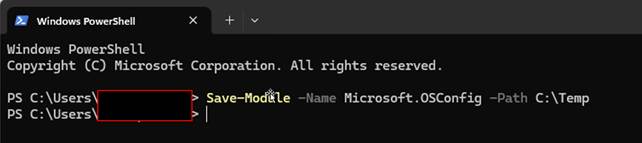
Step 1: Download & Transfer Module
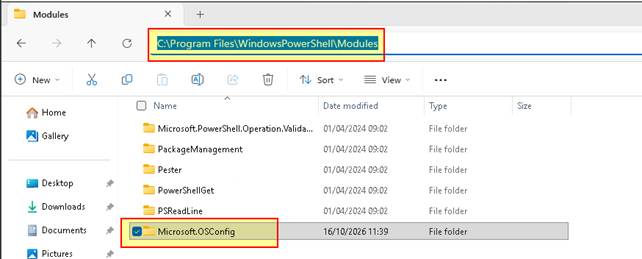
| # Execute on an internet-connected computer: Save-Module -Name Microsoft.OSConfig -Path C:\Temp # Copy the saved module folder to the target server's module directory: # C:\Program Files\WindowsPowerShell\Modules\Microsoft.OSConfig\ # Verify Microsoft.OSConfig.psd1 exists in the version subfolder. |
Copy Dowloaded module in

Step 2: Import & Verify Module Loading
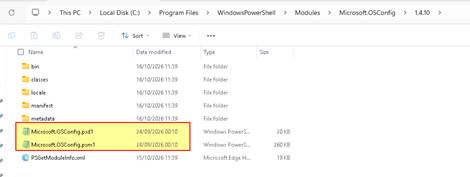
Ensure that the Microsoft.OSConfig module folder is placed correctly in the server's PowerShell modules directory: C:\Users\Administrator\Documents\WindowsPowerShell\Modules\Microsoft.OSConfig\
# Verify Module Path
$env:PSModulePath

# Force import OSConfig module
Import-Module Microsoft.OSConfig -Force

# Confirm module loaded successfully
Get-Module Microsoft.OSConfig
Get-Command -Module Microsoft.OSConfig

Verification: The folder must contain the manifest file with the .psd1 extension.
# Force import OSConfig module
Import-Module Microsoft.OSConfig -Force

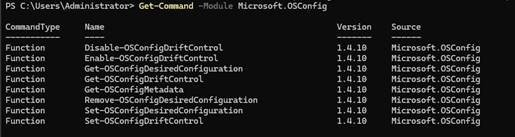
Verification: Run Get-Module Microsoft.OSConfig to confirm that the module is correctly loaded into memory.

# Confirm module loaded successfully
Get-Module Microsoft.OSConfig
Get-Command -Module Microsoft.OSConfig
Step 3: Apply Baseline & Audit Compliance
# Apply recommended Windows Server 2025 Workgroup Security Baseline
Set-OSConfigDesiredConfiguration -Scenario SecurityBaseline/WindowsServer/2025/WorkgroupMember -Default

# View detailed compliance status across all applied rules
Get-OSConfigDesiredConfiguration -Scenario SecurityBaseline/WindowsServer/2025/WorkgroupMember

# Count total configured settings (approx. 319 rules)
(Get-OSConfigDesiredConfiguration -Scenario SecurityBaseline/WindowsServer/2025/WorkgroupMember | Measure-Object).Count

# Generate a formatted list of rule compliance statuses and reasons
Get-OSConfigDesiredConfiguration -Scenario SecurityBaseline/WindowsServer/2025/WorkgroupMember |
  ft Name, @{Name="Status";Expression={$_.Compliance.Status}}, @{Name="Reason";Expression={$_.Compliance.Reason}} -AutoSize -Wrap
Set-OSConfigDesiredConfiguration -Scenario SecurityBaseline/WindowsServer/2025/WorkgroupMember -Default

# View detailed compliance status across all applied rules
Get-OSConfigDesiredConfiguration -Scenario SecurityBaseline/WindowsServer/2025/WorkgroupMember

(Get-OSConfigDesiredConfiguration -Scenario SecurityBaseline/WindowsServer/2025/WorkgroupMember | Measure-Object).Count

Set-OSConfigDesiredConfiguration -Scenario SecurityBaseline/WindowsServer/2025/WorkgroupMember |
  ft Name, @{Name="Status";Expression={$_.Compliance.Status}}, @{Name="Reason";Expression={$_.Compliance.Reason}} -AutoSize -Wrap

6. Post-Baseline Infrastructure Fine-Tuning
Depending on operational requirements, adjust individual baseline settings while preserving core security integrity:
Remote Desktop Services (RDP Drive Redirection)
RDP Quality-of-Life
# Enable RDP Local Drive Redirection (Set value to 0)
Set-OSConfigDesiredConfiguration -Scenario SecurityBaseline/WS2025/MemberServer `
  -Name RemoteDesktopServicesDoNotAllowDriveRedirection -Value 0
Restart-Computer
| Security Note — Production & Critical Servers: Enabling drive redirection marks the server as 'Non-Compliant' against Microsoft baselines. In production environments, keep drive redirection disabled to mitigate malware transmission and data exfiltration risks. |
Advanced Auditing Settings
# Enable Success and Failure logging for Detailed File Share Access
Set-OSConfigDesiredConfiguration -Scenario SecurityBaseline/WS2025/MemberServer `
  -Name AuditDetailedFileShare -Value 3
Restart-Computer
Security & Compliance Impact: Provides forensic visibility (Event IDs 5140, 5145) to meet compliance requirements (e.g. NIST, ISO 27001). Increase max Security log size on high-throughput file servers to avoid log wrapping.
Defender Antivirus & AppControl (Veeam Infrastructure)
# Apply Defender Antivirus & AppControl Audit Mode Baselines
Set-OSConfigDesiredConfiguration -Scenario Defender/Antivirus -Default
Set-OSConfigDesiredConfiguration -Scenario AppControl/WS2025/DefaultPolicy/Audit -Default

# Verify Effective AppControl Policies
(Get-OSConfigDesiredConfiguration -Scenario AppControl).Value.PolicyInfo | Where-Object {$_.IsEffective -eq $true }
Get-OSConfigDesiredConfiguration -Scenario AppControl

Set-OSConfigDesiredConfiguration -Scenario AppControl/WS2025/DefaultPolicy/Audit -Default

| Veeam Infrastructure Considerations: • Microsoft Defender: Real-time scanning can significantly degrade backup performance. Configure mandatory exclusions for repository paths, proxy cache folders, and Veeam executables per official Veeam Best Practices. KB1999: Antivirus Exclusions for Veeam Backup & Replication • AppControl (Audit Mode): Logs unapproved binary execution attempts without blocking, allowing validation of Veeam components prior to block mode enforcement. |
################### Antivirus Exclusions for Veeam Backup & Replication #############
############################### VEEAM BACKUP SERVER ###############################

#Change your drive letters if need

Add-MpPreference -ExclusionPath "C:\Program Files\Veeam\"
Add-MpPreference -ExclusionPath "C:\Program Files (x86)\Veeam\"
Add-MpPreference -ExclusionPath "C:\Program Files\Common Files\Veeam\"
Add-MpPreference -ExclusionPath "C:\Program Files (x86)\Common Files\Veeam\"
Add-MpPreference -ExclusionPath "C:\VeeamFLR\"
Add-MpPreference -ExclusionPath "C:\Windows\Veeam\"
Add-MpPreference -ExclusionPath "C:\ProgramData\Veeam\"
Add-MpPreference -ExclusionPath "C:\Program Files\Veeam\Backup and Replication\Backup Catalog\"
Add-MpPreference -ExclusionPath "E:\vPowerNFS\NfsDatastore"

#VBRCATALOG PATH
#This path can be found in the registry under the value named CatalogPath in the key
HKLM\SOFTWARE\Veeam\Veeam Backup Catalog\

#NFS PATH
#This path can be found in the registry under the value named RootFolder in the key
HKLM\SOFTWARE\Wow6432Node\Veeam\Veeam NFS\

############################### THIS IS THE DEFAULT LOG DIRECTORY LOCATION, IF THE LOG DIRECTORY PATH HAS BEEN CHANGED, THE AV EXCLUSION MUST BE ADJUSTED TO MATCH.###############################

Add-MpPreference -ExclusionPath "C:\Windows\Temp\*\veeamflr-*.flat"
Add-MpPreference -ExclusionPath "C:\Windows\Temp\VeeamBackup\"
Add-MpPreference -ExclusionPath "C:\Windows\Temp\VeeamBackupTemp\"
Add-MpPreference -ExclusionPath "C:\Windows\Temp\veeamdumprecorder\"

#This is a per-user folder.
Add-MpPreference -ExclusionPath "%localappdata%\Veeam\Backup\"

############################### VEEAM BACKUP ENTERPRISE MANAGER ###############################

#VBRCatalog Path
#This path can be found in the registry under the value named CatalogPath in the key HKLM\SOFTWARE\Veeam\Veeam Backup Catalog\
#This is the default log directory location; if the log directory path has been changed, the AV exclusion must be adjusted to match.

Add-MpPreference -ExclusionPath "C:\Program Files\Veeam\"
Add-MpPreference -ExclusionPath "C:\Program Files\Common Files\Veeam\"
Add-MpPreference -ExclusionPath "C:\VBRCatalog"
Add-MpPreference -ExclusionPath "C:\ProgramData\Veeam\"

############################### VMWARE BACKUP PROXY, WAN ACCELERATOR, WINDOWS REPOSITORY ###############################
#General Folders
#All Windows-based components use the following folders:

Add-MpPreference -ExclusionPath "C:\ProgramData\Veeam\"
Add-MpPreference -ExclusionPath "C:\Windows\Temp\Veeam\"
Add-MpPreference -ExclusionPath "C:\Windows\Temp\VeeamBackupTemp\"

#Instan recovery path

Add-MpPreference -ExclusionPath E:\ProgramData\Veeam\Backup\IRCache\

########################## PACKAGE SPECIFIC AV EXCLUSIONS ###############################

Veeam Installer Service      Add-MpPreference -ExclusionPath "C:\Windows\Veeam\Backup\"
Veeam Backup Transport       Add-MpPreference -ExclusionPath "C:\Program Files (x86)\Veeam\Backup Transport\"
Veeam Backup vPowerNFS       Add-MpPreference -ExclusionPath  "C:\Program Files (x86)\Veeam\vPowerNFS\"

Veeam CDP Proxy           	 Add-MpPreference -ExclusionPath "C:\Program Files\Veeam\CDP Proxy Service\"
Veeam CDP Proxy Cache Folder Add-MpPreference -ExclusionPath "C:\VeeamCDP\"

############################### HYPERV ###############################
Add-MpPreference -ExclusionPath "C:\Program Files (x86)\Veeam\vPowerNFS\"

#Instant recover write cache folder
#Review each repository's Mount Server setting and add an AV exclusion for the write cache path on the Mount Server specified.

Add-MpPreference -ExclusionPath E:\ProgramData\Veeam\Backup\IRCache\

## Hyper-V Integration

Add-MpPreference -ExclusionPath "C:\Program Files\Veeam\Hyper-V Integration\"

############################### VEEAM MOUNT SERVICE ###############################

Add-MpPreference -ExclusionPath "C:\Program Files\Common Files\Veeam\Backup and Replication\"
Add-MpPreference -ExclusionPath  "C:\VeeamFLR\"
Add-MpPreference -ExclusionPath  "C:\Windows\Temp\*\veeamflr-*.flat"

#WAN
Add-MpPreference -ExclusionPath  "C:\Program Files\Veeam\WAN Accelerator Service\"

# Tape
Add-MpPreference -ExclusionPath  "C:\Program Files (x86)\Veeam\Backup Tape\"

GATEWAY
Add-MpPreference -ExclusionPath  " C:\Program Files (x86)\Veeam\Backup Gate\"
Add-MpPreference -ExclusionPath  "C:\Program Files\Common Files\Veeam\Backup and Replication\Log Backup Service\"

############################### REPOSITORY FILE EXTENSIONS ###############################

Add-MpPreference -ExclusionExtension

Add-MpPreference -ExclusionExtension *.erm
Add-MpPreference -ExclusionExtension *.flat
Add-MpPreference -ExclusionExtension *.vab
Add-MpPreference -ExclusionExtension *.vbk
Add-MpPreference -ExclusionExtension *.vbk.tmp
Add-MpPreference -ExclusionExtension *.vblob
Add-MpPreference -ExclusionExtension *.vbm
Add-MpPreference -ExclusionExtension *.vbm_*tmp
Add-MpPreference -ExclusionExtension *.vbm.temp
Add-MpPreference -ExclusionExtension *.vcache
Add-MpPreference -ExclusionExtension *.vib
Add-MpPreference -ExclusionExtension *.vindex
Add-MpPreference -ExclusionExtension *.vlb
Add-MpPreference -ExclusionExtension *.vmdk
Add-MpPreference -ExclusionExtension *.vrb
Add-MpPreference -ExclusionExtension *.vsb
Add-MpPreference -ExclusionExtension *.vslice
Add-MpPreference -ExclusionExtension *.vsource
Add-MpPreference -ExclusionExtension *.vsourcecopy
Add-MpPreference -ExclusionExtension *.vsourcetemp
Add-MpPreference -ExclusionExtension *.vstore
Add-MpPreference -ExclusionExtension *.vstorecopy
Add-MpPreference -ExclusionExtension *.vstoretemp
AppControl in Audit Mode (Scenario AppControl/.../Audit)
- Impact: Minimal. Being in Audit mode, the system only logs executions that do not comply with the policy without blocking anything. The performance impact is negligible, but it serves to verify that Veeam's proprietary drivers or binaries are not flagged as anomalous prior to enforcing a full block policy.
7. Drift Control & Unattended Sysprep Packaging
Configuring Drift Control
| Important Configuration Requirement: Apply this setting only at the end of the deployment and server configuration process. |
# Enable OSConfig Drift Control (Enforce baseline every 45 minutes)
Set-OSConfigDriftControl 45
Final Sysprep & Unattend Execution
Automate Windows Server 2025 Installation with Unattend.xml
Follow these final steps to seal and generalize the Golden Image template:
1. Remove unnecessary temporary files, software, and domain associations.
2. Perform a final Windows Update cycle and reboot.
3. Shutdown the virtual machine and take a VMware Snapshot (Pre-Sysprep).
4. Confirm SetupComplete.bat exists in C:\Windows\Setup\Scripts\ to clean unattend files post-OOBE:
@echo off del /Q /F C:\Windows\System32\Sysprep\unattend.xml
del /Q /F C:\Windows\Panther\unattend.xml
del /Q /F C:\Windows\Panther\unattend\unattend.xml
del /Q /F C:\Unattend.xml exit /b 0
5. Execute the final generalization command in PowerShell / CMD:
| .\sysprep.exe /generalize /oobe /shutdown /unattend:c:\windows\system32\sysprep\unattend.xml |


Convert the VMware VM into a template and deploy a new VM from the template to verify that the golden image is functioning as expected.
Thank you for reading. I hope this guide helps you successfully implement your solution. If you have any questions or suggestions, feel free to leave a comment below.
After completing these steps, proceed with the next CSI hardening phase.