


It's been a bit quiet around me the last few weeks. I am currently active in several projects, including two different customer infrastructures that start in the greenfield with V13 based on the Veeam Software Appliance and are in the fortunate starting position of having premium licenses in use. Thus, nothing stands in the way of the use of the High Availability / HA function.
Important to know: Only the Linux Veeam Software Appliance can provide the HA feature and only in conjunction with the Veeam Data Platform Premium license!
See Considerations and Limitations - Veeam Backup & Replication User Guide for general considerations and limitations when using HA. I strongly recommend that you read this page carefully and follow the guidelines.
Marvin "Marveeam"
So, the basics are clarified and the initial setup is done... But what if the infrastructure does not want to tap into an external authentication source (such as SAML or AD) — then we are on the topic of local users that need to be maintained on the appliance side. And this is where the fun begins...
Veeam Backup & Replication does not synchronize Veeam appliance users between nodes of an HA cluster. If you plan to use several users to manage your HA cluster, you must create these users on each HA node. For more information on creating users, see Configuring Users.
Each node has its own Host Administrator (veeamadmin) and Security Officer (veeamso) accounts. In the lab, everything was somehow clear so far. In my first productive HA deployment days, however, I assumed (and wrongly) that the created users (personalized accounts for the backup administrators on the customer side) would be synchronized between the nodes and within the database. But as we all know, those who can read have an advantage (RTFM).
The users are regular local Rocky users. The assignment of these users to the appropriate role (such as Backup Administrator, Backup Operator) takes place in the Veeam database.
Therefore, the synchronized secondary/second node knows the assignment, but cannot do anything with it if the user does not yet exist on his local system.
Step-by-Step Guide
I now describe here that, as far as I know, the easiest and fastest procedure is currently to integrate more local users for an HA environment. I have heard from good sources that in future versions, the synchronization of local users in the HA is planned! 😉 Until then, you can help yourself with this:
Host Management Console --- https://vbr-node1.yourdomain.com:10443
Login to the Host Management Console on Node #1. Under Users and Roles, we create a new user with +Add. Here in the example the user markus-aka-dynamic.
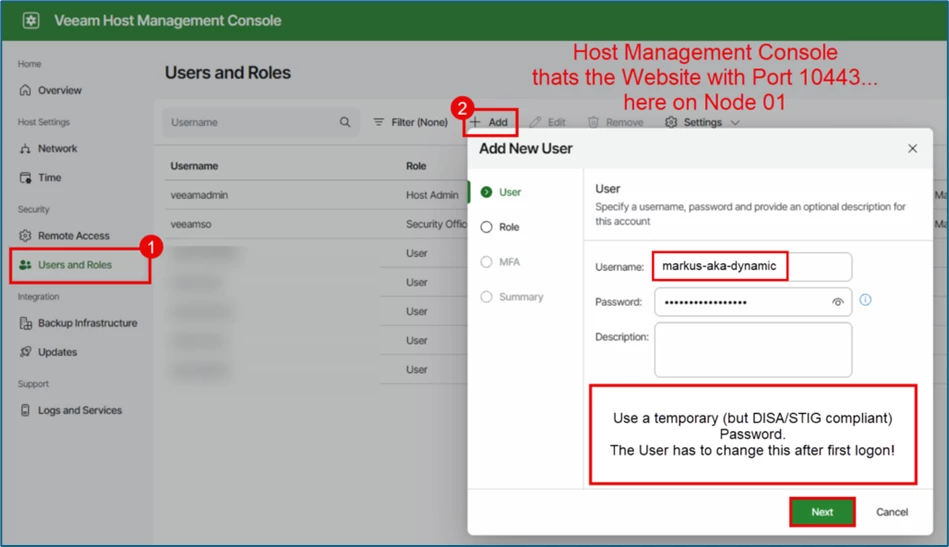
Use a temporary (but DISA STIG compliant) password for this, because the user will be asked to change it after the first login!
The password must comply with the following requirements:
15 characters minimum.
1 upper case character.
1 lower case character.
1 numeric character.
1 special character.
No more than 4 characters of the same class in a row. For example, more than 4 lowercase or 4 numerical characters in sequence.
Next continues. We have now assigned the User role. Once again, Next continues.
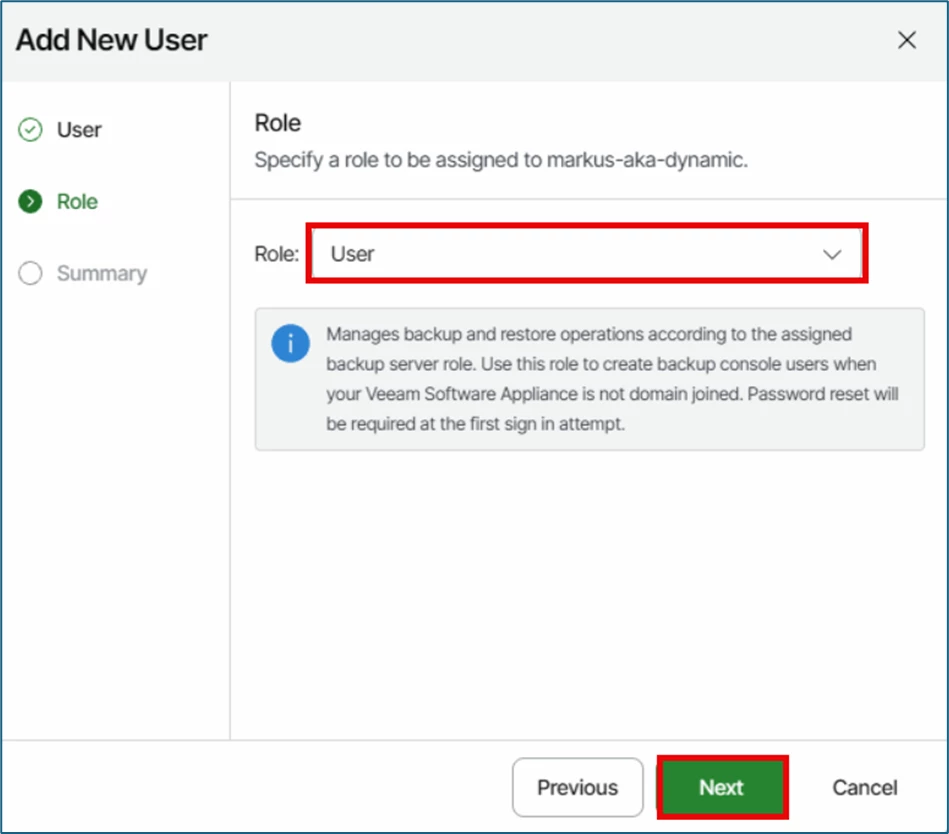
That's it for the first node!
Host Management Console --- https://vbr-node2.yourdomain.com:10443
Now repeat the steps above for the second node! To be on the safe side, here is a small reminder as a screenshot:
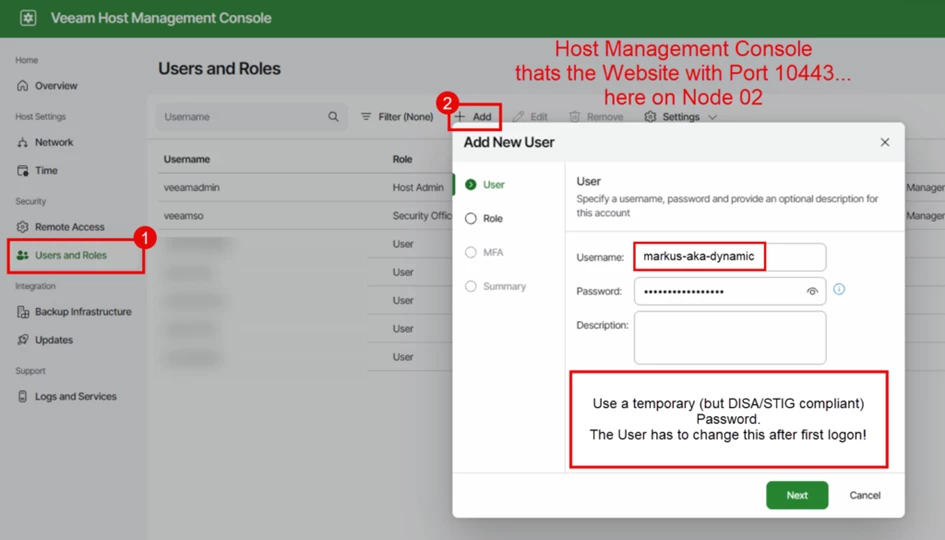
Then let’s go to the VBR Console to assign the user you have just created with his corresponding role.
Veeam Backup & Replication Console
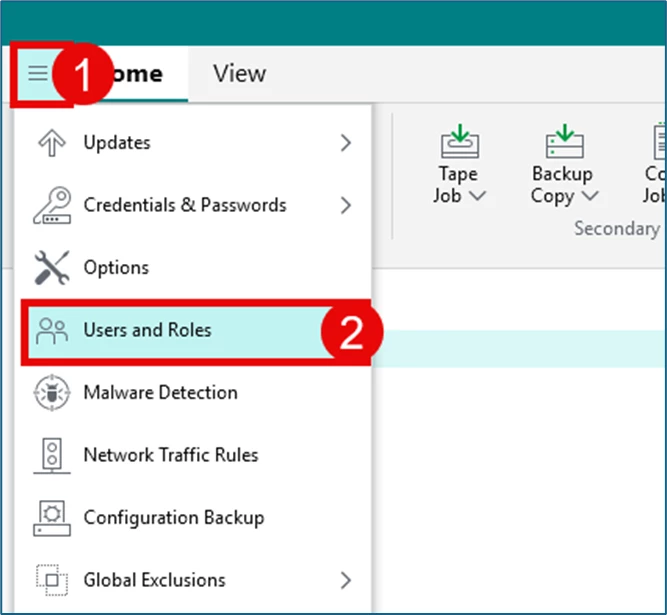
In the burger menu, go to the Users and Roles section
You know the game... Via Add... let's now add the user we just created, in this example he gets the role Veeam Backup Administrator.
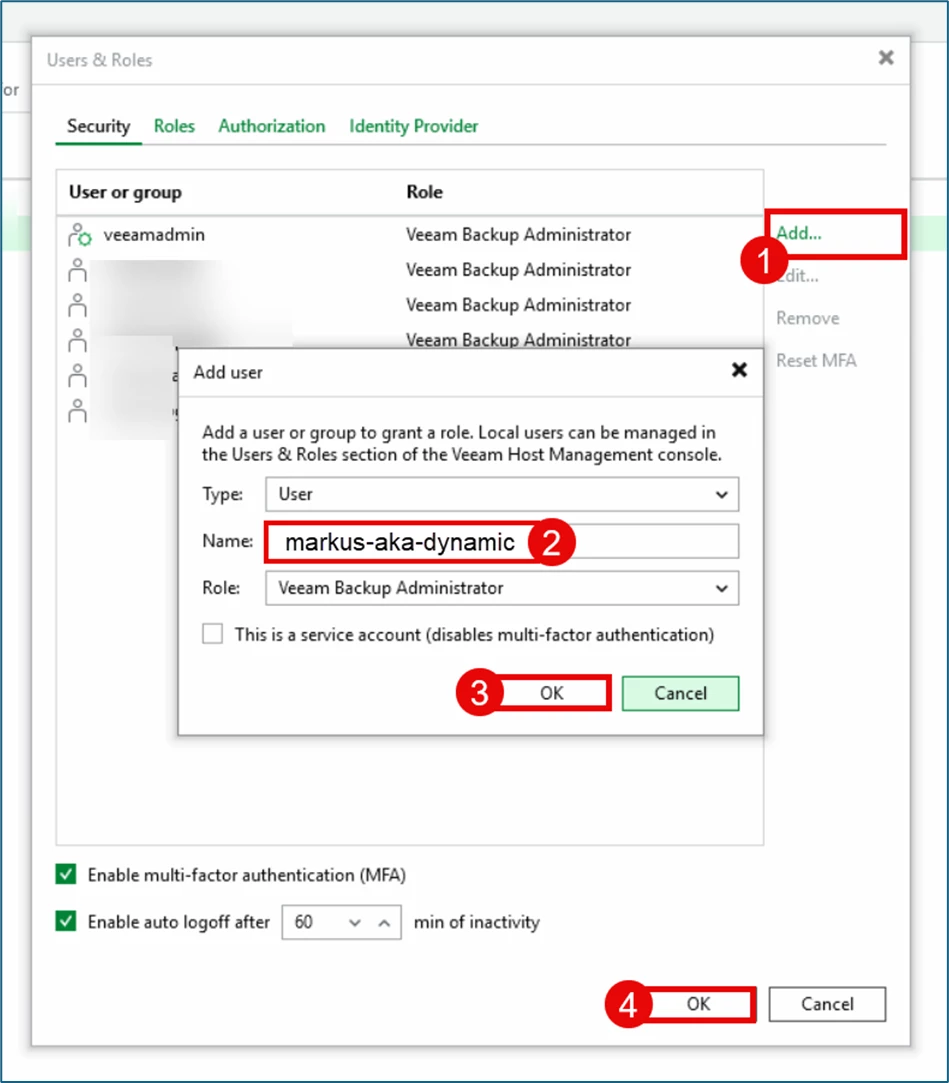
Then you confirm with OK .
Login with the local user
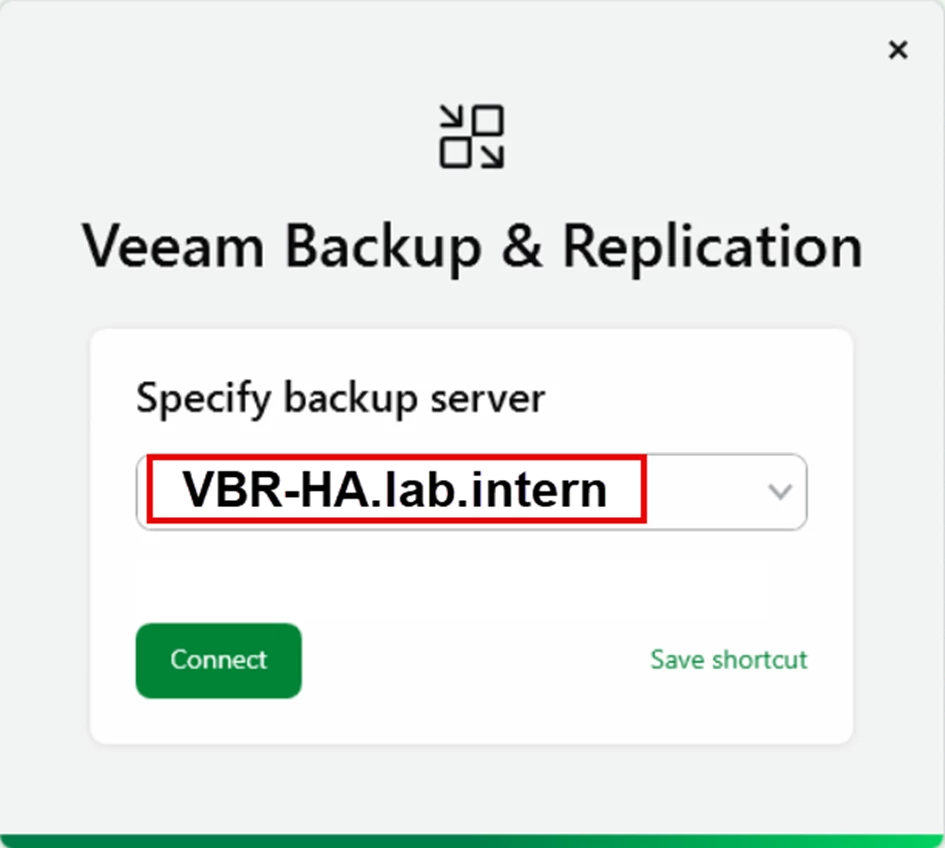
Now we log in for the first time with the user we just created. In this example, the FQDN of the HA cluster is VBR-HA.lab.intern.
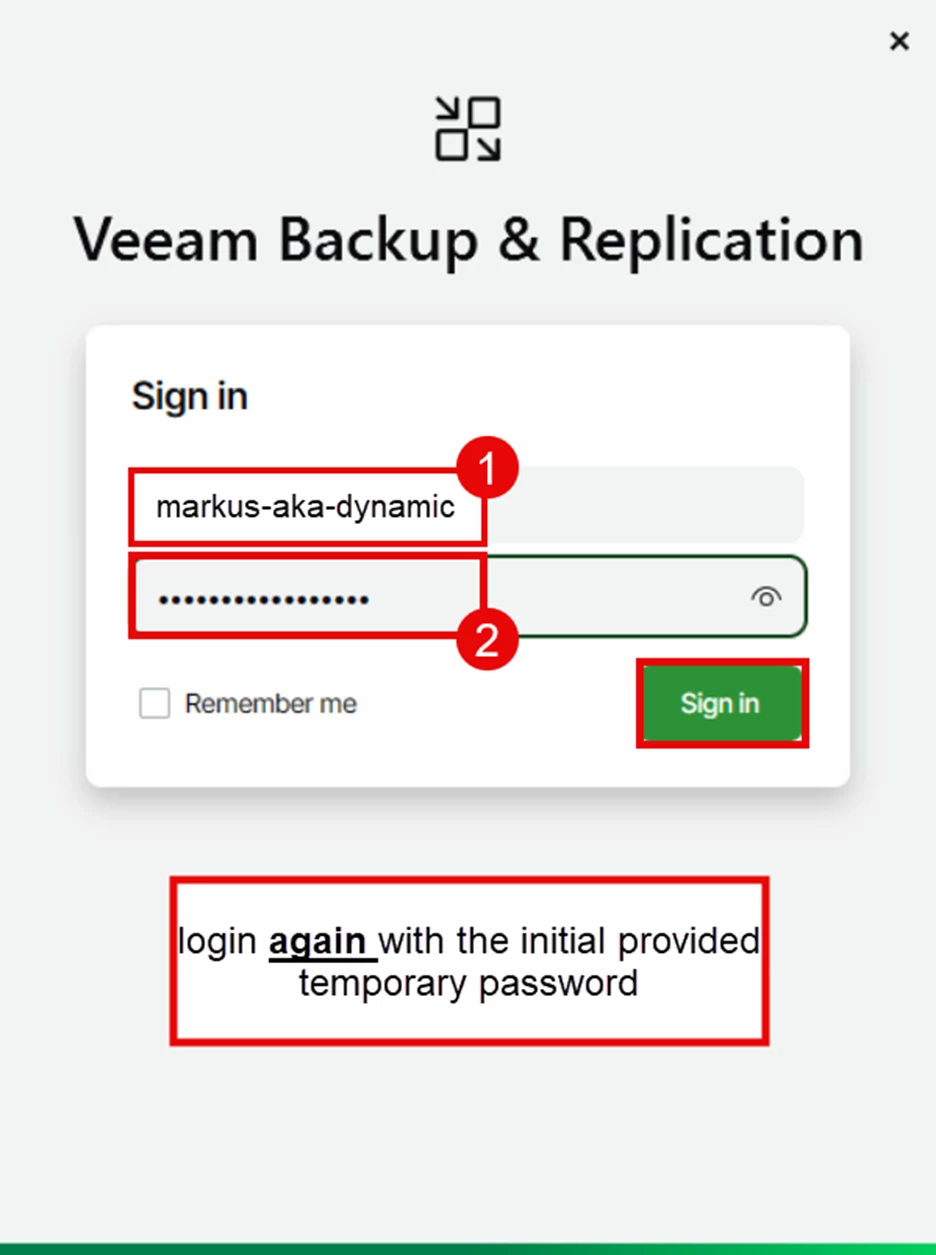
Now use the initially assigned password for the first login.
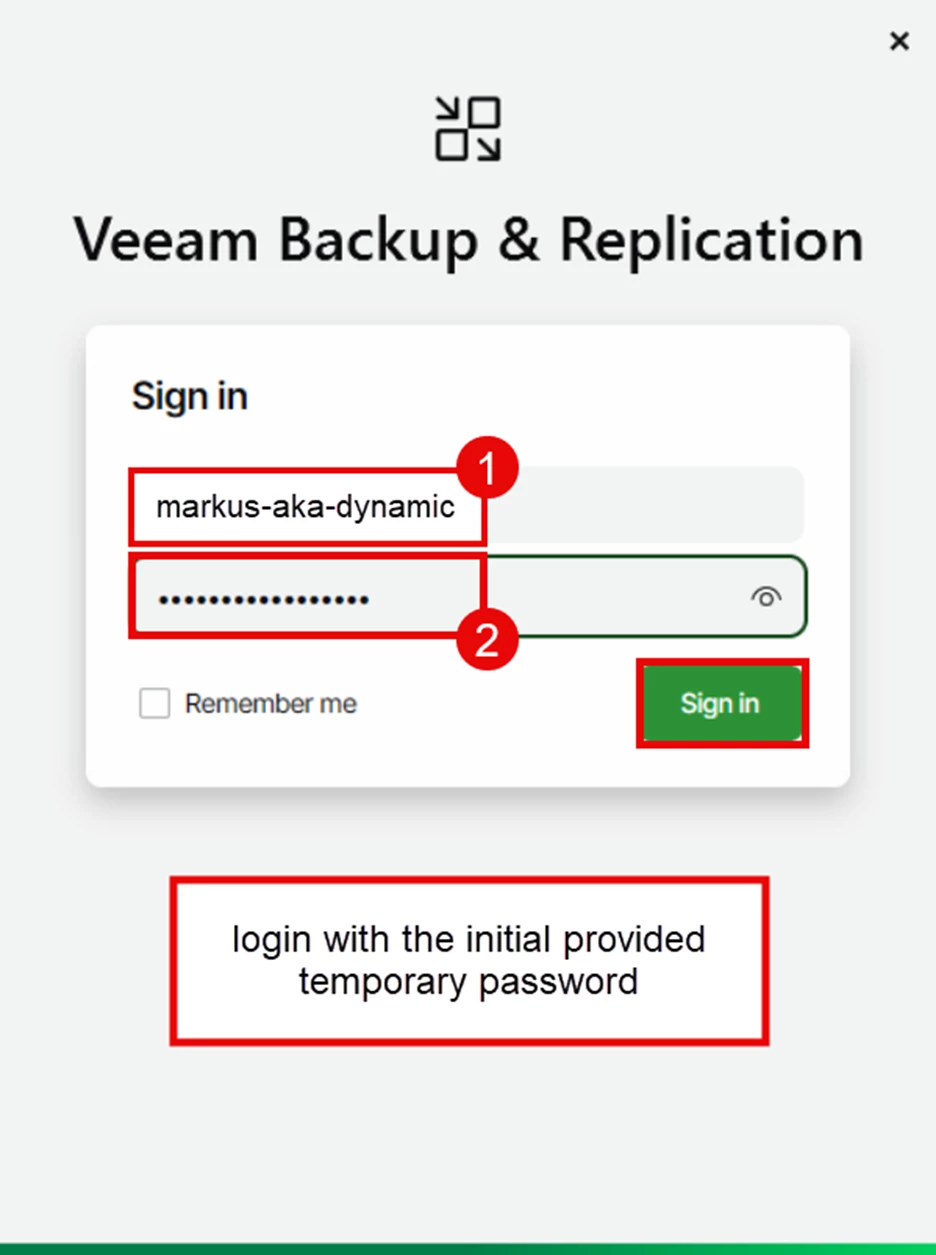
After confirmation via sign-in, you will be asked to change your password.
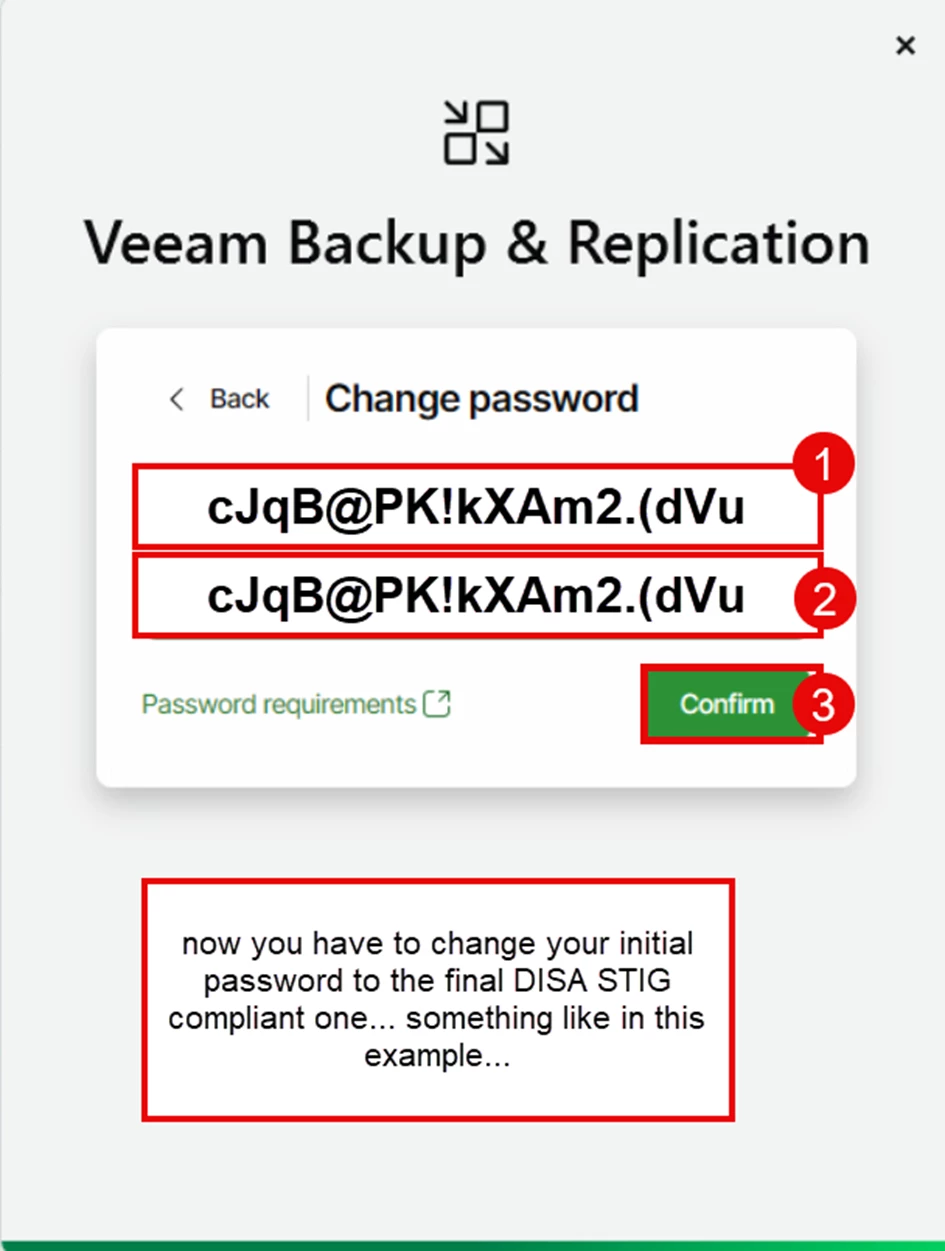
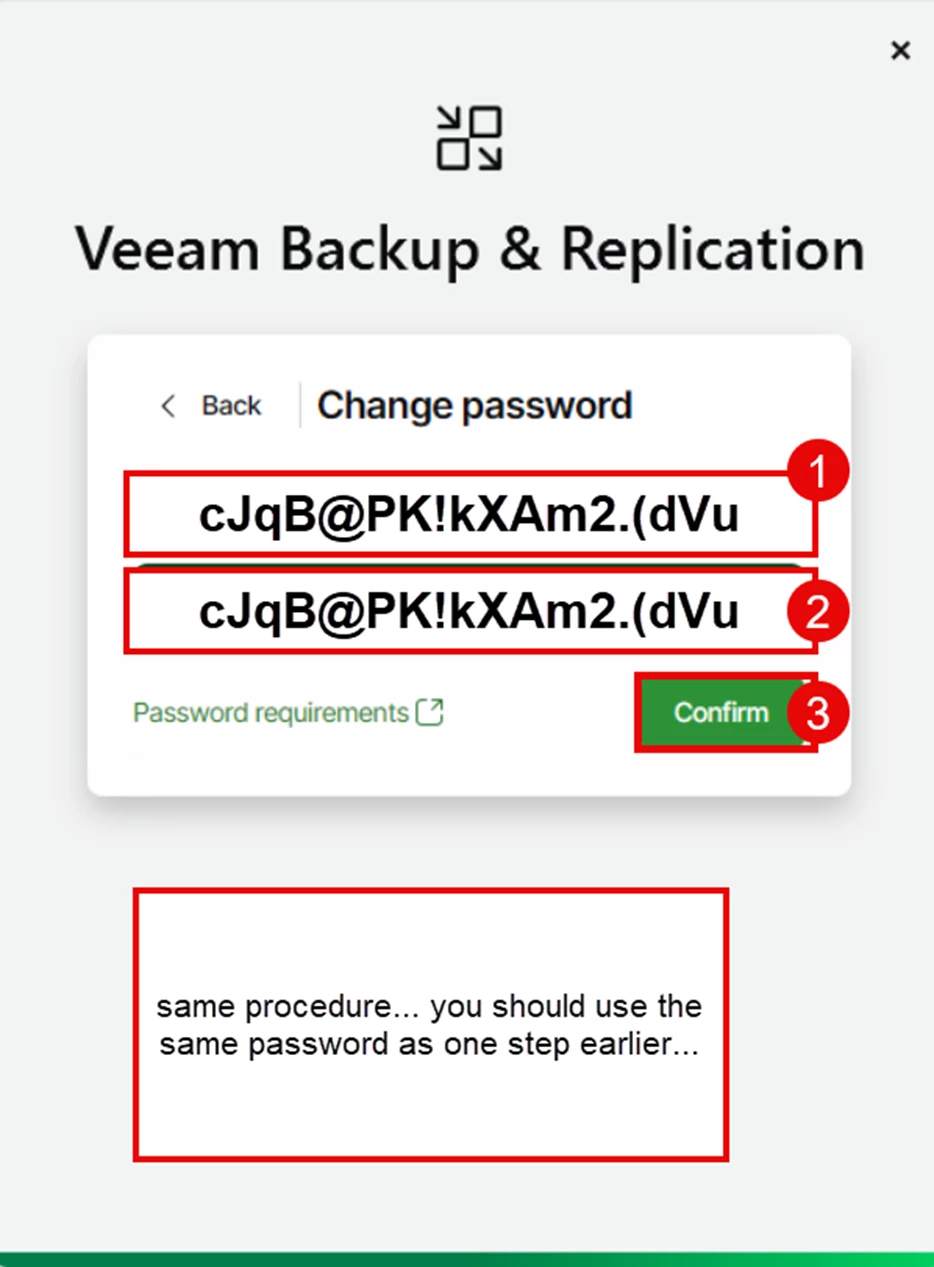
Now assign your final password, maybe not necessarily the one I used above, that's already known 😉 After the confirmation, it's time to roll out the TOTP token.
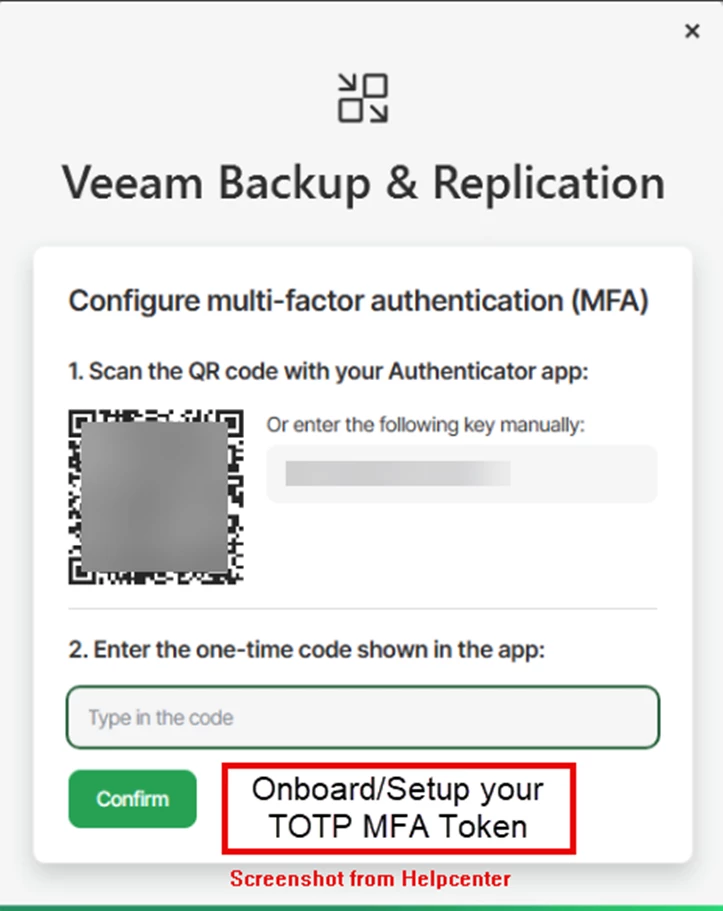
After successfully setting up the token and entering the correct TOTP accordingly, you will be taken to the console.
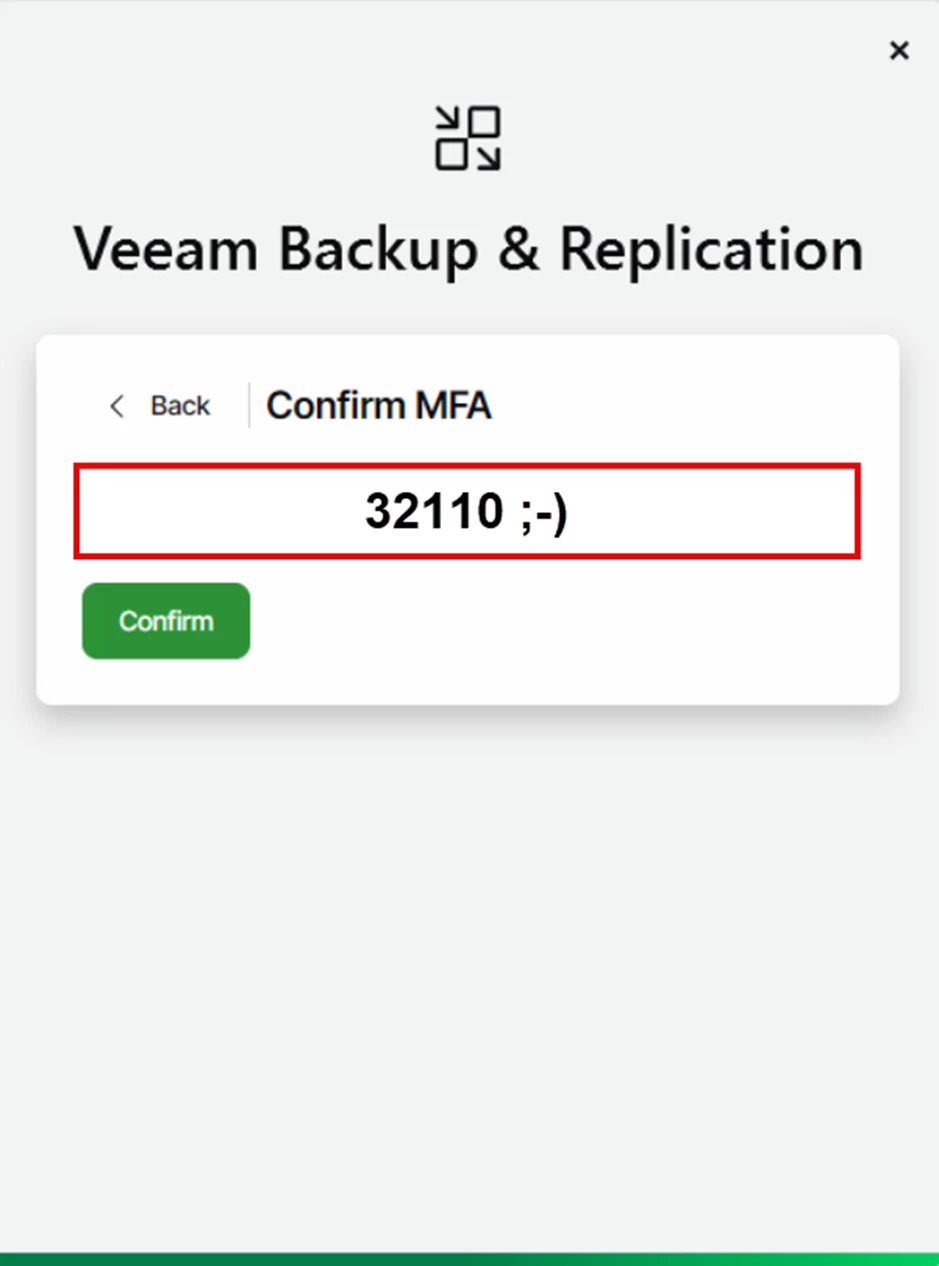
However, the user must now also be stored with his final password on the second node. During an onboarding of the HA function at a customer's site, I recommend executing the following steps immediately after all local users have been created - not only when the first (possibly even unplanned) cluster node pan occurs.
HA Switchover
With the Veeam Backup Administrator logged in, you can now switch to the Backup Infrastructure, under Managed Servers to the Linux systems.
Select one of the cluster nodes here and select the function Switchover to another node.
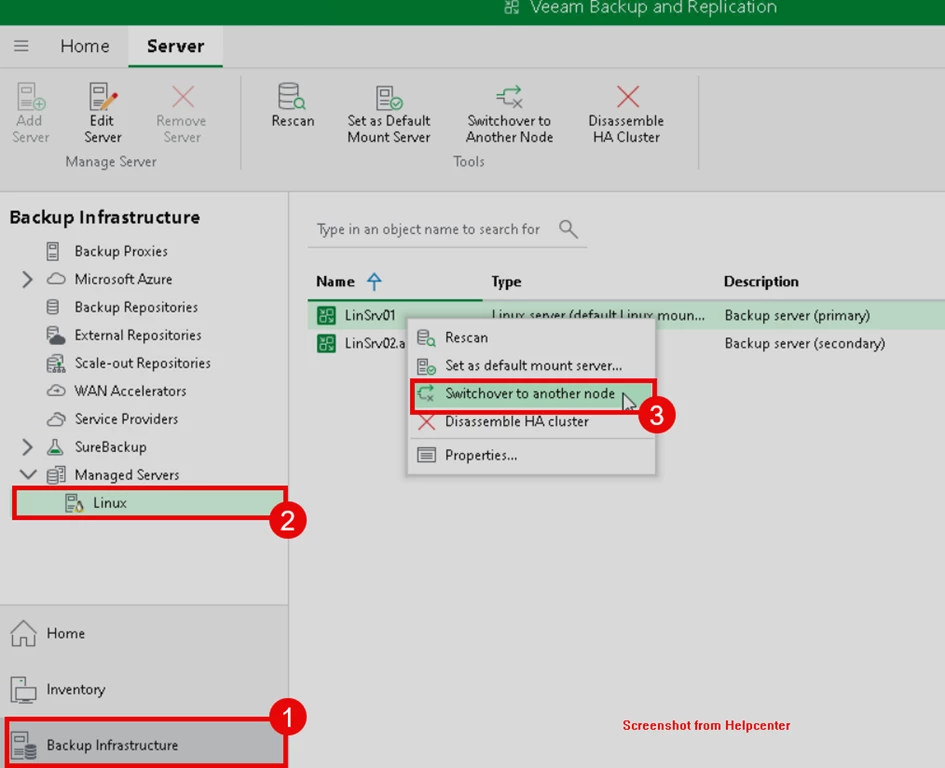
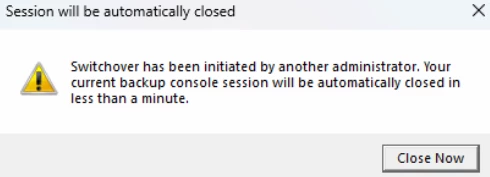
The switch takes a few minutes. Time for a coffee, after about 10 minutes we can continue. You can see that the VBR Console has been restarted, regards to a switchover.
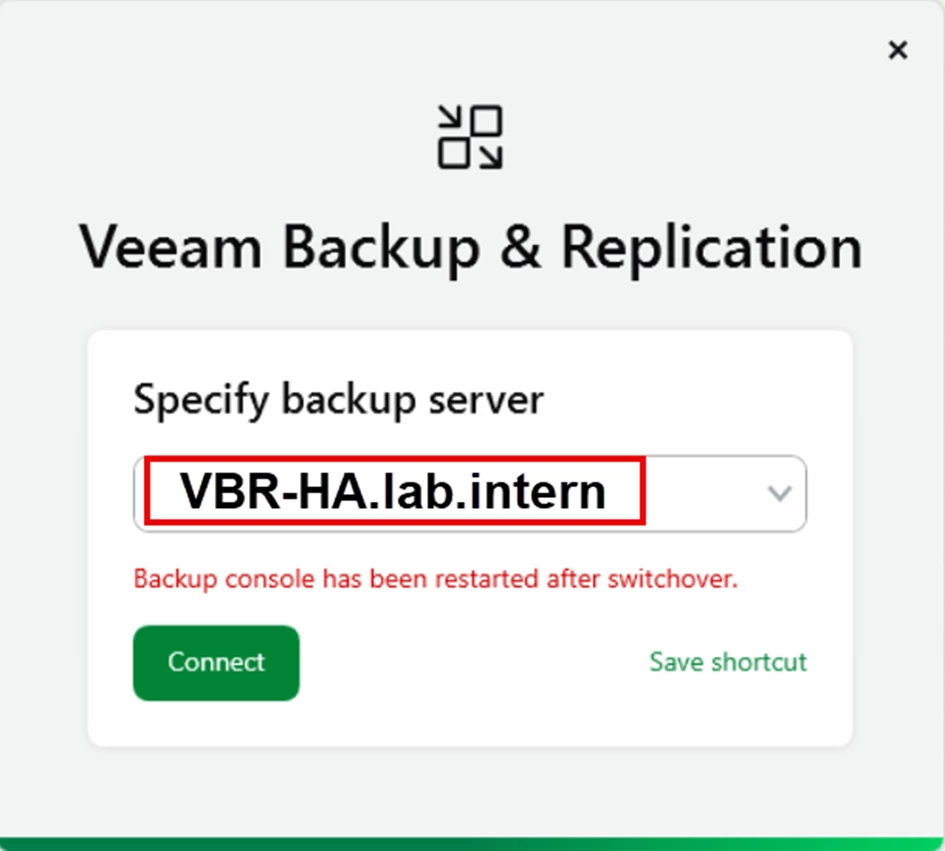
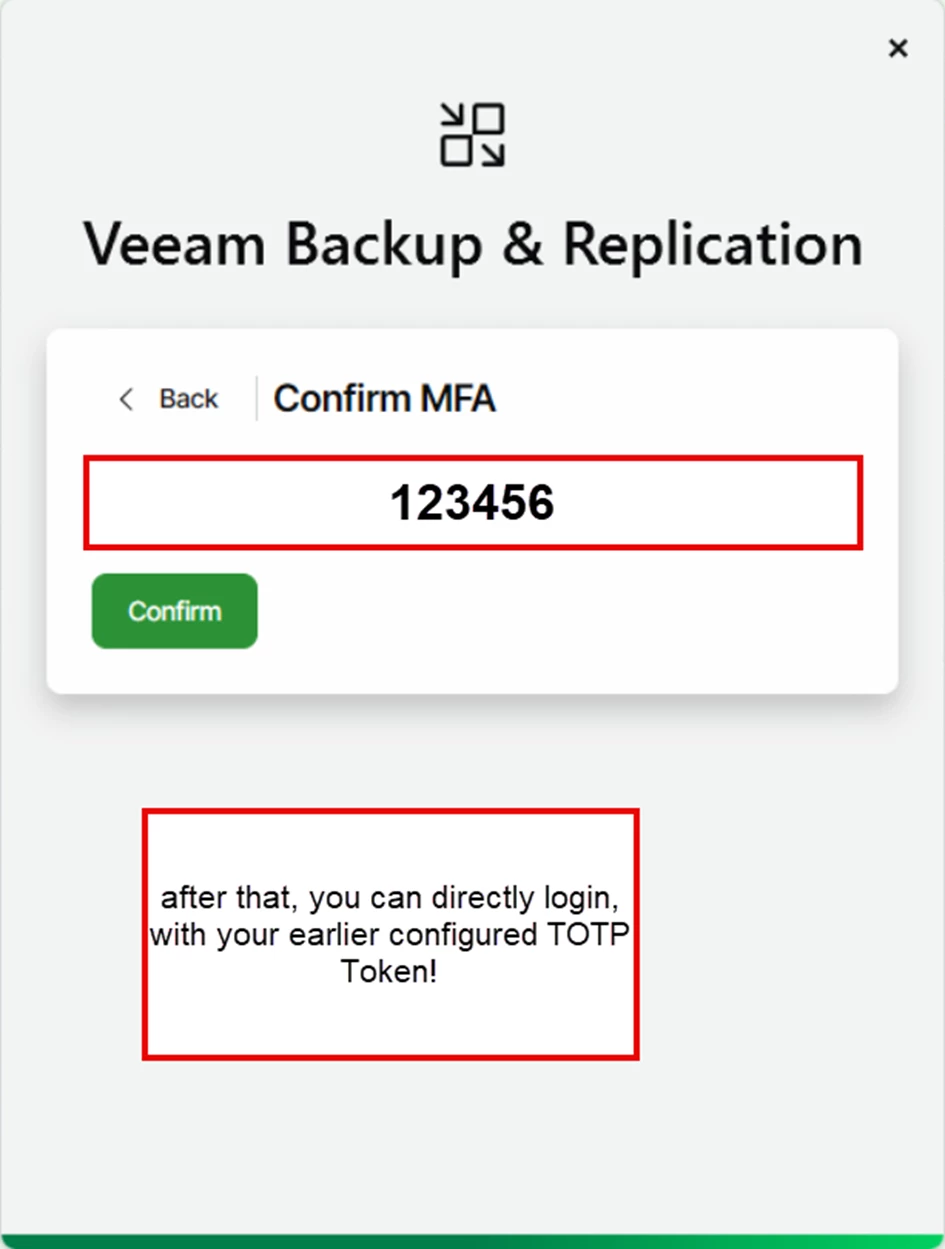
Now log in again with the newly stored users. In my example, the user markus-aka-dynamic. You are now active on the second node! Since the initial password is still active for this user, you must use it.
Here, too, you will be asked to change your password. It is recommended to use the same password as in the first step!
Immediately afterwards, you will be asked again for the current token, which you have already rolled out a few steps above and can therefore enter here and get back to the VBR Console.
It's not rocket science, but it's better to do it directly during onboarding and also know that the users currently still must be managed locally on each node! I hope that this will be changed very soon.
Enjoy more new features in version 13!
Cheers, Markus