



Original post: Veeam Plug-in for HPE Morpheus VM Essentials Explained - CloudnRoll
Veeam and HPE are further strengthening their partnership, with many new features and integrations expected in 2026.
Veeam introduced a new native integration plug-in for HPE Morpheus VM Essentials (VME). It´s currently in beta version, with general availability anticipated shortly. This new plug-in provides hypervisor-based image-level backup for virtual machines (VMs) running on HPE Morpheus VM Essentials, ensuring secure and reliable protection for a wide range of workloads.
Next, the architecture of the Veeam Plug-in for HPE Morpheus VM Essentials, the installation steps, and the backup/restore configuration process are presented.
Architecture
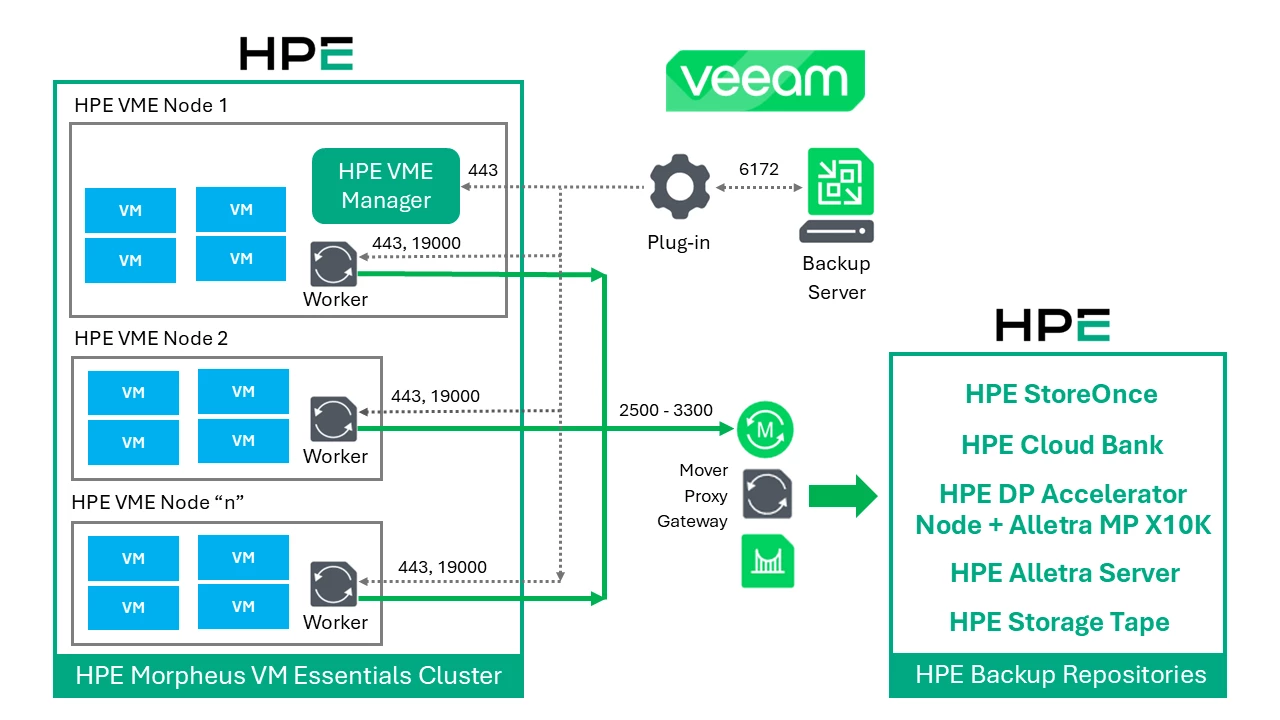
The architecture of the Veeam plug-in for HPE Morpheus VM Essentials (VME), shown in the previous figure, consists of two key components
The plug-in module deploys natively on the Veeam Backup & Replication server without requiring a separate virtual appliance. It orchestrates platform integration, synchronizes application-consistent checkpoints, and supervises the execution of backup and restore workflows.
The solution also uses ephemeral virtual servers called workers. It is a lightweight proxy virtual machine running on hosts in a cluster. They handle data-plane operations, including transport, inline deduplication, and compression during backup and restore operations.
Thus, on each host in an HPE VME cluster, the Veeam plugin will implement a worker during a backup or restore job. To do this, management connections are maintained between the plugin and the HPE VME Manager via port 443 to orchestrate worker creation and termination. In addition, the plugin also maintains management connectivity with workers using ports 443 and 19000.
Management communication between the plugin and the Veeam Backup & Replication server is performed through port 6172.
From a data transport perspective, workers process backup workloads when transferring data to and from backup repositories using communication ports 2500 to 3300.
For the data repository, there are many HPE choices. The first is the HPE StoreOnce as a backup appliance, which is officially certified by Veeam for use as both a primary backup repository (performance tier) and a secondary backup repository (capacity tier).
The HPE StoreOnce and Veeam integration ensures that Veeam backup repositories are created on HPE Catalyst shares and can be replicated to secondary HPE StoreOnce (on premises) or to HPE Cloud Bank Storage (cloud).
Another option is the HPE Alletra Storage MP X10000 as the object-based backup target for Veeam backup repositories, with either S3 or a Data Protection Accelerator Node. With the Accelerator Node, it is currently the world’s fastest backup storage solution, backed by rigorous testing and real-world comparisons, delivering up to 1.2 PB/h throughput, 22x faster restores, 9x faster backups, and up to 60:1 data reduction.
Another backup target is an HPE Alletra Storage Server 4000, a Linux/Windows-based server. In this case, the Veeam Hardened Repository ISO can be deployed. It´s also possible to store Veeam Backups on the Alletra MP B10K storage for specific scenarios, including snapshot orchestration.
For an offline, air-gapped solution, HPE Storage Tape is an ideal choice.
Beta Version
Information about the beta version of the new plug-in is available on the Veeam R&D Forum, including links to download the image, system requirements, installation process, and other relevant information.
To access the Veeam R&D Forum, use the following link: [BETA] [HPE VME] Veeam Plug-In for HPE VM Essentials Beta (December 01, 2025)
Installation
To install the Veeam Plug-in for HPE VME on a Windows-based backup server, follow the procedure described below.
Log in to the backup server using an account with the local Administrator permissions.
Download the product installation file from:
http://www.veeam.com/beta/HPEVMEBeta.html


Password: Verify the Veeam R&D Forum page
Open the downloaded archive and run the plug-in installer.
Adding the HPE Morpheus VM Essentials Manager
In the Veeam Backup & Replication console, open the backup infrastructure menu and, in the inventory pane, select Managed Servers.
- Click Add Server, then select the Virtualization Platforms option.


- In the Virtualization Platforms window, select the HPE Morpheus VM Essentials option.
- In the DNS name or IP address field, enter the FQDN or IP address of the HPE Morpheus VM Essentials manager.

- Specify credentials for an administrator account with the System Admin role that is used to access the cluster or HPE Morpheus VME manager

- At the snapshot storage step of the wizard, choose whether you want to keep snapshots of processed VMs in a specific data store or in the largest file-level datastore available on the connected HPE Morpheus VME manager.

- At the Apply step of the wizard, wait until the HPE Morpheus VME manager is added to the backup infrastructure.

- You must be able to see that HPE Morpheus VM Essentials is available in the Backup Infrastructure.

Configuring Workers
Workers are Linux-based VMs that process backup workload and distribute backup traffic when transferring data to backup repositories. Each worker is automatically launched on a specific host of an HPE VME cluster for the duration of a VM backup or restore operation.
As part of the integration process, you must configure the worker as a backup proxy. This configuration is saved in the Veeam Backup & Replication configuration database and will automatically launch the worker VMs used during backup and restore jobs.
I will present the necessary settings for a worker.
- In the backup infrastructure menu, select the Backup Proxies option, Add Proxy, and HPE Morpheus VM Essentials worker.

- Define the default settings for the worker VM. Select the desired HPE Morpheus VM Essentials cluster and the name that will be applied to each of the workers deployed on the nodes.
- You can also define the maximum number of concurrent tasks per worker VM. The default is 4. When you change this value, the wizard automatically adjusts the resources allocated to the worker (vCPU and memory). To specify resources manually, click the advanced settings option.
- In the advanced settings option, you can create host affinity. If not defined, the Veeam solution will automatically determine which host in the cluster the Worker VM will be deployed.

- Add Worker VM’s network interfaces.

- Review the configuration, then click Apply. The plug-in will launch the worker VM as soon as a backup or recovery job is initiated.

Creating a Backup Job
We are now ready to create a backup job for virtual servers in the HPE VME cluster.
- Click the backup job menu, select Virtual Machine, and select HPE Morpheus VM Essentials.

- Specify the backup job name and the description.

- Choose the desired virtual machines to protect.

- Configure the backup destination settings. In this example, we are using HPE StoreOnce as the primary backup repository.

- Specify the desired guest processing options.

- Specify the desired job scheduling options.

- Review the summary information and click Finish

- The backup job performed in the lab is presented below.

Instant VM Recovery
HPE Morpheus VM Essentials enables centralized management of VM Essentials and VMware vSphere clusters from a single management console.
This unified VME platform simplifies the provisioning, monitoring, and automation of VMs across KVM (HPE Morpheus VM Essentials) and ESXi (vSphere) hypervisors, reducing operational complexity and increasing flexibility.
At this plug-in beta release, you can use Veeam Instant VM Recovery to restore HPE Morpheus VM Essentials VMs as VMware vSphere, Microsoft Hyper-V, or Nutanix AHV VMs.
In this lab, a VME VM was restored in a VMware vSphere environment using Instant VM Recovery.
- Expand the necessary backup job, select the HPE Morpheus VM Essentials VM, and click Instant Recovery.

- Review the selected VM.

- Select the desired restore mode. In this example, restore to a new location.

- Configure the desired settings for the target vCenter/ESXi environment.

- Select the desired Datastore. In this case, the degaulf option was used based on vPower NFS.

- If desired, it´s possible to perform a secure restore using Veeam Threat Hunter or Yara rules.

- Justify the reason for the restoration.

- Review the summary information and click Finish.

The recovery process is initiated. At the end, the user must begin the migration process.

- Now, it´s possible to migrate the VMware VM to the production environment.

Using Veeam Agents with HPE VM Essentials
It´s also integrated with HPE Morpheus VM Essentials (VME), which uses backup agents. For more information, see the following KB:
KB4737: Using Veeam Agents with HPE VM Essentials
In the example below, we have the configuration of a Protection Group for a Windows virtual server hosted in an HPE VME cluster.

The following is a backup job for an HPE VME virtual Windows server protected with a Veeam Backup agent.

Conclusion
The Veeam plug-in for HPE Morpheus VM Essentials (VME) represents a major step forward in hypervisor choice for customers.
It enables bidirectional, flexible restores, restoring backups of HPE Morpheus VM Essentials virtual servers to environments running the same hypervisor, or even directly to public cloud computing services.
The plug-in also allows you to restore virtual servers hosted in VMware ESXi, Hyper-V, Nutanix AHV, or KVM as HPE Morpheus VM Essentials virtual servers.
This portability and the centralized management capability of HPE VME and VMware environments eliminate lock-in to specific hypervisors, facilitating migrations and recoveries between different operating environments.
In addition, the HPE solution offers the lowest licensing cost, as HPE Morpheus VM Essentials is licensed per socket rather than per vCPU, providing significant savings in hypervisor licensing costs for customers while delivering HPE’s high-quality support services for critical environments.
References
HPE Morpheus VM Essentials Software | HPE
Expanding the Veeam Data Platform with HPE Morpheus VM Essentials
Blogs, Discussions and Forums | Hewlett Packard Enterprise Community
Community | Veeam Community Resource Hub