
Last Fall Veeam released Veeam Data Platform (VDP) version 13. I have yet to upgrade myself, but have reviewed their What's New document and skimmed through the User Guide a bit. After doing so, I thought I would share with the Community some hidden features in this newest release I think you should be aware of. I have done similar posts for previous Veeam VDP versions, but this will no doubt have more content because 1. this is such a drastically new & feature-rich release, and 2. there is just so much more I think I should mention!
I think we are all aware the new VDP v13 release now comes not only as an optional Linux Veeam Software Appliance based on Rocky Linux (Community Edition not supported) and has High Availability capability (Premium Edition only), but there's also a nifty WebUI available you can use to manage your backup environment. Though keep in mind, as was with the VMware vCenter Software Appliance when it was first released, there are quite a few missing features in the WebUI, so the Console is still very much needed for most of your management tasks. Oh, and if you don't want to unpack the ISO installer just to install the Console, you can download the Console executable from the main WebUI page.
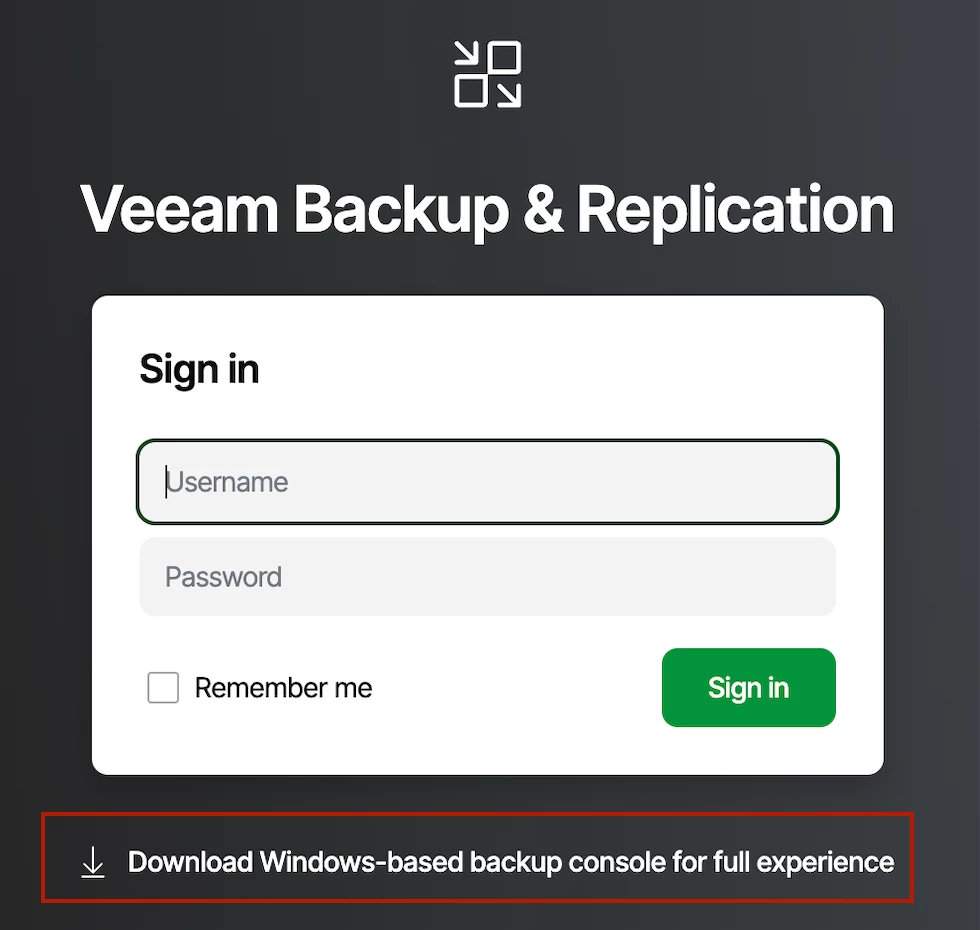
Even though the WebUI lacks features, that doesn't mean there isn't much to talk about. As the Console is still fully operational, there are a host of features in this release you may not be aware of I think are worth your attention. I'll share some of those with you below. Let's get started!
Single Sign-On (SSO)
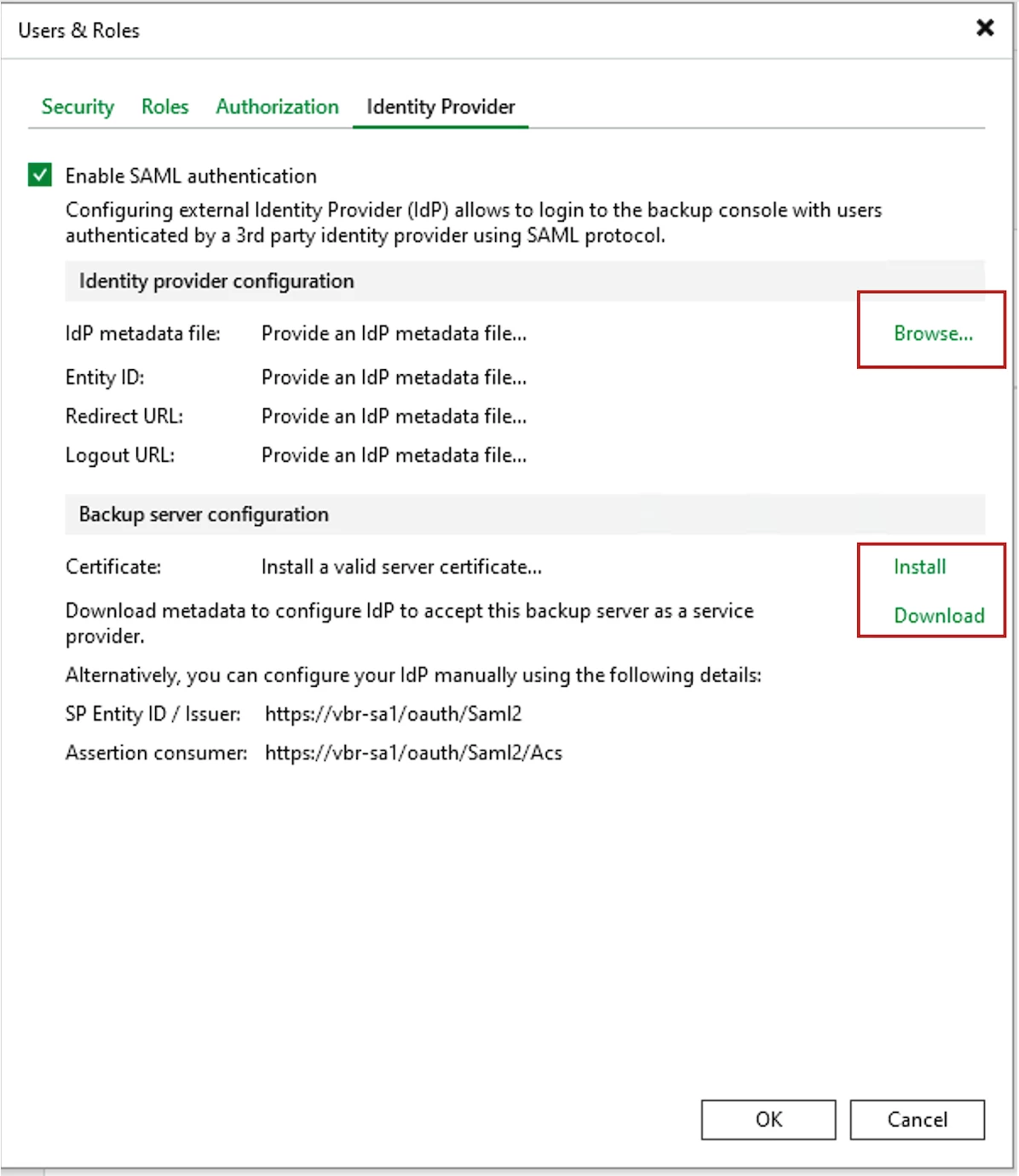
The main one I want to start with is Veeam integrated federated authentication. With VDP v13 you now have the ability to add Identity Providers which support Security Assertion Markup Language (SAML) 2.0 with shared OAuth authorization service for users to access both the new WebUI and the Veeam Console. You can add Identity Providers such as Entra ID or Okta to Veeam. This is especially beneficial to those who are choosing to use the new Veeam Software Appliance (VSA) instead of the still-supported Windows version of Veeam, because with the VSA when you add users you need to add local VSA users. And what's better yet? Even though Veeam considers SSO an advanced feature, they are making this available across all Veeam Editions and tiers to incentivize its use and encourage organizations to implement security best practices. WOW!
To configure SSO, from the Veeam Console (unable to add via WebUI currently), click the Menu icon > Users and Roles, then select the Identity Provider tab and configure the required settings. Follow the VDP User Guide for assistance for assistance if needed.
Veeam Intelligence (VI)
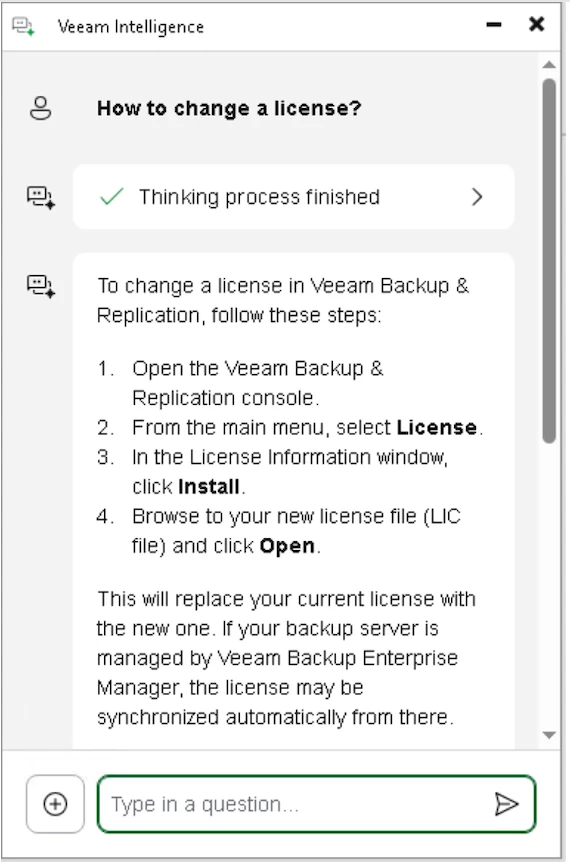
Veeam Intelligence has received some love from Veeam in this new release. You now have the ability to configure a few options instead of just turning it on or off – you can disable it completely, or enable it with either Basic or Advanced functionality. So what's the difference between the modes?
Basic – with this mode you can submit basic functionality queries. VI uses an agent-based retrieval mechanism to perform real-time searches across a variety of resources, such as the Veeam Helpcenter, Support KBs, R&D Forums, and additional content available on Veeam's website
Advanced – this mode uses the same function as Basic, but additionally uses sources such as the backup infrastructure details, workload protection status, and real-time monitoring data via live operational metrics through VeeamONE. To enable this mode, you must be on VDP v13.0.1 or later
A few limitations of VI to keep in mind: VI is not available for Community Edition or with NFR licenses; an active Internet connection is required by the server running VI; and, there is a limit of 200 questions allowed in a 24hr period, after which VI will reset.
Platform Support
- Good news for all the Linux gurus out there – Veeam VDP v13 now supports an almost all Linux-only backup environment. Long-time Windows only components such as Mount Server, Guest Interaction Proxy, and Gateway Server are now supported on Linux. Why do I say "almost Linux-only"? Well, because currently the Veeam Console is needed and you can only run the Console on a Windows machine. Once the WebUI is matured enough to incorporate all the VDP features, it'll certainly then be Linux-only if you choose to be.
- An additional Linux-based enhancement to share: There is now support for Application-Aware Image Processing (AAIP) for Linux machines. Though this added feature isn't wholistic, meaning there is limited Linux distribution support, the amount of distributions supported is still quite extensive. Make sure to reference the User Guide to see if your Linux distribution is supported.
Host-Based Backup
- For Proxmox hypervisor users, PXMX now has AAIP capability. Even bigger news? Proxmox is now fully supported for Malware Detection, for both Inline Entropy and File System methods. Even Veeam Threat Hunter and YARA Scans are supported. Just another reason to start testing out other hypervisors to see if they meet your organizational needs.
Security
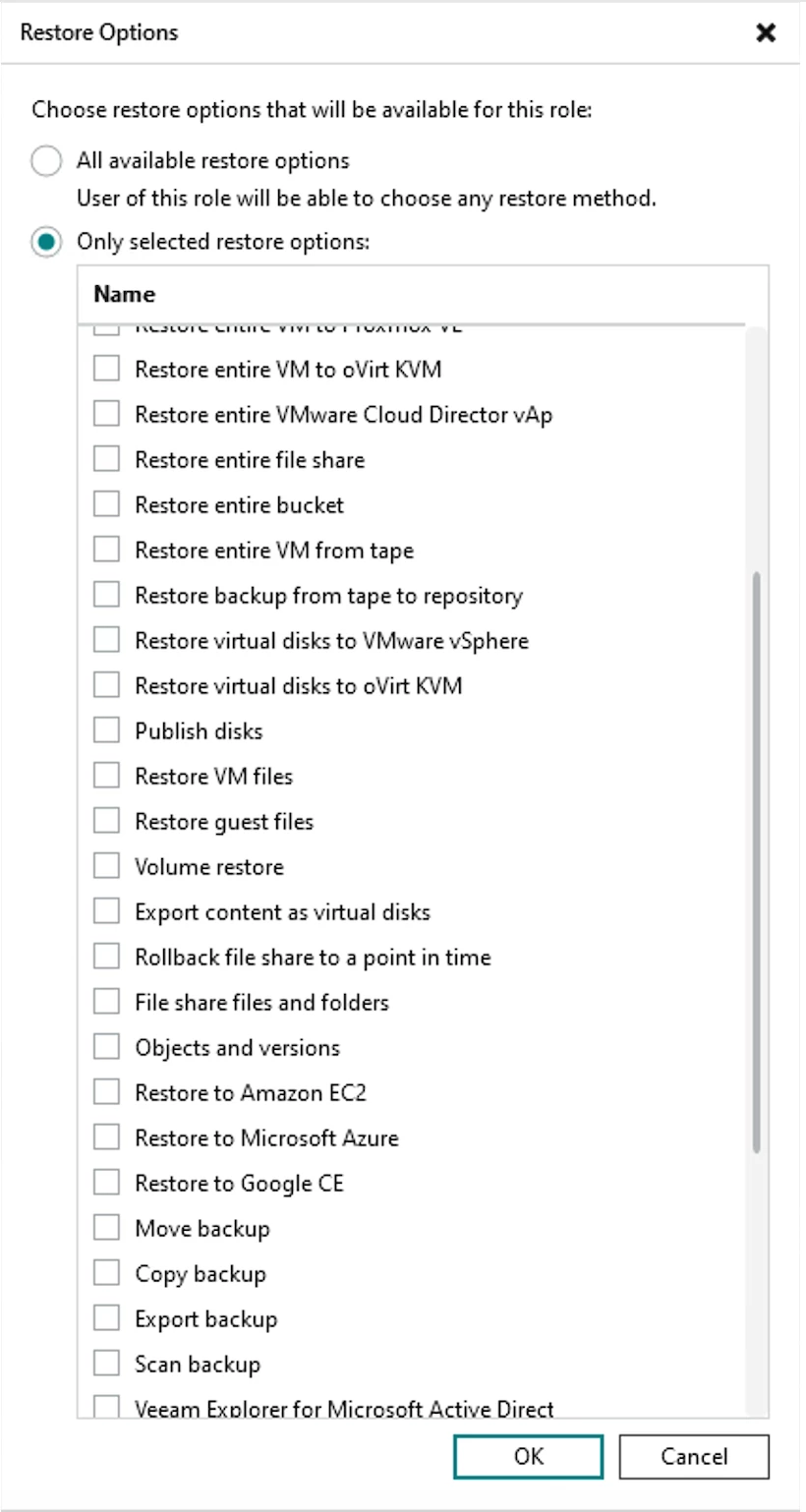
- For those not aware, VDP v13 allows for significant role permissions granularity. This topic can be covered in greater length, and interestingly enough, I did so last year when testing out the v13 Beta build. You can view more detailed information at my Community Hub post below:
https://community.veeam.com/blogs-and-podcasts-57/veeam-data-platform-v13-custom-roles-beta-preview-10657
The high-level takeaway I'll share here though is you have quite the significant granularity you can assign users for what they can backup (from specific sources such as VMware VM Folders, Datastores, VM Tags, etc) and what Repositories they can backup to; as well as granularity of what specific recovery operations users are allowed to perform (e.g. Entire VM Restore, Instant Recovery, Disks, etc) and where users can perform restores to. Again, see my post above and the User Guide for detailed reference.
Custom Restore Role Permissions - Malware Detection is now available for both host-based and Agent-based Linux machines. The main item of this feature is Admins now have the ability to perform Scan Backups against Linux machines with Veeam Threat Hunter, YARA Scans, and custom A/V (currently only ESET and Sophos are supported).
- Veeam created a nice secure Managed Server implementation mechanism called the Veeam Deployment Kit. This is a Veeam technology to use certificate-based authentication when adding Veeam Components to VBR rather than password-based credentials. To begin using this, in the Console go to the Backup Infrastructure node > select Managed Servers, then from the ribbon, click Create Veeam Deployment Kit and browse to a directory to store the files. One item of note here, if you use the JeOS (Just Enough OS) Veeam Infrastructure Appliance (VIA) ISO to deploy your Veeam Components (Proxies, Repositories, etc), certificate-based authentication to VBR is enabled by default. Certainly reference the User Guide for further deployment details.
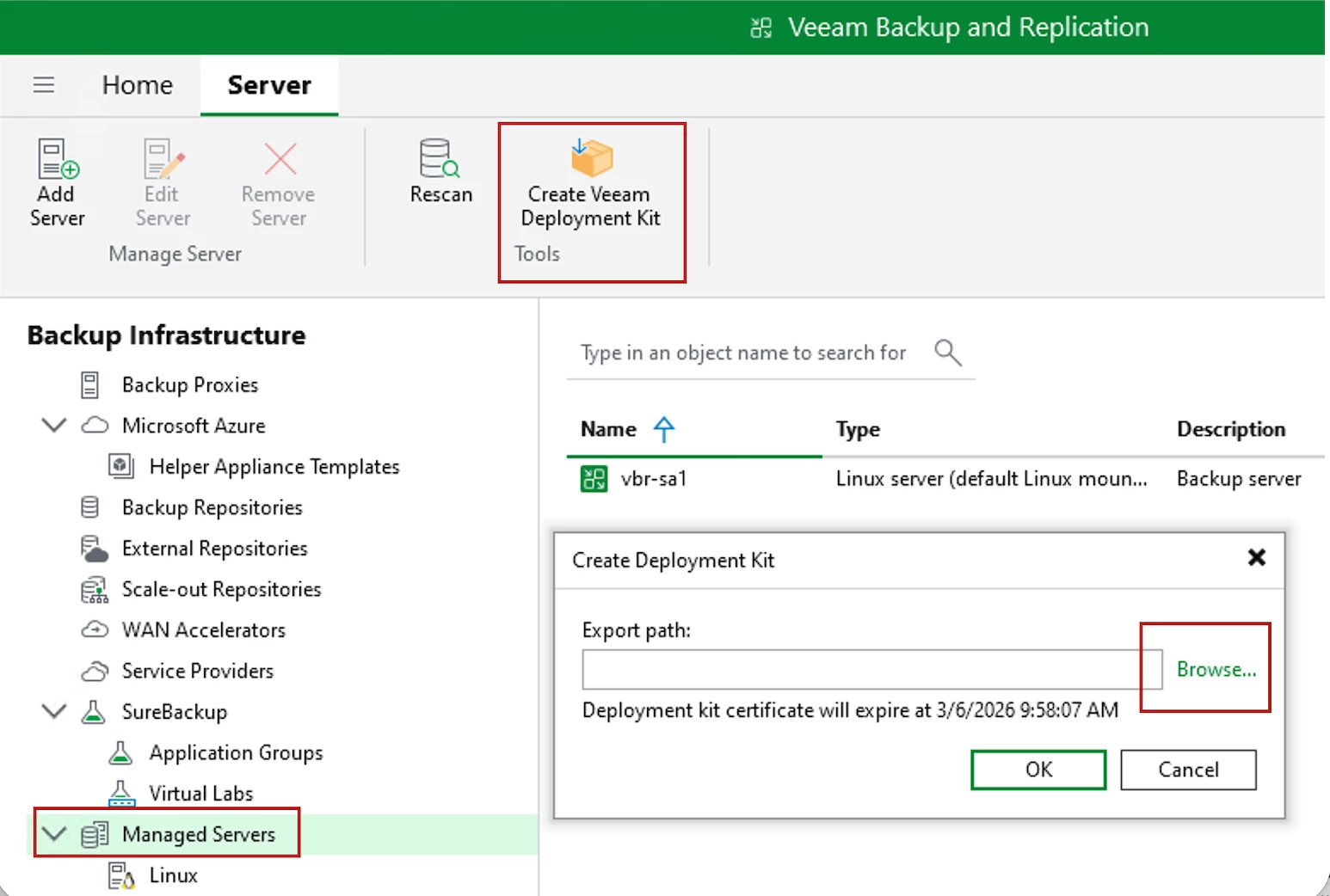
Create Veeam Deployment Kit
I'll also share @Marcel.K recently created a quick post on how to use the Deployment Kit. You can review his post below:
https://community.veeam.com/blogs-and-podcasts-57/managed-windows-server-in-veeam-13-without-service-account-12601
- Though not really a security feature…more a function to assist Veeam Support – within the VBR Host Management UI, Veeam added the ability for Admins to download configuration database logs to assist Veeam Support troubleshooting issues you may encounter. This is far better than, at times, having to provide Support with a copy of your VBR database to assist them in resolving any issue you're having
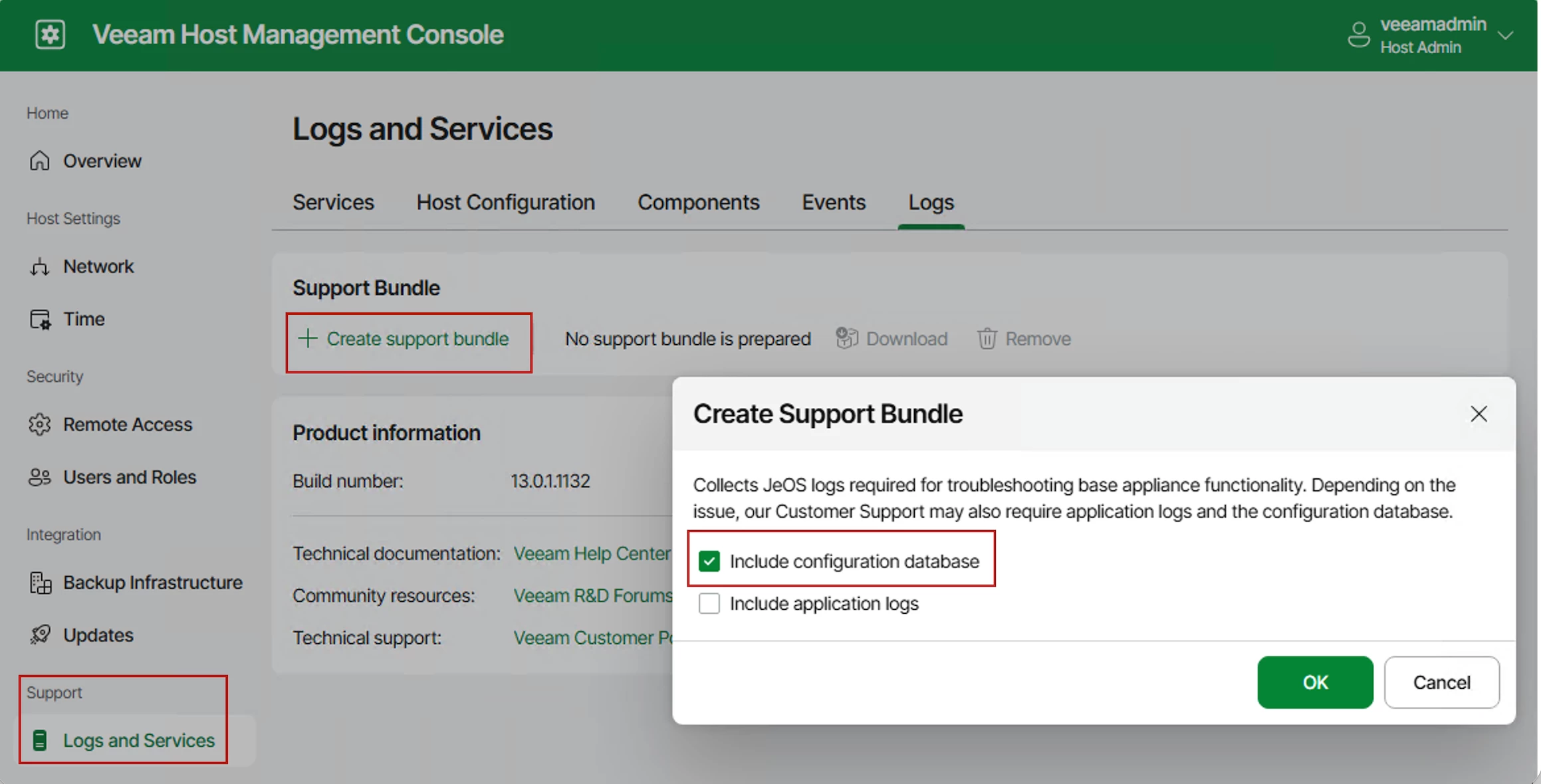
PSSQL Log Export Configuration
Recovery Orchestration
The main point I want to make for this bullet item is about platform support. Veeam Recovery Orchestrator (VRO) v13 supports not just VMware workloads, but now also supports Hyper-V. It also supports VMware CDP, VMware Replication, and Agent workloads.
Performance Enhancements
As is with most new major VDP releases, some performance improvements have been made. Some I think worth referencing are listed below:
- Synthetic Fulls are now supported for both Veeam Agent for Linux and Mac
- Under-the-hood improved backup and recovery performance enhancements for Veeam Agent for Windows and Veeam Agent for Linux, respectively
- For External Repositories, you now have the option to select which Mount Server to use. This allows Admins greater control of data path flow as well as performance improvements for both backup & recovery operations
- An improved Instant Recovery engine increases I/O performance for running VMs from backups up to 50% as compared to VDP v12
- Also, Entire VM Restore engine improvements have reduced both CPU and memory consumption to the point of allowing up to 1000 concurrent Entire VM Restore sessions
- For those of you who still love Tape, VDP v13 supports the latest Tape format, LTO10; additionally, File-to-Tape now supports GFS Media Pool Retention
- Not really directly performance enhancement related, but if you have VDP Advanced Edition and higher, and have connected VeeamONE to your VBR Server, you can use the Analytics View directly in your Veeam Console giving you the ability to view various VONE Reporting and Analytics metrics
- And lastly, for all you automation and Linux lovers, Veeam has now provided support for its PowerShell Module to be installed on dedicated RHES 9 or Rocky Linux 9 machines
Conclusion
As you can imagine, there are quite a few more features and enhancements in VDP v13 than what I’ve listed here. To see all of them, make sure to review the What's New Guide I referenced at the beginning of this post.
Was there anything I shared above you weren't aware of? What stood out for you? Anything I didn't share but you think the Community should know about in this new release? Please share any comments below…