


The Veeam Configuration Backup is one of those features that may not receive much attention until the day it is actually needed.
It protects the configuration of the Veeam Backup & Replication server, including jobs, repositories, proxies, credentials, infrastructure settings, security information, restore sessions, and catalog data.
This becomes especially important in environments that use tape.
If the Veeam Backup & Replication server needs to be rebuilt and there is no valid Configuration Backup available, additional recovery steps may be required. In a tape environment, for example, it may be necessary to inventory and catalog the tapes again before their contents can be properly identified.
During a recent troubleshooting scenario, I encountered an issue where the Veeam Configuration Backup failed every time it was executed.
At the same time, the Users and Roles section of the Veeam console was not loading correctly.
In this article, I will describe the symptoms, the precautions taken before modifying the configuration database, the procedure used to correct the issue, and the final validation.
Environment
The environment included:
- Veeam Backup & Replication 12.3.2.4165
- Microsoft SQL Server configuration database
- Veeam Configuration Backup enabled
- Users authenticating with MFA
- Tape infrastructure managed by Veeam
The Configuration Backup error
Whenever the Configuration Backup was executed, the session failed while writing the data section.
The log displayed the following messages:
Connecting to database VeeamBackup
Creating database snapshot
Creating properties section
Writing encryption section
Error Writing data section
Error Saving configuration catalog (0% done)
Error Configuration database is corrupted.
Error Unable to write to configuration backup file.
Job stopped with failures
The main error was:
Configuration database is corrupted.
Unable to write to configuration backup file.
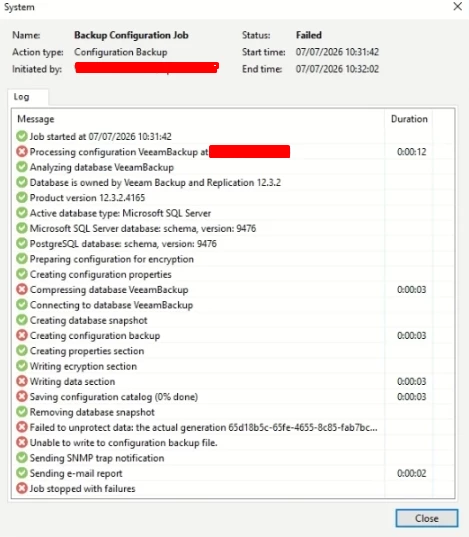
The connection to the database and the creation of the database snapshot completed successfully.
The failure occurred when Veeam attempted to write the configuration data to the backup file.
A second symptom: Users and Roles was inaccessible
While investigating the Configuration Backup failure, I also noticed that the Users and Roles section of the Veeam console was not loading correctly.
The Veeam console itself remained accessible, and existing users could still authenticate normally. However, the user and role management options could not be accessed.
This represented an important operational risk.
For example, if a user authenticating with MFA lost access to the authenticator application or needed the account configuration to be reset, it would not be possible to manage that user through the console.
The same limitation would apply if it became necessary to:
- Add a new administrator
- Remove an existing account
- Change roles or permissions
- Review the users configured in Veeam
- Reset access for an affected user
- Respond to an authentication issue
Depending on the available administrative accounts, this could even create a situation where the Veeam environment became difficult to access or manage.
Therefore, the issue was not limited to the Configuration Backup. It was also affecting the administration and recoverability of the Veeam server itself.
Important warning before proceeding
The procedure described in this article involves making a direct change to the Veeam configuration database.
This must be performed with extreme caution.
An incorrect database modification may damage the Veeam configuration, interrupt backup operations, or make the environment unusable.
Because the Veeam Configuration Backup was failing, it could not be used to protect the configuration before applying the correction.
For that reason, the first step was to create a full manual backup of the Veeam configuration database directly through Microsoft SQL Server Management Studio.
Before proceeding:
- Confirm that no Veeam jobs or administrative operations are running.
- Create a full backup of the Veeam configuration database.
- Verify that the SQL backup completed successfully.
- Confirm that the
.bakfile was created and stored in a safe location. - Stop all Veeam services before modifying the database.
- Perform the procedure during an approved maintenance window.
- Validate the procedure with Veeam Support.
- Keep the SQL backup available in case a database restore is required.
Direct database modification should not be treated as a standard troubleshooting step or as a general solution for every Configuration Backup failure.
The procedure below applies only to the specific scenario described in this article.
Step 1: Create a manual backup of the Veeam database
Since the Veeam Configuration Backup could not complete, the configuration database had to be protected directly through Microsoft SQL Server.
Open SQL Server Management Studio and connect to the SQL Server instance hosting the Veeam configuration database.
In Object Explorer:
- Expand
Databases. - Right-click the Veeam configuration database.
- Select
Tasks. - Select
Back Up. - Choose
Fullas the backup type. - Confirm the destination for the
.bakfile. - Start the backup and wait for it to complete.
After the backup finishes, confirm that the .bak file was successfully created.
Store the file in a safe location before continuing with the procedure.
Step 2: Confirm that no Veeam activities are running
Before stopping the Veeam services, confirm that there are no active operations in the environment.
Check for:
- Backup jobs
- Backup Copy jobs
- Replication jobs
- Restore sessions
- Tape jobs
- SureBackup jobs
- Repository rescans
- Infrastructure rescans
- Maintenance operations
- Configuration Backup sessions
Stopping the services while operations are active may interrupt running sessions and create additional problems.
Step 3: Stop all Veeam services
Open PowerShell as Administrator and run:
Get-Service Veeam* | Stop-Service -ForceAfter running the command, open Services.msc and confirm that all relevant Veeam services have stopped.
This prevents Veeam components from accessing or modifying the configuration database while the correction is being performed.
Step 4: Identify the record related to the issue
Open SQL Server Management Studio and connect to the SQL Server instance hosting the Veeam configuration database.
Select the Veeam configuration database and run:
SELECT * FROM [backup.security.accountmfaprofile];Identify the record associated with the issue and copy the value from the id column.
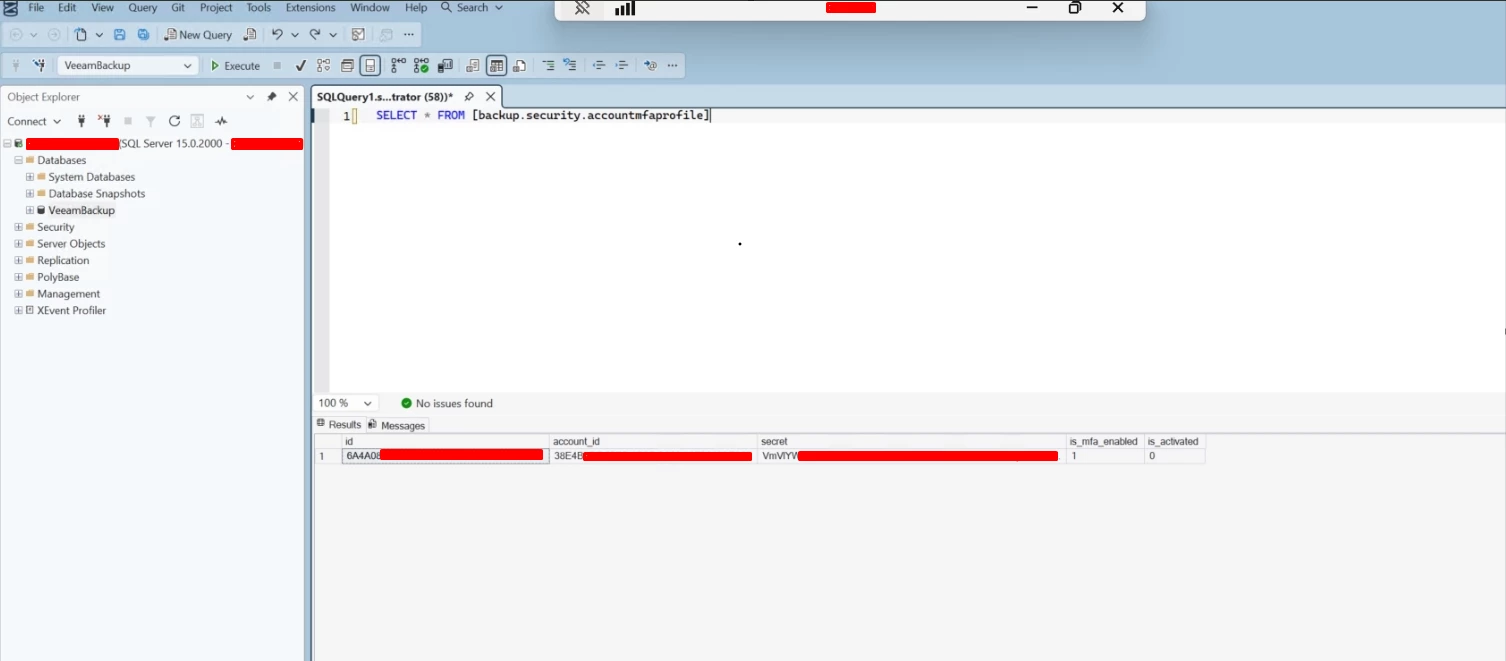
Be careful when collecting screenshots from this table.
Before publishing any image, hide sensitive information such as:
- Secrets
- Account identifiers
- Usernames
- Server names
- IP addresses
- Any other environment-specific information
This record should only be removed after the correct ID has been identified and the procedure has been validated with Veeam Support.
Step 5: Apply the database correction
After creating the database backup, confirming that no Veeam activities were running, stopping the services, and identifying the correct record, the following command was executed:
BEGIN TRANSACTION;

EXEC [mfaprofiledelete]
    @row_id = 'PASTE-THE-ID-HERE';

COMMIT;
Replace:
PASTE-THE-ID-HEREwith the value copied from the id column in the previous step.
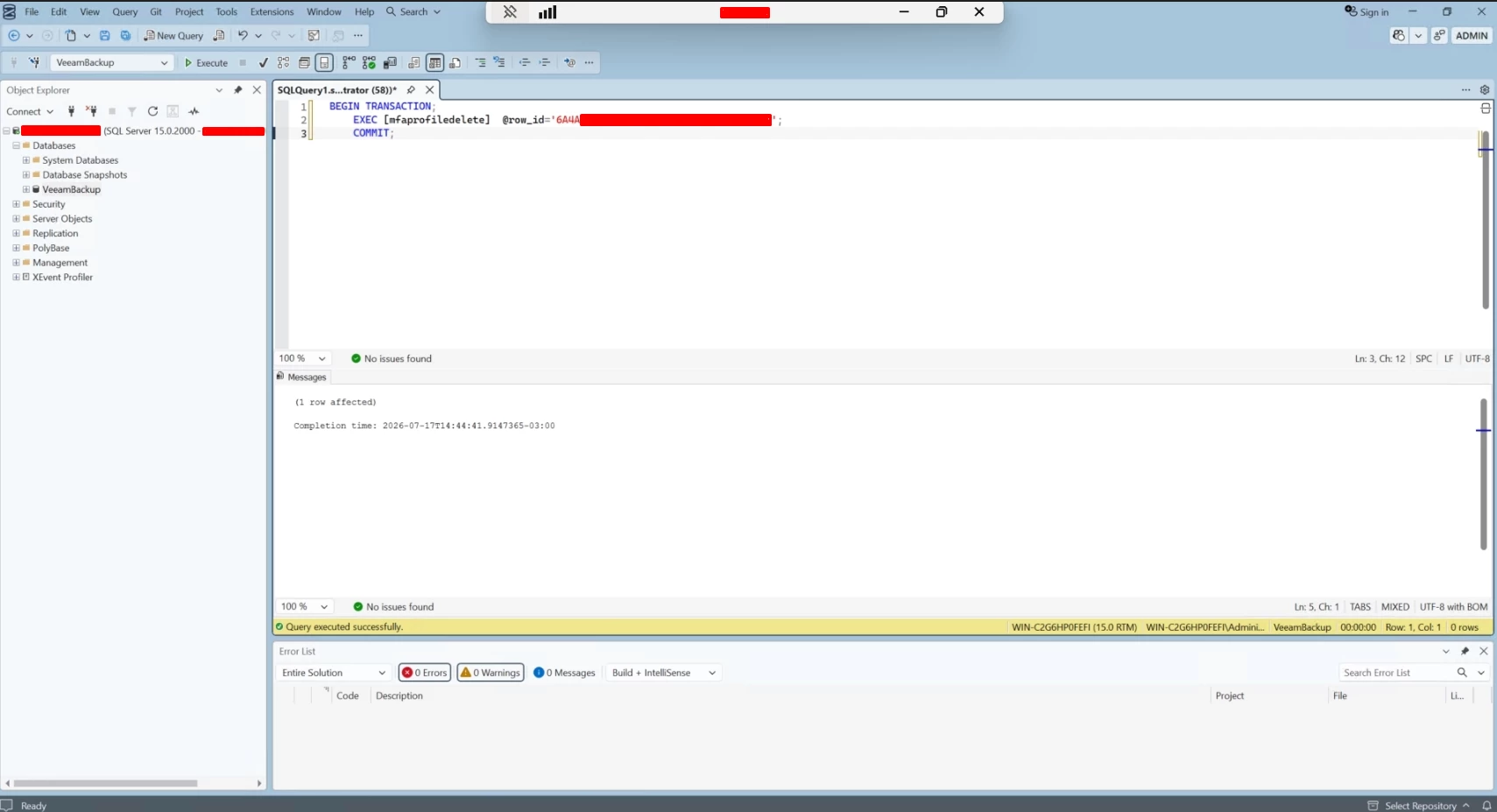
This command must only be executed against the specific record identified during the investigation.
Do not remove additional records or use this procedure as a general solution for other Veeam Configuration Backup errors.
Any direct modification to the Veeam configuration database should be reviewed with Veeam Support before being applied in a production environment.
Step 6: Restart the Veeam services
After completing the database correction, restart the Veeam services:
Get-Service Veeam* | Start-ServiceOpen Services.msc and confirm that the required Veeam services are running.
Then open the Veeam Backup & Replication console and confirm that it connects successfully to the backup server.
Step 7: Validate Users and Roles
The first validation was to access the Users and Roles section again.
After the correction, the section loaded successfully and the user management options became available again.
Validate the following:
- Existing users
- Assigned roles
- Permissions
- Access to the Veeam console
- Authentication for administrative accounts
- Ability to add, remove, and modify users
In this environment, existing users continued to authenticate normally after the correction.
Step 8: Run the Configuration Backup again
After confirming that Users and Roles was accessible, I manually started the Veeam Configuration Backup again.
This time, the session completed successfully.
The configuration data and catalog information were written to the backup file, and a new valid Configuration Backup restore point was created.
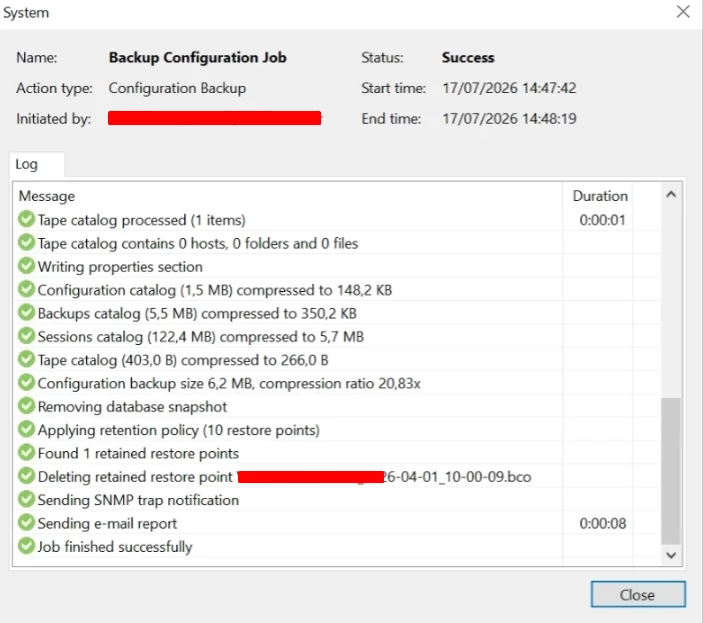
The result
After applying the correction:
- Users and Roles became accessible again.
- User and permission management returned to normal.
- Existing users continued to authenticate.
- The Veeam Configuration Backup completed successfully.
- A new valid Configuration Backup restore point was created.
- The configuration and catalog information were successfully protected.
The procedure resolved both symptoms observed in the environment:
- The Configuration Backup failure
- The inability to access Users and Roles
Why the Veeam Configuration Backup is important
A successful backup job protects workloads and business data.
The Veeam Configuration Backup protects the backup platform itself.
If the Veeam Backup & Replication server needs to be rebuilt, the Configuration Backup can significantly reduce the recovery effort by preserving information such as:
- Backup and replication jobs
- Backup repositories
- Proxy servers
- Managed infrastructure
- Credentials
- Security configuration
- Backup catalog information
- Session history
- Tape catalog information
- Users and roles
This is especially important when tape is part of the backup strategy.
Without the correct tape catalog information, tapes may need to be inventoried and cataloged again before Veeam can identify their contents.
Depending on the number of tapes and the amount of stored data, this process may take considerable time.
For this reason, the Veeam Configuration Backup should be treated as a critical protection job.
It should be monitored and validated just like any other important backup operation.
Final thoughts
The error:
Configuration database is corrupted.may suggest that the entire Veeam configuration database is damaged.
However, in this specific environment, the issue was resolved through a carefully validated correction of a record in the configuration database.
The inability to access Users and Roles was also an important troubleshooting clue.
Although existing users could still authenticate, the environment was at risk because user access could not be managed through the console.
If an administrator lost access to MFA, needed a permission change, or had to create an emergency account, the Veeam server could become difficult to administer.
The most important lesson from this case is not simply the database command itself.
The most important points are:
- Monitor the Veeam Configuration Backup.
- Investigate failures before they become a recovery problem.
- Protect the configuration database before making any changes.
- Confirm that no Veeam operations are running.
- Validate direct database procedures with Veeam Support.
- Test all affected functions after the correction.
- Confirm that a new valid Configuration Backup restore point was created.
Direct changes to the Veeam configuration database should always be treated as a last-resort and support-assisted procedure.
When performed carefully and in the correct scenario, the correction can restore both the administrative functionality of the console and the protection of the Veeam configuration.