
Hi everyone,
I would like to share a troubleshooting case that took me a few long days to resolve. I hope this can help someone facing a similar issue in the future.
The scenario was a VAW deployment to a customer Windows Server.
At first, the issue looked like a standard deployment or Windows Installer problem. The Veeam Backup & Replication server was able to reach the target server and upload the MSI package, but the Agent installation never completed.
The target server was also a bit unusual: it was heavily used through Remote Desktop sessions, with more than 60 users logged on. Because of that, it was not always easy to know if another MSI installation was really running, and we also had to perform all troubleshooting outside business hours.
First issue: another installation already in progress
The first error we saw from the VBR console was:
01/06/2026 22:34:43 Failed : [172.16.254.120] Installing package Veeam Agent for Windows Error: Another installation is already in progress. Another installation is already in progress.

01/06/2026 22:34:43 Succeeded : [172.16.254.120] Deleting temporary folder

01/06/2026 22:34:43 Failed : [172.16.254.120] Failed to install Veeam Agent for Windows: Unable to install package Veeam Agent for Windows on server 172.16.254.120 Error: Another installation is already in progress.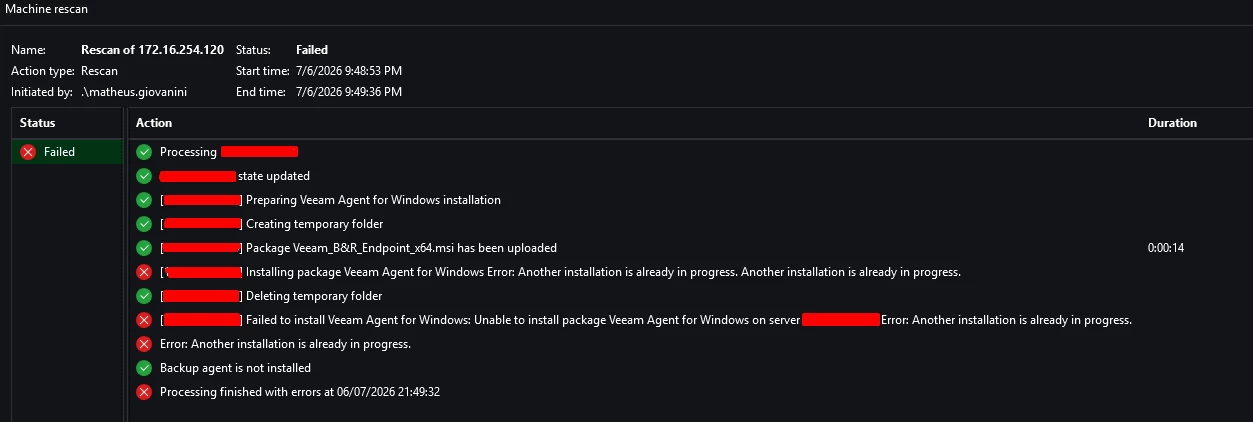
Since the server had many active RDS users, stopping or killing Windows Installer sessions was not something we could do casually. We had to wait for the approved maintenance window, check for active msiexec.exe processes, kill the stuck ones, and then retry the deployment.
To check for active Windows Installer processes:
tasklist /fi "imagename eq msiexec.exe" /vTo stop a stuck process:
taskkill /F /PID <PID>Or, if confirmed safe during the maintenance window:
taskkill /F /IM msiexec.exeSecond issue: timeout and locked MSI
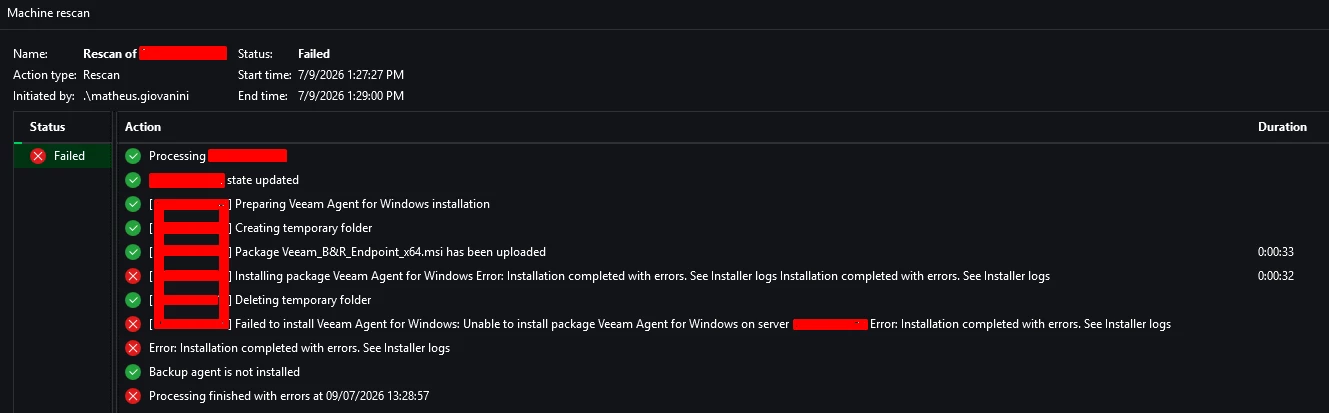
After clearing the stuck Windows Installer processes, we retried the deployment from the VBR console. This time, the MSI package was uploaded, but the installation ran for more than one hour and failed with a timeout.
6/29/2026 9:03:46 AM Succeeded : [172.16.254.120] Package Veeam_B&R_Endpoint_x64.msi has been uploaded (0:00:13)

6/29/2026 10:18:47 AM Failed : [172.16.254.120] Installing package Veeam Agent for Windows Error: Reconnectable socket: failed to receive data synchronously, timeout

Reconnectable socket: failed to receive data synchronously, timeout (1:15:00)
After that, Veeam also failed to delete the temporary MSI folder because the file was still locked by msiexec.exe:
Failed to delete file:
C:\Windows\Veeam\Backup\Upload\...\Veeam_B&R_Endpoint_x64.msi

File locked by:
C:\Windows\System32\msiexec.exe

Backup agent is not installed
At this point, every attempt took a long time, and because all actions had to be done outside business hours, the troubleshooting became even more difficult.

Moving to manual installation
Since the VBR console error was too generic, I decided to try a manual deployment to get a better installation log.
On the target server, I noticed that some Veeam components were installed, such as:
Veeam Installer Service
Veeam Backup Transport / Deployment components
But the VAW itself was not installed.
So I exported the installation files from the Protection Group. This package includes the required MSI/EXE files, XML files, certificates, and scripts used to register the Agent back to VBR.
Then I ran the MSI manually with verbose logging:
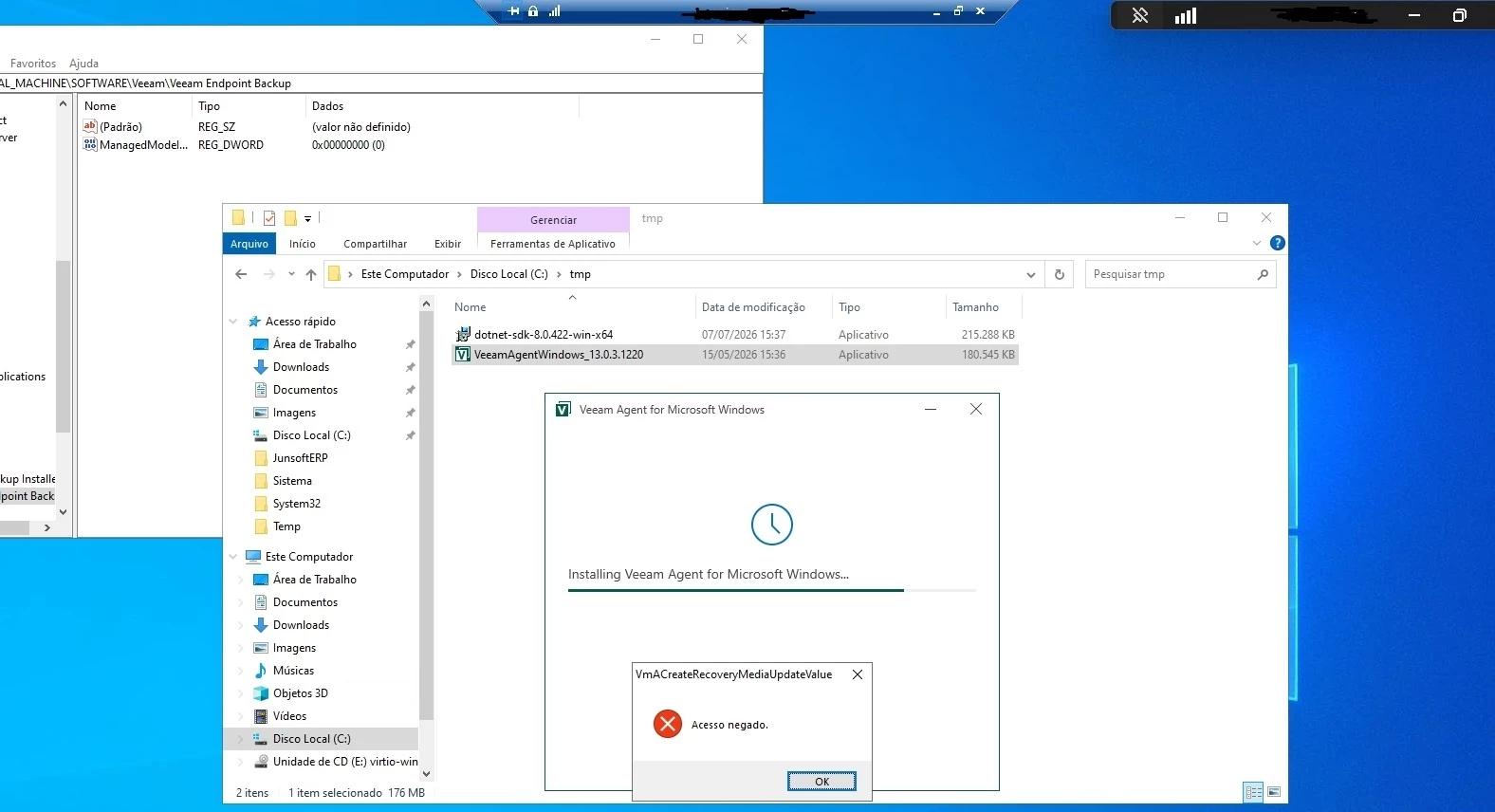
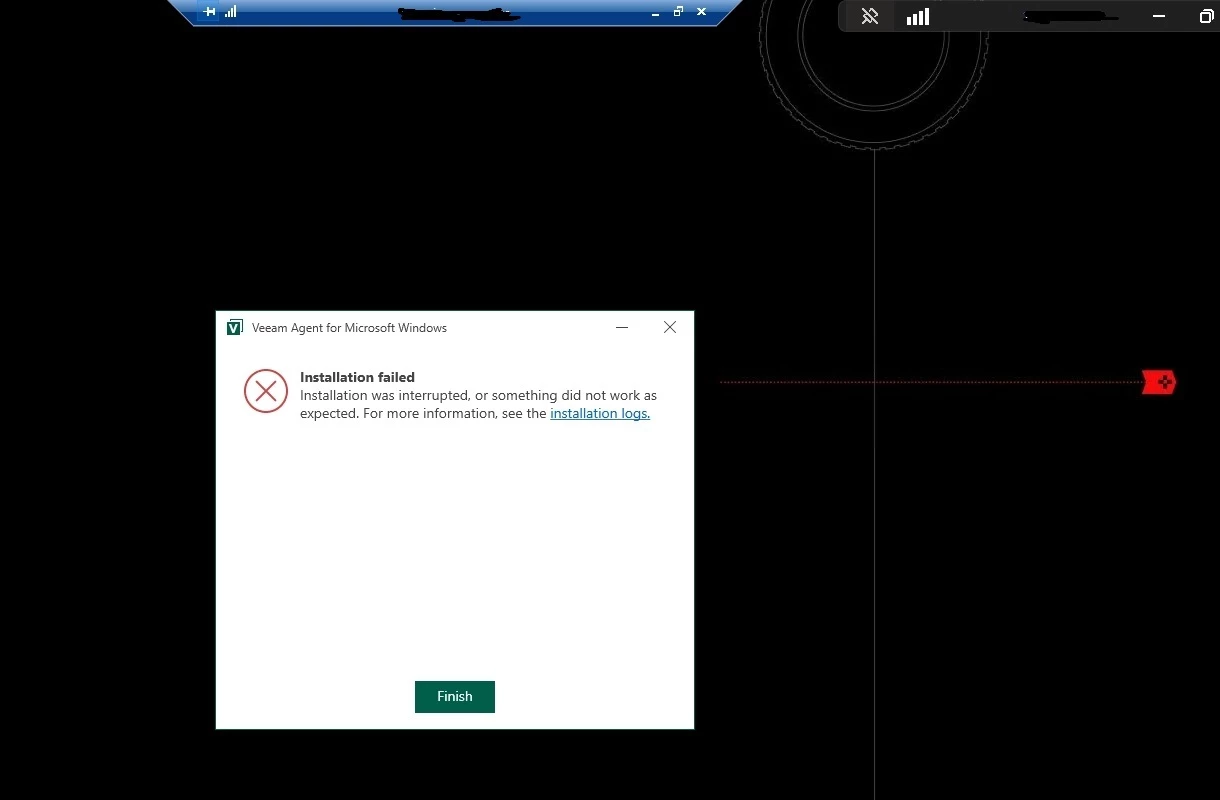
msiexec /i "Veeam_B&R_Endpoint_x64.msi" /l*v C:\Temp\VAW_install_manual.logThat is when I finally got a more identifiable error:
VmACreateRecoveryMediaUpdateValue
Access denied
The MSI verbose log also showed:
Product: Veeam Agent for Microsoft Windows -- Installation operation failed.
Installation success or error status: 1603.
MainEngineThread is returning 1603.
Return value 3.
At this point, the issue was no longer just “deployment timeout”. The installation was failing locally on the Windows server with Access Denied during a specific MSI custom action.
Using ProcMon
The next step was to use Process Monitor / ProcMon to understand what was really receiving Access Denied.
The first ProcMon filter I used was:
Process Name is msiexec.exe       Include
Result is ACCESS DENIED           Include
Later, I also used a broader filter:
Path contains C:\ProgramData\Veeam\Setup\Temp    Include
Result is ACCESS DENIED                         Include
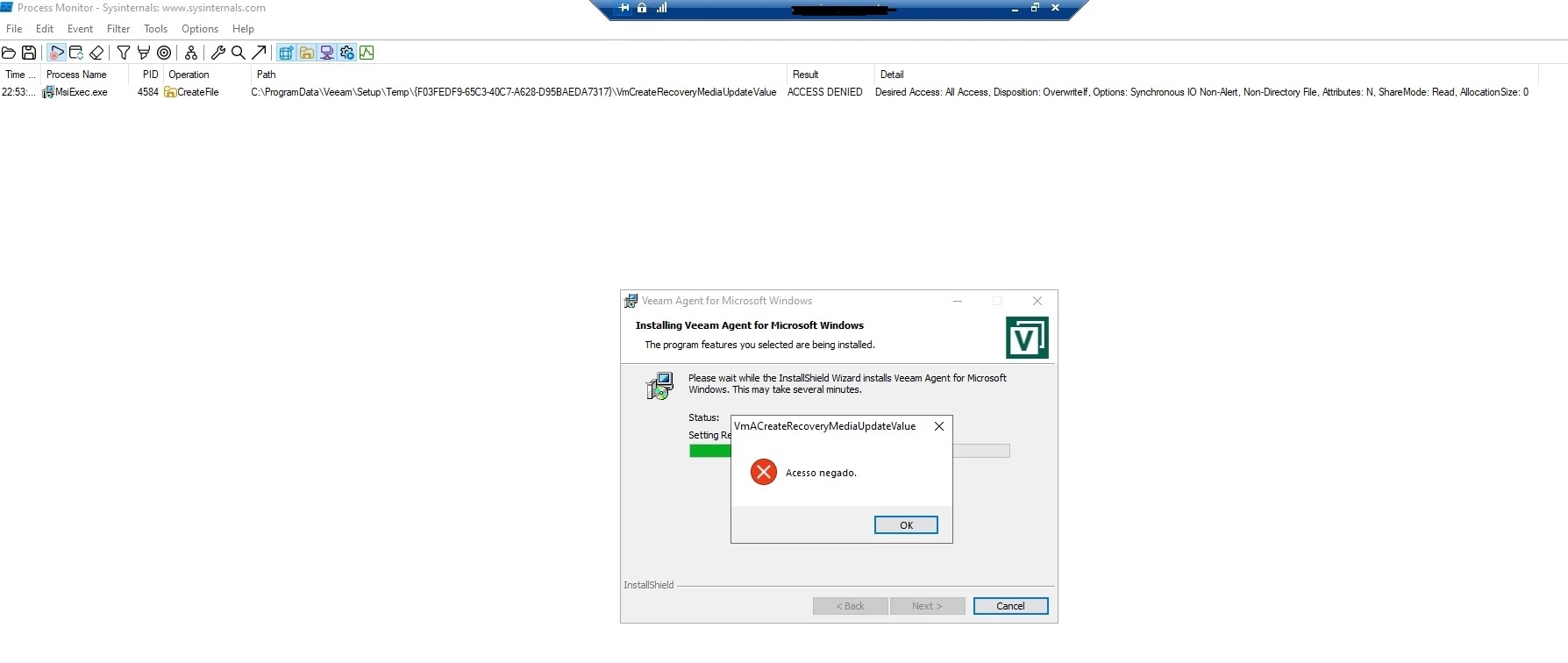
ProcMon showed Access Denied on a temporary Veeam setup component:
C:\ProgramData\Veeam\Setup\Temp\{GUID}\VmCreateRecoveryMediaUpdateValueThis matched the MSI custom action that was failing:
VmACreateRecoveryMediaUpdateValueAt first, I thought this could be related to NTFS permissions, GPO, antivirus, firewall, AppLocker, Software Restriction Policy, or something similar.
Checks performed
During the investigation, we checked several things:
- - Pending reboot registry keys
- - Windows Updates
- - Windows Installer service
- - Stuck msiexec.exe processes
- - Veeam Installer Service
- - Veeam Transport/Deployment services
- - Port 6160 connectivity
- - NTFS permissions on C:\ProgramData\Veeam\Setup\Temp
- - GPO result
- - Software Restriction Policies
- - AppLocker logs
- - Code Integrity logs
- - Defender/MDE events
- - ProcMon Access Denied events
Some useful commands used during the investigation:
Get-Service *Veeam*netstat -ano | findstr ":6160"Test-NetConnection <target-server-ip> -Port 6160Get-ItemProperty "HKLM:\SOFTWARE\Microsoft\Windows\CurrentVersion\Component Based Servicing\RebootPending" -ErrorAction SilentlyContinue
Get-ItemProperty "HKLM:\SOFTWARE\Microsoft\Windows\CurrentVersion\WindowsUpdate\Auto Update\RebootRequired" -ErrorAction SilentlyContinue
Get-ItemProperty "HKLM:\SYSTEM\CurrentControlSet\Control\Session Manager" |
Select-Object PendingFileRenameOperationsgpresult /h C:\Temp\gpresult.htmlreg query "HKLM\SOFTWARE\Policies\Microsoft\Windows\Safer\CodeIdentifiers" /sGet-WinEvent -LogName "Microsoft-Windows-AppLocker/EXE and DLL" -MaxEvents 100 -ErrorAction SilentlyContinue |
Select-Object TimeCreated, Id, Message |
Format-ListGet-WinEvent -LogName "Microsoft-Windows-CodeIntegrity/Operational" -MaxEvents 100 -ErrorAction SilentlyContinue |
Select-Object TimeCreated, Id, Message |
Format-ListEven after recreating the Veeam temporary folder and reapplying permissions, the installation still failed with the same Access Denied error.
So this did not look like a simple NTFS permission issue anymore.
The clue: filesystem filters
The command that finally gave us the right direction was:
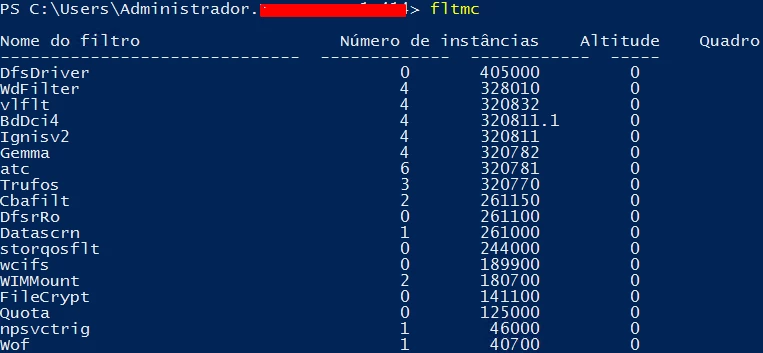
fltmc filtersThis command lists filesystem minifilters loaded in Windows.
In this server, we found filters such as:
Datascrn
WdFilter
Cbafilt
A brief explanation:
Datascrn  - File Server Resource Manager / File Screening
WdFilter  - Microsoft Defender filesystem filter
Cbafilt   - Carbon Black filesystem filter
These are not regular applications running in the foreground. They are filesystem filters loaded into the OS. Their job is to inspect, monitor, allow, deny, or control file operations at a lower level.
When these filters are enabled, they can intercept operations such as:
- File creation
- File execution
- MSI temporary custom actions
- Access to temporary setup folders
- Security-sensitive file operations
So even if NTFS permissions look correct, a filesystem filter can still block or interfere with an operation.
That was the missing piece.
Resolution
During an approved maintenance window, with the customer’s Microsoft/security team involved, the filters were temporarily unloaded.
The commands used were:
fltmc unload Datascrnfltmc unload WdFilterfltmc unload CbafiltAfter unloading these filters, the VAW installation completed successfully.
Then the filters were loaded again:
fltmc load Datascrnfltmc load Cbafiltfltmc load WdFilterAfter the Agent was installed, the backup job started and ran normally.
The important point is: in this case, the filters only had to be temporarily unloaded for the installation. After the Veeam Agent was installed, the filters were enabled again and the backup routine continued to work normally.
Important warning
Unloading filesystem filters can impact antivirus, EDR, file screening, DLP, or other security controls.
This should not be done without approval. In our case, it was done only during a maintenance window and with the customer’s Microsoft/security team involved.
Conclusion
This was a tricky case because the error looked like a normal Windows Installer or permission issue:
Access denied
Error 1603
Return value 3
But the root cause was related to filesystem filters intercepting the Veeam Agent MSI/custom action execution.
So if you ever face a Veeam Agent for Windows installation failure with:
VmACreateRecoveryMediaUpdateValue
Access denied
Error 1603
Return value 3
and the usual checks do not solve it, it may be worth checking the loaded filesystem filters:
fltmc filtersThis troubleshooting took several long days, with many attempts only possible outside business hours, but I hope sharing this path can save someone else some time.
Hope this helps!