

Veeam Backup & Replication 13.0.2 dropped yesterday — and if you manage a smaller environment where a single Windows Server hosts all the things (Proxy, Mount Service, vPowerNFS, Guest Interaction Proxy, you name it), you may have hit an annoying moment when tried to open the console after upgrading the VBR server.
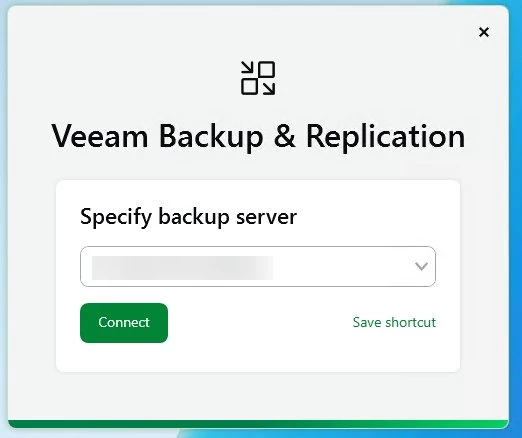
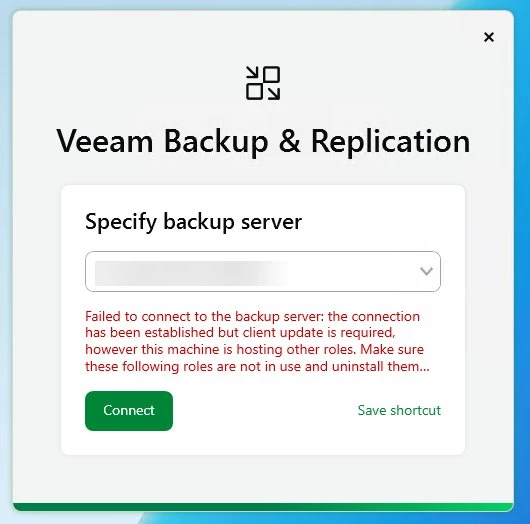
You open up the Veeam Backup & Replication console, enter your server's name, click Connect — and instead of the familiar dashboard, you get this:
| 
|
Failed to connect to the backup server: the connection has been established but client update is required, however this machine is hosting other roles. Make sure these following roles are not in use and uninstall them …
The message is accurate: the console client is older than the freshly updated server, and the in-place update mechanism wants you to remove other roles before it allows the console to update itself. In a larger, role-separated architecture that is fine — but in a compact single-server setup, that is a lot of unnecessary work.
Remove the roles, update, re-add the roles... nope 😥!
Thankfully there is a quick workaround, and it takes less than five minutes.
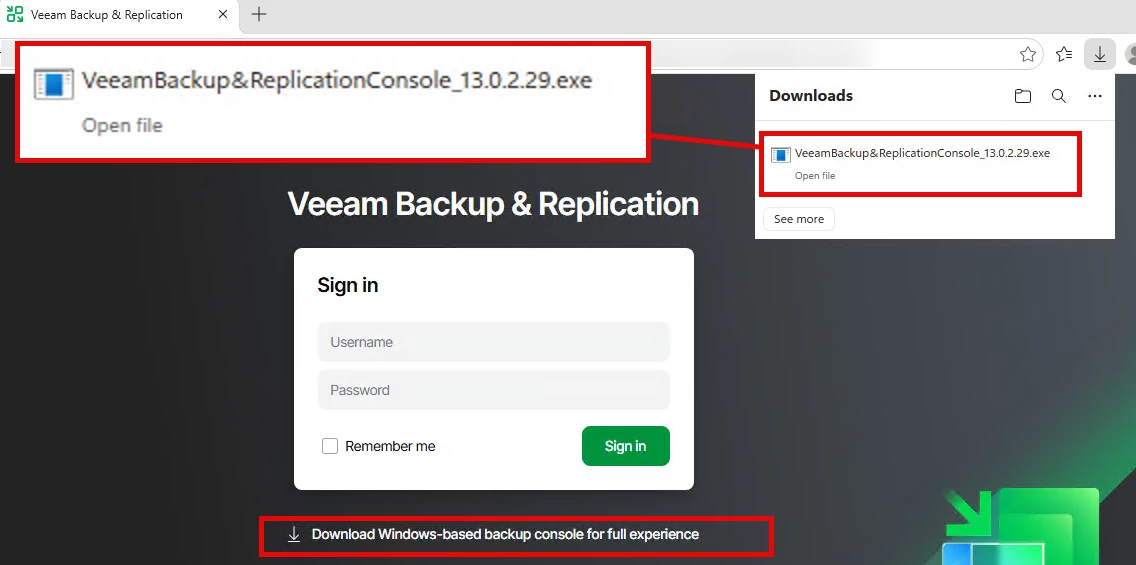
Starting with 13.0.2, Veeam has (finally!) made the current standalone console installer available directly on my.veeam.com. Previously, only the initial release version was downloadable there — to get an updated console you had to take the in-place update path. That limitation is gone now.
Step-by-step installation
It is a classic next-next-finish installation, you know the game...
Go to my.veeam.com → My Products → Additional downloads and download Veeam Backup & Replication Console Version 13.0.2.29
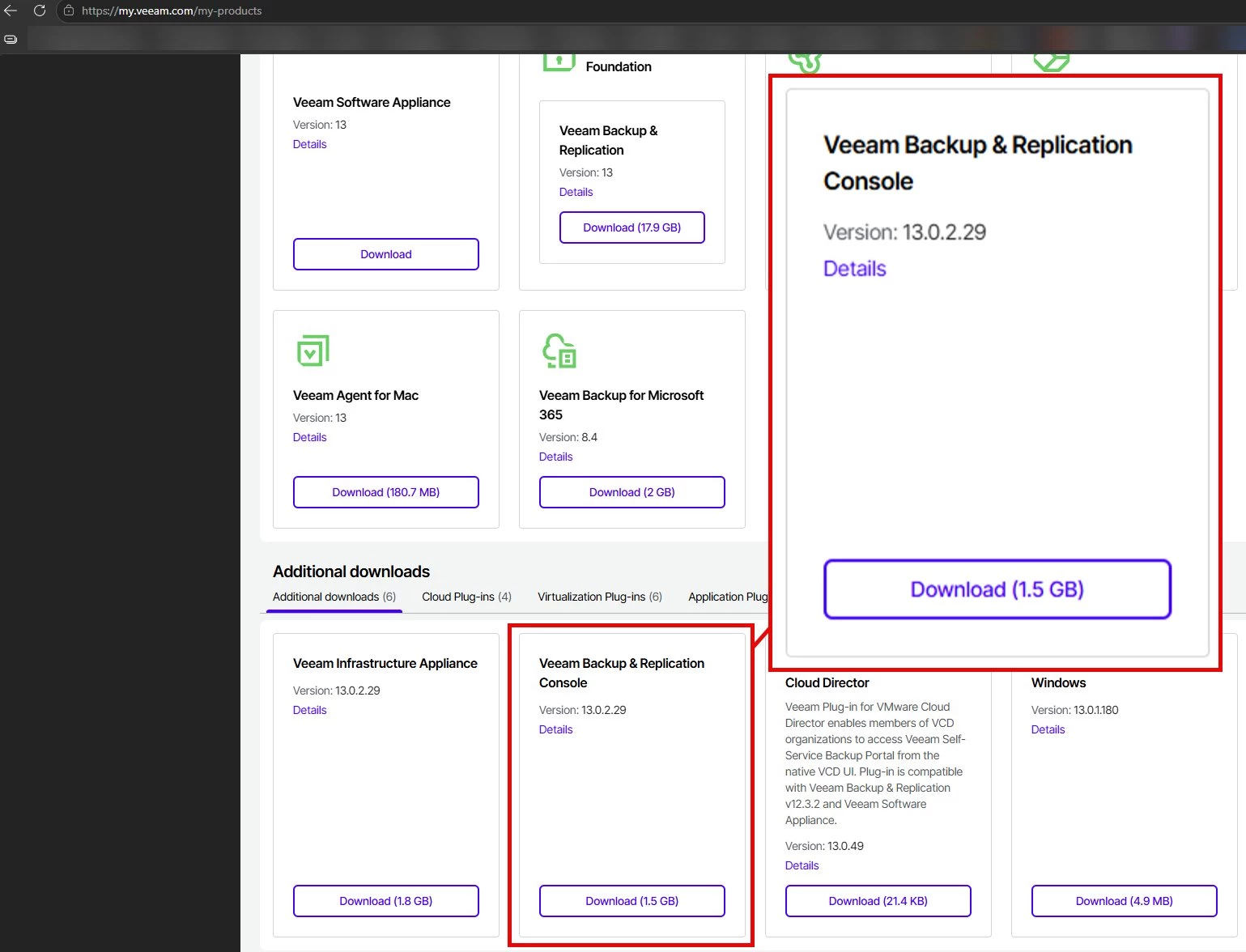
Run the installer on the machine where the old console is installed.
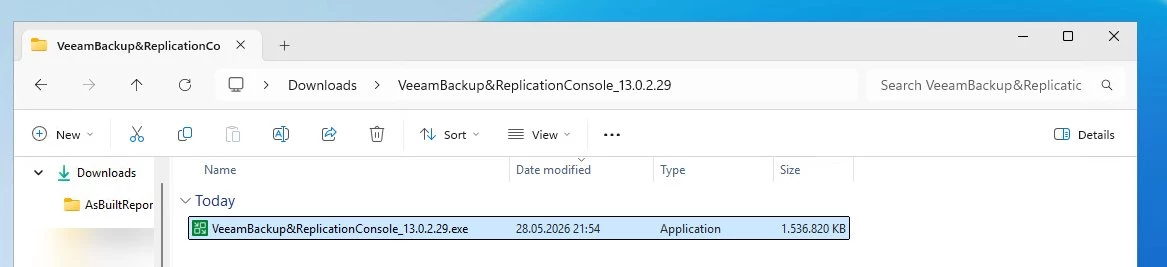
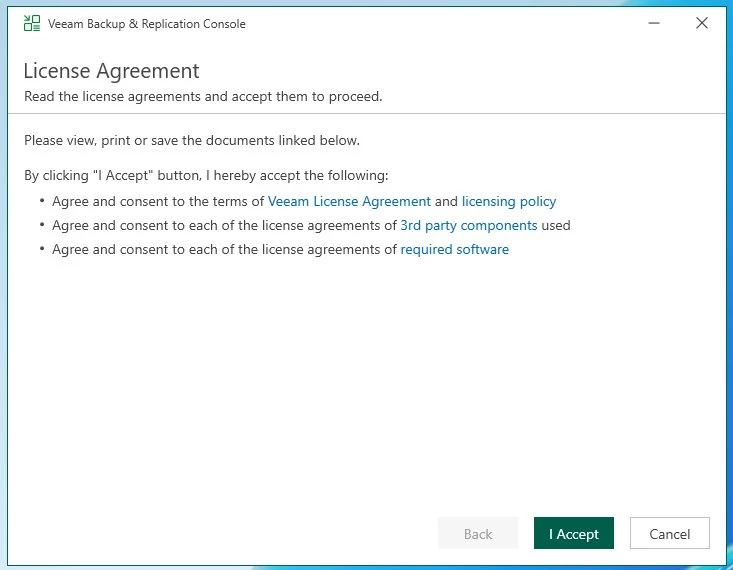
License Agreement — read! and click I Accept.
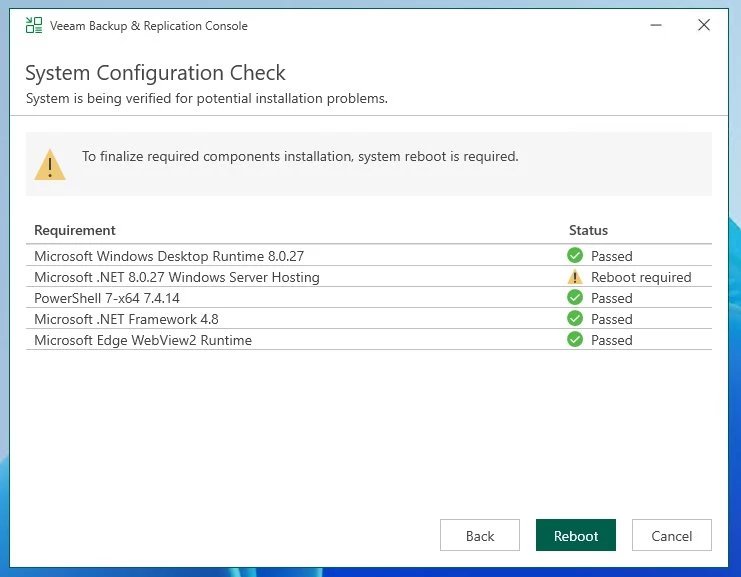
System Configuration Check — all requirements should pass. If .NET 8.0 Windows Server Hosting (in my case / or some other components) shows Reboot required, reboot first and re-run the installer.
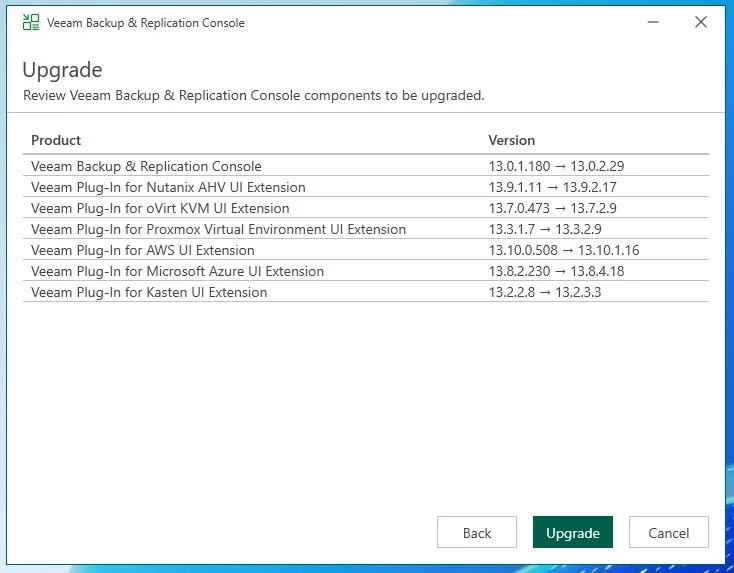
Upgrade summary — review the component list (see below) and click Upgrade.
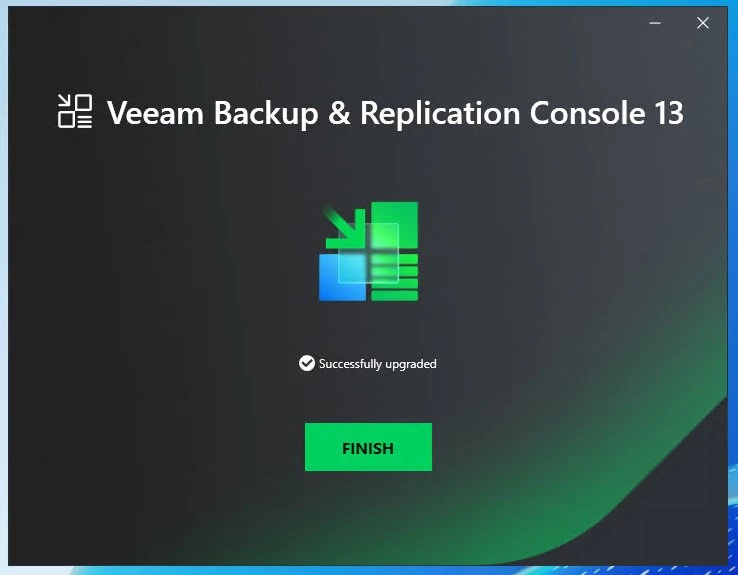
Finish — done. Connect to your VBR server as usual.
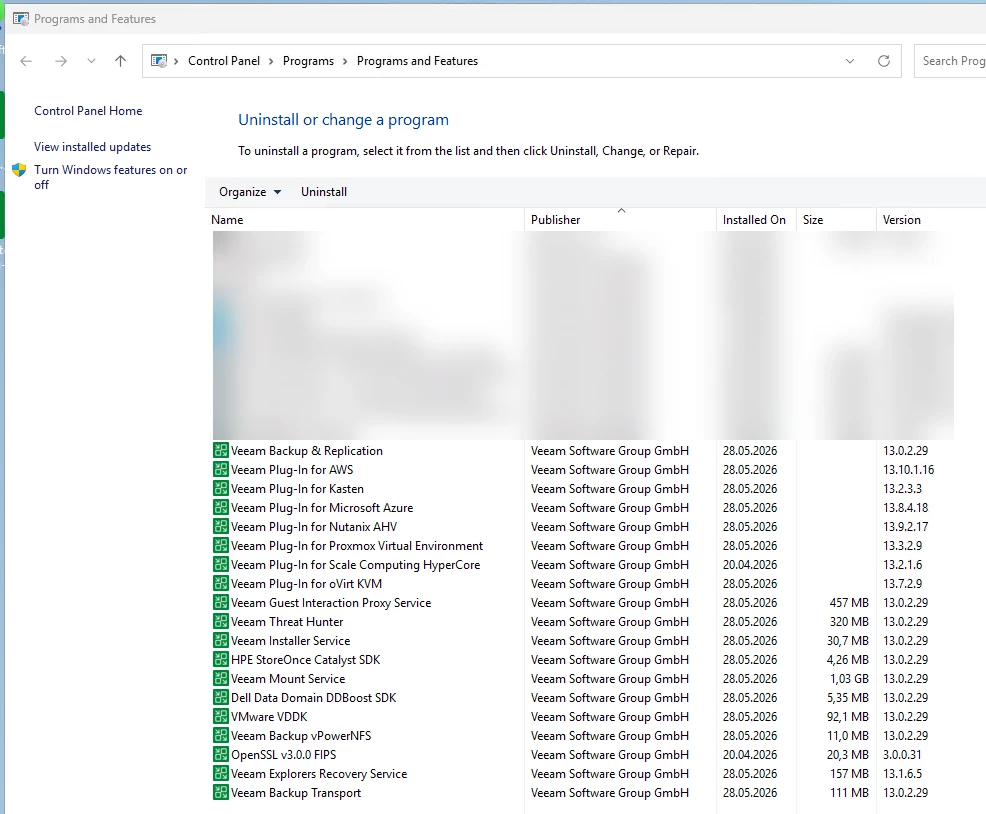
After the installer completes, check Programs and Features (appwiz.cpl) and see every Veeam component on the machine is now up2date.
Yep, lot of components got an update in this environment (on this All-in-one Proxy/Console system) ...
Additional notes:
Some problems who gave me a lot of PITA the last couple of weeks, are also addressed in the latest 13.0.2 release:
-
✅ OAuth error fixed — the persistent
"failed to connect to the backup server: unable to perform OAuth authorization: interaction_required"error is gone. -
✅ HA resource issues addressed — Creating a high availability cluster may reset the PostgreSQL
OOMScoreAdjustsetting, increasing the risk of the service being terminated by the operating system under memory pressure.
Hopefully a future release (13.0.3 / 13.1.) can handle this in-place console updates even when more roles/functions are in place — without having to work with this workaround 😉...
Happy connecting! I hope this saves you and maybe
See the full release notes of 13.0.2 here: KB4738 — Release Information for Veeam Backup & Replication 13 and Updates