
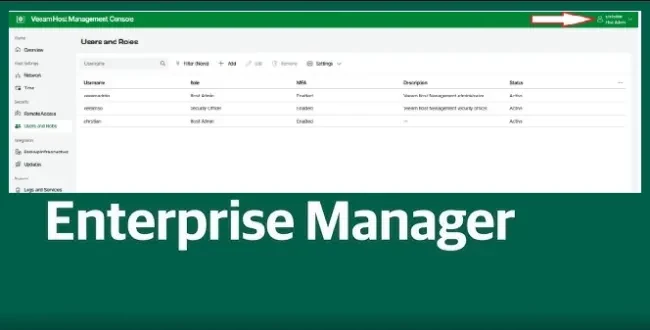
This article explains how to set up Veeam Backup Enterprise Manager (VBEM) and manage user roles. VBEM provides a centralized web-based management and reporting platform that allows administrators to control multiple Veeam Backup & Replication servers from a single console.
This article covers deployment steps, accessing the Enterprise Manager interface, and configuring user accounts with specific roles. The guide also highlights best practices for assigning permissions and securing access, ensuring efficient management of Veeam environments.
Since my goal is to create articles detailing every product and feature, today I bring you a walkthrough on how to set up Veeam Enterprise Manager and manage user roles.
How does VBEM fit into the broader Veeam ecosystem?
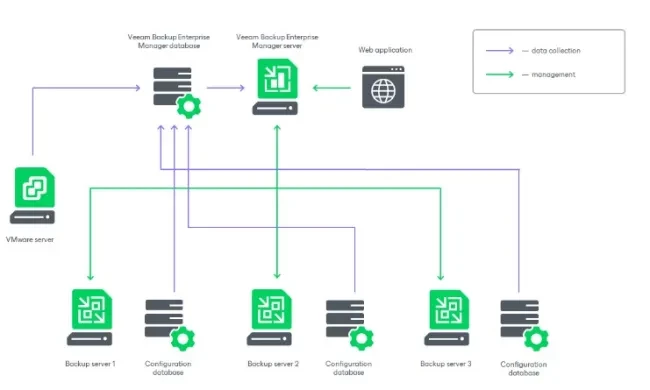
In architectural terms, VBEM is a centralised management and reporting layer as discussed above. It is positioned above multiple Veeam Backup & Replication instances, as shown in the image below.
- Data aggregation layer: Enterprise Manager retrieves configuration, job, and reporting data from one or more Veeam Backup & Replication servers via scheduled data collection jobs.
- Central store: Collected data is written to the Enterprise Manager database, providing a consistent, consolidated data store that can be accessed by users through the web interface.
- Control plane: Changes made through the Enterprise Manager web UI, such as editing jobs or managing licenses, are pushed back to the respective backup server’s own configuration database.
- User interface layer (Web UI): Administrators, help-desk staff, and self-service users access VBEM’s browser-based console to manage jobs, delegate permissions, view reports, search backups, and initiate restores.