



Considering hypervisor choice was a big topic for 2025, I wanted to spend a bit of time right before year end trying the new Windows Admin Center for myself. My main focus was host on-boarding and role based access.
With the Windows Admin Center Virtualization Mode preview the idea is to provide a better centralized hypervisor management experience for organizations. Looking to migrate, perhaps from other hypervisor platforms, where, perhaps, this type of tooling has historically been more mature.
Installation
For testing I used Windows Server 2025 (en-us), (2 CPU, 8GB RAM, 100GB disk). This was a completely clean install, the machine was domain joined to the same domain as the Hyper-V nodes I was accessing, but this shouldn’t matter.
I installed in order:
- VC++ Redistributable https://aka.ms/vc14/vc_redist.x64.exe
- WAC vMode Preview https://aka.ms/WACDownloadvMode
I used the custom setup option:
- Network access: Remote access. Use machine name or FQDN to access Windows Admin Center on other devices
- External Port: 443
- Generate a self-signed certificate (expires in 60 days)
- Set a Postgres password. It’s strange to me that SSPI (Windows integrated authentication) was not used.
- Set FQDN based on system DNS name.
- Trusted Hosts: Allow access to any computer
- WinRM over HTTP (not recommended in production)
- Install updates automatically and send required diagnostic data only
After that Windows Admin Center came up quite quickly.
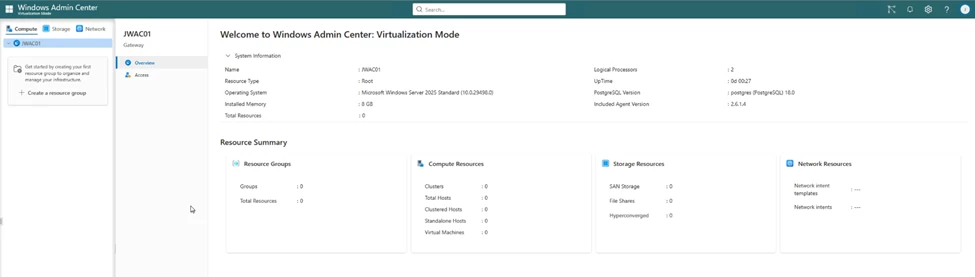
Resource Groups and Cluster Management
I created some resource groups to represent my different sites and then tried to add a Hyper-V cluster. Unfortunately, as this is a preview, only Server 2025 Hyper-V clusters and nodes are supported.
When adding a Server 2025 Hyper-V cluster this took about 5 minutes overall. Now I will say that I had to specify a Network Intent even if I did not really want to, as I’d set it up prior to using Windows Admin Center.
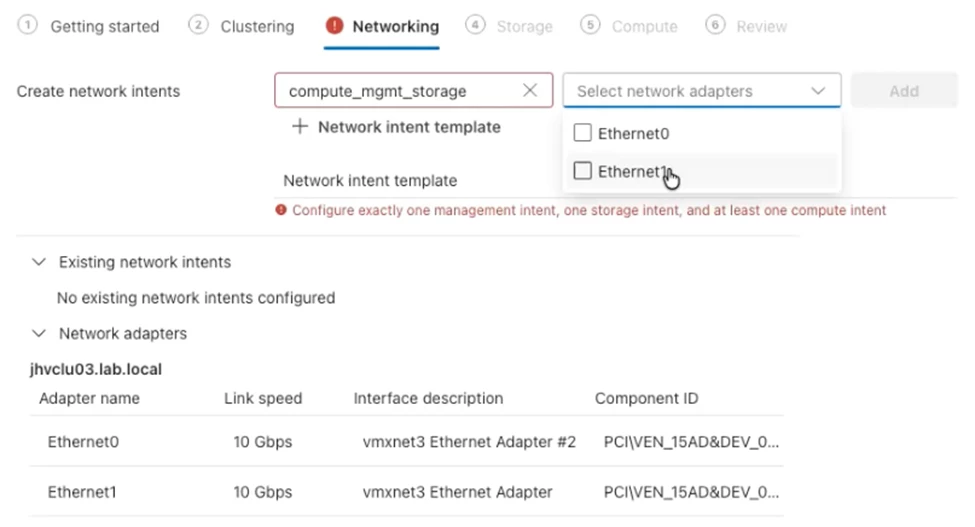
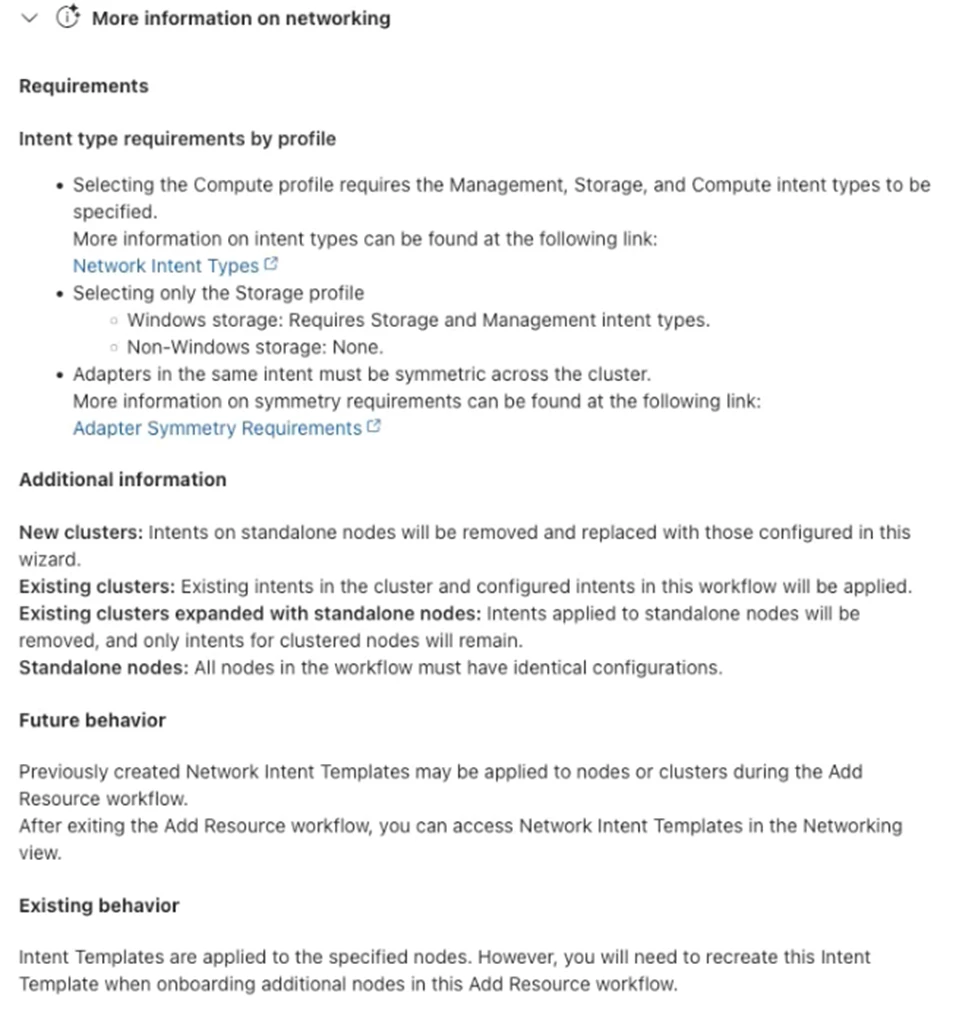
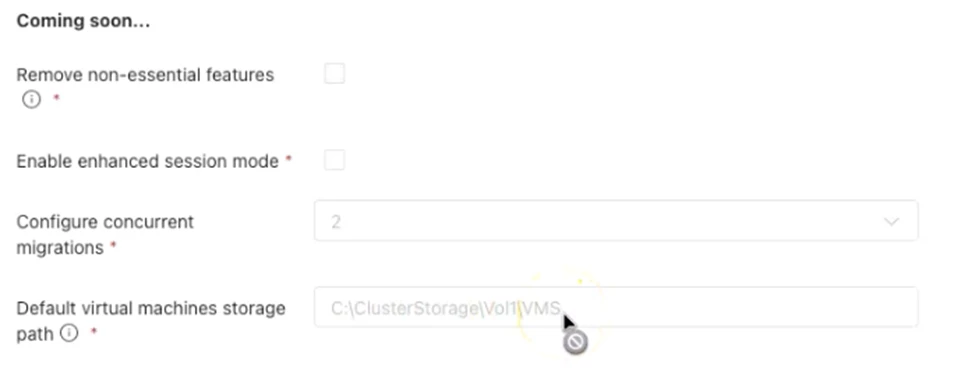
Future changes: At the bottom of the Network Provisioning screen there is a “More Information” section that indicates network configuration may improve in the future. The Compute screen includes placeholders for automatic removal of non-essential Windows Features, enabling enhanced session mode, setting up concurrent migrations, and specifying the default VM storage path.
Creating a Virtual Machine
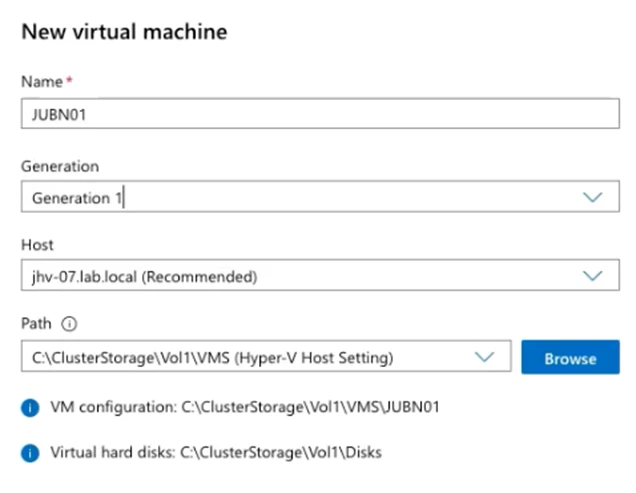
The good news is that creating a Virtual Machine is entirely straightforward and painless. For those of you using Windows Admin Center to manage Hyper-V today, this is very much the same experience you know and love today.
Role Based Access
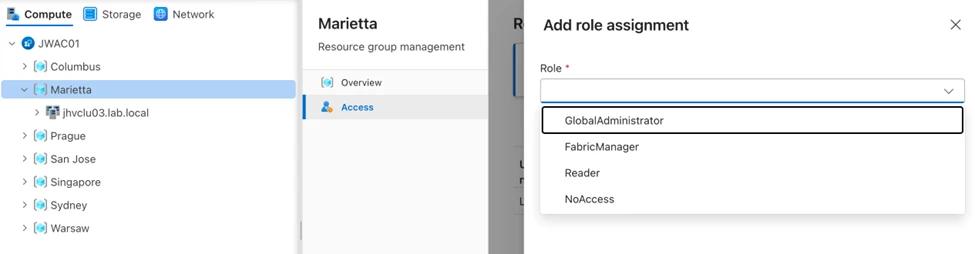
When logging into Windows Admin Center Virtualization Mode, you’ll notice roles have slightly different names than prior. When asking enterprise customers what their main reason for a good virtualization management tool is – aside from host lifecycle management, configuration and monitoring – is the ability to provide very granular access to virtual machines. Role Based Access Control (RBAC) for individual VMs is the number one reason enterprise virtualization management tools are used on a day-to-day basis after all.
Unfortunately, VM-level RBAC is not addressed by vMode for now. It is possible to use the Access extension to give granular access to host or cluster entities in the resource tree, but not to give access to individual VMs. Also keep in mind that opening a VM console in WAC means that any other console that is open on Hyper-V to the same VM is disconnected, no VM console sharing here.
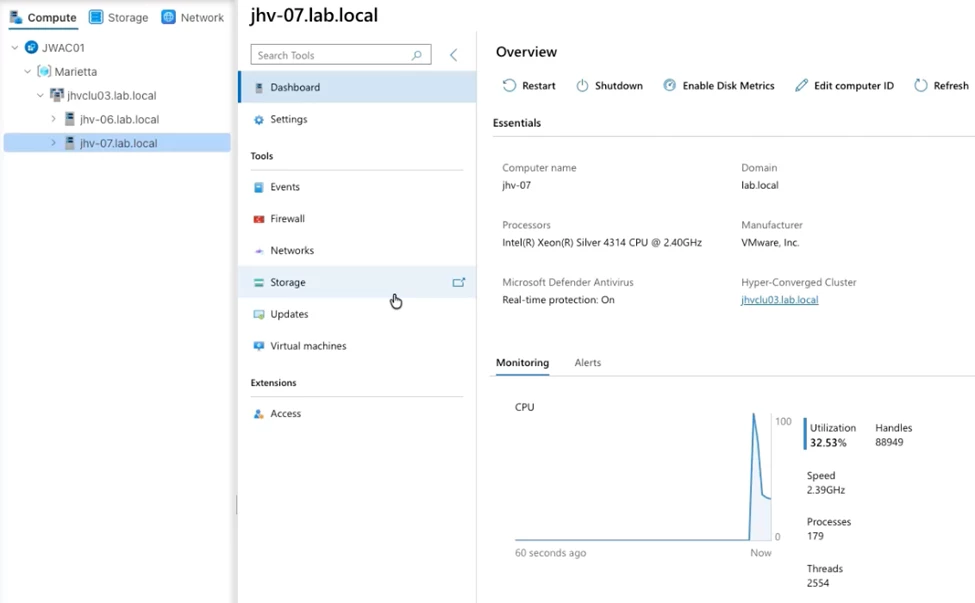
Somewhat frustratingly, granting Access via the extension in WAC does not mean host permissions are changed, so I had to go to the individual host and make my test admin account administrator there. Once that was done, granular access on a host level worked in WAC as well.

What’s Next
I’m excited to learn what new features are brought to Windows Admin Center Virtualization Mode next year – hopefully by March of 2026 there will be a new version to test. Based on what the team has said publicly, this new version should include:
- VM Templates
- Hyper-V Replica
- Azure Arc Integration
I really hope enterprise RBAC related features get some love in the next versions. I do expect however that as Windows Admin Center Virtualization Mode moves out of preview that cluster or host on-boarding respects existing configuration without trying to override it.
Most of all though – I’m excited to learn what the rest of the community thinks! Have you tried the new Windows Admin Center vMode? Will this change your plans around Hyper-V adoption?