

Greetings friends! Today I want to share something that has been on my mind for a while, and I finally decided to tackle it head-on. If you're running Veeam Backup for Microsoft 365 with object storage (Wasabi, AWS S3, Azure Blob, or any S3-compatible provider), you've probably asked yourself:
"How much space is each user actually consuming in my VB365 backup repository?"
And if you're like me, exploring the Object Storage, you've also asked:
"Wait... who is that GUID? And why is there data from an organization I deleted months ago still sitting there?"
Spoiler alert: I found several GB of orphaned backup data that I could safely delete. But more on that little adventure later. Let's go!
The Challenge: Understanding What's Really in Your Object Storage
Here's the thing. Veeam Backup for Microsoft 365 stores backup data in object storage using a folder structure based on GUIDs. If you've ever opened your S3 bucket or Azure container and looked inside, you'll see something like this:
Veeam/Backup365/1YEAR-SNAPSHOT/Organizations/
├── 62f12cdd-97d6-4dd8-bebf-ae5391ac034f/
│   ├── Mailboxes/
│   │   ├── 0836cb07-d0b9-479e-bd40-2d59066c124d/
│   │   ├── 39a316e6-6b5d-458d-8ce6-07742610dc34/
│   │   └── ...
│   ├── Teams/
│   └── Webs/
└── cafb2209-5d43-40c3-91b0-090b8a156058/
    └── ...
So many GUIDs! But which user is 0836cb07-d0b9-479e-bd40-2d59066c124d? Is it the CEO with 50GB of mail? Is it an old contractor account? And that organization ID at the top... is it even still active?
The Veeam Backup for Microsoft 365 console gives you some statistics, but when you're dealing with multiple repositories, multiple organizations, and you want a per-object breakdown, things get complicated fast.
The Solution: A PowerShell Script That Does the Heavy Lifting
I decided to build an unsupported script that:
- Connects directly to your object storage (S3/Wasabi or Azure Blob)
- Calculates the actual size of each Mailbox, OneDrive (Site), and Team
- Resolves those cryptic GUIDs to real human names using the PostgreSQL database
- Supports multiple repositories in a single run
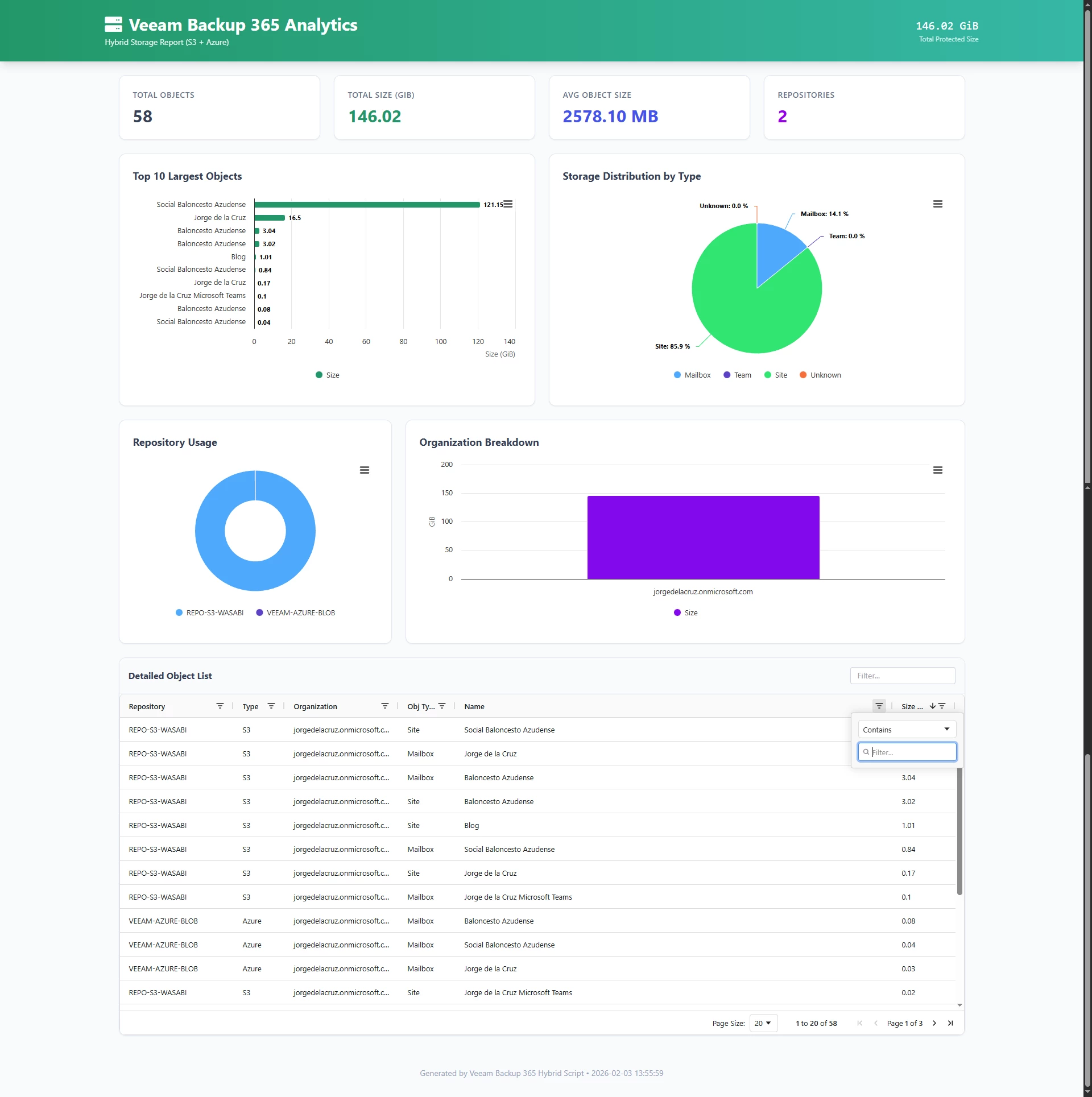
- Generates a beautiful HTML report with charts and an interactive data grid
The result? A complete picture of your backup storage consumption, broken down by repository, organization, object type, and individual user/team/site.
How It Works: The Architecture
Let me show you a simple diagram of how the script operates:
+-------------------------+      PostgreSQL (VeeamBackup365 + Cache DBs)
|  Get_VB365_Hybrid_Size  | ---> SELECT id, name FROM organizations/mailboxes/teams/webs
|        .ps1             |
+------------+------------+
             |
             v
+-------------------------+      Cloud Storage (S3 / Azure Blob)
|  List & Size Objects    | ---> List blobs, sum sizes per object
+------------+------------+
             |
             | writes
             v
+-----------------------------------+
| VB365_Hybrid_Report.csv           |  <- Raw data export
| VB365_Hybrid_Analytics.html       |  <- Interactive dashboard
+-----------------------------------+
The script uses SigV4 authentication for S3-compatible storage and SharedKey authentication for Azure Blob. It's completely agnostic – you can point it at AWS S3, Wasabi, MinIO, Backblaze B2, or any other S3-compatible provider.
The Unexpected Discovery: Orphaned Backup Data
Now, here's where it gets interesting. When I ran the script for the first time against my production/lab environment, I noticed something strange in the output.
I went to investigate and discovered that I had deleted a test organization several months/years ago from the Veeam console. The backup job was removed, the organization was disconnected... but the data in object storage? Still there. Quietly consuming storage. And because I had immutability enabled with a 30-day retention, some of those old backups weren’t removed before I deleted the org.
The result? I found approximately 80 GB of orphaned backup data across several deleted organizations and expired test accounts. After verifying that:
- The immutability lock had expired (the data was old enough)
- The organizations were genuinely deleted and not just renamed
- I had no compliance requirements to keep that data
I was able to safely clean up and reclaim that storage. Not a fortune, but when you're paying per GB on object storage, every bit counts!
💡 Pro tip: Run this script periodically. If you see organization names or user names showing as raw GUIDs, that's a red flag that something might be orphaned or misconfigured.
Setting It Up: Step by Step
Prerequisites
- Windows PowerShell 5.1+ or PowerShell 7
- Npgsql.dll (already installed with VB365 at
C:\Program Files\Veeam\Backup365\Npgsql.dll) - Network access to your PostgreSQL database and cloud storage
Step 1: Download the Script
Grab the script from my GitHub repository:
Step 2: Configure Your Repositories
Edit the $Repositories array at the top of the script. You can add as many as you need – the script will iterate through all of them:
$Repositories = @(
    # S3/Wasabi Repository
    @{
        Name      = "REPO-S3-WASABI"       # Must match the name in VB365!
        Type      = "S3"
        Region    = "eu-west-1"
        Bucket    = "veeam-wasabi-vb365"
        Folder    = "1YEAR-SNAPSHOT"
        Endpoint  = "https://s3.eu-west-1.wasabisys.com"
        AccessKey = "YOUR_ACCESS_KEY"
        SecretKey = "YOUR_SECRET_KEY"
    },

    # Azure Blob Repository
    @{
        Name        = "VEEAM-AZURE-BLOB"   # Must match the name in VB365!
        Type        = "Azure"
        AccountName = "yourstorageaccount"
        Container   = "veeam365-container"
        Folder      = "Veeam"
        AccountKey  = "YOUR_BASE64_KEY"
    }
)
Step 3: Configure PostgreSQL
$DbHost = "127.0.0.1"    # Your VB365 server
$DbPort = 5432
$DbUser = "postgres"
You can set the password via environment variable ($env:PGPASSWORD) or the script will prompt you.
Step 4: Run It!
.\Get_VB365_Hybrid_Size.ps1The script will:
- Discover the cache database for each repository
- Build GUID-to-name mappings
- Scan each repository's object storage
- Generate the CSV and HTML reports
The Output: What You Get
CSV Report
A clean, machine-readable file with all the details:
| RepoName | RepoType | OrgId | OrgName | Type | Name | Id | Bytes | GiB |
|---|---|---|---|---|---|---|---|---|
| REPO-S3-WASABI | S3 | cafb2209... | jorgedelacruz.onmicrosoft.com | Mailbox | Jorge de la Cruz | 291b10fd... | 1234567890 | 1.15 |
HTML Dashboard
An interactive dashboard with:
- KPI Cards: Total objects, total size, average size, repository count
- Charts: Top 10 largest objects, storage by type, repository usage
- Data Grid: Full searchable, sortable, filterable table with AG Grid
Privacy Mode: Masking Names
If you need to share the report externally (with a vendor, for capacity planning, etc.), you can enable name masking:
[bool]$MaskNames = $trueThis transforms names like Jorge de la Cruz into Jor*****, keeping the data useful for analysis while protecting user privacy.
Final Thoughts
This script has become an essential part of my VB365 toolkit. It helps me:
- Understand storage consumption at a granular level
- Identify heavy users who might need attention
- Detect orphaned data from deleted organizations
- Plan capacity across multiple repositories
- Generate reports for management and audits
And that little discovery of orphaned backups? It reminded me that cloud storage isn't "set and forget." Regular audits are essential, especially when you're dealing with Microsoft 365 data protection at scale.
I hope you find this useful! As always, the script is on GitHub, feel free to use it, fork it, improve it. And if you find any orphaned data in your environment... well, at least now you have a tool to discover it! 😄
Thank you very much for reading! If you have questions or suggestions, drop them in the comments.