

Renaming backup jobs.

  • December 16, 2024
  • 13 comments
  • 1828 views

Scott
Forum|alt.badge.img+9

I have a lot of jobs that are getting a new naming convention. 

The old way to do this was remove from the job from the configuration, modify the folder name on the repository, rename the job, rescan the Repo, then map the back files to the job.   I found there is an updated way to do this and is a welcome feature to save time. 

To go one step further, it is not recommended to use the remove/rescan method due to the fact the files get new identifiers that cause the restore points to be seen as new data by all tape and cloud storage offload jobs. 


To test it, lets create a new job.

In my case it’s called “___TEST_NAME_CHANGE” to keep it at the top of my screen.
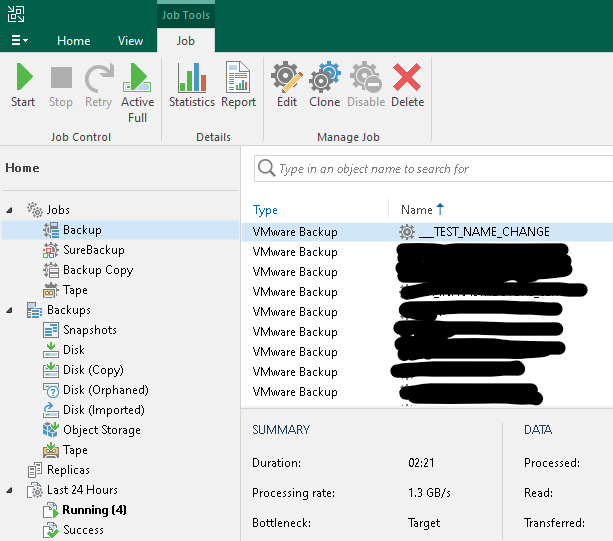


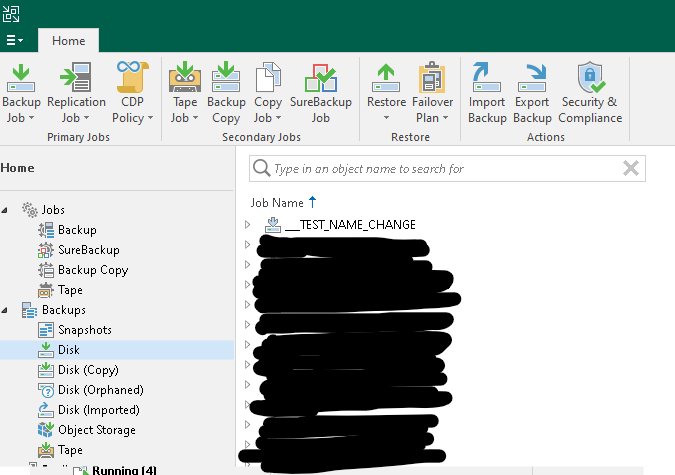
Next, after running a job, we will click “Disk” on the left to make sure there is a backup on the Repository. It’s similar, but it’s not quite the same screen. 😉


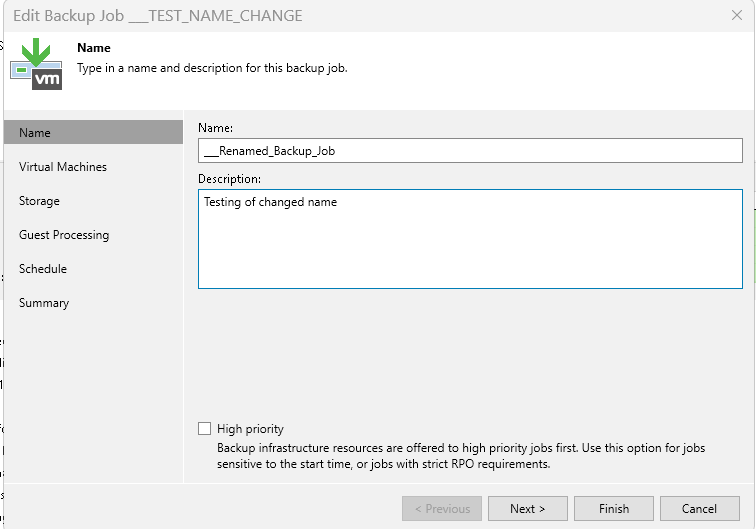
Now, return to the Backup page, right click your Backup job, click edit, and lets rename it. 


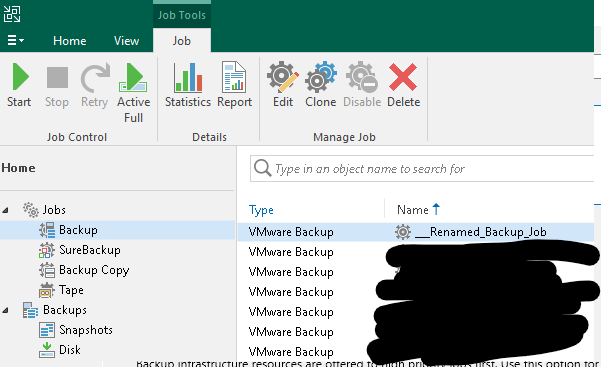
On the Backup Job page you can see it’s been renamed. 


On the Disk page we see it has the old name still. It doesn’t update here automatically. 
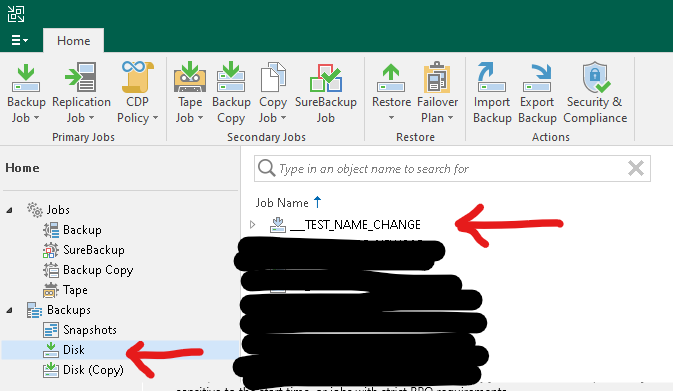


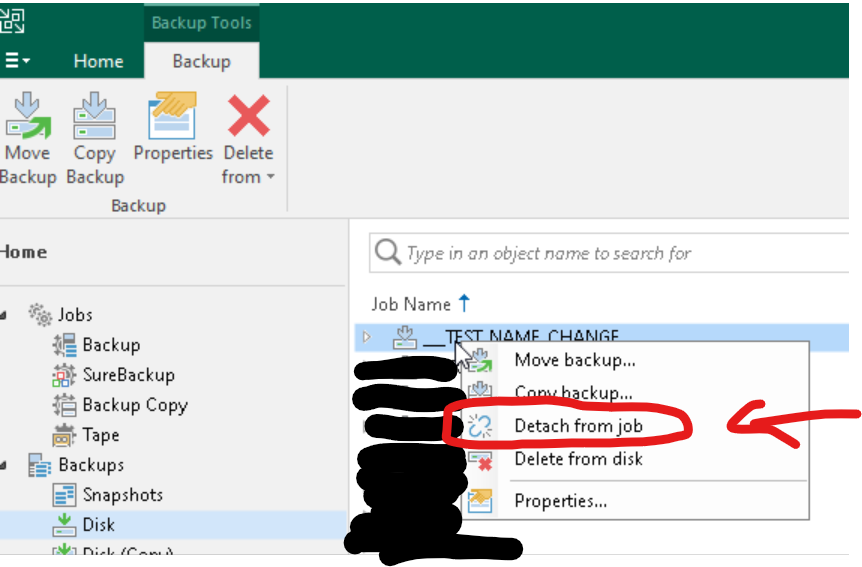
Right click the backup on this page, then click detach from job. 


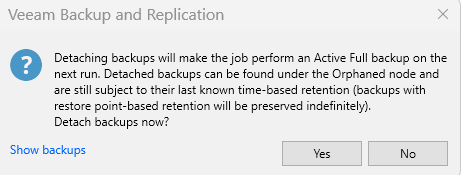
Agree to the warning letting you know the next run will be an active full and the detached backups will be found under the Orphaned node. 


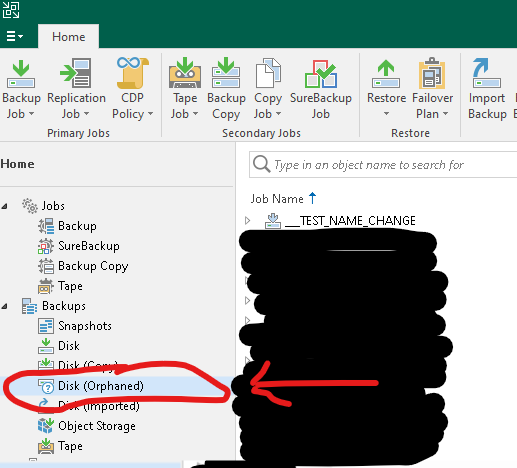
To verify, check the Orphaned section to see if the job is there. Notice it’s still using the old name. 

Now lets go back to the Backup page one more time. 


On the Backup page, right click the job and then click Storage. Here you will see the “Map backup” option 
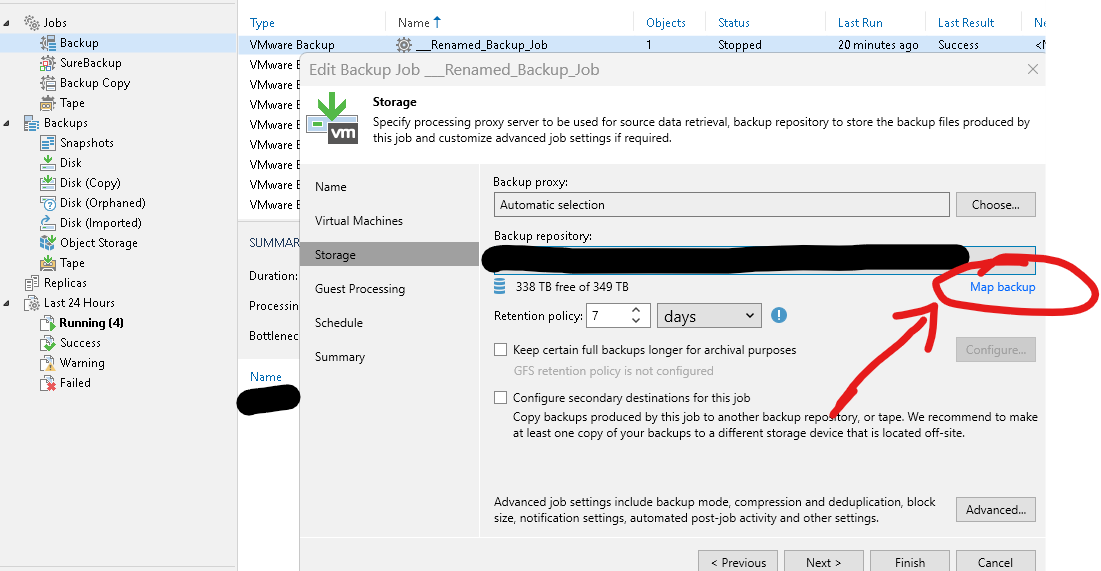


Map the job back to the detached backup. (original name) 
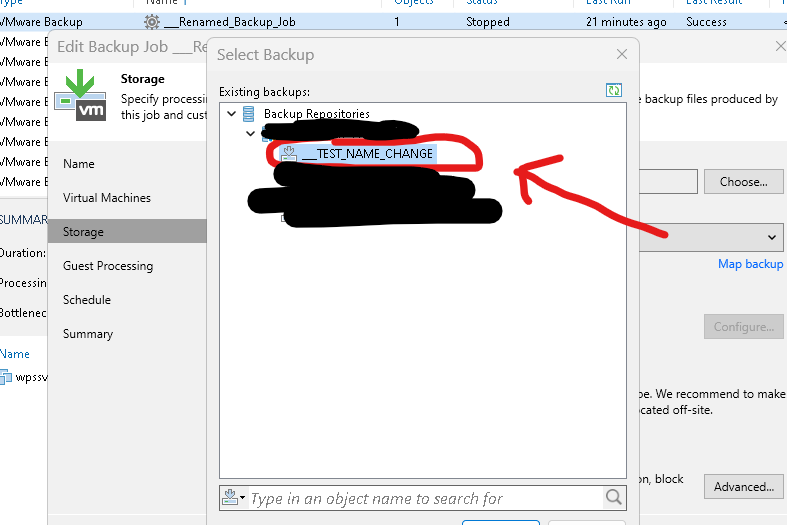


And success. Looking at the backup under Disk we see the job as been renamed.   
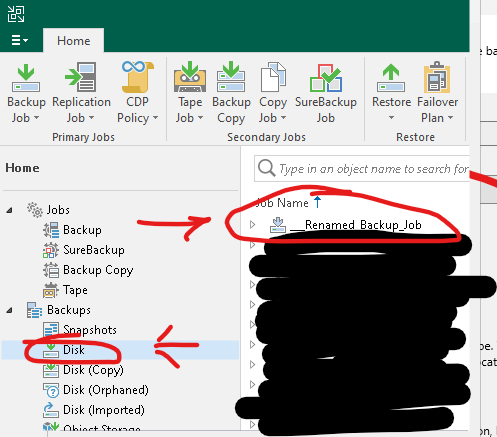


No rescan necessary or logging into the Veeam repository servers and manually renaming folders. This is a large time saver when you have many jobs. 

My next step will be using PowerShell to do this in scale without the extra steps required. 



13 comments

Chris.Childerhose
Forum|alt.badge.img+21
  • Veeam Legend, Veeam Vanguard
  • December 16, 2024

This is such a finicky process too bad it was a bit simpler.  Nice write-up though Scott. 👍🏼


coolsport00
Forum|alt.badge.img+21
  • Veeam Legend
  • December 16, 2024

Ohhh... I like that. I don't rename jobs hardly....think I've had to only once, but was indeed a pain. Really appreciate the share Scott. 👍🏻


HunterLAFR
Forum|alt.badge.img+8
  • Veeam Legend
  • December 17, 2024

Love it!

But I normally re-setup jobs cause they are not that massive in storage like yours!

Will keep it in mt knowledge base just in case!

cheers!


Scott
Forum|alt.badge.img+9
  • Author
  • Veeam Legend
  • December 17, 2024

This is such a finicky process too bad it was a bit simpler.  Nice write-up though Scott. 👍🏼

It’s much better now not having to log into the Repo and change the folder name / rescan the Repo. Changing all of my copy jobs too it worked well. 


Scott
Forum|alt.badge.img+9
  • Author
  • Veeam Legend
  • December 17, 2024

Ohhh... I like that. I don't rename jobs hardly....think I've had to only once, but was indeed a pain. Really appreciate the share Scott. 👍🏻

With new storage it was time to fix some of the old jobs and move a few VM’s around to optimize things so renaming made sense. I’m very happy it’s a better process now. 


Scott
Forum|alt.badge.img+9
  • Author
  • Veeam Legend
  • December 17, 2024

Love it!

But I normally re-setup jobs cause they are not that massive in storage like yours!

Will keep it in mt knowledge base just in case!

cheers!

100%.  Renaming 50TB > Active full.  

It’s not a huge deal if the names don’t match the backups totally, but my brain likes things to be organized and named correctly. It helps prevent any doubt or mistakes when things get stressful. 


waqasali
Forum|alt.badge.img+4
  • On the path to Greatness
  • December 18, 2024

this is the process i try before and it works with me but as you mentioned with power shell once u perform please also share with me thank you in advance.


MarcoLuvisi
Forum|alt.badge.img+6
  • VUG Leader
  • December 18, 2024

Thanks ​@Scott for sharing this procedure.


AndrePulia
Forum|alt.badge.img+9
  • Veeam Vanguard
  • December 30, 2024

Hi ​@Scott , nice cookbook, thank you for the recipe :-)


dloseke
Forum|alt.badge.img+8
  • Veeam Vanguard
  • February 3, 2025

This is good information.  That said, I’m assuming the underlying folder in the backup repository still is not renamed.  My assumption is that if you disconnected the job, renamed the folder and then rescanned the repository that maybe you’d be able to import the restore points into the job and remap, but I’m wondering if it’ll make the connection if it would be seen as new data.  I suspect that might be the case.


Scott
Forum|alt.badge.img+9
  • Author
  • Veeam Legend
  • February 4, 2025

This is good information.  That said, I’m assuming the underlying folder in the backup repository still is not renamed.  My assumption is that if you disconnected the job, renamed the folder and then rescanned the repository that maybe you’d be able to import the restore points into the job and remap, but I’m wondering if it’ll make the connection if it would be seen as new data.  I suspect that might be the case.

Something tells me, it might have renamed the folders, but I can’t fully remember.

If not, after I renamed it and detached it, I’d just rename the folder at that time before attaching it back.

I recall seeing something during testing thinking “wow, that’s cool” and it might have been the folder name though. 


  • Comes here often
  • November 26, 2025

My next step will be using PowerShell to do this in scale without the extra steps required. 



I’ve taken my own stab at doing this via PS, and it seems to be a lot more complicated than I expected.  Did you ever get it working?


Scott
Forum|alt.badge.img+9
  • Author
  • Veeam Legend
  • November 26, 2025

Sorry, i didn’t have a requirement to and it’s been an extremely busy year for me. 


To think of how I’d start, I’d locate the PS command to detach the backup from the job, (and map a backup to a job)

You’d likely want a for each statement to call all the backup jobs where the disk mapping has a different name than the backup job. You’ll also want to save this as a variable for later. 

Manually rename all your jobs, it’ll go and detach the jobs where you just changed them as the name is different, and remap them to the name stored in the variable from before. 

I’d also consider having some error checking added to you can approve it without it doing crazy stuff in your backup environment. Additionally test each command manually on test jobs. 


If you only have a few jobs, or this isn’t a frequent task, I wouldn’t want to play around with scripts in my Veeam environment without trusting them and knowing what they are doing.  Just be careful if you find anything online someone recommends and verify the commands on your own before running it.