

Status: 19.10.2026
Note: Information and links you can find at the end of this post
Version: Veeam Enterprise Manager 12.3.2.4934
Introduction:
Recently I got an interesting service request from a colleague.
It mentioned that in one environment, the job details in Veeam Enterprise Manager showed two different time stamps for the same event: one correct and one wrong.
That sounds a little bit confusing at first, but let's get into detail.
Problem:
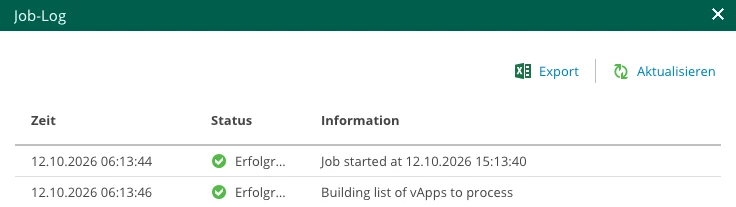
On the left side, the time from Veeam Enterprise Manager is shown.
On the right side, the time from the Veeam Backup Server is shown.
As you can see, there is a time offset of exactly nine hours between these two time stamps.
The Veeam Backup Server shows the correct time.
Both systems are located in the time zone Europe/Berlin.
In general, this offset does not impact the functionality of the backup.
Solution:
The reason for this time discrepancy is the time zone setting of the PostgreSQL database, which was installed when Enterprise Manager was set up.
Probably the underlying Windows operating system had the wrong time zone configured during setup, and PostgreSQL adopted it.
The offset of nine hours results from the difference between America/Los_Angeles (Pacific Time, the default time zone of many English Windows installations) and Europe/Berlin.
To check whether your system is affected, open the PostgreSQL configuration file and search for the time zone entry.
To fix this, you have to adjust the PostgreSQL configuration file.
Before doing this, I recommend scheduling a maintenance window, as a complete reboot is recommended.
If Enterprise Manager runs on a virtual machine, a snapshot is also recommended.
By default, the PostgreSQL configuration file is located at: C:\Program Files\PostgreSQL\15\data\postgresql.conf
(The version number in the path may differ depending on your installation.)
Create a backup of the configuration file: C:\Program Files\PostgreSQL\15\data\postgresql.conf.backup
Change the following lines to your time zone with an editor of your choice:
| Current Value | Current Value |
|---|---|
|
|
|
|
|
|
Reboot Enterprise Manager.
After all services have started, trigger a backup job and verify that the time stamps are correct.
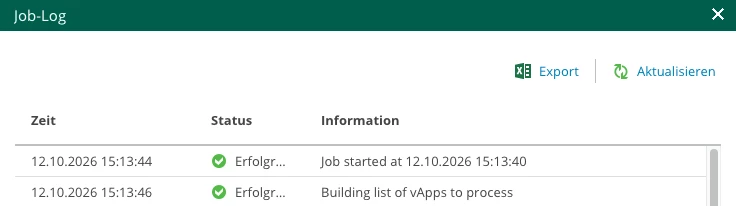
Once they are correct, remove the backup of the configuration file and the snapshot, if you created one.
One important note: existing log entries will not be corrected.
Only new entries will be written with the correct time.
Conclusion:
Time is very important for computers and even more important for servers, especially in backup infrastructures.
Correctly configured time zones and synchronized clocks are crucial for reliable operations.
When installing your infrastructure, check the time zone before installing any software, especially on systems deployed from templates.
If it was not configured correctly, fix it as soon as possible.