In this article, I will explain Instant Recovery with Veeam, its functionality, and its significance. I'll run through a quick demo (screenshots) of the Instant Recovery process with Veeam
In today’s always-on digital environment, downtime isn’t just inconvenient—it’s expensive, disruptive, and sometimes catastrophic. Businesses are under constant pressure to ensure systems are available at all times, even in the face of hardware failures, cyberattacks, or human error. That’s where Instant Recovery technology from Veeam becomes a game-changer.
What Is Instant Recovery?
Instant Recovery is a feature that allows you to restore and run a virtual machine (VM) directly from a backup file, without waiting for full data restoration. Instead of transferring large amounts of data back to production storage—which can take hours—Veeam lets you start the VM immediately from the backup repository.
Think of it as running your system “in place” while the full recovery happens in the background.
How It Works (Simplified)
Here’s what happens behind the scenes:
- Backup Storage Access
Veeam mounts the backup file as a datastore. - VM Startup
The VM is powered on directly from the backup, using Veeam’s proprietary technology. - User Access Resumes
Applications and users can access the system almost instantly. - Storage vMotion / Migration (Optional)
While the VM is running, you can migrate it back to production storage with no downtime.
This approach eliminates the traditional “wait time” associated with restores.
Why Instant Recovery Matters
1. Minimized Downtime
Instead of hours (or longer), recovery time drops to minutes—or even seconds.
2. Business Continuity
Critical applications stay online, reducing the impact on customers and operations.
3. Ransomware Resilience
After an attack, you can quickly restore clean versions of systems and resume operations fast.
4. No Need for Identical Hardware
You don’t need the same infrastructure to restore—Instant Recovery is flexible across environments.
Real-World Use Cases
🔹 Ransomware Attack
A company’s production systems are encrypted. With Instant Recovery, IT can:
- Launch clean VMs from backups immediately
- Restore operations while investigating the breach
🔹 Hardware Failure
A server crashes unexpectedly:
- Instead of waiting for replacement hardware, the VM is instantly recovered on another host
🔹 Testing & Validation
Need to verify backups?
- Instantly spin up a VM from backup to confirm everything works as expected
Key Features That Power Instant Recovery
- Direct Backup Mounting – No full restore required before use
- Storage Flexibility – Works across different storage systems
- Seamless Migration – Move recovered workloads without interruption
- Integration with Hypervisors – Supports platforms like VMware and Hyper-V
Things to Keep in Mind
While powerful, Instant Recovery isn’t meant to be a permanent state:
- Performance may be lower when running directly from backup storage
- It’s best used as a temporary solution until full migration is complete
- Proper planning ensures your backup repository can handle the load
Instant Recovery in a Modern Data Strategy
Instant Recovery reflects a broader shift from traditional backup to data resilience. It’s no longer enough to just have backups—you need to use them quickly and effectively.
With cyber threats increasing and uptime expectations higher than ever, technologies like this help organizations move from reactive recovery to proactive continuity.
A quick walkthrough of Instant Recovery with Veeam and Object First
A quick walkthrough of Instant Recovery with Veeam and Object First
Login to the Veeam console ==> Navigate to Home ==> Backups and select a backup from Object Storage section
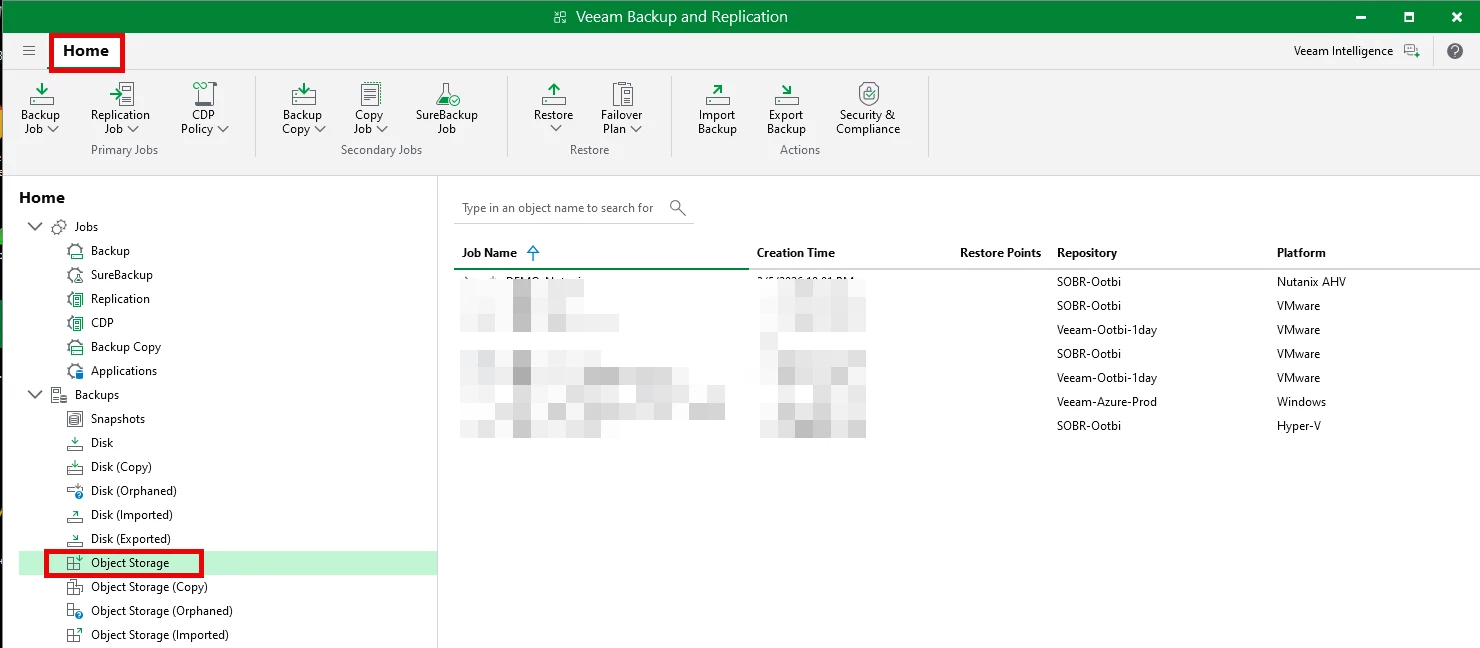
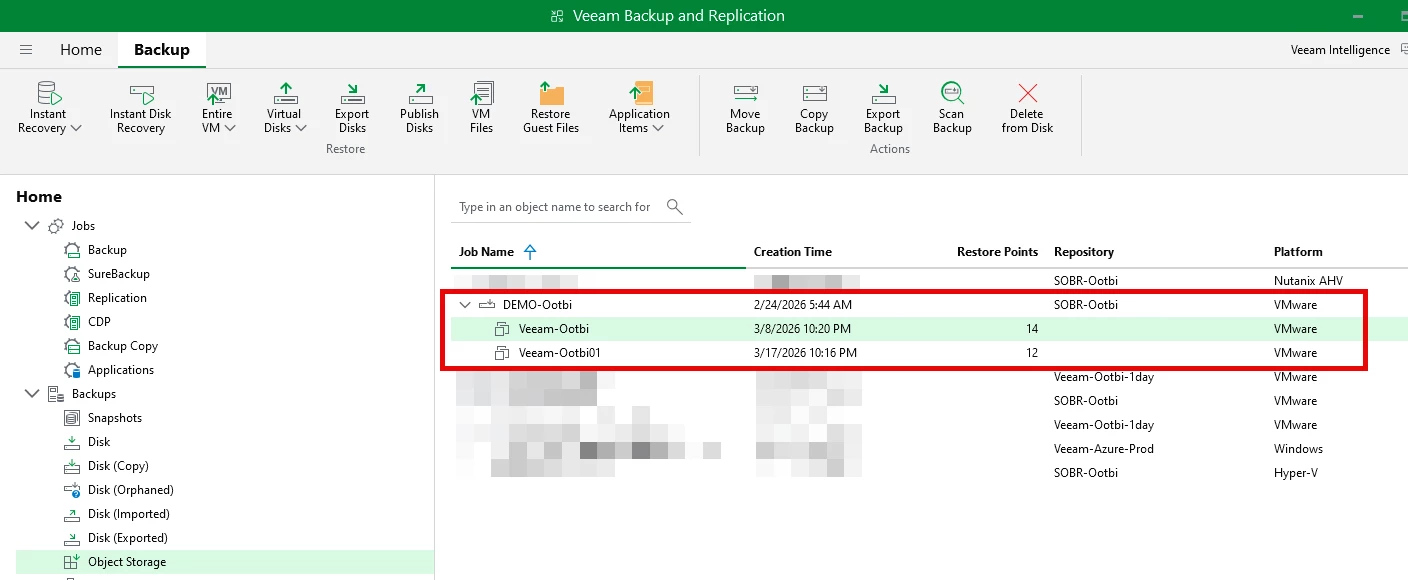
I'm going to select a backup from the Object First repo "SOBR-Ootbi", expand the backup, select the backup "Veeam-Ootbi"
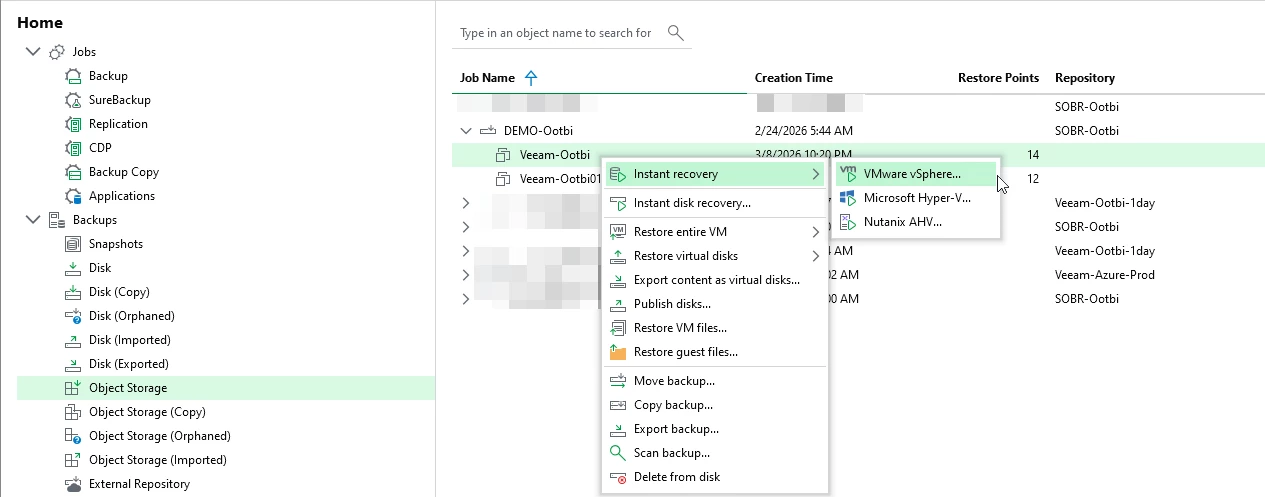
Right-click the backup "Veeam-Ootbi" ==> Instant Recovery ==> VMware
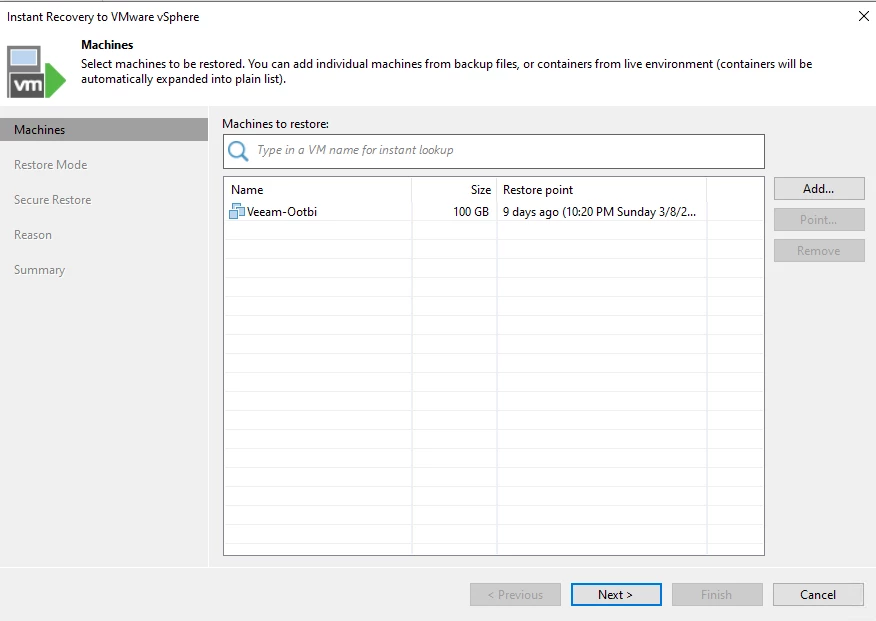
The Instant Recovery Wizard will open, select the latest or a point in time backup to recovery, click Next
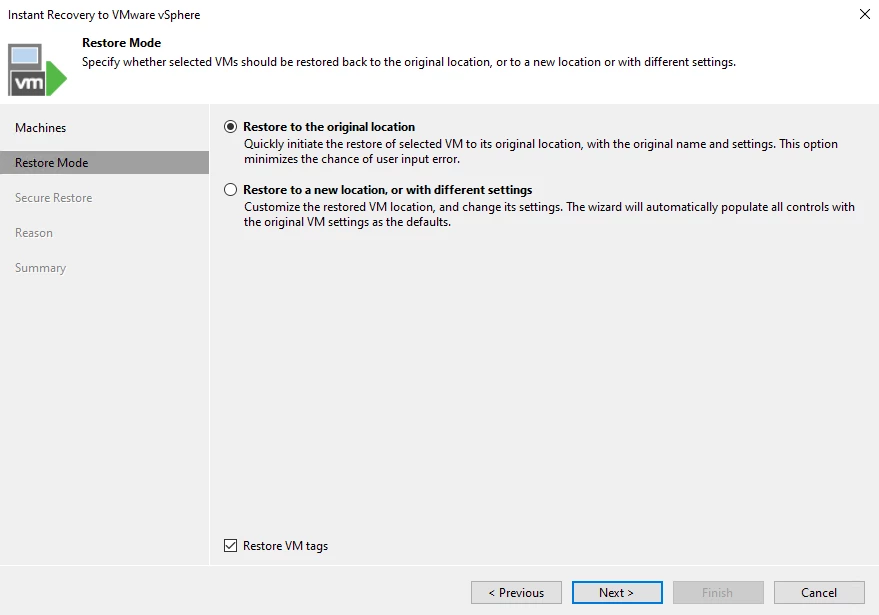
We're going to restore to the original location, click NEXT
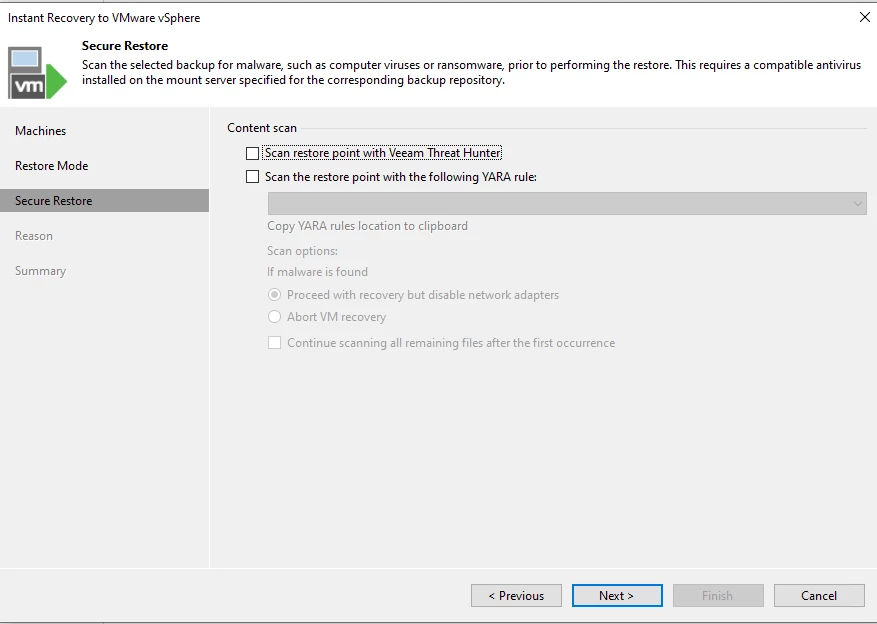
You can select to scan with Veeam Threat Hunter or Yara rule. For this test we'll leave this un-checked.
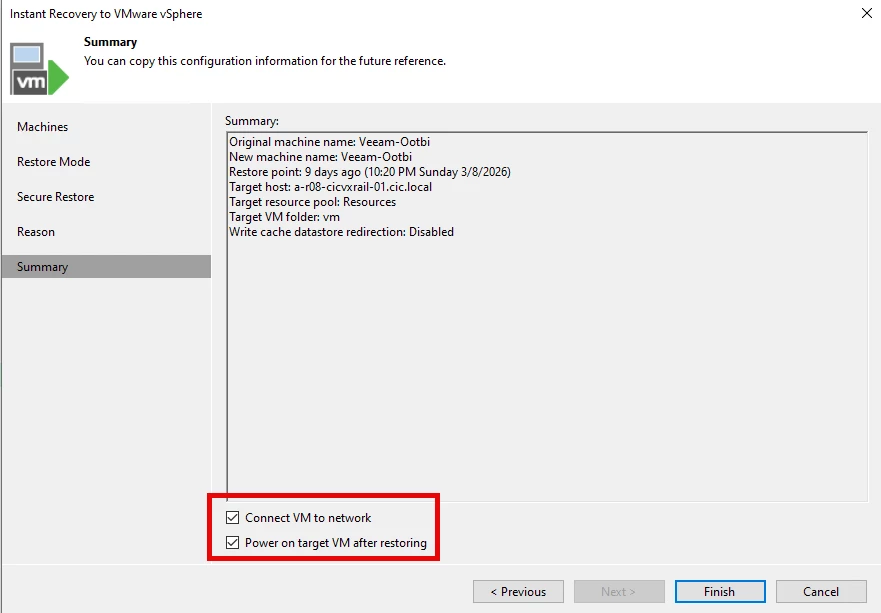
Make too sure to check "Connect VM to network & " Power on target VM after restoring", click FINISH
The restore session will start ==> it will mount the VM, publish the backup files and register the VM
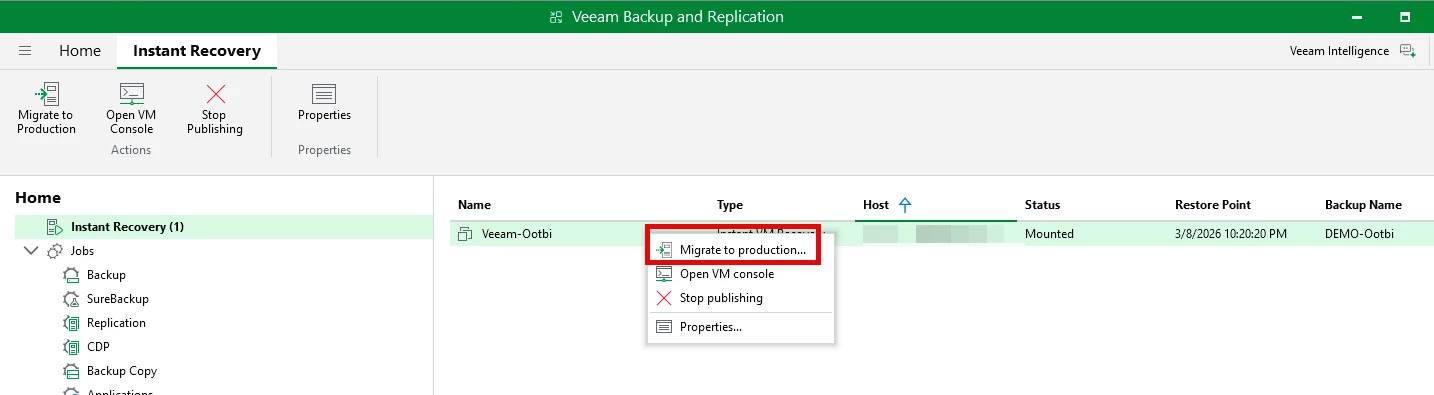
Upon completion you will see a "Instant Recovery" in the Home navigation ==> the VM is mounted to the ESX host
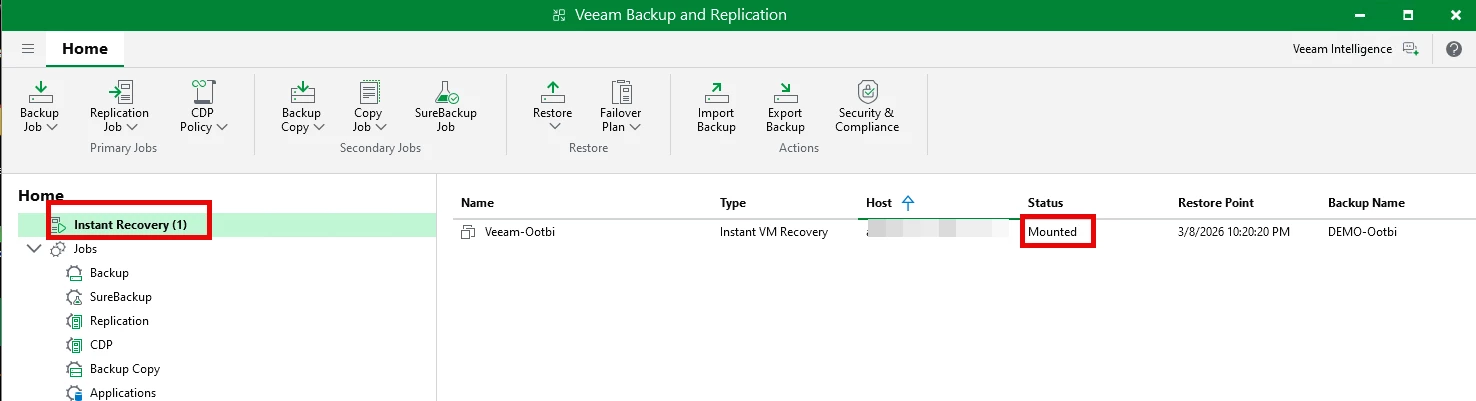
When ready to restore, right-click and select "Migrate to production." This will restore the entire VM back to the host.
Final Thoughts
Veeam’s Instant Recovery technology redefines what recovery looks like. By eliminating the delay between failure and restoration, it enables businesses to stay operational even in worst-case scenarios.
If your current recovery strategy still involves long waits and complex restores, it might be time to rethink your approach—because in modern IT, speed is everything.