


With the release of Veeam 13.1, I couldn't wait to upgrade my lab environment and see how the new update process worked firsthand. When a new Veeam release becomes available, one of the first things I do is upgrade my lab before recommending it to customers. Working in the SHI Customer Innovation Center (CIC), our lab is where we validate upgrades, test compatibility, and make sure everything performs as expected before customer demonstrations and proof-of-concepts.
One of the biggest advantages of the Veeam Software Appliance is how simple it makes deployment and lifecycle management. Instead of manually mounting ISOs, upgrading Windows components, or worrying about operating system patching, much of the update process is integrated directly into the appliance.
When Veeam Backup & Replication 13.1.0.411 became available, I wanted to see just how seamless the upgrade experience would be. Since I use the Software Appliance in my lab for customer demonstrations and testing, this was a great opportunity to validate the upgrade process before recommending it to customers.
In this article, I'll walk through how I upgraded my Veeam Software Appliance from 13.0.2.29 to 13.1.0.411, along with the validation steps I performed before and after the upgrade.
My Lab Environment
The upgrade was performed in the following environment:
- Veeam Software Appliance 13.0.2.29
- VMware vSphere
- Windows Server 2025
- Linux Hardened Repository
- Object First OOTBI
- Dell PowerProtect Data Domain
- ExaGrid
- Backup Proxy
- Test Windows and Linux virtual machines
My goal wasn't just to upgrade Veeam—I wanted to verify that all repositories, backup jobs, and integrations continued working after the upgrade.
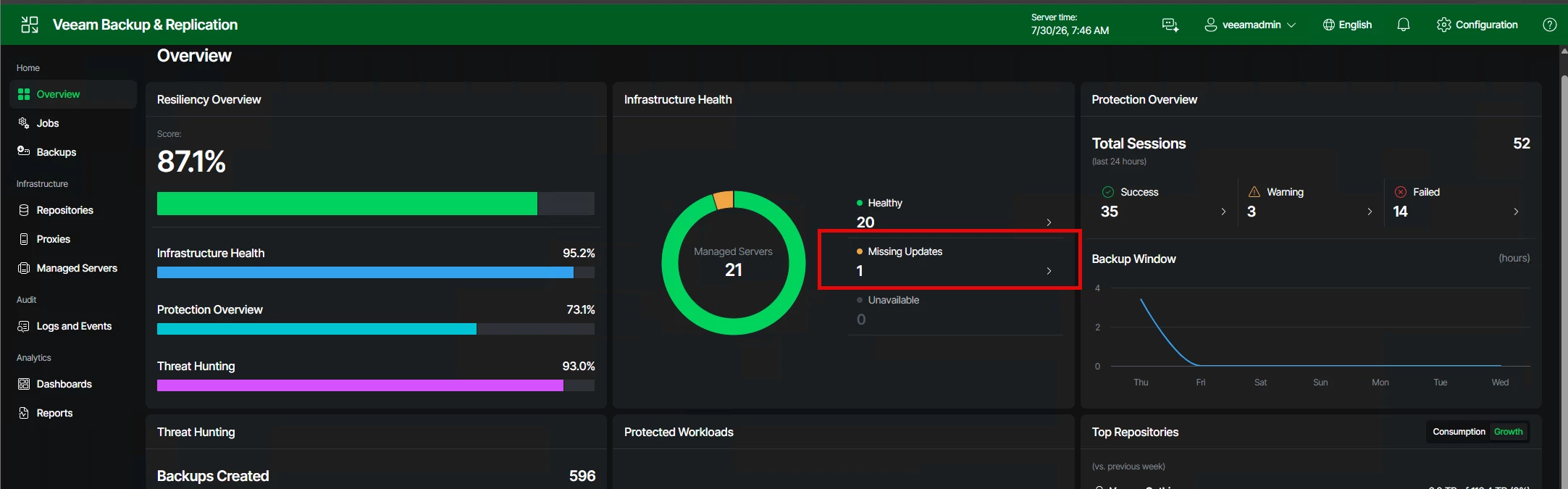
Veeam UI showing the update that’s available for 13.1.0.411
Pre-Upgrade Checks
Before updating any backup environment, I always perform a few quick health checks.
Verify Backup Jobs
I confirmed that all scheduled backup jobs completed successfully and that there were no outstanding failures.
A clean backup environment makes it much easier to identify issues if something unexpected occurs after the upgrade.
Verify Repository Connectivity
Next, I verified that all backup repositories were online and healthy.
This included:
- Linux Hardened Repository
- Object First OOTBI
- Dell PowerProtect Data Domain
- ExaGrid
Create a Configuration Backup
Although the Software Appliance simplifies upgrades, I still recommend taking a fresh configuration backup before making any changes.
It only takes a few minutes and provides peace of mind should you ever need to restore the appliance.
Checking for Updates
One of the nicest features of the Software Appliance is that updates are managed directly from the appliance interface.
Instead of downloading media and launching a separate installer, I simply navigated to the Software Appliance Update section and checked for available updates.
The appliance detected that 13.1.0.411 was available and presented the option to begin the upgrade.
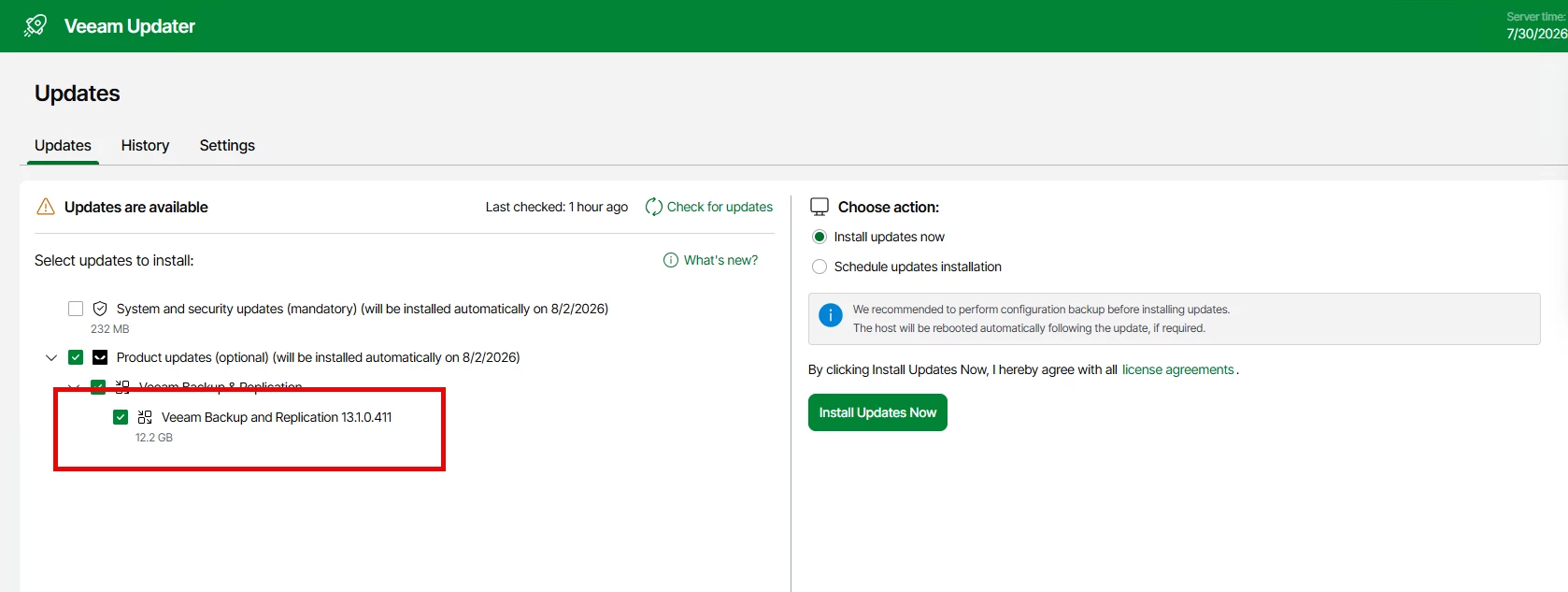
Screenshot of Veeam Update where will start the process of upgrading the Veeam software appliance
Starting the Upgrade
After reviewing the available update, I selected Install Updates Now.
The appliance automatically downloaded the required packages and performed several validation checks before installing the update.
These included:
- Appliance health
- Available disk space
- Current version
- Installed services
- System readiness
Once validation completed successfully, the upgrade began automatically.
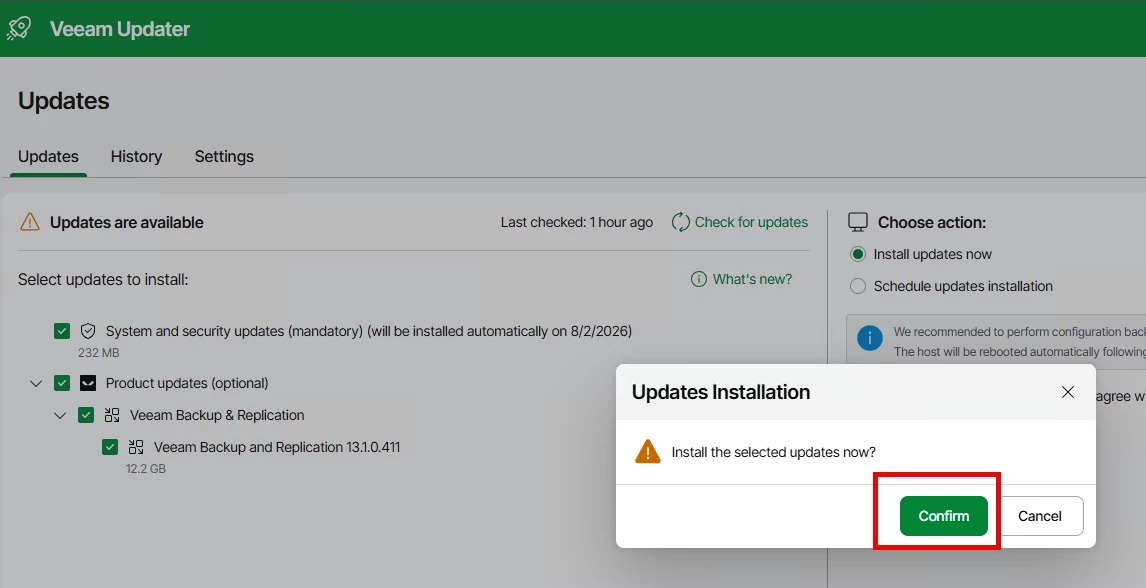
Click on Confirm to start the Update process
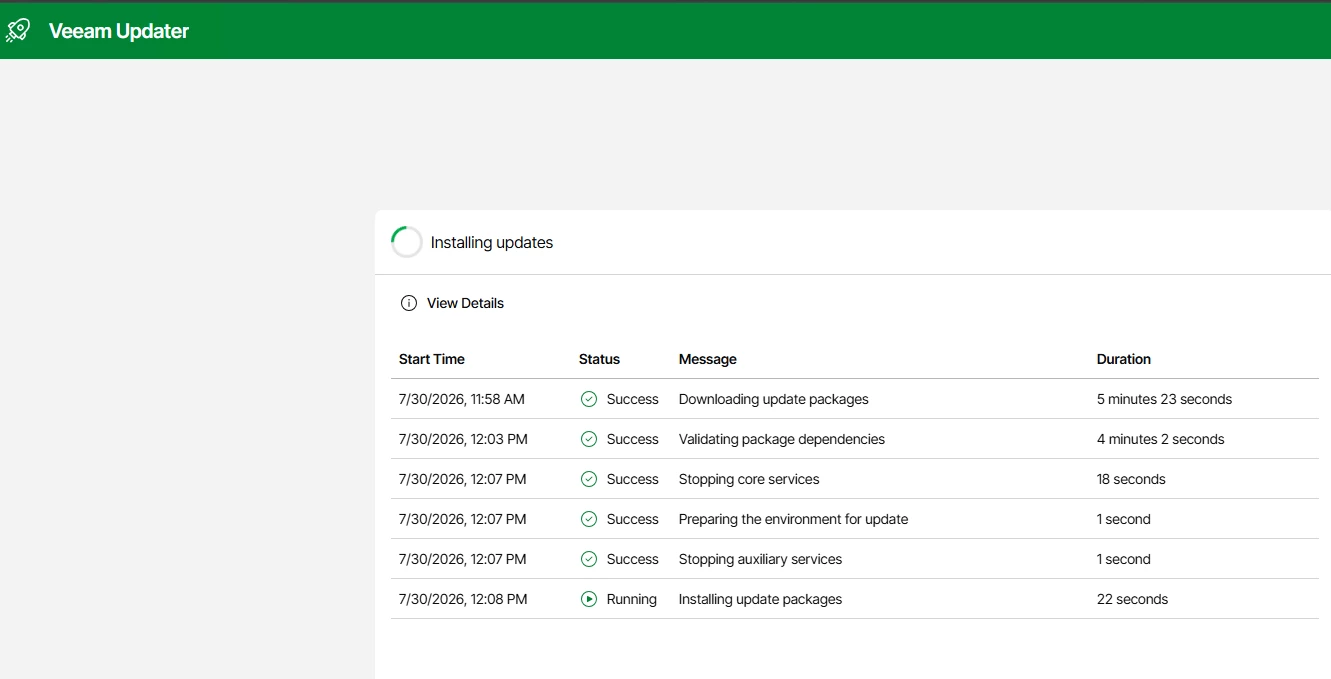
Upgrade Progress
One thing I appreciated was how straightforward the process was.
The appliance handled:
- Configuration Check - for any compatibility issues
- Downloading the update
- Installing new packages
- Updating Veeam services
- Update Remote Components
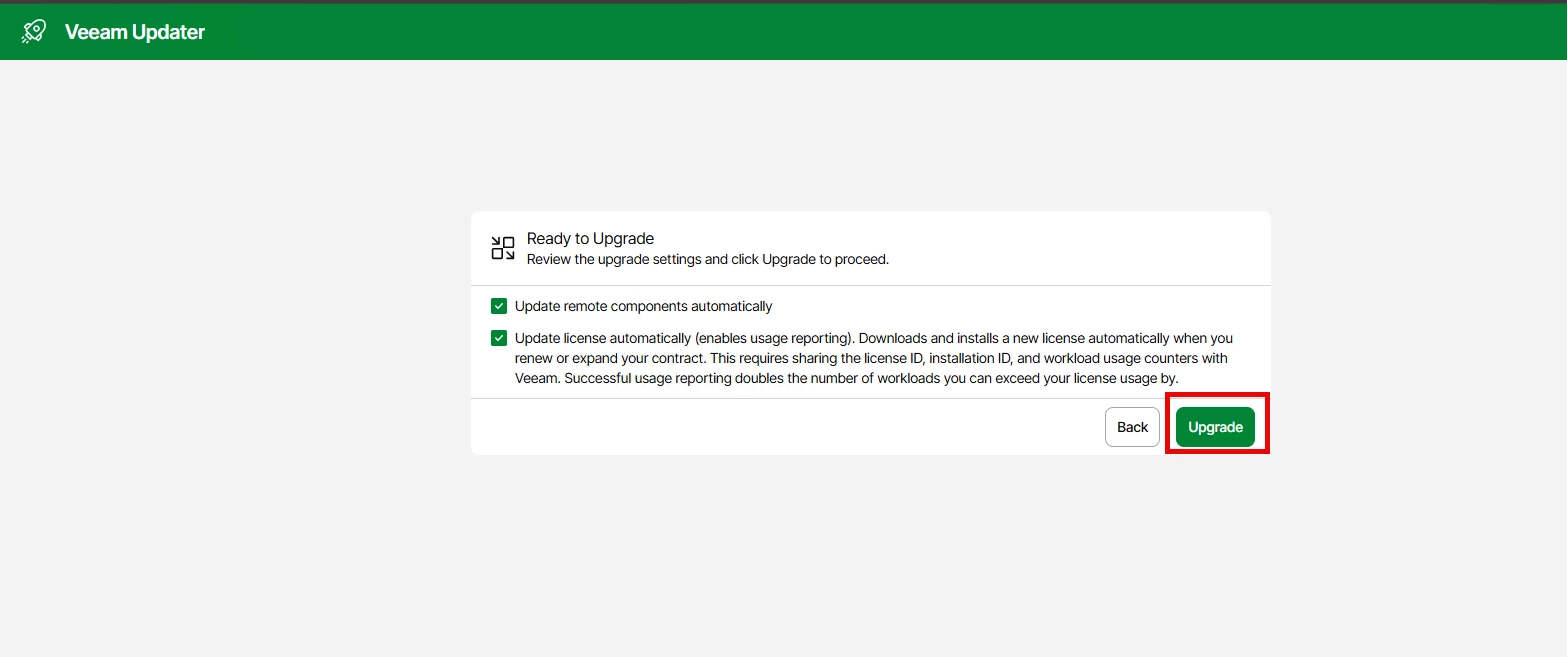
- Updating licenses automatically
- Applying configuration changes
- Restarting services as needed
Since the operating system is managed as part of the appliance, there was no need to manually patch Windows or coordinate separate operating system updates.
Click on Upgrade to start the process
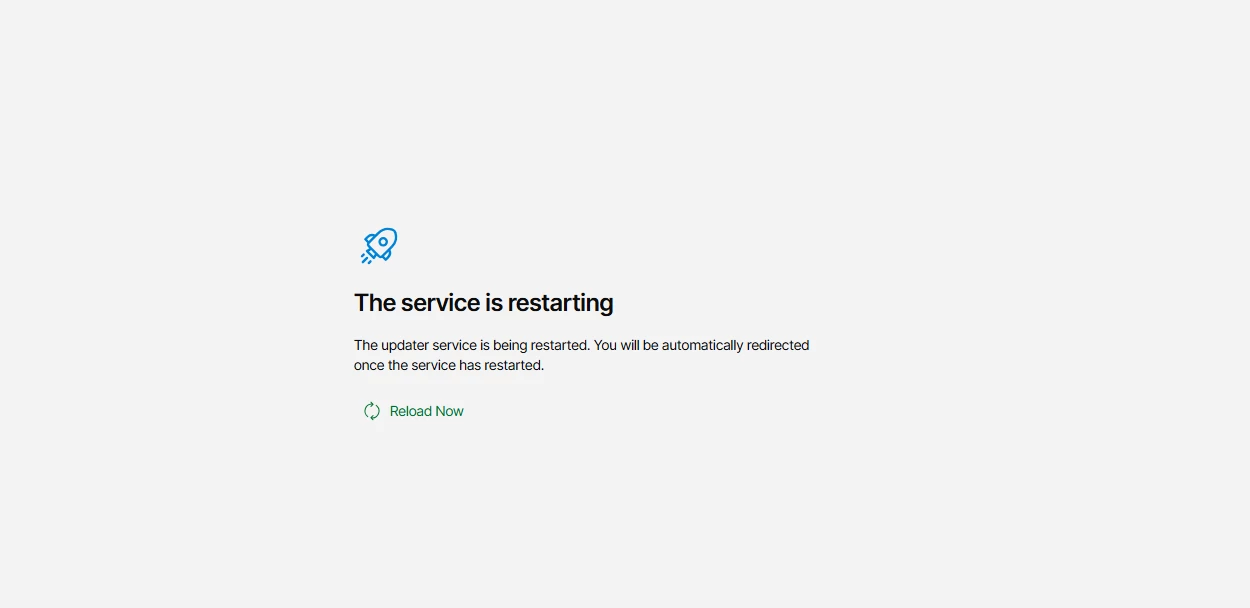
The install is in process
Updating Backup Infrastructure
After reconnecting to the Veeam console, I checked the backup infrastructure.
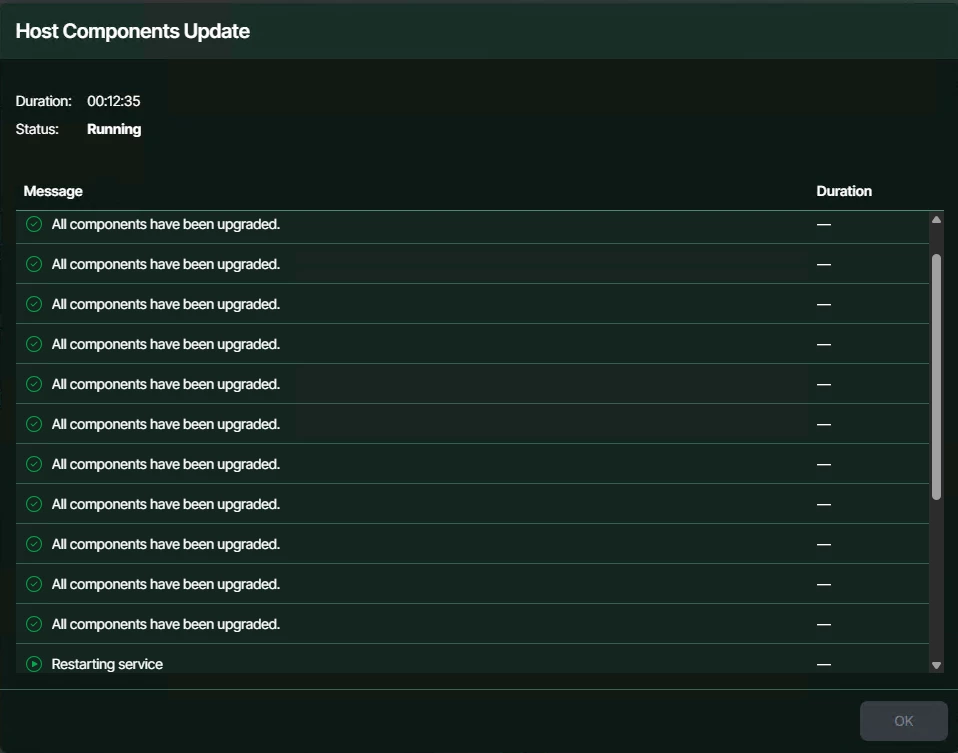
As expected, Veeam detected that several managed components required updating.
I upgraded:
- Backup Proxy
- Transport Services
- Repository Components
The updates were completed directly from the Veeam console.
The Update for the Back Infrastructure is in progress
Validating the Environment
With the upgrade complete, I verified each repository.
All of my storage integrations continued working without requiring any reconfiguration.
Repositories tested included:
- Linux Hardened Repository
- Object First OOTBI
- Dell PowerProtect Data Domain
- ExaGrid
Each repository connected successfully after the upgrade.
Backup and Restore Testing
No upgrade is complete until you've verified that backups and restores still work.
I manually started several backup jobs to confirm:
- VMware backups
- Incremental backups
- Repository connectivity
Everything completed successfully.
I also performed:
- File-Level Restore
- Instant Recovery
- Restore Point Validation
All recovery operations completed without issue.
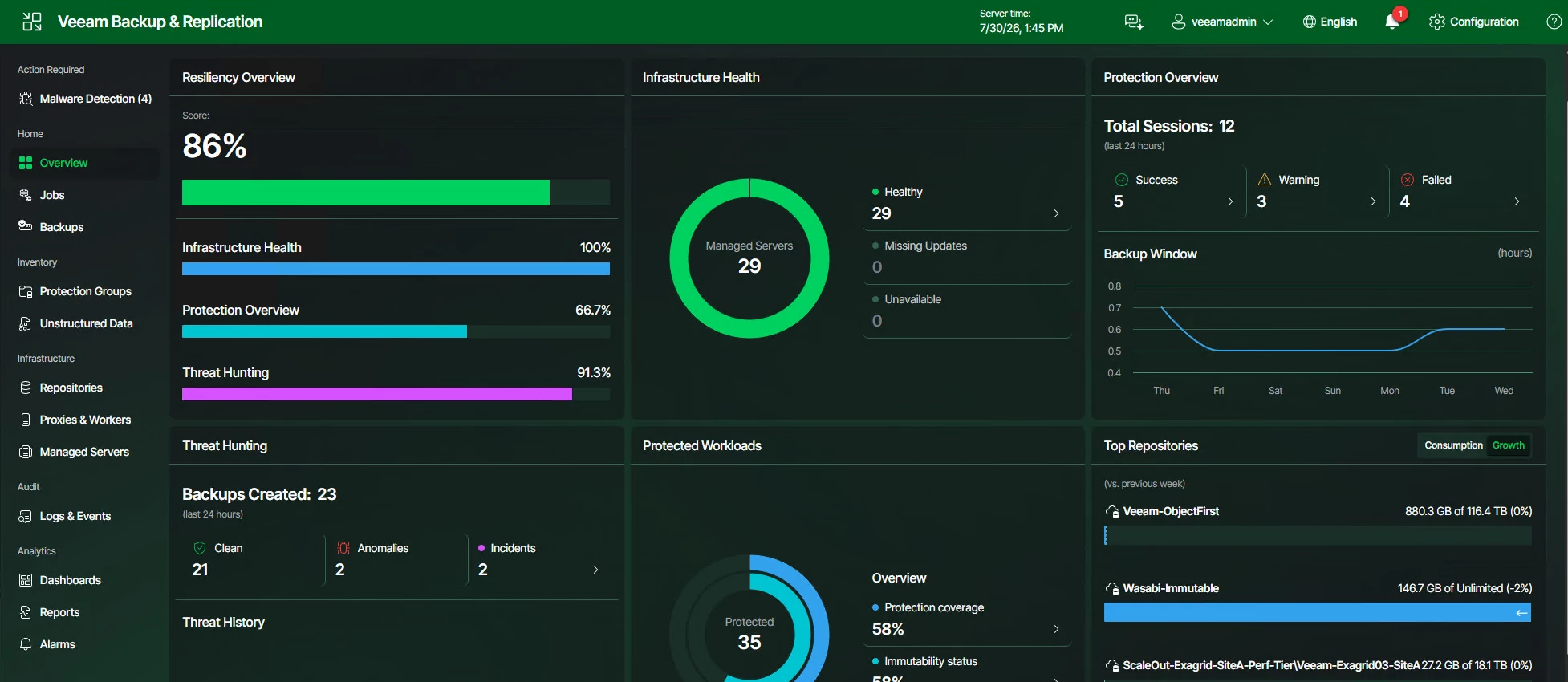
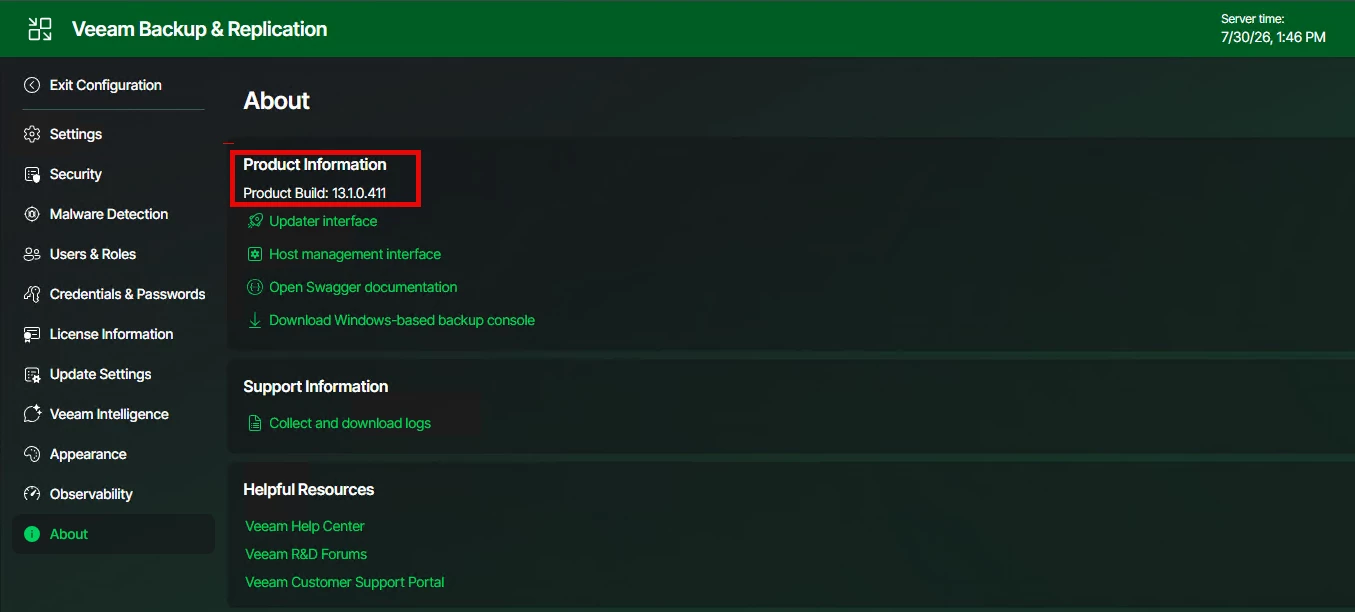
My Thoughts
Overall, the upgrade experience was exactly what I hoped it would be.
The Software Appliance made the process much simpler than a traditional Windows-based upgrade. Everything was initiated from a single interface, the appliance handled downloading and installing the update, and there was very little manual intervention required.
The only post-upgrade task was updating the managed backup infrastructure components and validating that backups and restores continued working.
Final Thoughts
After upgrading my Veeam Software Appliance from 13.0.2.29 to 13.1.0.411, the process was smooth and uneventful—which is exactly what you want from a backup platform.
More importantly, every repository in my lab, including Object First OOTBI, Dell PowerProtect Data Domain, ExaGrid, and my Linux Hardened Repository, continued operating normally after the update. Backup jobs completed successfully, restore testing passed, and the appliance was quickly back in service.
If you're already running the Veeam Software Appliance, upgrading to 13.1.0.411 is a straightforward process. Just remember the same best practices still apply: verify your environment beforehand, take a configuration backup, update your managed components, and test both backups and restores before considering the upgrade complete.
For me, that's always the final step. A successful upgrade isn't just about getting to the new version—it's about knowing your backups are still protecting what matters most.