



My recent blog post was about installing the plug-in on a Windows server; this blog will go through the installation on a Veeam v13 software appliance.
I recently deployed the Veeam Plug-in for HPE Morpheus VM Essentials version 13 (RTM) on my lab Veeam software appliance, which is running v13.0.1. Once tested, I'll have it available to demonstrate to my customers.
Veeam has introduced a dedicated plug‑in that enables image‑level backup and restore for virtual machines running on HPE VM Essentials. This integration brings VM Essentials into the same unified protection workflow as VMware, Hyper‑V, and other supported hypervisors. The plug‑in is not bundled with the main Veeam Backup & Replication installer, so it must be added separately.
What the Veeam Plug‑in for HPE VM Essentials Does
The plug‑in extends Veeam Backup & Replication to understand and interact with HPE VM Essentials resources. Without it, Veeam cannot discover or protect VM Essentials servers or workers.
Once installed, the plug‑in enables:
- Discovery of HPE VM Essentials hosts
- Backup and restore of VMs running on VM Essentials
- Integration with Veeam’s policy‑based job engine
- Centralized management through the Veeam console
Prerequisites Before You Begin
Before installing the plug‑in, make sure you have:
- A Linux‑based Veeam Backup & Replication Software appliance
- Local Administrator permissions on that server
- The installation bundle for the Veeam Plug‑in for HPE VM Essentials
- Network connectivity between Veeam and your VM Essentials environment
Step‑by‑Step Installation Guide
Log in to the Veeam Backup Software Appliance
Use an account with local Administrator rights. This is required to install system‑level components.
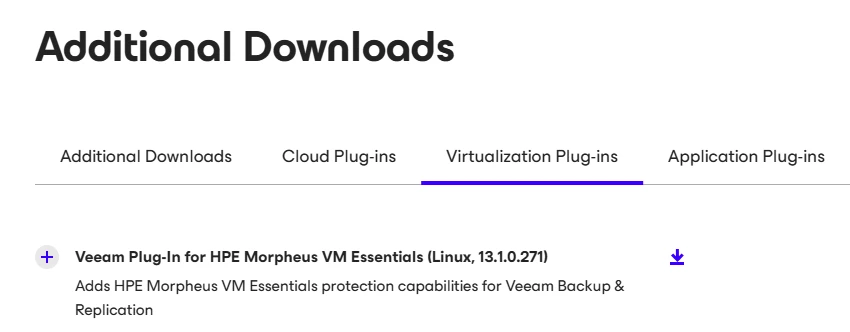
Download the Plug‑in Installer
Obtain the Windows installation package for the Veeam Plug‑in for HPE VM Essentials here https://www.veeam.com/products/data-platform-trial-download.html?tab=virtualization-plugins
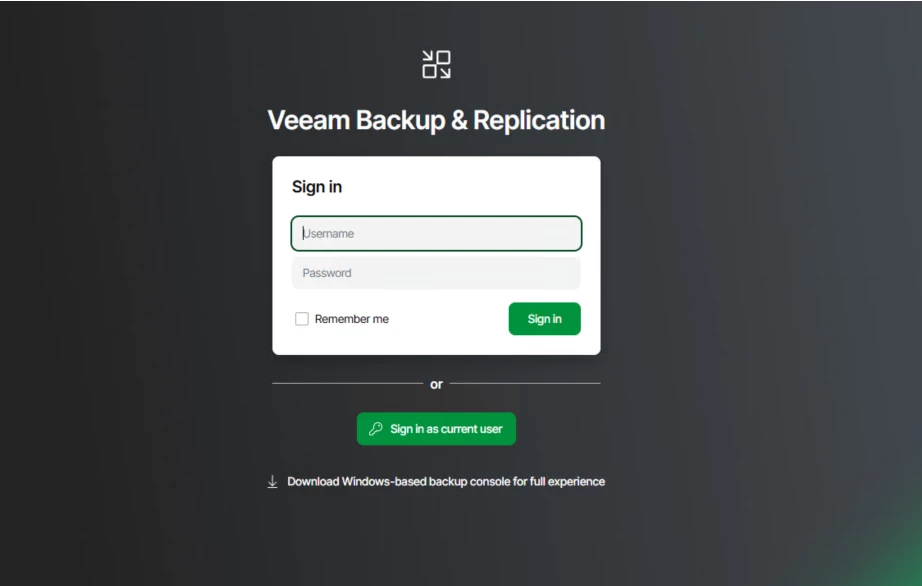
Login to the Veeam Host Management Console
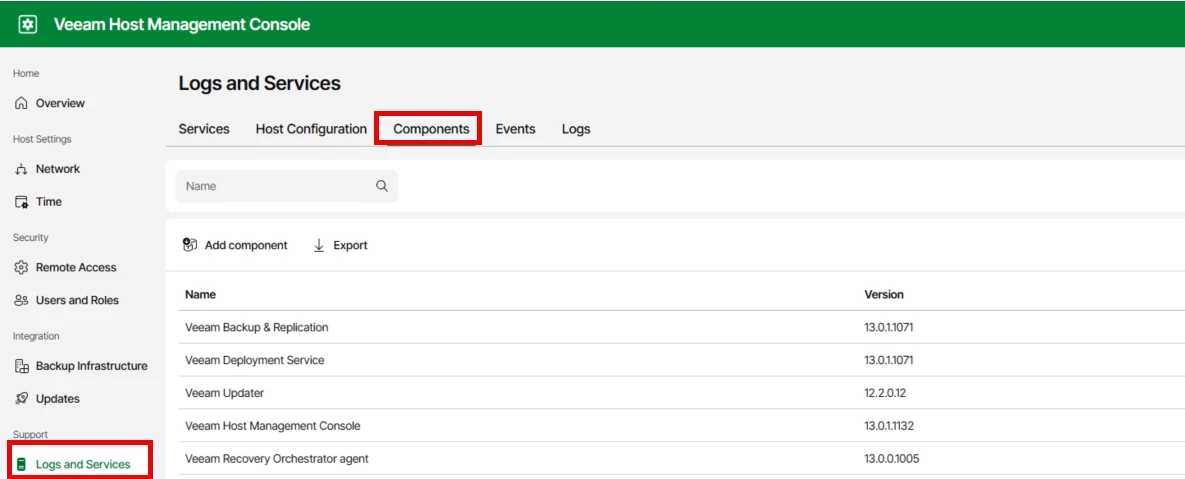
Navigate to Logs & Services ==> Components
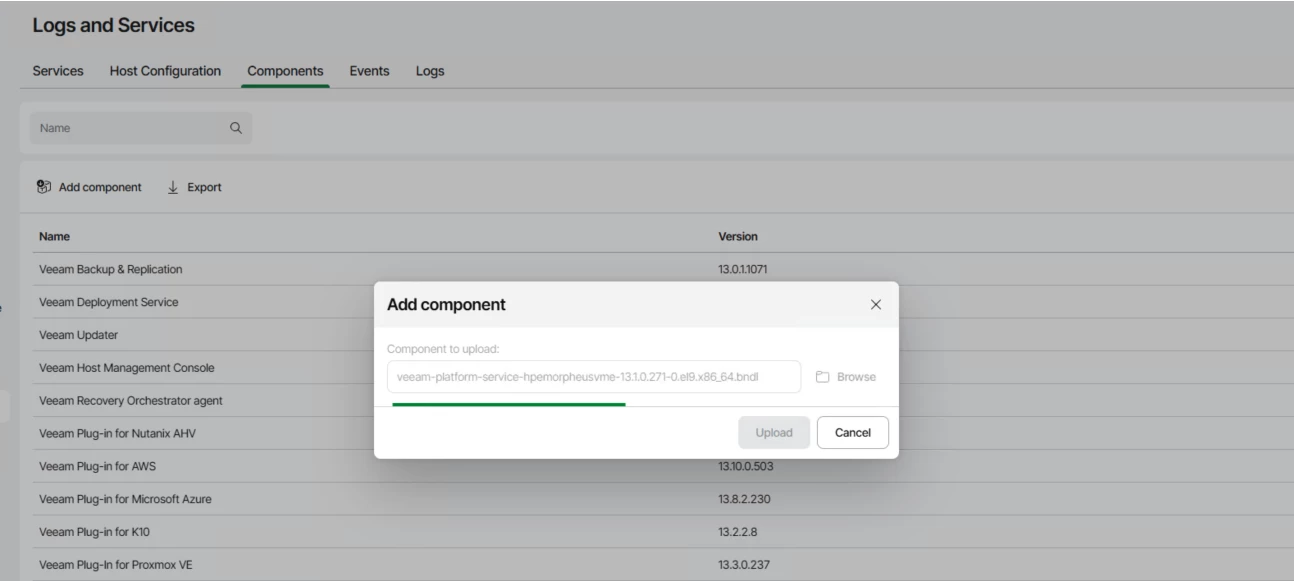
Click on Add Component ==> Browse and Select the HPE VM Essentials plug-in bundle that was downloaded
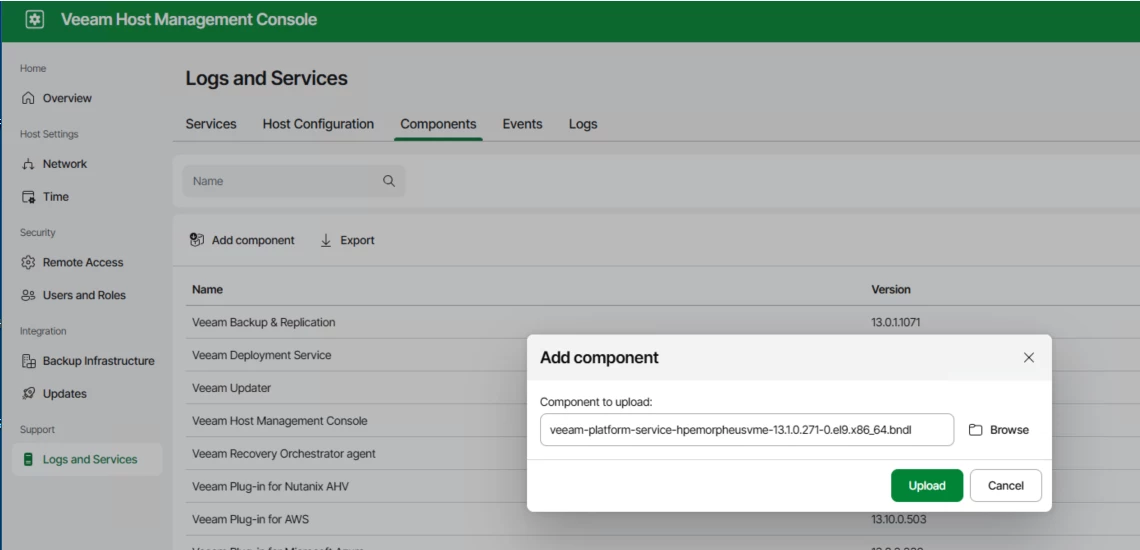
Click UPLOAD
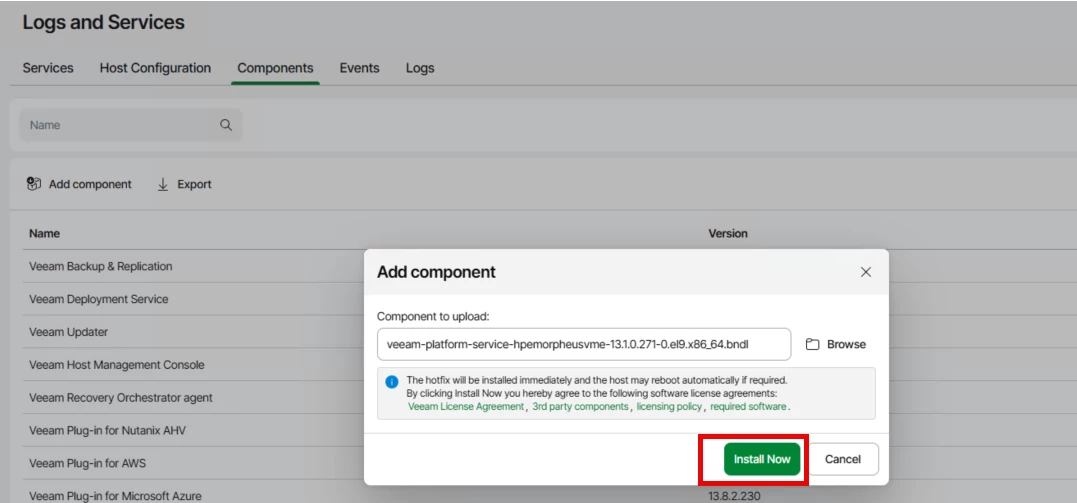
Once uploaded, click Install Now to Install
The Configuration Check will run
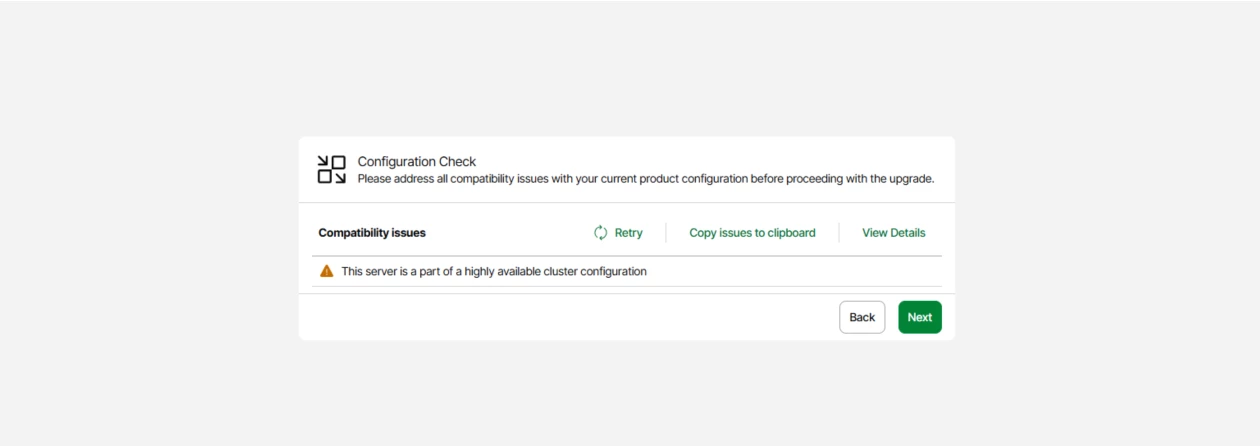
NOTE: My Veeam appliance is running High Availability so you will need to install on both software appliances.
After the install has completed, you can click on FINISH. The bundle file will be removed from the server
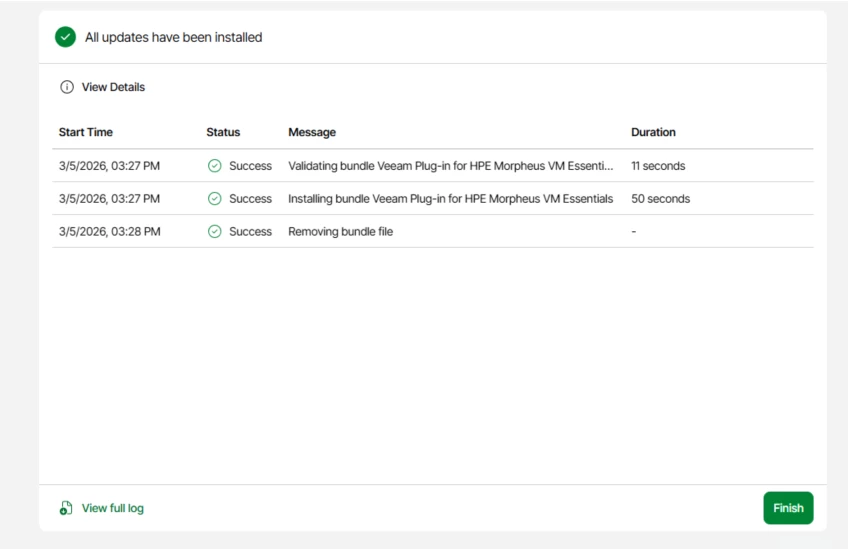
After the install is complete you can verify the component was installed
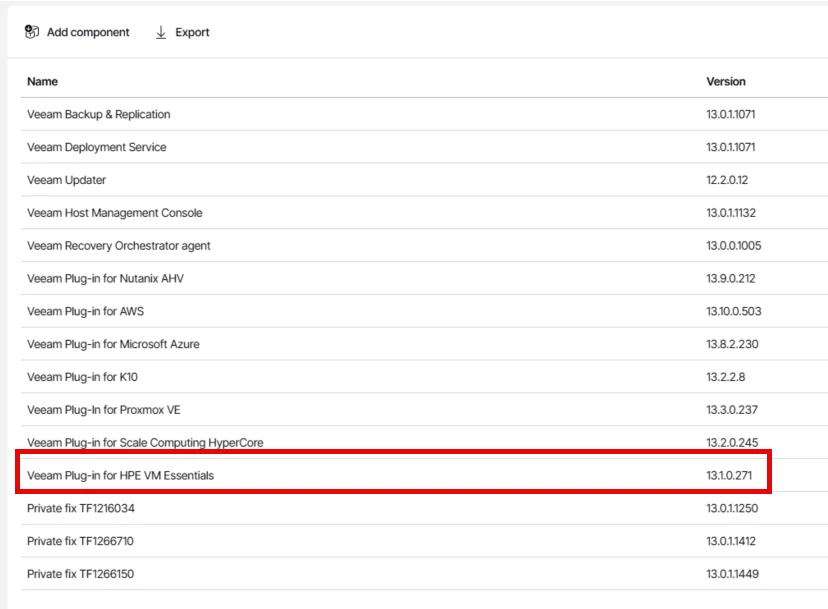
Restart the Veeam Backup Service
The installer may prompt you to restart Veeam services. This ensures the plug‑in loads correctly and becomes available in the console.
Add Your HPE VM Essentials Environment
Once the plug‑in is installed:
You will need to pen the Veeam Backup & Replication console because of the limitations with the new Veeam UI
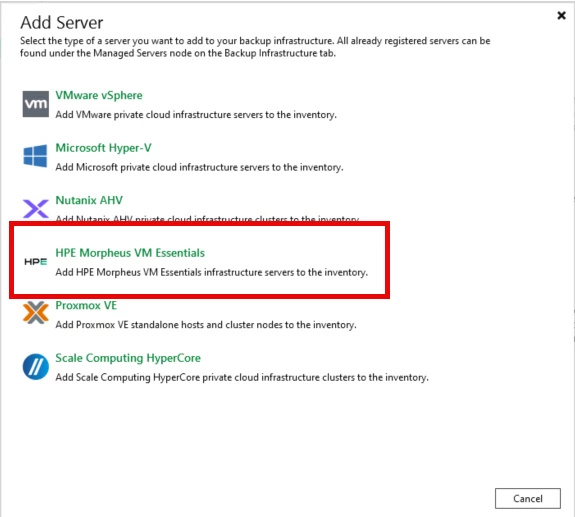
Navigate to Inventory ==> Virtual Infrastructure ==> Right-click to add Server
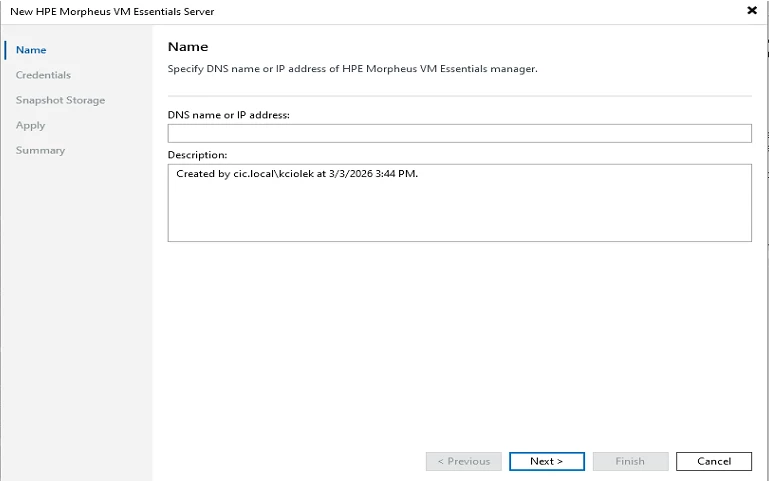
Add the IP address or FQDN of the HPE VM Essentials Server...Click on NEXT
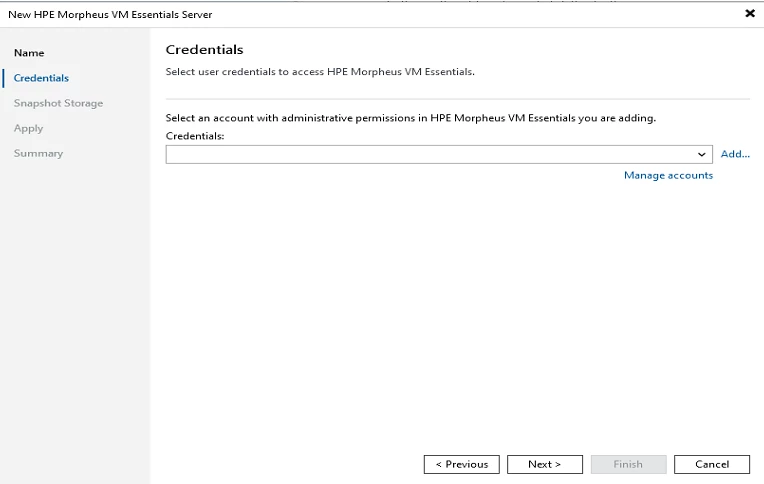
Add the credentials to connect to the HPE VM Essentials server ==> Click NEXT
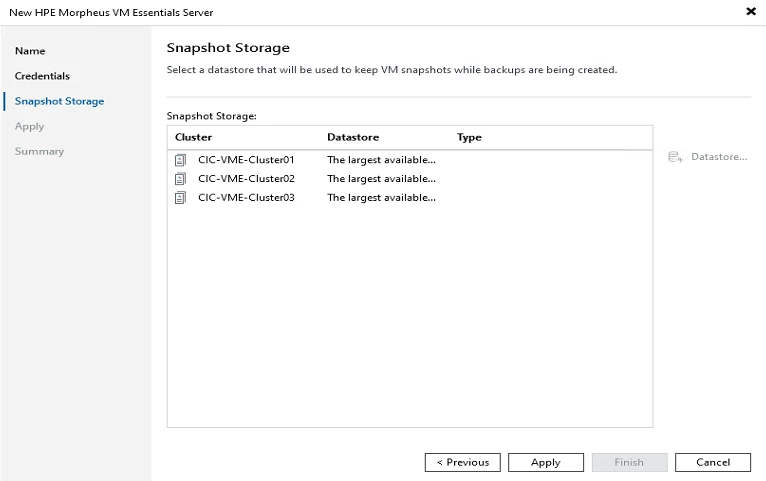
Select a Datastore to keep the VM snapshots ==> Click APPLY
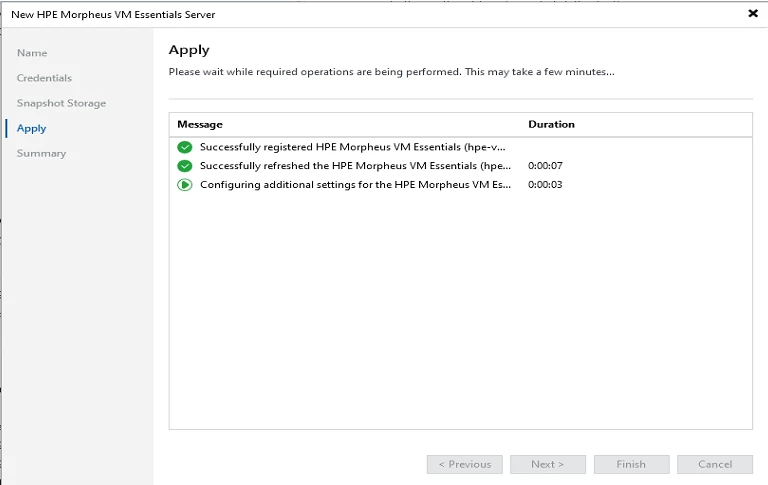
The server will be registered with Veeam==> Click FINISH when prompted
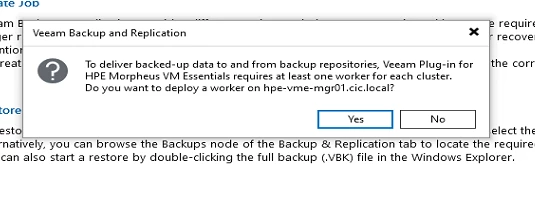
Deploy a Worker to back up the repositories
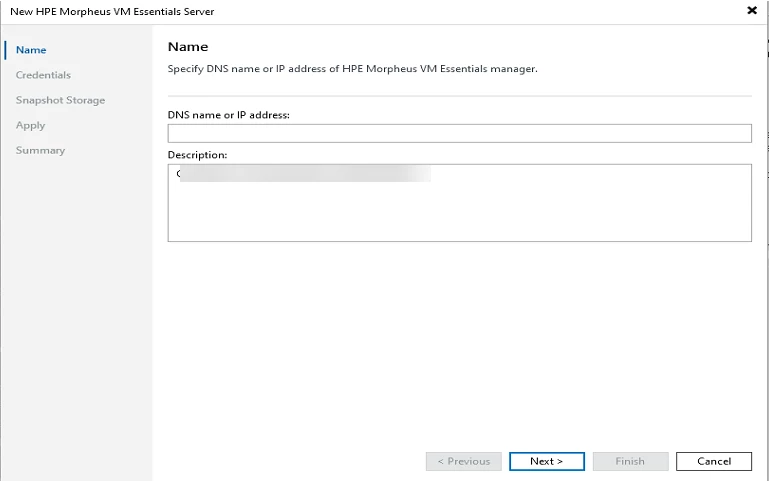
Enter the FQDN or IP address for HPE VM Essentials Manager
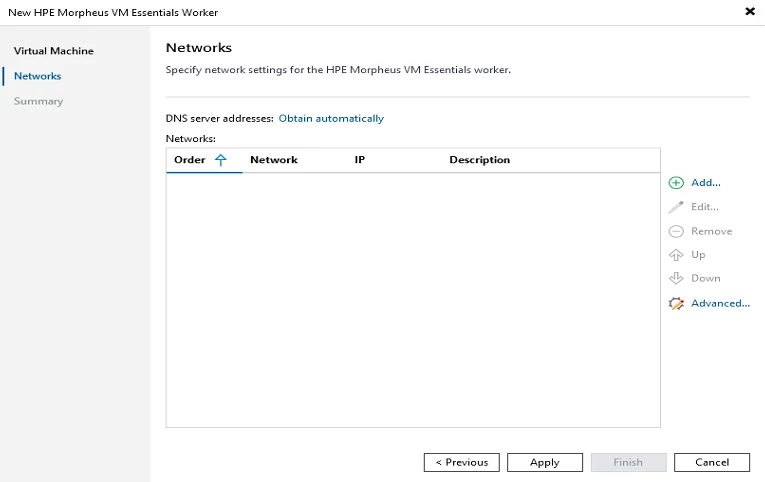
Select the Network for the Worker VM ==> Click Apply
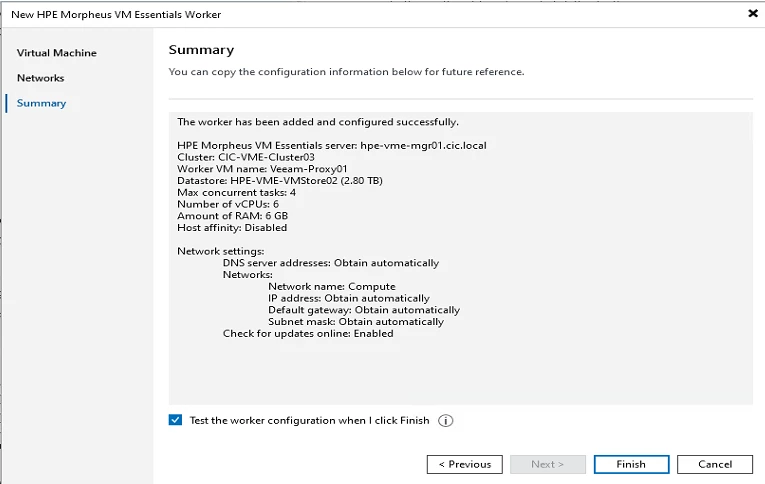
Click the checkbox to test the worker configuration ==> Click FINISH
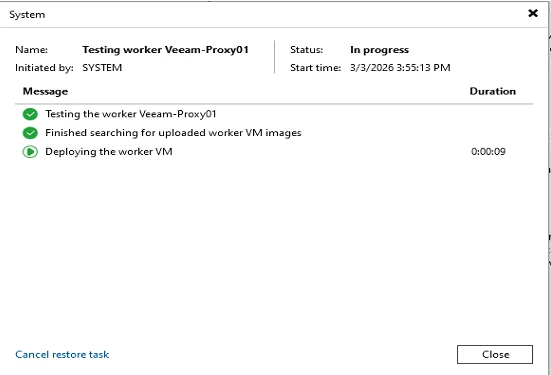
The Worker will go through the test process ==> click CLOSE
You can now create backup jobs for VM Essentials workloads.
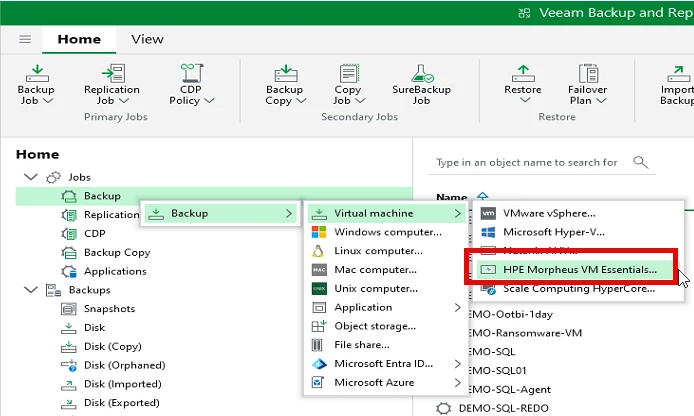
Right-click Backup ==> Virtual Machine ==> HPE Morpheus VM Essentials
Create the Backup Job and Schedule
How the Plug‑in Fits into Your Backup Architecture
The plug‑in acts as a translation layer between Veeam and HPE VM Essentials. It enables Veeam to:
- Enumerate VMs
- Trigger snapshots
- Read VM disk data
- Perform incremental backups
- Restore VMs or individual disks
This means VM Essentials becomes a first‑class citizen in your Veeam environment, benefiting from:
- Veeam’s Scale‑out Backup Repository
- Immutability options
- Backup copy jobs
- SureBackup verification
- Instant VM Recovery
As HPE and Veeam continue strengthening their partnership, this integration is expected to expand with more features and deeper automation.
Why This Matters for HPE VM Essentials Users
HPE VM Essentials is gaining traction because it offers:
- A modern KVM‑based hypervisor
- Simplified management
- Strong integration with HPE storage
- A cost‑effective virtualization platform
Pairing it with Veeam ensures your workloads are protected with enterprise‑grade backup, recovery, and ransomware resilience. This combination is already being highlighted as a “better together” solution for organizations adopting the new hypervisor.
Final Thoughts
Installing the Veeam Plug‑in for HPE VM Essentials on the software appliance is a straightforward but essential step for protecting workloads running on HPE’s modern virtualization platform. Once installed, you unlock the full power of Veeam’s data protection suite—fast backups, flexible restores, immutability, and seamless integration into your existing backup workflows.
As HPE VM Essentials continues to evolve, having Veeam in place ensures your data protection strategy evolves with it.