

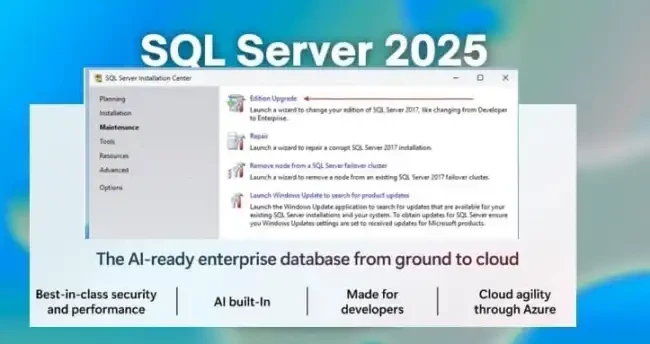
Recently, the below Post was created on “Microsoft SQL Server 2025 + Veeam Data Platform = Improved Scalability”.
As stated and I quote, ... Microsoft SQL Server 2025 has not yet been validated for the Veeam Data Platform, as it was only made GA on the 18th November 2025, so the information I’m providing here is in preparation for the inevitable support when it’s passed through Veeam’s QA
To reiterate, at this time, SQL Server 2025 is not supported yet. This support is inevitable. SQL Server Express previously had a strict 10 GB per-database limit, which often became a bottleneck in environments with larger workloads.
This decision to switch to PostgreSQL as the default database engine was made due to the limitation associated with Microsoft SQL Express edition in terms of scaling (eg max 10 GB Database size). PostgreSQL does not have these limitations and it does not require an expensive licence either as discussed in this article.
Regardless of the above, Veeam recommends using Microsoft SQL Server (MSSQL) instead of PostgreSQL in the following scenarios;
- Large-Scale Deployments: When your Veeam Backup & Replication infrastructure manages thousands of VMs or petabytes of data. MSSQL provides better scalability and performance. This is also applicable to organisations already using and have expertise in MSSQL for administration and integration.
- Advanced MSSQL Features: Features like Always On Availability Groups, Transactional Replication, and SQL Server Agent Jobs are exclusive to MSSQL and can benefit large, high-availability environments.
- Lastly, Veeam ONE currently requires an MSSQL database. Therefore, some users still have their VBR tied to the SQL engine. Therefore, this guide will be beneficial to upgrade the database.
Kindly keep an eye on this link to see when SQL Server 2025 will be supported and upgrade only at this time!!!
Kindly refer to this guide “SQL Server 2025 Upgrade Requirements and Compatibility” for extended details and edition changes in SQL Server 2025.
Supported Upgrade Paths to SQL Server 2025
The table below shows an Overview of the supported Upgrade Paths to SQL Server 2025. Unlike on Windows Server, you can perform a direct upgrade from SQL Server 2017 to SQL Server 2025 as it is in my case according to official supported paths.
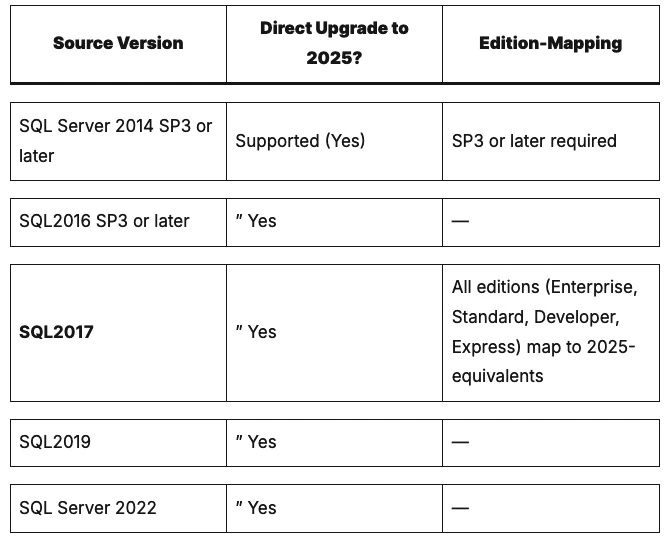
For unsupported scenarios, kindly proceed to the following link. For instance, the cross-version instances of SQL Server 2025 (17.x) aren't supported. Version numbers of the Database Engine components must be the same in an instance of SQL Server 2025 (17.x).
Also, cross-platform upgrade isn’t supported. You can’t upgrade a 32-bit instance of SQL Server to native 64-bit using SQL Server Setup. You can’t add new features during the upgrade of your existing instance of SQL Server. After you upgrade an instance of SQL Server to SQL Server 2025 (17.x), you can add features by using the SQL Server 2025 (17.x).
Pre-Upgrade Checklist
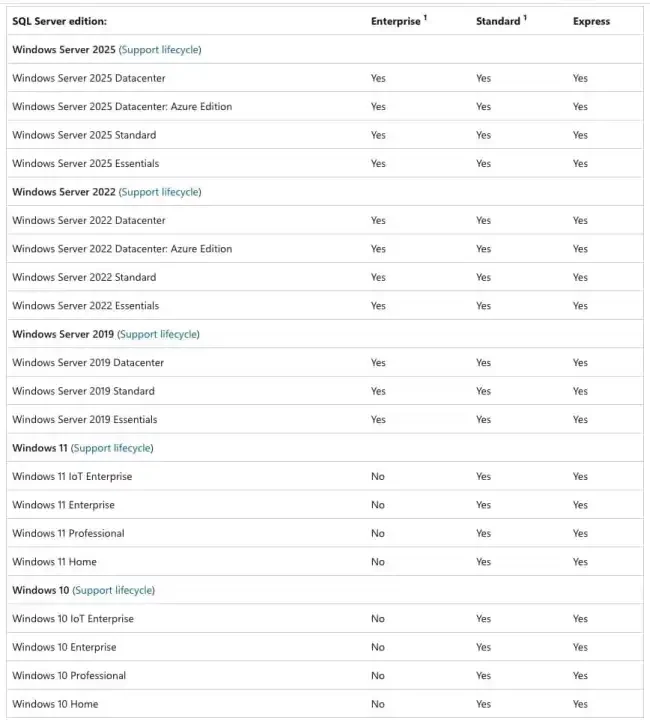
Upgrading SQL Server requires adequate planning. A smooth upgrade depends on validating hardware, security configuration, and feature support before performing the upgrade. The image below shows which editions of SQL Server 2025 (17.x) are compatible with which versions of Windows.
Upgrade to Microsoft SQL Server 2025?
I repeat, at this time, SQL Server 2025 is not supported yet. This support is inevitable and this guide will be very useful to you when supported.
To reiterate, ensure SQL Server 2017 is fully patched (latest CU recommended) and there is no pending update required. This is because, upgrades are blocked if Windows requires a restart. Have your SQL Server 2025 product key ready.
Launch SQL Server Installation Center by navigating through the start menu, Microsoft SQL Server 2017 and then click on the SQL Server Installation Center.
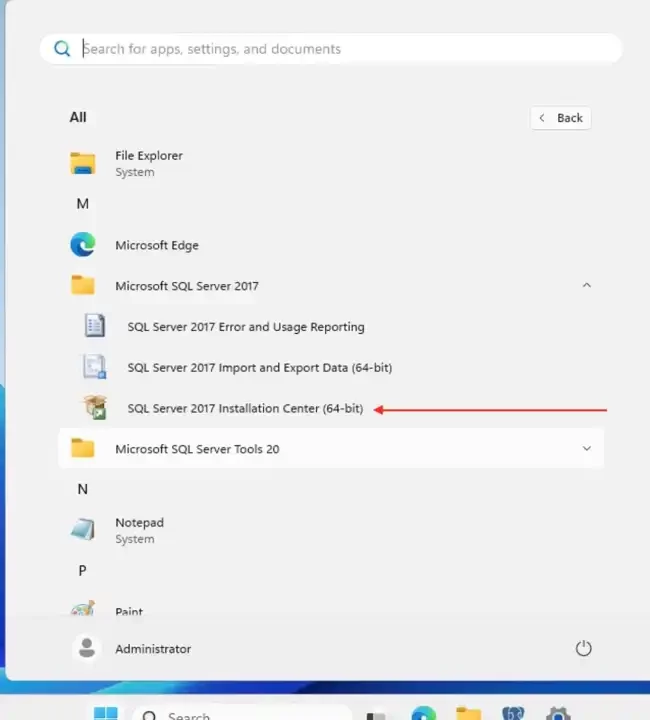
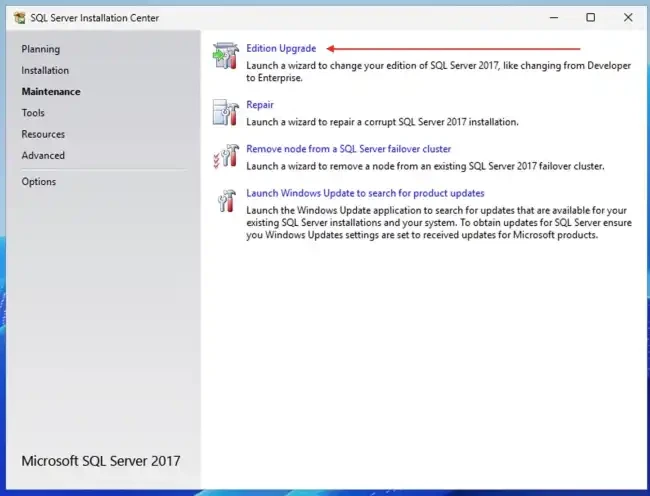
This is open the SQL Server Installation Center. To proceed, navigate to “Maintenance”, and click on the Edition Upgrade as shown below.
Alternatively, you can simply use the downloaded SQL Server 2025 ISO. When you mount the ISO or extract the installer and run setup.exe. It will automatically open the SQL Server Installation Center for you, and from there you can follow the exact same upgrade steps
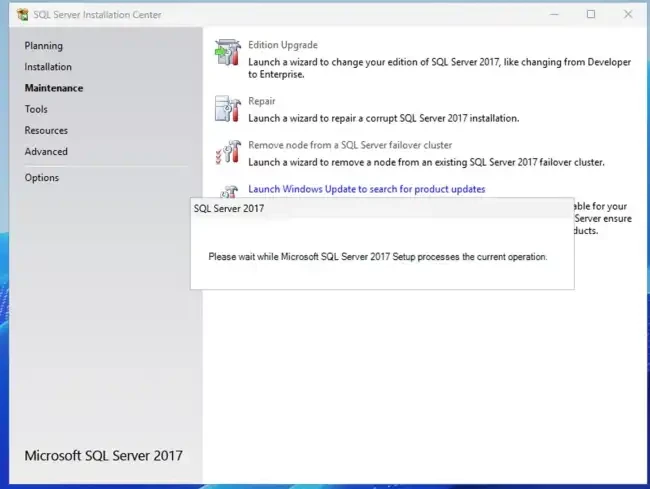
This step is very vital. Please, specify product key for MSSQL 2025 and proceed with the steps as discussed in the article above.
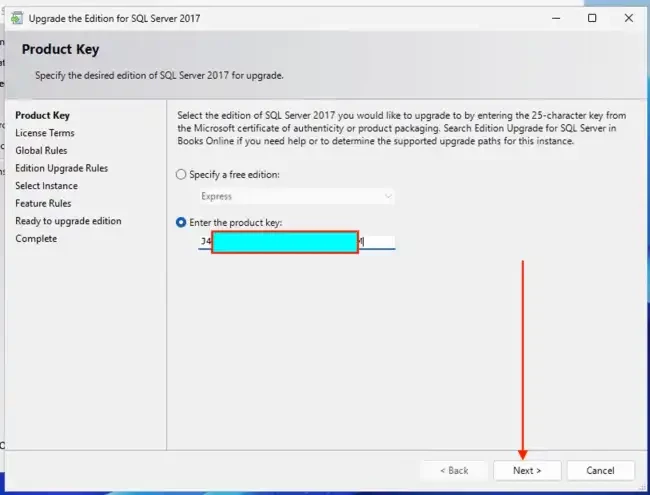
Therefore, here is a guide for you if you wish to upgrade Microsoft SQL Server 2019 to 2022. Follow these same steps as well to complete your upgrade to MSSQL 2025.