

The phone rings and someone asks you to restore a file for them. You look at your furthest restore point and notice the date they gave you is before that. You restore the file anyways and find out it was off by only a few days. What do you do? Do you give up, or do you check to see if there is something running keeping data for just a little bit longer?
Many users forget that windows can take VSS Snapshots, ShadowCopies, and restore points that often hang around, or are even automated to run. Depending on how much space is provisioned determines how many you can have and the retention. These snapshots can even help during Veeam restore by sneaking out a few extra weeks from what you thought was the furthest restore point in your environment.
Lets start with the basic commands on adding VSS Shadow Storage on your disks. This is a per drive setting, and it is also selecting the target drive. In this command, I’m keeping it on the same drive, allowing 5% of my disk to store shadow copies.
(CMD will be run as Admin for this entire post)
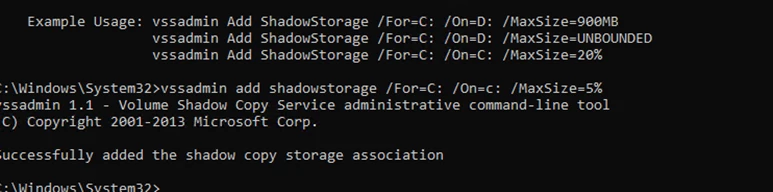
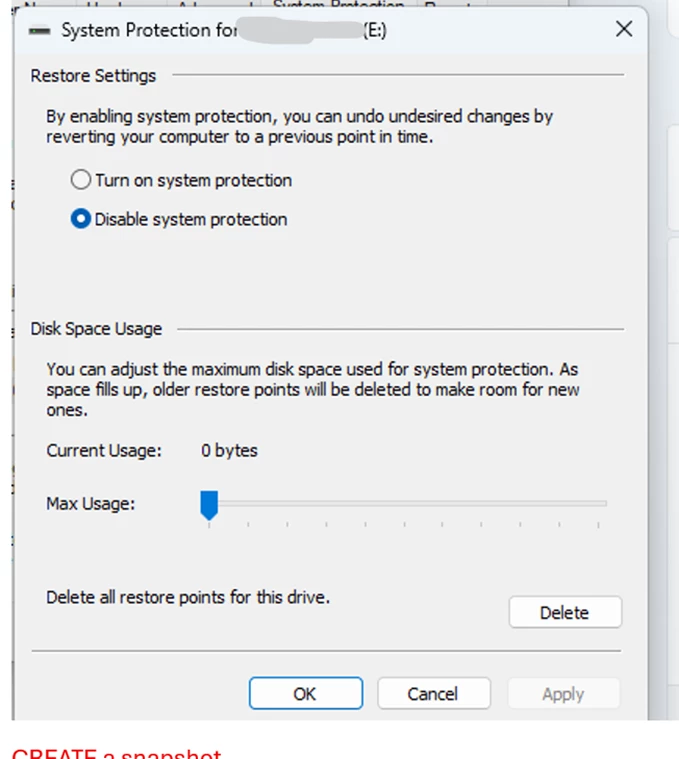
Another way you can do this is selecting System Protection on your drive. If you use the GUI you have less options however with sizing and target and only get the slider.
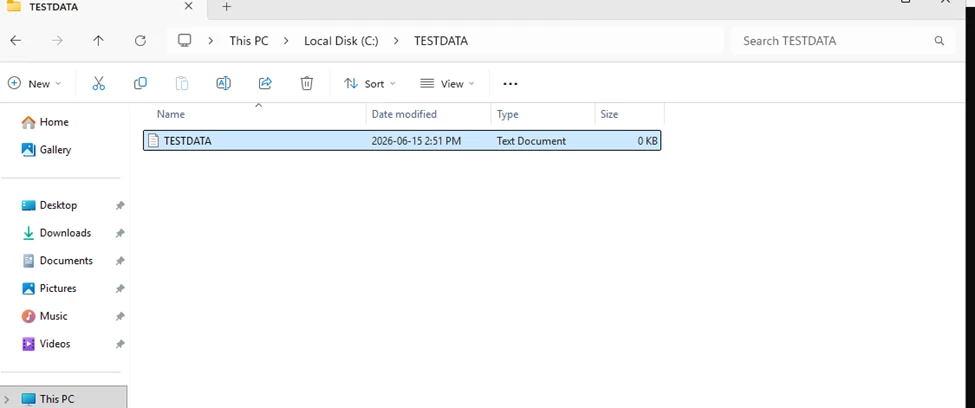
Before we test, first I’ll create a file and folder in C:\TESTDATA
To create a shadow for testing, we’ll use the vssadmin create shadow command.

Lets check and see what this did for us
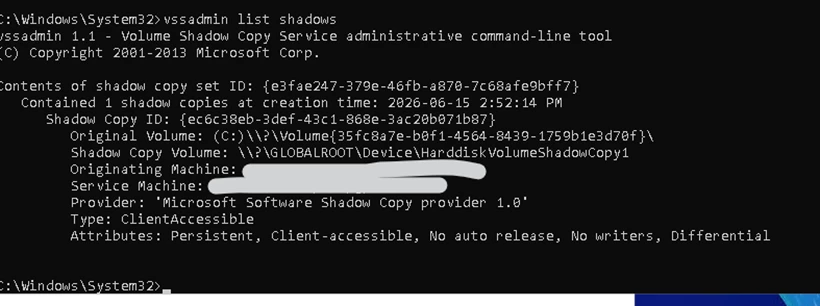
You can see the original volume and Shadow copy volumes, as well as the date and time.
Next I deleted the folder, and ran a Veeam backup.
To bring up the server to view the Shadow copy, lets use an Instant Recovery. I wanted to ensure there were no IP conflicts with prodcution so I left the network off for this test.
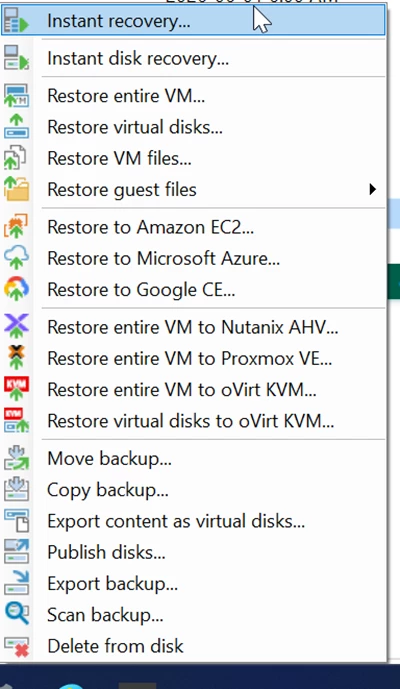
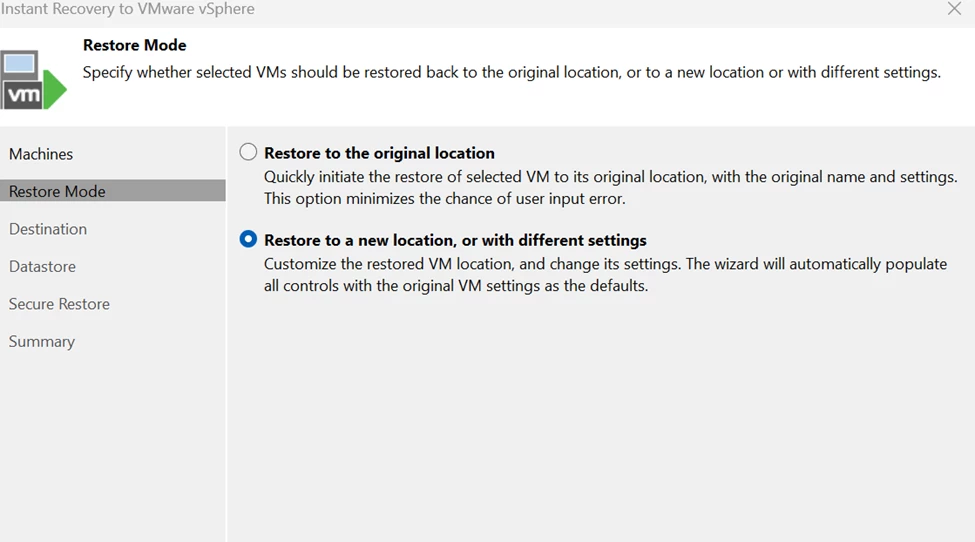
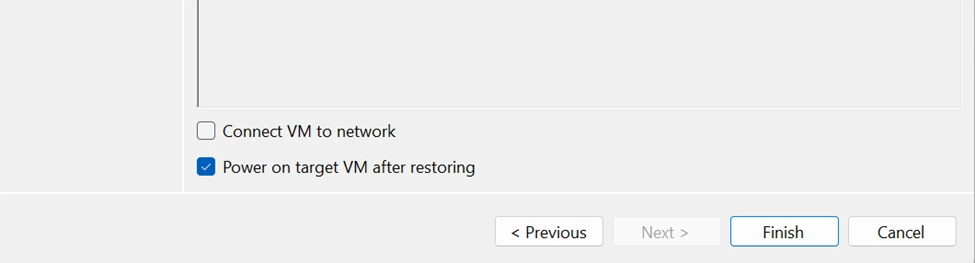
I chose the restore mode in the browser and removed the Connect VM to network box. - Choose a new name as well to keep things obvious.
I opened the VM in VMware workstation due to the minimal connectivity and logged in to the local system. From here, I ran a vssadmin list shadows command and saw the disk.
In a real environment knowing that a server had shadow copies enabled, opening your furthest restore point and seeing a few weeks worth of dates would let you know you have the possibility to restore some older files.
If you open explorer in the restored VM, you can look at a folder or drive and see if there are any previous restore points. Here I can see the one I took before the test.
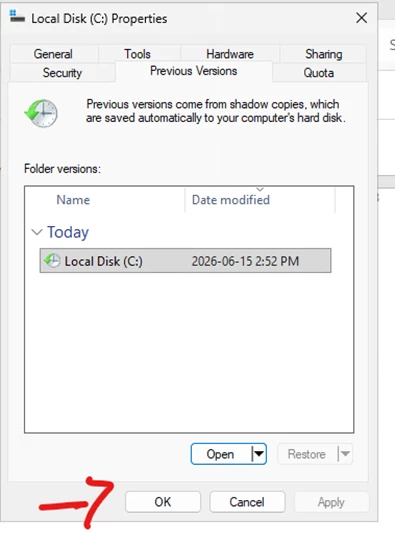
And what do you know!, Open it up and there is my file. Fully accessible and able to copy.
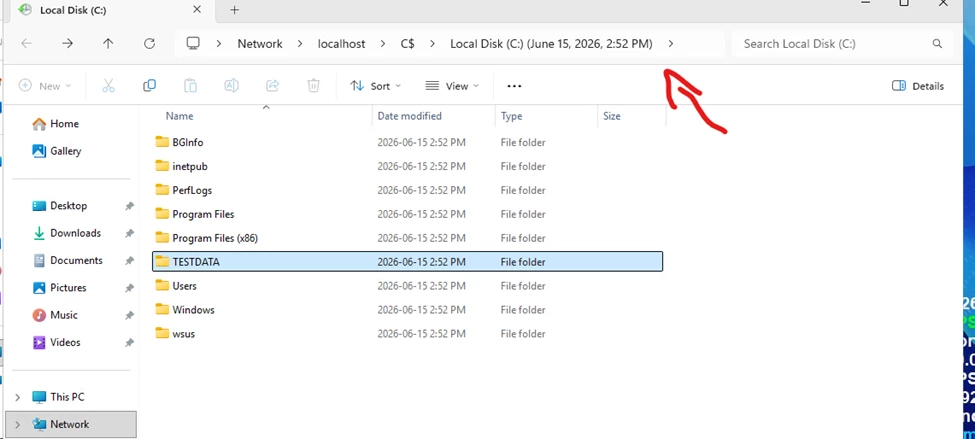
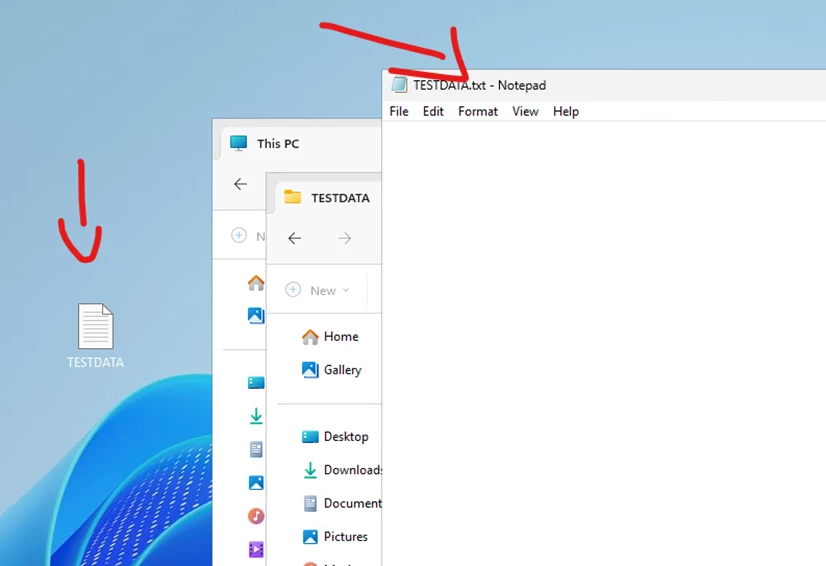
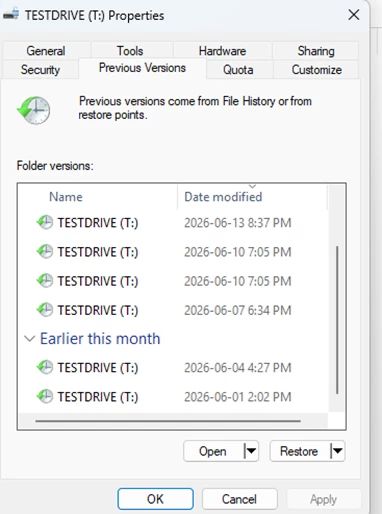
This drive has has several weeks worth of versions. This is where things can be beneficial if you are doing restores and it only takes a second to check if a file server has vss snapshots enabled.
If you want to take this further, you can look into creating symlinks, and using additional software to mount the snapshots and get full access. This method is a bit more advanced and uses some tools that will create alerts, so for the scope of this post, lets just say, it’s worth typing in “vssadmin list shadows” in an elevated prompt before giving up!