


Recently I found myself in a situation where I needed to update the license on a Veeam Data Platform 13.x environment after the subscription had already expired.
I figured it would be a quick job. Upload a new licence, refresh everything, and move on with my day.
It turned out to be a little more interesting than that.
The First Problem
The first thing I noticed was that I could no longer connect using the Veeam Backup & Replication Console.
Instead, I was greeted with the following error:
"Failed to connect to backup server localhost. Make sure it's online and running V13 or later."
At that point I wasn't entirely sure whether I had a licensing issue, a service issue, or something more serious going on.
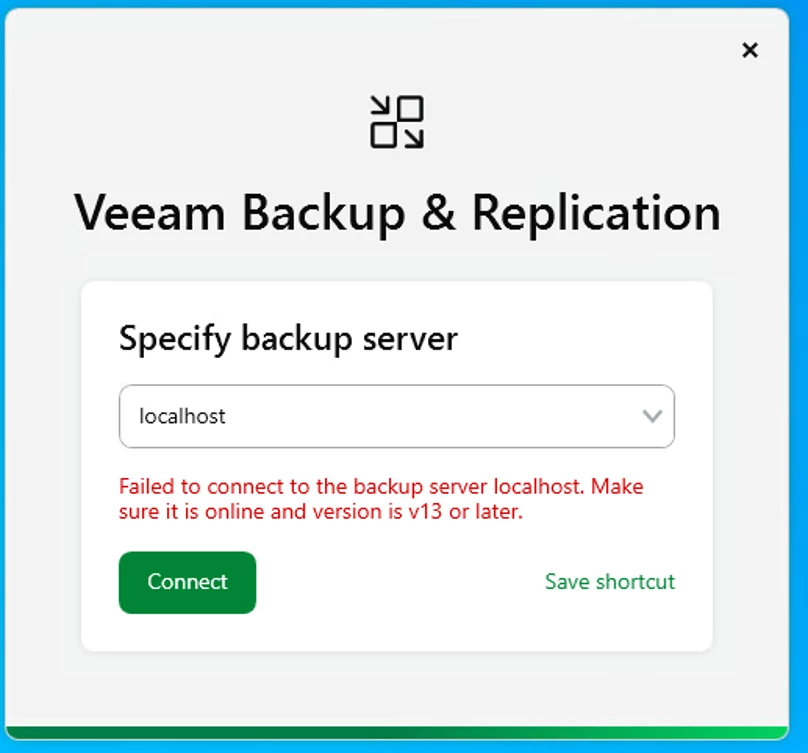
Screenshot : VBR Console connection error
Trying the Web Console Instead
My next thought was to see if I could get in through the Web Console.
The browser connected successfully, which was at least a positive sign. It meant the server was alive and responding.
I clicked Proceed, expecting to be taken to the login page.
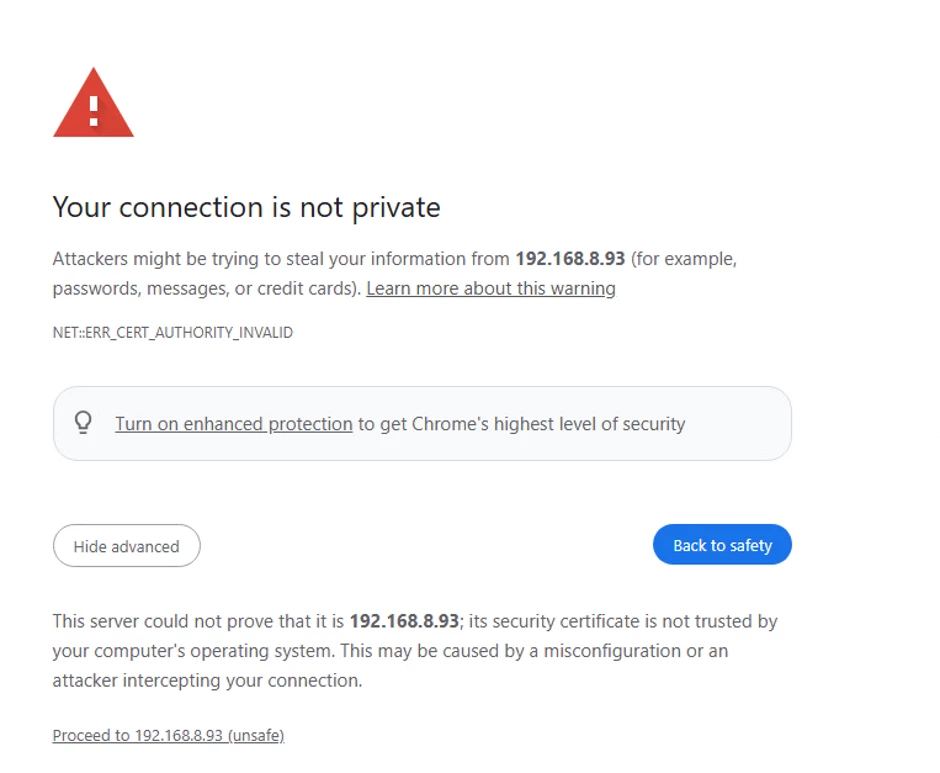
Screenshot Web Console warning page
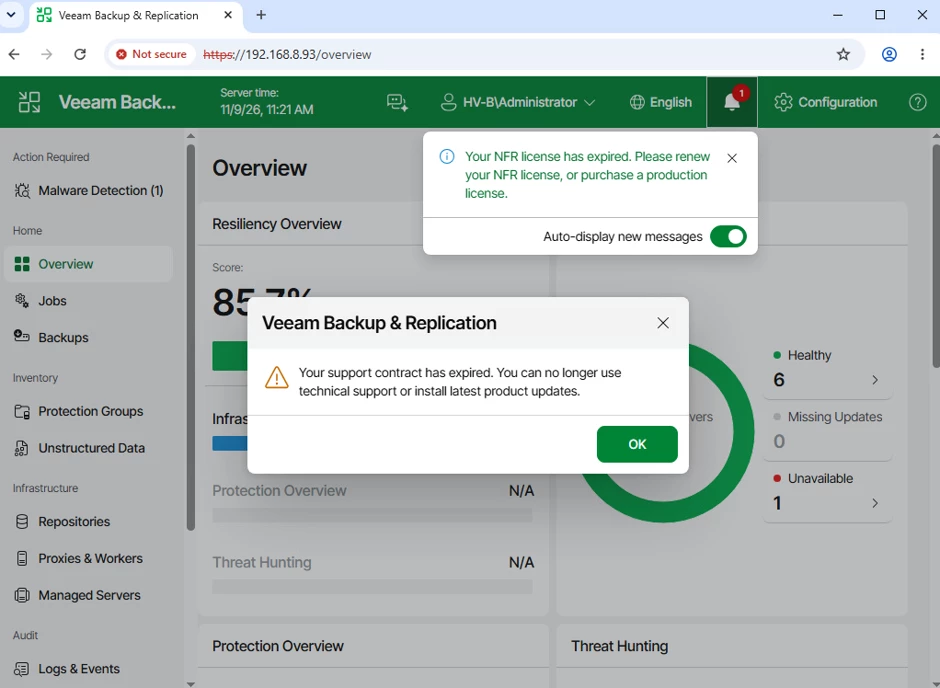
Instead, I discovered things weren't quite as healthy as they first appeared. The Web UI wasn't functioning properly, and after a bit of digging, I found the culprit.

The Veeam Web Service wasn't running.
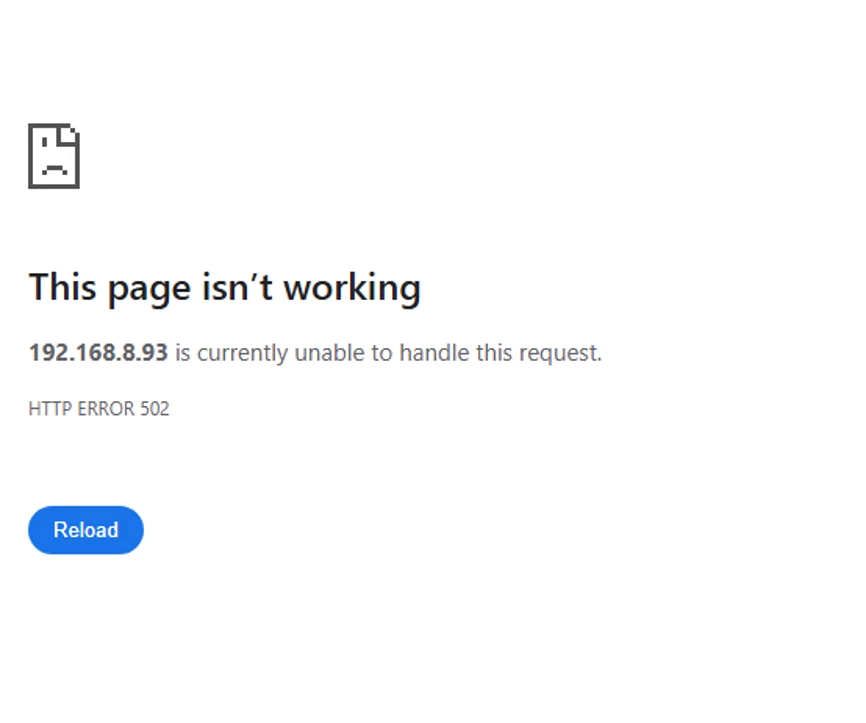
Screenshot : Web Console error
One Problem Down
After starting the Veeam Web Service, I was finally able to access the Web Console and sign in.
That was the first small win of the day.


Screenshot : Veeam Web Service stopped
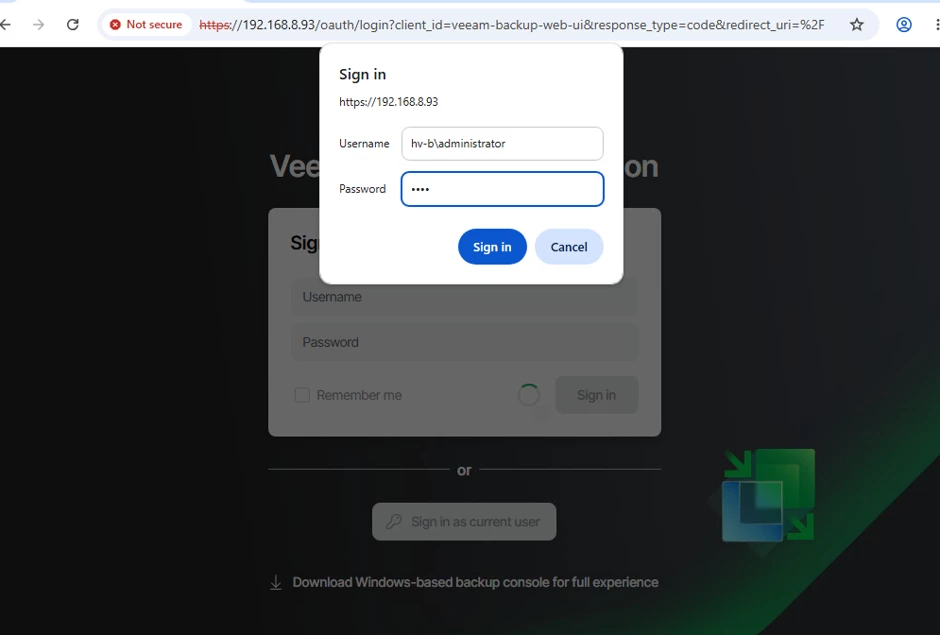
Screenshot : Successful login to Web Console
Time to Deal with the Licence
Since I already suspected the expired subscription was the root cause, I navigated to:
Configuration → Licence Information
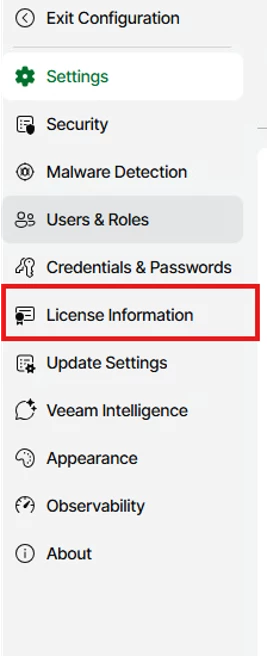
Screenshot: Configuration menu
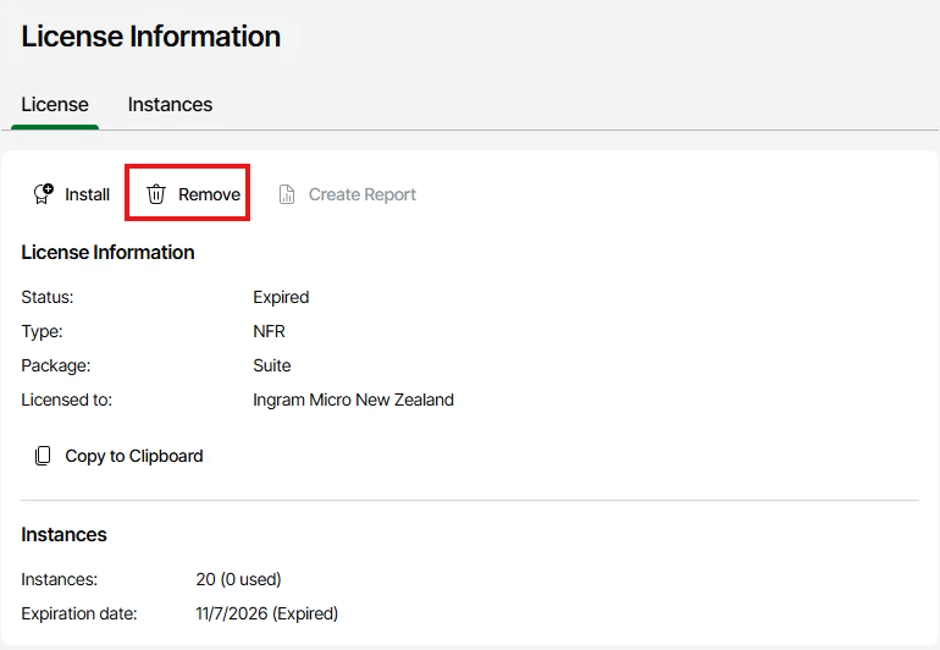
Screenshot : Licence Information page showing expired licence
Sure enough, the licence had expired. No surprises there.
The Slightly Nervous Moment
I selected the option to remove the expired licence.
As soon as I did, a warning appeared advising that removing the licence would disable the Web UI.
I'll be honest, that made me pause for a second.
The last thing I wanted was to completely lock myself out of the server while trying to fix a licensing issue.
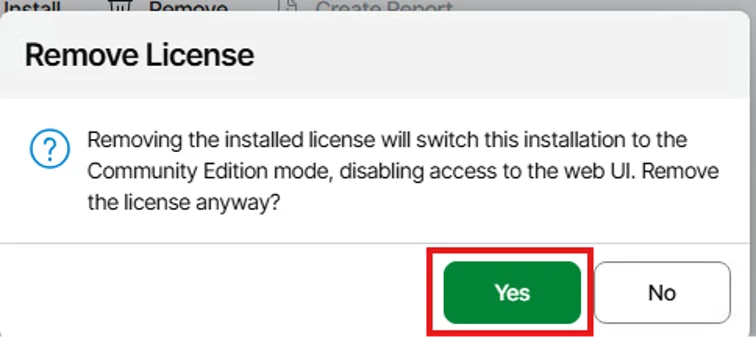
Screenshot : Warning message about disabling Web UI
Thankfully, the message was a little scarier than the reality.
While the Web UI was technically disabled, it still gave me the option to upload a replacement license.
Uploading the New License
From there, I selected Update Licence Key File and uploaded the new license.
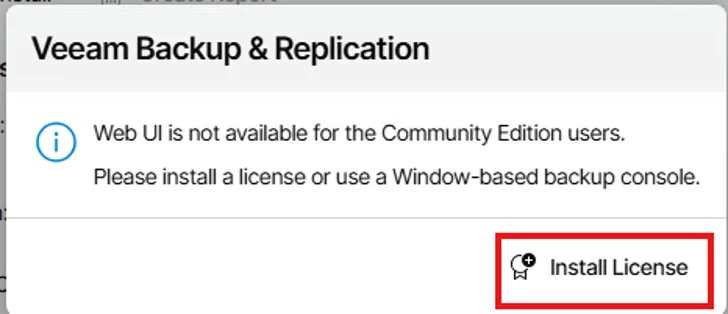
Screenshot : Update Licence Key File option]
A few moments later, everything updated successfully. The license was showing as valid again. which I did by selecting the update License key file.
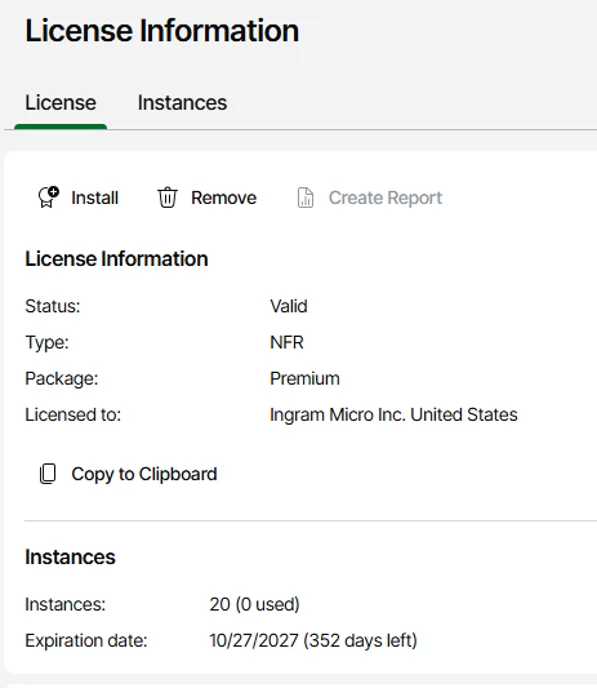
Back in Business
With the licence updated, I launched the VBR Console again. This time it connected without any issues.
Problem solved.
My Takeaways
A couple of things stood out from this experience:
• An expired licence can leave you unable to connect through the VBR Console.
• The Web Console may still provide a path back in, even when the VBR Console won't connect.
• If the Web Console isn't behaving as expected, check that the Veeam Web Service is actually running.
• The warning about disabling the Web UI when you remove the license can be a little alarming, but you should still be able to upload a replacement licence.
• Once the new license is applied, normal access to the VBR Console is restored.
Final Thoughts
What started as a simple licence renewal ended up taking a few unexpected turns. Looking back, none of the individual steps were particularly difficult, but when you're staring at connection errors and warnings about disabling the Web UI, it's easy to think you're heading down the wrong path.
Hopefully documenting my experience helps someone else who runs into the same situation. If nothing else, it might save you a few minutes of head scratching before you discover it's simply an expired license and a stopped web service causing the drama.
And was able to login to the Veeam VBR console.