


Hi everyone,
During my onboarding training I kept asking the same questions when looking at a VBR environment: which proxies does this job really use, where do the repositories run, and which ESXi host is the backup server on? To answer them quickly, I built a small tool, and I’d like to share it with the community.
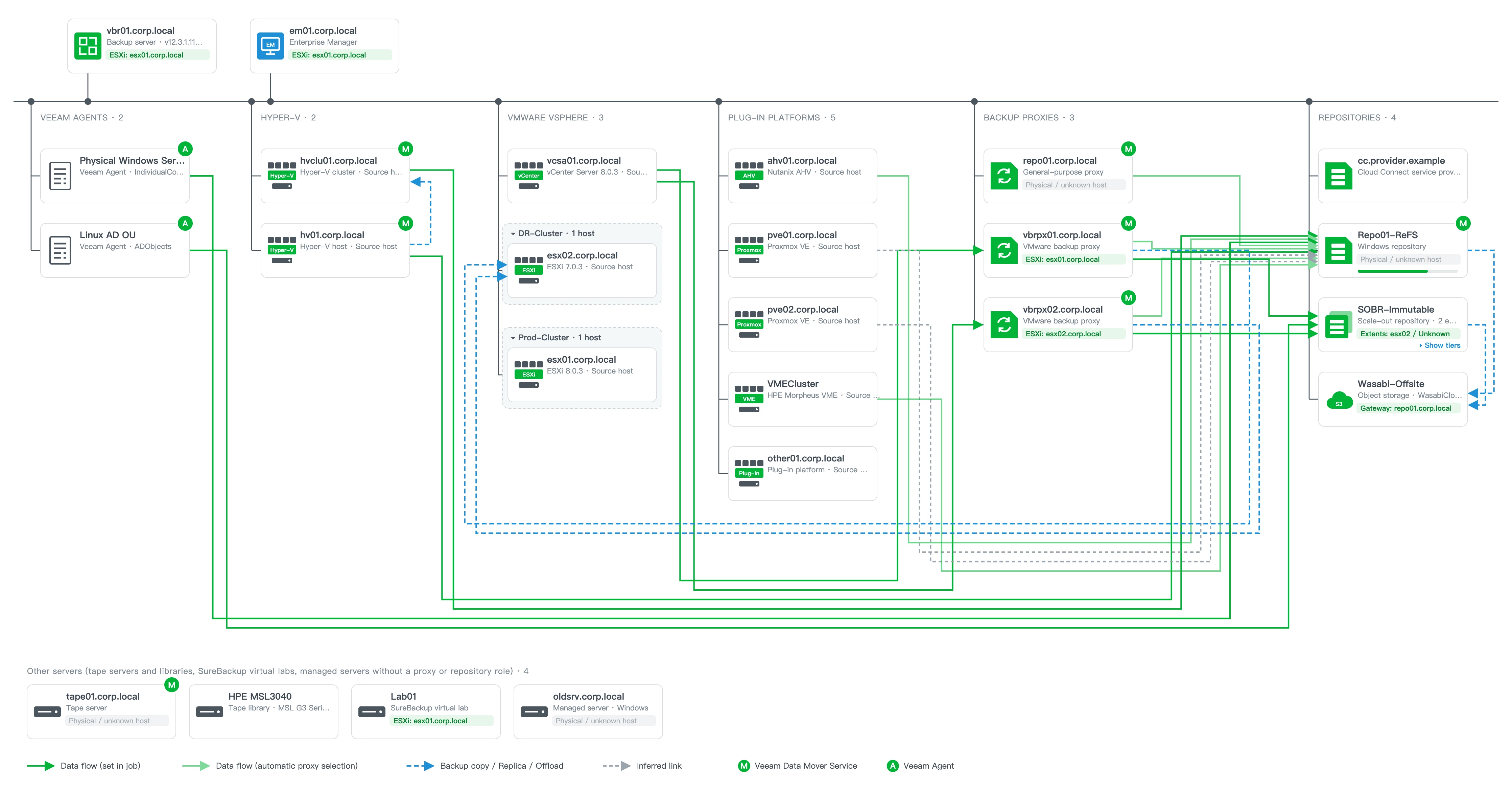
VBR Topology Scanner reads a Veeam Backup & Replication server and writes a single HTML file that shows the whole backup infrastructure as an interactive diagram.
Try it without installing anything
Here is the example report, built from demo data:
Click to check exmple report
What it shows
- Architecture diagram: sources (vSphere, Hyper-V, Veeam Agents, Proxmox VE, Nutanix AHV, HPE Morpheus VME), backup proxies and repositories. Data-flow arrows are worked out from the job settings, including backup copy, replica and SOBR offload.
- Where each component runs: the ESXi or Hyper-V host of the backup server, Enterprise Manager, proxies and repositories, matched through vCenter or the Veeam inventory.
- vSphere clusters: ESXi hosts are grouped by cluster. Large clusters can be collapsed into a single card.
- Scale-out repositories: click a SOBR to open its performance, capacity and archive tiers. Object storage shows its connection mode (Direct, or the gateway servers it goes through).
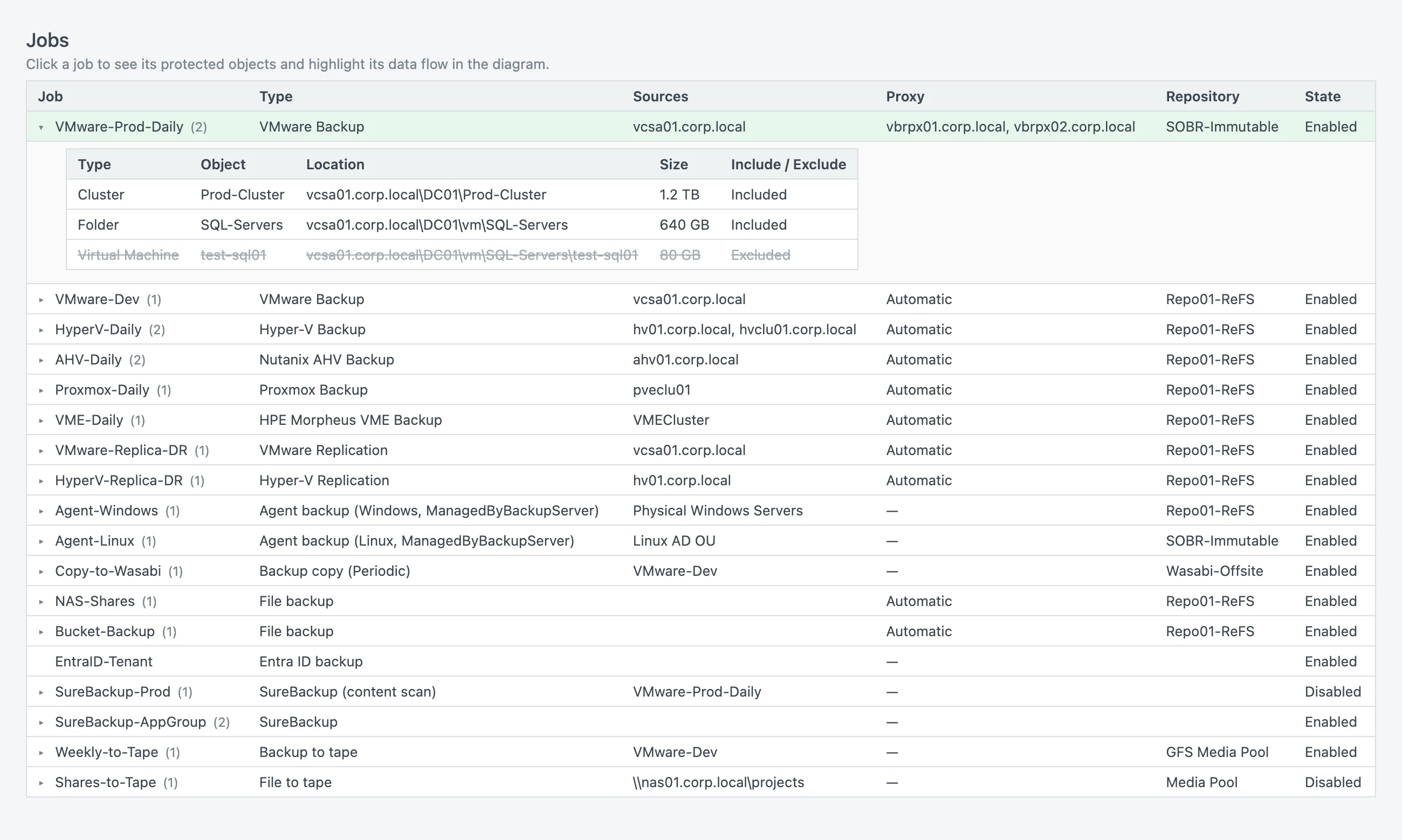
- Jobs and protected objects: click a job to list its VMs, containers, protection groups, shares and exclusions, and to highlight its data flow in the diagram.
- Also covered: Enterprise Manager, tape servers, libraries and jobs, SureBackup virtual labs, Cloud Connect service providers, and vCenter / ESXi versions.
- Report options: switch between English and Traditional Chinese with one click, and export the diagram as SVG or PNG, or the model as JSON.
Two collectors, one report (read-only; it never changes VBR or vCenter)
Both collectors are read-only. They only use Get-* / Find-* cmdlets and REST GET calls, and they never change VBR or vCenter.
PowerShell, on the VBR server or any machine with the VBR Console:
.\Get-VBRTopology.ps1 -UsePowerCLI
PowerCLI (or --vcenter-user) is optional. It gives the most accurate component-to-host matching, because it uses the VM’s guest hostname and IP. Without it, the tool matches components by VM name through the Veeam inventory.
Python 3.8+, standard library only, from any machine that can reach VBR on port 9419:
python3 vbr_topology.py --host vbr01.corp.local --user 'CORP\veeam-admin' --insecure --vcenter-user 'readonly@vsphere.local'
The PowerShell collector covers the most: plug-in platforms, tape, SureBackup virtual labs and ESXi versions. The Python collector is handy when you cannot run scripts on the VBR server. The README lists the differences.
Status and limitations
So far it has been tested in our lab (VBR v13.1, vCenter 8.0.3, ESXi 7.0.3 and 8.0.3) and against offline mocks. Some objects are not exposed by the REST API (for example plug-in platform jobs and some replication jobs), so the Python report shows less than the PowerShell one. The known limitations are listed in the CHANGELOG.
Get it
- Repository and docs: https://github.com/RonTsai/veeam-util/tree/main/vbr-topology
- Latest release: v1.8.0
Feedback, ideas and bug reports are very welcome. If something looks off in your environment, leave a comment here or open an issue on GitHub.
Thanks for reading!