

Backup alone no longer guarantees business continuity. In an era where cyberattacks, human error, and infrastructure failures have become constant threats, the ability to rapidly restore critical services is now a key business requirement.
I regularly help organizations strengthen their cyber resilience posture through modern data protection and disaster recovery solutions. As part of a recent project , I deployed Veeam Recovery Orchestrator (VRO) v13, the orchestration component of the Veeam Data Platform Premium Edition, designed to automate and validate Disaster Recovery (DR) plans.
Why Veeam Recovery Orchestrator?
Many organizations have reliable backups in place, yet struggle to prove that they can effectively recover critical services during a major incident.
Veeam Recovery Orchestrator addresses this challenge by providing:
- Full automation of disaster recovery plans.
- Orchestrated recovery of applications and virtual machines based on dependencies.
- Regular, non-disruptive disaster recovery testing.
- Automated compliance and audit reporting.
- Support for meeting Recovery Time Objectives (RTOs) and Recovery Point Objectives (RPOs).
- Dynamic and automatically updated recovery documentation.
In short, VRO helps organizations move beyond backup and toward demonstrable operational resilience.
I’m going to try to share my experience with vRO, drawing on both a real-world use case and examples from my lab. Let’s start with the installation.
Important
Note the following limitations:
- Installing Orchestrator server components on a PostgreSQL database is not supported.
- Network Address Translation (NAT) between the remote Veeam Backup & Replication server and the Orchestrator server is not supported.
- As direct connections to vSphere hosts are not supported, the Orchestrator server must be connected to VMware vCenter servers.
Deploying the Veeam Recovery Orchestrator environment into production requires the implementation of the following mandatory elements:
The current version of Veeam Recovery Orchestrator (v13.0.1) requires, at a minimum, an initial connection to the production vCenter to collect inventory and create recovery plans using vSphere tags. Veeam Recovery Orchestrator server sizing
- Launch the installation wizard and click Install.
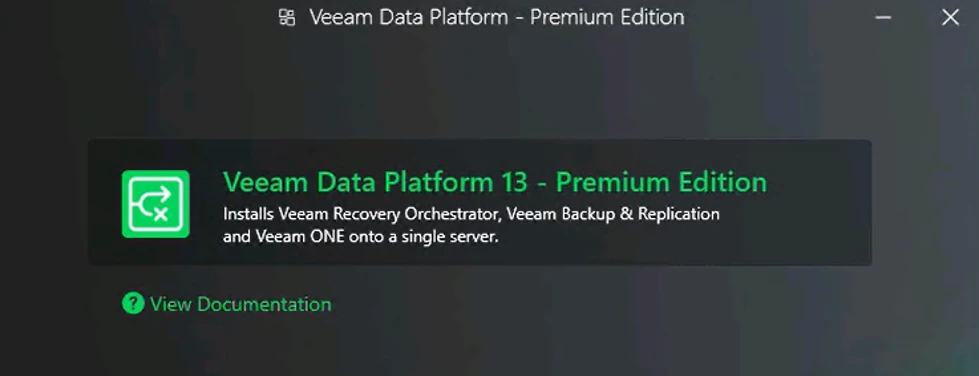
- Choose Veeam Data Platform 13 Selection: Premium Edition
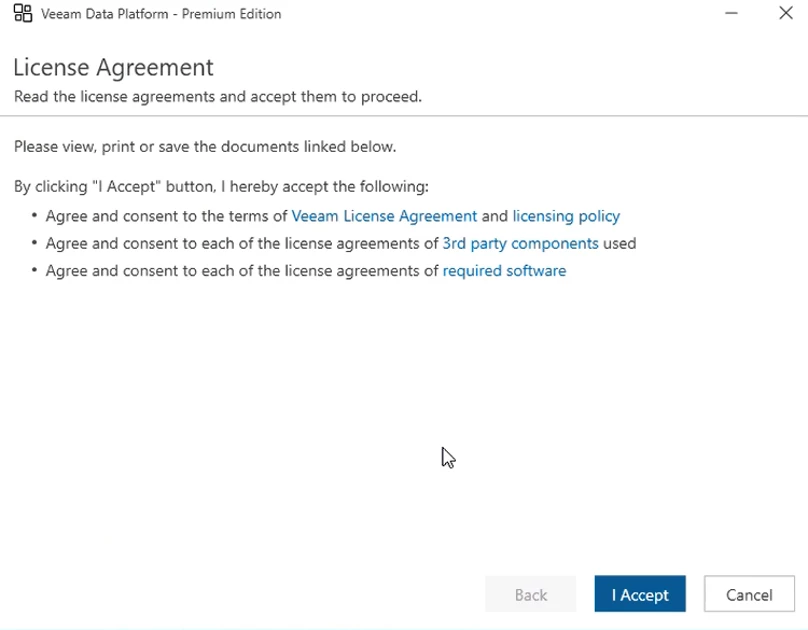
- Accept the end-user license agreement
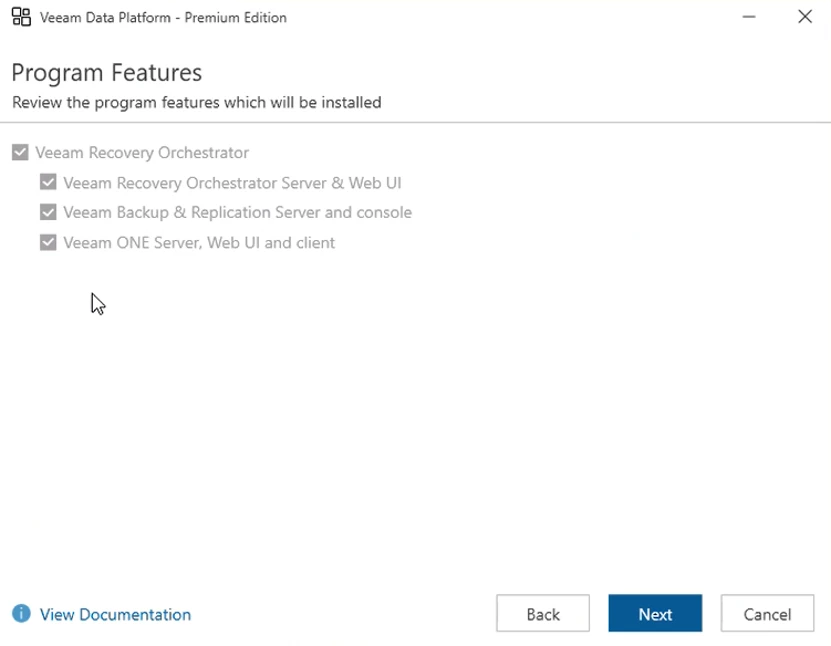
- Veeam Recovery Orchestrator requires the installation of these packages. Click Next.
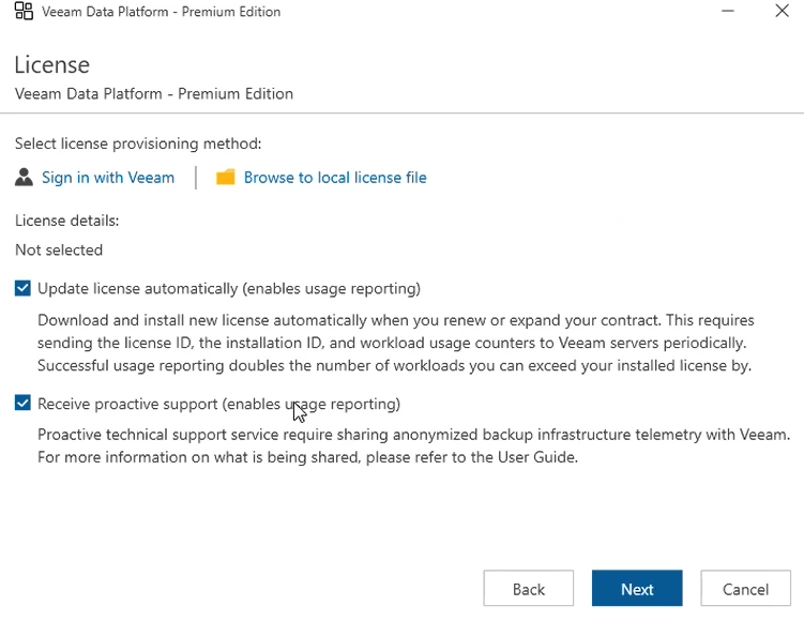
- Click Browse for license file and select the VRO license file. Click Next to continue. (As reminder you must have a Veeam premium edition licence)
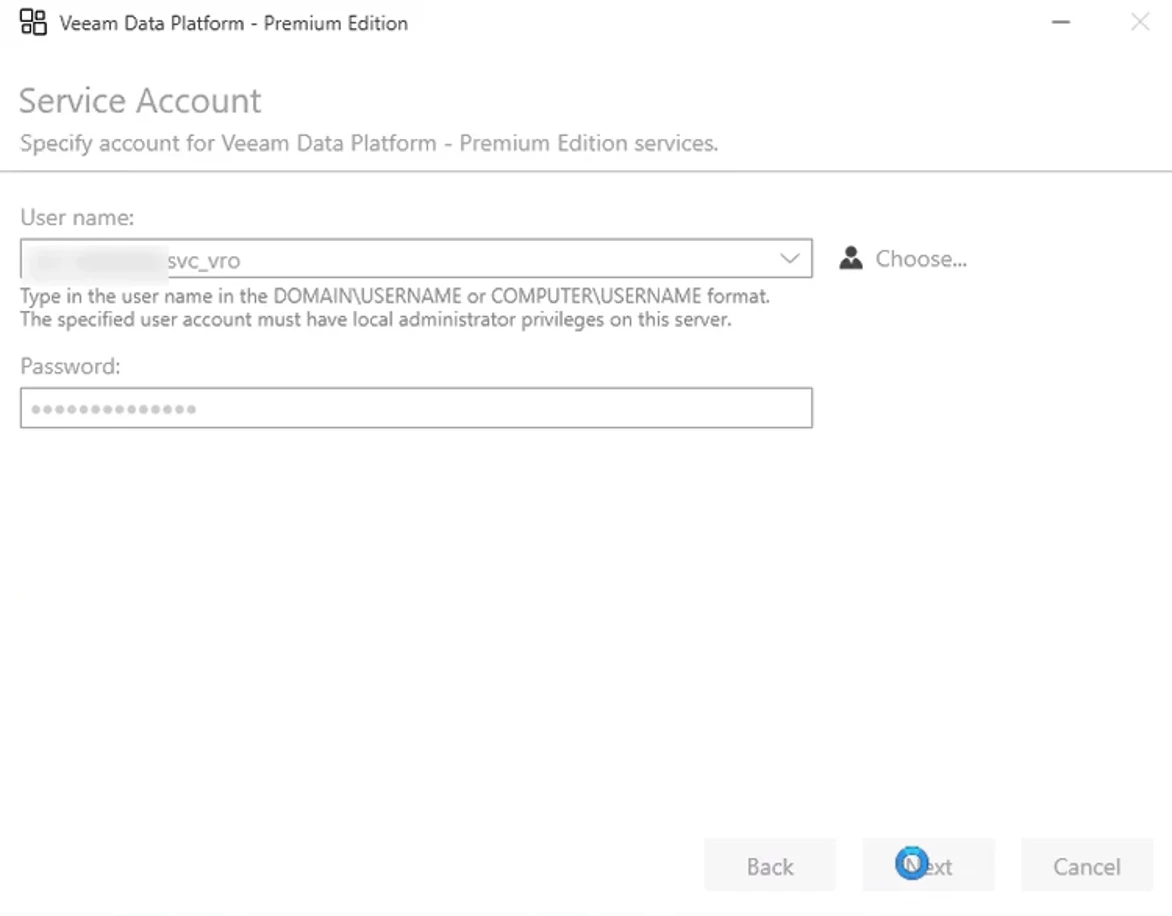
- Enter the username and password for the VRO service account. Click Next. In my case I’m using a local account, my VRO is not joined to any domain.
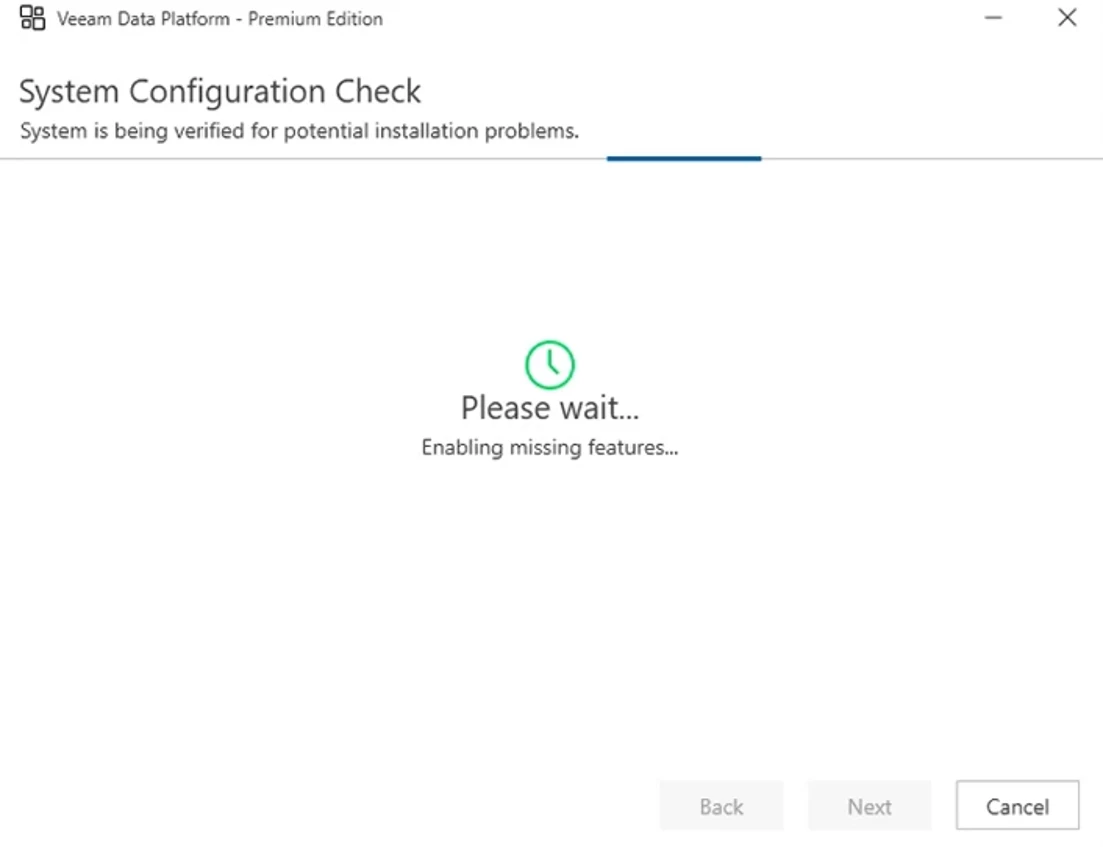
- The installation procedure activates the missing features.
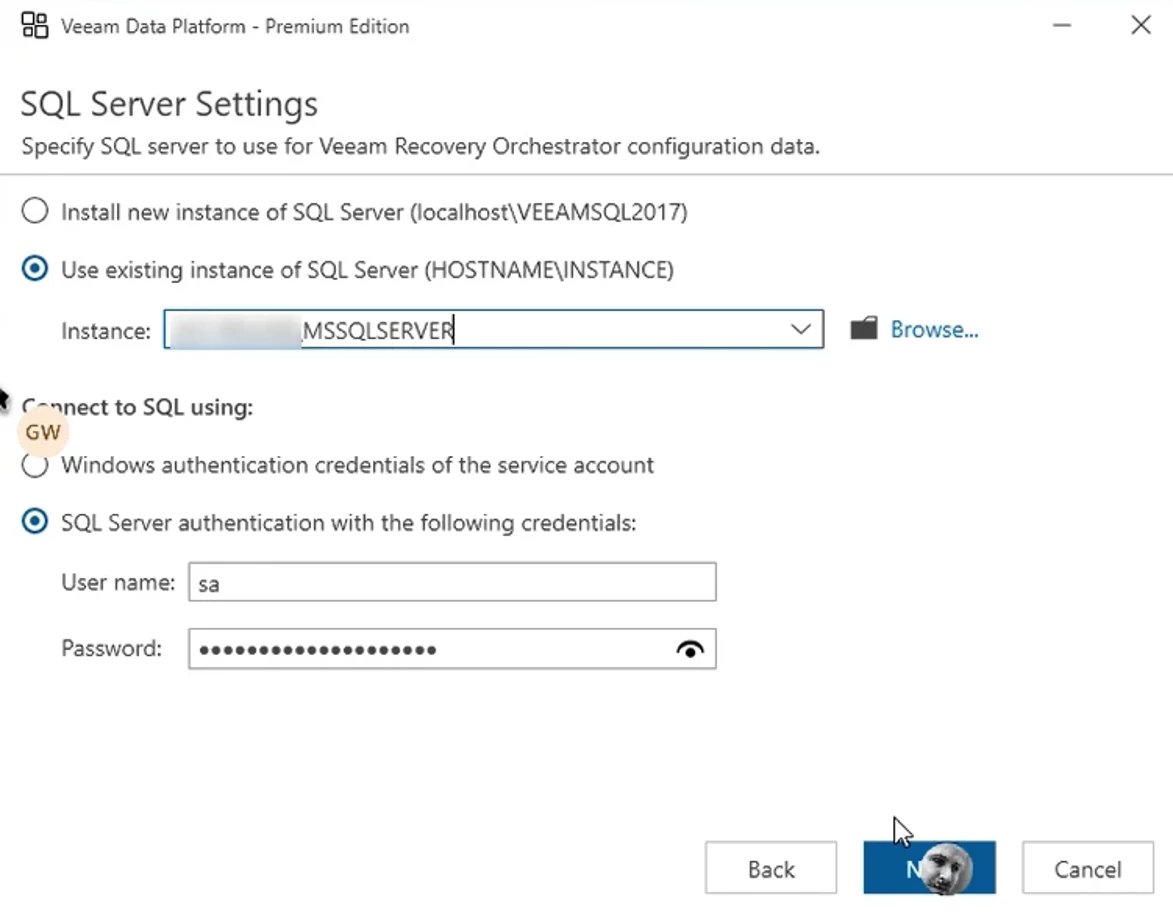
- Although Veeam Backup & Replication supports PostgreSQL databases, VRO and Veeam ONE do not yet do so; therefore, you must install Microsoft SQL Standard on a dedicated machine. Express edition is recommended only for PoC. Click Next.
- PostgreSQL configuration is now required for Veeam ONE reporting. Click Next.
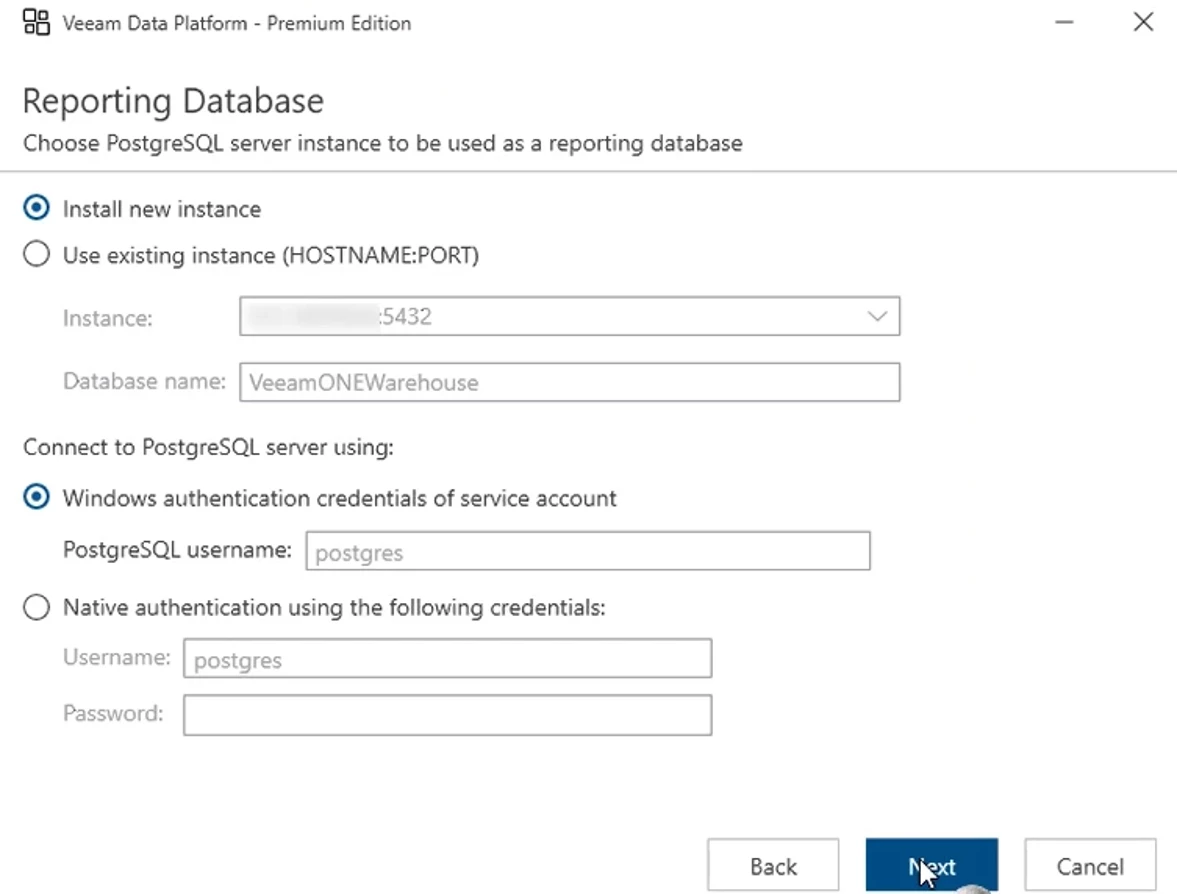
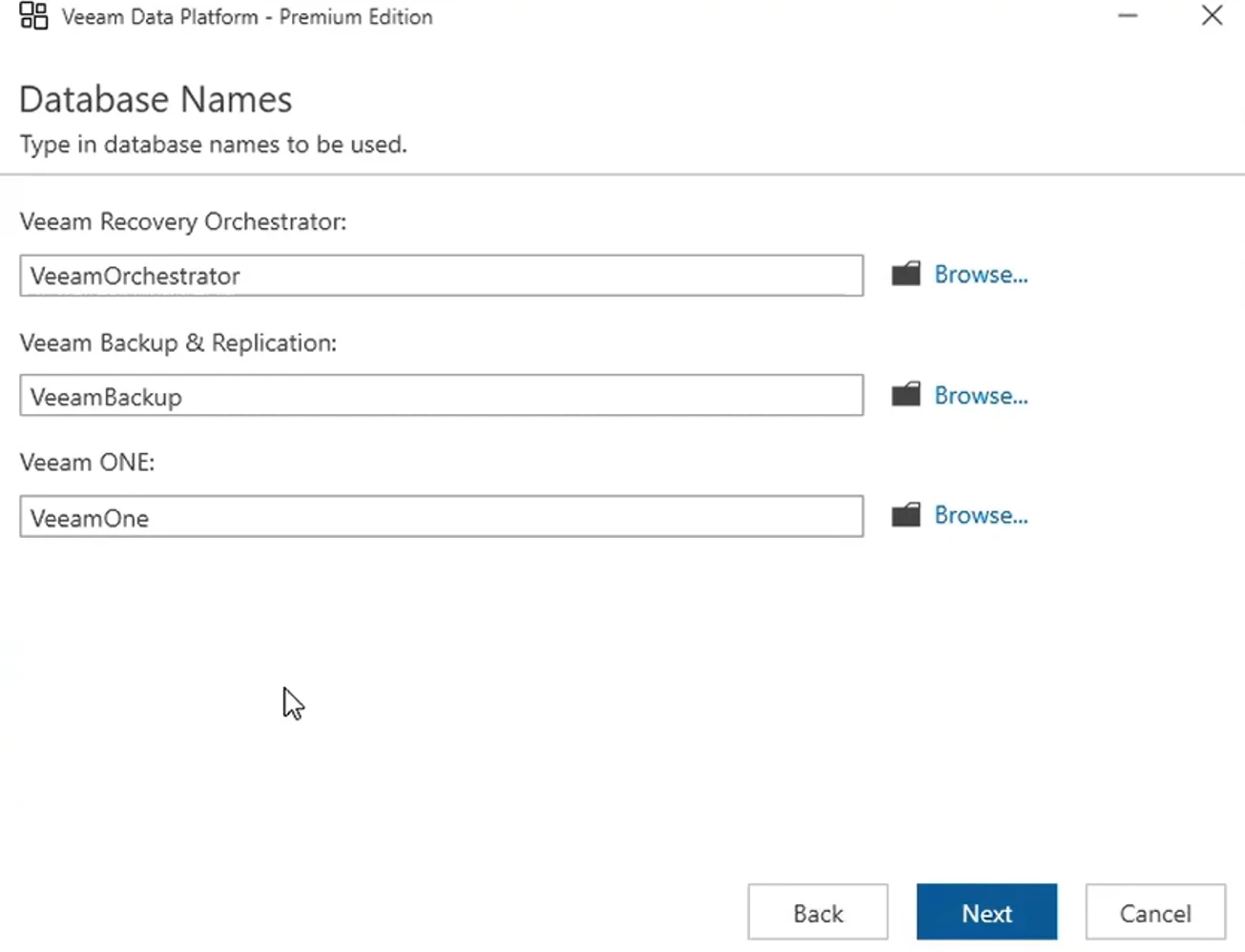
- Creation of MS SQL databases for each product. Click Next.
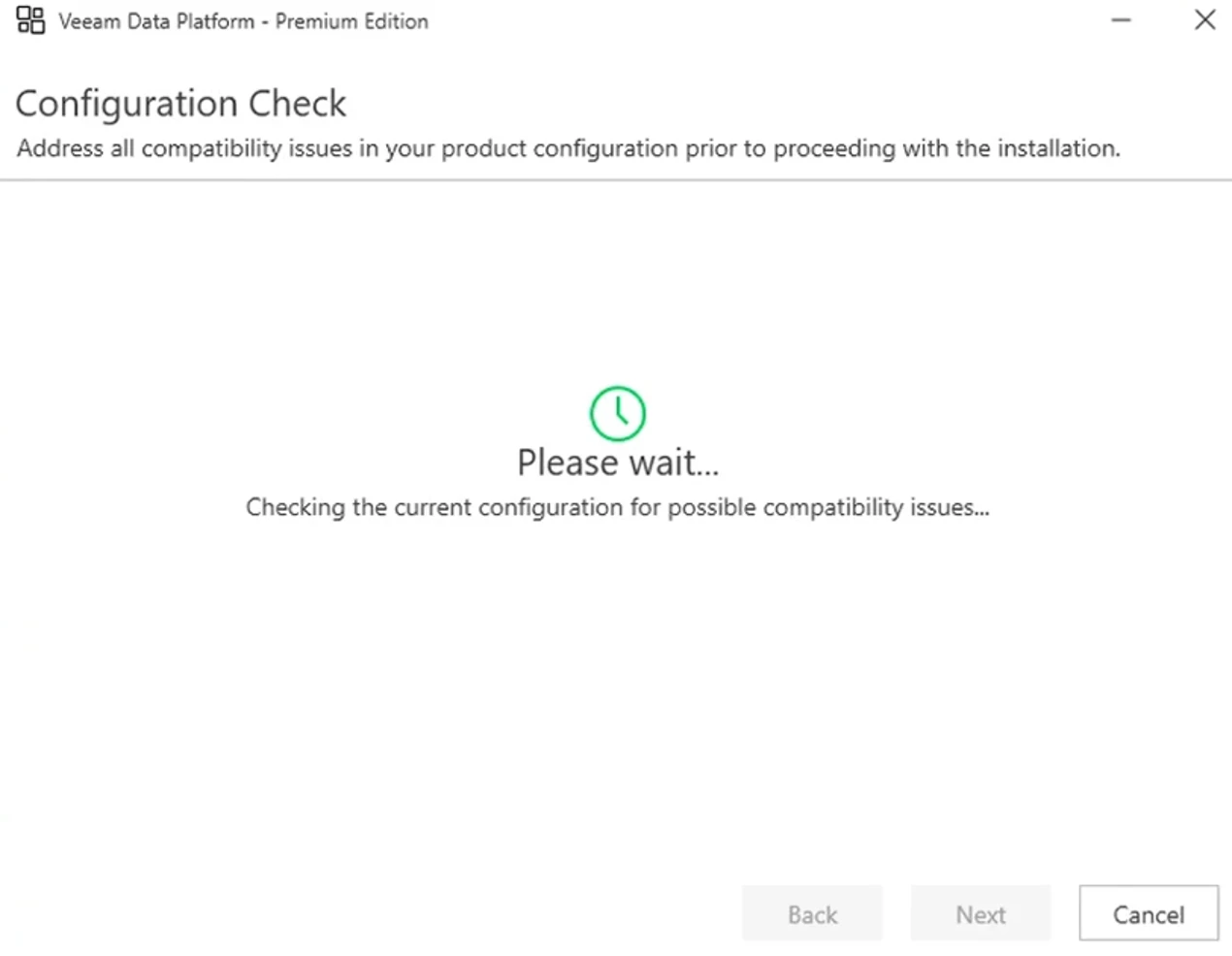
- Configuration verification. Click Next.
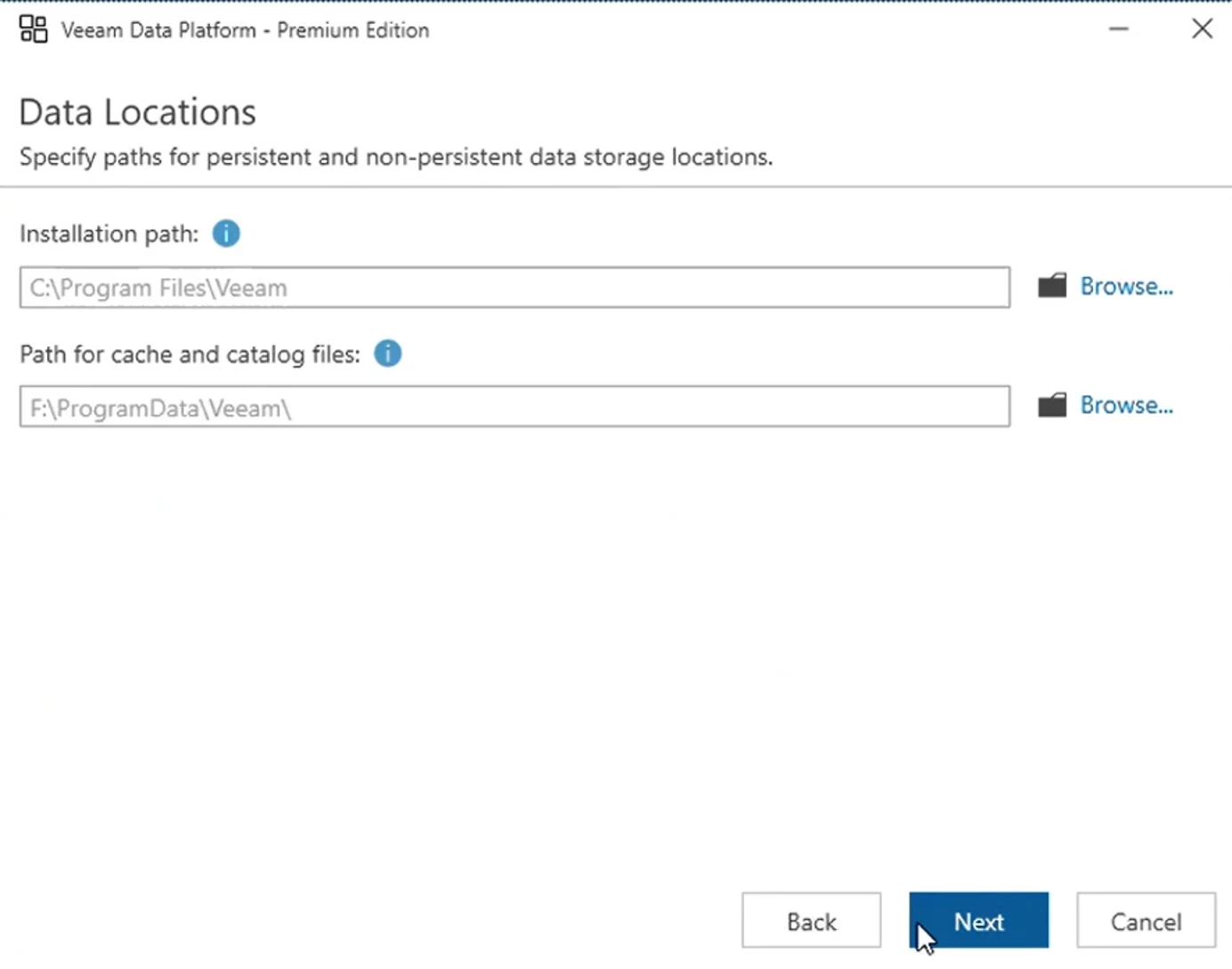
- Specify the installation, cache, and catalog directories. Click Next.
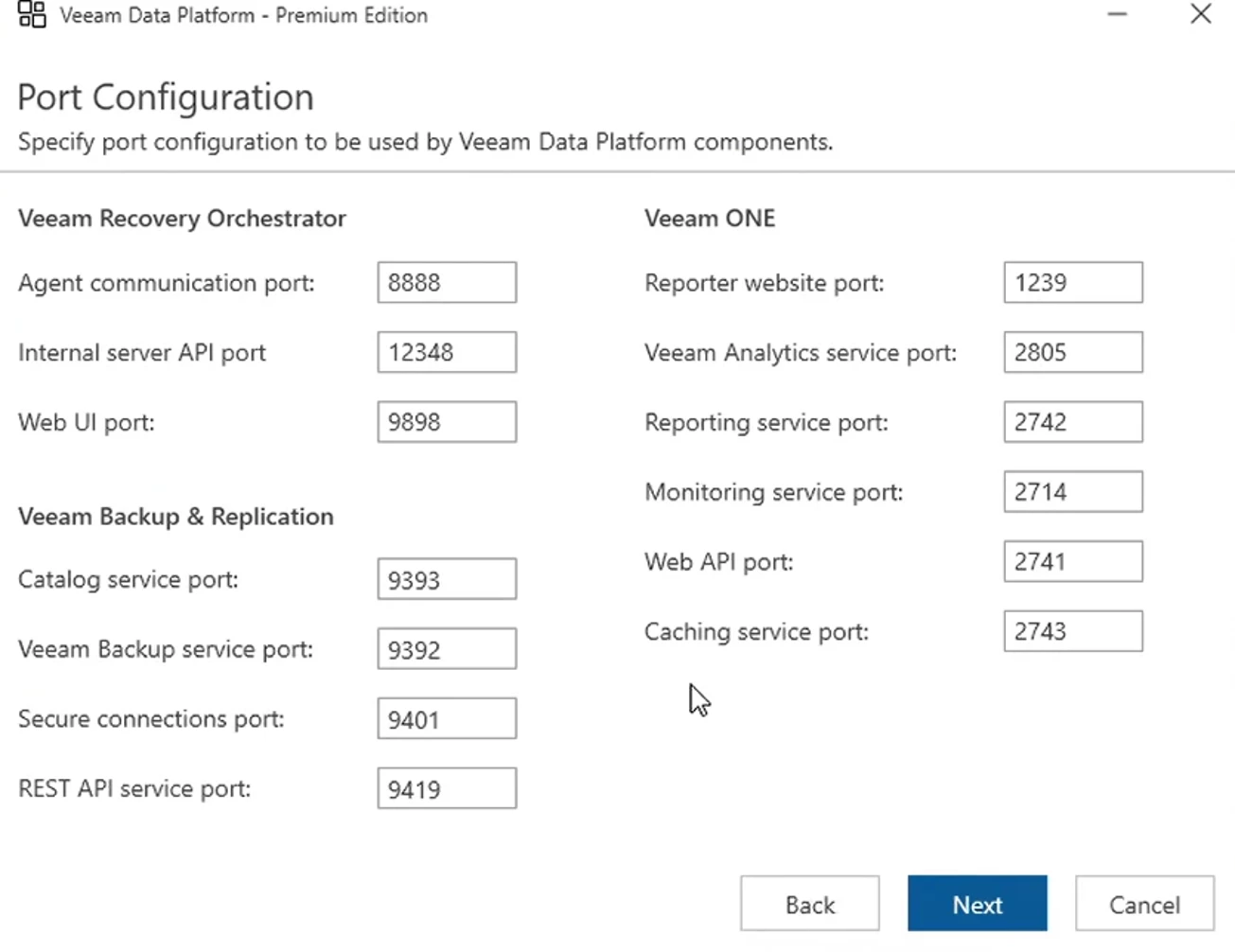
- Validate the port configuration. Click Next.
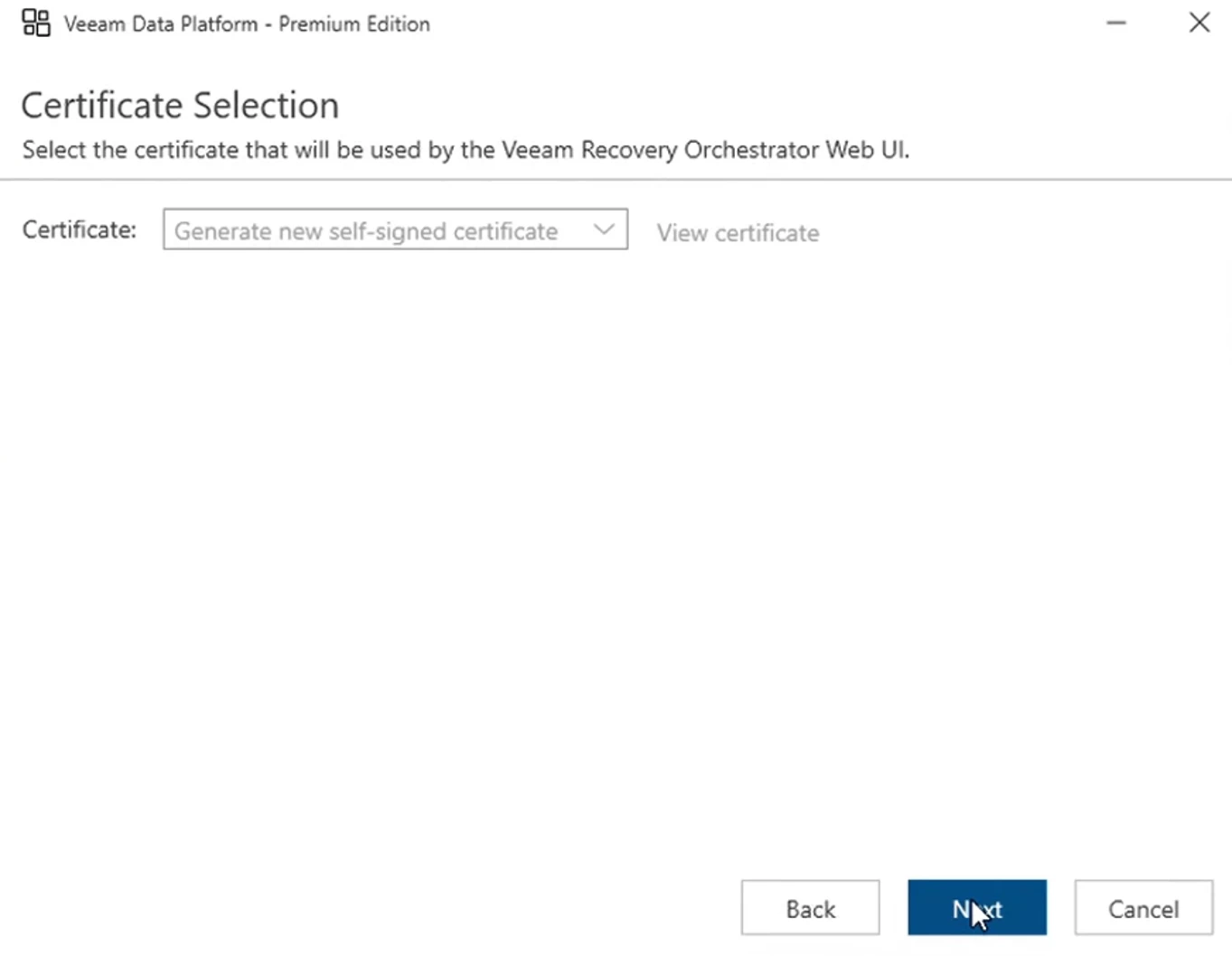
- Generate a self-signed certificate. Click Next.
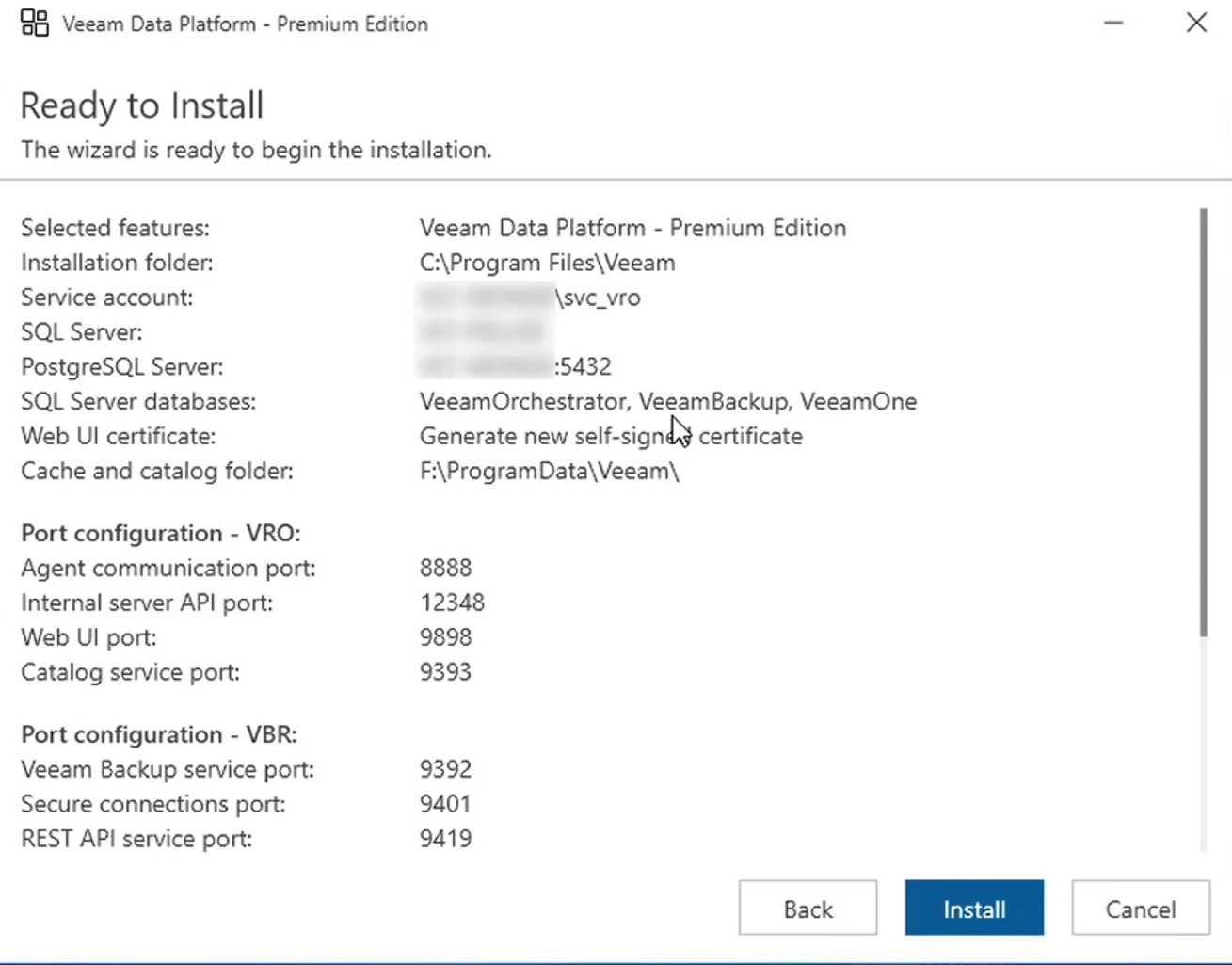
- Click Install to start the installation.
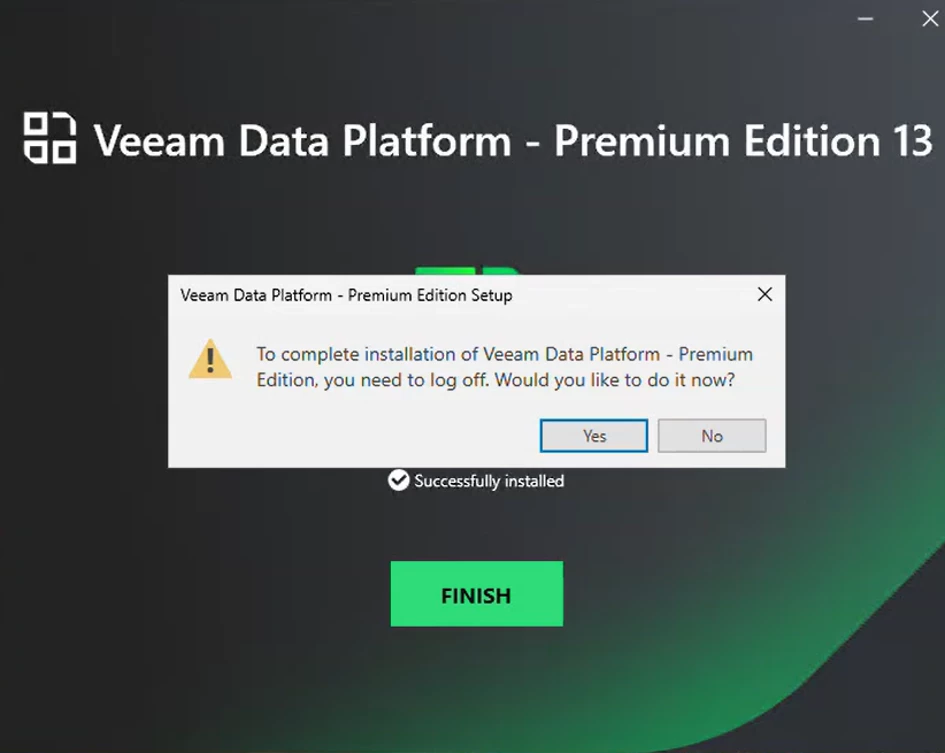
- Wait for the installation process to complete and click Finish to exit the installation wizard.
In the next article we will discuss the initial configuration required to use VRO.