
An assumption for this course is that you are using the latest product versions and package updates. Check for available updates manually if required.
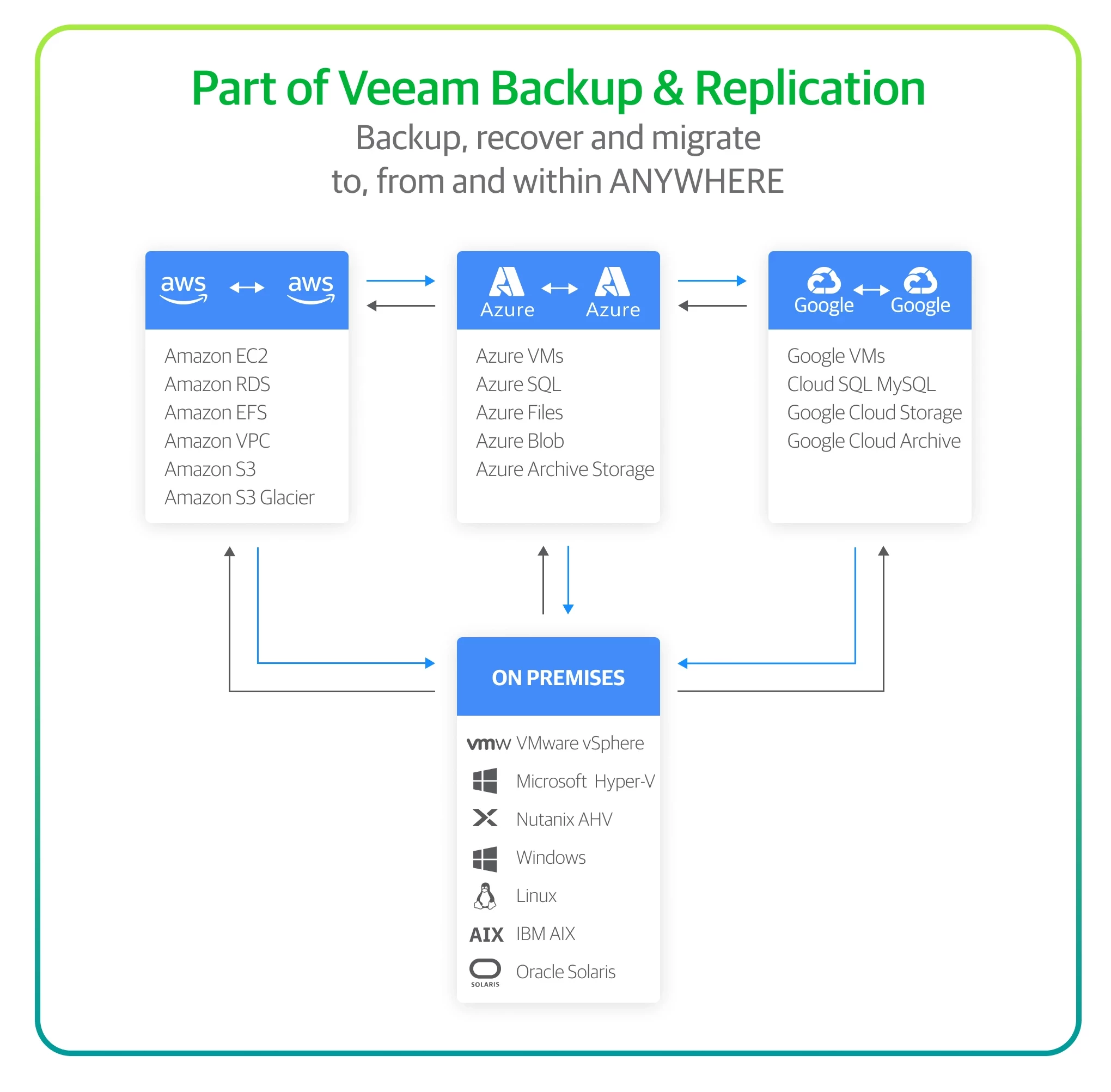
With Veeam Backup & Replication via Google Cloud Plug-in for centralized and unified management and monitoring of hybrid-/multi-cloud environments, which provides you with a greater portability of backups and opportunity to store data on premises as well as across any of the supported public cloud providers.
Deployment Guidelines and Prerequisites
Before you start using Google Native Backup and Recovery, make sure to:
- Digest an overview & sizing best practices by Veeam Solution Architects
- Study hardware, software and infrastructure limitations and considerations
- Ensure that all required ports are open and user accounts that you plan to use have the required permissions
Deployment
To deploy a new backup appliance from the Veeam Backup & Replication console, do the following:
- Launch the New Veeam Backup for Google Cloud Appliance wizard.
- Choose a deployment mode.
- Specify a Veeam Backup for Google Cloud account in which the appliance will be deployed.
- Specify a name and description for the appliance.
- Specify connection type for the appliance.
- Specify network settings for the appliance.
- Specify credentials for the default user account.
- Wait for the appliance to be added to the backup infrastructure.
- Finish working with the wizard.
How Deployment Works
When deploying Veeam Backup for Google Cloud, Veeam Backup & Replication performs the following steps:
- Creates a Google Cloud storage bucket with the name deployfiles-{InstanceName}-{TimeStamp} and uploads a preconfigured VM deployment package to this bucket.
- Deploys a VM instance from the Ubuntu 22.04 LTS image.
- Creates a temporary Google Cloud storage bucket for installation packages.
- Uploads Veeam Backup for Google Cloud installation packages and their software dependencies to the temporary storage bucket.
- Initiates the creation of a Google Cloud storage bucket with the name {ProjectNumber}-{Location}-blueprint-config to store the installation state files, logs and variables.
- Installs the required software components on the VM instance.
- Configures the default service account on the backup appliance. The default service account will then be used to perform data protection and recovery operations within the Google Cloud project to which the backup appliance belongs. Out of the box, this account is already assigned all the required permissions listed in section Service Account Permissions.
You will be able to add other service accounts later, after Veeam Backup for Google Cloud installation. For more information, see Managing Service Accounts.
- Removes the temporary storage bucket.
Note that the deployfiles-{InstanceName}-{TimeStamp} and {ProjectNumber}-{Location}-blueprint-config buckets will remain in Google Cloud infrastructure after the deployment procedure and must not be removed manually. Otherwise, backup appliance removal operation may fail or cause unexpected errors.
To start working with Veeam Backup for Google Cloud, perform the following steps to configure
- Add projects to get access to Google Cloud resources that you want to protect
- [Optional] Add users to control access to Veeam Backup for Google Cloud
- Add backup repositories
- Create worker configurations
- [Optional] Configure global retention and email notification settings
Even after the initial configuration, the VM list and Cloud SQL instance list will not populate until you create backup policies and specify regions where the instances belong. See Performing VM Backup and Performing SQL Backup for more information.
After a backup policy successfully creates a restore point of a Google Cloud resource according to the specified schedule, or after you create a snapshot of a resource manually, Veeam Backup for Google Cloud adds the resource to the resource list on the Protected Data page.
On the Protected Data page, you can also remove restore points if you no longer need them or perform the following restore operations, based on your disaster recovery needs:
- Restore of VM instances — Restore VM instances from cloud-native snapshots or image-level backups to the original location or to a new location.
- Restore of Cloud SQL instances — Restore Cloud SQL instances from cloud-native snapshots or image-level backups to the original location or to a new location.
Before you start performing restore, make sure that network settings are configured for each region where worker instances will be deployed during the restore process.
Backup & Recovery
Watch this quick demo to see how easy it is to back up public cloud in Google Cloud with Veeam:
If you use Veeam Backup for Google Cloud, you have access to an Overview Dashboard that provides at-a-glance, real-time overview of the protected Google Cloud resources and allows you to estimate the overall backup performance. Learn more here.
Pro tip: It is recommended that you regularly perform configuration backup for every backup appliance present in Google Cloud. Periodic configuration backups reduce the risk of data loss and minimize the administrative overhead costs in case any problems with the backup appliances occur.
Continue exploring advanced options for native Google Backup and Recovery through this practical guide for Veeam Backup for Google Cloud by Veeam Solutions Architects.
Do you need help with Google Cloud backup? Our global network of service providers can deliver Veeam-powered Backup as a Service (BaaS) offerings for your Google Cloud data.
Suggested resources: