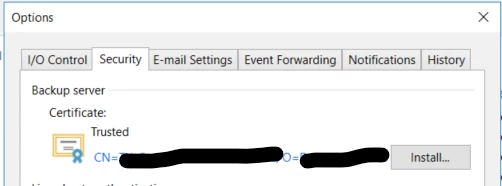
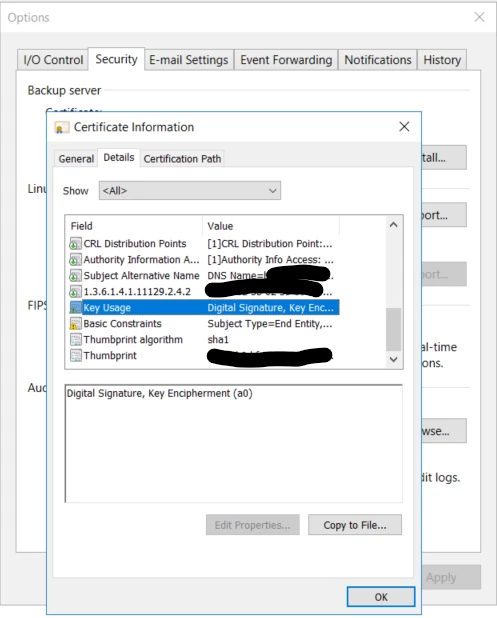
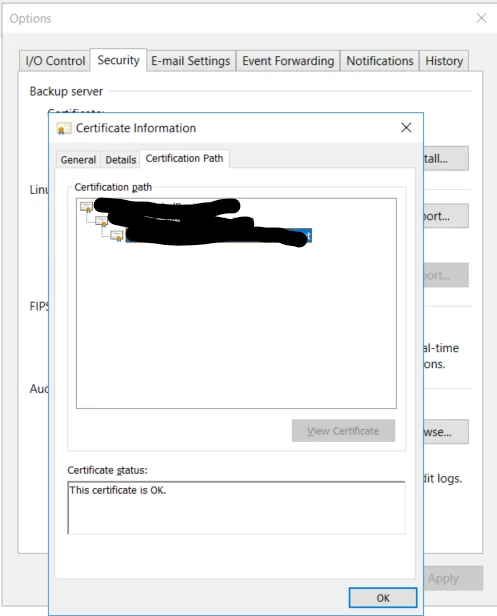
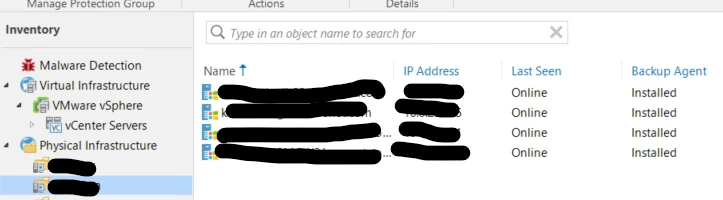
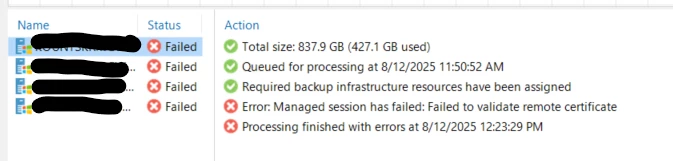
we have been used company certificate into VBR console in main menu …
but now we have issue with agents managed by VBR
8/10/2025 10:44:54 PM :: Error: Managed session has failed: Failed to validate remote certificate
any hints, how to fix that I will appreciate
thank you
Best answer by waqasali
Hi @Marcel.K
last week, I fixed this issue. Let me share some more details here that might be helpful for you.
Steps to Update or Renew the Certificate:
Generate or Obtain a New Certificate
You may generate a new self-signed certificate using Veeam, select an existing certificate from the Windows certificate store, or import a certificate from a file (PFX format). If you use a certificate from your internal CA, please ensure it meets Veeam’s requirements.
After updating the certificate, restart the Veeam Backup Service and related Veeam services to apply the changes. This can be done via PowerShell (run as Administrator):
Please note: Restarting these services will cause a brief interruption in backup/restore operations. We recommend performing this step during a maintenance window if possible.
Reconfigure Connected Components (if required)
If multi-factor authentication is enabled, restart any Veeam Backup & Replication consoles connected to the backup server.
For AHV, RHV, or VMware CDP proxies, run their respective "Edit Proxy" wizards and click Finish.
If you remove the old certificate from the Windows certificate store, reconfigure Veeam Agents in the "Computers with pre-installed agents" protection group. Other protection groups will auto-reconfigure on the next rescan.
After completing the above steps, verify that the new certificate is in use and that all backup/restore operations are functioning as expected. If any components fail to connect due to certificate trust issues, ensure the new certificate is trusted by all relevant systems.
Downtime Considerations:
Restarting Veeam services will result in a brief interruption of backup and restore operations. Please plan accordingly to minimize impact.
Further Assistance: If you encounter any issues during this process or if any components fail to reconnect after the certificate update, please note that open case with VBR team and send them VBR logs for investigation.
Where in the VBR console are you able to put a screenshot? Did you try editing the managed agents to go through the wizard to accept changes to the SSL? More information is needed here as I don't recall using a custom SSL in VBR, definitely in VEM yes.
Again try to edit the Agents and go through the wizard to see if there is a popup about trusting the SSL. I assume these are managed agents? Otherwise you might need to revert the SSL to get it working then open a ticket with Support for further help as to why this fails.
Thanks for raising this, @Marcel.K . We faced a similar issue after updating our internal certs. Reinstalling the agent and re-establishing trust with the VBR server helped. Worth checking if the cert chain is fully trusted on the agent side.
last week, I fixed this issue. Let me share some more details here that might be helpful for you.
Steps to Update or Renew the Certificate:
Generate or Obtain a New Certificate
You may generate a new self-signed certificate using Veeam, select an existing certificate from the Windows certificate store, or import a certificate from a file (PFX format). If you use a certificate from your internal CA, please ensure it meets Veeam’s requirements.
After updating the certificate, restart the Veeam Backup Service and related Veeam services to apply the changes. This can be done via PowerShell (run as Administrator):
Please note: Restarting these services will cause a brief interruption in backup/restore operations. We recommend performing this step during a maintenance window if possible.
Reconfigure Connected Components (if required)
If multi-factor authentication is enabled, restart any Veeam Backup & Replication consoles connected to the backup server.
For AHV, RHV, or VMware CDP proxies, run their respective "Edit Proxy" wizards and click Finish.
If you remove the old certificate from the Windows certificate store, reconfigure Veeam Agents in the "Computers with pre-installed agents" protection group. Other protection groups will auto-reconfigure on the next rescan.
After completing the above steps, verify that the new certificate is in use and that all backup/restore operations are functioning as expected. If any components fail to connect due to certificate trust issues, ensure the new certificate is trusted by all relevant systems.
Downtime Considerations:
Restarting Veeam services will result in a brief interruption of backup and restore operations. Please plan accordingly to minimize impact.
Further Assistance: If you encounter any issues during this process or if any components fail to reconnect after the certificate update, please note that open case with VBR team and send them VBR logs for investigation.
You may generate a new self-signed certificate using Veeam, select an existing certificate from the Windows certificate store, or import a certificate from a file (PFX format). If you use a certificate from your internal CA, please ensure it meets Veeam’s requirements.