

I’m getting the below error after upgrading Veeam servers from v12 to the latest release of v13. It’s a windows based install of Veeam, and it is connected to a (dedicated to Veeam only) AD domain.
My user has local administrator permissions, Veeam Backup Administrator permissions, and MFA disabled for testing/troubleshooting purposes. The is happening across each of the Veeam v13 servers I have on the domain.
It is only happening for mine and one other engineer’s user accounts, but other engineer’s accounts are not affected. We are all in the same AD groups so permissions are the same.
I have tried removing Veeam Backup Administrator permissions from my account, rebooting, and re-adding, to no effect.
Has anyone seen this before? Any suggestions for what else to check? In the meantime I have a case open with Veeam support, and hoping they can come up with something.
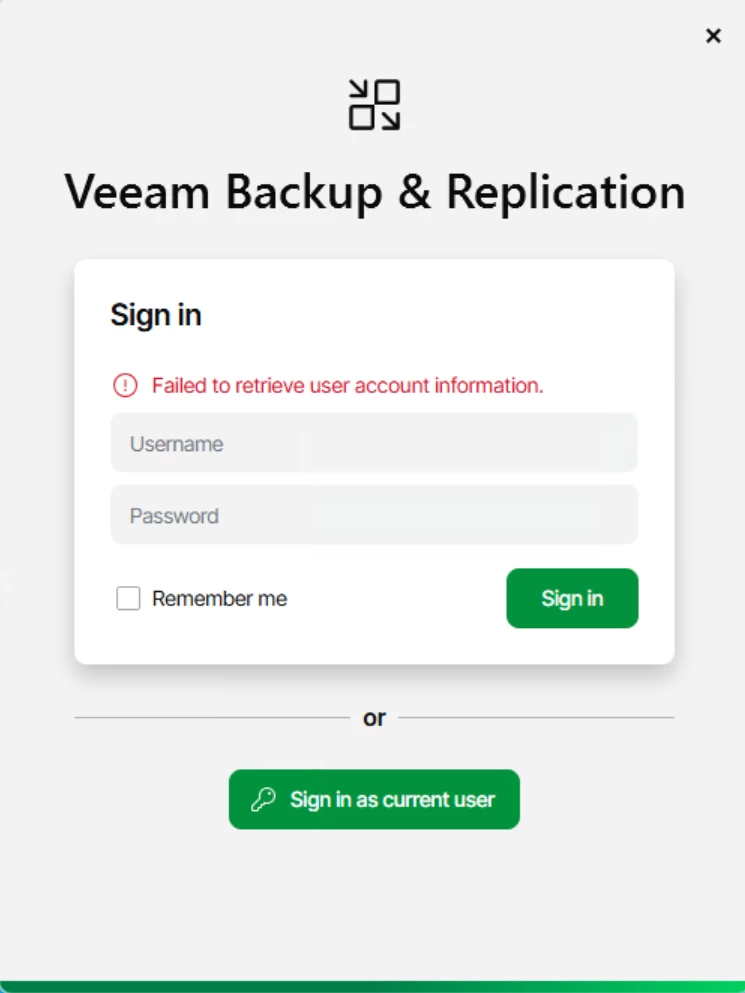
Relevant logs:
[19.01.2026 21:07:36.194] <126> Error (1) Veeam.Backup.IdentityService.Shared.CSystemAccountProvider [TraceId: '400000e0-0024-fb00-b63f-84710c7967bb'] Unable to get user S-1-5-21-████-████-████ (SID redacted)
identity from account
[19.01.2026 21:07:36.194] <126> Error (1) Veeam.Backup.Identity.Server.GssEndpoint [TraceId: '400000e0-0024-fb00-b63f-84710c7967bb'] Could not get identity after success authentication for
'DOMAIN\Username'