

I believe database restoration is one of the worst types of restores to perform.
Not because it is a difficult or complicated restore to carry on.
But normally, there's a lot other things tagle with the business when this type of server are involved with. So, there's a lot of pressure to restore those servers. The SLA with this kind of appliation are agressive and its really common the necessitty to restore it as soon as possible.
The Problem
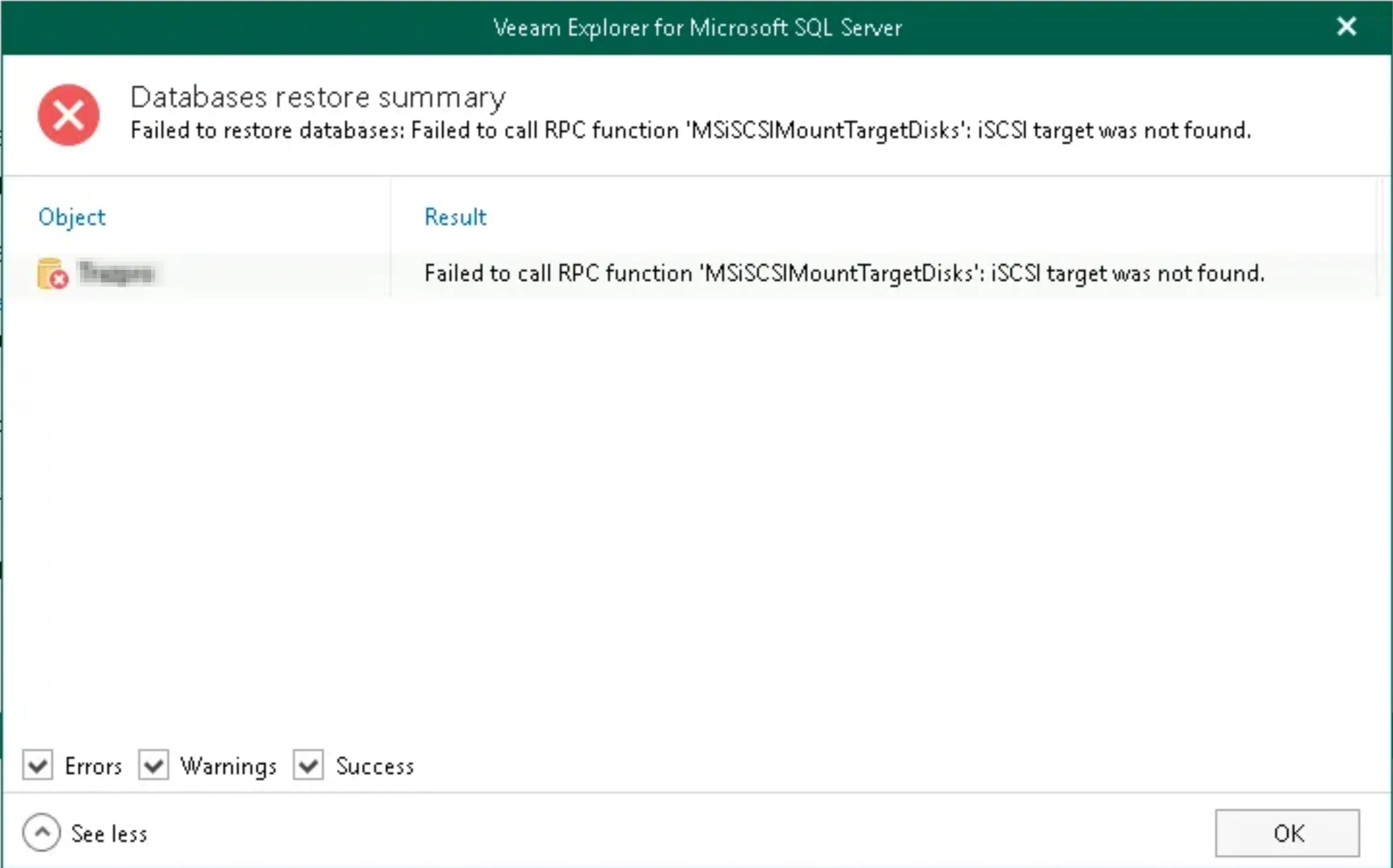
Very often, databases servers are connected to different networks/VLANs than the backup server. Database restoration involves a specific set of ports used during the process. All of these are listed in the Help Center, but if you haven't yet mapped and opened these ports between the networks, you will likely hit connectivity error similar to this one:
The Situation
Now you need to hurry to open those TCP/UDP ports with the network team to finish and complete the backup restore. In the meantime, the bussiness needs to wait until everything is cleared so that we can make another attempt.
The Tip
Thinking on the The Incident Commander Challenge, I got in mind this trick that use sometimes with DBA teams. It’s not a trick, but a tip that we can use when we are having this kind of trouble with network and connnectivity.
Instead of waiting for the firewall rules to be applied, which can take hours depending on your organization's change management process, you can temporarily bypass the application-level restore (Veeam Explorer for Microsoft SQL Server) completely.
How?
By performing a standard Guest OS File Restore and extracting the raw SQL database files directly with the MDF (Primary Data File) and LDF (Log Data File).
Because a file-level restore often relies on different, more accessible communication channels or can even be restored to a different machine/shared folder that you already have access to, you can bypass the blocked ports. You just need to navigate to the volume where the database was stored, locate the .mdf and .ldf files of the affected database, and restore them to a temporary folder.
Once you have these files, you can hand them straight over to your DBA team. Any experienced DBA can easily take those files and use the "Attach" database feature in SQL Server Management Studio (SSMS) to bring the database online in a matter of minutes.
This approach allows you to meet that aggressive SLA, relieve the pressure from the business, and get the application running again immediately, leaving the network port troubleshooting for later when the fire is already put out!