


Managing user access through Microsoft Entra ID has become a standard requirement in many environments. With Veeam ONE 13.1, it is now possible to integrate SAML-based authentication and use Entra ID or any other SAML IDP as an external Identity Provider.
This step-by-step guide shows the process on how to add Entra ID as an IDP in VeeamOne 13.1.
First, we need to create an enterprise application in Entra ID
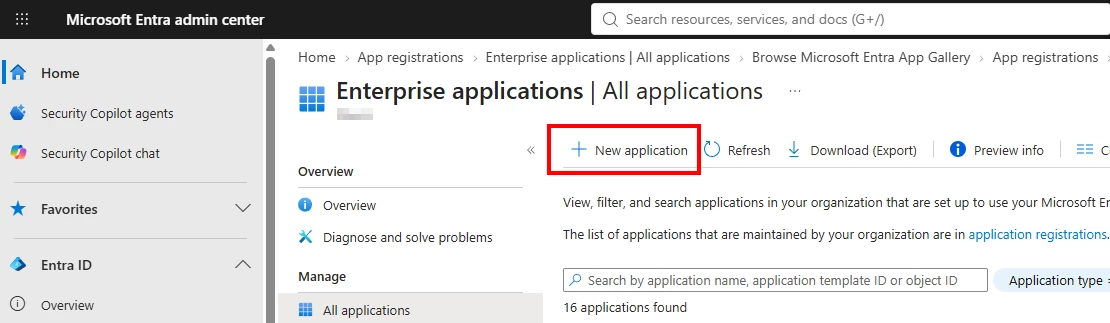
Navigate to https://entra.microsoft.com/ --> Enterprise applications and add a new application
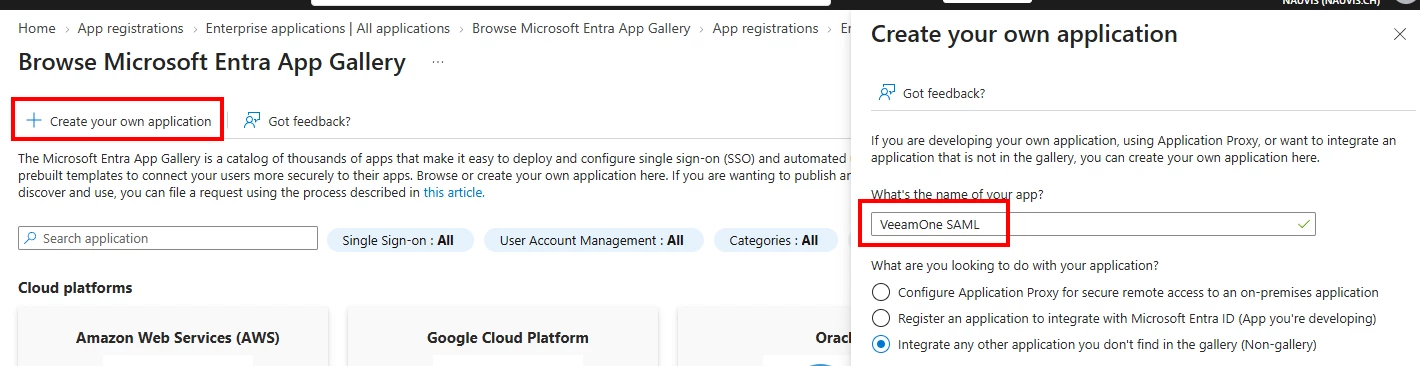
Select "create your own application" and specify a name, I chose "VeeamOne SAML"
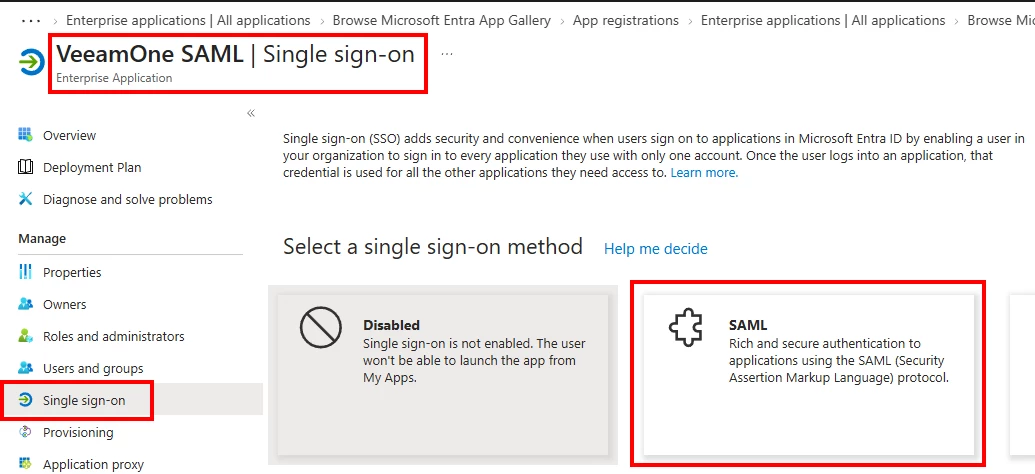
Specify SAML as the single-sign on method
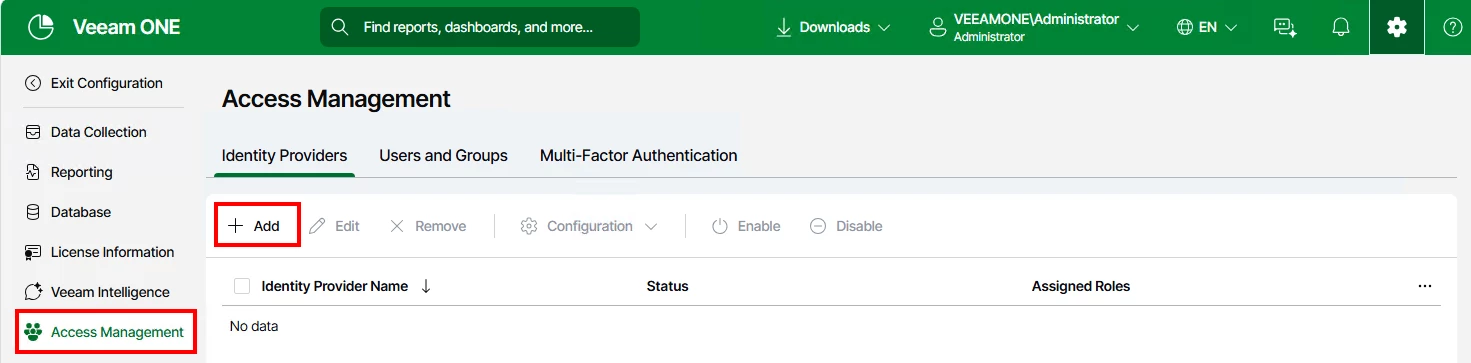
Now switch to VeeamOne and go to configuration --> access management and add an identity provider
In the Identity Provider Settings:
Display name: specify some name for your IDP
IDP URL: copy the "App Federation Metadata Url"
Entity ID: copy the "Microsoft Entra Identifier"
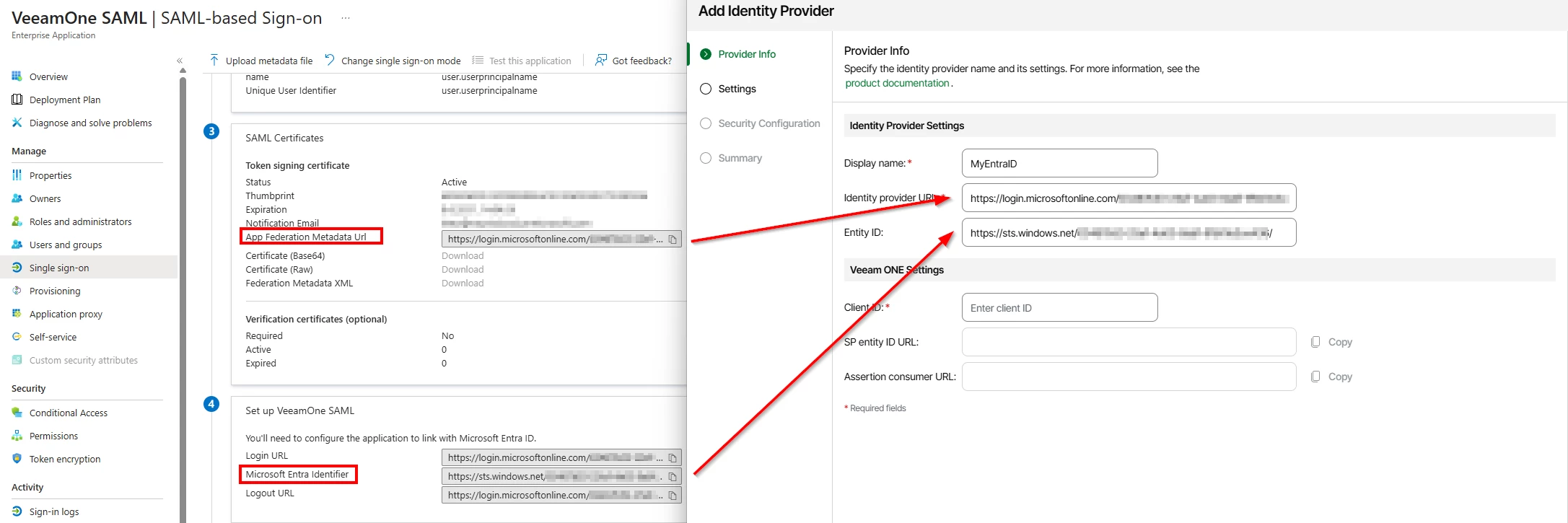
In the Veeam ONE Settings, you need to specify a Client ID, for example "VeeamOne"
The SP entity ID URL and the assertion consumer URL get generated automatically.
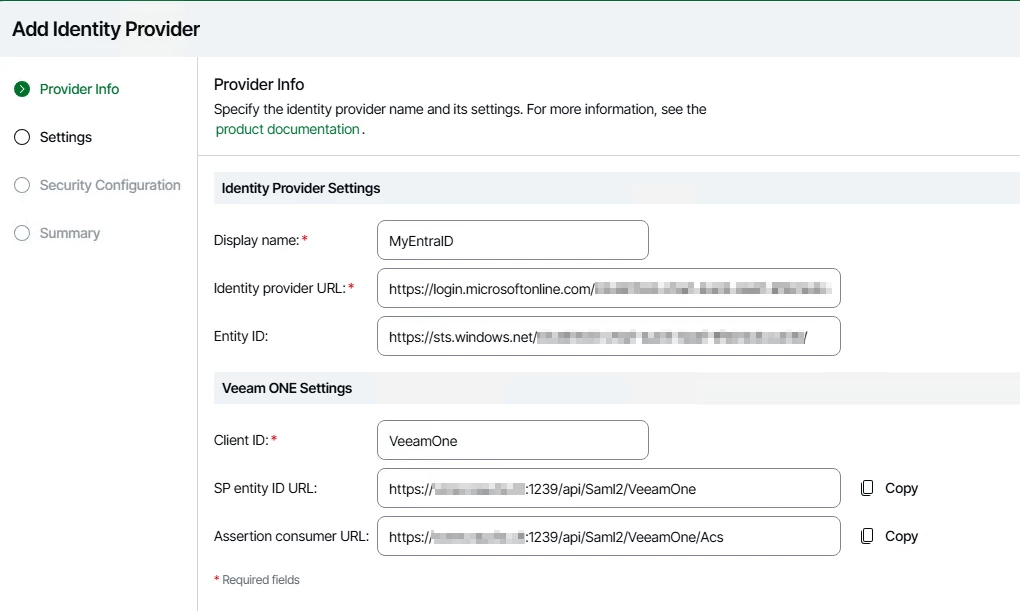
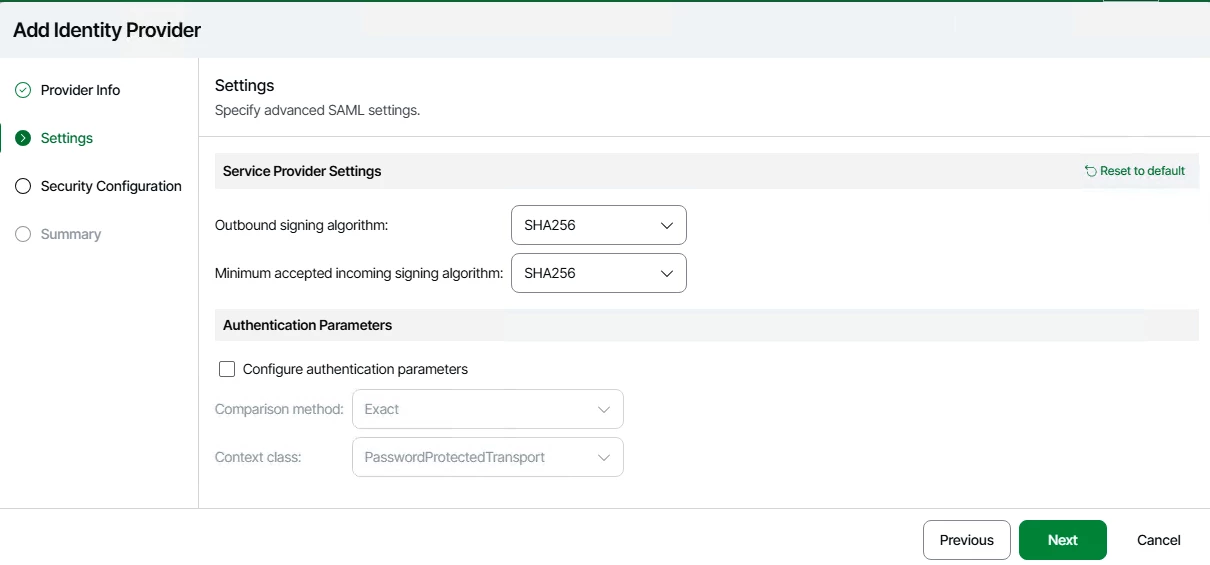
Click Next and leave the settings on default
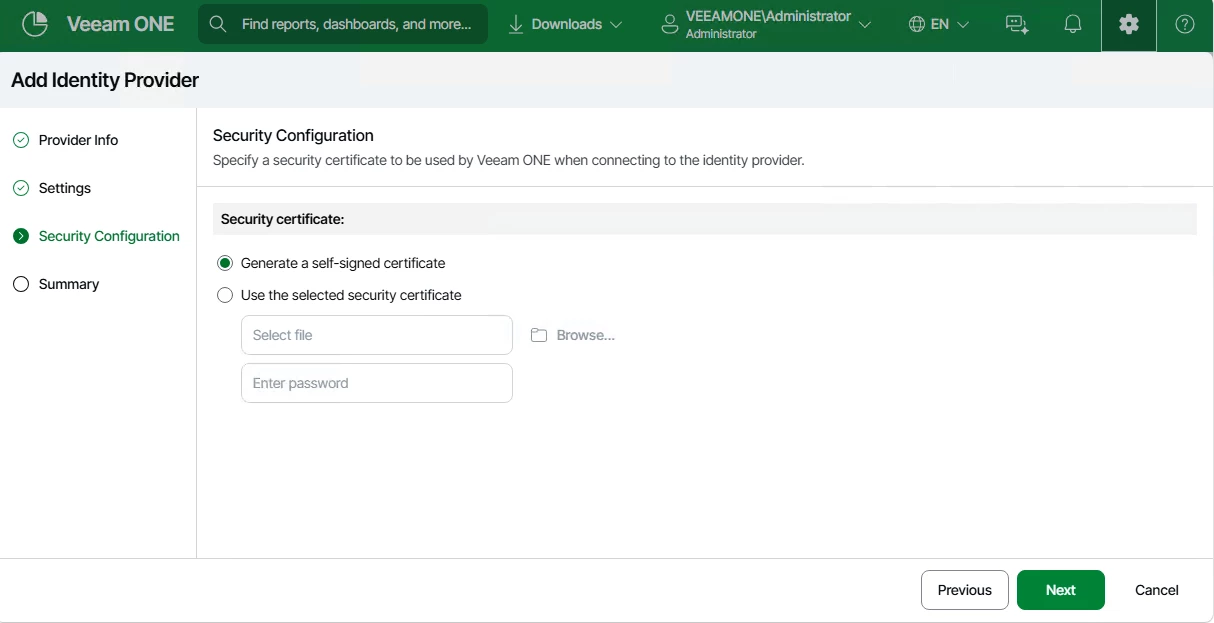
Select "generate a self-signed certificate" and click Next and finish the configuration.
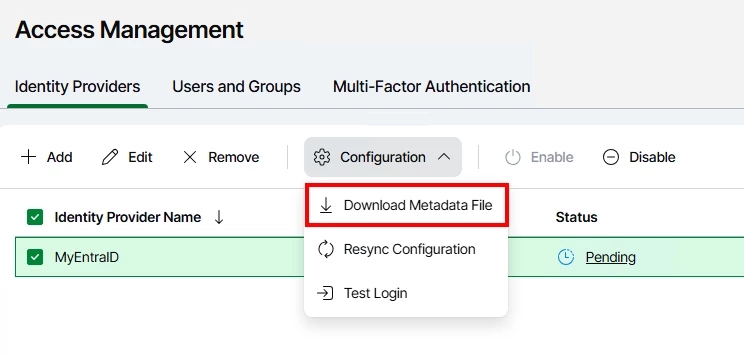
The "Status" is now on "Pending", click the IDP and download the metadata xml.
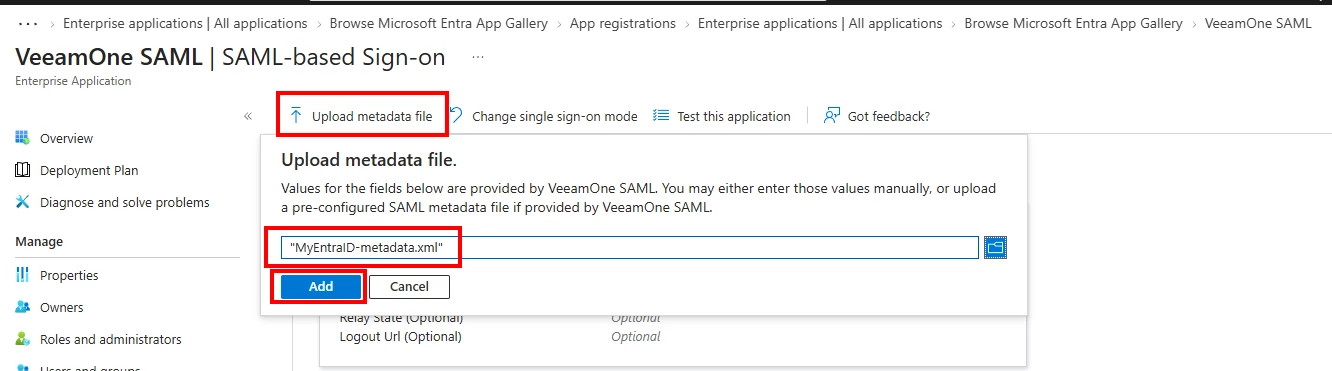
And upload this to your Entra application.
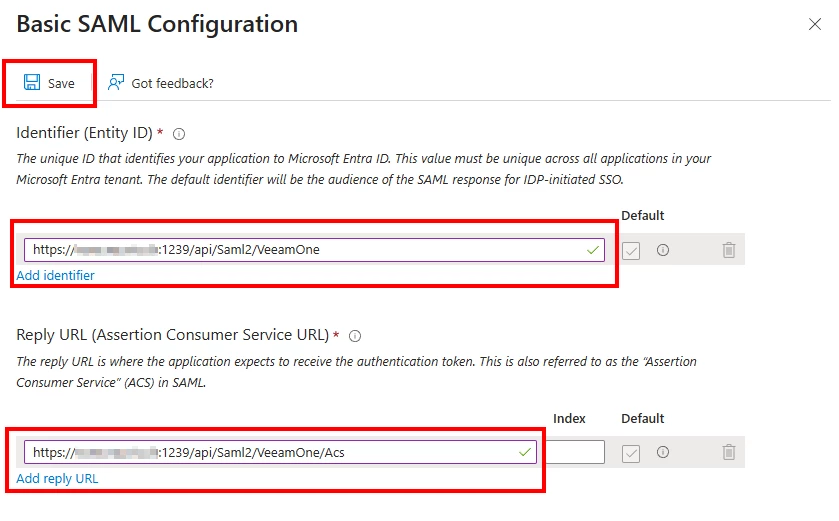
Check the URLs and click on save
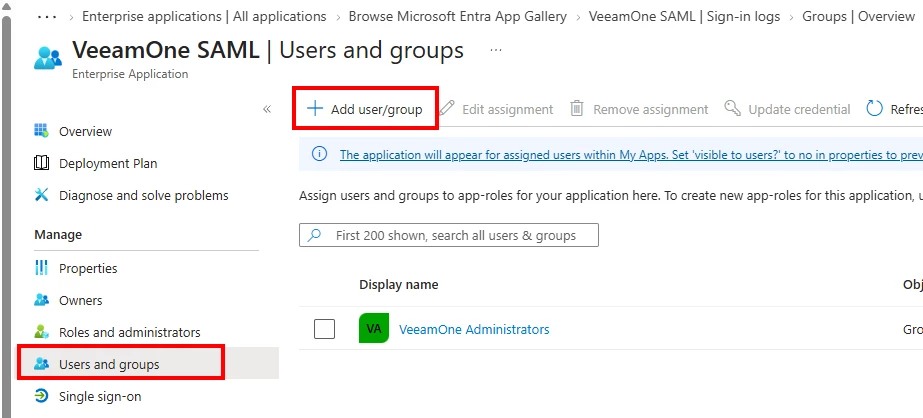
The last step is to add your allowed users to the Entra ID application.
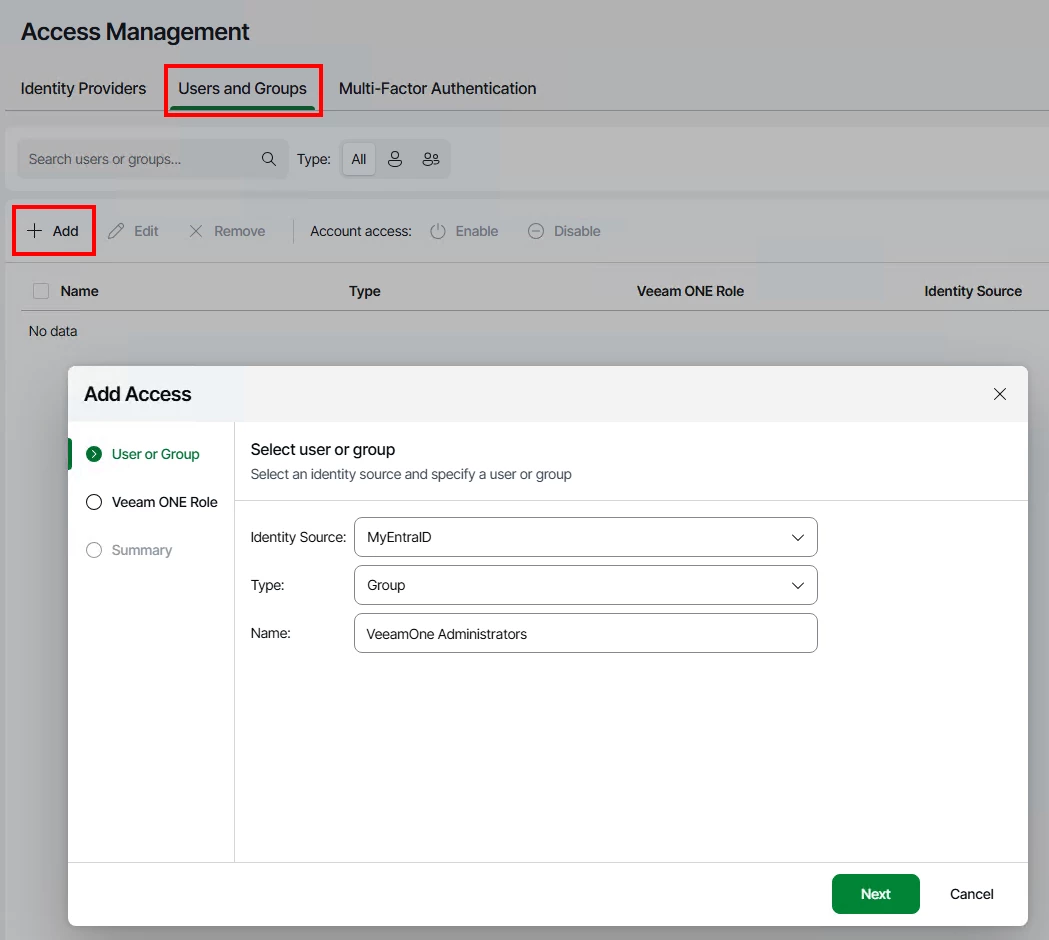
I have created an Entra ID Group called "VeeamOne Administrators"
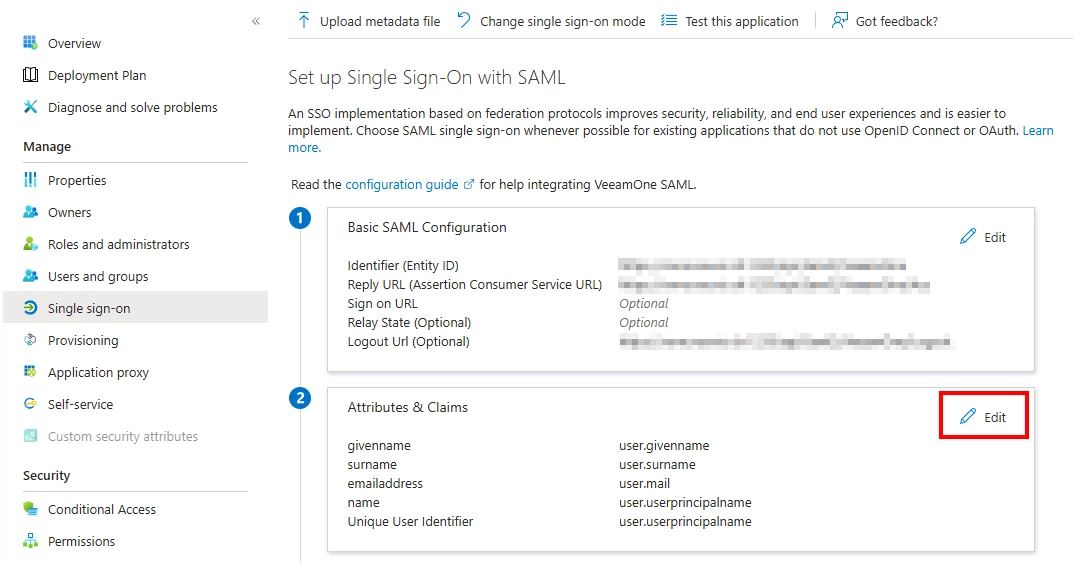
If you want groups to work, you need to send the group claim in the single sign-on settings.
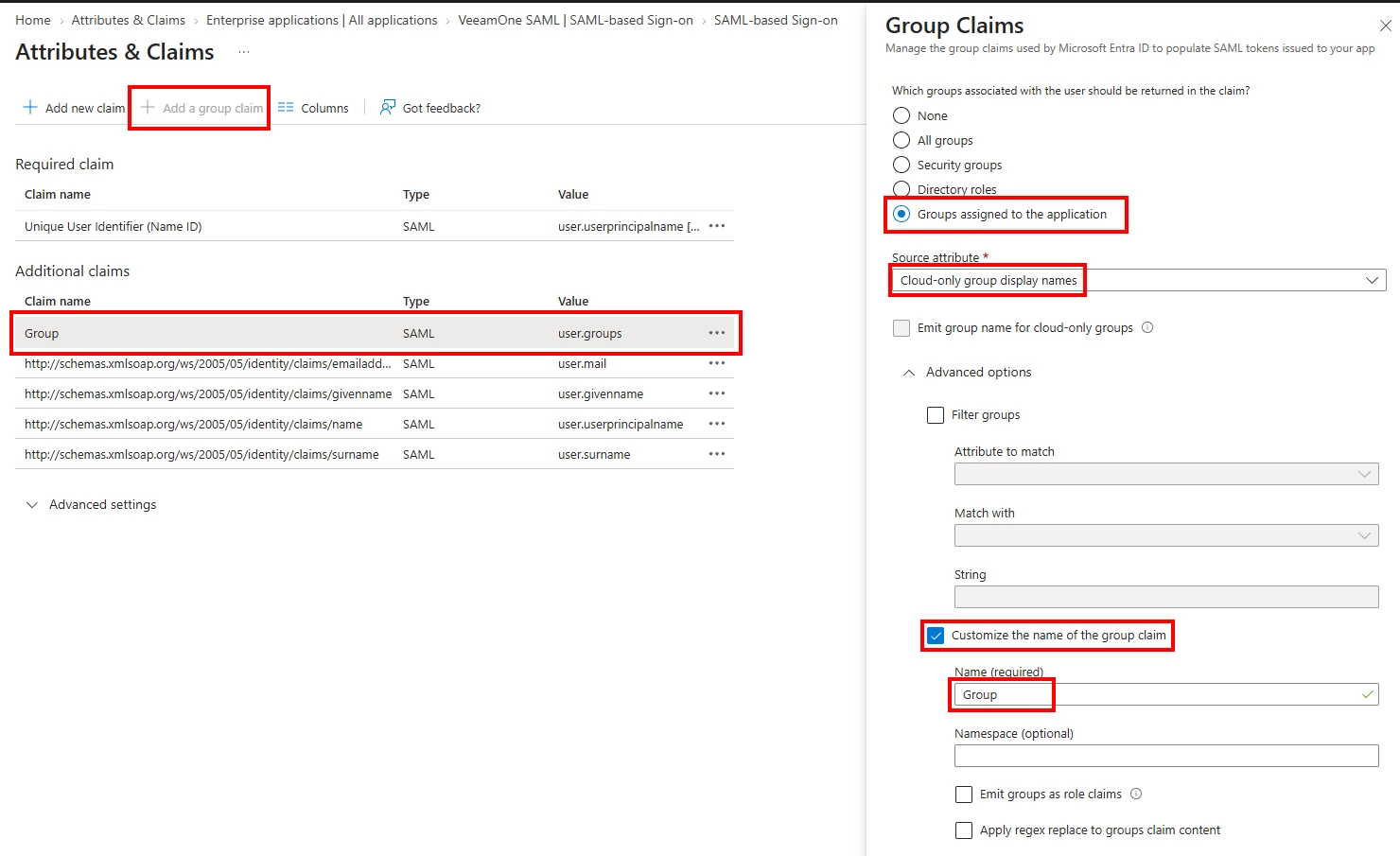
VeeamOne expects the group claim name to be "Group" (it is case sensitive)
This needs to be adjusted in the advanced options.
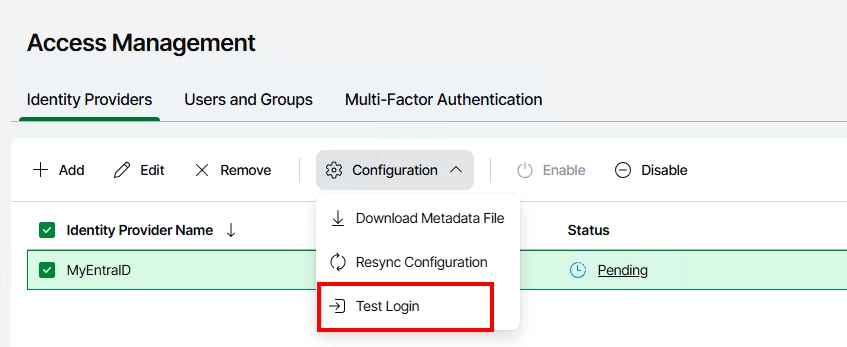
Now click on "Test Login" in VeeamOne
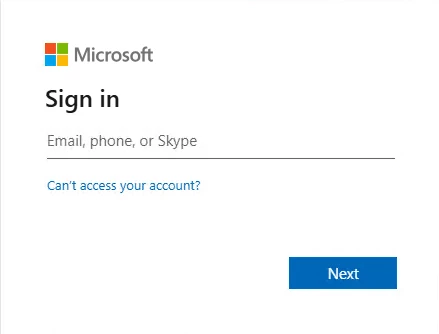
You will get redirected to Entra ID sign in page.
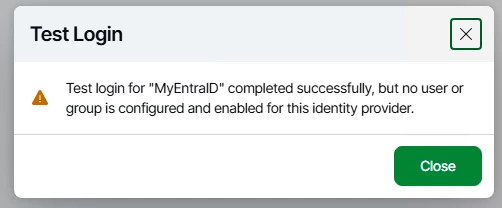
After successful login, there will be a warning. You need to assign a user and role in VeeamOne to your Entra ID users / groups.
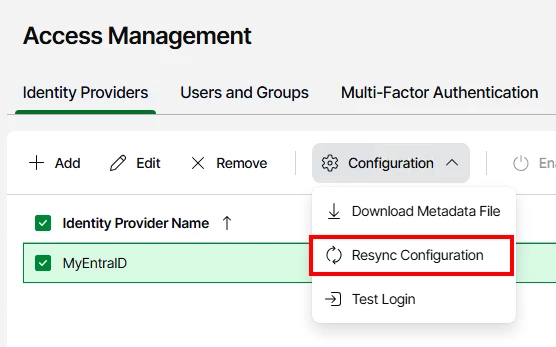
Note, if there is an error appearing, try to "resync configuration"
Click on "Users and Groups" and add the users / groups you want to have access to VeeamOne
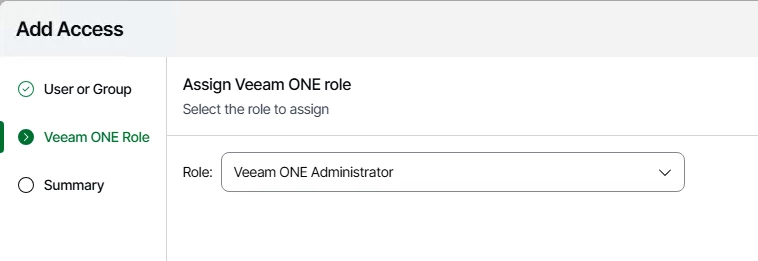
And specify the role, in my Case "Veeam ONE Administrator"
After that, on the login page of your VeeamOne, you will have the option to "Log in with SSO"
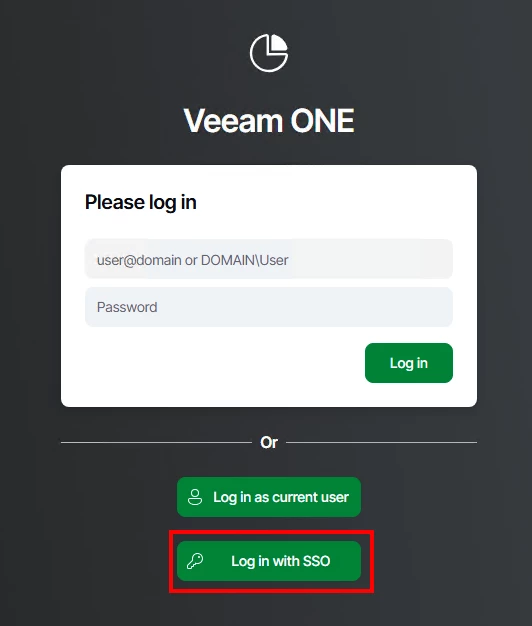
And you are logged in with your Entra ID account.

Have fun configuring this new feature!
For troubleshooting, you can find some authentication logs in the following two log files.
"C:\ProgramData\Veeam\Veeam ONE\Logs\Reporter\Veeam.Reporter.log"
"C:\ProgramData\Veeam\Veeam ONE\Logs\Reporter\Veeam.Reporter.WebService.log"