
Ever wanted to chage your managed server from an IP Adress or DNS (shortname) to FQDN. Then you will find this article very useful.
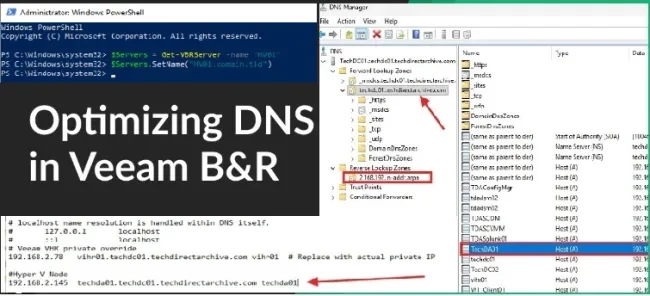
Since the move to version Veeam Backup & Replication (VBR) v13, we have seen that FQDN works more reliably in VBR/VSA due to strict reverse DNS requirements for certificate authentication, SSH, and agent deployment on Linux. IPs skip PTR lookups and often fail validation as demonstrated in this guide “Building VIHR: Ransomware-Proof Repository with Veeam JeOS“. In this article, we shall discuss how to “Switch from IP to DNS names for Backup Infrastructure in VBR cleanly”
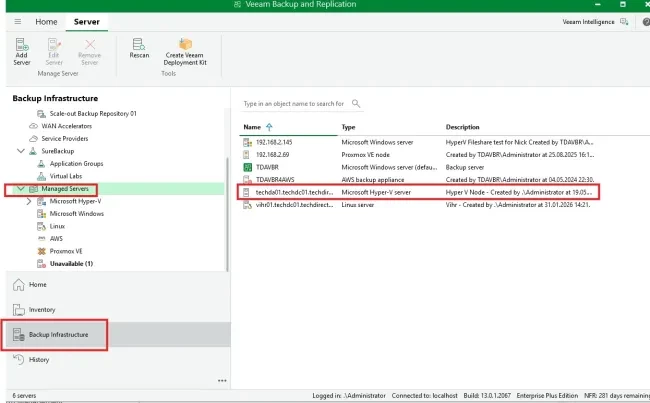
Managed Server Object Rename
Prior to running the commands below you need to identify the IP\DNS (shortname) utilized by your Managed Server currently. Since I am currently using the hostname as Techda01 for example, and this could even be an IP address in your vase, this would need to be changed very shortly to a Fully Qualified Domain Name (FQDN).
Note: Until now, this change cannot be done via the console but via PowerShel only.
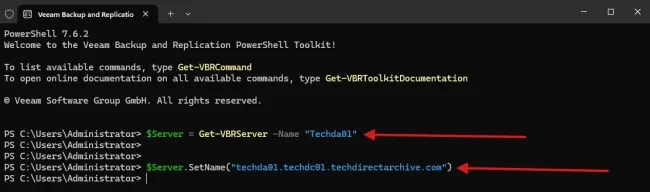
# Step 1: Assign the target infrastructure component object to a variable
$Server = Get-VBRServer -Name “Techda01”
$Server = Get-VBRServer -Name “192.168.2.147” (in case you have an IP address in the name field)

# Step 2: Push the new FQDN update directly into the VBR configuration database
$Server.SetName(“techda01.techdc01.techdirectarchive.com”)