The Veeam Software Appliance v13 brings a new level of simplicity, security, and efficiency to modern data-protection workflows. Built on a hardened Linux foundation and designed for fast, consistent deployments, the VSA is an excellent option for organizations seeking a streamlined, appliance-based approach to Veeam Backup & Replication.
In this guide, I provide a practical overview of how to configure the Veeam Software Appliance v13 and highlight the main features that make this version stand out.
Why VSA v13 Is a Major Step Forward
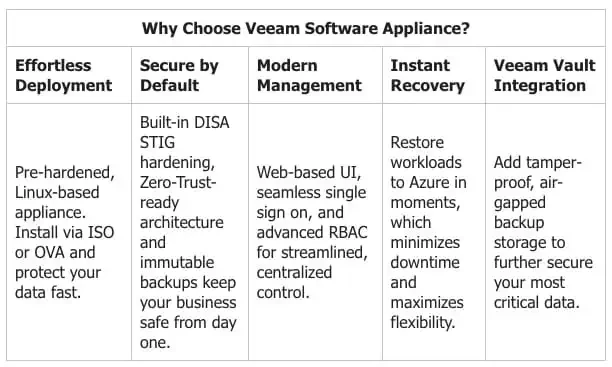
Security by Design
VSA v13 was built with a strong security focus from the very first boot. It includes:
-
A minimal Linux operating system, drastically reducing the attack surface
-
SELinux in strict mode, providing advanced policy enforcement
-
SSH disabled by default, preventing unnecessary access paths
With these measures, the appliance starts in a hardened state aligned with modern backup-security best practices.
Straightforward Deployment & Intuitive Management
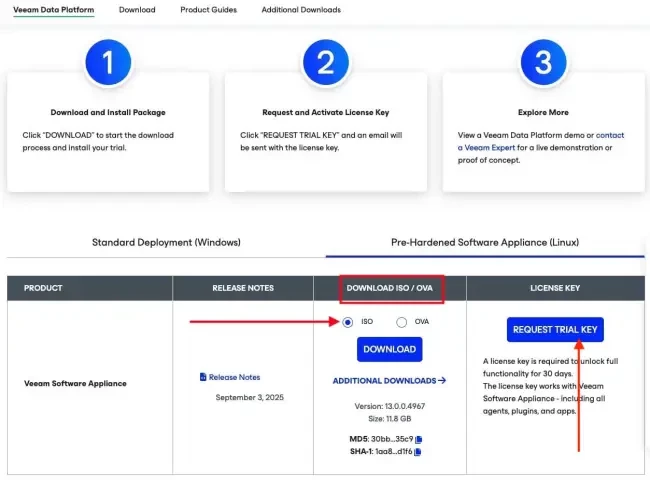
Deployment can be performed either through the ISO (for bare-metal installations) or the OVA package for virtual environments.
After installation, configuration is handled through a lightweight and responsive web interface, enabling you to:
-
Manage host-level services
-
View system metrics
-
Adjust essential settings with ease
This greatly reduces manual effort and contributes to more consistent day-to-day operations.
Performance Ready for Modern Workloads
The VSA is designed to handle current and growing workloads, offering:
-
Improved operational performance
-
Enhanced scalability
-
Efficient support for VMs, physical servers, and cloud workloads
This makes the appliance suitable for smaller setups as well as more distributed architectures.
Built for Future Capabilities
The architecture introduced in version 13 is designed to support upcoming features and integrations in future releases.
This ensures your investment remains relevant as your environment expands or evolves.
Deployment Models Available in Veeam Backup & Replication v13
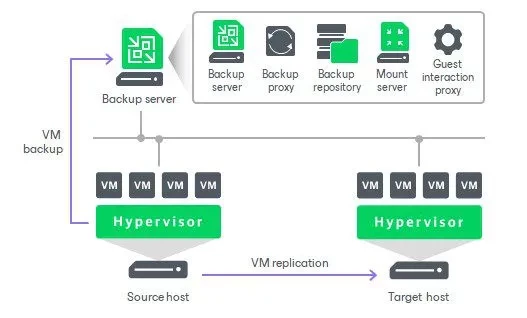
Veeam Backup & Replication v13 supports three main deployment models, depending on the size and requirements of your environment:
-
Simple Deployment: all components installed on a single machine
-
Advanced Deployment: roles such as proxy, repository, and database are separated
-
Distributed Deployment: designed for large, multisite, or high-availability environments
For this guide, I am using the Simple Deployment model, ideal for labs, PoCs, and small to medium environments.
Here, the Backup Server, Repository, and Proxy run on the same host, reducing complexity and simplifying initial management.
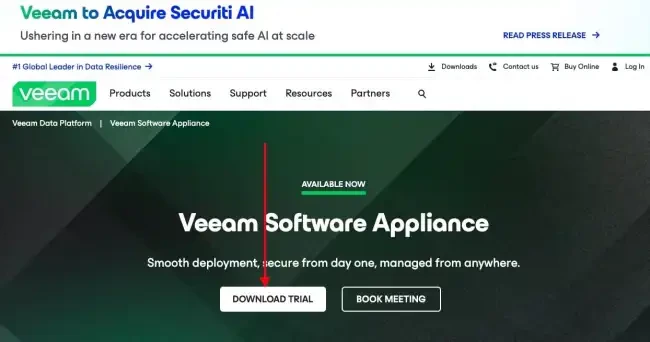
Downloading the Veeam Software Appliance
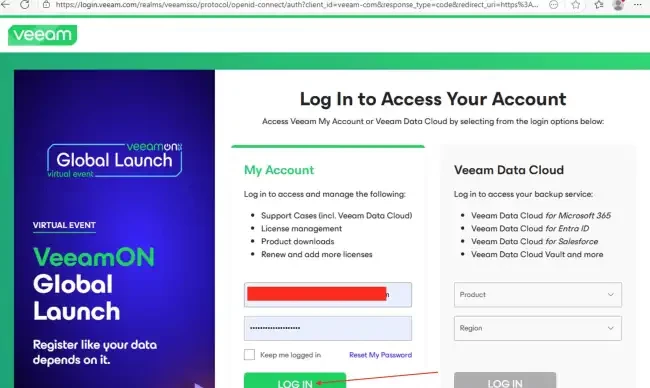
The appliance can be downloaded directly from the Veeam website.
Before starting the installation, make sure to review:
-
The Release Notes
-
Minimum requirements
-
Known issues
Then simply select Download Trial to obtain the installation package.
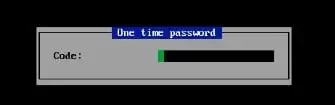
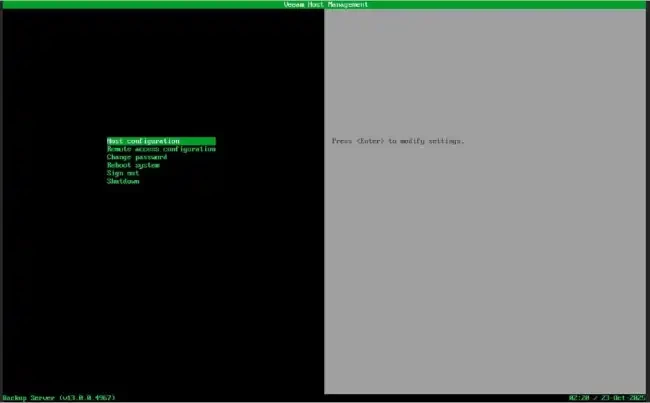
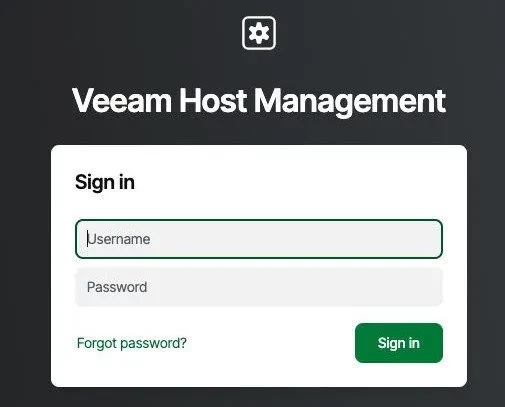
Accessing Veeam Host Management
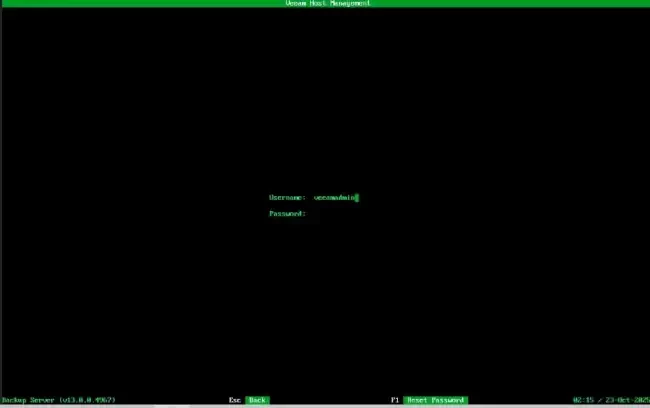
Host Management uses a Cockpit-based interface to provide a secure environment for system-level administrative operations.
Log in using the credentials created during the installation process.
If you encounter issues such as “Authentication failed: Invalid credential”, apply the recommended fix to regain access.
You can access Host Management through:
-
The local console
-
The Web UI
-
Port 10443 using the veeamadmin account
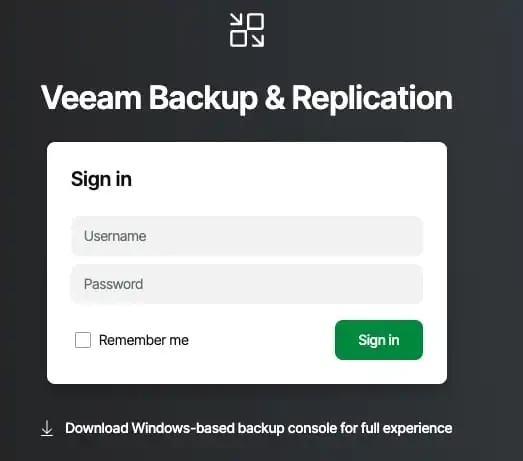
Logging into Veeam Backup & Replication Web UI
The VBR web interface has been redesigned in v13, introducing:
-
Improved login options
-
Integrated SSO
-
Role-based access control (RBAC)
After accepting the self-signed certificate, you gain direct access to the console.