



Yes, this task was no longer straightforward, as the usual workflow for deleting or removing backup jobs tied to the repository, and for deleting the repositoy itself when it is no longer needed before removing the managed server. For some of the steps not discussed n this guide, please see, “Unable to Remove Orphaned VHR Repository v2 from VBR v13”.
What happens when you no longer have the VHR v2 Server due to the reinstallation of VIHR?
Note: The root issue here is that the transport service continues to run under the context of the veeamsvc. This means that the account must remain present on the Linux server. Please, see how to deploy and integrate VHR with VBR. Veeam only requires the credentials during the initial deployment of the transport service.
This is why single-use credentials are used. But as we see, due to updates and upgrades. We have to regenerate the single-use credential as discussed here “Veeam Host Components: Unable to reinstall Deploy Service SSH“. This method was used effectively to upgrade the component. But now, I have reinstalled the Repo and we have to find a way around this issue.
When we try to remove it, we are prompted with the error below. Removing Veeam components requires credentials with root privileges. Specify credentials now.
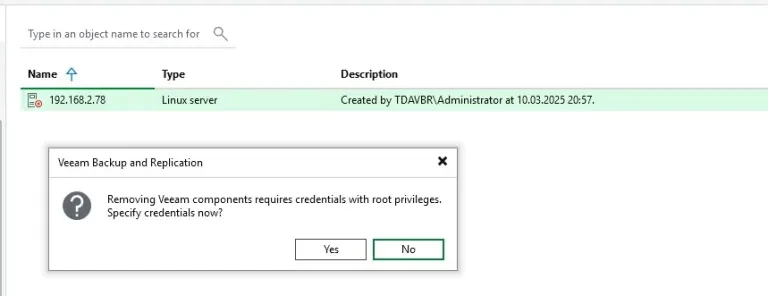
Also, because this (VM infrastructure) environment has been removed. You cannot also connect to it with any other root credential, as the transport service continues to run under the context of the veeamsvc (single-use credential). Here is a similar error discussed; perhaps these solutions might better suit you.
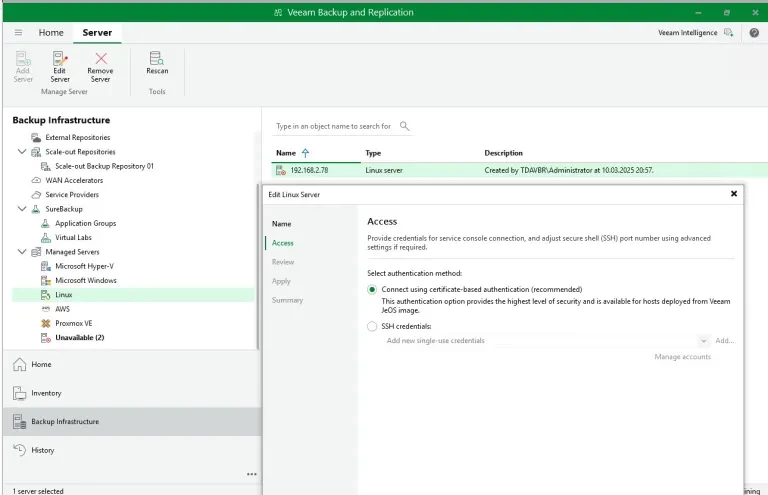
It will fail. Note that yu cannot use any other acocunt order than the veeamsvc for the single use credential.
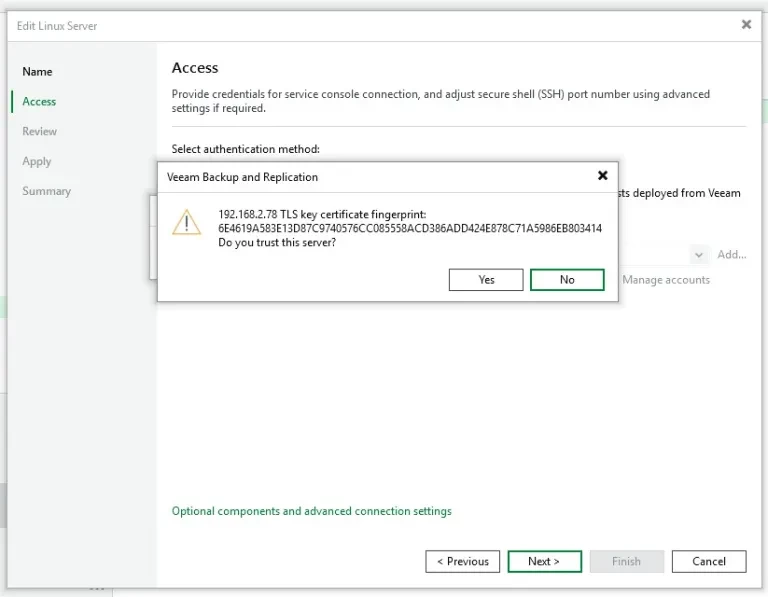
Remove the deleted VHR v2 from VBR
To remove the deleted VHR server from Veeam Backup & Replication (VBR) v13 managed servers after the job and repo are gone. Please, use PowerShell as shown below since the Web UI cannot be used in this case.
Kindly run the command on the VBR server. This unassigns the repo role only. The VHR server stays in managed servers if added separately; data on the Linux host remains untouched. But, this is not what I want as the server stays and repo vanishes which I have done before.
Get-VBRBackupRepository -Name "192.168.2.78" | Remove-VBRBackupRepository -Confirm:$false
To completely remove the VHR repo (“192.168.2.78”) from VBR v13. Unassigning it, and clearing all references, and handling the deleted host. Run the below PowerShell command.
Get-VBRServer -Name "VHR IP address or FQDN" | Remove-VBRServer -Confirm:$false

Ignore the final unreachable host warning that the server throws from the managed servers

Get-VBRBackupRepository | Where-Object {$_.Name -like "*192.168.2.78*"}Get-VBRServer | Where-Object {$_.Name -like "*192.168.2.78*"}

You can also use the commands below to confirm that the repo and server were correctly removed.
Get-VBRBackupRepository -Name "192.168.2.78"Get-VBRServer | ? Name -like "*192.168.2.78*"

Add a Managed Server to VBR v13
To add a new server, navigate to the Backup Infrastructure and select Managed Server. You can right-click on the working area or the ribbon to select “Add Server”.

Click on Linux. For the rest of these steps, please, visit my blog for more information as these are out of the scope for this error.
